


Most guides on web hosting tell you it is "like renting space on the internet." That is technically true and practically useless. Hosting is not just file storage. It is CPU time, RAM allocation, disk I/O, network throughput, DNS resolution, HTTP request handling, and database query execution all working together. When your site is slow, one of those layers is the bottleneck. When your site goes down, one of those layers has failed. Understanding what hosting actually is, at the infrastructure level, is what separates site owners who can diagnose and fix problems from those who just submit support tickets and hope.
What this guide covers: what hosting really is (beyond file storage), the full website request journey step by step, server resources explained, hosting types compared with a section for each type (shared, VPS, cloud, dedicated, WordPress and managed), resource allocation limits that nobody advertises, the performance stack overview, beginner myths that cost money, and a hosting selection framework by site type.
What Web Hosting Actually Is (Not "File Storage")
Telling someone that web hosting is "where your website files are stored" is like telling someone that a restaurant is "where food is kept." It is accurate, and it misses everything that matters. Your website files sitting on a server do nothing on their own. Hosting is the operational infrastructure that takes those files and turns them into pages a browser can receive and render, and it does this millions of times a day, under load, while staying secure.
When someone visits your website, here is what actually happens at the infrastructure level. Your hosting server is a physical or virtual computer sitting inside a data center, a purpose-built facility with redundant power, climate control, and direct fiber connections to the internet backbone. That server runs an operating system, web server software, a PHP interpreter, and a database engine. It is connected to the internet with a dedicated port (typically 1 Gbps on shared hosting, up to 10 Gbps on dedicated servers). It is managed by the hosting provider's team, who keep it running, patched, and connected 24/7.
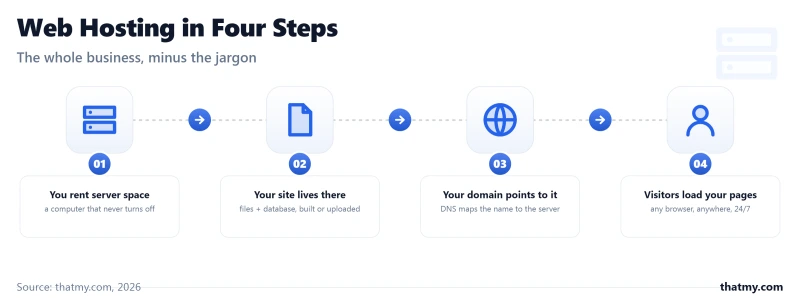
The hosting provider sells you access to some portion of that infrastructure. What you get, and how much of it is really yours, depends on the hosting type. On shared hosting, you get a fraction of a single server's resources shared with hundreds of other sites. On a dedicated server, you get the entire machine. Everything in between is a point on that spectrum.
The Seven Infrastructure Layers Every Host Provides
When you pay for hosting, you are paying for all of these simultaneously:
- Compute (CPU): the processor cycles that execute PHP, run database queries, compress files, and generate HTML responses. PHP execution is CPU-bound. A slow CPU means slow pages.
- Memory (RAM): the working memory available to PHP processes, the database engine, and the operating system. Low RAM means PHP processes get killed mid-execution, causing 500 errors.
- Storage: the disk that holds your WordPress files, database, and uploaded media. Storage speed (HDD vs SSD vs NVMe) affects how fast files are read during each request.
- Disk I/O: how fast data can be read from and written to the disk. High-traffic sites can saturate disk I/O even when CPU and RAM are fine, causing random slowdowns and database lock timeouts.
- Network: the connection between the server and the internet. Port speed determines maximum throughput. Shared hosting connects you to the internet via a shared 1 Gbps port. Data travels over this connection from server to every visitor.
- IP Address and DNS: the server's unique address on the internet, and the DNS configuration that routes your domain name to that address. DNS is the phonebook that translates "example.com" into "198.51.100.42".
- Web Server Software: the application layer that receives HTTP requests, applies rules (.htaccess, rewrites, redirects), passes PHP requests to the PHP interpreter, and sends the response back. Apache, Nginx, and LiteSpeed are the three dominant options, and they behave very differently under load.
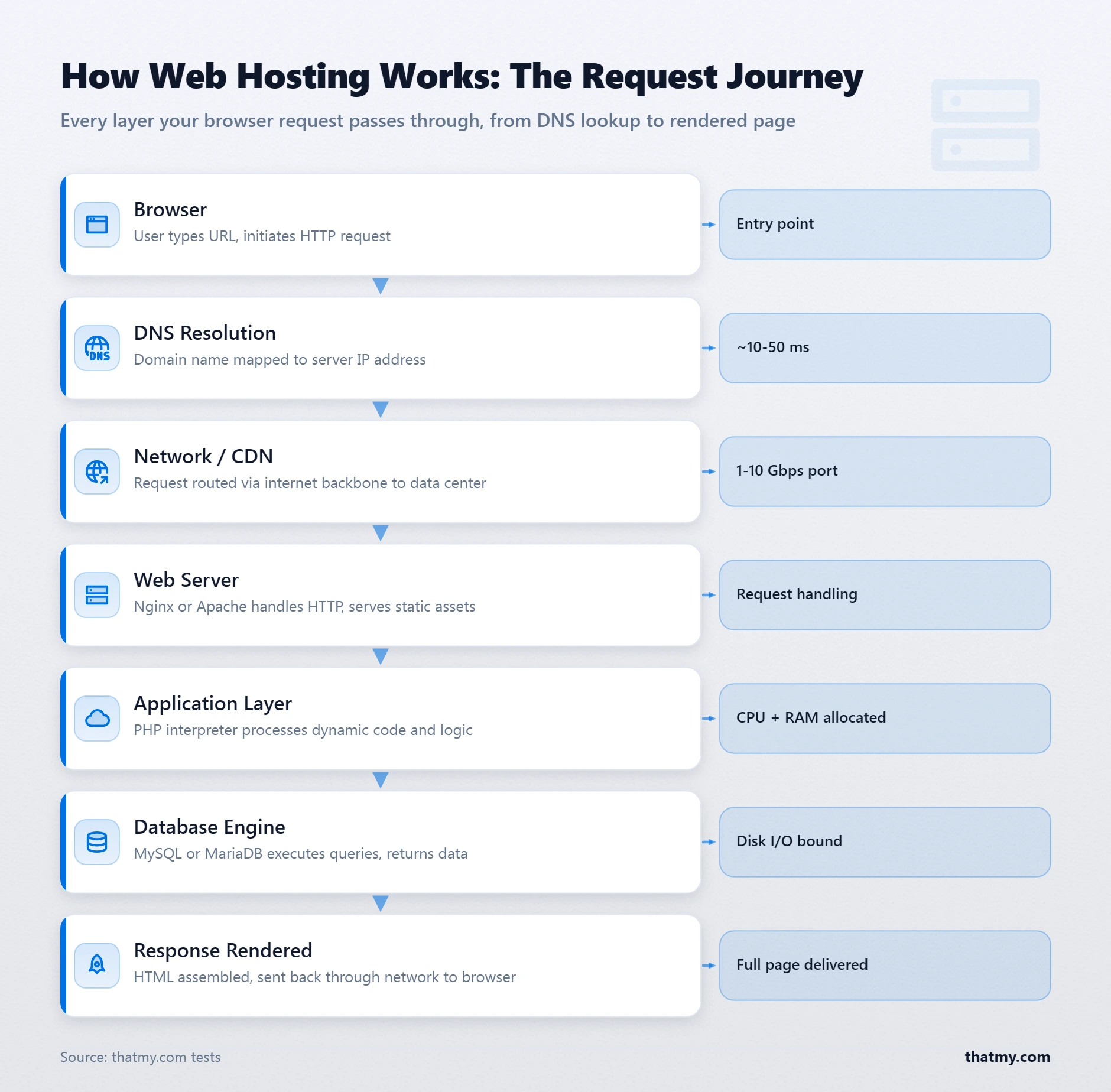
The Full Website Request Journey: What Happens the Millisecond You Press Enter
This single section explains more about web hosting than most people learn in years of running websites. The request journey is not a background detail, it is the mechanism through which hosting quality translates into visitor experience. Every hosting company's marketing claim (fast servers, low TTFB, 99.9% uptime) is a claim about a specific step in this journey. Understanding the journey lets you evaluate those claims accurately.
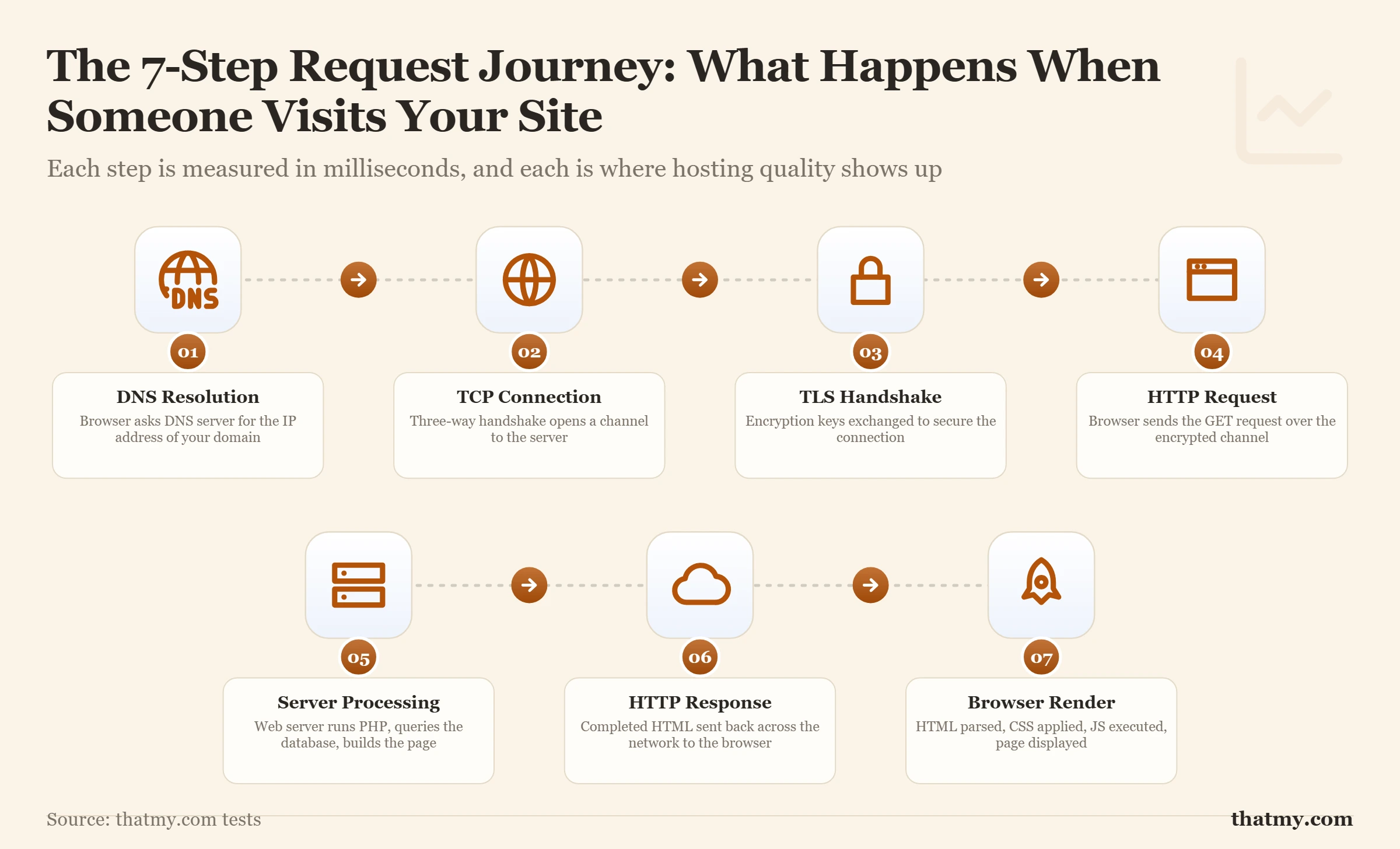
Here is every step a page request takes, from the moment a visitor types your URL and presses Enter, to the moment the page appears in their browser:
Step 1: DNS Lookup
The visitor's browser does not know the IP address of your server. It only knows your domain name. The browser first checks its local cache (if it has visited recently). If not cached, it queries a recursive DNS resolver (usually the visitor's ISP or a public resolver like Cloudflare's 1.1.1.1). That resolver walks the DNS hierarchy: root nameservers identify the TLD authority (.com), the TLD nameserver identifies your domain's nameserver, and your nameserver returns the A record with your server's IP address. The whole process takes 10-200ms depending on whether results are cached along the way. For a deeper breakdown of every DNS record type, see the DNS records guide.
Step 2: TCP Connection
With the IP address resolved, the browser opens a TCP connection to your server. This is a three-way handshake: the browser sends a SYN packet, the server responds with SYN-ACK, and the browser confirms with ACK. This takes one full round trip, which is why server geographic location matters. A visitor in Sydney connecting to a server in London adds ~250ms for this single handshake. HTTP/2 and HTTP/3 reduce the total number of round trips required, but the physics of distance are unavoidable.
Step 3: TLS Handshake
Because your site uses HTTPS, the browser and server now negotiate an encrypted connection. They agree on a cipher suite, exchange keys, and authenticate the server's SSL certificate. TLS 1.3 (the current standard) completes this in a single round trip, down from TLS 1.2's two. The hosting provider is responsible for maintaining valid SSL certificates and supporting current TLS versions, a misconfigured or expired certificate here aborts the entire connection before any page is served.
Step 4: HTTP Request Transmission
The browser sends the HTTP request (GET /page-name HTTP/2) with headers including the host domain, accepted content types, and cookie data. This is fast, a few milliseconds over an established connection.
Step 5: Server Processing
This is where hosting quality has the largest direct impact. The web server software receives the request. For a static HTML file, it reads the file from disk and responds immediately. For a WordPress page, it does something more complex: it hands the request to PHP, which boots a WordPress instance, loads wp-config.php to get database credentials, and begins executing the page template. This is the step that separates a well-configured host from a slow one. On a server with limited CPU, throttled processes, or an old PHP version, this step can take 1-2 seconds even with no traffic. Good hosting makes it take 50-200ms.
Step 6: Database Query Execution
WordPress makes database calls during PHP execution to retrieve post content, navigation menus, widget settings, plugin data, and more. A default WordPress install with a moderately complex theme and common plugins can execute 40-100 MySQL queries per page load. The database engine (MySQL or MariaDB) executes these queries against tables on disk, returns results to PHP, and PHP builds the final HTML. Uncached, this is the single biggest variable in page response time. A slow query on an unindexed table on a busy shared host can dominate total TTFB. A page cache eliminates this step entirely for most requests.
Step 7: Browser Rendering
The server sends the HTML document to the browser. The browser parses it, requests additional assets (CSS, JS, images), and renders the visual page. This step happens on the visitor's device and is outside the hosting provider's control, except insofar as the server delivers those assets quickly. CDNs reduce this step's duration by placing assets on edge servers close to the visitor, cutting the time to transfer large image and script files.
Server Resources Explained: CPU, RAM, I/O, and Why They Are Not Equal
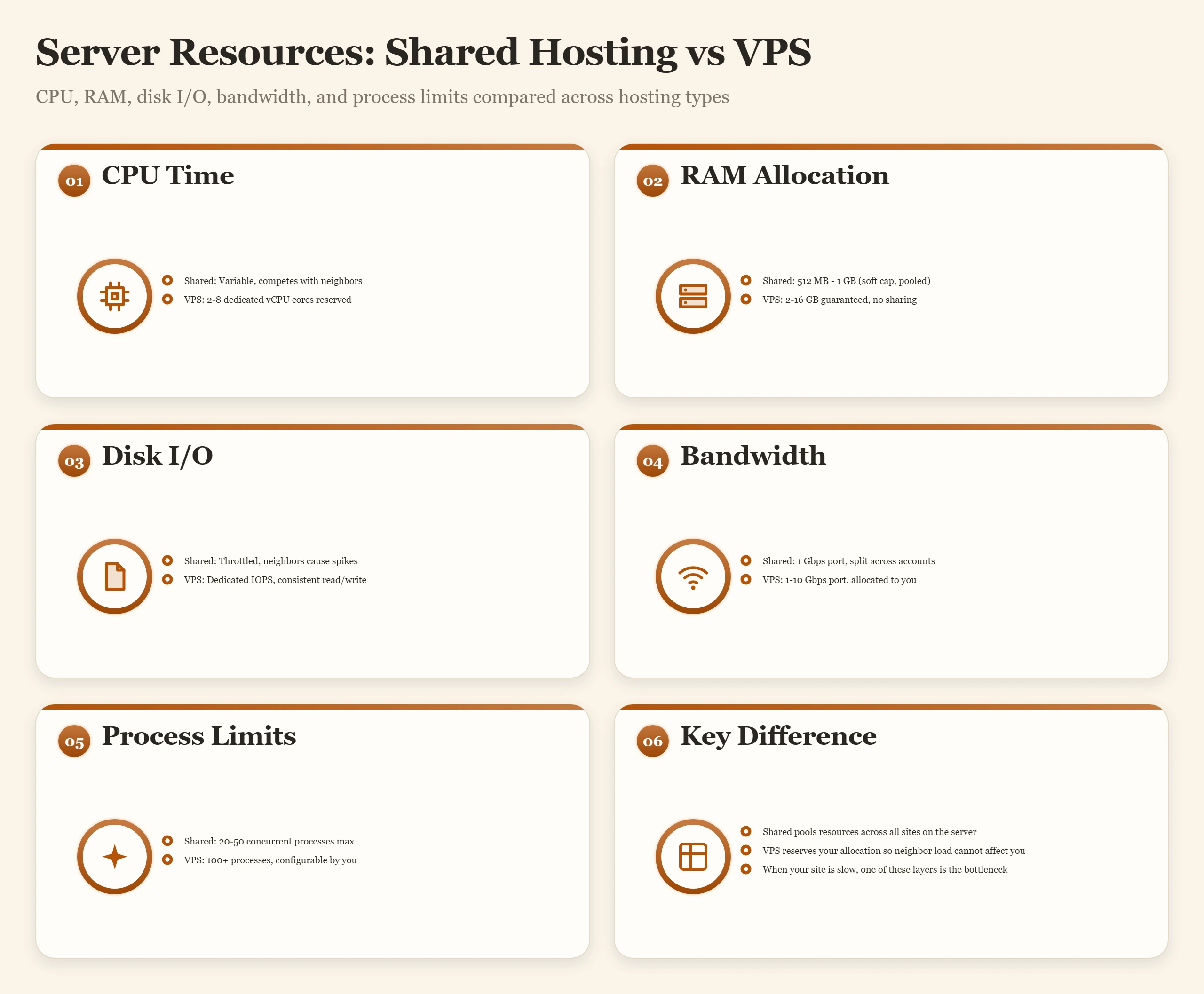
Hosting plans advertise storage and bandwidth. The specs that actually govern your site's performance are never listed in the headline features: CPU allocation, RAM limits, disk I/O throughput, inode count, and concurrent process limits. These five resources determine whether your site handles 100 simultaneous visitors or collapses under 10. I have seen sites on premium shared hosting plans that performed worse than a basic VPS because the host's resource limits were tighter than the plan's price suggested.
CPU: The Processing Engine
Every PHP execution, every database query, every image compression operation, and every compression algorithm your server runs consumes CPU cycles. On shared hosting, you do not get a dedicated CPU core. You get a burst allocation, permission to use up to some fraction of a core for short periods, capped by a scheduler that prevents any single account from dominating the server. When you hit the CPU ceiling, your PHP processes queue up waiting for a turn. Pages slow down. Under sustained load, they time out.
On a VPS, you get guaranteed vCPU allocation. Your processes are not competing with 300 neighbors for CPU time. The difference is not just speed, it is consistency. A shared host can serve your page in 200ms at 9 AM and 2,000ms at 2 PM when a neighbor runs a cron job. A VPS serves it in 200ms both times.
CPU quality matters too. Not all vCPUs are equal. A vCPU on a server running a 2015-era Intel Xeon E5 performs 3-4x worse per core than a vCPU on a 2023 AMD EPYC 9474F. The CPU PassMark guide explains how to compare processors across hosting generations.
RAM: Working Memory for Your Site
PHP requires memory to run. A typical WordPress PHP process uses 32-128 MB of RAM per request. When multiple visitors hit the site simultaneously, multiple PHP processes run in parallel, each consuming that memory. The server's total RAM is divided among all running processes. On shared hosting, if the server runs out of memory, your PHP processes are killed with a 500 error or a "memory exhausted" message. Most shared hosts cap per-account RAM at 256 MB to 1 GB with fair-use enforcement.
The MySQL database engine also consumes RAM, a lot of it. InnoDB's buffer pool (the in-memory cache of frequently accessed database pages) dramatically reduces disk reads. A well-configured database server with adequate RAM serves most queries from memory. A RAM-starved server reads from disk for every query, which is 10-100x slower. On managed VPS plans, the host configures this correctly. On shared hosting, the buffer pool is shared with every database on the server.
Disk I/O: The Often-Forgotten Bottleneck
Disk I/O is the throughput at which data is read from and written to storage. It matters for two reasons. First, PHP reads files on every execution, theme templates, plugin files, WordPress core files. Second, the database reads data blocks from disk for every uncached query. On a busy shared host with HDD or low-quality SSD storage, disk I/O contention among hundreds of accounts creates random slowdowns that are nearly impossible to diagnose without server-level monitoring.
NVMe storage dramatically improves this layer. NVMe drives deliver sequential read speeds of 3,000-7,000 MB/s versus SATA SSD at 500-600 MB/s and HDD at 100-150 MB/s. The practical improvement for a database-heavy WordPress site is real, queries that take 40ms on SATA SSD take 8ms on NVMe. But NVMe alone does not make a slow server fast if CPU or RAM is the bottleneck. It helps the I/O layer specifically.
Inode Limits: The Hidden Filesystem Constraint
An inode is a filesystem metadata entry for every file and directory on your account. Every WordPress core file, plugin file, theme file, uploaded image, and log file counts as one inode. Most shared hosting plans cap inodes at 100,000 to 400,000 per account. A standard WordPress install with 20 plugins and a growing media library can approach 150,000 inodes. A WooCommerce store with product images and plugin cache files can exceed 400,000 inodes. When you hit the inode cap, you cannot create new files, even if you have gigabytes of free storage. The inode limit guide covers this constraint in full detail.
Concurrent Processes: How Many Visitors Can Be Served Simultaneously
PHP-FPM (the process manager used by most modern hosts) runs a pool of PHP worker processes. Each active visitor request occupies one worker. If all workers are busy, additional requests queue. If the queue fills, visitors get a 503 error. On shared hosting, you typically get 20-40 PHP workers. That sounds like a lot until you realize a slow page (800ms server response) holds its worker occupied for 800ms, meaning 40 workers can only serve 50 pages per second, 3,000 pages per minute at full capacity under ideal conditions. In practice, much less.
Hosting Types Compared: Shared, VPS, Cloud, Dedicated, Managed
There are four ways to get server resources (shared, VPS, cloud, dedicated) and two labels sold on top of them (WordPress hosting and managed hosting). The marketing descriptions of each are accurate as far as they go. The parts the marketing leaves out, the actual limits, the realistic use cases and the point where you outgrow each one, are what this section and the six sections after it cover, one type at a time.
| Hosting Type | Resources | Isolation | Example Plan (Intro Price) | Best For | Hard Limit |
|---|---|---|---|---|---|
| Shared Hosting | Shared pool | None (OS-level) | Hostinger Premium, $3.99/mo, renews $10.99/mo | Blogs, portfolios, new sites | CPU burst throttled; 100k-250k inodes |
| VPS Hosting | Dedicated virtual slice | Hypervisor-level | DigitalOcean Basic 1GB (unmanaged), $6.00/mo | Growing sites, agencies, WooCommerce | Defined vCPU + RAM ceiling |
| Cloud Hosting | Scalable across nodes | Hypervisor-level | Cloudways DigitalOcean 1GB (managed), $11.00/mo | Variable traffic, SaaS, scalable apps | Budget ceiling; auto-scale up to limit |
| Dedicated Server | Full physical machine | Complete | Priced per hardware configuration | High-traffic, compliance-sensitive | Physical hardware ceiling only |
| Managed WordPress | Shared or VPS behind the scenes | Varies by provider | Nexcess Spark, $19.00/mo month to month | WordPress-only sites, no sysadmin time | Plugin/theme restrictions apply |
| Reseller Hosting | Shared pool, partitioned | cPanel account-level | Priced by account count | Agencies hosting multiple client sites | Per-account caps set by reseller |
Prices in this guide are each host's own list price for the plan named, through our price records. The intro price is what you pay for the first term; the renewal is what you pay after it, and the gap is often the biggest number on the invoice (see hosting renewal pricing).
Shared Hosting: What You Get and What You Give Up
Shared hosting is the entry point for most websites, and for good reason: it is inexpensive, the host runs the server, and you need no server administration knowledge. A shared hosting account gives you cPanel or a similar control panel, one-click WordPress installation, email accounts, and enough resources to run a small-to-medium site without issue. The tradeoff is resource competition.
On a modern shared host with CloudLinux installed, each account is isolated at the operating system level using CageFS (filesystem namespaces) and LVE (per-account resource limits). This prevents a compromised or runaway account from affecting others, but it also means there is a hard ceiling on what your account can consume. When you hit that ceiling, your site slows down or returns errors, regardless of what the hosting plan page says about "unlimited" resources.
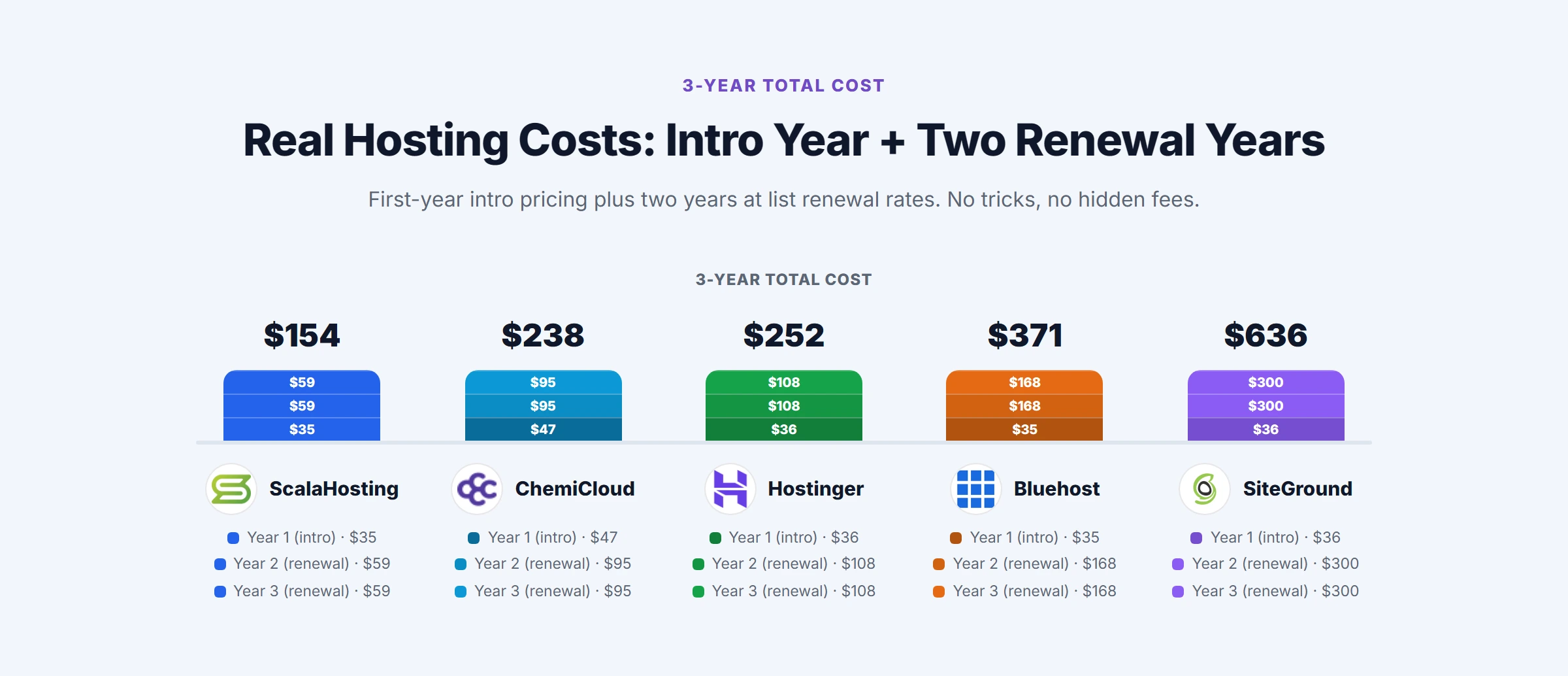
The low price is a first-term price. Hostinger Premium is $3.99/mo on a 12-month term and renews at $10.99/mo (+175%); ChemiCloud Starter is $3.49/mo and renews at $14.95/mo. Judge a shared plan on its renewal price, because that is what you pay from the second year on.
As a rough guide, shared hosting makes economic sense for sites under about 50,000 monthly visitors with simple, cacheable pages. Beyond that, and much earlier for WooCommerce stores, the CPU and concurrent process limits start to show under real traffic. The decision to move up is usually triggered by consistent PHP errors in the logs or TTFB climbing above 800ms under normal load. The full picture of shared plans, their limits and how to read them is in the shared web hosting guide.
VPS Hosting: What Changes When You Get Your Own Resources
A Virtual Private Server uses hypervisor technology (KVM, VMware, Hyper-V) to divide a physical server into isolated virtual machines. Each VM has its own operating system instance, a reserved CPU allocation and its own RAM. The noisy-neighbor problem of shared hosting mostly disappears because the hypervisor enforces the split, although VMs on one host still share its disks and network.
What does not change: you now own the operating system. On an unmanaged VPS such as DigitalOcean Basic 1GB at $6.00/mo, you are responsible for installing software, applying security patches, configuring PHP, managing firewalls, and troubleshooting server errors. That takes Linux administration skill that most site owners do not have. A managed VPS hands the server administration to the provider while you keep the reserved resources: ScalaHosting Entry Cloud is $24.95/mo on a 36-month term and renews at $39.95/mo. How a VPS is sized, what the vCPU and RAM numbers mean and when to move to one are covered in the VPS hosting guide.
Cloud Hosting: A Pool of Servers Instead of One
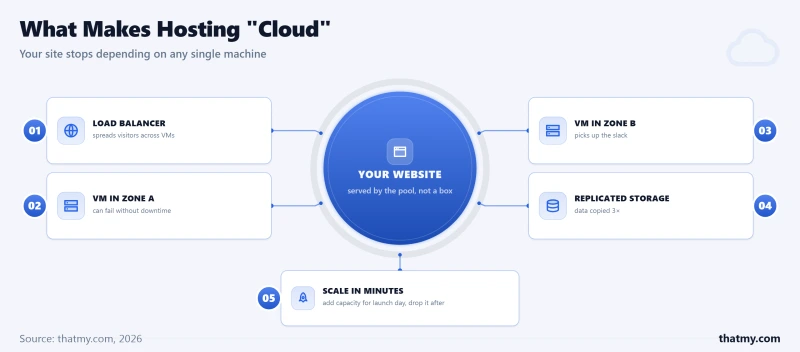
Cloud hosting runs your site on capacity drawn from a pool of servers rather than one machine. The servers are virtual machines like a VPS, but they are created and deleted through an API in minutes and billed by the hour, and they can sit in more than one data center behind a load balancer. That is the whole idea: your site stops depending on any single machine.
Most features sold as "cloud" work with any server. A CDN such as Cloudflare sits in front of a VPS as easily as in front of a cloud VM, object storage like S3 can be used from any server, and Redis runs on any VPS. Only two things are cloud-only: failover across separate data centers and adding servers automatically when load rises. Those two are the reasons to pay for cloud, and a single cloud VM gives you neither of them.
Availability zones, regions and failover
A cloud region (US East, Frankfurt, Singapore) contains several availability zones: separate data centers with their own power, cooling and network, close enough to each other to copy data between them in real time. Three levels of resilience follow from that:
- One server in one zone. This is what a single cloud VM or a VPS gives you. If the physical host fails, the site is down until the VM is restarted on other hardware, which the provider may do automatically within minutes or may leave to you.
- Two or more zones in one region. A standby or second application server runs in another zone, the database is replicated, and a load balancer or DNS health check moves traffic when one zone fails. You pay for at least two servers, a load balancer and a replicated database, roughly double the single-server bill.
- Two or more regions. A full copy of the stack in another region survives the loss of a whole region. It adds cross-region data replication and the problem of where database writes go, which is why it is used for payment, healthcare and other systems where even a regional outage is not acceptable.
Failover is not instant. A DNS-based failover waits for health checks to fail and for cached DNS answers to expire, and a load balancer needs a few failed checks before it stops sending traffic to a dead server. During that window, visitors get errors. If a few minutes of downtime once in a while is acceptable, the cheaper posture is a single server with daily off-server backups, uptime monitoring and a written recovery plan; the uptime and downtime guide shows what each uptime percentage allows.
Auto-scaling, and the gap it leaves
Auto-scaling adds servers when CPU use or request count crosses a threshold and removes them when load drops, so you pay for the extra servers only while they run. A new server takes time to boot, pass its health checks and warm its PHP OPcache before it takes traffic, usually a minute or more. That makes auto-scaling good at a launch that ramps up over half an hour, and at a known weekly peak where you can schedule the extra servers in advance. It does nothing for a link that sends thousands of visitors in the first minute: the spike hits the servers you already have. For that, a full-page cache or CDN that answers in milliseconds is the tool.
WordPress also has to be set up to run on several servers at once. Media uploads go to object storage instead of local disk (the WP Offload Media plugin is the usual route), sessions and the object cache go to a shared Redis server, every server reads the same database (with read replicas once one database is the limit), and plugin and theme files must be identical on every server. Until one well-sized server is the real limit, a single VPS with a page cache is simpler and cheaper.
Four things sold as cloud hosting
| Type | What you get | Who runs what | Examples and list price |
|---|---|---|---|
| Raw cloud servers (IaaS) | Virtual machines, disks and networks by the hour | You run the OS, web server, PHP, backups and scaling | Hetzner Cloud CX33 (4 vCPU, 8 GB) €8.49/mo, Google Cloud e2-medium $24.46/mo, AWS Lightsail 4 GB $20.00/mo |
| Managed cloud layer | A cloud VM with the stack installed and run for you | Host runs the server, PHP, SSL and backups; you run WordPress | Cloudways on DigitalOcean, Vultr, Linode, AWS or Google Cloud, DigitalOcean 1GB $11.00/mo |
| Managed WordPress on cloud | WordPress containers on a big cloud network | Host runs the server and WordPress core | Kinsta on Google Cloud, Single 20GB $35.00/mo month to month |
| Serverless and PaaS | Code runs per request, no server to manage | Platform runs everything below your code | AWS Lambda, Cloudflare Workers, Vercel; billed per request; not built for classic WordPress |
Hetzner bills in euros before VAT, the others in US dollars. Cloudways is the clearest example of the middle row: you pick the cloud provider and the region, and Cloudways handles provisioning, the operating system, the PHP stack, SSL, backups and monitoring. Ranked picks per type are in the best cloud hosting guide.
Cloud or VPS: what the extra money buys
Cloud comparisons often set an enterprise cloud bill against a budget VPS. Compare like with like instead: the same 2 vCPU and 4 GB of RAM from five providers.
| Plan | What it is | Resources | List price |
|---|---|---|---|
| DigitalOcean Basic 4GB | Unmanaged VPS (droplet) | 2 vCPU, 4 GB, 80 GB SSD | $24.00/mo |
| Vultr Regular 2 vCPU / 4GB | Unmanaged cloud VM | 2 vCPU, 4 GB, 80 GB SSD | $20.00/mo |
| AWS Lightsail 4 GB | Unmanaged VM on AWS | 2 vCPU, 4 GB, 80 GB SSD | $20.00/mo |
| Google Cloud e2-medium | Unmanaged VM, disk billed separately | 2 shared vCPU, 4 GB | $24.46/mo |
| Cloudways DigitalOcean 4GB | The same droplet size, managed by Cloudways | 2 vCPU, 4 GB, 80 GB | $46.00/mo |
Two things stand out. The management layer on the same DigitalOcean droplet size costs $22 a month, which is what you pay Cloudways to run the server for you. And none of these five is redundant on its own: each is one VM in one zone, with the same single point of failure as a VPS. The same vCPU and RAM run the same PHP at the same speed whatever the label; cloud failover only starts when you pay for the second server, the load balancer and the replicated database on top.
Dedicated Servers: Full Control, Full Responsibility
A dedicated server is a physical machine in a data center leased entirely to you. Every CPU core, every gigabyte of RAM and every drive is yours, with no hypervisor and no other customers. The provider looks after the hardware, the network uplink, power and cooling; everything from the operating system up is yours unless you buy managed dedicated, which is a different and more expensive product. A dedicated server is a hardware lease, not a managed service.
What changes when you move from a VPS to dedicated
- Physical cores, not vCPUs. A VPS vCPU is a share of a physical core scheduled by the hypervisor; on a dedicated server every core runs only your processes. Core count decides how many PHP requests run at once; single-core speed decides how fast one request or one MySQL query runs, because each runs on one core. A database server often gains more from a fast 8-core CPU than from a slower 32-core one (the PassMark guide shows how to compare them).
- ECC memory. Server boards use error-correcting RAM that fixes single-bit memory errors before they reach the database. VPS providers rarely say what memory their hosts use.
- Your own drives. NVMe drives sit on the server's own PCIe bus, so their read and write capacity is not shared with other customers the way a VPS's storage usually is.
- Your own network port. The uplink speed on the order form is the speed you get, without the burst limits a shared network fabric needs.
- Out-of-band access. IPMI (or Dell's iDRAC) gives you a console, a remote ISO mount and a hard reset that work even when the operating system is down, so a crashed server is a self-service fix rather than a support ticket.
The extra RAM is often the reason to go dedicated. MySQL keeps its hot tables and indexes in the InnoDB buffer pool, and a query answered from memory is orders of magnitude faster than one read from disk, even NVMe. The sum is simple: total RAM, minus about 4 GB for the operating system, minus the PHP workers (80 workers at about 100 MB each is 8 GB) leaves about 52 GB of buffer pool on a 64 GB server. A VPS with 8 GB has room for a few gigabytes at most.
RAID: chosen at setup, hard to change later
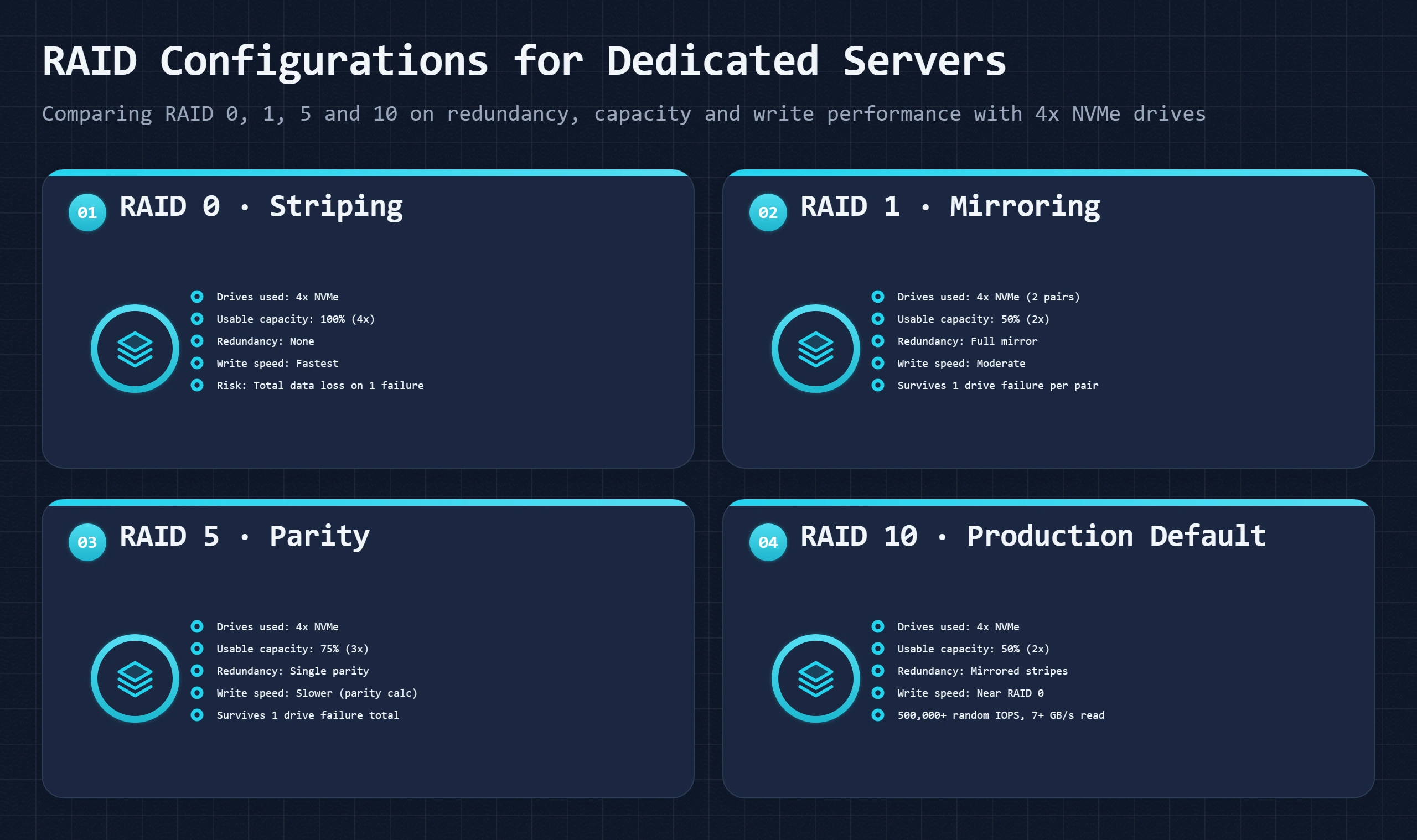
The drive layout is picked when the server is provisioned and changing it later means a wipe or a migration. With four drives:
- RAID 0 stripes data across all drives: all the capacity, the fastest writes, and everything lost when any one drive fails. Only for scratch data.
- RAID 1 mirrors drives: half the capacity, survives one drive failure per mirror. Common for boot drives.
- RAID 5 stripes with parity: three quarters of the capacity, survives one failure, slower writes, and a second failure during the long rebuild loses the array.
- RAID 10 stripes across mirrored pairs: half the capacity, near-RAID 0 writes, survives one failure per pair and rebuilds quickly. The usual choice for a database server.
RAID is not a backup. It protects against a failed drive, not against deletion, ransomware, a bad update or a corrupted database, all of which RAID copies faithfully to every drive. You still need off-server backups; see the backup and restore guide.
Managed or unmanaged dedicated
Unmanaged dedicated covers the hardware, drive replacement, network, power and IPMI access. You install and harden the operating system, patch it, set up the web server, database, firewall, monitoring and backups, and tune them. Managed dedicated adds operating system setup and patching, a control panel such as cPanel or Plesk, monitoring with automatic restarts, off-server backups and support that will log in and fix server problems. In both cases the application (WordPress, its plugins, your code) stays yours. If you cannot confidently run apt upgrade, write firewall rules and read /var/log/auth.log, buy managed. A missed kernel patch on a server that hosts forty client sites is forty incidents, not one.
Dedicated or cloud: steady load or spiky load
A dedicated server is a flat monthly fee for fixed capacity; cloud charges for the hours and the servers you use. When a server is busy most of the day and traffic is predictable, the flat fee buys far more cores and RAM than the same money buys in cloud VMs. When load is low most of the time with occasional large spikes, cloud costs less because the extra servers exist only during the spike. Cloud also wins on geography: a dedicated server is in one data center, while cloud capacity can be placed in many regions.
Who actually needs a dedicated server
Dedicated is sold more often than it is needed. It fits:
- a database that needs a buffer pool far larger than any VPS plan offers at a sensible price;
- compliance rules that require sole tenancy on the hardware (some PCI DSS and HIPAA setups);
- an agency or reseller running many cPanel accounts on one server;
- sustained high numbers of uncached requests at once, such as a busy store's checkout or a forum, where a VPS keeps running out of PHP workers.
It does not fit a WordPress site that a cached VPS already serves comfortably, a team without Linux skills that is not buying managed, or traffic that spikes tenfold for a few hours: a dedicated server cannot add capacity on demand. Ranked plans are in the best dedicated hosting guide.
WordPress Hosting: A Label, Not a Server Type
"WordPress hosting" is a label that sits on top of the types above. A shared plan with a one-click installer and a managed platform that runs WordPress in its own containers both use it. WordPress runs on any host with a supported PHP version and MySQL or MariaDB, so the question is not whether a plan can run WordPress but how much of the server stack is set up for the way WordPress works, and who keeps it that way.
What WordPress needs from the server
- A supported PHP version with OPcache. OPcache keeps compiled PHP in memory so WordPress does not recompile hundreds of files on every request. Its default memory and file limits are easily filled by a site with WooCommerce and a page builder; where you control
php.ini,opcache.memory_consumption=256andopcache.max_accelerated_files=20000are common settings. - Database memory. WordPress runs dozens of queries per uncached page. A buffer pool large enough to hold
wp_options,wp_postsandwp_postmetakeeps them in RAM. On shared hosting one MySQL server serves every account on the machine. - A page cache. LiteSpeed's LSCache, an Nginx cache or a plugin serves logged-out visitors stored HTML without running PHP at all.
- A persistent object cache. Redis or Memcached keeps query results between requests. It matters for the traffic a page cache cannot serve: logged-in users, membership sites and WooCommerce carts. Entry shared plans often lack it; every VPS and managed WordPress plan can run it.
- Enough PHP workers for the uncached requests that arrive at the same moment (see the WooCommerce section below).
- NVMe storage, which shortens the file and database reads that happen on every cache miss (NVMe vs SSD hosting).
PHP version: the free upgrade
Changing the PHP version is a setting in cPanel, hPanel, SPanel or the Cloudways dashboard and costs nothing. Run a version that still receives security fixes (the list is on php.net's supported versions page); an end-of-life version gets no patches for vulnerabilities that are already public. Clone the site to staging first, turn on WP_DEBUG, load the main pages and check the error log, because plugins abandoned years ago are the ones that break.
Which cache helps which visitor
The four cache layers are explained in the performance stack section. What decides which ones you need is who your visitors are. A logged-out reader of a blog post is served by the page cache or the CDN and never touches PHP. A logged-in member, a shopper with a cart and the WordPress admin bypass the page cache entirely, so for them only OPcache, the object cache and the database speed count. A content site needs a good page cache and little else; a store or membership site needs the object cache and enough PHP workers, which is where the hosting tier starts to matter.
WooCommerce: the pages that cannot be cached
Cart, checkout, order-received and my-account pages show different content to every shopper, so they cannot be page-cached. Each request runs PHP and holds one PHP worker (one entry process on CloudLinux shared hosting) until it finishes, and a checkout does a lot: it validates the cart, calculates tax and shipping, talks to the payment gateway, reduces stock and sends emails. The ceiling is simple arithmetic: workers divided by seconds per request. As an example, 20 entry processes and a checkout that takes 0.8 seconds give a theoretical maximum of 25 checkouts a second, and real capacity is much lower because the same pool also serves cart updates, admin-ajax calls, logged-in browsing, bots and cron.
When cart errors or checkout timeouts appear at your busiest hours while product pages still load normally, the worker pool is full. No plugin fixes that; more workers and a persistent object cache, which shortens each request, do. That usually means a VPS or a managed WordPress plan with a stated worker count. Store-specific picks are in the best WooCommerce hosting guide.
The price tiers of WordPress hosting
| Tier | Example plans (list price) | What you get | What stays yours |
|---|---|---|---|
| Shared WordPress hosting | Hostinger Premium $3.99/mo (renews $10.99/mo), ChemiCloud Starter $3.49/mo (renews $14.95/mo) | Shared server, one-click install, often LiteSpeed with LSCache | WordPress, plugins, updates; resource limits set by the host |
| WordPress on a managed VPS | Cloudways DigitalOcean 1GB $11.00/mo, ScalaHosting Entry Cloud $24.95/mo (36 months) | Reserved CPU and RAM, Redis, PHP workers you can size, isolated database | WordPress core, plugins, themes and their updates |
| Managed WordPress | Nexcess Spark $19.00/mo, Pressable Personal $25.00/mo, WP Engine Startup $30.00/mo, Kinsta Single 20GB $35.00/mo (month to month) | Server and WordPress core managed, staging, CDN, malware cleanup, WordPress support | Content, custom code, plugin choices (plugin updates at some hosts) |
| Enterprise WordPress | Custom quotes from the managed WordPress hosts | Several servers, object storage, dedicated databases, SLAs | Content and code |
The jump in price between the second and third rows pays for people, not hardware: someone at the host updates and checks WordPress for you and answers WordPress questions. Whether that is worth it depends on how much WordPress upkeep costs you now. For a content site with a good page cache, a LiteSpeed shared plan serves cached pages about as fast as a managed platform; the managed tiers pull ahead on uncached pages, concurrency and support. Ranked picks are in the best WordPress hosting guide and the best managed WordPress hosting guide, and our measured response times per host are in the WordPress hosting benchmarks.
Managed Hosting: Four Different Products With One Name
Managed hosting means the provider takes over some or all of the server administration you would otherwise do yourself. The problem is that "managed" is used for four products with very different scope and price, and buyers regularly pay for a tier they do not need or buy one that does not cover the problem they have.
The four tiers of managed hosting
- Managed shared. The host runs the shared server: hardware, operating system, web server, PHP versions, SSL and backups. You run your files, databases and WordPress. Almost every shared plan is managed in this sense.
- Managed VPS. The same scope on your own virtual server, plus PHP and MySQL administration, server-level security, off-server backups and monitoring with automatic restarts. WordPress itself stays yours. The managed VPS hosting guide covers this tier in full.
- Managed WordPress. Everything above plus the WordPress installation: core updates, staging, a page cache and CDN the host controls, malware cleanup and WordPress support (see WordPress hosting).
- Managed dedicated. A physical server with the full management stack applied (see managed or unmanaged dedicated).
Match the tier to the problem. If the problem is server speed and resource limits, a managed VPS solves it. If the problem is WordPress upkeep, managed WordPress solves it. Buying managed WordPress for a speed problem costs more without fixing it; staying on managed shared with a resource problem leaves a slow site however well the server is run.
What each tier takes off your hands
| Task | Managed shared | Managed VPS | Managed WordPress | Managed dedicated |
|---|---|---|---|---|
| Hardware, network, power | Host | Host | Host | Host |
| Operating system patches | Host | Host | Host | Host |
| Web server and PHP versions | Host (versions offered) | Host, configurable | Host, configurable | Host, fully configurable |
| SSL issue and renewal | Host at most hosts | Host | Host | Host |
| Backups | Varies, check where they are stored | Usually daily, off-server | Daily, plus staging | Host, usually with restore options |
| Server monitoring and restarts | Shared, server-wide | Per server | Per site, plus performance alerts | Per server, often with on-call staff |
| WordPress core updates | You | You | Host | Varies |
| Plugin and theme updates | You | You | Some hosts | Varies |
| Malware scanning | Some hosts | Some hosts | Host | Host |
| Malware removal | You or a paid add-on | You or a paid add-on | Host | Varies |
The table shows what the better hosts in each tier do. Individual plans differ, so check the plan you are buying.
Four questions that show where management ends
- Is operating system patching automatic, or do you get an email asking you to act? The second is unmanaged hosting with an alert service.
- Where are the backups stored? A backup on the same server is lost with the server. Ask for the location, the retention period, and whether you can restore one database without rolling back the whole server.
- Does support cover the application or only the server? A managed VPS team fixes a crashed PHP-FPM or a failed MySQL service; it does not fix a plugin conflict or a checkout broken by a payment plugin.
- Does malware cover removal or only scanning? Scanning finds infected files; removal cleans them and finds how the attacker got in. They are often sold separately. Both act after the fact; the layer that acts during an attack is intrusion detection, and whether the host runs it in blocking or detect-only mode decides what reaches your site.
Whatever the tier, your content, your custom code and your choice of plugins stay yours. Ask the host for its list of tasks in writing before you buy; a host that cannot give one is telling you something.
What the management layer costs
Two comparisons from list prices show where the money goes. For one site, the step from a managed server to managed WordPress:
| Plan | Tier | List price |
|---|---|---|
| Cloudways DigitalOcean 1GB | Managed cloud server, you update WordPress | $11.00/mo |
| Nexcess Spark | Managed WordPress, one site | $19.00/mo month to month |
| Pressable Personal | Managed WordPress, one site | $25.00/mo month to month |
| WP Engine Startup | Managed WordPress, one site | $30.00/mo month to month |
| Kinsta Single 20GB | Managed WordPress, one site | $35.00/mo month to month |
For ten sites the gap widens, because managed WordPress is priced per site while a managed server is priced per server. Kinsta WP 10 is $225.00/mo month to month ($22.50 a site) and WP Engine Essential for up to 10 sites is $130.00/mo ($13.00 a site). A Cloudways DigitalOcean 4GB server at $46.00/mo has no limit on the number of WordPress installs; the limit is the server's capacity, and you do the WordPress updates yourself. Agencies that already handle WordPress well save most of the difference; agencies that do not are paying for the labour either way.
Resource Allocation: The Hidden Specs Nobody Advertises
Hosting plan pages show storage, bandwidth, and number of sites. None of these are the resources that determine actual performance. The resources that matter are CPU allocation, RAM per process, disk I/O limits, inode caps, and concurrent process counts. These are almost never published in plan comparisons, and the gaps between providers are enormous.
Put the same WordPress theme and plugins on two shared plans and the server response time can differ several times over, with nothing on either plan page to explain why. The faster host usually has newer CPUs, more generous PHP worker counts and LiteSpeed with a page cache on by default; the slower one runs Apache on older hardware with tight resource limits. Our measured response times per host, from the same test site on every plan, are in the WordPress hosting benchmarks.
How Resource Limits Are Enforced on Shared Hosting
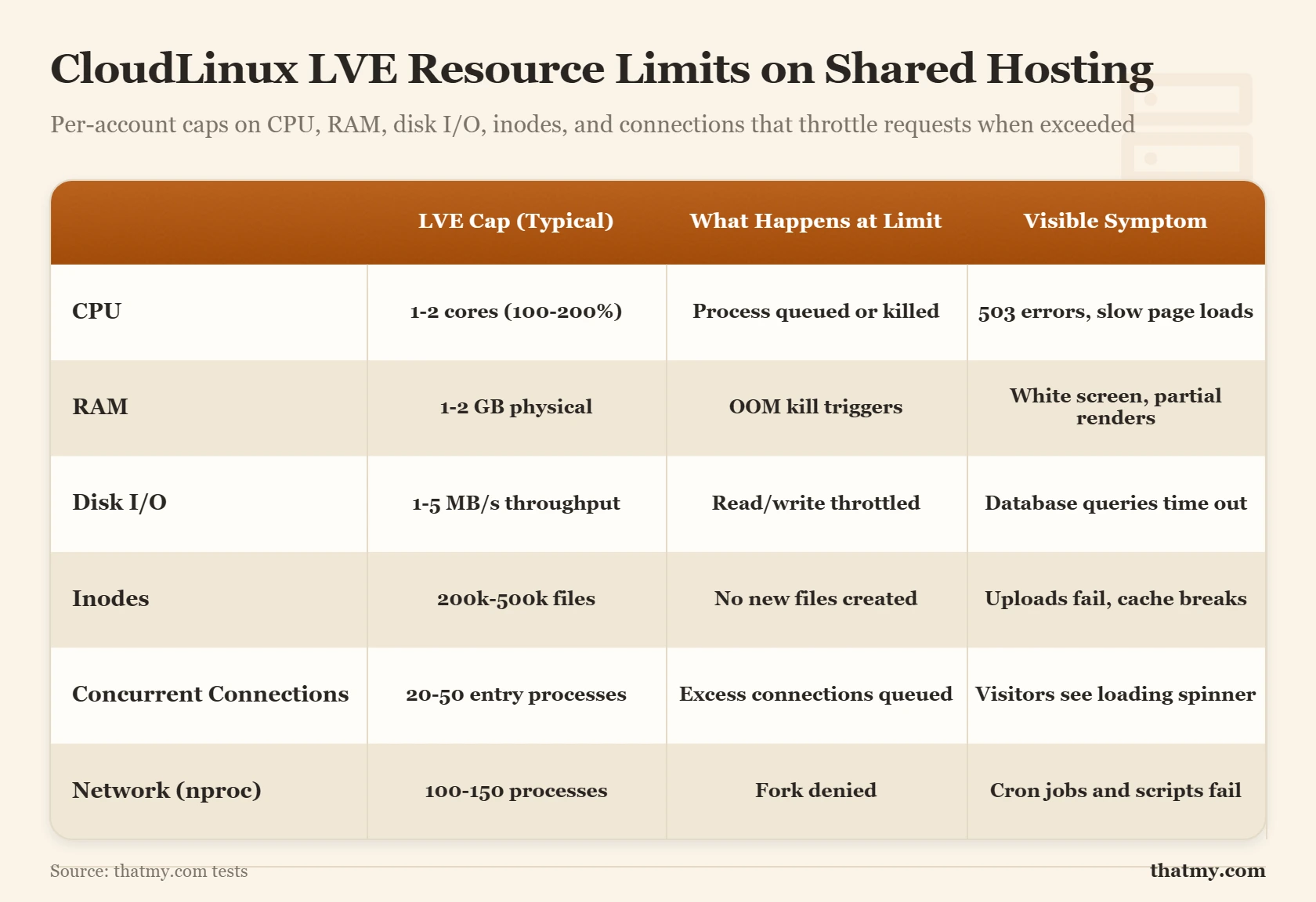
On shared hosting with CloudLinux (which covers the majority of quality shared hosts), resource limits are enforced at the kernel level using LVE (Lightweight Virtual Environment). Each cPanel account has a resource container with hard limits on CPU, RAM, I/O, inodes, and concurrent processes. When your site hits a limit, the kernel throttles the offending process. This is why shared hosting performance feels unpredictable: you are fine until a limit is hit, and then suddenly pages queue and slow down.
The specific limits vary by host and plan. Entry-level shared plans at budget hosts might cap at 25% of a CPU core and 512 MB RAM. Better shared plans on quality hosts might allow 100% of a core (temporarily) and 1-2 GB RAM. You generally cannot find this information in plan marketing, you need to check it in the LVE Manager inside cPanel if your host provides it, or ask support directly.
The Concurrent Process Problem
This is the resource limit most responsible for traffic-induced failures on shared hosting. PHP-FPM manages a pool of worker processes. Each worker handles one request at a time. A worker that takes 500ms per page request can handle 120 requests per minute. If your site has 40 workers allocated and each page takes 500ms, your absolute maximum throughput is 4,800 pages per minute, but in practice, with no caching, under real traffic with varying request durations, you will start seeing queuing and 503 errors much earlier than that mathematical limit.
Page caching bypasses this entirely for cached pages. A cached page is served as a static file by the web server without touching PHP or the database. It can be served in 5-20ms instead of 500ms. This is why enabling page caching on shared hosting is not optional for sites with any meaningful traffic, it is the difference between staying online and returning 503 errors during a traffic spike.
| Resource | Shared Hosting | VPS (Entry) | VPS (Mid) | Dedicated |
|---|---|---|---|---|
| CPU | ~0.5-1 core burst, throttled | 1-2 vCPU guaranteed | 2-4 vCPU guaranteed | 8-64 cores, fully yours |
| RAM | 256 MB-1 GB soft limit | 1-2 GB guaranteed | 4-8 GB guaranteed | 16-512 GB |
| Disk I/O | Shared IOPS pool | Limited, better than shared | Dedicated NVMe IOPS | Full NVMe bandwidth |
| Inodes | 50k-400k | Unlimited (filesystem) | Unlimited (filesystem) | Unlimited (filesystem) |
| Concurrent Processes | 20-40 PHP processes | 50-150 | 100-300+ | No artificial cap |
| Network Port | Shared 1 Gbps | 100 Mbps-1 Gbps | 1 Gbps dedicated | 1-10 Gbps |
The Performance Stack: CDN, Cache, Web Server, SSL, and TTFB
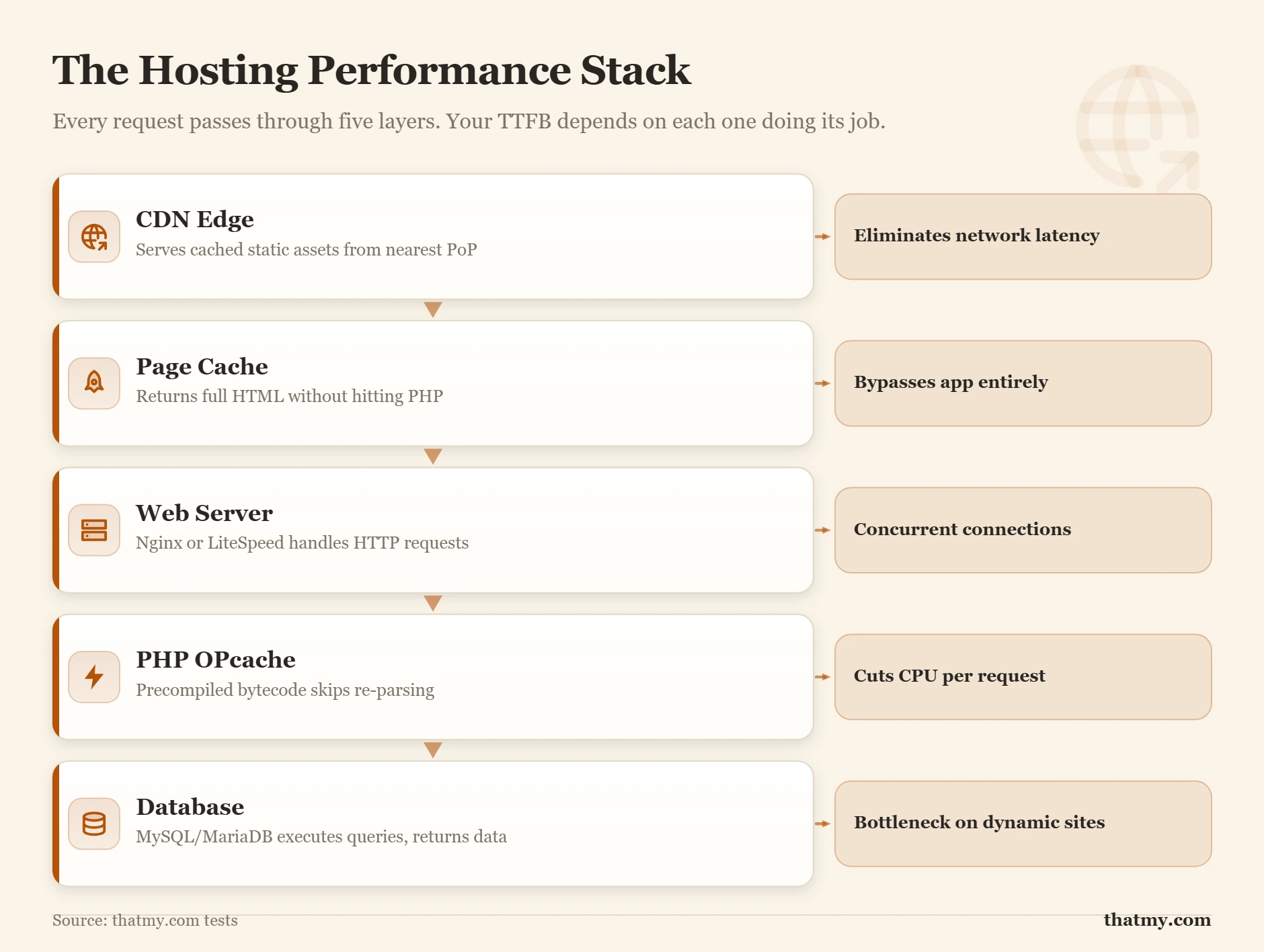
Site speed is not a single setting. It is the sum of six distinct layers, each controlled by different parties, each improvable independently. Most site owners optimize one or two layers and wonder why the site is still slow. The hosting provider controls three of these layers. You control two. One is shared. Knowing which is which prevents wasted effort.
CDN: The Geographic Speed Multiplier
A CDN (Content Delivery Network) places copies of your static assets, images, CSS, JavaScript, often HTML pages, on servers distributed around the world. When a visitor requests one of these assets, they receive it from the nearest CDN edge node rather than from your origin server. A visitor in Tokyo receiving assets from a CDN node in Tokyo gets them in 15ms. The same visitor without a CDN, fetching from a server in New York, waits 200ms for physics alone. CDNs reduce latency for international visitors and offload bandwidth from your origin server.
For dynamic content (page HTML that changes per user or per request), a CDN cannot cache unless you configure it to. WooCommerce cart pages, account pages, and checkout flows are examples of content that must be fetched from the origin server every time. A CDN improves the assets supporting those pages, CSS, images, but not the HTML itself.
Cache Layers: The Stack That Transforms Performance
There are four distinct caching layers in a WordPress hosting environment, and they stack on top of each other:
- CDN edge cache: caches full pages or assets at edge nodes. When hit, the request never reaches your server.
- Page cache: stores fully rendered HTML on the server. When hit, PHP and the database are bypassed entirely. Can reduce TTFB from 800ms to 50ms.
- PHP OPcache: caches compiled PHP bytecode in server memory. Eliminates the PHP compile step on every request, significant on servers with many PHP files.
- Object cache (Redis / Memcached): stores the results of expensive database queries in memory. When hit, reduces database load and speeds dynamic page generation.
A site with all four layers configured correctly can serve cached pages in under 100ms TTFB even on modest hardware. The same site with no caching might take 1,500ms on the same hardware. Caching is the highest-leverage performance improvement available for any WordPress site.
Web Server Software: The Request Handler
The web server (Apache, Nginx, LiteSpeed) handles every incoming HTTP request. It applies rewrite rules, serves static files, passes PHP requests to PHP-FPM, and manages HTTP/2 connections. The choice of web server has measurable performance implications. LiteSpeed, used by many quality shared hosts, includes a built-in page cache (LSCache) that performs as well as separate caching plugins, and can serve cached pages without involving PHP at all. Nginx is highly efficient at serving static files. Apache with .htaccess is the most compatible but the least efficient at high concurrency.
SSL/TLS: Security With a Performance Profile
SSL certificates encrypt traffic between server and visitor. They are non-negotiable: browsers display security warnings for HTTP sites and Google uses HTTPS as a ranking signal. The performance overhead of SSL depends on the protocol version. TLS 1.3 completes the handshake in one round trip. TLS 1.2 requires two. Session resumption (where a returning visitor reuses a previous TLS session) reduces this to near-zero. A well-configured host enables TLS 1.3 by default. Let's Encrypt provides free certificates that auto-renew, so the only reason to pay for a certificate is OV or EV validation for high-trust commercial sites.
TTFB: The Master Metric
Time to First Byte (TTFB) measures the total time from the start of the HTTP request to the first byte of the response arriving at the browser. It includes DNS lookup, TCP connection, TLS handshake, and server processing time. TTFB is the clearest single indicator of hosting infrastructure quality. Google's Core Web Vitals guidelines target TTFB under 800ms; competitive sites target under 200ms. A consistently high TTFB that does not improve after caching is enabled points to raw server resource limitations that require a hosting upgrade to resolve.
| Layer | What It Does | Effect on TTFB | Effect on LCP | Who Controls It |
|---|---|---|---|---|
| CDN / Edge Cache | Serves cached assets from servers near visitor | High reduction (edge hit bypasses origin) | High (LCP asset served from edge) | You + host |
| Page Cache | Stores fully rendered HTML output | Very high (skips PHP + DB entirely) | High (HTML arrives faster) | You (plugin) or managed host |
| Web Server (Nginx/Apache/LiteSpeed) | Handles HTTP connections, serves static files | Medium (software overhead) | Medium | Host |
| PHP OPcache | Caches compiled PHP bytecode in RAM | Medium (skips PHP re-compile per request) | Low-medium | Host config |
| Database (MySQL/MariaDB) | Query execution for dynamic content | High when uncached (slow queries dominate) | Medium | You (query design) + host (config) |
| SSL/TLS Handshake | Encrypted connection setup per new visitor | Low-medium (TLS 1.3 reduces rounds) | Low | Host (cert, protocol version) |
Beginner Hosting Myths That Cost People Money
Hosting marketing has produced a specific set of misconceptions that lead site owners to make bad decisions, staying on a plan too long, upgrading when they should not, or trusting claims that are technically true but operationally meaningless. These six myths are the most expensive.
How to Choose a Hosting Type: A Decision Framework by Site Type
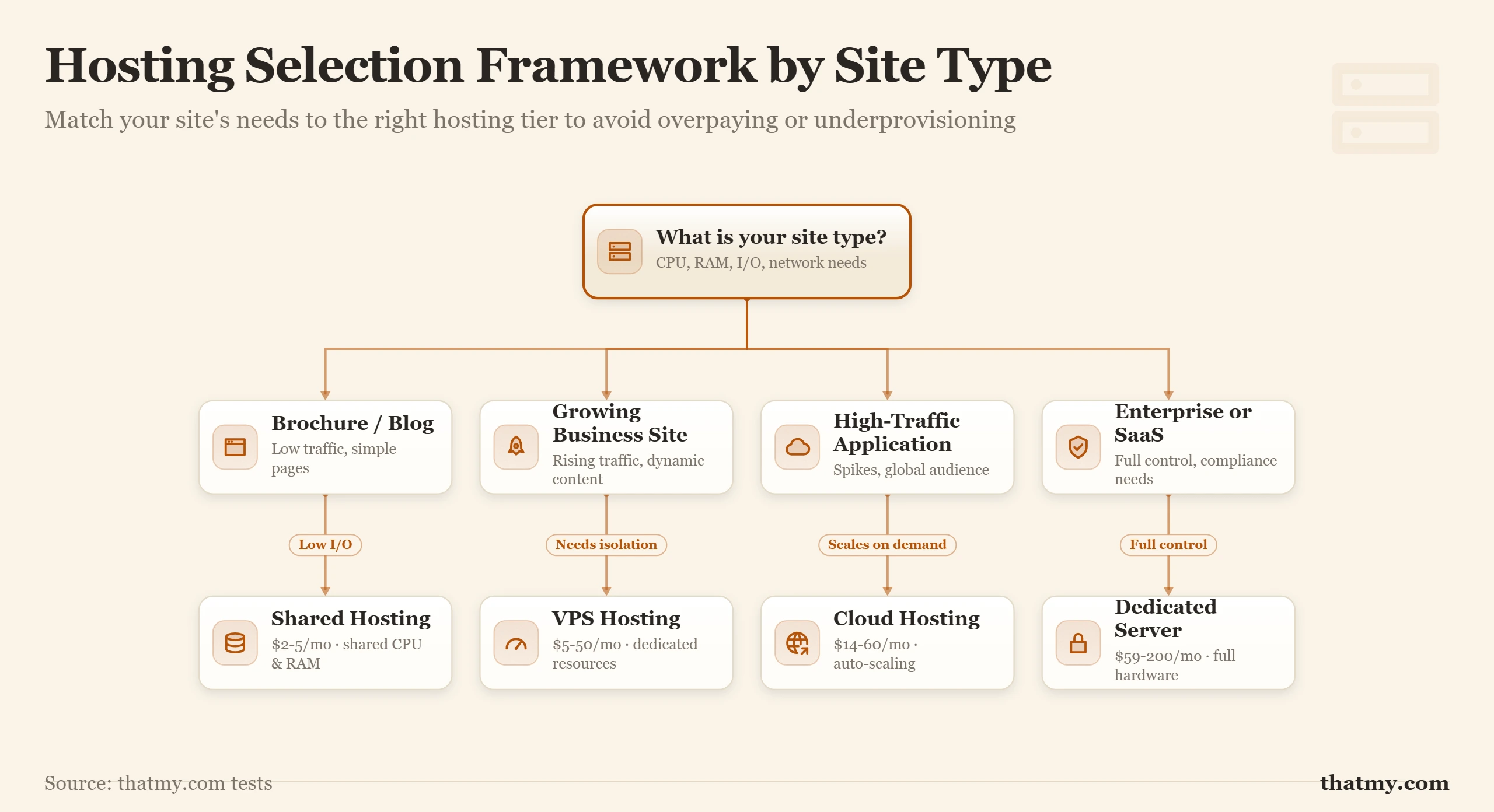
The right hosting type is determined by three variables: your site's resource consumption, your traffic level, and your tolerance for managing server infrastructure. This is not about finding the "best host." It is about matching your current and projected requirements to the right infrastructure tier, and having a concrete signal for when to move up.
The Framework
Start with site type. Then apply the traffic and complexity modifiers below. If two factors point to different tiers, use the higher one.
| Site Type | Starting Hosting Type | Move to VPS When... | Move to Cloud/Dedicated When... |
|---|---|---|---|
| Personal blog / portfolio | Shared ($3-$10/mo) | Over 100k monthly visitors or TTFB > 800ms | Rarely necessary; managed WordPress sufficient |
| Brochure / business site (no ecommerce) | Shared ($5-$15/mo) | Consistent TTFB > 600ms, or traffic > 50k/mo | Only if compliance requires dedicated infrastructure |
| WordPress blog (active, multiple authors) | Shared or managed WP ($10-$25/mo) | CPU throttling errors in logs, or > 150k/mo visitors | When VPS TTFB no longer meets targets under load |
| WooCommerce store (small, < 100 orders/day) | Managed VPS or managed WordPress ($25–$60/mo) | Already starting here; shared hosting is a risk | When cart/checkout TTFB spikes above 1s consistently |
| WooCommerce store (medium, 100–1000 orders/day) | Managed VPS ($40–$100/mo) | n/a | When VPS CPU is consistently above 80% utilization |
| SaaS application / membership site | Cloud VPS (Cloudways/DO/AWS) ($20–$80/mo) | n/a | When horizontal scaling is needed (multiple app nodes) |
| High-traffic media or news site (1M+ monthly) | Managed cloud or dedicated ($100–$500+/mo) | n/a | Already at the top tier; optimize within it |
| Agency managing 20+ client sites | Reseller hosting or managed VPS ($30–$80/mo) | When clients' sites outgrow per-account limits | When client count exceeds 50-100 sites on one server |
The Concrete Upgrade Signals
Stop guessing when to upgrade. Watch for these specific signals in your server data:
- PHP memory exhaustion errors in your error log (
PHP Fatal error: Allowed memory size exhausted). This is the server telling you it cannot allocate enough RAM for your PHP processes. - CPU throttling notices in cPanel's LVE Manager or Resource Usage (if your host provides it). Frequent CPU fault entries mean your site is regularly hitting the CPU ceiling.
- TTFB above 800ms measured after confirming page cache is enabled and working. If cache is hitting and TTFB is still 800ms+, you have exhausted what caching can do on your current hardware.
- 503 errors under normal traffic. This indicates PHP worker exhaustion, all process slots are occupied and new requests are being refused.
- Database connection limit errors (
Too many connections). Shared hosting database servers cap concurrent connections per account. Hitting this limit during peak hours is a sign your database load needs dedicated resources.
Data Centers and Uptime: What 99.9% Actually Means
Every hosting provider claims excellent uptime. The numbers look similar across all providers in marketing. The differences emerge when you read the SLA definitions, measure independently, and understand what the data center infrastructure behind those promises actually looks like.
The Uptime Math Nobody Shows You
Uptime percentages convert to downtime allowances that look very different in concrete hours:
- 99% uptime = 87.6 hours per year (3.65 days)
- 99.9% uptime = 8.76 hours per year (about 9 hours)
- 99.99% uptime = 52.6 minutes per year
- 99.999% uptime = 5.26 minutes per year
Most shared hosting providers advertise 99.9% uptime. That is 8.76 hours of allowed downtime per year, and the SLA allows the host to average this over a rolling period, exclude planned maintenance windows, and require you to file a ticket to claim any credit. The credit is also typically account credit, not cash, and it compensates you for a fraction of your hosting fee, not for revenue lost during the outage.
For a detailed breakdown of what uptime guarantees actually cover and how to monitor independently, see the uptime and downtime guide.
What Data Center Infrastructure Determines Uptime
Uptime claims are backed (or not backed) by the physical infrastructure in the host's data center. The Uptime Institute's Tier classification system defines four tiers by redundancy level:
- Tier I: no redundancy. A single UPS failure, network failure, or HVAC failure takes the facility offline. Allows 28.8 hours of downtime over 54 days.
- Tier II: some redundancy in power and cooling. Allows 22 hours of downtime over 54 days.
- Tier III: N+1 redundancy, every component has at least one backup. Allows 1.6 hours of downtime over 54 days. This is the minimum tier for serious hosting infrastructure.
- Tier IV: fully fault-tolerant, 2N+1 redundancy. Allows 26.3 minutes of downtime over 54 days. Used for mission-critical enterprise hosting.
Budget shared hosts may operate in Tier I or Tier II facilities. Quality managed hosting and enterprise-grade infrastructure typically occupies Tier III certified data centers. The tier affects everything from power redundancy (how many UPS systems and generators) to network redundancy (how many upstream providers) to cooling redundancy (how many CRAC units).
Domains, DNS, and How Your Name Points to a Server
Hosting and domain registration are separate services that work together through DNS. Understanding this separation prevents confusion during migrations and explains why "pointing your domain to your host" is a specific, technical action, not just a setting you click once and forget.
The Separation That Confuses Everyone
Your domain name (example.com) is registered through a domain registrar (Namecheap, GoDaddy, Cloudflare Registrar). You pay for the right to use that name. The registrar holds records of your ownership and sets the authoritative nameservers for your domain. Nameservers are the DNS servers that actually answer questions about your domain, like "what is the IP address for example.com?"
When you sign up for hosting, the hosting provider gives you a server IP address and, usually, their nameservers. You update your domain's nameserver setting at the registrar to point to the host's nameservers. Once propagated, any DNS query for your domain goes to the host's nameservers, which return the correct IP address for your server. The chain is: registrar (who owns the domain) → nameservers (who answers DNS queries) → IP address (where the server actually is).
DNS Propagation: Why Changes Are Not Instant
DNS changes take time to propagate globally because DNS resolvers around the world cache records for a period defined by the TTL (Time to Live) value on each record. A 24-hour TTL means cached results are kept for up to 24 hours before resolvers re-query for updated information. During this window, some visitors reach the old server, others reach the new one, depending on which resolver they use.
This is why DNS TTL management matters during hosting migrations. Reducing the TTL on your A record to 300 seconds (5 minutes) 24-48 hours before a migration means most cached records expire quickly after the switch. After the migration is stable, the TTL can be restored to its normal value. For the complete set of DNS record types (A, AAAA, CNAME, MX, TXT, NS) and when to use each, the DNS records guide covers every type with practical examples.
How Hosting Migrations Actually Work
A hosting migration has four phases: set up the new environment, copy files and database, test on the new server using /etc/hosts or a temporary staging URL, then update DNS to point to the new server. The risk window is the DNS propagation period, during which some visitors reach the old server. For a WooCommerce store, orders placed during this window may land on either server. Planning the cutover for low-traffic hours (typically 2-4 AM in your primary market) and reducing TTL beforehand minimizes this risk.
Security and Backups: What the Host Handles vs What You Handle
Most hosting security incidents happen at the application layer, a vulnerable plugin, a weak password, outdated WordPress core. Most hosting marketing implies the host handles security comprehensively. The reality is a division of responsibility that is important to understand before assuming you are covered.
What the Host Is Responsible For
A reputable host handles: server-level firewall rules blocking known attack sources, DDoS mitigation at the network level, shared hosting isolation (CloudLinux CageFS preventing cross-account compromise), SSL certificate provisioning (Let's Encrypt AutoSSL), server OS patching and security updates, and data center physical security. These are infrastructure-level protections that operate below your application. You cannot configure them, and you do not need to, they are maintained by the host.
For common web-layer attack types (SQL injection, XSS, brute force, DDoS) and the exact division of responsibility between host infrastructure and application-level defense, see the web hosting security threats guide.
What You Are Responsible For
Everything at the application layer: WordPress core updates, plugin updates, theme updates, admin account passwords, file permissions, database user privileges, and security plugin configuration. A host providing excellent infrastructure-level security cannot protect a site running a WordPress plugin with a known, unpatched remote code execution vulnerability. The application layer is yours.
Backups: The Shared Responsibility Nobody Explains
Hosting providers create backups of their servers regularly. These backups exist to help the host recover from infrastructure-level failures, a RAID failure, a datacenter incident. They are not designed as a granular restore service for individual account files. The host's daily backup has a retention window (typically 7-30 days rolling), lives on the same infrastructure as the live site, and is inaccessible if your account is suspended for a policy violation.
An independent backup strategy stores copies of your site on infrastructure you control, a cloud storage bucket on a separate provider. This copy survives account suspension, datacenter incidents, and ransomware attacks that might compromise the host's accessible backup storage. A proper strategy follows the 3-2-1 rule: three copies, two different storage providers, one offsite.
Where to Go Next
This guide has covered what hosting actually is at the infrastructure level. The next step depends on which layer is most relevant to your current situation.
If you are evaluating hosting types and trying to decide what to buy, the shared hosting vs VPS comparison gives you a buying-intent breakdown with specific provider recommendations. If you are trying to improve performance on your current hosting, start with TTFB optimization, it is the master performance metric and the guide walks through every contributing layer. If you are building an understanding of the DNS infrastructure that connects your domain to your server, the DNS guide covers the full resolution chain, from the records to the nameservers that serve them.
For the hosting infrastructure underpinning shared hosting specifically, how CloudLinux isolates accounts and enforces resource limits, the CloudLinux guide explains exactly how the isolation and per-account limits work in practice. For the server hardware behind performance claims, CPU generations, NVMe vs SSD, PassMark benchmarks, the server hardware guide and PassMark CPU rankings guide provide the data needed to evaluate hosting specs honestly.
Frequently Asked Questions About Web Hosting
What is the difference between web hosting and a domain name?
A domain name is an address: it is the human-readable label (like example.com) that you register through a domain registrar. Web hosting is the server infrastructure that stores your actual website files and makes them accessible when someone visits that address. The two are separate services from separate providers, although many hosting companies sell both. The connection between them is made through DNS: you update the domain's nameservers to point to the hosting provider's servers. Once that propagates, usually within a few hours, typing the domain name routes visitors to your hosted files.
Can I host a website on my own computer?
Technically yes. Your home computer can run web server software (Apache, Nginx, Caddy) and serve files over HTTP. In practice, it is not viable for any serious purpose for four reasons. First, home internet connections have dynamic IP addresses that change, making DNS records unreliable. Second, most home ISPs block inbound port 80 and 443. Third, your computer is not on 24/7, and when it sleeps, restarts, or loses power, the site goes down. Fourth, home connections have asymmetric bandwidth, upload speeds are typically 10-20% of download speeds, making file delivery to visitors slow. Web hosting exists to solve all four of these problems with always-on, data-center infrastructure.
What happens to my site when the server goes down?
When the server is offline, visitors get a connection timeout or a browser error. No files are served, no pages load. The duration of the outage depends entirely on the cause: a brief reboot might take 2-5 minutes; a hardware failure on a dedicated server with no redundancy can take hours. This is why uptime guarantees matter, and why 99.9% uptime (which allows 8.76 hours of downtime a year) looks very different from 99.99% (which allows 8 minutes per year). Cloud hosting and managed VPS plans typically have infrastructure redundancy so a single node failure does not take the site offline. Shared hosting has no such redundancy by default.
How do I know how much hosting I actually need?
Start with traffic and site type. A new blog with under 1,000 monthly visitors needs almost nothing, shared hosting at $3-5/month is fine. A WooCommerce store with 10,000 monthly visitors, dynamic pricing, and a checkout flow will saturate shared hosting resources quickly and needs at minimum a managed VPS. The practical signal to watch is TTFB: if your server response time under real traffic exceeds 600ms consistently, you have hit a resource ceiling. CPU and memory usage in cPanel or your host's dashboard are the leading indicators. If you see CPU throttling errors or memory limit errors in PHP logs, you have outgrown shared hosting regardless of your traffic number.
What is the difference between shared hosting and VPS?
On shared hosting, your site runs on the same physical server as hundreds of other websites. You share the CPU, RAM, disk I/O, and network connection with all of them. If another site on the server runs a slow script or gets a traffic spike, your site slows down too, this is called the noisy neighbor problem. On a VPS (Virtual Private Server), the physical server is divided into isolated virtual machines using a hypervisor. Your slice of CPU and RAM is reserved for you. Another account's traffic spike does not affect your resources. The practical difference is consistency: shared hosting performance varies by hour depending on what neighbors are doing; VPS performance is stable and predictable.
Is cloud hosting always faster than shared hosting?
No. Cloud hosting has infrastructure advantages, redundancy across nodes, ability to scale resources up, but the baseline performance depends entirely on how it is configured. A WordPress site on a cloud server with no page cache, no CDN, and a slow database query will be slower than a well-optimized site on a good shared host with LiteSpeed and caching enabled. Cloud hosting is more reliable and more scalable than shared hosting. It is not automatically faster. The performance advantage of cloud comes from being able to allocate more CPU and RAM when traffic spikes, not from the cloud architecture itself.
What does unlimited bandwidth actually mean?
It means the host will not charge you an overage fee per gigabyte. It does not mean there is no bandwidth limit. Every server has a physical network port with a maximum throughput (typically 1 Gbps on shared hosting). Unlimited plans on shared hosting are governed by port speed and by fair-use policies in the terms of service, which allow the host to throttle or suspend accounts consuming disproportionate resources. A site sending 50 TB per month on a $5/month plan will have that account suspended regardless of what the marketing says. Unlimited bandwidth is a billing model, not a technical specification.