

Most WordPress users never think about the database until something breaks. Then they discover three things at once: their entire site lives inside it, they have no idea how it works, and the error message they are looking at is in a language nobody explains. This guide covers what a database actually is, what WordPress stores in it, the engines that power it, why some databases are fast and others are slow, the tools you can use to inspect and manage it, the common errors and what they mean, and when it is time to scale beyond what a shared host can give you.
Quick orientation: if you are seeing a database error right now, jump to common errors. If your site is slow and you suspect the database, the indexes and bottlenecks sections are where to start. If you are setting up WordPress for the first time and want to understand how the pieces fit together, read straight through.
What a Database Actually Is
A database is a structured store of data, organised so that specific information can be retrieved quickly without scanning every record. The word "structured" is what separates a database from a folder of text files. A folder of text files holds data; finding any specific piece of it requires opening every file.
A relational database, the type WordPress uses, organises data into tables. A table has columns (the categories of information) and rows (the individual records). One table might hold posts, with columns for the post ID, title, author, content, and date. Another table holds users, with columns for user ID, login name, email, and registration date. The two tables can reference each other: each post has an author column that holds a user ID, which can be looked up in the users table to get the author's name.
This relational model is the foundation of how WordPress works. When you load a single post, the database fetches the post row, fetches the author row referenced by that post, fetches the comments that reference that post's ID, fetches the term relationships that link the post to its categories and tags, and the application stitches all of this together into the page you see. The model lets WordPress store one piece of information once (the author's name lives in wp_users, not duplicated into every post) and reference it from many places.
The contrast is a flat file system. Static site generators like Jekyll or Hugo work this way: every post is a file, every page is a file, the site is built by reading all the files at build time and producing HTML. There is no database, which means no database to back up, no database to break, and no database performance problem. The trade-off is that flat-file systems cannot do anything dynamic at request time. WordPress chose the relational model because it had to support comments, user accounts, search, and a hundred plugins that all need to read and write data while the site is running.
What WordPress Stores in Its Database
A standard WordPress installation creates 12 tables on first install. Plugins add more. WooCommerce alone adds about 10. A site with 30 active plugins might have 60 to 100 tables in total.
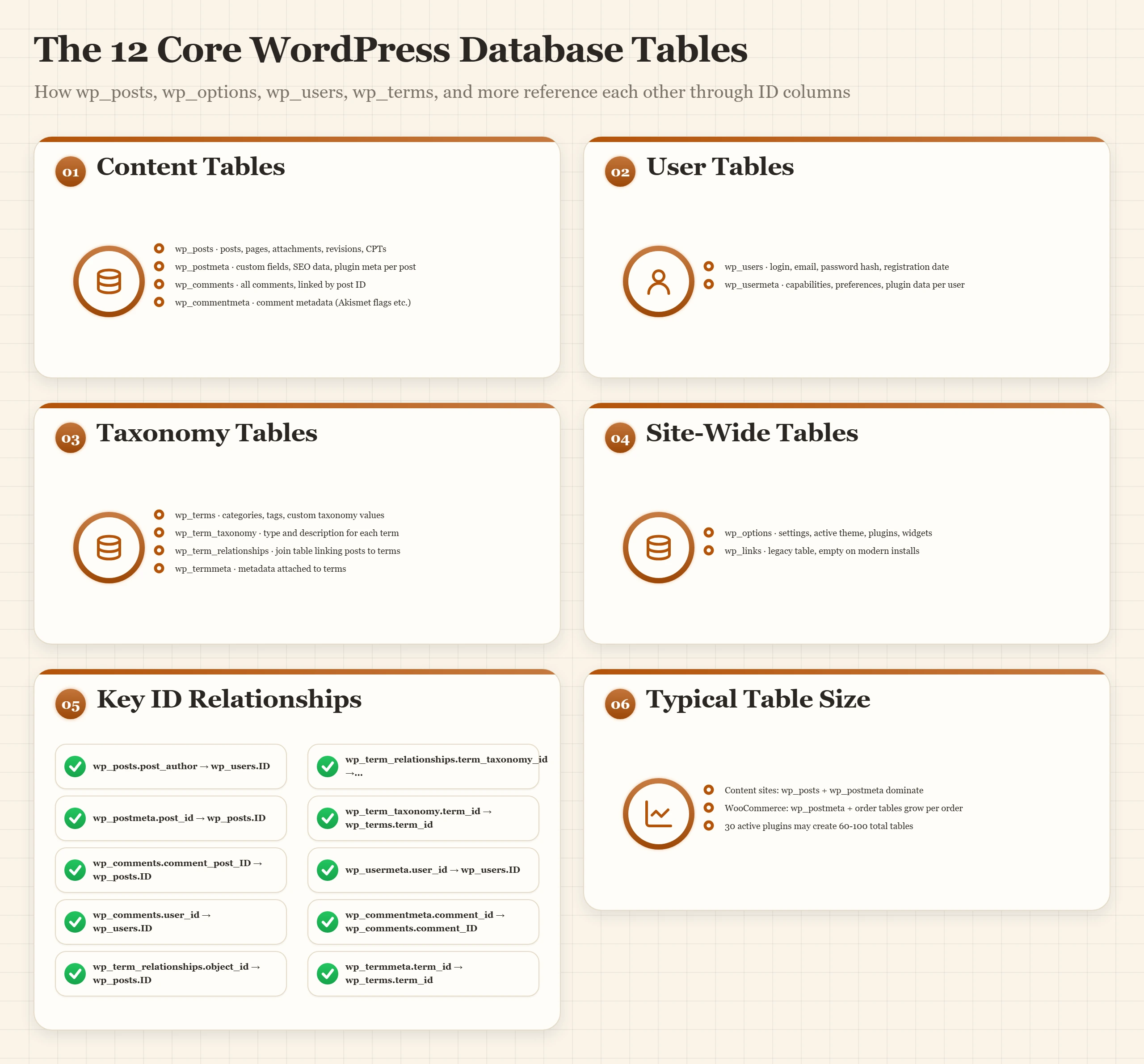
The 12 core WordPress tables and their roles:
- wp_posts contains every post, page, attachment, custom post type, revision, and auto-draft. The largest table on most sites.
- wp_postmeta stores metadata attached to posts: custom fields, plugin data, SEO fields, anything a theme or plugin attaches to a specific post.
- wp_users holds every user account: login name, email, registration date, password hash.
- wp_usermeta stores metadata attached to users. User capabilities, dashboard preferences, plugin data scoped to a user.
- wp_options contains site-wide settings. Permalink structure, active theme, active plugins, widget configuration, plugin settings. Many plugins store huge serialised arrays here.
- wp_comments holds every comment on every post.
- wp_commentmeta stores metadata attached to comments (Akismet uses this heavily).
- wp_terms contains categories, tags, and any custom taxonomy values.
- wp_term_taxonomy records what type each term is (category, tag, custom taxonomy) and its description.
- wp_term_relationships is the join table linking posts to terms.
- wp_termmeta stores metadata attached to terms.
- wp_links is a legacy table, almost always empty on modern installs.
WooCommerce adds wp_woocommerce_order_items, wp_woocommerce_order_itemmeta, wp_woocommerce_sessions, wp_wc_product_meta_lookup, and others. These are where order, customer, and product data live for a store running an ecommerce platform on WordPress.
For a content site, wp_posts and wp_postmeta dominate the size. For a WooCommerce store, the wp_postmeta and wp_woocommerce_order_itemmeta tables grow with every order placed and routinely become the largest tables on the site.
Understanding what is in which table matters for two practical reasons. First, when you back up the site, both wp_posts and wp_postmeta have to come along; one without the other is incomplete. The full procedure is on the backup and restore page. Second, when something breaks, knowing the table layout tells you where to look. A site stuck in a redirect loop usually has a corrupted wp_options row. A site missing all its custom field data has a problem with wp_postmeta.
Database Engines: MySQL, MariaDB, PostgreSQL, SQLite
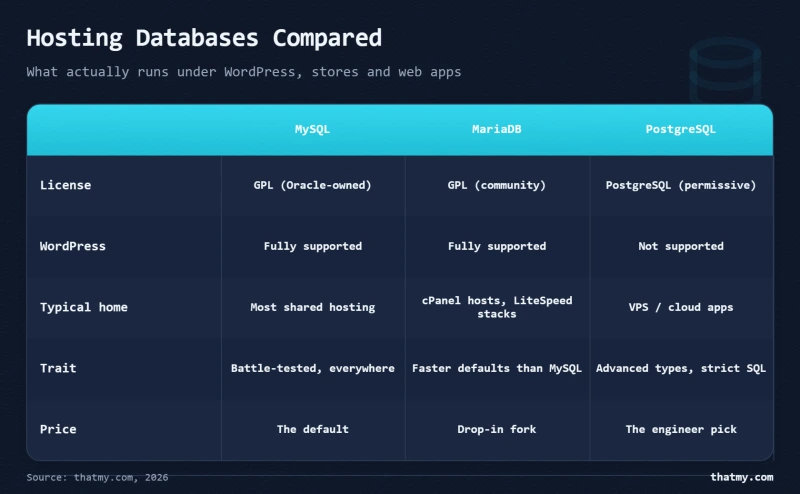
The database engine is the software that actually stores and retrieves the data. WordPress is built for MySQL, but in practice four engines come up in hosting conversations.
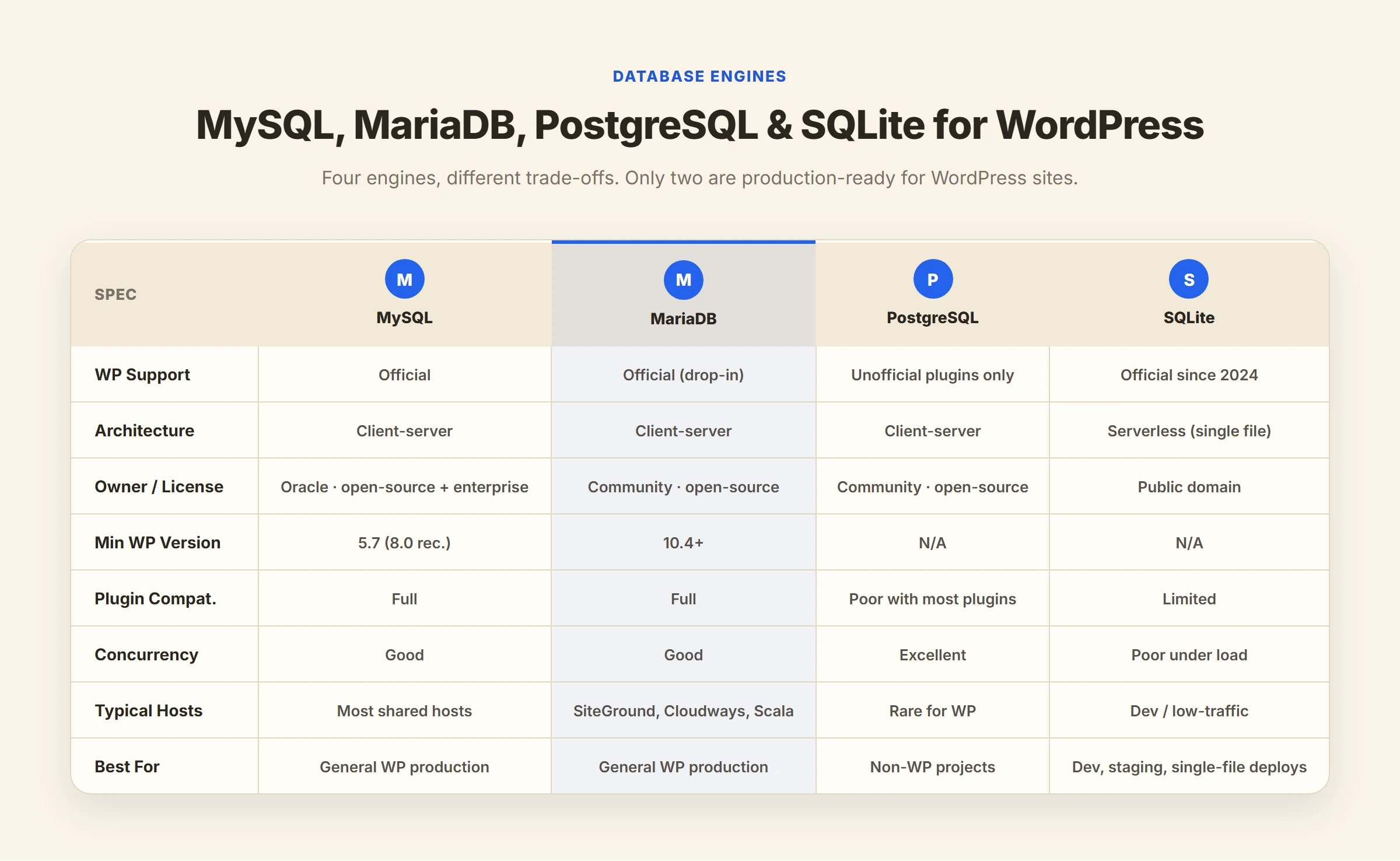
MySQL is the original. Owned by Oracle since 2010. The default on almost every shared host. Open source community edition plus a paid enterprise edition. The version that matters to WordPress is 5.7 minimum, with 8.0 recommended in current WordPress documentation.
MariaDB is a fork of MySQL created by the original MySQL developers after the Oracle acquisition. Drop-in compatible: WordPress cannot tell the difference, plugins cannot tell the difference, the wire protocol is identical. MariaDB has slightly better default performance on many workloads and a more open development model. Many hosts switched their default from MySQL to MariaDB between 2018 and 2022. SiteGround, Cloudways, ScalaHosting, and most managed WordPress hosts run MariaDB now.
PostgreSQL is a different beast. Open source, considered more powerful and more standards-compliant than MySQL, with stronger support for complex queries and concurrency. WordPress does not officially support PostgreSQL. There are unofficial plugins that add support, but they work poorly with most third-party plugins. If you are evaluating PostgreSQL for a project, that project should not be WordPress.
SQLite is a serverless, file-based database. The whole database is one file on disk; there is no separate database server process. WordPress added official SQLite support in 2024 via the SQLite Database Integration plugin. SQLite is a good fit for development, low-traffic sites, and any scenario where running a separate database server is overkill. For a high-traffic site with many concurrent users, SQLite hits limits that a real database server does not. For a personal blog or a development environment, it is faster to set up and uses fewer resources.
For 95% of WordPress sites in production, the engine is MySQL or MariaDB. The choice is usually made by your host and is not something you change after the fact. The remaining 5% are either intentionally on SQLite for a specific reason or running a custom stack that requires a developer to maintain.
How Queries Work and Why Some Are Slow
A query is a request for data, written in SQL (Structured Query Language). When you load your homepage, WordPress fires somewhere between 50 and 500 queries to build the page. The query count is one of the strongest predictors of how fast or slow your site is.
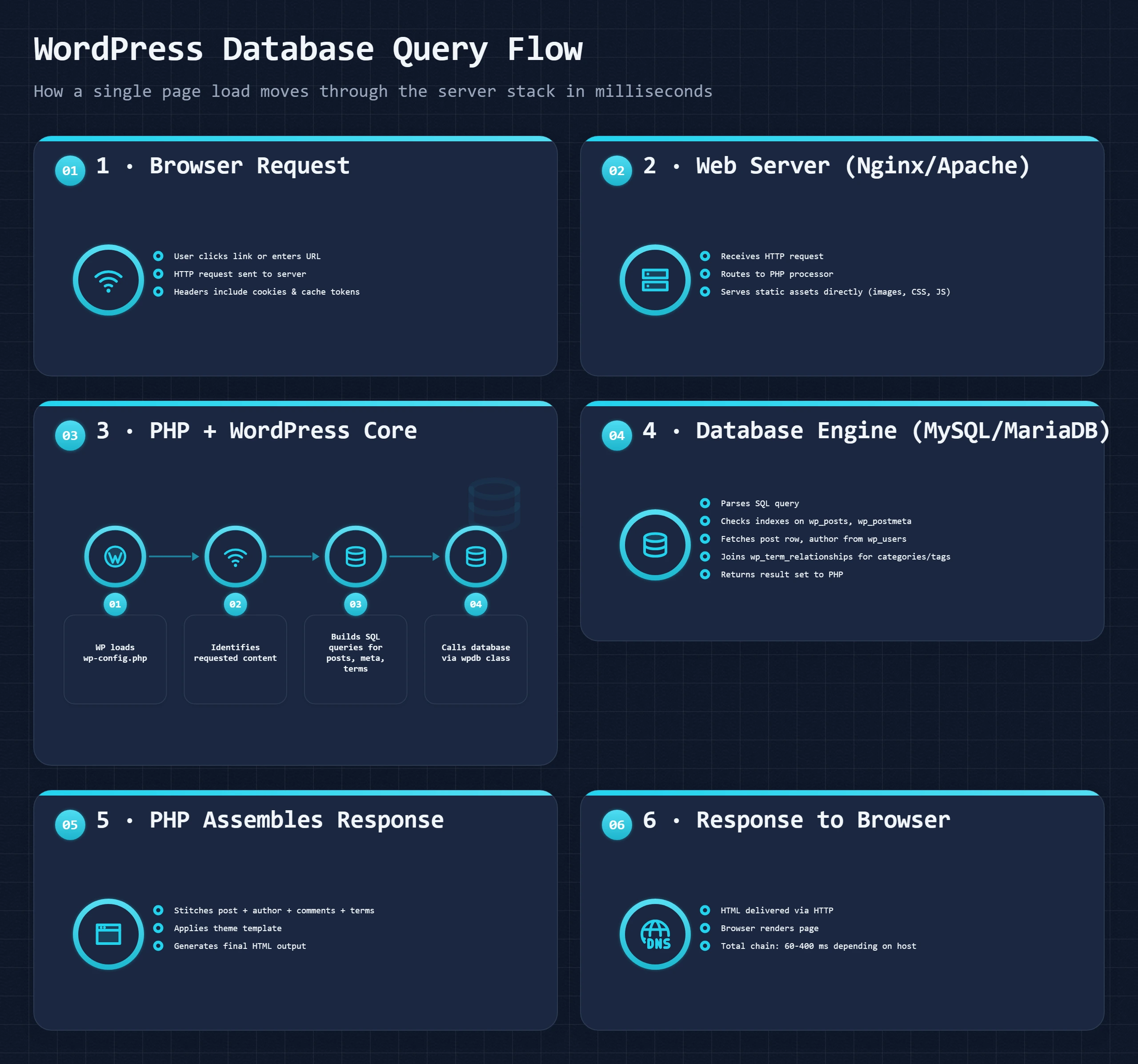
Four types of query cover almost everything WordPress does:
- SELECT retrieves data.
SELECT post_title FROM wp_posts WHERE post_status = 'publish' ORDER BY post_date DESC LIMIT 10is the kind of query that builds your homepage post list. It says "give me the title of the ten most recent published posts." - INSERT writes new data.
INSERT INTO wp_posts (post_title, post_content, post_author) VALUES ('My Post', 'Hello world', 1)creates a new post. - UPDATE changes existing data.
UPDATE wp_options SET option_value = 'new value' WHERE option_name = 'blogname'changes the site title. - DELETE removes data.
DELETE FROM wp_posts WHERE ID = 42deletes the post with ID 42 (and the database fires more queries to delete the related rows in wp_postmeta, wp_comments, and wp_term_relationships).
Each query takes time. A simple SELECT against a small table with a good index runs in under a millisecond. A bad query against a large table with no index can take seconds. When a page fires 200 queries and each one takes 5 milliseconds, the page takes a full second on database time alone, before the web server even starts rendering HTML.
The Query Monitor plugin is the standard tool for inspecting WordPress queries. It shows you every query a page fires, how long each one took, which plugin or theme component fired it, and which queries are duplicated. For any site that feels slow, installing Query Monitor for an hour and reading the output usually identifies the cause within minutes.
Indexes: Why Some Sites Are Fast and Others Crawl
An index is the difference between a database that finds a row in a millisecond and one that takes ten seconds to find the same row.
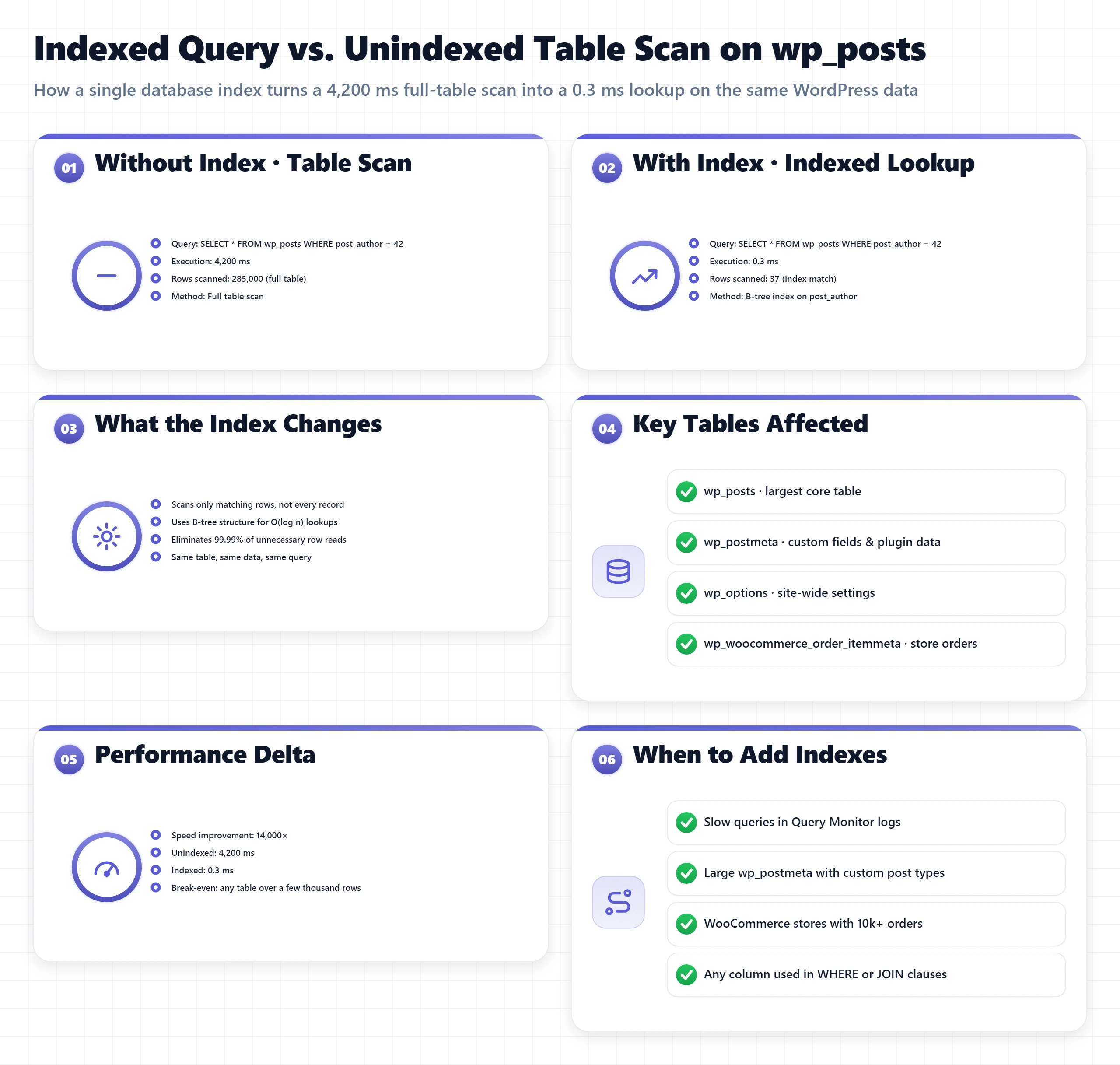
The mental model: imagine a phone book with no alphabetical order. Finding "Sarah Smith" requires reading every entry from page 1 until you happen to land on hers. With 100 entries, you might find her in five seconds. With 100,000 entries, you might never find her at all. An alphabetical phone book lets you flip to the S section directly. Same data, dramatically different lookup time. The alphabetical order is the index.
Database tables work the same way. A SELECT query that filters or sorts on an indexed column runs fast because the database can jump directly to the rows it needs. The same query on an unindexed column requires a full table scan: read every row, check each one against the filter, return matches. On a wp_postmeta table with five million rows, a full scan can take seconds. An indexed lookup takes microseconds.
WordPress core ships with a sensible set of default indexes on its tables. The problems arise from two places. First, plugins that store data in wp_postmeta or wp_options without thinking about indexing. Second, custom queries written by developers or theme authors that filter on columns that have no index. Both produce slow queries that compound at scale.
The fix is either to add an index, which is a one-line SQL command, or to rewrite the query to use a column that already has one. Identifying which queries need this is the job of the Query Monitor plugin or, on a managed host, the slow query log that runs in the background. The best managed WordPress hosts (we cover several on the best managed WordPress hosting page) expose slow query logs in the dashboard so you can find these without digging through server files.
Storage Engines: InnoDB vs MyISAM
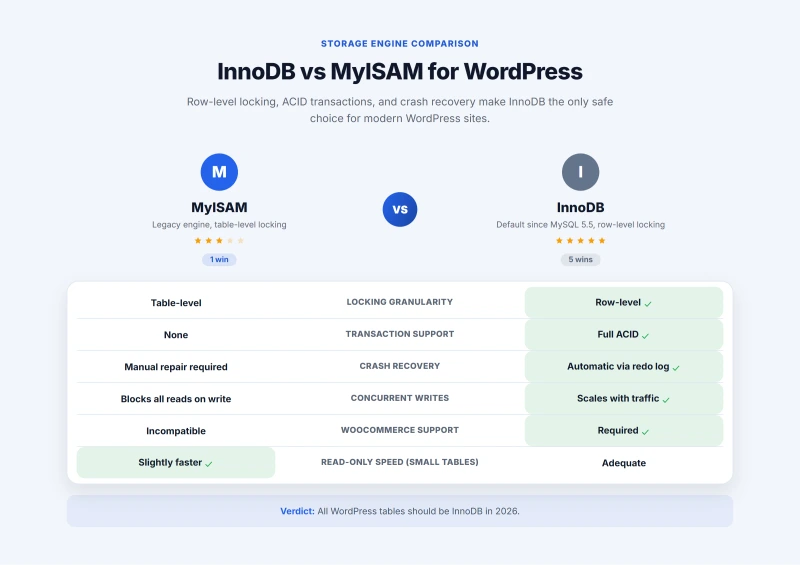
Within MySQL or MariaDB, the storage engine is the layer underneath the table that handles how data is actually written to disk and how concurrent access is managed. Two storage engines matter for WordPress.
InnoDB is the modern default. It supports row-level locking (only the row being written is locked, not the whole table), transactions (a group of writes either all succeed or all fail), and foreign key constraints. Crash-safe by design. The default for every new MySQL or MariaDB install since 2010.
MyISAM is the legacy engine. It uses table-level locking (writing to a single row locks the entire table), no transactions, and is faster for read-only workloads on small tables. It was the default before InnoDB took over. Some old WordPress installations still have a few MyISAM tables left over from upgrades.
For WordPress in 2026, all tables should be InnoDB. The reasons:
- WooCommerce, BuddyPress, and any plugin that does anything beyond basic content requires InnoDB's transaction support to work correctly.
- Row-level locking means one slow comment write does not block every other read on the comments table.
- Crash recovery is automatic. If the server hard-resets mid-write, InnoDB rebuilds. MyISAM does not, and table corruption is more common.
Converting a MyISAM table to InnoDB is a single SQL command per table: ALTER TABLE wp_posts ENGINE=InnoDB; Most managed hosts do this conversion automatically during plan migrations. If you are on cheap shared hosting and inheriting an old WordPress install, check the storage engine on each table (phpMyAdmin shows it in the table list) and convert any MyISAM tables. The site speeds up noticeably and the random table corruption issues stop happening.
Database Connections and the Limits Hosts Impose
Every visitor on your site triggers PHP processes, and every PHP process opens a database connection to fetch data. A burst of traffic means a burst of database connections. The host's MySQL server has a hard limit on how many simultaneous connections it will accept. When the limit is reached, new connections fail and visitors see "Error establishing a database connection."
Shared hosts typically allow somewhere between 25 and 100 simultaneous connections per account. Managed WordPress hosts allow 200 to 500. VPS and dedicated database servers can go to several thousand. The limit is set by the host and is not negotiable on shared plans.
The two ways a small site hits this ceiling:
Slow queries. A query that takes 10 seconds holds a connection open for 10 seconds. If 25 visitors arrive in that window, every connection is held by a slow query and new visitors get the connection error. The visitors then refresh, opening more connections, and the spiral compounds. Fixing the slow query (adding an index, rewriting the plugin code, or removing the offending plugin) fixes the connection error.
Plugin connection leaks. Some poorly written plugins open new database connections without closing old ones. Over hours or days, the connection count creeps up until the limit is hit. Diagnosis is harder; the symptom is a site that works fine after a daily restart but fails every evening. The fix is identifying the leaky plugin and either updating it or removing it.
The best long-term defense is moving to a host that gives you more connection headroom, which means a managed WordPress plan or a VPS. ScalaHosting's Managed VPS allocates dedicated database capacity per account, which means connection limits are no longer a shared resource you compete for. The same pattern applies on Cloudways and other managed cloud platforms; the underlying server hardware gives each tenant predictable capacity rather than a shared pool.
Performance Bottlenecks
The five most common database performance problems on WordPress, in rough order of how often I see them:
Bloated wp_options. A small WordPress install has a wp_options table around 1 MB. A site with five years of plugin history can have a wp_options table over 100 MB, mostly from autoloaded options that load on every single page request. The fix is to identify and clean up orphaned options left behind by uninstalled plugins. The Query Monitor plugin or the WP-Optimize plugin can show you which options are largest and which are autoloaded.
Bloated wp_postmeta. Plugins that store custom fields, especially page builders and SEO plugins, accumulate enormous amounts of postmeta. A WordPress install with one of the popular page builders can have 200 postmeta rows for every single post, most of which are never read. Sites with hundreds of thousands of posts and hundreds of postmeta rows per post end up with wp_postmeta tables in the tens of millions of rows, and queries against it become the slowest part of the site.
Auto-draft and revision accumulation. WordPress automatically creates a new post revision every time you save a post, and never deletes the old ones. A heavily edited post can have hundreds of revisions, each one a row in wp_posts. The revisions are useful for the first few hours; after that they are dead weight. Limiting revisions in wp-config (define WP_POST_REVISIONS to 5) or running a periodic cleanup with WP-CLI keeps the table healthy.
Transients that never expire. WordPress's transient system is supposed to be a cache that auto-expires. In practice, many plugins write transients without expiry, or with expiry windows that are never reached because of a misconfigured cron. The wp_options table fills with transient_ rows that no longer serve any purpose. The
wp transient delete --expiredcommand cleans these up.Search queries hitting wp_posts directly. WordPress's default search uses a LIKE query against post_title and post_content. LIKE queries cannot use indexes (the wildcard at the start prevents it), so search runs as a full table scan every time. On a small site this is fine; on a site with 100,000 posts, every search query takes seconds. The fix is to install a proper search plugin that uses Elasticsearch, MeiliSearch, or Algolia, or to add a fulltext index to wp_posts and use MATCH AGAINST queries instead.
For ongoing performance work, pairing the database with page and object caching reduces the number of queries the database has to handle in the first place. The fastest database query is the one that never runs because the result was already in cache.
Tools to Manage Your Database
Three tools cover almost everything you need to do with a WordPress database.
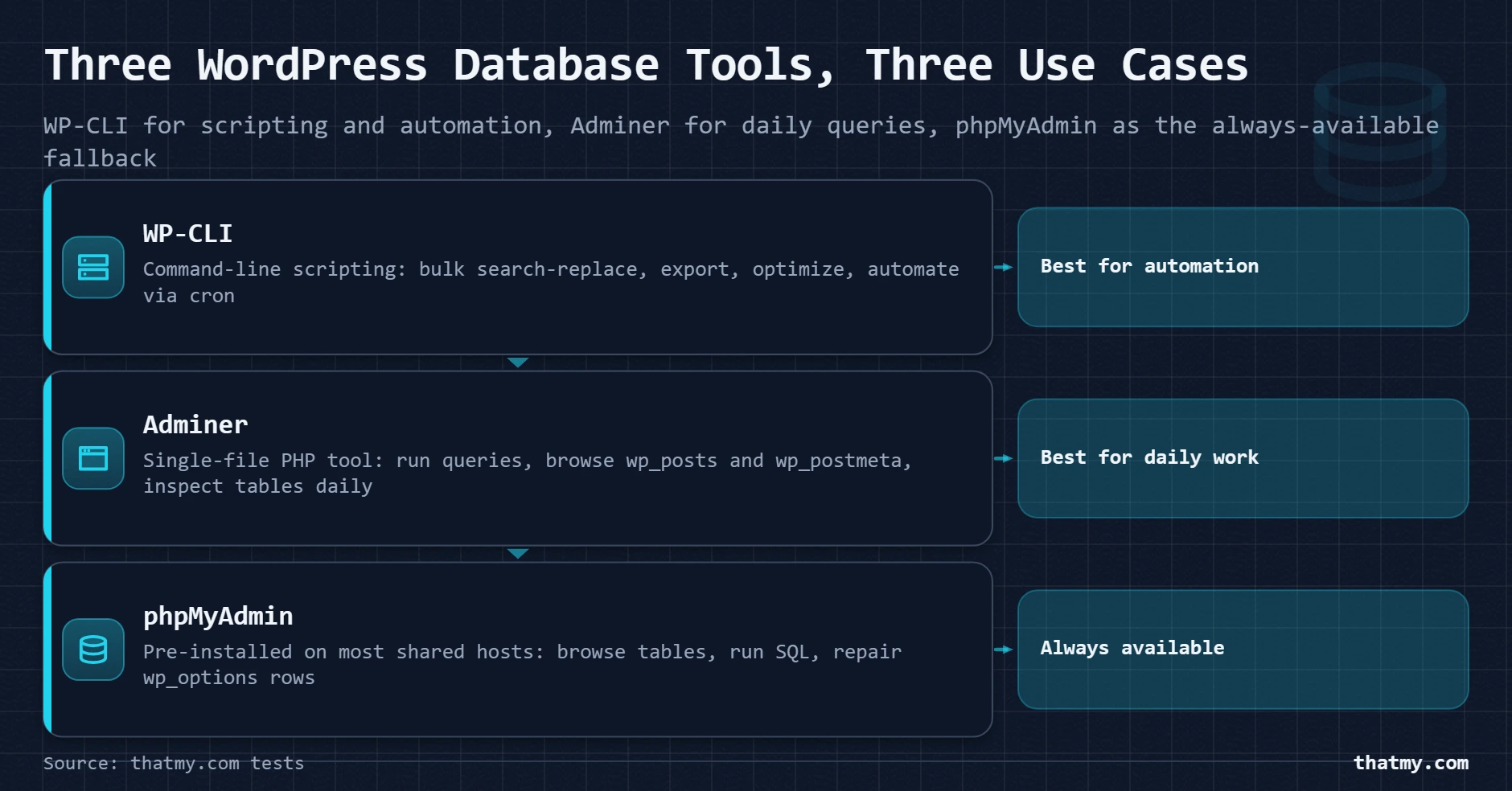
phpMyAdmin is the web-based GUI shipped with cPanel, Plesk, and most other hosting control panels. The interface is dated but it works. You can browse tables, run queries, export and import SQL files, edit individual rows, and check table sizes. The biggest weakness is that it runs slowly on large databases; loading a list of rows from a 5 GB postmeta table can time out. The biggest strength is that it is already installed; opening it from your cPanel dashboard takes one click.
Adminer is the modern alternative to phpMyAdmin. It is a single PHP file you upload to your server. Same feature set, dramatically faster interface, fewer footguns. For sites where you do regular database work, Adminer is the upgrade most developers eventually make. Security note: do not leave Adminer permanently installed on a public-facing site; upload it when you need it, delete it when you are done.
WP-CLI is the command-line tool. It sits on top of a normal MySQL connection and provides WordPress-aware commands: wp db export to dump the database, wp db import to restore, wp option get to read a single option, wp post list to query posts. For automation, scripting, and bulk operations, WP-CLI is faster and more reliable than any GUI. The catch is that you need SSH access to use it, which most cheap shared hosts do not provide. Any decent VPS, managed WordPress host, or VPS plan includes SSH.
For routine database work, the rule of thumb is: WP-CLI for anything you can script, Adminer for inspection and one-off queries, phpMyAdmin for emergencies when you cannot SSH in.
Database Backups and Exports
Backing up the database is half of backing up a WordPress site (the other half is wp-content). The full strategy is covered on the backup and restore page; this section covers the database-specific mechanics.
A database export is a SQL file: text containing the CREATE TABLE statements that define the structure plus the INSERT statements that contain the data. Importing the SQL file rebuilds the database from those statements. The format is portable: a SQL file exported from one MySQL server can be imported into another, even across different versions and slightly different MySQL implementations.
Three ways to export, in order of reliability:
WP-CLI: wp db export filename.sql This is the cleanest option. WP-CLI knows the WordPress database name and credentials, runs the export with sensible defaults, and produces a clean file. Add --add-drop-table to the command for an export that will cleanly overwrite an existing database when imported. Add --tables=wp_posts,wp_postmeta to export only specific tables.
phpMyAdmin Export tab. Select the database in the left pane, click Export, choose Quick or Custom format, click Go. The browser downloads a SQL file. Quick mode is fine for most cases; Custom mode lets you exclude tables, change the format, or compress the output.
mysqldump on the command line. mysqldump is the underlying tool that everything else calls. Direct usage looks like: mysqldump -u username -p database_name > backup.sql. The -p prompts for the password. On large databases, mysqldump can run for hours and may need flags like --single-transaction (consistent snapshot of InnoDB tables without locking) and --quick (stream rows instead of loading all into memory).
Restore is the inverse. wp db import filename.sql, or the phpMyAdmin Import tab, or mysql -u username -p database_name < backup.sql. The full import procedure including the gotchas that bite real restores is on the backup and restore page.
Common Database Errors and What They Mean
Five database errors come up often enough that recognising them on sight saves hours.
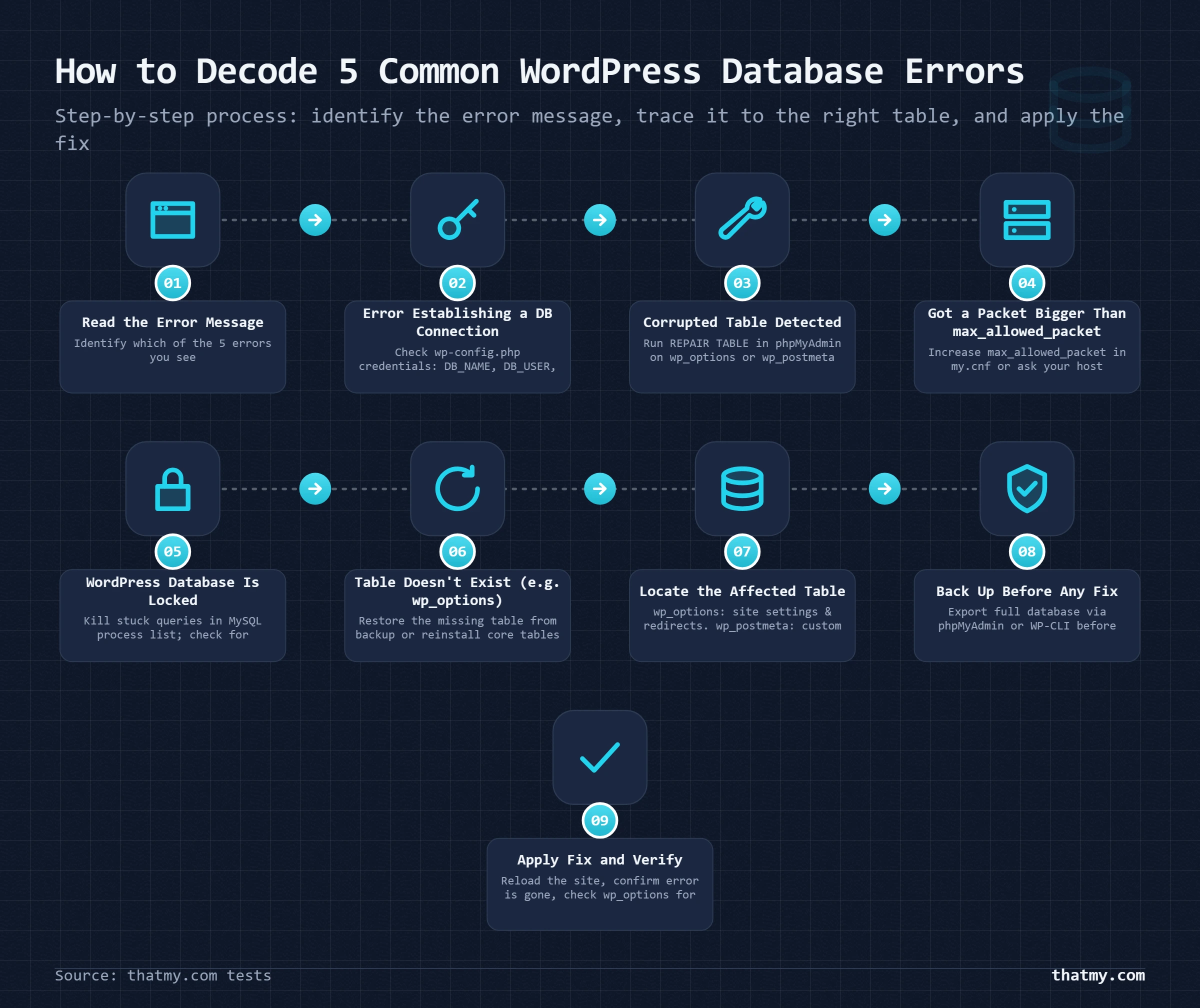
"Error establishing a database connection." WordPress cannot reach the database. The cause is one of: wrong credentials in wp-config.php (the database name, username, or password changed and wp-config did not), the database server is offline (a host outage or planned maintenance), the connection limit is exhausted (covered above), or the database itself has corrupted metadata. First check wp-config.php for typos and changed credentials; second check the host's status page; third check error logs for the specific reason.
"One or more database tables are unavailable. The database may need to be repaired." A table is corrupt. The fix is to add define('WP_ALLOW_REPAIR', true); to wp-config.php, then visit yoursite.com/wp-admin/maint/repair.php. The repair tool runs CHECK and REPAIR commands on every table. Remove the define from wp-config when done. If repair does not fix the table, restore from backup.
"Deadlock found when trying to get lock; try restarting transaction." Two queries are blocking each other waiting for the same row. InnoDB resolves deadlocks by killing one transaction; WordPress retries automatically and the operation usually succeeds. If you see deadlocks repeatedly in logs, the cause is either a high-write table (often a session or analytics plugin) or two plugins fighting over the same data. Identifying the source requires reading the log entries that accompany the error.
"Table 'wp_xxx' is marked as crashed and should be repaired." Specific to MyISAM tables. The cause is usually a hard server crash mid-write. Convert the table to InnoDB after repair to prevent recurrence.
"You have an error in your SQL syntax." A plugin or custom code has fired a malformed query. Almost always a bug in plugin code. The error message includes the line of SQL that failed; identifying which plugin generated it is the path to a fix. Query Monitor's logs identify the source. SQL injection attempts produce similar errors and reveal themselves in the access logs; if the error is not from a plugin, check for an attack pattern. The defense and detection layer for this is covered on the security threats page.
When to Scale: From Shared to Managed Database
For 90% of WordPress sites, the database fits in shared hosting and never causes a problem. For the other 10%, scaling the database is the unlock that takes the site from struggling to comfortable.
The four scaling stages, in order:
Stage 1: Shared database on shared hosting. This is where every site starts. The database server is shared with hundreds of other accounts. CPU, memory, and connection limits are shared. Acceptable for sites under 10,000 monthly visitors and databases under 500 MB.
Stage 2: Managed WordPress hosting. The database is still a shared resource but the operator has tuned it for WordPress and isolates each account from the worst neighbours. Connection limits are higher, slow query logs are exposed, and the operator pre-configures InnoDB and query cache settings. Cloudways and ScalaHosting both fit here, and we cover the practical differences between them on the best managed WordPress hosting page. Comfortable for sites up to 100,000 monthly visitors.
Stage 3: Dedicated database on a VPS. The database server runs on hardware you control. You pick the MySQL version, the InnoDB buffer pool size, the connection limit, and any other tuning parameters. Backups are your responsibility. Performance and capacity are bounded only by the VPS specs. Required for sites in the 100,000 to 1 million monthly visitor range, or any WooCommerce store doing serious volume.
Stage 4: Managed database service. The database moves to a dedicated managed service like Amazon RDS, DigitalOcean Managed Databases, or PlanetScale. WordPress connects to the managed database over a private network. The service handles backups, replication, failover, version upgrades, and patching. Cost is significant ($50 to $500+ per month for the database alone) but the operational reduction is substantial. Right for sites where database downtime is unacceptable and the operations team would rather pay than maintain MySQL themselves. The continuity discipline this enables connects to the broader disaster recovery practice.
Most sites never need stage 3 or 4. The point of knowing they exist is so that when shared hosting starts hitting limits, you know what the upgrade path looks like and what each stage costs.
Where to Go Next
If you came here because of a database problem, the most actionable next step depends on which problem. For "Error establishing a database connection," the common errors section above and the host's status page are the starting line. For slow queries and performance issues, install Query Monitor and read its output for an hour; the cause is almost always one or two specific plugins or one or two specific queries. For backup and recovery, the backup and restore guide picks up where the export section above leaves off and covers the full strategy including offsite storage, restore procedures, and disaster testing. For site speed work that goes beyond just the database, the caching layers on the cache page are the parallel topic that pairs with database performance.
Frequently Asked Questions
What database does WordPress use by default?
WordPress is built for MySQL. In practice, most modern hosts ship MariaDB, which is a drop-in compatible fork of MySQL. WordPress cannot tell the difference. Both work identically for any WordPress site, plugin, or theme. Since 2024, WordPress also officially supports SQLite for development and low-traffic use cases through the SQLite Database Integration plugin.
Can I run WordPress without a database?
Strictly speaking, no. WordPress's content and configuration live in the database. There are projects that pre-render WordPress to static HTML for serving, but the source content still has to live in a database somewhere during editing. The closest thing to running WordPress without a database is the SQLite option, which uses a single file rather than a separate database server. The data is still in a database; it just lives in a different format.
What is the difference between MySQL and MariaDB?
MariaDB is a fork of MySQL created by the original MySQL developers after Oracle acquired MySQL in 2010. The two share most of their codebase but have diverged in details. For WordPress, the differences are invisible. MariaDB has slightly better default performance on some workloads, more open development, and a permissive license. MySQL has more enterprise features in its paid tier. Most managed WordPress hosts switched their default to MariaDB between 2018 and 2022. You usually do not get to pick which one your host runs.
How big can a WordPress database get?
The technical maximum is in the terabytes. The practical maximum is dictated by your hosting plan. Shared hosts typically allow databases up to 1 GB before performance degrades visibly. Managed WordPress hosts handle 5 to 20 GB without issues. Anything larger than that is moving toward needing a dedicated VPS or managed database service. For reference, a typical content blog has a database of 50 to 500 MB. A medium WooCommerce store with two years of orders runs 1 to 5 GB. Sites with database problems usually have a database five to twenty times larger than a clean install of the same content would be.
What is 'Error establishing a database connection' and how do I fix it?
It means WordPress cannot connect to the database server. The four causes, in order of likelihood: wrong credentials in wp-config.php (someone changed the database password and wp-config did not), the database server is offline (host outage), too many open connections (the connection limit ran out), or the database is corrupt at the structural level. Check wp-config.php first, then check your host's status page, then check error logs. If you cannot resolve it, contact your host; they can see the database server state from their side, which you cannot.
Should I use InnoDB or MyISAM for WordPress?
InnoDB, in every case, on every site, in 2026. MyISAM is a legacy engine that should not be used for any new WordPress install. If you have inherited a site with MyISAM tables (check phpMyAdmin's table list), convert them to InnoDB with a single ALTER TABLE command per table. The site gets faster, more reliable, and no longer suffers from the random table corruption issues that MyISAM produces.
How do I optimize my WordPress database?
Three steps cover most of the work. First, limit revisions in wp-config (define WP_POST_REVISIONS to 5 or whatever number suits your editorial workflow). Second, run a periodic cleanup of expired transients (wp transient delete --expired via WP-CLI, or the WP-Optimize plugin). Third, audit autoloaded options in wp_options and remove any that are larger than 1 MB and not in use. Beyond that, the next step is finding and fixing slow queries, which is identified through the Query Monitor plugin and addressed query by query.