
Web Hosting Security: Attacks, What Your Host Blocks, SSL and Hacked Site Recovery

WordPress runs on more than 40 percent of all websites (W3Techs), which makes it the most-attacked platform on the internet. Automated scanners probe WordPress sites around the clock, looking for four specific entry points: login forms, XML-RPC endpoints, plugin input fields, and output rendering logic. This guide is organized around detection first because most people who land here are experiencing something on their site right now and need to name what it is before they can stop it.
The good news: most attacks are opportunistic and automated, and basic hardening stops the large majority of them without any manual intervention. The network layer costs nothing on Cloudflare's free plan and $20 a month on Pro. What you will find in this guide: the detection signature for each attack type, the commands and log patterns that confirm it, what your host blocks before WordPress sees a request and what it leaves to you, how SSL fits in and what free SSL really covers, and the recovery sequence for a site that has already been hacked.
Attack Detection Quick Reference: What Is Happening to Your Site Right Now
Most security guides open with definitions. This one starts with what you are seeing on your screen, because that is the question people search with. The table below maps observable symptoms to attack types and tells you where in this page to go for the full response. If your site is actively behaving wrong right now, start here.
| You Are Seeing | Attack Type | Urgency | First Action |
|---|---|---|---|
| Site extremely slow, server CPU at 100% | DDoS or bot flood | HIGH | Check server connections with netstat/ss. Enable Cloudflare Under Attack Mode immediately. |
| Hundreds of failed login attempts in logs | Brute force attack | MEDIUM | Block attacking IPs in Cloudflare or WordFence. Enable login rate limiting. |
| Spam content or links appearing in pages | SQL injection (database attack) | HIGH | Check wp_options for injected values. Audit recently active plugins for SQLi vulnerabilities. |
| Site redirecting, defaced, or content modified | Active compromise post-injection | CRITICAL | Take site offline. Audit all files against known-good backup. Check for backdoor accounts. |
| Odd JavaScript in page source code | XSS injection | HIGH | Search wp_posts and wp_options for script tags. Check for compromised theme or plugin files. |
| Google warning 'This site may harm computers' | Malware or SEO spam injection | CRITICAL | Search Console Security Issues tab. Pull latest backup. Scan all files with WordFence. |
| Server logs: thousands of /wp-login.php requests | Brute force attempt | MEDIUM | Rate-limit wp-login.php in Cloudflare. Block source IP range if concentrated. |
| 503 errors during apparent traffic spike | DDoS Layer 7 flood | HIGH | Check Cloudflare Analytics for request spike with high 5XX rate. Enable Under Attack Mode. |
The attack quick-reference above is designed to be bookmarked and shared. The sections below each cover one attack type in full: what it is, how to detect it with specific commands, and the mitigation sequence from immediate response through structural prevention.
DDoS Attacks on WordPress: Detection, Types, and How to Stop One That Is Happening Now
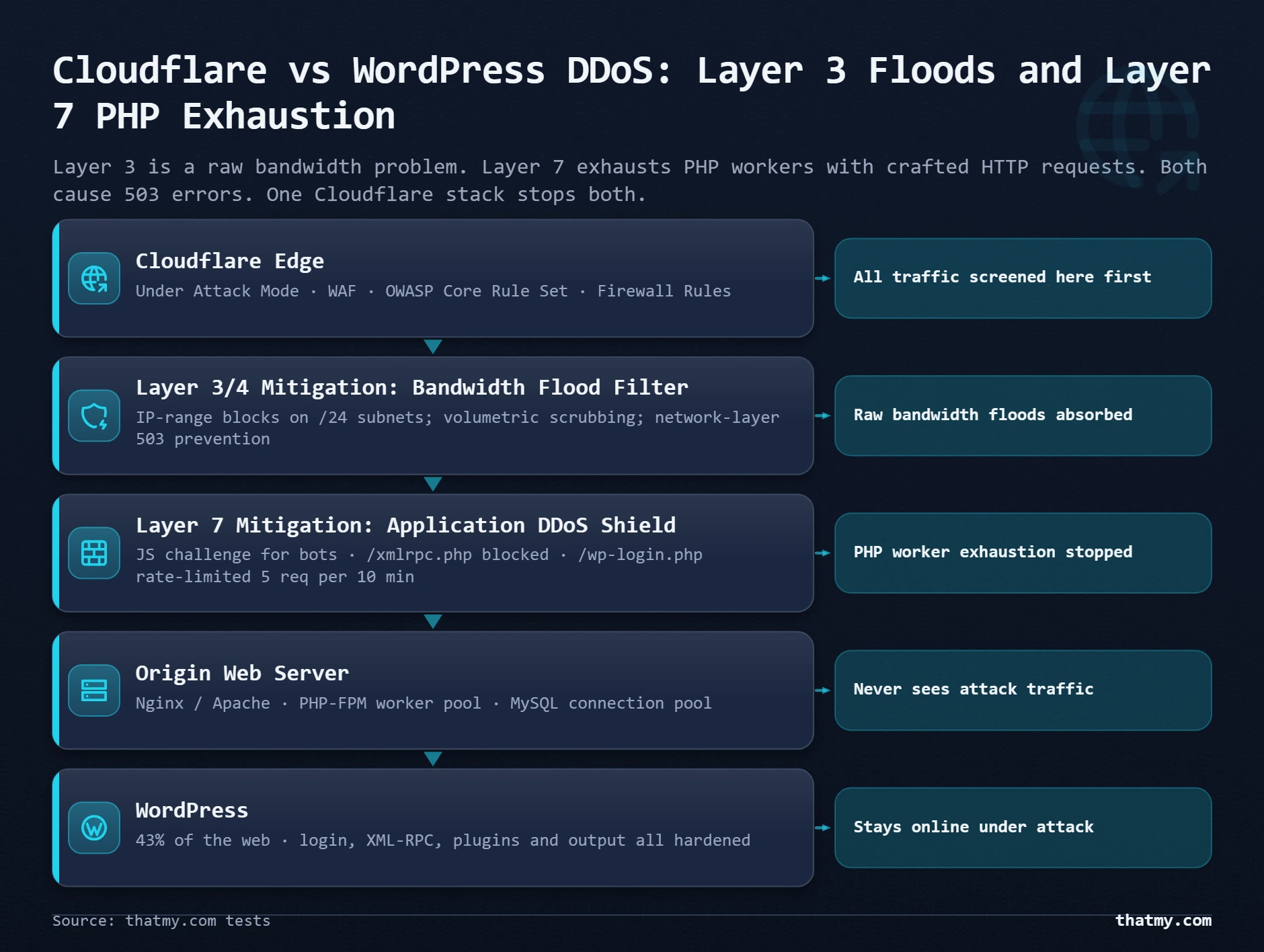
Most WordPress owners think a DDoS means their server is overwhelmed by traffic. That describes one type. The more common attack against WordPress is not a bandwidth flood at all. It is a deliberate exhaustion of PHP workers and database connections using a small number of bots sending carefully crafted HTTP requests. Your server CPU hits 100% and visitors get 503 errors, but Cloudflare Analytics shows only a moderate request increase. That is Layer 7 application DDoS. No CDN-busting bandwidth required.
| DDoS Type | Mechanism | Server Impact | Scope | Correct Response |
|---|---|---|---|---|
| Volumetric (Layer 3/4) | Raw bandwidth flood from botnet | Server cannot receive legitimate connections | Requires CDN-level mitigation. Individual servers cannot absorb this. | Cloudflare free tier absorbs this entirely at the network edge before reaching your server. |
| Application (Layer 7) | HTTP requests exhausting PHP workers | PHP-FPM pool fills, requests queue, site goes 503 | Can execute with a small number of bots. No bandwidth saturation needed. | Cloudflare WAF + Under Attack Mode. Rate-limit wp-login.php and high-cost endpoints. |
| XML-RPC amplification | Repeated requests to /xmlrpc.php | Server overload, can relay spam or enable proxied brute force | Historically exploited heavily. Many WordPress sites still have it enabled. | Block /xmlrpc.php entirely via .htaccess or Cloudflare firewall rule if you do not use it. |
How to Detect an Active DDoS: Run This Now
SSH into your server and run the following commands to see your current connection state in real time. The pattern in the output tells you whether you are dealing with a targeted flood from few IPs, a botnet flood from many, or high legitimate traffic that your server is genuinely undersized for.
# Count connections per IP on port 80 (or 443)
# Run this first: output tells you the nature of the traffic
netstat -n | grep :80 | awk '{print $5}' | cut -d: -f1 | sort | uniq -c | sort -rn | head -20

# Faster on modern systems (replaces netstat):
ss -tn | grep :80 | awk '{print $6}' | cut -d: -f4 | sort | uniq -c | sort -rn | head -20

# What the output means:
# One or few IPs with 100+ connections each  = targeted DDoS or aggressive scraper
# Hundreds of different IPs with 1-5 each    = botnet DDoS or legitimate traffic spike
# Mostly your own CDN IPs with many each     = Cloudflare forwarding, check origin

# Check total active connections right now:
ss -s | grep "TCP:"
Cloudflare Analytics as DDoS Early Warning
Before SSH access is needed, Cloudflare Analytics shows a DDoS in progress. Navigate to Cloudflare dashboard then Analytics then Traffic. A sudden vertical spike in requests combined with a high percentage of 5XX responses means your server is failing to handle the volume. The ratio of 5XX to total requests matters more than the absolute request count. 10,000 requests with 95% 5XX is a DDoS. 10,000 requests with 1% 5XX is a traffic spike your server is mostly handling.
Cloudflare Security then Events shows which specific IPs and patterns triggered WAF rules. During an active attack, this view updates every few minutes and gives you the source IP ranges, the attack pattern, and whether Cloudflare has already blocked it automatically.
Stopping an Active DDoS: The Two-Minute Response
When a DDoS is confirmed and active, the response sequence is:
- Enable Cloudflare Under Attack Mode: Security then Settings then Security Level then "I'm Under Attack". This adds a JavaScript challenge to every visitor. Bots and automated traffic cannot pass it. Real visitors see a brief loading screen. Activates within seconds. This single action stops most WordPress-targeted DDoS attacks immediately.
- Block the attacking IP range: If the netstat output shows concentrated traffic from one or a small number of IP ranges, add Cloudflare Firewall Rules to block them: (ip.src eq 123.456.789.0/24) Action: Block.
- Block XML-RPC if not already done: If the attack is targeting /xmlrpc.php specifically, the Cloudflare rule is: (http.request.uri.path eq "/xmlrpc.php") Action: Block. This stops both the attack and the amplification vector permanently.
Structural DDoS Prevention: The Configuration That Stays in Place
Once the immediate attack is stopped, three configuration items prevent recurrence. First, block or restrict /xmlrpc.php if you are not actively using the WordPress mobile app, Jetpack, or remote publishing tools:
# Block XML-RPC entirely (if you do not use it)
<Files xmlrpc.php>
    Order deny,allow
    Deny from all
</Files>

# Alternative: limit to specific IPs only (if you do use it)
<Files xmlrpc.php>
    Order deny,allow
    Deny from all
    Allow from 203.0.113.0/24  # your office IP range
</Files>
Second, set up a Cloudflare Rate Limiting rule on /wp-login.php: path contains /wp-login.php, threshold 5 requests per 10 minutes per IP, action Block for 1 hour. This stops both DDoS targeting the login endpoint and brute force attacks in a single rule.
Third, if you are on Cloudflare Pro, enable the OWASP Core Rule Set under Security then WAF then Managed Rules. This set of rules blocks the HTTP patterns characteristic of Layer 7 DDoS tools (specific user agent strings, header patterns, and request structures used by common DDoS tools). For context on how CDN-level protection integrates with your hosting stack, the Cloudflare section of the caching guide covers proxy mode, the SSL mode and what the free and Pro plans include.
Should you upgrade to Cloudflare Pro for DDoS protection?
If you have never been attacked: Free tier is sufficient. Under Attack Mode handles most situations when needed.
If you have been attacked once: Pro ($20 a month billed yearly) adds OWASP WAF rules and better bot management. Worth it for any revenue-generating site.
If you are under sustained or repeated attack: Pro WAF rules plus Bot Management give you granular control over traffic patterns. The cost of one hour of downtime on most WooCommerce sites exceeds the annual Pro cost.
Brute Force Attacks: How to Read Your Logs and Stop Them in Under 10 Minutes
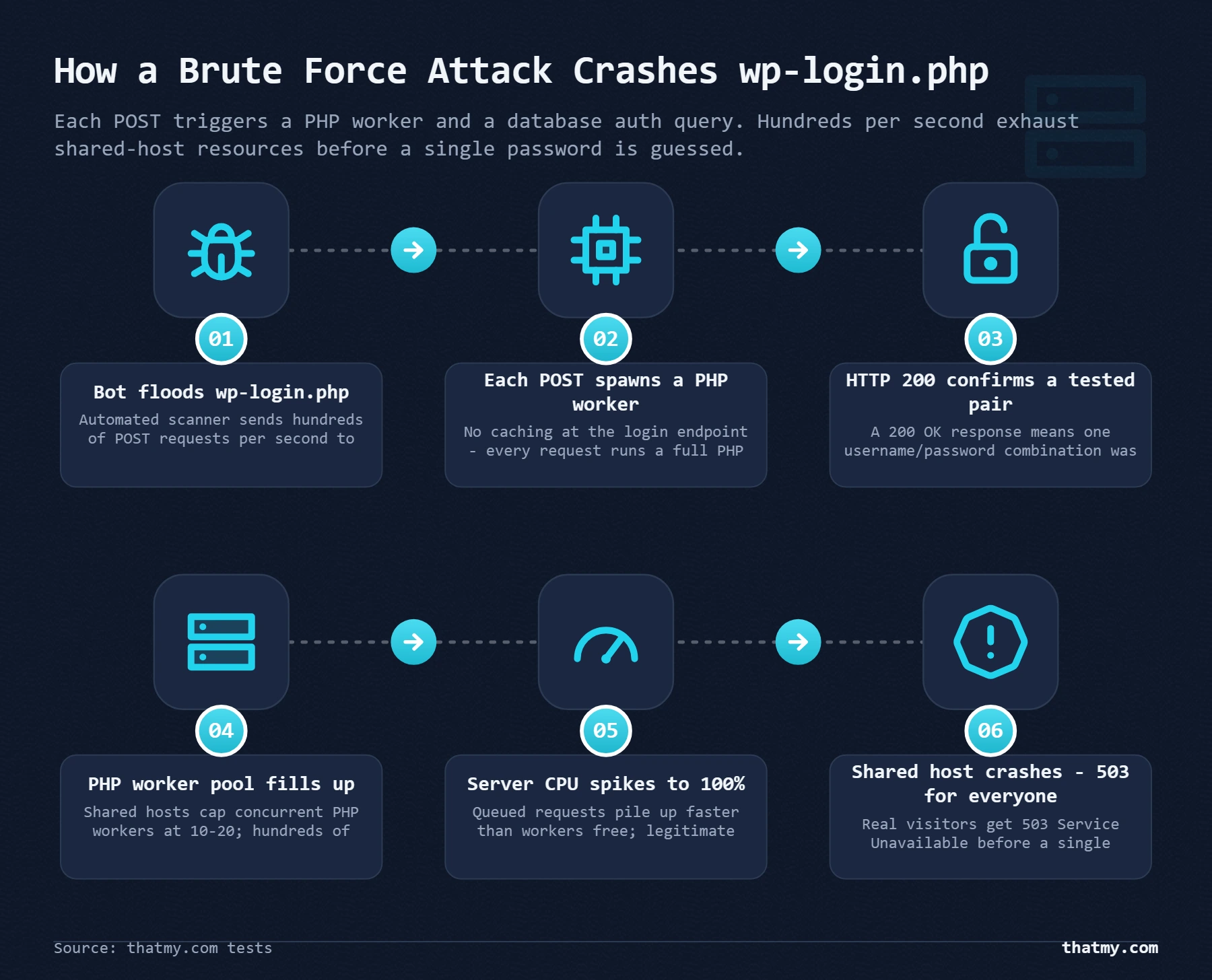
Brute force detection is easier than any other WordPress attack type because the evidence is in your server logs in a format you can read in seconds. Every login attempt creates a line in your Apache or Nginx access log. Hundreds of those lines pointing to /wp-login.php from rotating IP addresses within seconds of each other is not ambiguous. You do not need a security plugin to see it.
Reading Your Access Logs: The Commands That Surface Brute Force in Real Time
# Count POST requests to wp-login.php in today's access log (Apache/cPanel hosts)
grep "POST /wp-login.php" /var/log/apache2/access.log | wc -l

# See the most recent attempts with timestamps and source IPs:
grep "POST /wp-login.php" /var/log/apache2/access.log | tail -50

# For Nginx:
grep "POST /wp-login.php" /var/log/nginx/access.log | tail -50

# Count by source IP (identifies whether it is concentrated or distributed):
grep "POST /wp-login.php" /var/log/apache2/access.log | \
  awk '{print $1}' | sort | uniq -c | sort -rn | head -20

# Real-time monitoring (watch new attempts arrive):
tail -f /var/log/apache2/access.log | grep "wp-login.php"
What Brute Force Looks Like in Logs
This is what a brute force attack looks like in raw access logs. Every line is a separate login attempt. Note the timestamps: three attempts per second from three different IP addresses. This is a distributed brute force, rotating IPs to avoid per-IP rate limiting. A non-distributed attack from one IP looks the same except all source IPs are identical.
123.45.67.89  - - [08/May/2026:03:15:23 +0000] "POST /wp-login.php HTTP/1.1" 200 3478
198.51.100.10 - - [08/May/2026:03:15:24 +0000] "POST /wp-login.php HTTP/1.1" 200 3478
203.0.113.42  - - [08/May/2026:03:15:24 +0000] "POST /wp-login.php HTTP/1.1" 200 3478
123.45.67.90  - - [08/May/2026:03:15:25 +0000] "POST /wp-login.php HTTP/1.1" 200 3478
198.51.100.11 - - [08/May/2026:03:15:25 +0000] "POST /wp-login.php HTTP/1.1" 200 3478
# ... hundreds more lines at 2-5 per second
The HTTP 200 response does not mean the login succeeded. It means the login page loaded and was processed. A successful brute force login typically generates a 302 redirect to /wp-admin/ in the logs. Any 302 after POST /wp-login.php during a brute force window is a compromised credential and requires immediate investigation.
| Attack Variant | Method | Success Rate | Specific Counter |
|---|---|---|---|
| Credential stuffing | Stolen breach list (email:password pairs) | High success rate because credentials were real on another site | 2FA makes stolen credentials useless. Password reuse is the underlying risk factor. |
| Dictionary attack | Common password wordlist | Low success rate against strong passwords | 20+ character random passwords are immune. Dictionary attacks fail completely. |
| Username enumeration first | WordPress exposes usernames via author pages and /wp-json/ | Reduces password space, attacker knows the username before guessing begins | Hide usernames in REST API. Never use 'admin'. WordFence blocks enumeration attempts. |
| Distributed brute force | Thousands of IPs each making 1-2 attempts | Evades per-IP rate limiting | CAPTCHA challenge on login. Cloudflare Bot Management (Pro) detects distributed patterns. |
Stopping Active Brute Force: The Response Sequence
Immediate actions while the attack is in progress:
- Block attacking IP(s) in Cloudflare: Security then Firewall Rules then Create Rule. If the attack is from one IP: (ip.src eq 123.45.67.89) Block. If from a /24 subnet: (ip.src in {123.45.67.0/24}) Block. Activates in under 30 seconds.
- Enable WordFence rate limiting: WordFence Dashboard then Firewall then Brute Force Protection. Set lock out after 3-5 failures. Lock out duration: 4 hours minimum.
- Check for successful logins: In WordPress admin, Users then All Users. Sort by Last Login if WordFence is installed. Look for admin accounts you did not create. Any unrecognized accounts are backdoors.
Structural Brute Force Prevention
Once the immediate attack is handled, four configurations prevent recurrence without ongoing manual effort:
1. Two-factor authentication. This is the single most effective measure. A bot can guess a correct password and still cannot log in without the second factor. Install WP 2FA (free), enforce for all admin roles, use TOTP (Google Authenticator compatible). Setup takes 10 minutes and makes credential attacks permanently irrelevant.
2. Strong unique passwords. A 20+ character random password defeats every dictionary and brute force variant. WordPress's built-in password generator creates these. Save them in a password manager. The number of brute force attacks that succeed against a strong random password is effectively zero.
3. Username hardening. Never use "admin" as a WordPress username. Create any other username during installation. Brute force bots target "admin" first because it is the default. An attacker who must guess both username and password faces a much larger search space.
4. Cloudflare rate limiting rule. In Cloudflare Dashboard, go to Security then WAF then Rate Limiting Rules, then Create. Field: URI Path, Contains: /wp-login.php. Threshold: 5 requests per 600 seconds per IP. Action: Block for 3600 seconds. This stops every brute force variant that does not use extreme IP rotation, before the requests ever reach your server.
For sites running WooCommerce or membership plugins where brute force against customer accounts is also a concern, the same Cloudflare rate limiting rule on /wp-login.php covers customer logins as well. The 500 and 503 errors guide covers the server-side symptoms that brute force load causes, which are often misdiagnosed as hosting problems rather than attack-related resource exhaustion.
SQL Injection on WordPress: How to Detect It in Your Database and Prevent It
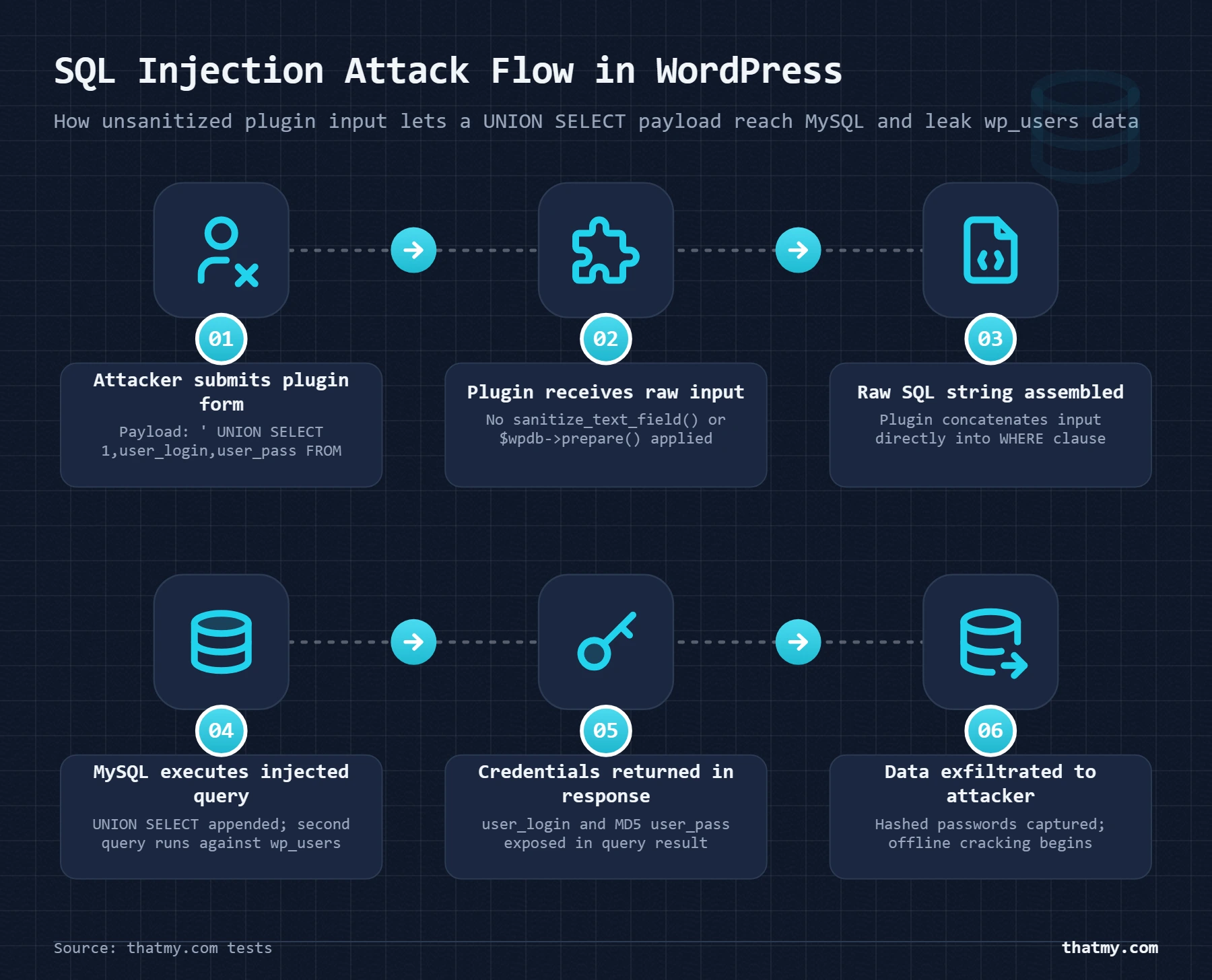
SQL injection through WordPress core is close to impossible because the WordPress database abstraction layer uses parameterized queries correctly. This does not protect you. SQL injection through WordPress plugins is the primary attack vector, and it has been responsible for the majority of large-scale WordPress compromises in the past three years. The gap between "WordPress core is secure" and "your WordPress installation is secure" is the gap filled by your installed plugins.
What SQL Injection Actually Does to a WordPress Database
An attacker sends a crafted URL parameter or form submission containing SQL syntax. If the receiving plugin builds its database query by string concatenation with user input instead of using parameterized queries, the SQL syntax executes as a real database command. The scope of what is possible depends on the database user's privileges. A WordPress database user with SELECT, INSERT, UPDATE, DELETE privileges can be exploited to read the entire users table (getting password hashes), inject spam content into posts, and change the siteurl to redirect all visitors to an attacker-controlled domain. A database user with DROP privileges can delete tables. Principle of least privilege matters here.
| Attack Vector | Risk Level | Why | Specific Mitigation |
|---|---|---|---|
| Outdated plugins | Very High | WPScan tracks 25,000+ plugin vulnerabilities. Unpatched plugins are the primary SQLi vector. | Update all plugins immediately. WPScan --enumerate vp shows vulnerable plugins in your installation. |
| Custom functions.php code | High if unescaped | Any $wpdb->query() using unescaped user input is injectable. | Use $wpdb->prepare() for all queries with user input. Never concatenate $_GET/$_POST into queries. |
| WordPress core | Near zero | WordPress core correctly sanitizes all inputs using $wpdb->prepare(). | Keep core updated to receive security patches promptly. |
| Third-party PHP files | Variable | Custom scripts or old include files outside WordPress context often skip sanitization entirely. | Audit all .php files outside wp-core. Remove anything not actively maintained. |
Detecting SQLi Attempts in Your Server Logs
# Detect common SQLi patterns in Apache logs:
grep -Ei "(UNION SELECT|SELECT.*FROM|INSERT INTO|DROP TABLE|OR 1=1|' OR '|1=1--)" \
  /var/log/apache2/access.log | tail -30

# Check for base64-encoded SQLi payloads (attackers encode to bypass simple filters):
grep -Ei "(base64_decode|eval\(|fromcharcode|0x[0-9a-f]{10,})" \
  /var/log/apache2/access.log | tail -20

# Check specific vulnerable-looking parameters:
grep -Ei "(\?id=|&id=|&cat=|\?page=|&page=)" /var/log/apache2/access.log | \
  grep -Ei "('|--|UNION|SELECT)" | tail -20
Detecting SQLi That Already Succeeded: The Database Checks
Log analysis shows attempts. Database analysis shows success. If you are investigating a suspected injection, run these queries in phpMyAdmin. They surface the most common SQLi-injected content patterns that appear across real compromised WordPress databases.
-- Check for injected code in wp_options (most common target):
SELECT option_name, LEFT(option_value, 200)
FROM wp_options
WHERE option_value LIKE '%base64_decode%'
   OR option_value LIKE '%eval(%'
   OR option_value LIKE '%\x%'
   OR option_value LIKE '%/bin/sh%';

-- Check for injected scripts in published posts:
SELECT ID, post_title, LEFT(post_content, 300)
FROM wp_posts
WHERE post_content LIKE '%<script%'
  AND post_status = 'publish';

-- Check for unauthorized admin accounts:
SELECT u.user_login, u.user_email, u.user_registered, m.meta_value as role
FROM wp_users u
JOIN wp_usermeta m ON u.ID = m.user_id
WHERE m.meta_key = 'wp_capabilities'
  AND m.meta_value LIKE '%administrator%'
ORDER BY u.user_registered DESC;

-- Check if siteurl or home options were modified:
SELECT option_name, option_value
FROM wp_options
WHERE option_name IN ('siteurl', 'home', 'blogname', 'admin_email');
-- Verify these match your actual domain and admin email
WPScan: The Tool That Finds Your Vulnerable Plugins Before Attackers Do
WPScan is a WordPress-specific security scanner that checks your installed plugins against a database of 25,000+ known vulnerabilities. Running it monthly costs nothing (free tier available at wpscan.com), finds vulnerable plugins you may not know about, and catches vulnerabilities before they are actively exploited. After a compromise, running it against the recovered installation confirms whether the attack vector was a known vulnerability you could have patched.
# Install WPScan (requires Ruby):
gem install wpscan

# Scan for vulnerable plugins (vp = vulnerable plugins only):
wpscan --url https://yourdomain.com --enumerate vp

# Full scan including users and themes:
wpscan --url https://yourdomain.com --enumerate vp,vt,u

# With API token (enables current vulnerability database, free tier: 25 requests/day):
wpscan --url https://yourdomain.com --enumerate vp --api-token YOUR_TOKEN

# Example output for a vulnerable plugin:
# [!] Title: Contact Form 7 < 5.x.x - SQL Injection via 'serial' parameter
#     Fixed in: 5.x.x
#     References:
#      - https://wpscan.com/vulnerability/xxxxx
#      - CVE-2026-XXXXX
SQLi Prevention: The Four-Layer Approach
First, keep all plugins updated without exception. Every unpatched plugin vulnerability in WPScan's database has a fix available. The fix is the update. The attack that succeeds is almost always against a plugin version that had a patch released weeks or months before the attack.
Second, Cloudflare WAF with OWASP rules (Pro plan) blocks SQL injection patterns at the network edge before they reach WordPress. The OWASP Core Rule Set includes rules specifically targeting UNION SELECT, string concatenation attacks, and blind SQLi time-based payloads.
Third, restrict database user privileges. Your WordPress database user should have exactly SELECT, INSERT, UPDATE, DELETE on the WordPress database. Not DROP, not CREATE, not ALTER, not FILE. A database user with only these four privileges cannot drop tables or modify database structure even if an injection succeeds. Set this in your host's phpMyAdmin under Privileges.
Fourth, change the default table prefix from wp_ to a random string. Most automated SQLi attacks are scripted against the default prefix. Tools like Better WP Security (now iThemes Security) or a manual wp-config.php edit accomplish this. This change stops automated scripts. It does not stop a manually operated or adaptive attack.
The underlying principle: SQLi is the attack type most connected to your plugin maintenance discipline. A site running fully updated plugins with Cloudflare WAF active has eliminated over 95% of its SQLi attack surface. The managed hosting guide covers how managed WordPress hosts handle automatic security patching, which matters here because managed hosts apply WordPress core security patches within hours of release.
Cross-Site Scripting (XSS): How to Detect Injected JavaScript and Close the Vector
XSS is the attack that gets noticed by your visitors before you notice it yourself. Someone emails you saying your site redirected them to a pharmaceutical spam page. Your Google Search Console sends a malware alert. A visitor reports unusual browser warnings. By the time you are reading those reports, the injected script may have been executing for hours or days, running in the browsers of everyone who visited your site during that period.
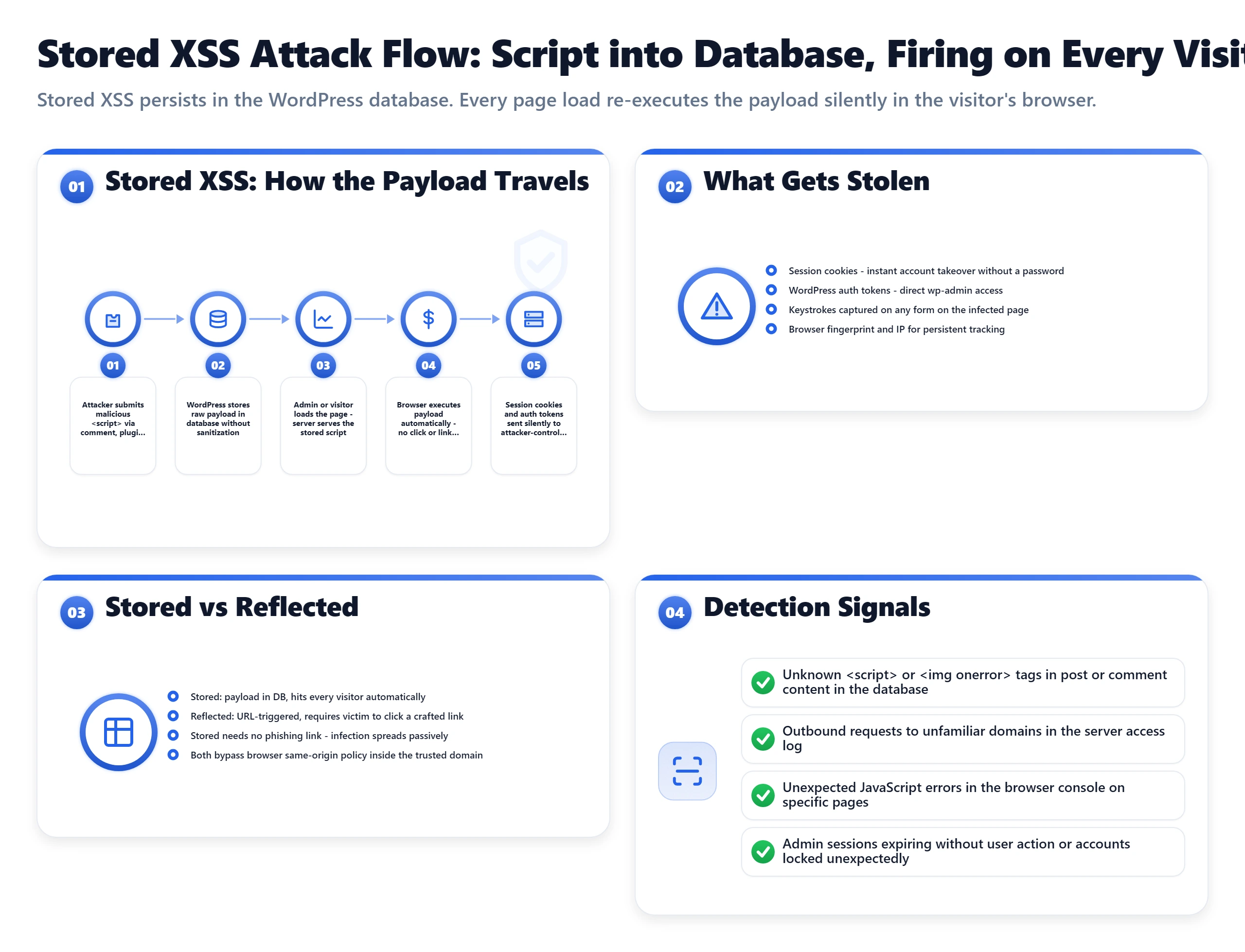
Stored XSS vs Reflected XSS: The Detection Difference
Stored XSS means the malicious script is saved in your database: in post content, comments, custom fields, or the wp_options table. It executes for every visitor who loads the page containing it. Detection requires searching the database. Reflected XSS means the malicious script is in a URL parameter and only executes when someone clicks a specially crafted link. The attacker sends the link to targets; no database entry is needed. Detection requires monitoring for unusual URL patterns in your logs.
For WordPress sites, stored XSS is the greater risk because it can sit undetected in the database and affect thousands of visitors before anyone identifies it. Reflected XSS is more commonly used in phishing campaigns targeting specific users rather than site-wide infections.
| XSS Impact Type | What Happens | Risk Level | Technical Defense |
|---|---|---|---|
| Session cookie theft | Attacker captures logged-in admin cookie and hijacks session without needing password | HIGH | HttpOnly cookie flag prevents JavaScript from reading session cookies. WordPress sets this by default. |
| Admin account creation | Injected script POSTs to wp-admin to create a new administrator account | CRITICAL | Content Security Policy restricts which domains can receive form posts. Nonce validation blocks forged requests. |
| Visitor redirection | Script redirects visitors to malware distribution or phishing pages | HIGH | Detected by Google Safe Browsing within hours to days. Search Console sends email alerts. |
| Keylogging on forms | Script captures form inputs including payment details if WooCommerce is present | CRITICAL | PCI DSS compliance requires CSP headers on checkout pages. Subresource Integrity for third-party scripts. |
| Cryptomining injection | Script runs CPU-intensive mining in visitor browsers, degrading performance | MEDIUM | CSP script-src whitelist prevents unauthorized script execution from injected sources. |
Detecting Injected JavaScript: Where to Look
If you suspect XSS injection, these are the four places where injected JavaScript appears in WordPress:
-- Check post content for injected script tags:
SELECT ID, post_title, post_type, post_status
FROM wp_posts
WHERE post_content LIKE '%<script%'
  AND post_status IN ('publish', 'draft')
ORDER BY post_modified DESC;

-- Check wp_options for injected scripts (targets widget content, theme settings):
SELECT option_name
FROM wp_options
WHERE option_value LIKE '%<script%'
   OR option_value LIKE '%javascript:%'
   OR option_value LIKE '%document.write%'
   OR option_value LIKE '%eval(%';

-- Check comments for stored XSS (if comments are not moderated):
SELECT comment_ID, comment_author, comment_content
FROM wp_comments
WHERE comment_content LIKE '%<script%'
   OR comment_content LIKE '%javascript:%'
   AND comment_approved = '1';

-- Check custom post meta for injected content:
SELECT post_id, meta_key, LEFT(meta_value, 200)
FROM wp_postmeta
WHERE meta_value LIKE '%<script%'
   OR meta_value LIKE '%eval(%';
Beyond the database, check your theme files directly. XSS attacks that compromise file write access (often through a combination of SQLi and file write privileges) inject JavaScript directly into template files. Check these files for anything you did not write:
# Find recently modified PHP files in your WordPress installation:
find /path/to/wordpress -name "*.php" -newer /path/to/wordpress/wp-config.php \
  -not -path "*/wp-content/uploads/*" | head -30

# Search for common injected script patterns in theme files:
grep -rl "eval(base64_decode" /path/to/wordpress/wp-content/themes/
grep -rl "document.write" /path/to/wordpress/wp-content/themes/
grep -rl "<script src=.*http" /path/to/wordpress/wp-content/themes/

# Find PHP files in uploads (should never exist: these are backdoors):
find /path/to/wordpress/wp-content/uploads -name "*.php"
Browser-Side Detection: What Visitors and DevTools Show You
Open Chrome DevTools (F12) on your site's pages and check three places. First, the Console tab: unexpected JavaScript errors or loading messages from domains you do not recognize are injected script indicators. Second, the Network tab: filter by Script and look for requests to external domains you did not include in your theme or plugins. Third, the Sources tab: search for external script tags in the page source that reference domains you do not control.
Google Search Console is your most reliable external detection tool. Under Security and Manual Actions then Security Issues, Google flags sites it has identified as serving malware or hosting phishing pages. The notification arrives via email within hours to days of Google detecting an infection, often before site owners notice anything wrong themselves.
XSS Prevention: The Three Layers That Work Together
Layer 1: HTTP Security Headers. Add these to your .htaccess or via Cloudflare Transform Rules. They instruct browsers about your site's security expectations and block entire categories of attack:
<IfModule mod_headers.c>
    # Prevents clickjacking: site cannot be embedded in iframes on other domains
    Header set X-Frame-Options "SAMEORIGIN"

    # Prevents MIME-type sniffing that enables certain injection attacks
    Header set X-Content-Type-Options "nosniff"

    # Legacy XSS filter for older browsers
    Header set X-XSS-Protection "1; mode=block"

    # Controls how much referrer info is sent in requests
    Header set Referrer-Policy "no-referrer-when-downgrade"

    # Content Security Policy: customize this for your specific scripts
    # Start permissive, then tighten based on what you actually load:
    Header set Content-Security-Policy "default-src 'self'; script-src 'self' 'unsafe-inline' https://www.googletagmanager.com; style-src 'self' 'unsafe-inline'; img-src 'self' data: https:;"
</IfModule>
Layer 2: Cloudflare WAF OWASP rules. The OWASP Core Rule Set (available on Cloudflare Pro) includes XSS-specific rules that detect and block common injection patterns in URL parameters, form fields, and HTTP headers before they reach WordPress. This is the most effective passive protection against reflected XSS attempts.
Layer 3: Plugin code hygiene. If you write any custom PHP for your site (in functions.php, custom plugins, or child themes), use WordPress's output escaping functions on anything that contains user data. The rule: never output a variable to the page without passing it through esc_html(), esc_attr(), esc_url(), or wp_kses_post() depending on the context. A single unescaped echo $_GET['query'] in a theme file is a stored XSS waiting to happen.
For comment spam that includes XSS payloads, Akismet (free for personal sites) and Cloudflare Turnstile (free CAPTCHA) filter the majority of automated comment submissions before they reach WordPress's database. This removes the automated stored-XSS-via-comments vector entirely on most sites.
HTTPS closes one more path. A session cookie sent over plain HTTP can be read on the network, so an attacker does not even need XSS to steal it; HTTPS with the Secure cookie flag keeps the cookie off unencrypted connections. What HTTPS does and does not protect is in the SSL section below.
What Your Host Blocks: Intrusion Detection and Prevention
Everything above happens at the WordPress layer. Underneath it, most hosts run their own security that filters traffic and watches files before your site sees a request. Hosting plans sell it as "advanced security" or "malware protection". The two questions that tell you what it is worth: does it only detect an attack or does it stop one, and does it watch the network, the server, or both?
Detection vs prevention: IDS and IPS
An intrusion detection system (IDS) compares traffic and server activity against known attack signatures and unusual patterns, then raises an alert. Its job ends there: a person or another system has to act on it. An intrusion prevention system (IPS) does the same matching but sits in the traffic path, so it can drop the connection, block the IP or reject the request the moment something matches. Any public site sees a steady stream of automated probes, far too many for a person to review, so only automatic blocking scales. That is why the security products hosts run, Imunify360, Wordfence's firewall and Sucuri's firewall among them, work mainly as an IPS, with alerts as the secondary mode.
A web application firewall (WAF) is an IPS scoped to HTTP. It inspects requests for SQL injection, XSS payloads and known plugin exploits, and blocks them before PHP runs. Every IPS produces false positives, a legitimate request that happens to look like an attack: an unusual API call, a security scanner, a real visitor who trips a rate limit during a spike. A good one lets you or your host allowlist the IP or the rule once that happens. A ruleset that never blocks anything legitimate is almost certainly missing real attacks too.
Network-based vs host-based: where the watching happens
A network-based system (NIDS or NIPS) inspects traffic at a firewall, load balancer or edge network before it reaches the server. It sees port scans, distributed brute force spread across many IPs, known-bad request signatures and floods. Its blind spot is everything that happens after a normal-looking request got through: a compromised plugin quietly writing files, or a stolen password used for one ordinary login.
A host-based system (HIDS or HIPS) runs on the server itself and watches local activity: core files changing unexpectedly, a PHP process spawning a shell (the classic sign of a web shell), login patterns, and the contents of log files. It catches what the network layer cannot, but a flood still eats server resources before host-level detection notices anything. Neither layer is enough alone, and good hosting runs both.
Where a firewall runs also decides whether an attacker can switch it off. An edge firewall such as Cloudflare or Sucuri sits on someone else's network, so even a fully compromised server cannot disable it, and blocked requests never reach your server at all. A plugin firewall such as Wordfence runs inside the WordPress it protects: the request has already arrived, and an attacker who controls WordPress can deactivate it. Run the plugin, but not as your only firewall.
| Layer | Where It Runs | What It Stops | What It Misses |
|---|---|---|---|
| Edge network (Cloudflare, a host's CDN) | Before the server | Floods, bad bots, known-bad IPs; OWASP patterns on paid rule sets | Anything that looks like a normal request |
| Server WAF and IP blocking (Imunify360, ModSecurity) | On the server, before PHP | SQLi and XSS payloads, plugin exploit signatures, brute force across the whole server | A valid login with a stolen password |
| Server file scanning (Imunify360, host malware scanners) | On the server's disk | Known malware, web shells, changed core files | New or heavily obfuscated malware until the signatures catch up |
| WordPress security plugin (WordFence, MalCare) | Inside WordPress | WordPress-specific attacks, login abuse, user enumeration | Floods that exhaust PHP workers before WordPress loads |
What shared, managed and VPS hosting give you
On shared and managed hosting, the host provides and runs intrusion prevention, and it protects the whole server rather than your account alone, because one compromised account can be used to attack its neighbours. cPanel hosts commonly run Imunify360 or a similar product that bundles a WAF, malware and file-integrity scanning, and server-wide IP blocking. You do not configure it and usually cannot switch it off. Ask about isolation too: on CloudLinux servers, CageFS gives each account its own view of the filesystem so a hacked neighbour cannot read your files, but it is a separate feature from CloudLinux itself, so "we run CloudLinux" does not prove CageFS is on (how CageFS works). Managed WordPress and managed VPS plans add their own layers on top, and some include malware cleanup by support.
On an unmanaged VPS or dedicated server, none of this exists until you set it up. The usual baseline is Fail2ban, which watches log files (SSH logins, web server access logs) for repeated failures and firewalls the offending IPs. It is a real IPS, but far narrower than a commercial suite, and its rules and thresholds are yours to tune. It is the first thing to install on a new VPS:
sudo apt install fail2ban

# /etc/fail2ban/jail.local (local overrides survive package updates)
[sshd]
enabled  = true
maxretry = 5
findtime = 10m
bantime  = 1h

sudo systemctl restart fail2ban
sudo fail2ban-client status sshd   # shows failures and currently banned IPs
Who is responsible for which layer on a managed VPS, and what the provider patches for you, is covered in the managed VPS guide.
What to check in a host's security claims
- Does it block, or only alert? "Monitoring" or "alerts" with no word about automatic blocking may mean detection only, which is much weaker against automated, high-volume attacks than a real IPS.
- Does it cover the server as well as the network? A firewall alone does not catch a compromised plugin already inside your account. Ask whether malware and file-integrity scanning are included, not just a firewall.
- Is it a named product? "Imunify360 included" is a claim you can look up. "Advanced security monitoring" with no product behind it is hard to judge and sometimes means less than it sounds.
- On a VPS, is anything set up by default? Some managed VPS providers install a baseline such as Fail2ban for you; on an unmanaged VPS it is entirely yours, an easy step to miss when moving up from shared hosting.
- Is malware cleanup included, or only detection? Finding malware and removing it are sold separately on many plans. Knowing which you have before an incident saves a rushed purchase during one.
Security add-ons at checkout
Some hosts sell security as a paid add-on in the cart. On a Bluehost checkout we captured, the add-on now called Bluehost Complete Security (sold as SiteLock before the rename) cost $71.88 for the first year and renewed at $239.88, a 234 percent rise. Before adding one, check what the plan already includes: on many hosts the server-level firewall and scanning above come with every plan, and Cloudflare's free plan plus a free security plugin cover the WordPress side. Paid SSL and security upsells, and their free equivalents, are listed in hidden web hosting fees.
The WordPress Security Stack: Six Layers That Together Cover All Four Threats
Installing a security plugin is not a security strategy. It is one tool in one layer. The difference between a site that gets compromised and one that does not is usually not the presence of WordFence. It is whether the site owner implemented the full layered stack or stopped at the plugin install. The six layers below each cover a different attack surface. Missing one layer leaves a gap that the others cannot close.
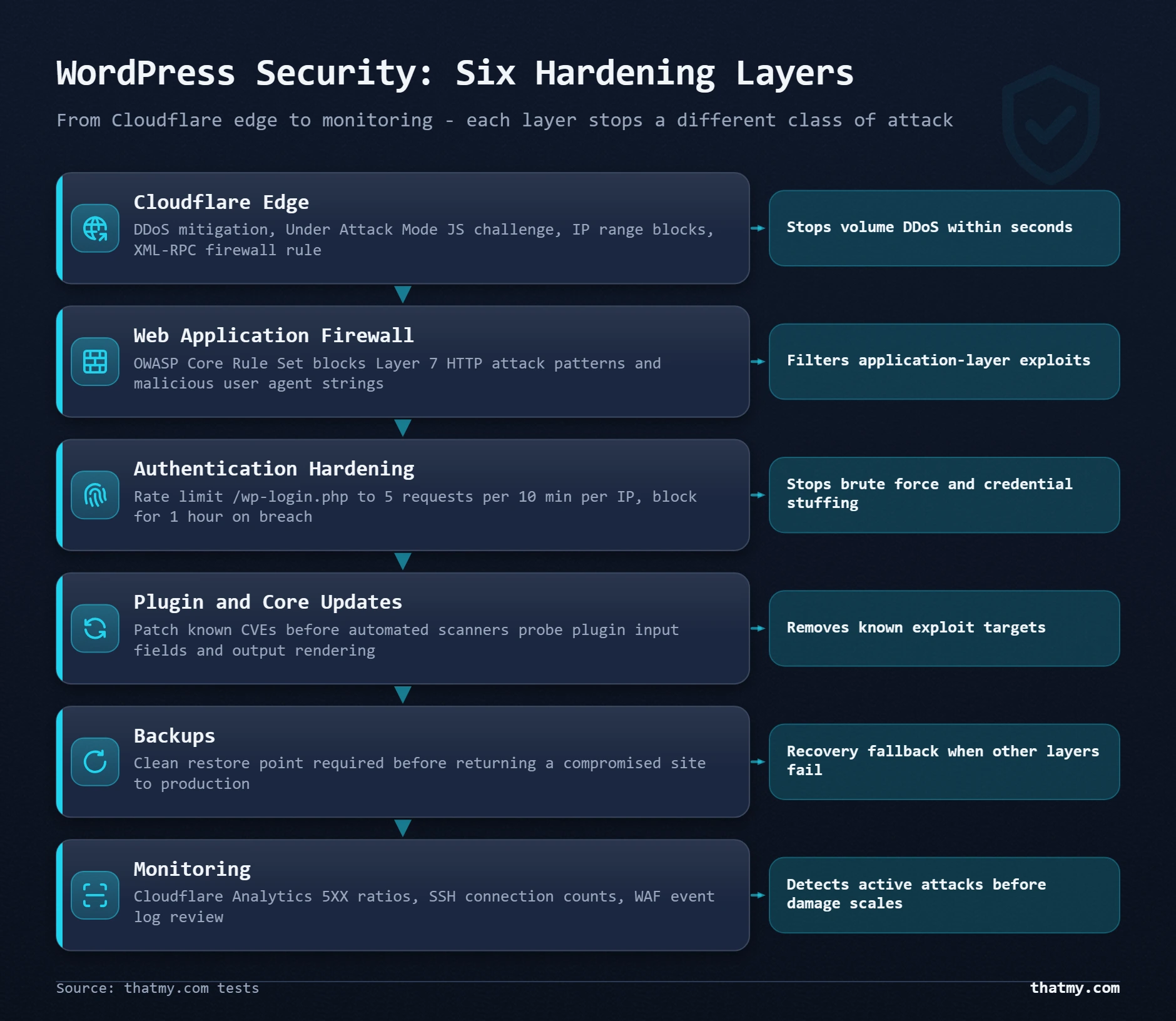
Layer 1: Cloudflare (Network and Edge Layer)
A DNS-level proxy sitting between the internet and your server is the security configuration that costs the least and blocks the most. Cloudflare's free tier handles volumetric DDoS because attacks are absorbed at Cloudflare's edge before a packet reaches your server. Your origin IP is hidden from DNS lookups, eliminating direct-to-origin bypass attacks. HTTPS is enforced. Basic bot fingerprinting runs on every request.
Cloudflare Pro at $20 a month billed yearly ($25 billed monthly) adds the OWASP WAF rule set, which is the difference between having a rate limiter and having a rule-based firewall that blocks SQLi, XSS, and protocol-level attack patterns. For any WordPress site generating revenue, Pro is the correct default. The WAF blocks attack patterns that WordFence would otherwise see and process, meaning it reduces load on your server in addition to blocking attacks. Configure: Always Use HTTPS enabled, Bot Fight Mode enabled, rate limiting rule on /wp-login.php as described in the brute force section.
Layer 2: WordFence or MalCare (Application Layer)
Where Cloudflare operates before your server, WordFence operates inside WordPress. It intercepts requests after they arrive at PHP but before WordPress processes them. The practical difference: Cloudflare catches known attack signatures at the network level; WordFence catches attacks that made it through the network layer and adds WordPress-specific context (is this IP trying to log in as admin? Has it triggered three different rule violations in the past hour?).
| Tool | What It Covers | Key Configuration Note |
|---|---|---|
| Cloudflare (free) | DDoS absorption, basic bot blocking, HTTPS redirect, origin IP protection | Enable immediately, zero cost. Proxies all HTTP/S traffic through Cloudflare's edge network. |
| Cloudflare (Pro, $20/mo billed yearly) | OWASP WAF rules (blocks SQLi + XSS patterns), advanced bot management, rate limiting rules | Pro WAF rules block the majority of automated SQLi and XSS attempts before reaching WordPress. |
| WordFence (free) | Application firewall, brute force protection, malware scanner, 2FA, 30-day delayed rule updates | Free tier is functional. The 30-day delay on firewall rules means new attack patterns take a month to block. |
| WordFence Premium (paid, yearly) | Real-time firewall signatures, real-time IP reputation, immediate rule updates | Real-time updates matter during active campaigns targeting new plugin CVEs, which the free tier only receives 30 days later. |
| MalCare (Protect, $99/yr) | Malware detection via cloud scanning, cleanup tools, login protection | Strong on obfuscated malware. Use this OR WordFence, never both simultaneously. |
| WP 2FA (free) | Two-factor authentication for all admin accounts, TOTP or email codes, role-based enforcement | Makes brute force and credential stuffing irrelevant. Even correct passwords fail without the second factor. |
| UpdraftPlus (free) | Daily automated backups to Google Drive, S3, Dropbox, or SFTP, 30-day retention | Backup is the recovery layer. Without it, a successful attack means complete rebuild from scratch. |
The choice between WordFence and MalCare comes down to what you prioritize. WordFence is stronger on active firewall protection and blocking. MalCare is stronger on malware detection and cleanup, and its scanner runs on MalCare's own servers rather than inside your WordPress install. A practical rule: WordFence for a clean site where the goal is prevention, MalCare for a site being cleaned up after a compromise. Install one. Not both. Running two simultaneous security plugins creates false confidence and genuine performance overhead without additive security.
Layer 3: Authentication Hardening
Authentication hardening is the layer most directly responsible for making brute force attacks irrelevant. Three components:
Two-factor authentication via WP 2FA (free plugin). Enforce for all admin and editor roles. Use TOTP (time-based one-time password) over email-based codes: TOTP works without email delivery and cannot be intercepted by a compromised email account. Setup: install WP 2FA, configure required roles, require users to set up 2FA on next login.
Not every second factor is equal. A TOTP code can still be phished in real time: a fake login page asks for the code and replays it on the real site within its 30-second window. Passkeys (WebAuthn) and hardware keys such as a YubiKey are bound to the real domain, so a lookalike site gets nothing it can reuse. For the admin accounts of a store or a client site, they are the stronger choice, and several WordPress 2FA plugins support them.
Strong unique passwords are the baseline. WordPress generates strong passwords in the user edit screen. The requirement: no shared passwords across sites, no passwords that appear in public breach databases, 20+ characters for admin accounts.
Login URL change via WPS Hide Login (optional). Stops automated scanners completely. Does not stop targeted attacks. Set this after everything else is in place, not instead of it. The plugin changes the login URL without touching .htaccess and works on most shared and VPS hosts without configuration.
Access control: roles, SSH keys, admin allowlists and offboarding
Strong logins protect each account. Access control limits what any one account can do when it is compromised anyway. Give every user the lowest role that lets them do their job: an Editor cannot install a backdoor plugin, and an Author cannot delete other users. Keep Administrator for the one or two people who manage the site, and never share one admin login between several people.
| WordPress Role | Can Do | Give It To |
|---|---|---|
| Administrator | Everything: plugins, themes, users, code | Only the people who run the site |
| Editor | Publish and edit everyone's posts and pages | Content managers |
| Author | Publish and edit their own posts | Regular writers |
| Contributor | Write posts, but not publish them | Guest or occasional writers |
| Subscriber | Manage their own profile | Members and customers |
SSH keys only. On a VPS, or any host that gives you SSH, log in with a key and turn password logins off, which ends SSH brute force outright. Generate the key on your own machine (ssh-keygen -t ed25519), add the public half to the server, confirm the key works in a second session, then change two lines in /etc/ssh/sshd_config: PasswordAuthentication no and PermitRootLogin prohibit-password, and reload SSH.
Allowlist wp-admin when you manage the site from a fixed IP or a VPN. A login page that answers 403 to everyone else cannot be brute forced. On Apache or LiteSpeed:
Require ip 203.0.113.10

# The front end of many themes and plugins calls admin-ajax.php, so keep it open:
<Files admin-ajax.php>
    Require all granted
</Files>
Behind Cloudflare the server sees Cloudflare's addresses unless it is set up to read the visitor's real IP, so either do that first or make the rule in Cloudflare instead. On Nginx, the same rule is an allow and deny all pair in the location blocks for /wp-admin/ and wp-login.php.
Offboarding. A common access failure is not a weak password but a former developer or agency whose access was never removed. When that relationship ends:
- Delete or demote their WordPress account; never leave a dormant admin.
- Remove their public key from the server's
authorized_keysand their SFTP or hosting panel user. - Change the database password and update wp-config.php.
- Rotate every API key they could see: payment gateway, email service, analytics and any integration keys stored in WordPress.
- Remove them from Search Console, Analytics, the domain registrar and the hosting account.
- Check for cron jobs and admin users added while they had access.
- Review the file changes from their last weeks of access with
wp core verify-checksums, your activity log or the host's file scanner.
Layer 4: Update Discipline (The Layer With the Highest ROI)
More WordPress sites get compromised through outdated software than through all other attack vectors combined. The Sucuri 2024 website threat report found that over 60% of infected WordPress sites were running outdated software at the time of compromise. The update that patches a vulnerability releases the information needed to exploit the old version. Attackers scan for unpatched installs within days of a CVE being published.
Updating only helps while a plugin is still maintained. Three plugin risks updates do not fix: an abandoned plugin whose last release is years old will never get a patch, so check the "Last updated" line on its wordpress.org page and replace it; a nulled (pirated) premium theme or plugin often ships with a backdoor already inside; and, rarely, a developer's account is taken over and a poisoned update is pushed to every site that auto-updates, which an activity log and the checksum checks in the hardening checklist are there to catch.
# Enumerate vulnerable plugins against WPScan's database (free API token required):
wpscan --url https://yourdomain.com --enumerate vp --api-token YOUR_FREE_TOKEN

# To get a free API token: register at wpscan.com (25 API calls/day free)

# Run this monthly. Add it to a calendar reminder.
# Output example:
# [i] Plugin(s) Identified:
# [+] contact-form-7
#  | Version: 5.8.0 (Outdated, latest is 5.9.8)
#  | [!] 1 vulnerability identified:
#  | [!] Title: Contact Form 7 < 5.9.0 - Unrestricted File Upload
#
# Action: update contact-form-7 to 5.9.8 immediately.
Layer 5: Backups (The Recovery Layer)
A backup is not part of attack prevention. It is what determines whether a successful attack costs you a few hours or costs you everything. The practical configuration: UpdraftPlus (free), daily backups, remote storage to Google Drive or Dropbox (not on the same server), 30 days of retention. The test that most WordPress site owners never run: download a backup and restore it to a staging environment. Find out now whether your restore process works, not during the emergency when you need it to work.
One number worth understanding: a daily backup schedule gives you a Recovery Point Objective (RPO) of up to 24 hours. A compromise discovered on Tuesday afternoon means recovering to Monday's state, losing up to 24 hours of content and orders. For WooCommerce sites with consistent daily revenue, twice-daily backups reduce that RPO to 12 hours. For sites with very active content, hourly backups via UpdraftPlus premium or a host-side automated backup system make sense. The backup and restore guide covers the full configuration including multiple storage destinations and restore testing procedures.
Layer 6: Monitoring (Early Warning Before Damage Is Done)
Most WordPress compromises go undetected for days to weeks because site owners have no alert system in place. Three monitoring tools cover the detection gap:
UptimeRobot (free tier) checks your site every 5 minutes and sends an email within one check cycle of downtime. Most DDoS attacks and some successful compromises take the site offline, and this catches them within 5 minutes. WP Activity Log (free plugin) records every admin action: who changed what setting, who installed which plugin, who created which user account. After a compromise, the audit log is often the fastest path to identifying how access was gained. Google Search Console is the external intelligence layer: Google's crawler detects malware and phishing injections, sends email alerts to verified site owners, and flags issues in the Security Issues tab before most site owners notice anything wrong through their own monitoring.
SSL Certificates and HTTPS: What Free SSL Covers and What the Padlock Does Not
An SSL certificate lets the browser and your server set up an encrypted connection, and proves the server is the real one for that domain. (The protocol doing the work is TLS 1.2 or 1.3; SSL is the retired name the industry never dropped.) Every hosting plan worth buying includes a certificate for free. What matters to a buyer is which kind it is, whether it renews by itself for as long as you host, and what it does not protect.
DV, OV and EV: what a paid certificate buys
All three types give exactly the same encryption. The difference is only what the certificate authority (CA) checked before issuing it.
| Type | What the CA Checks | Issued In | What Visitors See | Who Needs It |
|---|---|---|---|---|
| Domain Validation (DV) | That you control the domain: a file on the server or a DNS TXT record | Minutes, automated | The padlock | Almost every site, including stores |
| Organization Validation (OV) | That your organisation legally exists | Days, checked by hand | The same padlock; the organisation name only in the certificate details | Contracts or procurement that require a verified organisation |
| Extended Validation (EV) | Legal, physical and operational vetting | Days to weeks | The same padlock, since Chrome and Firefox dropped the green address bar in 2019 | Banks and compliance-driven businesses |
The free certificates hosts install, from Let's Encrypt or through cPanel's AutoSSL, are DV, and browsers trust Let's Encrypt's root just as they trust any paid authority. Paying for OV or EV buys identity checks your visitors will almost never look at, and a paid DV certificate buys nothing a free one lacks. Two more terms you meet at checkout: a wildcard certificate (*.example.com) covers every first-level subdomain but not example.com itself and not a second level such as a.shop.example.com; Let's Encrypt issues wildcards free, but only through a DNS challenge, so your DNS provider needs an API for renewal to stay automatic. A SAN (multi-domain) certificate lists several names on one certificate, and every certificate should list both example.com and www.example.com.
Free SSL on hosting plans, and the renewal that fails quietly
On cPanel hosting, free SSL comes from AutoSSL: it checks every domain on the account on a schedule, issues a certificate where one is missing and renews the ones close to expiry. Its state is in cPanel under Security, SSL/TLS Status. Hosts with their own panels do the same from their dashboard. Read the plan before you buy, though, because free SSL is not always free for as long as you host. GoDaddy's Economy plan includes SSL for the first year only, while its Deluxe and Ultimate plans get AutoSSL that renews free while the hosting is active, so a customer on Economy pays for SSL from year two.
Let's Encrypt certificates last 90 days by design, and the industry is moving shorter: the CA/Browser Forum has voted to cut the maximum life of public certificates in steps, down to 47 days. That makes automatic renewal mandatory, and automatic renewal fails quietly. The usual causes: a security plugin or redirect rule intercepting /.well-known/acme-challenge/, a firewall blocking the CA's validation servers, DNS pointing somewhere else after a migration or a nameserver change, or a renewal job that did not survive a server move. Watch expiry yourself rather than relying on the CA's emails, which go to whatever address requested the certificate:
# Prints the expiry date; exits 1 if the certificate expires within 30 days:
echo | openssl s_client -connect yourdomain.com:443 -servername yourdomain.com 2>/dev/null \
  | openssl x509 -noout -enddate -checkend 2592000

# On a VPS: issue for both names (certbot edits the Nginx config and sets up renewal)
sudo certbot --nginx -d yourdomain.com -d www.yourdomain.com

# Confirm the renewal timer runs, and rehearse a renewal without issuing anything:
sudo systemctl status certbot.timer
sudo certbot renew --dry-run
Cloudflare SSL: use Full (strict), never Flexible
Putting Cloudflare in front of a site gives it a free edge certificate for the visitor-to-Cloudflare leg. The setting that decides whether the whole path is secure is the mode under SSL/TLS, Overview:
- Flexible: HTTPS to Cloudflare, plain HTTP from Cloudflare to your server. Visitors see a padlock while the second leg is unencrypted, and a WordPress site that already redirects to HTTPS falls into an endless redirect loop. Avoid it.
- Full: encrypted to your server, but any certificate is accepted, expired or self-signed included.
- Full (strict): encrypted, and the certificate on your server must be valid. Use this, with your host's AutoSSL certificate or a free Cloudflare Origin Certificate installed on the server.
Then turn on Always Use HTTPS and Automatic HTTPS Rewrites. Add HSTS only once every subdomain is on HTTPS for good: browsers remember it, and from then on a visitor cannot click past a certificate error on your domain, so an expired certificate locks everyone out until it is fixed. The rest of the Cloudflare setup for WordPress is in the CDN section of the caching guide.
Mixed content: the padlock breaks after moving to HTTPS
When the certificate is valid but Chrome still says "Not Secure", the page is loading something over plain HTTP: an image, script, stylesheet or iframe. Browsers block active mixed content (scripts, iframes) outright, which can break a form or a cart with no visible error, and flag passive content such as images. After a WordPress site moves to HTTPS, the cause is nearly always old http:// URLs stored in the database, followed by URLs hardcoded in the theme and CSS background images.
# Rewrite stored URLs across all tables; the guid column stays as it is:
wp search-replace 'http://yourdomain.com' 'https://yourdomain.com' \
  --all-tables --report-changed-only --skip-columns=guid

# Find http:// hardcoded in the theme:
grep -rn "http://" wp-content/themes/your-theme/ --include="*.php" --include="*.css" --include="*.js"

# List assets a live page still loads over HTTP:
curl -s https://yourdomain.com | grep -o 'src="http://[^"]*"'
Purge the page cache, the CDN cache and your browser cache afterwards, or the old HTML keeps the warning alive. Cloudflare's Automatic HTTPS Rewrites hides most passive mixed content in the meantime; it is a safety net, not the fix.
Common certificate errors and what they mean
| Error | Cause | Fix |
|---|---|---|
| NET::ERR_CERT_DATE_INVALID | The certificate expired | Renew it, then find out why automatic renewal failed |
| NET::ERR_CERT_COMMON_NAME_INVALID | The certificate does not list this hostname, often www against non-www | Reissue it with both names in the SAN field |
| NET::ERR_CERT_AUTHORITY_INVALID | A self-signed certificate, or the server is not sending the intermediate certificate | Install a CA-issued certificate with its full chain (fullchain.pem for Let's Encrypt) |
| ERR_TOO_MANY_REDIRECTS behind Cloudflare | Flexible SSL mode plus an HTTPS redirect on the server | Switch Cloudflare to Full (strict) |
| ERR_SSL_VERSION_OR_CIPHER_MISMATCH | The server offers only old protocols or ciphers | Enable TLS 1.2 and 1.3; every major browser has dropped TLS 1.0 and 1.1 |
What HTTPS does not protect against
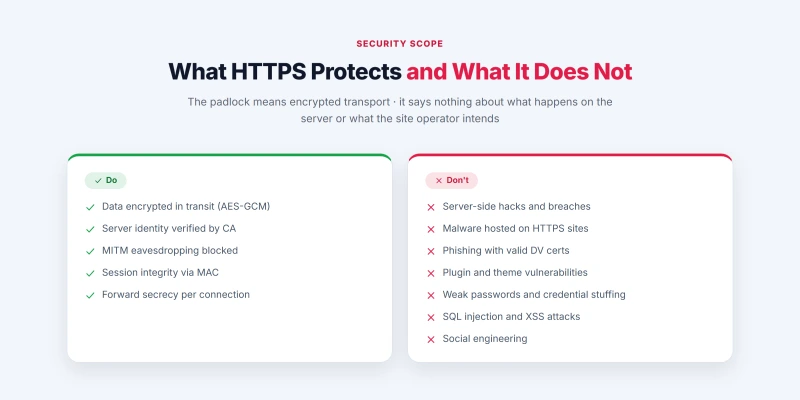
HTTPS encrypts the connection and proves which server you reached. It says nothing about what that server runs. Every attack earlier on this page works over HTTPS just as well: a SQL injection payload reaches your plugin encrypted, a brute force bot logs in over TLS, and a vulnerable plugin is exploitable whatever certificate you have. Phishing sites get free DV certificates in minutes, so the padlock is not a sign that a site is safe or honest; it is the minimum every site needs. One DNS setting is worth adding while you are in the zone: a CAA record, for example example.com. IN CAA 0 issue "letsencrypt.org", limits which certificate authorities may issue certificates for your domain. It and the other security records are covered in the DNS records guide.
WordPress Security Hardening Checklist
This checklist is the configuration that shuts out the automated attacks most WordPress sites face. It is organized by category for implementation order. Start with Authentication and Network, which have the highest impact per hour of effort. Files and Monitoring can follow in a second session.
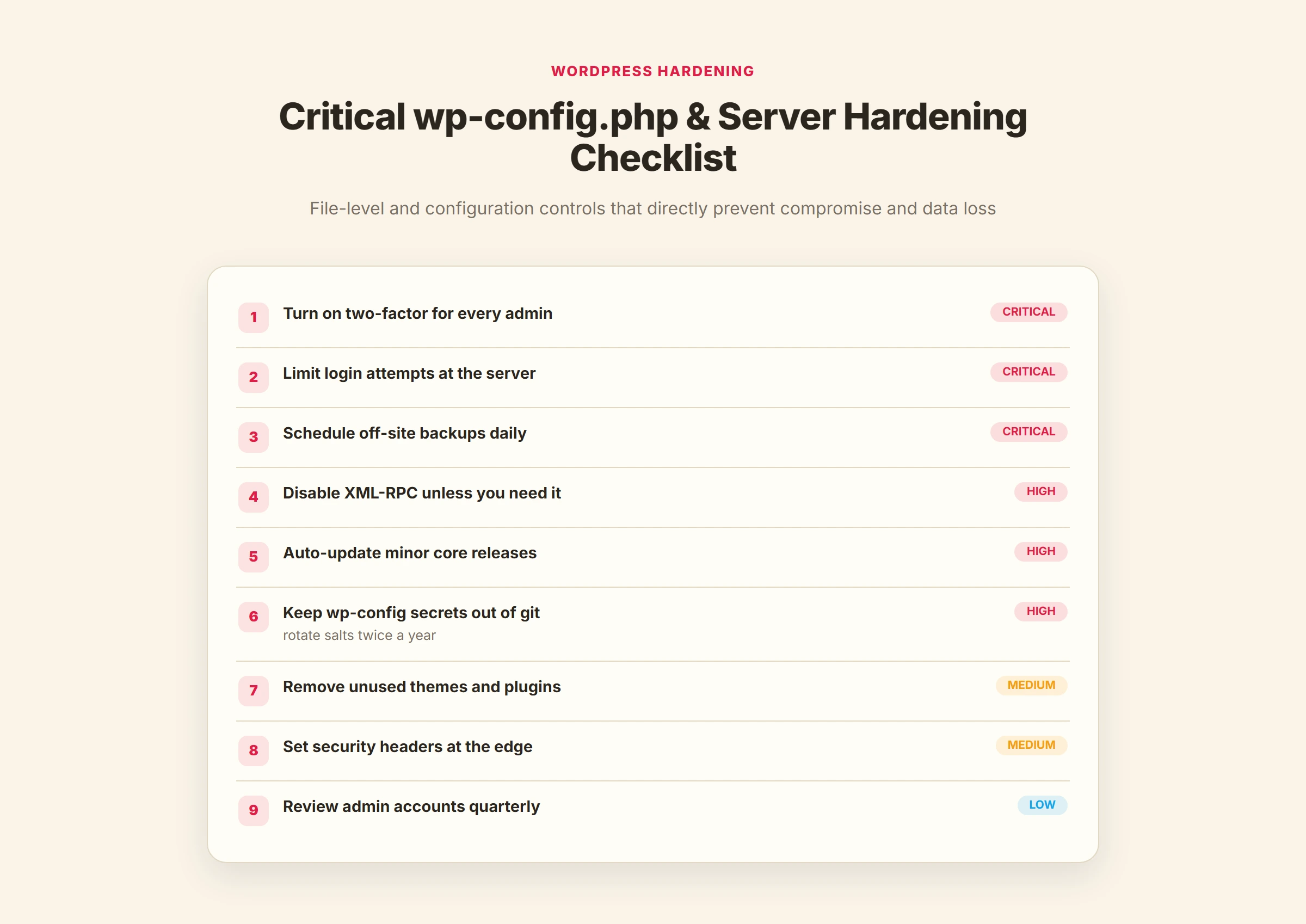
| Item | Category | Why It Matters |
|---|---|---|
| No 'admin' username in use | Authentication | Brute force bots target 'admin' first. Any other username immediately eliminates the most common attack vector. |
| All admin passwords 20+ characters | Authentication | Dictionary and brute force attacks fail completely against random 20+ character passwords. |
| 2FA enabled for all admin accounts | Authentication | Credential stuffing becomes irrelevant. Correct password without second factor cannot log in. |
| Login attempts limited: 5 then lockout | Authentication | WordFence or Cloudflare rate limiting. Stops brute force before enough attempts to matter. |
| /wp-content/uploads/ blocks PHP execution | Files | Attackers who upload a .php shell cannot execute it. Most critical file permission hardening. |
| Theme and plugin file editor disabled | Files | Add define('DISALLOW_FILE_EDIT', true); to wp-config.php. A stolen admin login can then no longer run PHP through Appearance, Theme File Editor. |
| Directories 755, files 644 | Files | Nothing world-writable. An attacker cannot drop PHP into a directory any process can write to. |
| wp-config.php permissions: 400 or 440 | Files | Only server process can read. Not world-readable. Direct file access attacks fail. |
| wp-config.php one level above the web root | Files | WordPress looks for it in the parent folder of public_html by itself. Moved there, the file holding the database password cannot be fetched by any web request, even if PHP stops running and the server serves .php files as plain text. |
| No inactive plugins or themes installed | Files | Deactivated plugins still present are still attack surface. Delete, do not just deactivate. |
| WordPress core / plugins / themes current | Updates | Majority of successful WordPress attacks exploit known, patched vulnerabilities in outdated software. |
| Cloudflare active (minimum free) | Network | Hides origin IP. DDoS absorption. HTTPS enforcement. Bot detection. All free. |
| Rate limiting on /wp-login.php | Network | 5 requests per 10 minutes per IP in Cloudflare Rate Limiting. Stops brute force at the edge. |
| /xmlrpc.php blocked (if unused) | Network | Eliminates amplification attack vector. Block in .htaccess or Cloudflare firewall rule. |
| SSL renews automatically, expiry watched | Network | An expired certificate blocks every visitor with a full-page warning, and with HSTS there is no click-through. Check AutoSSL status or the certbot timer, and watch expiry yourself. |
| Security headers set | Network | X-Frame-Options, X-Content-Type-Options, X-XSS-Protection, Referrer-Policy in .htaccess or Cloudflare. |
| UptimeRobot monitoring active | Monitoring | 5-minute intervals. Email alert within 5 minutes of downtime. Attack detection in near-real-time. |
| WordFence or MalCare installed | Monitoring | Application-layer firewall and malware scanner. One or the other, not both. |
| Core files checked monthly | Monitoring | wp core verify-checksums compares every core file with the official release. It catches modified files that signature scanners miss, in seconds. |
| No former contractors with access | Authentication | Old developer accounts, SSH keys and panel users are removed when the work ends. See the offboarding list under access control. |
| Google Search Console verified + alerts on | Monitoring | Google's malware detection triggers email alerts before most site owners notice the compromise. |
| Daily backup to off-site storage active | Recovery | Google Drive, S3, or Dropbox. On-server backup is not off-site. Ransomware destroys both. |
| Backup restore tested in last 90 days | Recovery | Untested backups have a real failure rate. Know before you need it, not during the emergency. |
The One Configuration Most Sites Are Missing
The item most often missing from a WordPress security setup is two-factor authentication. Strong passwords, Cloudflare and plugin updates are common; 2FA on admin accounts much less so. The reason it matters more than any other single item: every other measure assumes that if someone has the right password, they should be able to log in. 2FA breaks that assumption at the application layer. A compromised password is useless without the second factor. Given that credential databases from other services are routinely tested against WordPress logins (credential stuffing), 2FA is the direct counter to the attack method that actually succeeds most often.
Install WP 2FA, enforce it for all admin roles, and document the backup codes in a secure location. This 10-minute configuration eliminates the majority of account takeover risk. For context on how authentication hardening connects to your overall hosting security posture, the uptime and downtime guide covers the full failure taxonomy of what takes WordPress sites offline, of which account takeover is one of the more destructive categories.
Hacked Site Recovery: The Sequence That Stops Re-infection
Most hacked WordPress sites are recoverable, and most were broken into through one of four doors: an outdated plugin with a published vulnerability, a weak or reused admin password, an open XML-RPC endpoint, or credentials stolen elsewhere and tried here. The recovery below runs in a fixed order. Skipping a step or swapping two is how a site that looked clean gets re-infected: a backdoor missed in the file pass puts the malware back after the database is cleaned, and an attacker's live session survives a password change.
| What You Are Seeing | Likely Hack | Start At |
|---|---|---|
| Visitors redirected to spam, casino or pharma sites | Redirect hack: a changed siteurl or home value, or an injected script | Cleanup step 4, the database |
| Spam links in posts, the footer or a sidebar | SEO spam injected into the database | Cleanup step 4 |
| Pharma or Japanese-keyword pages under your domain in Google, while the site looks normal to you | Cloaked spam served only to Googlebot | Cleanup step 4, including the .htaccess check |
| Chrome shows a red 'Deceptive site ahead' or 'dangerous site' page | Google Safe Browsing flag | The full cleanup, then the Google review |
| The host suspended the account for malware | The host's scanner found infected files | Suspended account steps, then the full cleanup |
| Admin users you did not create, or you are locked out | Credential compromise | Triage, then cleanup step 2 |
First: four things to do before you delete anything
1. Put the site in maintenance mode with a 503. A 503 tells Google the outage is temporary; a maintenance page served with a 200 gets indexed in place of your content. If you are locked out of wp-admin, add this to the active theme's functions.php through the file manager or SFTP, and remove it when the cleanup is done:
add_action( 'get_header', function () {
    if ( ! current_user_can( 'edit_themes' ) ) {
        wp_die( 'Site temporarily unavailable. Back soon.', 'Maintenance', array( 'response' => 503 ) );
    }
} );
2. Change every password, highest privilege first: every WordPress admin account, the hosting control panel, every FTP and SFTP account, the database user (then update DB_PASSWORD in wp-config.php to match), and the email account that receives WordPress password resets if it may be exposed. Use new random passwords, never a variation of an old one.
3. Ask your host for the access logs and anything its scanner flagged. Server logs show which files were requested and changed, when, and from which IPs, which usually names the way in faster than you can reconstruct it. Managed hosts often include malware help in support; ask before paying for a cleanup service.
4. Back up the hacked site and label it "hacked copy, do not restore". It holds your content and media, gives you a before-state to compare against, and is your way back if the cleanup breaks something. Keep it apart from your normal backups.
If visitor data may have been exposed (accounts, emails, orders), check your legal duties early: under GDPR, a personal-data breach that puts people at risk has to be reported to the data protection authority within 72 hours of your becoming aware of it.
The six-step cleanup
Restore or clean? A backup from before the infection is faster and more complete than any manual cleanup, as long as you also close the hole the attacker used. The catch is knowing the backup is clean, because infections often sit for weeks before they show. Before restoring one, load its database and check it:
-- Both values should be your real domain:
SELECT option_name, option_value FROM wp_options WHERE option_name IN ('siteurl', 'home');

-- Should return 0:
SELECT COUNT(*) FROM wp_posts WHERE post_content LIKE '%eval(%';
If no backup passes, clean by hand, in this order, finishing each step before the next.
Step 1: Scan, and write down the scope
Run a server-side scanner (MalCare, WordFence, or your host's Imunify360 where it exists) and an external check such as Sucuri SiteCheck for what visitors see. Before deleting anything, note what was found: modified files in /wp-admin/ or /wp-includes/, any PHP file in /wp-content/uploads/, obfuscated code such as eval(base64_decode(...)), and admin accounts you do not recognise. Three infected files and fifty across several plugins are different jobs. One scanner reporting "clean" is not proof: every scanner has gaps, which is what the grep in step 3 is for.
Step 2: Remove unknown admin accounts
Do this before cleaning files, because an attacker with a working admin account simply uploads the malware again. In Users, filter by Administrator and delete every account you did not create. Under Settings, General, untick "Anyone can register" if you never meant to allow it. Locked out of wp-admin, use phpMyAdmin:
SELECT u.ID, u.user_login, u.user_email, u.user_registered
FROM wp_users u
JOIN wp_usermeta m ON u.ID = m.user_id
WHERE m.meta_key = 'wp_capabilities'
  AND m.meta_value LIKE '%administrator%'
ORDER BY u.user_registered DESC;

DELETE FROM wp_usermeta WHERE user_id = 123;   -- the attacker's ID
DELETE FROM wp_users    WHERE ID = 123;
Step 3: Replace core files, then hunt backdoors in wp-content
Redirect hacks often persist by editing a core file so the payload runs on every page load. Reinstall core from Dashboard, Updates ("Re-install version"), or with WP-CLI, which also tells you exactly which files were changed. A core reinstall never touches /wp-content/, so the backdoors there need a separate search:
# List core files that differ from the official release, then replace core (wp-content untouched):
wp core verify-checksums
wp core download --force --skip-content --version=$(wp core version)

# The same check for plugins installed from wordpress.org:
wp plugin verify-checksums --all

# Common backdoor signatures (review every hit; a few legitimate plugins use some of these):
grep -rlE "eval\(base64_decode|gzinflate\(base64_decode|shell_exec|passthru\(" wp-content/

# PHP files changed more recently than wp-config.php:
find wp-content -name "*.php" -newer wp-config.php -not -path "*/cache/*"
Attackers usually leave more than one backdoor, in a plugin, a theme file and a corner of /uploads/. A single one missed survives every other step and re-infects the site within hours of it going back online.
Step 4: Clean the database
File scanners check files, not database rows, and a redirect stored in wp_options survives every file cleanup. Run these in phpMyAdmin's SQL tab:
-- 1. siteurl and home must be your domain; fix them if not:
SELECT option_name, option_value FROM wp_options
WHERE option_name IN ('siteurl', 'home', 'admin_email');
UPDATE wp_options SET option_value = 'https://yourdomain.com' WHERE option_name IN ('siteurl', 'home');

-- 2. Code hidden in options (delete rows that no known plugin or theme owns):
SELECT option_name, LEFT(option_value, 300) FROM wp_options
WHERE option_value LIKE '%base64_decode%' OR option_value LIKE '%eval(%'
   OR option_value LIKE '%<script%'    OR option_value LIKE '%document.write%';

-- 3. Spam links and scripts in published content:
SELECT ID, post_title FROM wp_posts
WHERE post_status = 'publish'
  AND (post_content LIKE '%<script%' OR post_content LIKE '%casino%'
    OR post_content LIKE '%viagra%' OR post_content LIKE '%payday loan%');
For a spam domain injected across hundreds of posts, wp search-replace 'spam-domain.example' '' --dry-run shows every affected row across all tables before you run it for real. Cloaked spam (the pharma or Japanese-keyword hack) needs one more look: search Google for site:yourdomain.com, check .htaccess and the theme for rules that serve different content to Googlebot or to visitors arriving from Google, and use Search Console's URL Inspection to see the page as Googlebot gets it.
Step 5: Empty /uploads/ of PHP, then stop PHP running there
No legitimate PHP file belongs in /wp-content/uploads/, so every one there is a web shell or backdoor. List them, delete them, then block execution so the next uploaded one cannot run:
find wp-content/uploads -name "*.php" -type f           # review the list
find wp-content/uploads -name "*.php" -type f -delete   # then delete

# wp-content/uploads/.htaccess
<FilesMatch "\.php$">
    Require all denied
</FilesMatch>
On Nginx, .htaccess is ignored; the same block is a location ~* /wp-content/uploads/.*\.php$ { deny all; } rule in the server block.
Step 6: Update everything, then delete what you do not use
Update core, every plugin and every theme, inactive ones included. Delete deactivated plugins and every theme except the active one and one fallback: a deactivated plugin is still on disk and still exploitable. Remove any nulled (pirated) plugin or theme outright, because they are a standard way malware is distributed. Then read the changelogs: a plugin that shipped a security fix you had not installed is almost always the way in, and WPScan lists the known vulnerabilities in what is left.
Before the site goes back online
- Rotate the secret keys. Replace the eight AUTH_KEY to NONCE_SALT lines in wp-config.php with fresh values from
https://api.wordpress.org/secret-key/1.1/salt/, or runwp config shuffle-salts. This ends every logged-in session at once, the attacker's included, which a password change alone does not. - Lock down wp-config.php to 400 or 440, so only the owner can read it.
- Turn on 2FA for every admin, a firewall plugin and Cloudflare, as set out in the security stack, and work through the hardening checklist.
- Set up the alerts you did not have: uptime monitoring, an activity log and Search Console alerts (layer 6), and daily off-site backups kept for 30 days, because some infections run for weeks before anyone notices. Backup setup and restore tests are in the backup and restore guide.
Only then take the site out of maintenance mode.
If your host suspended the account
A suspension is containment, not cleanup. The host stops the site to protect the server and its other accounts; the malware stays where it is until you remove it. On most cPanel hosts the control panel and its File Manager stay reachable while the site is down, so log in to cPanel directly rather than through the site. The suspension email usually lists the flagged file paths: start there, then do the full cleanup above, because the host rescans before lifting the suspension and one missed file keeps it in place. If panel access is blocked too, ask support by chat or phone for temporary file access. When you are done, open a ticket that names what you did:
"My account was suspended for malware at [path from the notice]. I have deleted the flagged files [list them], removed unknown admin accounts, run a full scan with no remaining detections, updated all plugins and themes, and changed every password including the database and FTP. Please rescan and lift the suspension."
If Google flagged the site
- Finish the cleanup first. A review that finds anything left fails, and you start again with the warning still up.
- Open Search Console, Security and Manual Actions, Security Issues. It lists the URLs Google flagged and what it found there. If the site is not verified yet, verify it with a DNS TXT record.
- Check every listed URL: view the source for injected scripts and run Sucuri SiteCheck as an outside check.
- Click Request a Review and say specifically what you found and removed, and how you closed the way in.
- Wait for Google's email. Its own guidance puts phishing reviews at about a day and malware reviews at a few days; injected spam can take longer. Do not resubmit while a review is pending.
Bing Webmaster Tools runs its own review if Bing shows a warning. Most other browser and antivirus blocklists follow once the site is clean; Sucuri SiteCheck shows your status across several of them, and each vendor has a dispute form for any that lag.
Recovery mistakes that cause re-infection
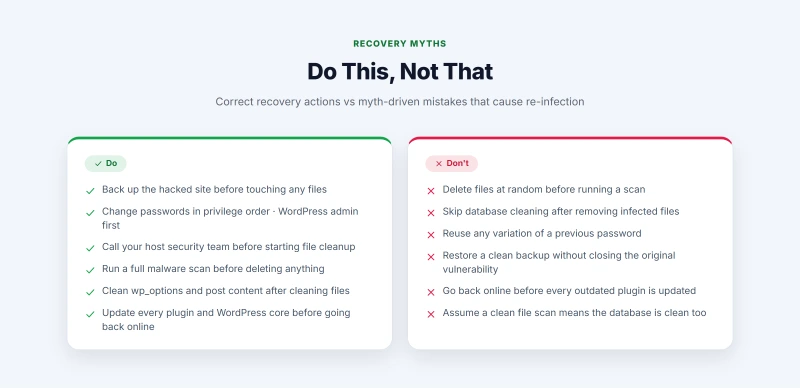
- "The scan came back clean, so the site is clean." A scanner reports what its signatures know. Add the grep from step 3; it takes two minutes and catches what signatures miss.
- "I deleted the infected files, the database is fine." A redirect stored in wp_options is a database row, not a file, and it survives every file cleanup. This is the most common reason a redirect hack comes back.
- "My host suspended me, so they cleaned it." Suspension stops the site from running. Removing the malware is still yours to do.
- "I changed my admin password, so they cannot get back in." A password change does not end an existing session, remove a backdoor file or delete an attacker's admin account. Rotating the secret keys and step 2 do.
WordPress Security Myths That Lead to Real Vulnerabilities
These myths are not harmless misconceptions. Each one leads to a specific under-investment in the layer of security it concerns, and each has a corresponding attack that exploits the gap the myth creates.
"My site is too small to be targeted."
FALSE.
Automated attack scripts do not select targets based on site size. They scan every reachable WordPress installation. A WPScan enumeration of your domain, a brute force sequence against your login, and a SQLi probe through your contact form all happen whether your site gets 50 visitors/month or 50,000. The distinction between targeted and untargeted attacks matters: large sites get targeted attacks, small sites get automated ones. Both are real. Automated attacks are responsible for the majority of WordPress compromises across all site sizes.
"I installed WordFence so I am secure."
INCOMPLETE.
WordFence is Layer 2 of a six-layer stack. It handles application-layer threats after they arrive at your server. It does not absorb a volumetric DDoS (needs Cloudflare), it does not prevent you from using "admin" as a username (needs authentication hardening), it does not protect you from a known vulnerability in an outdated plugin you have not updated (needs update discipline), and it cannot recover from a successful compromise without a backup (needs backup layer). WordFence installed without the other five layers is better than nothing by a meaningful margin. It is not a complete defense.
"WordPress is inherently insecure."
WRONG FRAMING.
WordPress core has a dedicated security team, a rapid patch release process, and a strong track record for core vulnerability response. The security issues that affect WordPress sites are almost universally in plugins, themes, and server configurations, not in WordPress core. The correct statement: "WordPress with a poor plugin selection, outdated components, and no hardening is insecure." WordPress with the stack described in this guide, running current versions, with plugin selection limited to actively maintained options, is as secure as any comparable CMS at its scale.
"My hosting provider handles security."
PARTIALLY TRUE, mostly FALSE.
Your hosting provider secures the server infrastructure: the operating system, server software, network layer, and physical hardware. They do not secure your WordPress application: the plugins you install, the passwords you choose, the 2FA you enable or do not enable, the updates you apply. The line is clear: the server is the host's responsibility, the application is yours. Managed WordPress hosts (Cloudways, ScalaHosting managed VPS) go further and apply WordPress core patches automatically and may scan for malware, but they still cannot enforce your plugin update discipline or enable 2FA for you. What the host's own layer does block is laid out in what your host blocks.
"Changing the login URL makes my site secure."
OVERRATED.
A custom login URL stops automated scanners that target the default /wp-login.php path. It does not stop a motivated attacker who can find your login URL through page source inspection, Wappalyzer, Google cache, or Wayback Machine. It adds friction, not a barrier. The order of priority: strong passwords and 2FA first, then rate limiting, then custom login URL. Sites that change the login URL without strong passwords and 2FA are not more secure than sites with strong passwords and 2FA at the default URL. The measure is useful. It is not a primary defense.
Where to Go Next
If prevention has already failed, the full cleanup (file audit, database cleanup, credential rotation and backdoor removal before going back online) is in hacked site recovery above. For the server-side symptoms that attacks cause (CPU spikes, 500 errors, memory exhaustion), the 500 and 503 errors guide connects attack signatures to the specific error codes they produce and the server-side responses. For the CDN layer in more detail, including how Cloudflare configuration interacts with WordPress caching, the CDN section of the caching guide covers the full setup sequence. If your hosting environment itself needs to be evaluated for security posture, the managed VPS guide covers how managed hosting changes the server-layer security baseline you are starting from. For the data protection and backup layer specifically, the backup and restore guide details the configuration that ensures recovery is possible when prevention fails.
WordPress Security Threats FAQ
How do I know if my WordPress site is being DDoS attacked right now?
Three signals confirm an active DDoS. First, server CPU is at 100% and memory is exhausted, but your traffic analytics show no matching spike in legitimate visitors. Second, netstat or ss commands on your server show hundreds or thousands of simultaneous TCP connections from many different IP addresses. Third, Cloudflare Analytics shows a spike in requests with a high percentage of 5XX (server error) responses, the server is failing to respond to volume it cannot absorb. The fastest response is to enable Cloudflare Under Attack Mode in Security > Settings, which adds a JavaScript challenge to all visitors. Bots cannot pass it. Legitimate visitors see a 5-second loading screen. This stops most Layer 7 DDoS attacks within 60 seconds of activation.
What is the difference between a brute force attack and a DDoS on WordPress?
A brute force attack targets your login credentials. It sends POST requests to /wp-login.php trying to guess usernames and passwords. The goal is account access. A DDoS targets your server's availability. It sends requests designed to overwhelm your server's capacity to respond, the goal is downtime, not access. The two can look similar from a server perspective because both generate high request volume to /wp-login.php. The distinction: brute force comes from a small number of IPs sending many requests each; a distributed brute force comes from many IPs sending few requests each, which overlaps with DDoS patterns. The practical response is similar at first, rate limiting and Cloudflare, but brute force requires the additional authentication hardening layer (strong passwords, 2FA) that DDoS does not.
How do I tell if my WordPress database was SQL injected?
Four indicators suggest successful SQL injection. First, new admin accounts you did not create appear in wp-users. Second, post content contains spam links pointing to external domains. Third, the siteurl or home values in wp_options point to a domain you do not own. Fourth, wp_options contains rows with base64-encoded values in unusual option names. Check directly in phpMyAdmin with: SELECT option_name, option_value FROM wp_options WHERE option_value LIKE '%base64%' OR option_value LIKE '%eval(%'. For injected scripts in posts: SELECT ID, post_title FROM wp_posts WHERE post_content LIKE '%<script%' AND post_status = 'publish'. If you find any of these, treat it as a full compromise: the injection may have created backdoors that survive database cleanup.
Can a WordPress site get XSS from a plugin?
Yes, and it is the most common XSS vector. WordPress core sanitizes outputs using esc_html(), esc_attr(), and wp_kses_post() correctly. Plugin code frequently does not. Any plugin that outputs user-supplied content without escaping it first is vulnerable. The most common pattern: contact form plugins that display submitted name fields, search results that echo the search query, comment systems that allow HTML without sanitization, and custom field plugins that output arbitrary content. Stored XSS via plugins is particularly dangerous because the script is saved to the database and executes for every visitor who loads the infected page, not just the attacker. WordFence's firewall blocks most known XSS attempt patterns. Staying current with plugin updates eliminates the underlying vulnerability.
Does Cloudflare's free plan actually stop DDoS attacks?
For Layer 3 and Layer 4 volumetric DDoS, yes. Cloudflare's free plan absorbs attacks because the traffic never reaches your server. Cloudflare's network capacity is measured in hundreds of terabits per second, far more than the floods aimed at a typical WordPress site, so the edge absorbs them without your server seeing a single malicious packet. For Layer 7 application-layer DDoS, which floods your server with seemingly legitimate HTTP requests, the free plan provides Under Attack Mode (JavaScript challenge) as an immediate response tool, which stops most automated floods. Bot management at a more granular level requires Pro or higher. For a site getting attacked for the first time, the free plan is almost always sufficient. Upgrading to Pro ($20 a month billed yearly, $25 billed monthly) for the OWASP WAF rules makes sense for persistent threats or high-value sites.
What should I do immediately after discovering my WordPress site was hacked?
Do not start deleting files. First put the site into maintenance mode with a 503 response, change every password in privilege order (WordPress admins, hosting panel, FTP and SFTP, database), ask your host for the access logs and any malware it has already flagged, and take a full backup of the hacked site labelled as such. Then work the recovery in order: scan, remove unknown admin accounts, reinstall core files and grep wp-content for backdoors, clean the database, delete every PHP file in /wp-content/uploads/, update everything and delete what you do not use. Rotate the secret keys in wp-config.php before going back online, because a password change does not end a session the attacker already holds. The full sequence, with the commands and SQL, is in the hacked site recovery section of this guide.
Is changing the WordPress login URL a good security measure?
It stops automated scanners. It does not stop targeted attackers. Most brute force attacks are fully automated and target the default /wp-login.php path. Moving the login to a custom URL like /your-secure-path eliminates this entire category of attack because the bots never find the form. A targeted attacker who has already identified your site as a target will find the custom URL through Wappalyzer fingerprinting, Google cache, or manual exploration. The measure is effective against the 99% of attacks that are automated and untargeted. Against the 1% that are targeted, it adds friction but not a real barrier. The correct framing: use a custom login URL in addition to strong passwords and 2FA, not instead of them. The plugin WPS Hide Login handles this without touching .htaccess on most hosts.