
DNS Records Explained: Every Record Type, Nameservers and Propagation

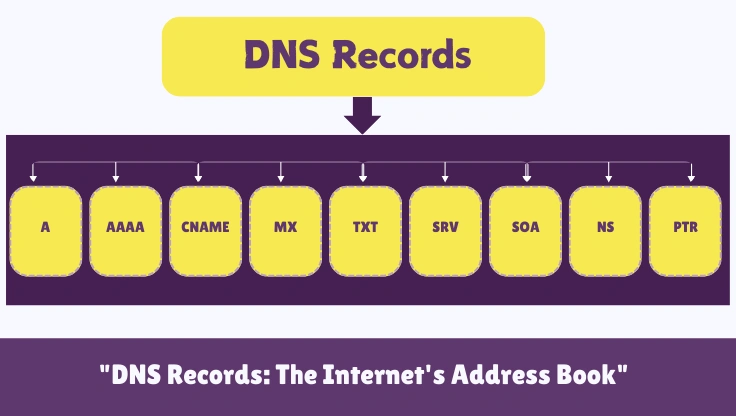
There are currently at least six DNS records on your domain that control things you probably have not reviewed since the day you set up hosting. Your email deliverability depends on three of them. Your SSL security depends on one more. And if you have ever moved hosting providers and forgotten to lower your TTL first, you already know what the propagation myth costs you in real time.
This page treats DNS as what it actually is: an operational system with performance implications, security consequences, and deliverability dependencies. Not just routing. It covers the records themselves, the nameservers that serve them, and propagation, the wait between changing a record and the world seeing it. The record types table is designed to be bookmarked and embedded. The TTL estimator and the record builder give real numbers and copy-paste records for your setup. The security section covers the vulnerability that security researchers find in production sites at a rate that should be alarming to anyone running subdomains on third-party platforms.
What DNS Records Actually Are (And Why They Are Not Just Pointing a Domain)
DNS records do not point anything. They answer questions that resolvers ask.
This is not a semantic distinction. When a browser needs to load your website, it does not follow a pointer from your domain name to your server. It sends a query to a recursive resolver, typically your ISP's or a public resolver like 8.8.8.8, and the resolver works through a chain of lookups to find the authoritative answer. That chain is: recursive resolver asks the root nameserver which TLD nameserver handles .com domains; asks the TLD nameserver which nameserver is authoritative for your domain; asks your authoritative nameserver what the A record for your domain is; and returns the IP address to the browser. The browser never interacts with any nameserver except through its resolver. The resolver does all the work.
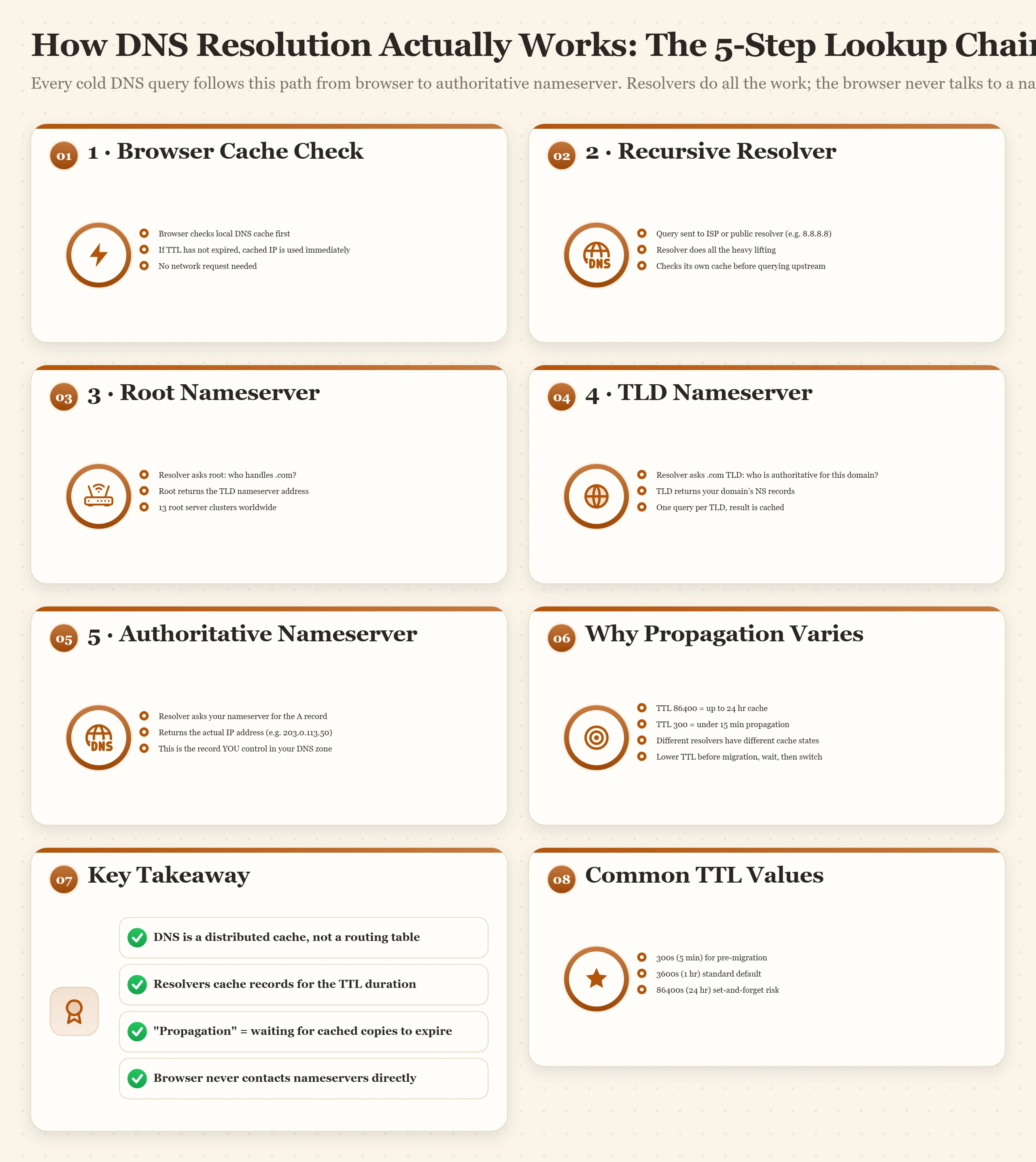
Understanding this chain explains three things that confuse people constantly. First: why propagation is not instant. The recursive resolver cached your old A record for however long the TTL said it should. It is not asking again until that timer expires. Second: why some DNS changes appear to take effect immediately while others seem frozen. The resolver cached different records at different TTL values. Third: why your monitoring tool might show the new record while your ISP shows the old one. The two are querying through different resolvers with different cache states.
The more accurate mental model for DNS records is a distributed database, not a routing table. Your authoritative nameserver holds records. Resolvers cache copies of those records for the duration the TTL specifies. When you change a record, you update the authoritative copy. Resolvers update their cached copy when their TTL expires and they re-query. The "propagation" window is the time it takes for all cached copies worldwide to expire and be replaced with the new authoritative value.
DNS is also the operational layer that controls far more than where your website points. Your email authentication lives in DNS. Your SSL certificate authority restrictions live in DNS. Your subdomain security, or vulnerability, lives in DNS. Every section of this page covers a different domain where DNS records have real operational, financial, or security consequences.
Every DNS Record Type Explained: A, AAAA, CNAME, MX, TXT, NS, SOA, SRV, CAA, and More
Most DNS tutorials explain A records and CNAME records, then stop. That covers maybe 40% of what is actually in your DNS zone. The other records, CAA, SRV, SOA, PTR, ALIAS, control things that break quietly when they are wrong and that nobody investigates until something fails in production.
This is the reference section. Every record type, what it controls, a real example value, and the mistake that causes problems in practice.
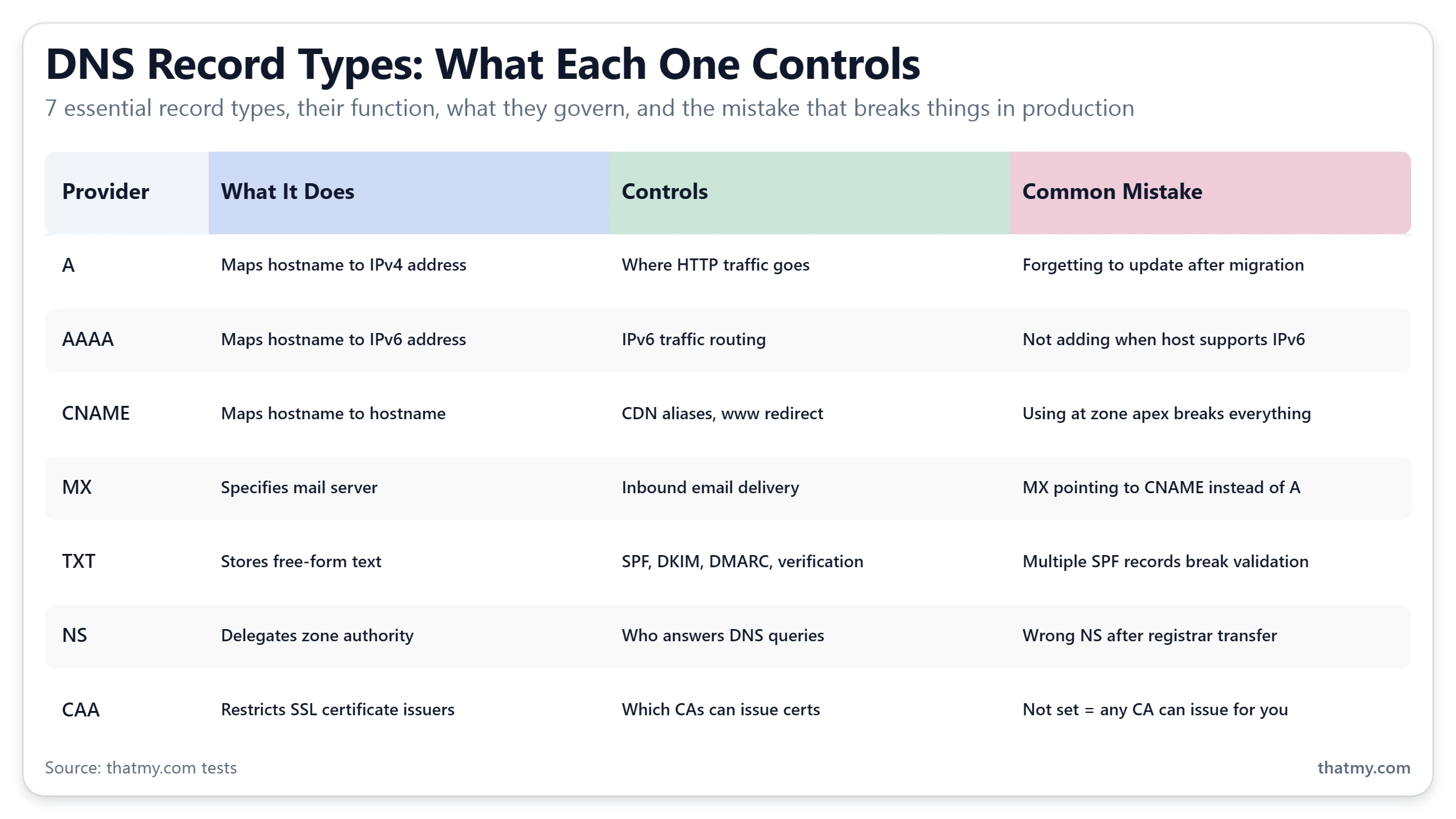
| Record Type | What It Does | What It Controls | Example Value | Most Common Mistake |
|---|---|---|---|---|
| A | Maps hostname to IPv4 address | Where HTTP traffic is delivered | dig domain.com A → returns 104.21.x.x | Forgetting to update after server migration |
| AAAA | Maps hostname to IPv6 address | IPv6 routing alongside A record | dig domain.com AAAA → returns 2606:4700::x | Not adding AAAA when host supports IPv6, misses IPv6 visitors |
| CNAME | Maps hostname to another hostname | CDN setup, service aliases, www redirects | www.domain.com → domain.com | Using CNAME at the zone apex, destroys the entire DNS zone |
| MX | Specifies mail server for the domain | Where inbound email is delivered | domain.com MX 10 mail.google.com. | Wrong priority values; pointing MX at a CNAME instead of an A record |
| TXT | Free-form text content | SPF, DKIM, DMARC, domain ownership verification | v=spf1 include:_spf.google.com ~all | Multiple SPF records, only one v=spf1 record allowed |
| NS | Specifies authoritative nameservers | Who answers all DNS queries for the domain | domain.com NS ns1.cloudflare.com. | Changing NS without understanding glue records at the registrar |
| SOA | Start of Authority, zone metadata | Serial number, refresh intervals, zone ownership | Auto-managed by DNS provider | Manually editing SOA without understanding serial number increments |
| SRV | Service locator record | Microsoft Teams, VoIP, XMPP, game servers | _sipfederationtls._tcp SRV 100 1 5061 sip.domain.com. | Wrong weight/priority syntax; missing underscore prefix on service name |
| CAA | Specifies which CAs can issue SSL certificates | Certificate issuance control, one-line SSL security | domain.com CAA 0 issue "letsencrypt.org" | Not setting it, leaves SSL issuance open to any certificate authority |
| PTR | Reverse DNS, maps IP address to hostname | Email sender reputation, rDNS lookups | 104.21.x.x PTR domain.com | Not controllable on shared hosting, requires dedicated IP |
| ALIAS/ANAME | CNAME-like behavior at the zone apex | CDN and platform setup at root domain | domain.com ALIAS cdn.platform.com | Not supported by all DNS providers, verify before relying on it |
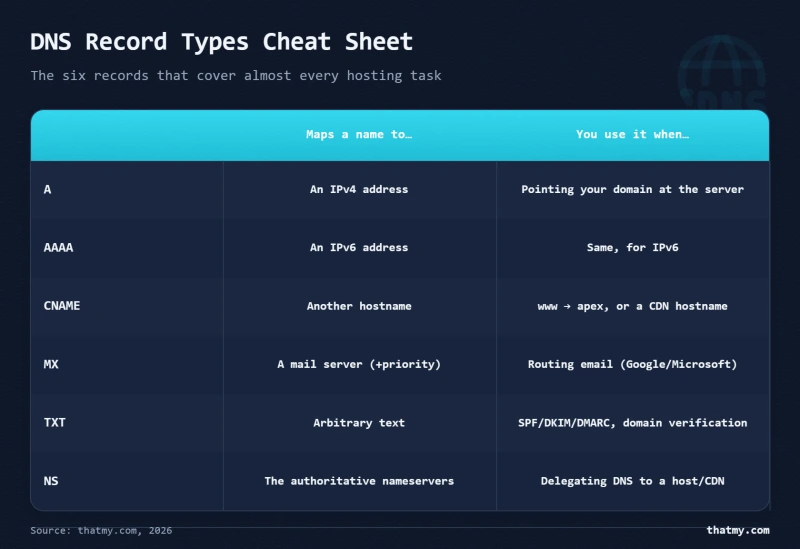
Embed This Reference Table
This DNS record types table is free to use on your site with attribution. Copy the embed code below and paste it wherever you reference DNS records. A link back to this page is the only requirement.
<!-- DNS Record Types Reference. Source: thatmy.com/dns-records -->
<table>
  <thead>
    <tr>
      <th>Record Type</th><th>What It Does</th><th>Controls</th><th>Common Mistake</th>
    </tr>
  </thead>
  <tbody>
    <tr><td>A</td><td>Maps hostname to IPv4</td><td>Where HTTP traffic goes</td><td>Forgetting to update after migration</td></tr>
    <tr><td>CNAME</td><td>Maps hostname to hostname</td><td>CDN aliases, www redirect</td><td>Using CNAME at zone apex (breaks everything)</td></tr>
    <tr><td>MX</td><td>Specifies mail server</td><td>Inbound email delivery</td><td>MX pointing to a CNAME instead of A record</td></tr>
    <tr><td>TXT</td><td>Free-form text</td><td>SPF, DKIM, DMARC, ownership verification</td><td>Multiple SPF records breaking validation</td></tr>
    <tr><td>CAA</td><td>CA authorization</td><td>Which CAs can issue SSL certs</td><td>Not setting it (leaves SSL issuance open)</td></tr>
  </tbody>
</table>
<p>Full reference: <a href="https://thatmy.com/dns-records">thatmy.com/dns-records</a></p>
Two of these records deserve more depth than a table row can provide. CNAME at the zone apex is the most catastrophic DNS mistake I have seen site owners make, and it requires a dedicated explanation. NS records during a provider migration have a failure mode that takes domains completely offline for hours. The zone apex comes next; nameservers follow it.
A Record vs CNAME vs ALIAS vs ANAME: The Zone Apex Problem Nobody Explains
Every DNS tutorial explains CNAME as "an alias that points a hostname to another hostname." What almost none of them explain is why this breaks completely at the root of your domain, and why the fix requires a record type that is not part of any RFC standard.
Why the Zone Apex Is Different
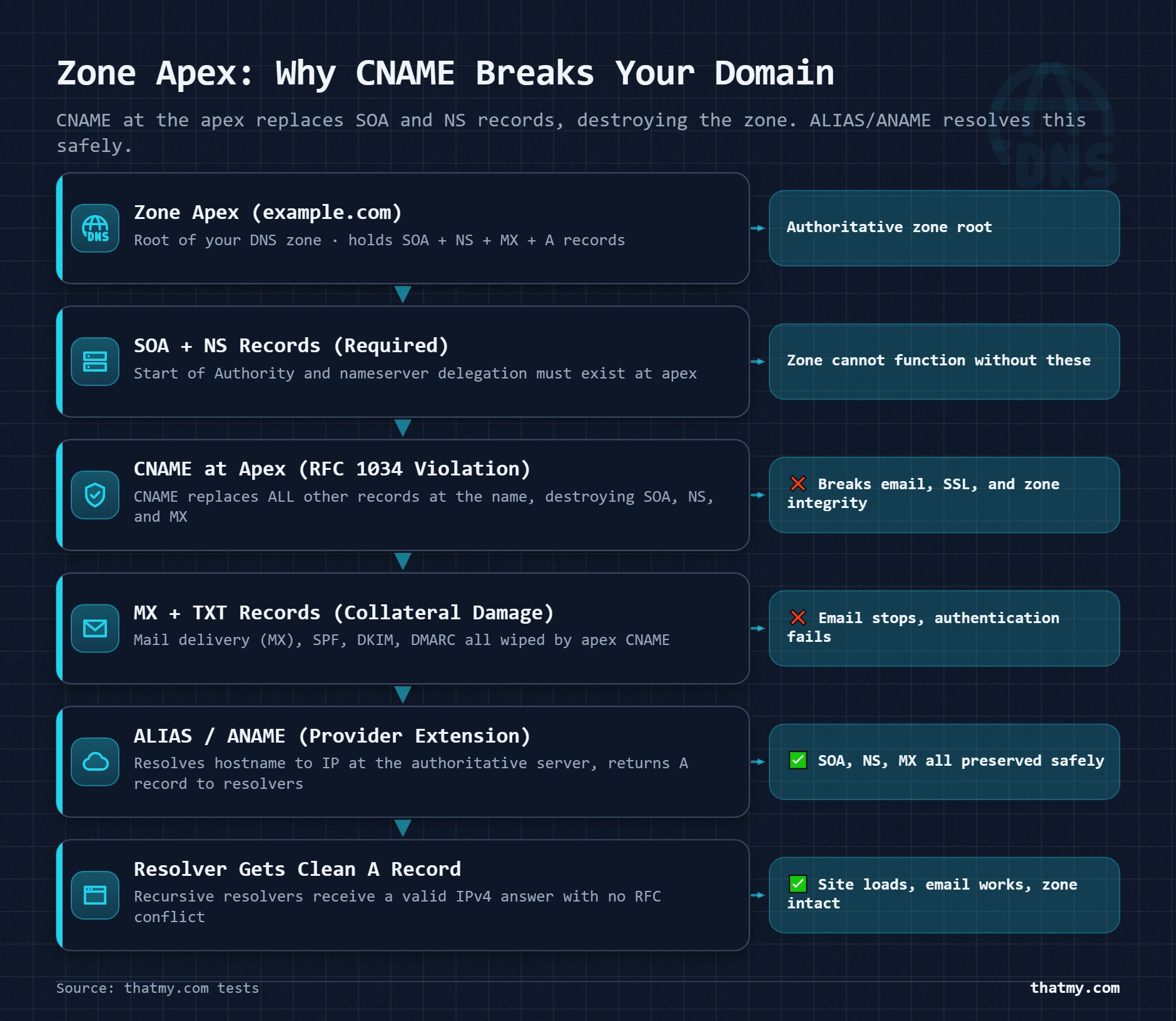
The zone apex is your root domain: domain.com with no subdomain prefix. It is special because it must contain SOA and NS records. These records define the zone itself, who owns it, which servers answer for it, and its metadata. A CNAME record at the same name would, by DNS specification (RFC 1034 Section 3.6.2), replace all other records at that name. Including the SOA and NS records. Which would destroy the zone.
This is why you can set a CNAME on www.domain.com without any problem. There are no SOA or NS records at www.domain.com, just your record. But at domain.com itself, a CNAME is a specification violation, and DNS providers that enforce RFC compliance will reject it or silently ignore the CNAME while keeping the NS and SOA, resulting in a non-functioning alias.
The ALIAS and ANAME Solution
ALIAS (used by DNSimple, NS1, and others) and ANAME (used by some other providers) are non-standard record types that solve the zone apex CNAME problem. Cloudflare implements this as "CNAME flattening", you enter a CNAME, but Cloudflare resolves it server-side and returns A record values to clients. The effect is CNAME-like behavior (follow a hostname to its IP) without the RFC violation.
The critical caveat: not all DNS providers support ALIAS or ANAME. If you point your domain at a CDN or platform that gives you a hostname rather than an IP, and your DNS provider does not support ALIAS/ANAME, you have two options: add an A record pointing to the IP address the hostname currently resolves to (which breaks if the CDN changes its IP), or move DNS to a provider that supports the record type your setup requires.
Decision Tree: What to Use at Which Level
The zone apex problem is the number one source of "my www works but my root domain does not" support tickets. Understanding why it happens is the first step to fixing it without randomly trying different records until something works.
Nameservers: Who Answers for Your Domain, and How to Change Them Safely
Nameservers do not point your domain anywhere. They hold your zone, the full set of records on this page, and answer every question about it. Setting nameservers at your registrar tells the registry for your domain's extension one thing: for anything about this domain, ask these servers. The A record is what sends visitors to your server; the nameserver is the server that hands that A record out.
That split decides how you move a site. Moving the website to a new host while your DNS stays where it is means changing the A record (and www), and with a low TTL the change is visible within minutes. Changing nameservers moves all of DNS management to a new provider. It is slower and riskier: the new provider starts with an empty zone unless you copy yours across, and resolvers can keep asking the old nameservers for up to 48 hours. Change nameservers when you want a different DNS provider, not to move a website faster.
Host, Cloudflare or registrar nameservers
Every domain starts on its registrar's nameservers, and most hosting signups ask you to switch to the host's. Which set you use decides who manages your records and whether anything sits between visitors and your server.
| Your Situation | Use These Nameservers | What It Means |
|---|---|---|
| You want a free CDN, WAF and DDoS layer in front of the site | Cloudflare nameservers | DNS management moves to the Cloudflare dashboard. Records your host's panel writes automatically (addon domains, mail, AutoSSL checks) now have to be added there by hand. |
| You want the host to manage everything | Host nameservers (ns1.yourhost.com) | Simplest setup. The panel writes records for you when you add a domain or a mailbox. No proxy layer unless the host includes one. |
| You are a reseller and want branded DNS | Custom nameservers (ns1.youragency.com) | Needs glue records at the registrar and the nameserver names set in WHM. See the reseller steps below. |
| The domain was bought at a registrar and never moved | Registrar nameservers | Fine for a parked domain or a simple site. Most registrar DNS panels are basic, and moving to your host or Cloudflare later is one change. |
| You are moving the site to a new host and keeping the same DNS provider | Keep the current nameservers | Change only the A record (and www) to the new server IP. A nameserver change adds up to 48 hours and risks missing records for no gain. |
Cloudflare's nameservers are the one choice that adds something on top of DNS: records set to proxied send visitors through Cloudflare's network, which adds caching, a firewall and DDoS protection on any host (the trade-offs are in proxied vs DNS-only and the CDN section of the caching guide). The price is ownership. A cPanel host writes records into its own zone when you add a domain, a subdomain or a mailbox, and with Cloudflare in charge those records never go live until you add them there yourself. Some hosts' AutoSSL also checks that the domain uses their nameservers, so check how the host renews certificates before you switch. Hosts with a built-in Cloudflare integration give you the proxy without moving the nameservers.
Changing nameservers without downtime
The order is the whole trick: build the new zone, prove it answers correctly, then switch. Never switch first and fill the zone afterwards.
- Lower the TTL a day ahead on the records at your current provider, as in the TTL strategy.
- List the whole zone. Every A, AAAA and CNAME, every MX with its priority, every TXT (SPF, DMARC, each DKIM selector, verification strings), CAA and SRV. Export the zone file if the provider offers it. Automatic imports, Cloudflare's included, find the common names but cannot see a DKIM selector or a subdomain they do not guess, so compare line by line.
- Create the same records at the new provider and query it directly before anything changes:
dig A yourdomain.com @new-nameserveranddig MX yourdomain.com @new-nameserver. Empty answers mean missing records. - Check DNSSEC. If the domain has a DS record at the registrar, remove it (and wait out its TTL) or set up signing at the new provider and swap the DS record first. Moving a signed domain without this makes it fail for every validating resolver.
- Change the nameservers at the registrar. The setting is on the domain's management page, usually under Nameservers, with an option such as "Custom DNS" or "Enter my own nameservers". Then confirm the registry has it:
dig NS yourdomain.com @a.gtld-servers.net. - Leave the old zone live and unchanged for 48 hours. Some resolvers still ask the old nameservers during that window, and they get correct answers only if the old zone still holds them. Any edit you make in that window goes into both zones.
- Test. Send mail to and from the domain, check spam folders, and load the root domain and www over HTTPS. Do not change email provider in the same window: separate the two moves by a couple of days so a failure has one cause.
Why a nameserver change takes up to 48 hours
An A record lives in your zone, so its TTL is yours to set. The NS records that send resolvers to your zone live one level up, in the zone of your domain's extension, and the registry sets their TTL. The .com and .net zones publish delegations with a TTL of 172800 seconds, which is 48 hours. A resolver that cached your old delegation an hour before the switch can keep asking the old nameservers for 47 more hours, whatever TTL you set on your own records. Some resolvers also keep the NS set the old provider served, with the TTL set there, which is one more reason the old zone has to stay correct during the change.
The registry side is fast. Registrars pass the change on within minutes, and dig NS yourdomain.com @a.gtld-servers.net asks a .com server directly, with no cache in between. New names there mean the change is in and the rest is caches expiring. For another extension, list its servers with dig NS org +short (swap in your extension) and query one of them the same way; the number in the second column of the answer is that registry's TTL.
Commands that show where a nameserver change stands
| Command | What It Shows | How to Read It |
|---|---|---|
| dig NS yourdomain.com +short | The nameservers your resolver currently believes in | After a change: old names mean your resolver still holds the old delegation. |
| dig NS yourdomain.com @a.gtld-servers.net | What the .com registry publishes, with no cache in between | Shows the new names within minutes of the registrar update. If it still shows the old ones, the registrar has not sent the change. |
| dig A yourdomain.com @new-nameserver | What the new provider will answer once it is live | Run it (and the MX version) before you switch. Empty answers mean missing records. |
| dig +trace yourdomain.com | Every hop: root, TLD, authoritative | The block where the output stops or returns SERVFAIL is the broken hop. |
| nslookup -type=NS yourdomain.com 1.1.1.1 | The same NS check on Windows | Use where dig is not installed. |
In dig +trace output each block is one hop: the root servers first, then the extension's servers with your NS records, then your nameserver with the record itself. If the second block lists the new nameservers and the third block comes from them with the right IP, the change is complete for anyone whose cache has expired.
Custom nameservers for reseller hosting
Reseller clients who see the host's nameservers in their domain settings can see whose servers you rent. Branded nameservers such as ns1.youragency.com hide that, and they keep client domains pointed at names you control: if you move to another server, you update two glue records instead of asking every client to change their registrar settings.
| Step | Action | Where | Why It Matters |
|---|---|---|---|
| 1 | Get two IP addresses for your nameservers from the host | WHM welcome email, or WHM > Basic WebHost Manager Setup | Both names may point to the same IP on a single server |
| 2 | Create child nameservers ns1 and ns2 on your own domain | Your registrar: 'Child nameservers', 'Personal DNS servers' or 'Host names' | This publishes the glue records at the registry |
| 3 | Set the nameserver names in WHM | WHM > Basic WebHost Manager Setup > Nameservers | WHM writes these names into every new account's zone |
| 4 | Check the glue before using it | dig A ns1.youragency.com and dig NS youragency.com @a.gtld-servers.net | Never point a client domain at names that do not resolve yet |
| 5 | Clients change their nameservers to yours | Each client's own registrar | Up to 48 hours per domain |
Accounts created before you set the names in WHM keep the old nameservers in their zones; update those in WHM under DNS Functions, Edit DNS Zone. On a setup with more than one cPanel server, WHM's DNS cluster (Clusters, DNS Cluster) keeps the zones on ns1 and ns2 in sync. On a single server both names can point to the same IP: registrars ask for at least two nameserver names, not two machines, though two machines are the safer setup.
Glue records
Custom nameservers create a loop. To find youragency.com, a resolver asks the .com servers, which answer: ask ns1.youragency.com. To find ns1.youragency.com, it would have to ask youragency.com's nameserver, which is ns1.youragency.com. Glue records break the loop: the registry stores the nameservers' IP addresses and returns them with the NS answer, so the resolver can connect straight away.
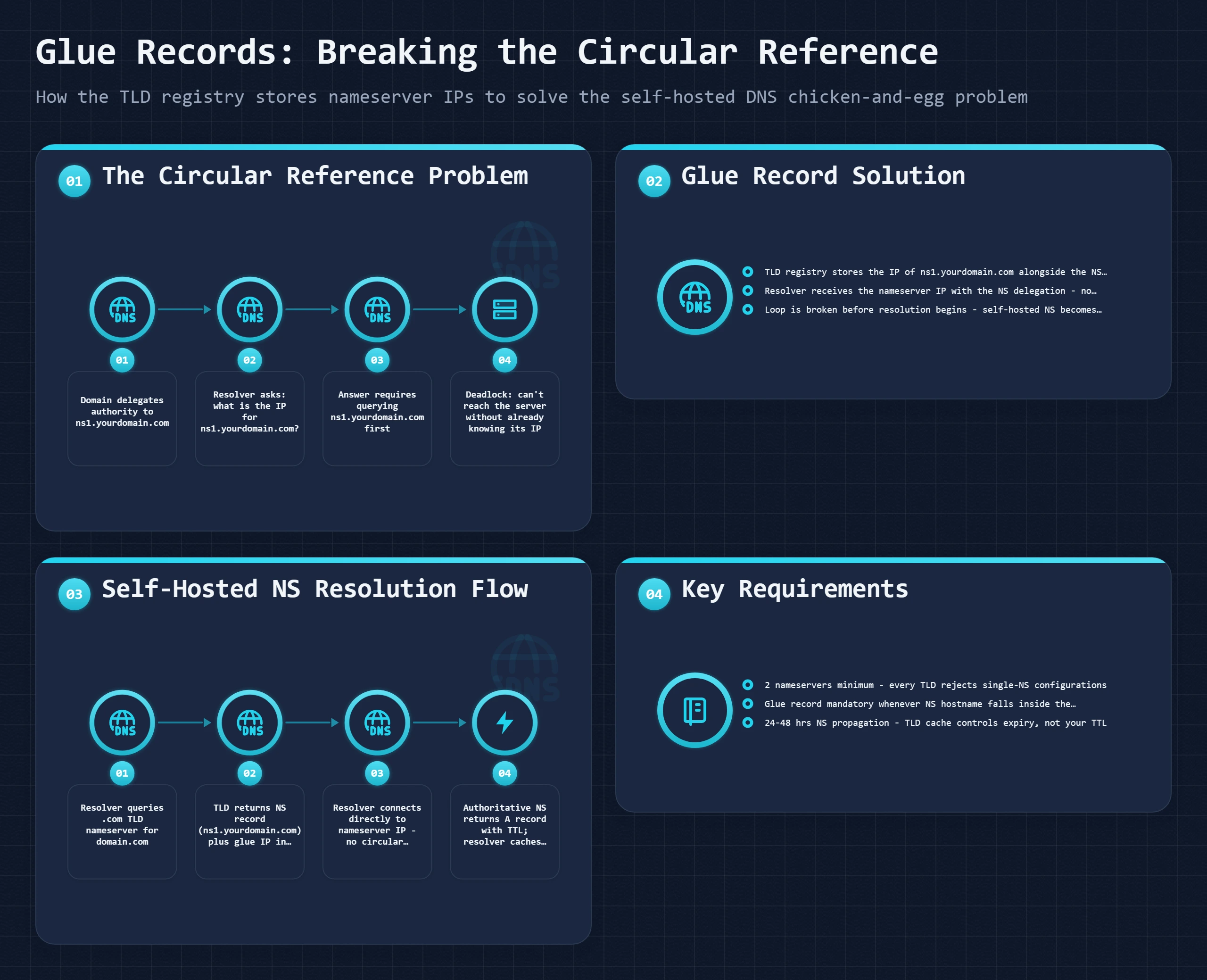
You need glue only when the nameserver names sit inside the domain they serve. Cloudflare's and your host's nameservers live on their own domains, so there is nothing to add. Registrars create glue under names such as Child nameservers, Personal DNS servers or Host names. Test it with dig A ns1.youragency.com: no answer means the glue is missing or the IP was mistyped. The failure that hurts most comes later: the host moves your server to a new IP, the glue keeps the old one, and every client domain on your nameservers stops resolving at the same moment.
Nameserver mistakes and what they break
| Mistake | What Breaks | The Fix |
|---|---|---|
| Changing NS before the new provider has every record | The site and email go dark for every resolver that switches to the new, empty zone | Copy the full zone first (A, www, MX, every TXT, CAA, SRV, DKIM selectors) and check each with dig @new-nameserver. |
| Forgetting MX and TXT at the new provider | New mail bounces or queues; SPF and DKIM fail, so mail that does arrive lands in spam | Compare the two zones line by line before switching. Sending servers retry for several days, so add the missing MX at once. |
| Listing nameservers from two providers | Resolvers get different answers depending on which server they ask; the site breaks for some visitors | Mix providers only when the second one is a real secondary fed by zone transfer or an API sync. Otherwise use one provider's set. |
| Moving a domain that has DNSSEC enabled | Validating resolvers reject every answer: the domain stops resolving for a large share of visitors | Remove the DS record at the registrar and wait out its TTL before the move, or set up DNSSEC at the new provider first and swap the DS record. |
| Custom nameservers left on an old server IP | Every client domain on those nameservers stops resolving at once | When the host moves your server, update the glue records at the registrar the same day. |
| Expecting A-record speed from an NS change | Hours of 'it is still the old site' after the switch | Plan NS changes over 48 hours. For a fast move, change the A record instead. |
SPF, DKIM, and DMARC: The DNS Records That Control Whether Your Email Reaches the Inbox
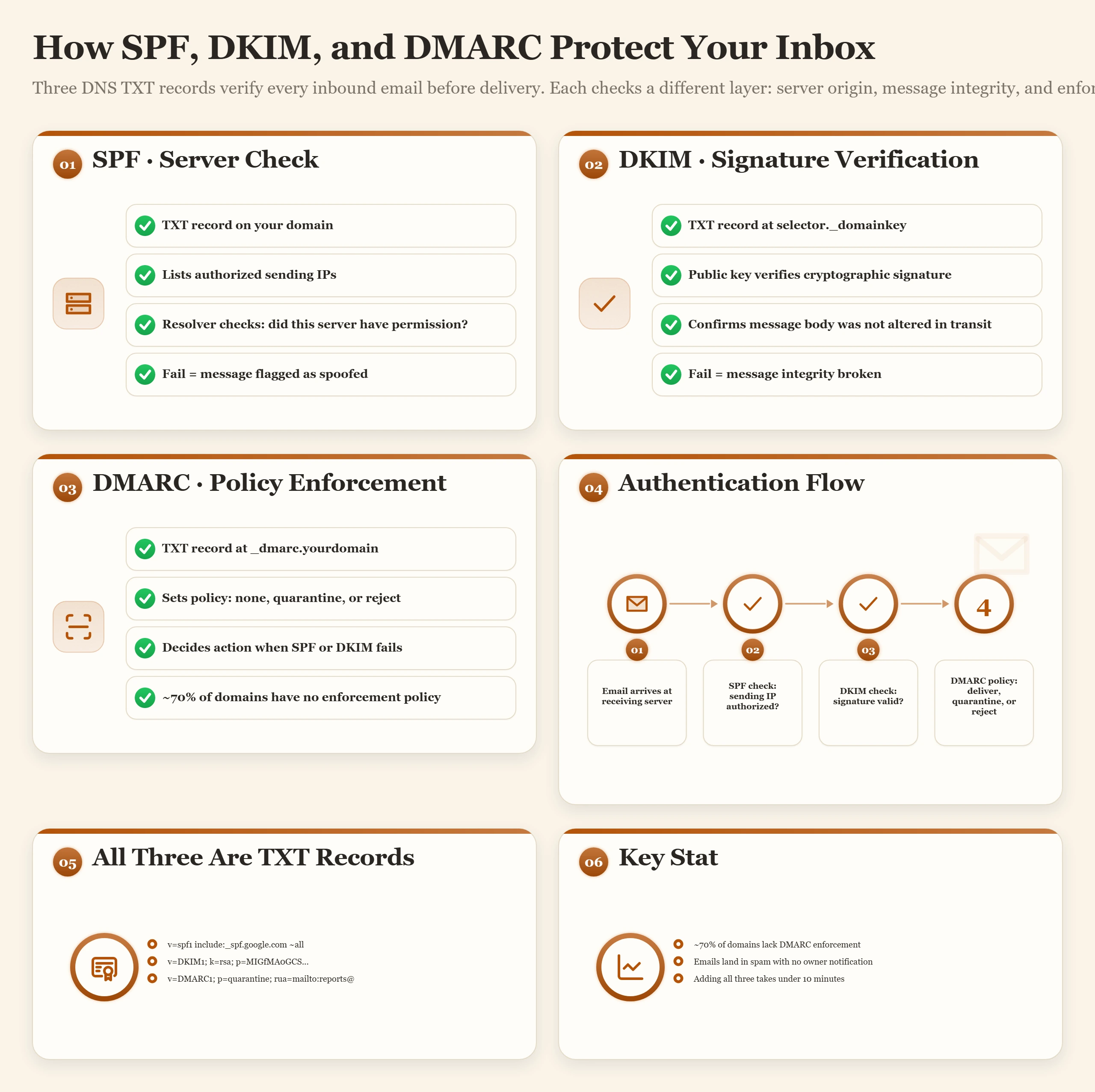
If your business emails are landing in spam, the answer is almost certainly in your DNS. SPF, DKIM, and DMARC are all TXT records that together form an email authentication system. Most domains have one of the three configured partially. Few have all three configured correctly. Almost none have verified them after a hosting migration that changed mail server infrastructure.
SPF: Which Servers Are Authorized to Send Your Email
SPF (Sender Policy Framework) is a TXT record that lists the mail servers authorized to send email claiming to be from your domain. When a receiving mail server gets an email from info@yourdomain.com, it checks your domain's SPF record to verify that the sending server is on the authorized list. If it is not, SPF fails and the email is treated with suspicion.
The most common SPF mistake is having multiple SPF records on the same domain. Only one TXT record starting with v=spf1 is permitted per domain. If you have two, SPF validation fails silently, not with an error, just with "SPF is broken on this domain." I have seen this happen after a hosting migration where someone added the new provider's SPF include without removing or merging the old one. The result was weeks of email landing in spam before anyone checked DNS.
A valid SPF record for a domain using Google Workspace: v=spf1 include:_spf.google.com ~all. If you also send from Mailchimp: v=spf1 include:_spf.google.com include:servers.mcsv.net ~all. One record. All includes merged. The ~all at the end means "treat anything else as suspicious but do not outright reject." A hard -all reject approach breaks legitimate email more often than it stops spam.
DKIM: Cryptographic Proof That the Message Was Not Tampered With
DKIM (DomainKeys Identified Mail) adds a cryptographic signature to outbound emails. The signature is verified against a public key you publish as a TXT record in DNS. When the receiving server sees an email claiming to be from your domain, it checks the DKIM signature against your public key. If the signature matches, the message was genuinely sent by an authorized server and has not been modified in transit.
Most email providers generate DKIM keys automatically, but they require you to manually add the TXT record to your DNS. Google Workspace shows you the record in the Admin Console under Apps > Gmail > Authenticate email. The record lives at a subdomain like google._domainkey.domain.com and contains a long public key string. Missing this step means your emails have no DKIM signature, they are not rejected, but they score worse with spam filters and fail DMARC alignment checks.
DMARC: What Happens When SPF or DKIM Fails
DMARC (Domain-based Message Authentication, Reporting, and Conformance) is a policy record that tells receiving servers what to do when an email fails SPF or DKIM checks. It sits at _dmarc.domain.com as a TXT record and has three policy levels: none (monitor and report, do nothing), quarantine (deliver to spam folder), and reject (do not deliver at all).
The correct progression is none for 2-4 weeks while you monitor reports, then quarantine, then reject. Starting with p=reject before you have verified every legitimate sending source will block real emails. Starting with p=none and never moving forward means you are monitoring but never enforcing, spoofed emails can still reach your recipients indefinitely. The monitoring phase at p=none exists to surface every service sending email on your behalf so you can add them to SPF before tightening the policy.
The fourth email DNS record worth knowing is BIMI, an emerging standard that connects a verified brand logo to authenticated email. For details on setting up email hosting including all of these records, the email hosting guide covers the full configuration sequence by provider.
| Record | DNS Type | Example Value | What Breaks If Missing | Critical Note |
|---|---|---|---|---|
| SPF | TXT | v=spf1 include:_spf.google.com ~all | Emails from your domain appear to come from unauthorized servers, spam classification, rejection | One per domain, multiple SPF records silently break validation |
| DKIM | TXT (at selector subdomain) | google._domainkey TXT v=DKIM1; k=rsa; p=MIIBIjAN... | Emails lack cryptographic signature, spam folders, rejected by strict receivers | Generated in your email provider dashboard, must be manually added to DNS |
| DMARC | TXT (at _dmarc subdomain) | _dmarc TXT v=DMARC1; p=none; rua=mailto:dmarc@domain.com | No policy for authentication failures, spoofing goes undetected and unblocked | p=none monitors only. Move to p=quarantine then p=reject gradually over weeks |
| BIMI | TXT (at default._bimi subdomain) | default._bimi TXT v=BIMI1; l=https://domain.com/logo.svg; a=https://domain.com/vmc.pem | No verified brand logo in supporting email clients, reduced recognition | Requires active DMARC p=quarantine or p=reject and VMC certificate for major clients |
Email Authentication Starter Pack, Copy-Paste Records by Provider
Replace yourdomain.com with your actual domain. DKIM value must be generated in your provider's admin dashboard.
v=spf1 include:_spf.google.com ~allgoogle._domainkey TXT → generate in Google Admin › Apps › Gmail › Authenticate emailv=DMARC1; p=none; rua=mailto:dmarc@yourdomain.comv=spf1 include:spf.protection.outlook.com ~allEnable in Microsoft 365 Admin › Security › Email authentication settingsv=DMARC1; p=none; rua=mailto:dmarc@yourdomain.comv=spf1 include:zoho.com ~allEnable in Zoho Mail Admin › Domains › DKIMv=DMARC1; p=none; rua=mailto:dmarc@yourdomain.comv=spf1 include:_spf.protonmail.ch mx ~allGenerate in Proton Mail Settings › Domains › your domain › DKIM keysv=DMARC1; p=none; rua=mailto:dmarc@yourdomain.comThe 24-48 Hour Propagation Myth: What TTL Actually Controls and How to Use It
The myth: "DNS changes take 24-48 hours to propagate." This appears in every hosting control panel, every support ticket response, and every YouTube tutorial about moving domains. It is not exactly wrong. It is just the wrong model, and the wrong model leads to the wrong preparation.
The truth: DNS changes propagate exactly as fast as your TTL allows. If your A record TTL is 300 seconds and you change the IP, resolvers that honored the TTL will re-query within 5 minutes. If your TTL is 86400 and you change the IP, resolvers can serve the old IP for up to 24 hours. The 24-48 hour figure comes from the era when 86400 was the default TTL across the industry. Most modern DNS providers now default to 3600 (one hour). But the myth survived the TTL change.
The ISP Resolver Problem (This Is the Legitimate Source of Real Delays)
Some ISP recursive resolvers ignore TTL values and cache records for longer than you instructed. This is a real phenomenon and the legitimate source of propagation delays that exceed your TTL. An ISP caching a record for 4 hours when your TTL is 300 seconds is unusual but documented. The important nuance: this is outside your control, it affects a small fraction of users, and it is not your host's fault or your fault. When a tech support agent says "wait 24-48 hours," they are either citing the old default TTL era or preparing you for the ISP resolver edge case.
How to Check Propagation Right Now
Refreshing your own browser only tells you what your own resolver knows. dnschecker.org and whatsmydns.net query your domain from resolvers around the world at once and show which have the new record and which still have the old one. Google's Admin Toolbox dig (toolbox.googleapps.com/apps/dig) shows what Google's resolver sees, which is the view that matters for a Search Console TXT verification. From the command line, dig domain.com A queries your local resolver; dig @8.8.8.8 domain.com A queries Google's public resolver; dig @1.1.1.1 domain.com A queries Cloudflare's resolver. On Windows, nslookup domain.com 1.1.1.1 does the same. If all three return the new IP, propagation is complete for any resolver that respects TTL.
The second column of a dig answer is the TTL that resolver has left on its copy, in seconds. A resolver showing 2400 next to the old IP will switch in 40 minutes; one showing 82000 is nearly a day away, and that number is the honest answer to "how much longer".
TTL Propagation Estimator
Enter your current TTL to see how long propagation will take after a DNS change.
The propagation myth creates a specific failure mode I have seen repeatedly: someone changes an A record, waits "the required 24-48 hours," and accepts slow propagation as normal. With a 300-second TTL, the entire change should complete in under 15 minutes. Accepting 24-48 hours as normal is accepting a failure to prepare, not a DNS limitation.
DNS Propagation in Practice: Why People See Different Versions of Your Site
Nothing is broadcast when you change a record. Your authoritative nameserver has the new value the moment you save it. Everyone else is reading a copy they cached earlier, and each copy expires on its own clock. Propagation is simply the time it takes for those copies to run out, which is why it looks random from the outside and is entirely predictable from the TTL.
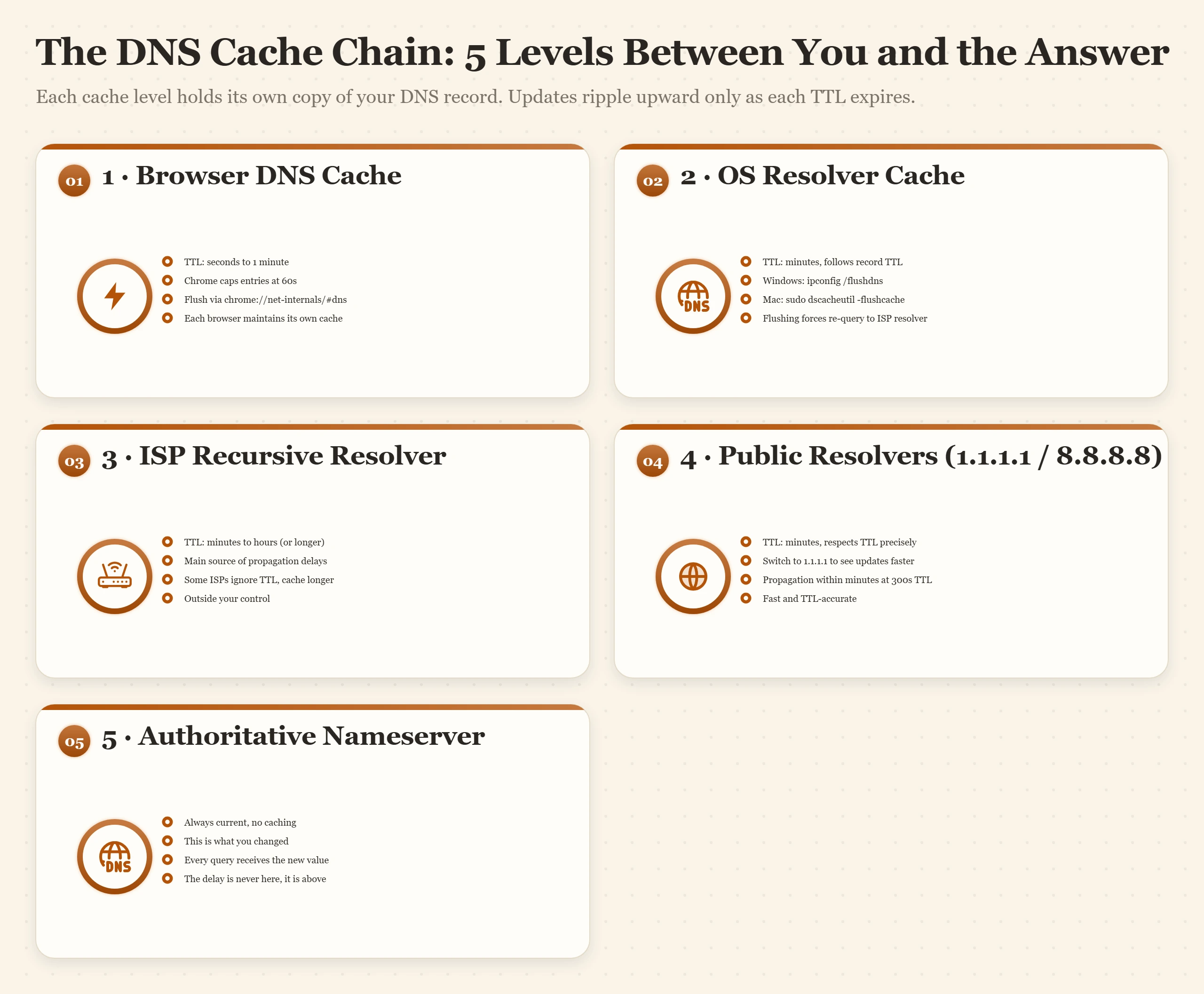
The caches between a visitor and your nameserver
A browser never asks your nameserver directly. Its question passes through up to four caches first, and any of them can answer with the old value until its copy expires. Flush the ones you control before you decide the change has not worked.
| Cache | How Long It Keeps a Record | How to Clear or Bypass It |
|---|---|---|
| Browser | Its own short host cache | Chrome: chrome://net-internals/#dns, Clear host cache, then #sockets, Flush socket pools. Or restart the browser. |
| Operating system | Follows the record's TTL | Windows: ipconfig /flushdns. macOS: sudo dscacheutil -flushcache; sudo killall -HUP mDNSResponder |
| ISP, office or VPN resolver | Usually the TTL; some hold records longer, and company networks may run their own cache or split DNS | Nothing you can flush. Switch your own machine to 1.1.1.1 or 8.8.8.8 for the move. |
| Public resolver (1.1.1.1, 8.8.8.8) | Follows the TTL closely | Both offer a public purge page for a single name: one.one.one.one/purge-cache and Google Public DNS's Flush Cache page. |
| Your authoritative nameserver | No cache: it holds the record you saved | Nothing to flush. dig yourdomain.com @your-nameserver shows the current value. |
Why you and a colleague see different sites
Each of you is reading a different cache. Your colleague's resolver may have fetched the record after the change; yours may have cached the old one an hour before it. The same explains the other puzzles that come up during every move:
- It works on my phone but not my laptop. The phone on mobile data uses the carrier's resolver, the laptop uses the home ISP's. Different caches, different expiry times.
- It worked this morning and broke this afternoon. Nothing broke. Your cache expired and you caught up with what everyone else already saw, so look at the new server, not at DNS.
- The office still sees the old site long after home does. Company networks and VPNs often run their own DNS cache, or split DNS that overrides public records. That is outside your control; the people on that network see the change when their cache refreshes.
If dig @1.1.1.1 yourdomain.com A already returns the new IP and your browser does not, the delay is on your own machine: clear the browser and operating system caches from the table above. If your ISP's resolver is the slow one, point your machine at 1.1.1.1 or 8.8.8.8 for the length of the move.
Test the new server before DNS catches up: the hosts file
Your computer reads its hosts file before it asks any resolver, so one line there sends your browser to the new server while the rest of the world still sees the old one. It is the way to check a migrated site before you change a single DNS record.
# macOS and Linux: sudo nano /etc/hosts
# Windows: open Notepad as administrator, then C:\Windows\System32\drivers\etc\hosts
# Add one line per name, with the NEW server's IP:
203.0.113.10  yourdomain.com
203.0.113.10  www.yourdomain.com

# Then flush the OS cache (Windows: ipconfig /flushdns)
Log in, submit a form, run a test checkout. Expect one difference: the new host usually cannot issue the free SSL certificate until public DNS points at it, so a certificate warning during this test is normal unless the host offers a temporary certificate. Everything else should look exactly like the live site.
Keep the old server running after the switch. Visitors on stale caches still reach it: give it at least a day after an A record change, and 48 hours after a nameserver change. On a store or a membership site, anything written on the old server in that window (orders, sign-ups, comments) stays in the old database, so freeze changes there or plan to copy them across. The nameserver section explains why that window is longer for NS changes.
TTL Strategy for Migrations: The Exact Numbers to Use Before, During, and After
TTL is the only variable you actually control in DNS propagation timing. Using it correctly transforms a painful multi-hour migration window into a 15-minute switch. Using it incorrectly is how sites stay partially unreachable for an entire business day after a routine hosting move.
The Three-Phase TTL Playbook
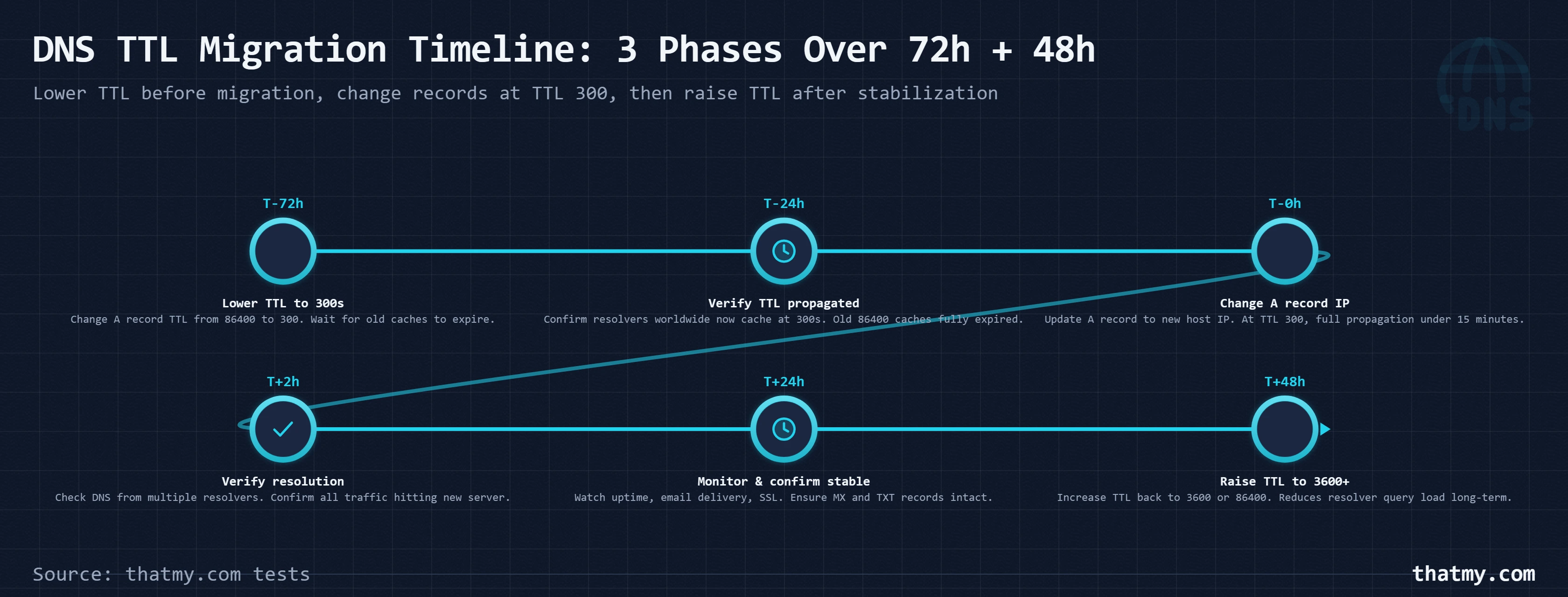
Phase 1, 48 to 72 hours before migration: Lower the TTL to 300 seconds on every record you plan to change. This burns off the cached high-TTL values. Any resolver that has your current records cached at 3600 will re-query within an hour. By the time your migration window opens, virtually all resolvers that honor TTL will have fresh caches set at 300. Your actual record values have not changed yet, only the TTL. This phase costs you nothing except planning ahead.
Phase 2, Migration window: Make the record changes with TTL already at 300. With a 300-second TTL, resolvers will pick up the new values within 5-15 minutes globally. Monitor propagation at dnschecker.org. Confirm the new records are resolving before you decommission the old server, and keep it running for at least a day after the change: resolvers that stretch TTLs and office networks with their own caches still send a few visitors there. Test the new server first with the hosts file, before the record changes.
Phase 3, 24 to 48 hours after stable migration: Raise TTL back to 3600. High TTL has real operational benefits: it reduces the load on your authoritative nameservers, improves DNS response times for end users (cached responses are served without a live query), and reduces your surface area during a BGP hijack attack (attackers who redirect traffic can only poison caches for the TTL duration).
| TTL Value | When to Use | Why | Which Records |
|---|---|---|---|
| 300 seconds (5 min) | Pre-migration window | Lower to this value 48-72 hours before any DNS change so cached high-TTL values expire before the migration window opens | All records you plan to change |
| 300 seconds (5 min) | During migration | Make record changes with TTL already at 300. Full global propagation: 5-15 minutes. DNS resolvers that honored the TTL will already be re-querying. | A records, CNAME, MX, SPF/DKIM |
| 3600 seconds (1 hour) | Standard operational TTL | Use for most records at all times other than pre-migration windows. Balances resolver caching efficiency with reasonable update latency. | A, CNAME, MX, TXT records |
| 86400 seconds (24 hours) | Slow-changing records | Use for records you never change: NS records once nameservers are stable, MX records for stable mail setups. Reduces resolver query load. | NS records, stable MX |
| 1 second | Never use in production | Some providers allow TTL=1 for testing. In production this causes a DNS lookup on every request, measurable TTFB latency increase. Avoid. | Testing only, never production |
The NS Record Trap During Provider Migrations
If you are moving DNS providers, not just changing A records at your current provider, there is a specific failure mode that catches people by surprise. When you change NS records at the registrar, the new provider starts answering for the domain, and it answers only with the records you created there. An empty or half-copied zone takes the site and email down for every resolver that has switched.
The correct sequence: create every record at the new provider first and check it with dig @new-nameserver, then change the NS records at the registrar. For up to 48 hours some resolvers still ask the old nameservers (the registry, not you, sets that TTL), so keep the old zone live and identical until the window has passed, and make any edit in both zones. The full sequence is in changing nameservers without downtime.
| Order | Record Type | When Applicable | Important Note | Expected Propagation |
|---|---|---|---|---|
| 1 | NS records | If moving DNS provider | Do this first. Copy every record to the new provider and check it with dig @new-nameserver, then change NS at the registrar. Keep the old zone identical and unedited for 48 hours: during that window some resolvers still ask the old nameservers. | Up to 48 hours |
| 2 | A records (root + www) | Always | Change to new server IP. With TTL at 300, propagation takes 5-15 minutes globally. | 5-15 minutes at TTL 300 |
| 3 | MX records | If moving email provider | Update after A records are confirmed stable. Email delivery continues to old server during transition if old MX is still valid. | 5-15 minutes at TTL 300 |
| 4 | SPF / DKIM / DMARC | If changing email provider | Update SPF include: for new mail service. Regenerate DKIM at new provider. DMARC policy stays unchanged unless mail infrastructure changes completely. | Immediate after TXT update |
| 5 | CNAME records | For subdomain services | Update after A and MX are stable. Third-party service CNAMEs may need to be recreated, not just updated. | 5-15 minutes at TTL 300 |
| 6 | CAA records | If changing SSL CA | Update to reflect new certificate authority if switching from Let's Encrypt to ZeroSSL or vice versa. | Immediate after update |
For a complete walkthrough of DNS changes as part of a full hosting migration, the hosting migration guide covers this sequence in the context of moving an entire site including files, databases, and email.
Cloudflare Proxied vs DNS-Only: A Decision Framework, Not a Setting
Most Cloudflare documentation describes proxied and DNS-only as toggle options. Most hosting tutorials say "turn on the orange cloud for everything." Both framings lead to the same support ticket: "FTP stopped working after I moved to Cloudflare" or "My email stopped delivering after I set up Cloudflare."
The orange cloud and grey cloud are not cosmetic preferences. They represent completely different network paths with completely different protocol support. Treating them as a global setting rather than a per-record decision is the source of most Cloudflare configuration problems.
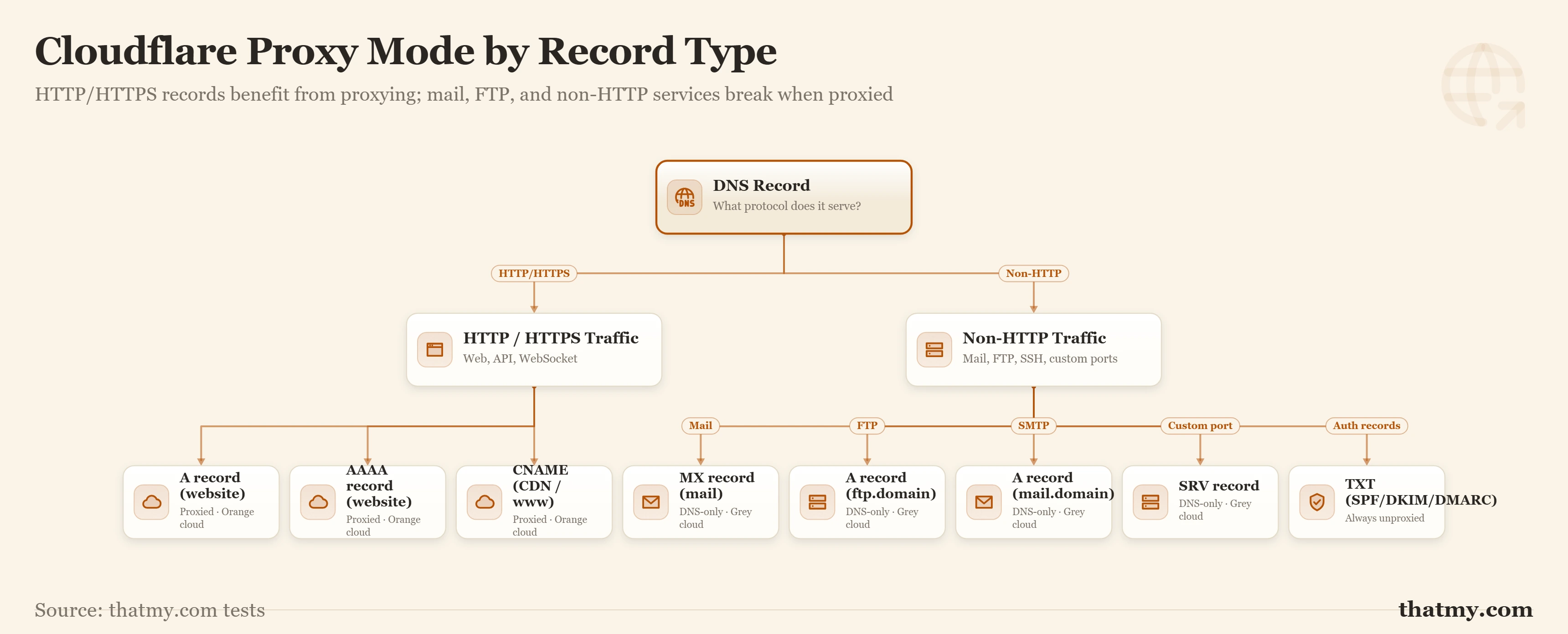
What Proxied Actually Does
When a record is proxied, Cloudflare returns one of its own IP addresses in DNS responses instead of your origin server's IP. All HTTP and HTTPS traffic goes to Cloudflare's edge network, passes through the WAF and DDoS protection layers, and is then forwarded to your origin. Your server's real IP is hidden from DNS lookups, which means it is also hidden from attackers trying to bypass Cloudflare by targeting your origin directly.
Proxied records only support HTTP and HTTPS on standard and non-standard ports that Cloudflare explicitly supports. Everything else, FTP, SSH (for SFTP), SMTP, IMAP, POP3, game server protocols, SIP, passes through Cloudflare's network without the WAF layer but still with Cloudflare's IP in the DNS response. This means the traffic still routes through Cloudflare, but the non-HTTP protocol handlers at the origin cannot be reached because Cloudflare does not forward those protocols.
| Record / Use Case | Correct Setting | Why |
|---|---|---|
| A (root domain, www) | Proxied, orange cloud | WAF, DDoS protection, caching, origin IP hidden from DNS lookups. Cloudflare's primary value. |
| A (mail subdomain) | DNS-only, grey cloud | Proxied mail subdomains break SMTP. Mail servers need direct IP access. Proxying adds SSL termination that mail clients reject. |
| A (FTP subdomain) | DNS-only, grey cloud | Cloudflare does not proxy FTP protocol. Proxying breaks FTP silently, clients connect but all transfers fail. |
| CNAME (www) | Proxied, orange cloud | Same as root domain A record. www CNAME proxied through Cloudflare is standard and recommended. |
| CNAME (API subdomain) | Proxied recommended | WAF protects API endpoints from injection and rate abuse. Exception: if API requires client real IP visibility, use DNS-only. |
| CNAME (service integrations) | DNS-only, grey cloud | Third-party service CNAMEs (Heroku, Netlify, Vercel) should be DNS-only unless specifically documented as Cloudflare-compatible. |
| MX records | Cannot be proxied | MX records are never proxied. Cloudflare passes them through unchanged. Email delivery is unaffected by Cloudflare proxy settings on other records. |
| NS records | Cannot be proxied | NS records are set by the registrar and are outside Cloudflare's proxying scope entirely. |
The FTP Trap and the Mail Subdomain Trap
FTP (File Transfer Protocol) cannot be proxied through Cloudflare. FTP uses ports 20 and 21, which Cloudflare does not proxy. If you proxy an FTP subdomain, clients can establish a connection but all file transfers fail. The connection appears to work at the TCP level because Cloudflare responds, but the FTP protocol exchange breaks down immediately. The fix is to set the FTP subdomain to DNS-only.
Mail subdomains (mail., smtp., imap., pop3.) should always be DNS-only. Your mail server needs a direct IP connection for SMTP delivery and client access. Proxying these subdomains routes mail client connections through Cloudflare's HTTP proxy, which adds unexpected SSL termination and breaks the SMTP/IMAP handshakes. The symptoms are mail clients that appear to connect but cannot authenticate, or SMTP relay failures with no obvious error. For more on mail server configuration, the email hosting guide covers subdomain setup in detail.
Cloudflare SSL Modes in the Context of Proxied Records
When records are proxied, Cloudflare handles SSL termination at the edge. The SSL mode controls what happens between Cloudflare and your origin server: Flexible means Cloudflare uses HTTP to your origin (insecure, not recommended), Full means HTTPS but Cloudflare does not validate your origin's certificate, and Full (Strict) means HTTPS with a valid SSL certificate at the origin. If you have a valid SSL certificate on your server, which you should, especially when using SSL certificates from Let's Encrypt, always use Full (Strict). Flexible mode creates a false sense of HTTPS security and is exploitable by MITM attacks between Cloudflare and your origin.
DNS as a Security Attack Surface: Dangling Records, Subdomain Takeover, and CAA
DNS security is not abstract. It is not primarily about sophisticated state-level attacks. The most common DNS security failures happen because of one thing: records that were never cleaned up after a service was cancelled. The attack that exploits them is trivially simple, and it has been used against major brands including Microsoft, Starbucks, and Uber.
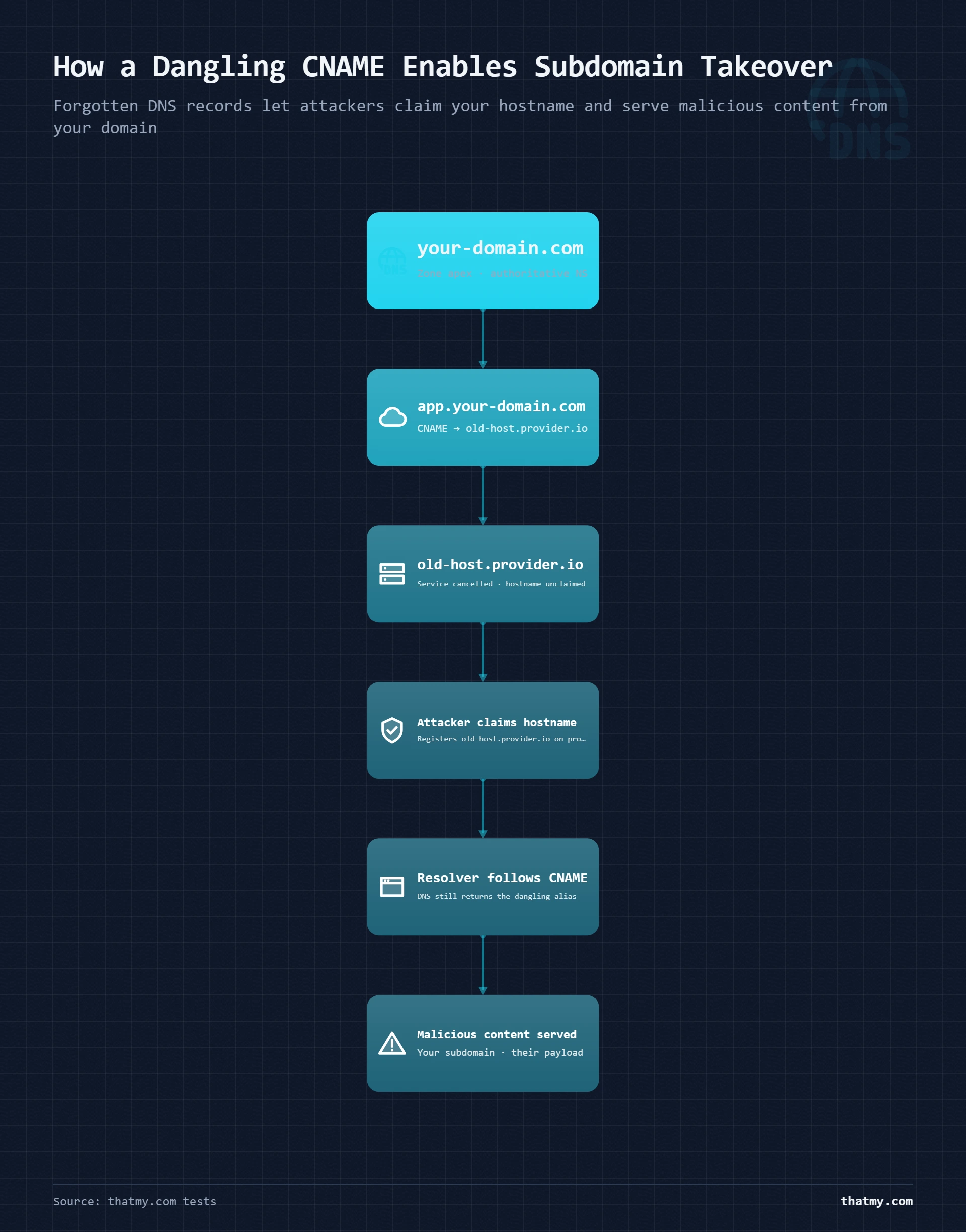
Dangling DNS and Subdomain Takeover
When you cancel a Heroku app, a Shopify Plus subdomain, an AWS S3 bucket configured as a website, or any third-party service with a custom subdomain, you delete the service. But if you do not delete the CNAME record pointing to that service, the CNAME still exists in DNS. It points to a hostname that nobody owns anymore.
An attacker can create a new account on that platform, claim the hostname your CNAME points to, and start serving content from your subdomain. Your subdomain. The CNAME was never removed, so DNS still resolves staging.yourdomain.com to the attacker's new Heroku app. The subdomain is real. The SSL certificate is valid (because the attacker can issue one for the hostname they now own). Visitors see a legitimate-looking subdomain of your brand serving phishing content or malware.
The audit is simple: list every CNAME record in your DNS zone. For each one, verify that the destination hostname is still active and under your control. If you deleted an app on Heroku three months ago and forgot to remove the CNAME, it is vulnerable right now. Tools like can-i-take-over-xyz on GitHub maintain a list of services with known subdomain takeover vulnerabilities.
CAA Records: One-Line SSL Security
A CAA (Certification Authority Authorization) record specifies which certificate authorities can issue SSL certificates for your domain. Without one, any CA can issue a certificate for your domain, which means if an attacker redirects your DNS, they can also obtain a valid SSL certificate for your domain from a compliant CA and create a convincing fake site.
Adding a CAA record takes 30 seconds and costs nothing. For Let's Encrypt: domain.com. CAA 0 issue "letsencrypt.org". For ZeroSSL: domain.com. CAA 0 issue "sectigo.com". This single record prevents every other CA from issuing a certificate for your domain, even if an attacker compromises your registrar and redirects DNS. The redirected site cannot get a valid certificate from a CA that is not on your CAA list, and modern browsers will refuse to connect to sites with certificates from unauthorized CAs.
| Security Measure | Protection Level | Implementation Effort | What It Protects Against |
|---|---|---|---|
| CAA record | Very high | Low, 30 seconds, free | Prevents any unauthorized CA from issuing SSL certificates for your domain. One record stops certificate misissuance attacks entirely. |
| Registrar lock | High | Low, one checkbox in registrar dashboard | Prevents unauthorized domain transfers. Should be enabled on every production domain. Disable only during intentional transfers. |
| 2FA on DNS provider | High | Low, 5 minutes | DNS hijacking starts with account compromise. 2FA on your registrar and DNS provider makes account takeover significantly harder. |
| Dangling DNS audit | High | Medium, 30 minutes per domain | Review every CNAME record. Confirm the destination hostname is active and under your control. Delete any pointing to decommissioned services. |
| DNSSEC | Medium | Medium, requires registrar and DNS provider support | Cryptographically signs DNS responses. Prevents cache poisoning attacks. Small additional lookup overhead. Worth enabling for financial or sensitive domains. |
| Wildcard record review | Medium | Low, review once | Wildcard A records (*) resolve every non-existent subdomain to your server. Can mask dangling DNS problems and serve unexpected content on subdomain typos. |
DNSSEC: Cryptographic Zone Signing
DNSSEC adds cryptographic signatures to DNS responses so resolvers can verify the responses have not been tampered with in transit. It protects against cache poisoning attacks where an attacker injects false DNS records into a resolver's cache. The overhead is real but small: DNSSEC adds 1-2 additional DNS lookups for signature validation, which adds a few milliseconds to uncached lookups. For domains handling financial transactions, healthcare data, or anything sensitive, the protection is worth the overhead. Both your DNS provider and your domain registrar need to support DNSSEC, enable it at both layers or not at all. The order matters: turn on signing at the DNS provider first, then copy the DS record it gives you to the registrar. A DS record at the registrar with no matching signed zone behind it, which is what happens when someone moves nameservers and forgets the DS record, makes validating resolvers reject the domain outright.
Registrar account security matters as much as any record. Whoever controls the registrar account can change your nameservers and, with them, every record at once: website, email, certificates. Turn on two-factor authentication there, keep the account on an email address used for nothing else, and leave the transfer lock (clientTransferProhibited) on for every live domain.
The Wildcard Record Trap
A wildcard A record at *.domain.com resolves every non-existent subdomain to your server. The intended use case: catch-all routing so you do not need individual records for every subdomain. The unintended consequence: wildcard records mask dangling DNS vulnerabilities. If you have a wildcard record and a dangling CNAME, the wildcard may intercept queries for the subdomain and return your server's IP, hiding the fact that the CNAME is also present and still vulnerable if the wildcard is ever removed. Audit for both independently.
DNS security is connected directly to site availability, a successful DNS hijack takes your site offline more completely than any server failure.
DNS Performance and TTFB: The Hidden Latency Most Developers Ignore
DNS lookup time appears as a separate phase in browser DevTools waterfall charts, between the initial connection and the TCP handshake. Most people dismiss it as negligible. For returning visitors with cached DNS, it is negligible. For first-time visitors on cold connections, it can add 20-120 milliseconds that contribute directly to your TTFB, which is a Core Web Vitals measurement.
How DNS Lookup Time Accumulates
Every unique hostname on your page incurs a DNS lookup for first-time visitors. Your main domain: one lookup. Your CDN subdomain: another lookup. Google Fonts: another. Google Analytics: another. A Facebook pixel: another. A payment widget from Stripe: another. A marketing automation script: another. Most pages have 8 to 15 unique hostnames. On a fast connection with low-latency DNS, this adds up to 50-200ms of serial DNS resolution that happens before any of those resources can begin loading.
DNS Prefetching: Eliminate the Latency
The <link rel="dns-prefetch"> tag tells the browser to resolve third-party hostnames during page parsing, before those resources are requested. Add these to your page head for every external hostname your page uses:
<link rel="dns-prefetch" href="//fonts.googleapis.com">
<link rel="dns-prefetch" href="//www.googletagmanager.com">
<link rel="dns-prefetch" href="//cdn.yourdomain.com">
For resources you are certain will be needed, rel="preconnect" goes further, it resolves DNS and completes the TCP + TLS handshake, eliminating the full connection latency rather than just the DNS lookup. Use preconnect for critical external resources like font APIs; use dns-prefetch for non-critical ones to avoid unnecessary connection overhead.
DNS Provider Performance Is a Real Performance Variable
Not all DNS providers have the same global query response times. Registrar-bundled DNS (the DNS that comes free with GoDaddy, Namecheap, etc.) typically has response times of 40-200ms globally because the nameserver infrastructure is secondary to the registrar's core business. Purpose-built DNS providers are significantly faster. According to DNSPerf.com global benchmark data, Cloudflare's 1.1.1.1 resolver and Cloudflare's authoritative DNS consistently achieve sub-20ms average query times globally. AWS Route 53 and DNSimple are in the 15-40ms range. Registrar-bundled DNS from major providers averages 80-150ms globally.
For a site with high global traffic, moving authoritative DNS to Cloudflare's free plan or Route 53 ($0.50/month per hosted zone) is one of the cheapest TTFB improvements available. The DNS lookup phase shrinks from 80-150ms to 5-20ms for many global locations. This improvement connects directly to cache efficiency, faster DNS resolution means faster TTFB even on cache misses, and faster first connection on every CDN edge lookup. For a deeper look at how DNS lookup time connects to Core Web Vitals scores, see the Core Web Vitals guide.
DNS Records for a New Hosting Account: In the Right Order
Setting DNS records for a new hosting account is not difficult, but order matters. Some records depend on others being in place. Some create problems when added too early. And the order in which support teams tell you to do this is often wrong, they focus on what gets the site visible, not what prevents email problems from appearing two weeks later.
The Correct Sequence
v=DMARC1; p=none; rua=mailto:you@domain.com. Move to p=quarantine after 2-4 weeks of clean reports.domain.com. CAA 0 issue "letsencrypt.org". Takes 30 seconds and adds a permanent layer of SSL security.Setting Up a Staging Subdomain
Add a staging site by creating a single CNAME or A record. If your staging environment is on the same server: add an A record for staging.yourdomain.com pointing to the same server IP. If it is on a separate server or platform (WP Engine, Kinsta, Cloudflare Pages): add a CNAME pointing to the hostname that platform provides. Either way, block the staging subdomain from search indexing immediately, add a robots.txt disallow rule or password-protect via htaccess. A staging subdomain indexed by Google creates duplicate content problems that are disproportionately difficult to clean up. In Cloudflare, set the staging subdomain to DNS-only unless you specifically want WAF protection on it.
For registrar-specific instructions, the process is the same across Namecheap, GoDaddy, and Cloudflare, only the interface differs. Namecheap: Advanced DNS tab in domain management. GoDaddy: DNS Management in My Products. Cloudflare: DNS section of the domain dashboard. All three use the same record types and formats. For a broader view of choosing a registrar and managing DNS at the registrar level, see the domain registration guide.
The Seven Most Common DNS Record Mistakes (And What They Break)
Every one of the mistakes below is something I have seen in production setups during migrations, post-launch audits, and support conversations. None of them are exotic. All of them cause real problems that are disproportionately difficult to diagnose because DNS failures are often attributed to the wrong layer.
| Mistake | What It Breaks | How to Fix It |
|---|---|---|
| Multiple SPF records on the same domain | Email deliverability, SPF validation fails silently; emails land in spam or are rejected | Merge all include: directives into a single v=spf1 record. Only one is allowed per domain. |
| CNAME at the zone apex | Catastrophic, entire domain stops resolving; SOA and NS records are replaced by the CNAME | Use an A record pointing to the IP, or an ALIAS/ANAME record if the DNS provider supports it. |
| MX record pointing to a CNAME | Email delivery failures, RFC 5321 prohibits MX targets that are CNAMEs | MX records must point directly to an A record hostname, not an alias. |
| Forgetting to lower TTL before migration | Old IP served for hours or days after DNS change; visitors see the old server | Lower TTL to 300 at least 48 hours before migration. Do not change A records until the high TTL has expired everywhere. |
| Proxying mail subdomains through Cloudflare | SMTP and IMAP connections fail, mail clients cannot establish direct connections | Set mail., smtp., and imap. subdomains to DNS-only (grey cloud) in Cloudflare. |
| Leaving dangling CNAME after cancelling a service | Subdomain takeover, attacker claims the deleted service and serves content from your subdomain | Audit and delete CNAME records immediately when cancelling any third-party service integration. |
| Setting DMARC to p=reject immediately | Legitimate email rejected if SPF or DKIM are not yet fully validated across all sending services | Start with p=none for 2-4 weeks, move to p=quarantine, then p=reject. Never jump straight to reject. |
How to Find These Mistakes for Free
Three tools surface every mistake in this table. MXToolbox SuperTool (mxtoolbox.com/SuperTool) checks your MX records, SPF, DKIM, DMARC, blacklist status, and PTR in a single dashboard. It explicitly flags the multiple-SPF-record problem and the MX-pointing-to-CNAME problem. dnschecker.org shows propagation status from 22 global locations, if you changed something and some locations still show the old record, you can see exactly which resolvers have not yet updated. The dig command from any terminal: dig domain.com TXT | grep spf returns all TXT records matching SPF so you can immediately see if there are two v=spf1 records.
For the dangling CNAME check, there is no single tool that does it reliably. The audit is manual: pull a full list of your DNS records, then visit or query each CNAME destination and verify the hostname resolves to something you still control. For a hosting environment with dozens of service integrations, budget 30 minutes for this audit and repeat it after every major service change. It connects directly to the uptime and availability conversation, a subdomain takeover is a form of outage where your subdomain is online but serving the wrong content.
DNS Record Builder: Generate the Right Records for Your Setup
Instead of searching through documentation to find the exact records for your setup, select your scenario below. The builder generates copy-paste ready DNS records with field labels matching the interfaces in Cloudflare, Namecheap, and cPanel.
DNS Record Builder
Select your setup scenario and enter your domain to generate exact DNS records.
The embed version of this tool is available for use on hosting tutorials and provider documentation with attribution. The SPF builder scenario is particularly useful for sites that send email through multiple services simultaneously, it merges all includes into a single valid v=spf1 record, which is the only format that passes SPF validation.
Your DNS Records Audit Checklist: 12 Things to Verify Before and After Any Migration
Run this checklist before any planned hosting migration and again 24 hours after the migration is confirmed stable. Each item catches a specific failure mode. None of them take more than 2 minutes to verify.
dig domain.com A, confirm it returns the correct server IP, not an old IP from a previous host.dig www.domain.com A or CNAME, confirm it matches the root domain destination.dig domain.com TXT | grep spf, if you see two lines starting with v=spf1, you have a problem. Merge them immediately.Query the selector subdomain your email provider uses (e.g., google._domainkey.domain.com). Confirm the key matches what your email provider's admin dashboard shows.
dig _dmarc.domain.com TXT, confirm the policy level. p=none is monitoring only. Tighten to p=quarantine or p=reject when confident.Verify each MX target is a hostname with its own A record. Running
dig domain.com MX then querying each target confirms this.dig domain.com CAA, if this returns nothing, you have no CAA protection. Add one for your active certificate authority.List every CNAME in your DNS zone. Verify each destination hostname resolves to something you still own or use. Delete any pointing to decommissioned services.
Any record with TTL 86400 that you might need to change in the next 30 days should be lowered to 3600 now. Lower to 300 the week before any planned change.
If using Cloudflare, confirm mail., smtp., and imap. subdomains show the grey cloud (DNS-only). Proxied mail subdomains break SMTP and IMAP silently.
dig domain.com NS should return the same nameservers your registrar shows as authoritative. A mismatch indicates a migration is incomplete or NS were changed without updating the registrar.MXToolbox SuperTool provides a comprehensive single-dashboard check of MX, SPF, DKIM, DMARC, blacklists, and PTR. Run it before the migration as a baseline and after as verification.
This checklist is designed to be worked through in 15-20 minutes. Every item has a specific, free verification method. Save this page before any hosting migration, the TTL strategy combined with this checklist covers the full pre and post-migration DNS protocol. For a complete view of what can go wrong during migrations and how DNS failures cause downtime, the uptime and downtime guide has the failure taxonomy.
DNS Records FAQ
What is the difference between an A record and a CNAME record?
An A record maps a hostname directly to an IP address. A CNAME maps a hostname to another hostname, which then resolves to an IP. The practical difference: A records are terminal, they give you the final answer. CNAMEs are referential, they point to something that needs to be looked up again. For a subdomain like www.domain.com, either works. For the root domain (domain.com with no prefix), only an A record works correctly because CNAMEs at the zone apex violate RFC 1034 and break DNS entirely. Use A records when you have a static IP. Use CNAMEs when you are pointing a subdomain at a CDN, hosting platform, or external service that gives you a hostname rather than an IP.
Why does DNS propagation take so long?
It takes as long as your TTL says it can. TTL (Time to Live) is the number of seconds resolvers are permitted to cache your DNS record before re-querying. If your TTL is 86400, resolvers that already cached your record can serve the old value for up to 24 hours. The '24-48 hours' figure repeated across the web is based on old industry defaults that set TTL to 86400 by default. Modern DNS providers often default to 3600 (one hour) or lower. If you set your TTL to 300 before making a change, propagation takes about 5-15 minutes. The legitimate source of longer delays is ISP recursive resolvers that ignore TTL, some cache records longer than instructed. This is rare and outside your control, but it is why some users report seeing old records hours after you changed them.
How do I point my domain to a new hosting provider?
There are two approaches: change nameservers (NS records) or change A records. If your new host provides nameservers, changing NS records at your registrar transfers all DNS management to the new host. This is cleaner for a full migration but takes longer to propagate (24-48 hours because NS TTLs are typically high). If you keep your current DNS provider and just move the website, update the A record for your root domain and www to the new host's server IP. With TTL at 300, this propagates in 5-15 minutes. Before either approach, lower your A record TTL to 300 at least 48 hours in advance. For email, do not change MX records until the email migration is complete and verified at the new provider.
What DNS records do I need for Google Workspace email?
You need five DNS records to fully configure Google Workspace email. First, the MX records: add five MX records pointing to Google's mail servers (ASPMX.L.GOOGLE.COM with priority 1, plus four ALT servers with priorities 5, 5, 10, 10). Second, an SPF TXT record: v=spf1 include:_spf.google.com ~all (this must be merged with any existing SPF record if you have one, only one v=spf1 record allowed per domain). Third, a DKIM TXT record: generate the key in Google Workspace Admin under Apps > Gmail > Authenticate email, then add the long TXT record at the selector subdomain Google specifies (usually google._domainkey.domain.com). Fourth, a DMARC TXT record at _dmarc.domain.com: start with v=DMARC1; p=none; rua=mailto:your@domain.com to monitor before enforcing. Fifth, optionally a BIMI record if you want brand logo display in supporting clients.
Why are my emails going to spam even though my DNS looks correct?
The most common cause is a DMARC policy of p=none, which means you are monitoring failures but not enforcing anything. Receiving servers see that your domain has no enforcement policy and may still route to spam. The second most common cause is multiple SPF records on the same domain, only one v=spf1 record is valid, and having two causes SPF to fail validation silently. Third: DKIM may be technically present but the key was rotated at the provider and the old DNS record is no longer valid. Fourth: your IP address may be on a blocklist, check at MXToolbox Blacklist Check. Fifth: your sending domain may have recently changed mail providers and the DMARC alignment check is failing because SPF or DKIM do not align with the From address. Run your domain through Google's Email Sender Guidelines checker and MXToolbox SuperTool to surface the specific failure.
What does Cloudflare's orange cloud actually do to my DNS records?
When a DNS record is proxied (orange cloud), Cloudflare returns its own IP address when anyone queries your hostname, not your server's real IP. All HTTP and HTTPS traffic goes to Cloudflare's edge network first, where it passes through the WAF, DDoS protection, and caching layers before being forwarded to your origin server. Your origin IP address is hidden from DNS lookups. When a record is DNS-only (grey cloud), Cloudflare returns your actual server IP in DNS responses, and traffic goes directly from the visitor to your server. Cloudflare adds no value for proxied records other than DNS management itself. The practical implications: proxied records benefit from Cloudflare's security and performance features but require HTTPS to work correctly. Non-HTTP services (mail, FTP, game servers) break when proxied because Cloudflare only proxies HTTP and HTTPS traffic.
Can I use a CNAME at my root domain?
Not with standard DNS. RFC 1034 prohibits CNAMEs at the zone apex because a CNAME replaces all other records at the same name. At the zone apex (domain.com with no subdomain), the SOA and NS records must exist. A CNAME would replace them, making the entire zone invalid. The workaround is ALIAS or ANAME records, which are non-standard extensions provided by some DNS providers including Cloudflare (as CNAME flattening), Amazon Route 53, DNSimple, and NS1. These records behave like CNAMEs but are resolved server-side, returning the A record value rather than a CNAME reference, which satisfies the RFC restriction. If you need to point your root domain at a CDN or platform that gives you a hostname rather than an IP, check whether your DNS provider supports ALIAS or ANAME before assuming you can use a CNAME.
What is a TXT record used for?
TXT records are general-purpose text containers that DNS was extended to support. Because they can hold arbitrary text, they became the standard mechanism for everything that needs to be verified or configured in DNS without requiring a new record type. Current uses include: SPF (email sender authorization), DKIM (email cryptographic key), DMARC (email authentication policy), domain ownership verification for Google Search Console, Google Workspace, Microsoft 365, and dozens of other services, BIMI (brand logo for email), ACME challenge for Let's Encrypt certificate issuance, and custom application-level configuration. A domain's TXT records are essentially its credential store, every service that needs to verify ownership or publish a policy does it through TXT.
How do I check if my DNS records are correct?
Three tools cover every case. For global propagation status, use dnschecker.org, enter your domain and record type and it checks from 22 global locations simultaneously. For deep inspection of all record types, use MXToolbox SuperTool at mxtoolbox.com/SuperTool, it checks MX, SPF, DKIM, DMARC, blacklists, and PTR in one dashboard. For command-line verification, use dig: dig domain.com A returns the A record; dig domain.com MX returns mail server records; dig domain.com TXT returns all TXT records. To check from a specific nameserver: dig @8.8.8.8 domain.com A queries Google's resolver. To see the full resolution chain: dig +trace domain.com shows every step from root to authoritative. The combination of dnschecker.org for propagation and MXToolbox SuperTool for email authentication covers 90% of real-world DNS troubleshooting.
What is the difference between NS records and A records?
An A record answers the question: what IP address does this hostname map to? An NS record answers a different question: which server is authoritative for answering DNS queries about this domain? They operate at completely different levels. NS records are set at your domain registrar and tell the global DNS system which nameservers to ask when anyone queries your domain. A records are set at those nameservers and contain the actual IP routing information. Changing your NS records means telling the internet to ask a different server for all DNS answers. Changing your A records means changing what the current nameserver tells people when they ask where your domain points. You can change A records quickly. Changing NS records requires waiting for the old NS records to expire from caches worldwide, which can take 24-48 hours.
How long does it take for DNS changes to take effect?
Exactly as long as your TTL says, plus a small window for ISP resolvers that ignore TTL. If your TTL is 3600 (the most common default), a DNS change becomes visible to all properly-behaving resolvers within one hour. If your TTL is 300, within 5-15 minutes. If your TTL was 86400, up to 24 hours. The key insight: the TTL that matters is the one that was set before you made the change, not after. If you change your A record and simultaneously change the TTL from 86400 to 300, resolvers that already cached the old A record will cache it for up to 24 hours before they ever see the new TTL. This is why the correct approach is to lower TTL 48-72 hours before any planned DNS change, let the high-TTL cached values expire, then make the actual change with TTL already low.
What is a CAA record and do I need one?
A CAA (Certification Authority Authorization) record specifies which certificate authorities are permitted to issue SSL certificates for your domain. Without a CAA record, any CA in the world can issue a certificate for your domain if they can pass the domain control validation. With a CAA record set to 'letsencrypt.org', only Let's Encrypt can issue certificates. This matters because: DNS hijacking attacks often involve redirecting your domain to a server with a fraudulently obtained certificate. A CAA record that restricts issuance to your current CA prevents the fraudulent certificate from being obtained in the first place, making the attack ineffective. CAA records take 30 seconds to add and cost nothing. If you use Let's Encrypt: domain.com. CAA 0 issue "letsencrypt.org". If you use ZeroSSL: domain.com. CAA 0 issue "sectigo.com". If you use Cloudflare for SSL: domain.com. CAA 0 issue "comodoca.com" and also add one for "letsencrypt.org". Every production domain should have one.
Should I use my host's nameservers or Cloudflare's?
Use your host's nameservers if you want the control panel to manage DNS for you: when you add a domain, create a mailbox or issue SSL, the panel writes the records itself. Use Cloudflare's nameservers if you want its free proxy layer (CDN, WAF, DDoS protection) in front of a host that has none. The cost of Cloudflare is ownership: every record the host would have written for you, you now add in the Cloudflare dashboard, and a host's AutoSSL can fail its check when the domain no longer points at the host's nameservers. If you only want Cloudflare's proxy, some hosts offer a built-in Cloudflare integration that keeps their nameservers.
Why does my site still show the old host after I changed nameservers?
Because the .com registry publishes your domain's NS records with a 48-hour TTL, and resolvers that cached the old delegation keep asking the old nameservers until that copy expires. Lowering your own record TTLs does not shorten it. Check the registry directly with dig NS yourdomain.com @a.gtld-servers.net: if it shows the new nameservers, the change is in and the rest is caches expiring. Keep the old provider's zone live and identical for those 48 hours, and if Google's resolver (dig NS yourdomain.com @8.8.8.8) already shows the new names, flush your own machine's DNS cache.
Where to Go Next
DNS records sit at the intersection of performance, security, and deliverability. The three pages that extend most directly from what you have just read: the SSL section of the security guide covers how certificate issuance and renewal work on hosting plans and where a CAA record fits. The Cloudflare section of the caching guide covers proxied vs DNS-only records and what the edge network does between DNS resolution and your origin server. And the cache guide explains how browser cache, CDN cache and server caches stack, each with its own expiry rules.
For choosing a hosting provider that uses quality DNS infrastructure and does not bundle slow registrar-level DNS with shared hosting plans, the best web hosting comparison covers DNS provider quality as part of the infrastructure evaluation. ScalaHosting and Cloudways both use infrastructure-level DNS that avoids the registrar-bundled slowness described in DNS performance and TTFB.