

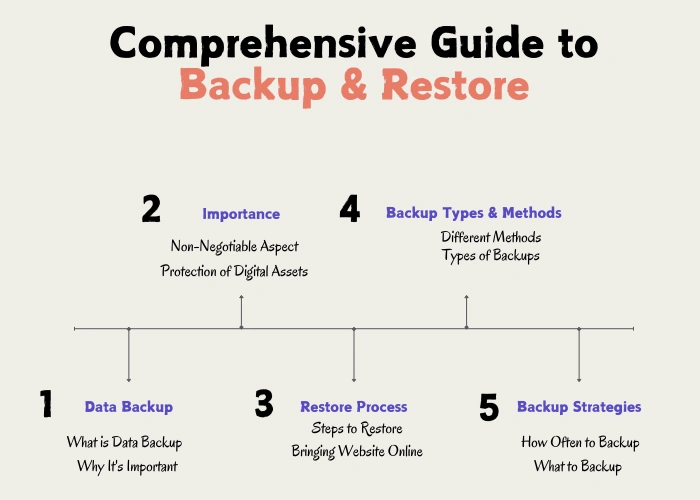
Most backup advice for WordPress jumps straight to plugin recommendations. This guide does not. We start with what a data backup actually is (the term gets used loosely), the seven loss scenarios that justify having one in the first place, the four backup methods you should know about, and the two metrics every serious operator measures their setup against. Then we cover the practical part: the plugins, the hosting-side options, the manual command-line approach, the four offsite storage targets, and the restore procedures that separate working backups from hopeful files.
Quick orientation: if backup is a new concept for you, start with what a backup actually is. If you need to restore right now, jump to restore procedures. If you are setting up a strategy from scratch, the 3-2-1 rule is the right starting point. If you run WooCommerce, the scale section is the part that changes the math. If your host's "RAID storage" is the reason you have not set up backups, read RAID is not a backup first, and if you want the plan for the worst night, the disaster recovery runbooks are ready to fill in.
What a Data Backup Actually Is
A backup is a point-in-time copy of data, stored separately from the original, kept so the data can be brought back if the original is lost or damaged. The key phrase is "stored separately." A backup that lives on the same drive as the live data is not a backup. If the drive fails, both the original and the copy fail with it.
That definition matters because the word "backup" gets used loosely. Cloud sync (Dropbox, Google Drive, OneDrive) is not a backup. Sync mirrors changes, including deletions, so a file you deleted by mistake is also deleted from the sync. A snapshot is closer to a backup but is a different mechanism: a snapshot is a marker pointing to disk blocks at a moment in time, useful for fast rollback but tied to the same storage system. An archive is a long-term retention copy, often write-once, with different priorities than a backup. A backup specifically exists to survive the loss of the original.
- Backup
- A point-in-time copy of data stored on a separate system, retained for recovery. The defining property is independence from the source: if the source is destroyed, the backup survives.
- Snapshot
- A pointer to disk blocks at a specific moment, taken by the storage layer rather than by an application-aware tool. Fast to create, fast to roll back, but tied to the same underlying storage system. Not a substitute for an independent backup.
- Cloud Sync
- A mirroring service that replicates changes in near real-time across devices. Sync propagates deletions and corruptions alongside legitimate changes. A synced folder that loses files has already lost them everywhere.
- Archive
- A long-term retention copy, often write-once or immutable, designed for compliance rather than fast recovery. Restoring from an archive is typically slower than restoring from a backup and is not the right tool for an operational incident.
For a WordPress site, this distinction is important because hosting providers sell three different things and call all of them "backups." Some are real backups (independent copies on a separate backup server with retention windows). Some are filesystem snapshots that share infrastructure with the live site. Some are cloud sync of the wp-content folder to a third-party storage account. Each behaves differently in a recovery scenario, and the difference matters when something goes wrong.
The rest of this guide treats "backup" in the strict sense: independent copies stored separately from the live site, retained long enough to recover from incidents that may not be detected for days or weeks.
What about RAID and redundancy?
RAID protects against physical drive failure by spreading data across multiple disks. It is not a backup. RAID has no protection against accidental deletion, database corruption, malware, or a hosting account suspended for billing reasons: each of those is written to every drive at once. The controller can fail. Two disks from the same batch can fail close together on aging hardware. RAID buys uptime. Backups buy recovery. Both belong in a production setup, serving different roles; the levels hosts run, and what each survives, are in RAID is not a backup.
Why Backup Matters: The Common Loss Scenarios
The reason to back up is straightforward: data loss happens, and the people it happens to almost never see it coming. The causes break down into seven categories, and none of them is theoretical.
Hardware failure. Drives die without warning. A SAN reports clean status until the moment it does not. RAID arrays protect against single-drive failure but not against controller failure or firmware bugs. The 2017 GitLab database incident is the public example: a chain of human errors plus failed redundant systems left them with five backup methods, all of which had silently broken. Hardware fails. Plan for it.
Human error. Accidental deletion is the single most common cause of data loss I have seen in practice. A WordPress admin deletes the wrong post. A developer runs an UPDATE without a WHERE clause. An agency staff member empties trash. Most of these are recoverable from a backup taken hours earlier. None are recoverable without one.
Malicious actors. Malware that wipes or encrypts files, ransomware demanding payment, hijacked admin accounts that delete content to cover their tracks, plugin vulnerabilities exploited to inject code that corrupts the database. Any of these can happen on any site. A backup taken before the compromise is the only fast path back to a clean state. The attack patterns and defenses are covered in detail on the security threats page.
Software bugs. A plugin update that overwrites custom field data. A theme update that changes how content is stored. A WordPress core upgrade that triggers a database migration which fails partway through. These are not malicious, but the result is the same: data in an unexpected state, sometimes unrecoverable without a backup.
Catastrophic events. Datacenter fires (the 2021 OVH fire is the canonical recent example), regional power outages, network partitions that last days, natural disasters, fiber cuts. Single-region hosting plus single-region backups equals zero protection against this category. An offsite backup in a different geography is the only defense.
Account and billing problems. A credit card on file expires. A renewal payment fails. A trademark dispute or terms-of-service review suspends the account. The site goes offline and so do any backups stored on the same hosting account. Resolving the suspension takes hours or days. During that window, an offsite copy is the only path to keeping the business running.
Regulatory and compliance loss. A GDPR or CCPA right-to-be-forgotten request that gets executed too broadly. A migration that drops customer records without a clean audit trail. These are rarer but expensive when they happen.
The common thread across all seven is that the cause is unpredictable, the timing is unpredictable, and the only thing that turns the incident from a disaster into an inconvenience is a working backup taken before the event.
Backup Methods Compared: Full, Incremental, Differential, Synthetic
Backup software almost always offers more than one method. The choice matters because each one trades storage cost against backup time and restore time differently.
Full backup. A complete copy of the database and filesystem, every time. The simplest method to understand and the simplest to restore from (one file, one restore step). The downside is storage cost: a 5 GB site backed up daily for 30 days produces 150 GB of stored data even though most of the site does not change day to day. Backup time is also the longest because the full data set is transferred each run.
Incremental backup. Only the data that has changed since the previous backup of any kind. The first run is a full backup. Every subsequent run captures only the changes since the run before it. Storage is dramatically smaller: a 5 GB site with modest daily changes might produce 50 to 100 MB per incremental. The trade-off is restore complexity. To recover, the restore tool must apply the full backup followed by every incremental in order until the target point is reached. Lose any incremental in the chain and the restore breaks.
Differential backup. A middle ground. Each differential captures everything that has changed since the last full backup. The first day's differential is small; the seventh day's differential is larger. Restore needs only the full backup plus one differential, which is simpler than incremental restore. Storage is somewhere between full and incremental, and grows over time until the next full backup resets it.
Synthetic full backup. The backup tool stores incrementals and periodically reconstructs a virtual full backup on the storage side, without touching the source server. From the source server's perspective, only incrementals run. From a restore perspective, a single synthetic full is available. This is what most enterprise backup systems do behind the scenes. It combines the storage efficiency of incremental with the restore simplicity of full.
Snapshot. A pointer to disk blocks at a specific moment, taken by the storage system rather than by an application-aware tool. Snapshots are nearly instant and consume minimal space initially (only changed blocks accumulate cost over time). They are excellent for fast rollback but tied to the same storage system. A snapshot does not protect against the storage system failing.
Hot vs cold backup. Hot backups run while the database is live and serving traffic. The risk is capturing inconsistent state if a transaction is mid-flight. The defense is a backup tool that uses InnoDB consistent snapshots or that briefly locks the database during dump. Cold backups stop the database first, take a complete copy, then start it again. Cold is consistent by definition but means downtime, which is unacceptable for live sites. Almost all WordPress backups are hot. The tooling has to handle consistency correctly.
| Method | Storage Impact | Restore Steps | Backup Time | Best For |
|---|---|---|---|---|
| Full | High (full size × copies) | 1 step | Longest | Small sites, simple setups |
| Incremental | Low (changes only) | Chain of files | Fastest | Large sites, frequent backups |
| Differential | Medium (grows to full) | 2 steps | Medium | Balanced RTO/storage tradeoff |
| Synthetic Full | Low (reconstructed) | 1 step | Fast | Managed backup services |
| Snapshot | Very low (block delta) | Fast but server-tied | Instant | VPS rollback, not WP-aware |
For a typical WordPress site running a managed plugin, the underlying method is usually synthetic full powered by incrementals. You do not need to configure this manually; you do need to understand it so you know why the storage cost is reasonable and why restore is fast.
What a WordPress Backup Actually Contains
When someone says "back up your WordPress site," what they mean is rarely what beginners assume. A WordPress site is not a single file. It is two distinct pieces that have to travel together: a database (the structured records of every post, comment, user, setting, and option) and a filesystem (every uploaded image, theme file, plugin file, and configuration file). Restoring one without the other gives you a half-restored site that does not work.
The database lives in MySQL or MariaDB on your hosting account. Inside it there are roughly twelve core tables (wp_posts, wp_postmeta, wp_options, wp_users, wp_usermeta, and so on). Plugins add more tables. WooCommerce alone adds about ten. Every post you have ever written, every plugin setting, every menu structure, every WooCommerce order, every customer record sits inside this database. If the database is lost or corrupted, the visible content of your site is gone.
The filesystem sits in your account's web root, usually a folder called public_html or www. Inside it the WordPress installation has three child folders that matter for backups: wp-content (where your themes, plugins, and uploads live), wp-includes and wp-admin (the core WordPress code), and a handful of root files including wp-config.php and .htaccess.
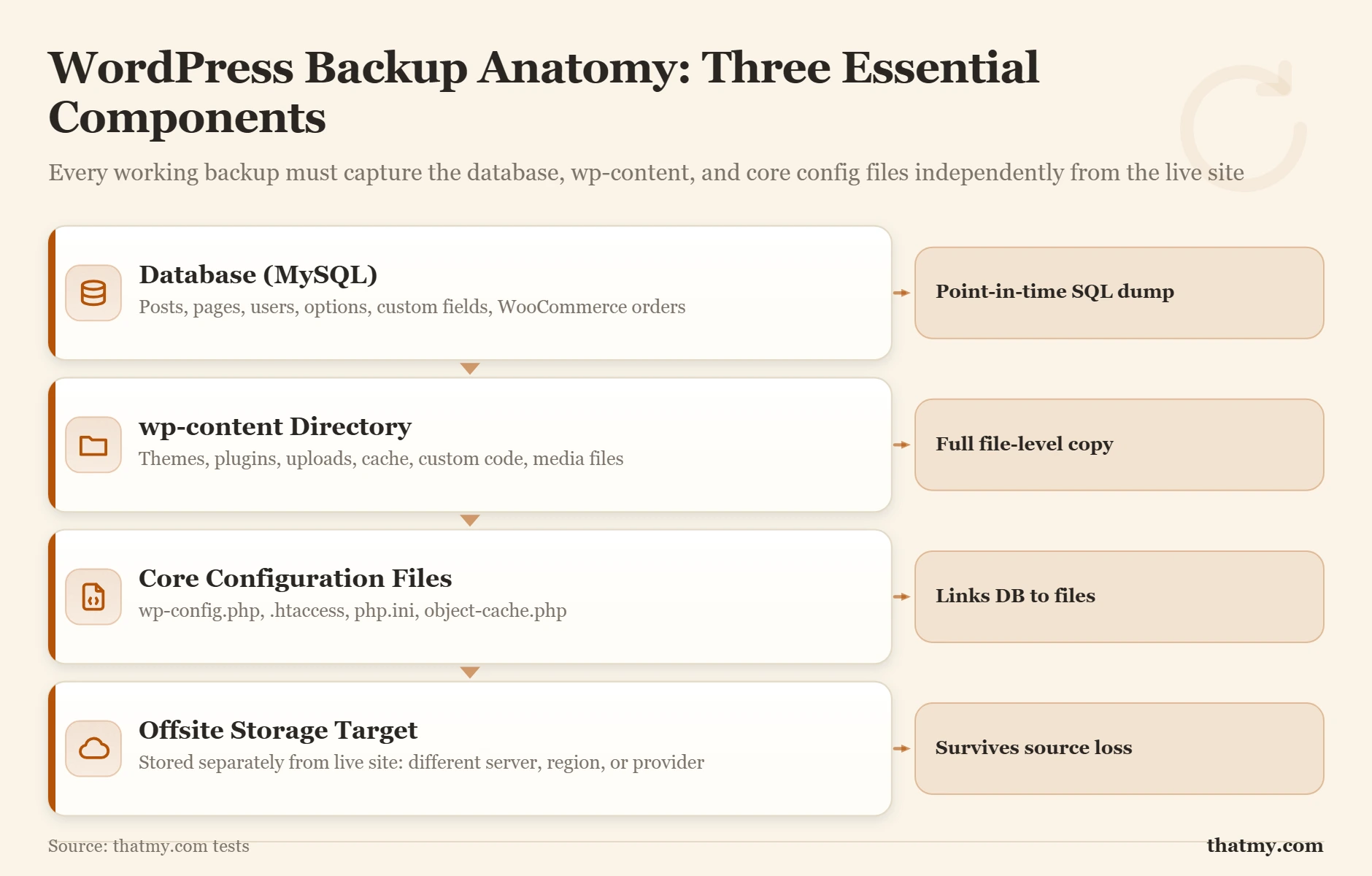
For a working backup you need both. The database without the filesystem gives you a list of post titles pointing to images that no longer exist. The filesystem without the database gives you a folder of images and a copy of WordPress that does not know what posts exist or who the admin user is.
Some things a site backup never holds, and a restore still needs: the DNS zone (the records live at your DNS provider, not on the server), access to the domain registrar, API keys kept in third-party dashboards such as the payment gateway or mail service, and the login for the backup storage itself. Write them into the escalation sheet of your recovery plan. SSL certificates are the exception that needs no copy: a new one is issued in minutes.
Why Hosting Backups Alone Are Not Enough
Most hosts advertise daily, weekly, or "automatic" backups. The marketing copy is true. The implementation is rarely as protective as it sounds.
The first issue is retention. A host that promises "daily backups" almost always means the most recent 7 to 30 days are kept on a rolling basis. If a malware infection or accidental edit happens 35 days ago and you only notice it today, your hosting backups are gone.
The second issue is colocation. Hosting backups, even when they exist, usually live on the same physical server (or at minimum the same datacenter) as your live site. A datacenter fire, a SAN failure, or a regional outage can take both your live site and your backups offline simultaneously. The 2021 OVH datacenter fire is the most famous recent example. Customers who relied solely on the host's included backup lost everything.
The third issue is account suspension. If your hosting account is suspended for billing problems, malware detection, or terms-of-service issues, your access to the backup is suspended too. You cannot restore from a backup you cannot reach. Resolving the suspension takes hours or days. During that window, your site is offline and you have no leverage.
The fourth issue is silent failure. Hosting backups run as scheduled jobs. When those jobs fail (out-of-disk-space errors are the most common cause), the failure is logged in a place no customer reads. You discover the missing backup the day you need it, not the day it failed.
The 3-2-1 Backup Strategy Applied to WordPress
The 3-2-1 rule is the closest the industry has to consensus best practice. It comes from photography preservation, but it applies cleanly to WordPress. The rule has three numbers:
- 3 copies of your data
- on 2 different media types
- with 1 copy stored offsite
For a WordPress site, this translates concretely:
- Copy 1: the live site itself (this counts)
- Copy 2: a backup stored on the same hosting account (the host's daily snapshot, or a plugin-generated backup written to the server)
- Copy 3: an offsite copy stored on a different provider (Amazon S3, Wasabi, Backblaze B2, or Dropbox)
Two media types, in modern usage, means two distinct storage providers or two distinct storage classes. The historical interpretation (one copy on tape, one on disk) is not relevant to most WordPress sites. The modern interpretation is one copy lives where the site lives, and at least one copy lives somewhere with a completely separate failure domain.
The offsite requirement is the part that defends against the scenarios in the previous section. If the datacenter your host uses goes offline, the offsite copy is on a different provider in a different geography and is unaffected.
For WooCommerce or any site where lost data has direct revenue cost, a 4-3-2 approach makes sense: four copies, three media types, two offsite. The cost difference between three copies and four is small. The cost of losing a week of WooCommerce orders is not.
The 3-2-1-1 extension. Ransomware has added a fourth number to the rule. The modern version is three copies, two types, one offsite, one immutable or air-gapped. An immutable copy cannot be overwritten or deleted by a connected system: even a compromised WordPress server cannot reach it. Object Lock on Wasabi or Backblaze B2 achieves this at low cost and is worth enabling for any site with real revenue at stake; the setup is in protecting backups from ransomware.
Backup Retention Policy: How Long to Keep What
The 3-2-1 rule tells you where to store copies. A retention policy tells you how long to keep them. The two questions are separate and both matter. A backup you deleted last month cannot help you today.
Retention is driven by two factors: the detection lag (how long it typically takes to notice a problem) and the legal or business requirement (tax records, GDPR requests, contract disputes). For most sites, the detection lag is the binding constraint. A malware infection can sit dormant for weeks before activating. A corrupted database table may go unnoticed until someone tries to load a specific post. A 30-day daily retention window catches most real-world scenarios.
| Site Type | Daily Retention | Monthly Archives | Yearly Archives | Offsite Required? |
|---|---|---|---|---|
| Personal blog | 7 days | 3 months | 1 year | Recommended |
| Small business | 14 days | 6 months | 2 years | Yes |
| Content publisher | 30 days | 12 months | 3 years | Yes |
| WooCommerce store | 30 days | 12 months | 7 years (tax records) | Yes, 2 destinations |
| Membership / SaaS | 60 days | Rolling 24 months | Indefinite | Yes, immutable copy |
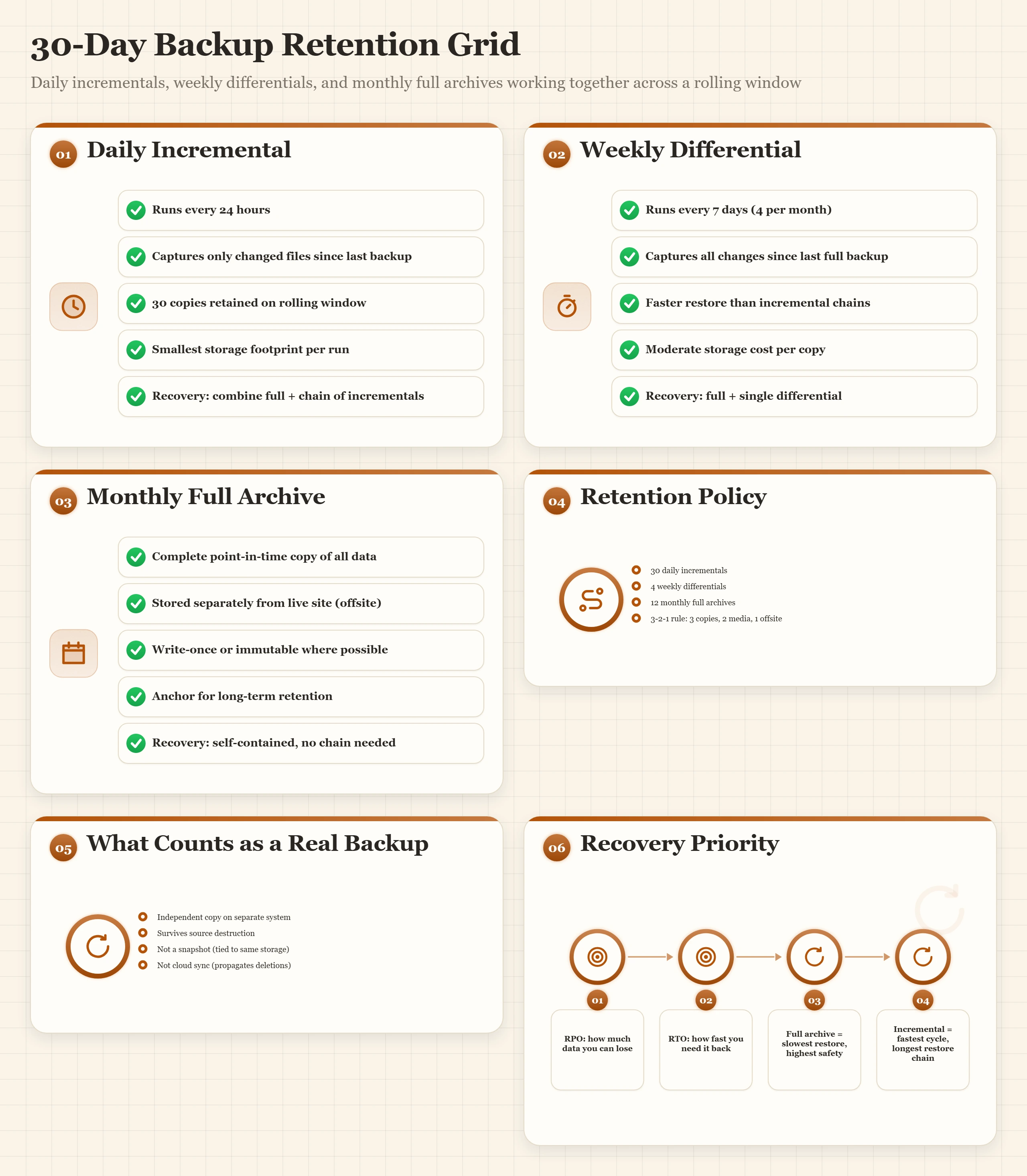
Monthly archives are a separate layer from daily backups, not a replacement. The daily window rolls: after 30 days, day 31 deletes day 1. Monthly archives are kept separately, often in cold storage, at a much lower cost per GB. A WooCommerce store running this model stores 30 rolling dailies (on fast B2 storage) plus 12 monthly archives (on Glacier-class cold storage) for a total cost under three dollars a month on most sites.
Plugin Backup Tools Compared
There are roughly forty WordPress backup plugins in active development. Four are worth your evaluation time. The rest are either rebrands of these four, abandoned, or so feature-poor they do not handle modern WordPress reliably.
UpdraftPlus is the most installed backup plugin, with more than three million active installations. The free version covers about 90% of standard sites. It backs up the database and filesystem on a schedule, supports incremental backups in the paid Premium tier, and writes to most major remote storage providers including Amazon S3, Google Drive, Dropbox, Backblaze B2, and FTP. Restore is in-dashboard. The biggest weakness is migration: UpdraftPlus restore-to-new-host is a paid add-on, and the free version of that add-on caps file size at 256 MB.
BlogVault runs as a managed service: backups happen on BlogVault's servers, not on yours, which means a site already struggling with resource limits does not get pushed further into throttle territory by a backup process. Incremental backups are the default. Staging-restore is built in and is the differentiator here. The design avoids out-of-disk-space failures because the backup process never writes a temp file to your server.
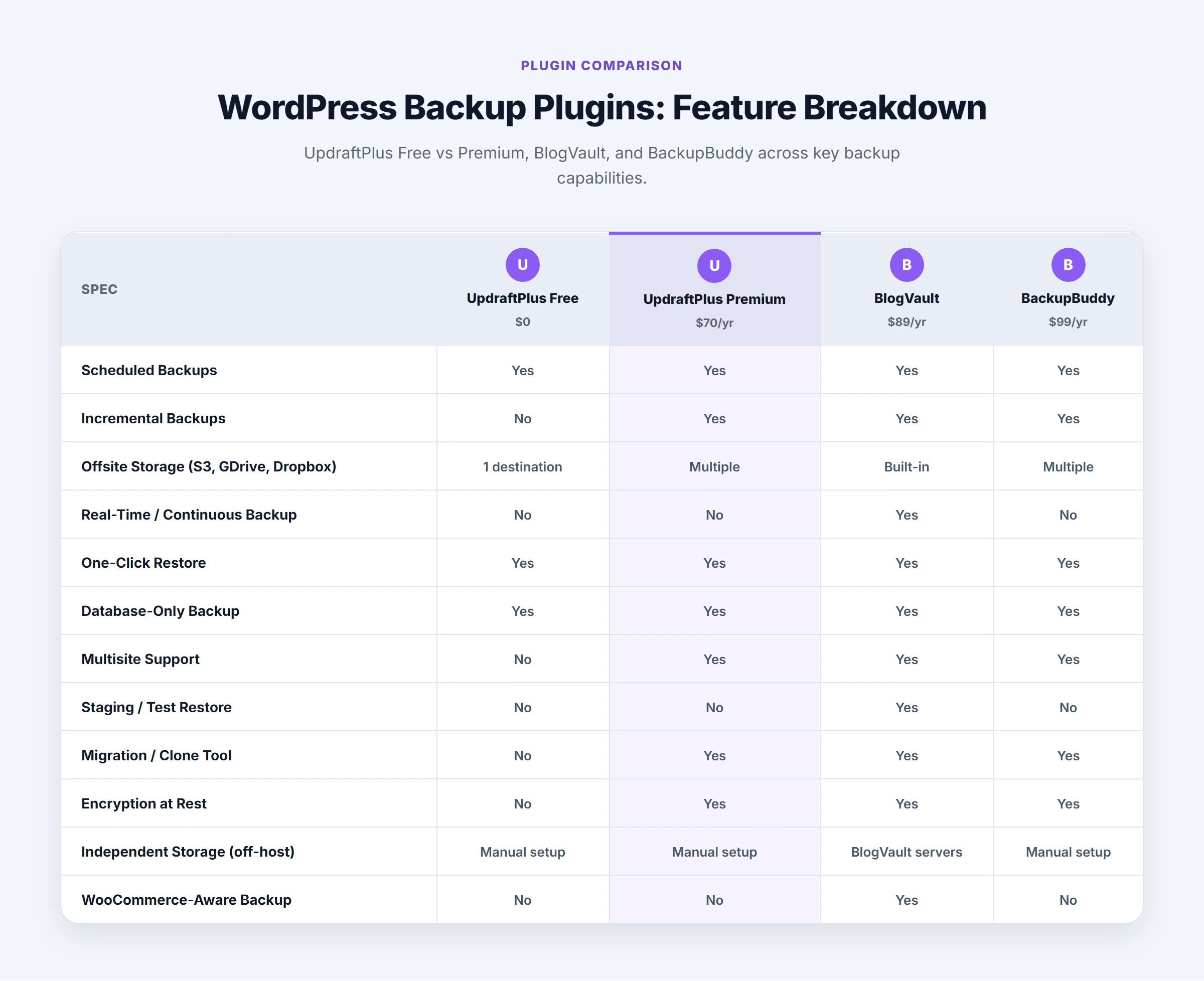
BackupBuddy from iThemes (now owned by Solid Plugins) is a paid-only option. The strength is its ImportBuddy companion script: backup files are self-contained ZIPs that include a one-file PHP installer, which is the closest thing WordPress has to a true universal portability format. The weakness is it runs entirely on your server, which means large sites can hit timeouts on shared hosting.
Duplicator is the migration-first plugin. It is technically a backup tool, but its design is biased toward "copy this site to that environment." The free version is fine for one-off migrations. The paid Pro version adds scheduling and remote storage. Duplicator works best as a migration tool, not a daily backup solution.
| Feature | UpdraftPlus Free | UpdraftPlus Premium | BlogVault | BackupBuddy |
|---|---|---|---|---|
| Scheduled automatic backups | ✓ | ✓ | ✓ | ✓ |
| Incremental backups | ✗ | ✓ | ✓ | ✗ |
| Remote storage destinations | 2 (Dropbox, Google Drive) | 12+ | Managed offsite | S3/Dropbox/FTP |
| Restore to staging | ✗ | ✗ | ✓ | ✗ |
| Works without PHP workers | ✗ | ✗ | ✓ | ✗ |
| Migration / portability | ✗ | Add-on | No | Yes (ImportBuddy) |
| Best for | Standard sites | Larger content sites | WooCommerce, agencies | Site migration |
Pre-Update Backup Workflow
The most common use of a backup is not recovering from a server crash. It is recovering from an update that broke something. A plugin that conflicts with your theme. A WooCommerce update that changes how orders are stored. A PHP version bump that breaks a custom function. All of these have the same fix: restore the backup you took five minutes before the update.
The pre-update workflow:
- Open your backup plugin dashboard and confirm the last scheduled backup completed successfully. A failed backup three days ago means you have less coverage than you think.
- Run an on-demand full backup right now, before any update.
- Wait for the backup to finish and confirm the remote storage copy exists. Do not skip this step.
- Note the exact backup timestamp. You will need it to identify the right restore point if something breaks in the next hour.
- Apply updates one at a time, not in bulk. Test after each one before moving to the next.
Never update WordPress core, themes, and five plugins at once. If something breaks you will not know which update caused it. One update at a time, tested after each, means you always know exactly which change broke things and you restore only the state immediately before that one update.
Hosting-Side Backups
Three categories of hosting-side backup exist, and they are very different in what they actually protect.
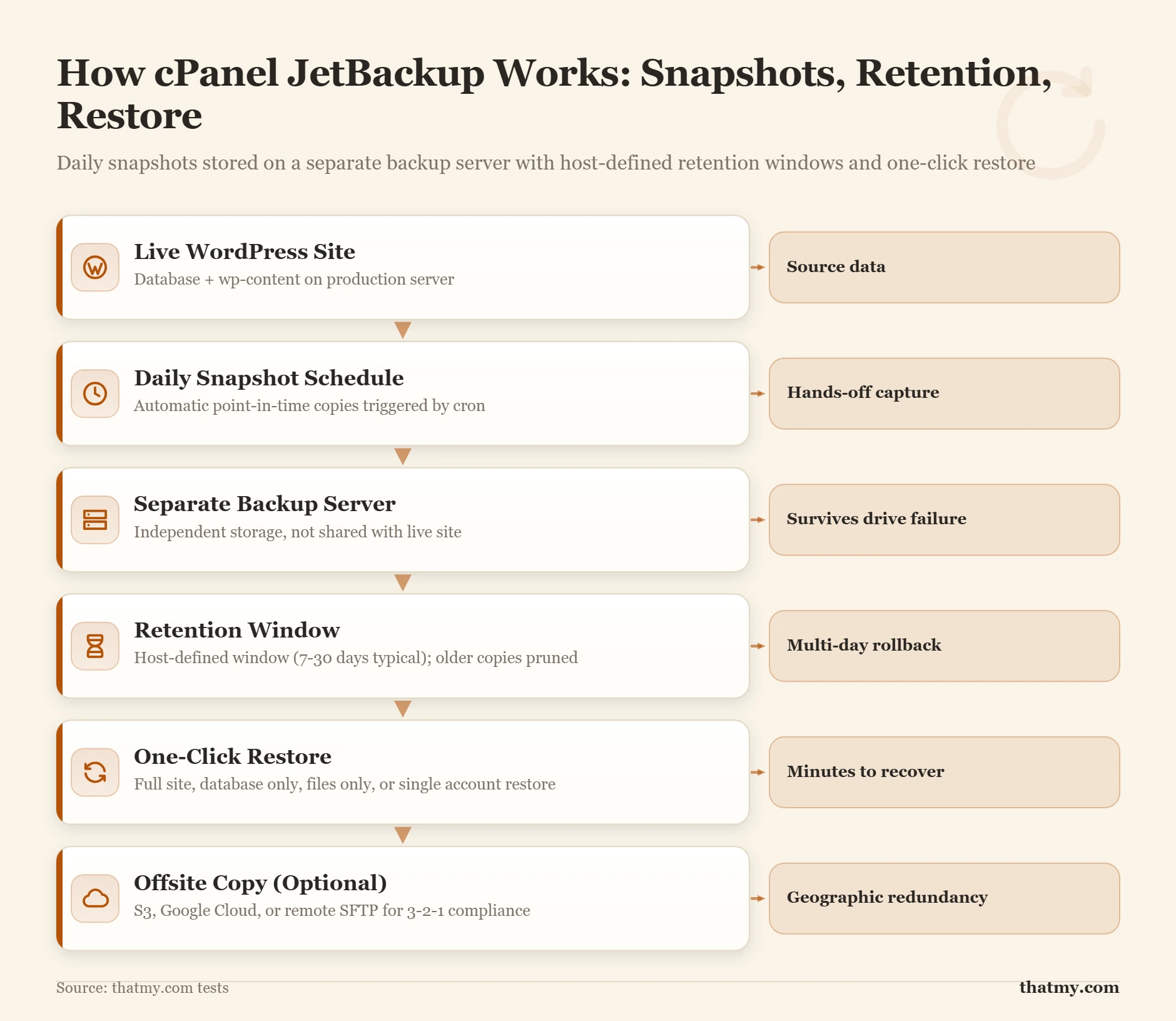
cPanel JetBackup is the most common. JetBackup is a third-party product cPanel hosts license. Once enabled, it produces incremental daily backups stored on a separate backup server in the same datacenter. The retention window is set by your host, usually 7 to 30 days. The interface lets you restore the entire account, a single database, a single email account, a single file, or a date range of files. JetBackup is genuinely useful, but it is not offsite, and its existence depends on your host having paid for it. Many shared hosts skip the backup-server license to cut costs and call their daily snapshot a "backup" when it lives on the same physical disk as the live site.
Managed WordPress platforms include automatic daily snapshots with 14 to 30 day retention windows, stored separately from the production server. This is a meaningful improvement over standard cPanel JetBackup: the backup storage lives on different infrastructure than the application server. On-demand backups are typically one click. The quality varies by provider, so verify where backups are stored before relying on them as a primary layer.
VPS image backups from cloud infrastructure providers are a different category. They are full disk-image snapshots, not WordPress-aware. They restore the entire server to the point in time the snapshot was taken, including operating system state. They are the most complete kind of backup but the slowest to restore: a 50 GB image takes 10 to 20 minutes to deploy. Use them as a last-resort safety net behind your application-level backups, not as your primary tool.
Two more names turn up in host feature lists. R1Soft (Server Backup Manager) takes block-level incremental snapshots of the whole server, which restore faster than file-by-file copies. BorgBackup and ZFS snapshots are common on VPS and dedicated servers: Borg is a deduplicating backup tool that can push copies to another machine, while a ZFS snapshot is near-instant but sits on the same storage pool as the live site (see ZFS below).
RAID Is Not a Backup: The RAID Levels Hosts Use
Almost every host lists "RAID storage" next to its backups, as if the two did the same job. They do not. RAID joins several drives into one volume so the server keeps running when a drive dies. A backup is a copy from an earlier point in time. RAID has no earlier point in time: it holds only the current state of the disk, on every drive at once.
What RAID protects against, and what it passes straight through
RAID writes every change to every drive in the array, the bad changes included. Delete a folder and the deletion lands on every mirror in the same instant. Ransomware that encrypts the site writes the encrypted files to every drive. A plugin that corrupts wp_options leaves the same corrupt table on all of them. The array reports itself healthy the whole time, because from its point of view nothing failed.
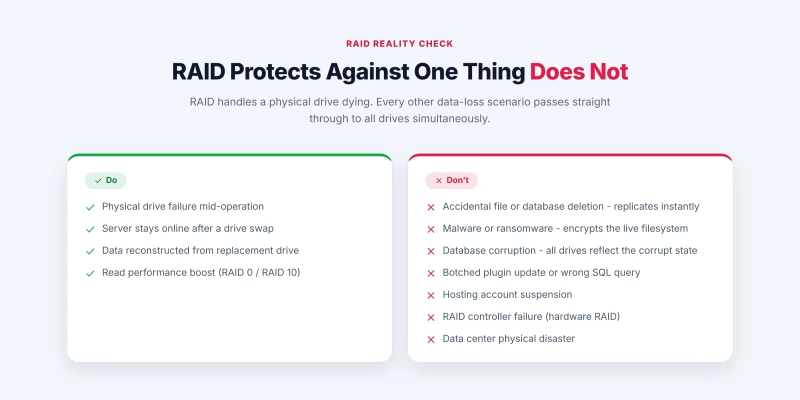
Hardware RAID adds one failure of its own: if the controller card dies, the drives may only be readable by the same controller model. Drive failure, the one thing RAID covers, is also the failure your host deals with for you. The failures that actually destroy WordPress sites are in the second list, and only a backup taken before the event brings the site back.
RAID 0, 1, 5, 6 and 10 compared
Three mechanisms sit behind every level. Striping splits data across drives so they read and write in parallel. Mirroring writes the same data to two drives. Parity stores recovery data spread across the drives, so a lost drive's contents can be recalculated from the others.
| Level | How it works | Minimum drives | Drives that can fail | Usable space | Where hosts use it |
|---|---|---|---|---|---|
| RAID 0 | Striping only | 2 | None: one failure loses everything | 100% | Never for site data; scratch or cache space only |
| RAID 1 | Two-drive mirror | 2 | 1 | 50% | Entry VPS nodes and small servers |
| RAID 5 | Striping with single parity | 3 | 1 | All but one drive | Budget dedicated servers and older shared storage |
| RAID 6 | Striping with double parity | 4 | 2 | All but two drives | Large storage arrays |
| RAID 10 | Striping across mirrored pairs | 4 | 1 in each mirrored pair | 50% | Performance and managed hosting |
The number hosting pages leave out is the rebuild. After a drive fails, RAID 5 rebuilds the replacement by reading every block on every surviving drive and recalculating the missing data from parity. Until that finishes the array has no redundancy left, and the surviving drives are working harder than at any other time, so a second failure or an unreadable block during the rebuild loses the array. On large spinning disks a parity rebuild can run for a day or more; NVMe drives rebuild much faster, but the exposure is the same in kind. RAID 10 rebuilds by copying one mirror partner onto the replacement, which is quicker and loads one drive instead of all of them. That is why RAID 10 is the usual choice for production hosting storage, and RAID 6 for large arrays where capacity matters more.
ZFS: checksums and snapshots instead of classic RAID
Some hosts run ZFS instead of classic RAID. ZFS is a filesystem and volume manager in one: it stores a checksum for every block, checks it on every read, and repairs a bad block from a good copy on another drive. Classic RAID cannot tell a silently corrupted block from a good one. ZFS pools come as mirrors or as RAIDZ1, RAIDZ2 and RAIDZ3, which survive one, two and three failed drives (the RAID 5 and RAID 6 equivalents, plus triple parity). ZFS also takes near-instant snapshots, and some hosts expose them as restore points. A ZFS snapshot is still on the same pool as the live site, so it is a fast rollback, not your offsite copy.
Which RAID level your host uses
Hosts rarely publish their storage layout, so ask support three questions: which RAID level the storage for your plan uses, whether a hot spare is configured (a standby drive the array starts rebuilding onto as soon as a drive fails, with no wait for a technician), and how long a rebuild typically takes. As a rough guide:
- Shared hosting: RAID 1, 5 or 10 on the server, and you have no say in it.
- VPS: the RAID array or ZFS pool protects the physical host node; your virtual disk is one volume on it. Cloud platforms replicate block storage at the provider level instead of exposing a RAID level at all.
- Dedicated servers: you choose. Software RAID (Linux mdadm) costs little CPU on modern processors and its drives can be read by any Linux system; hardware RAID offloads the work to a controller card but ties the drives to that controller.
Whatever the answers, they decide how well the server survives a dead drive, not whether your site survives a deletion or an infection. How RAID affects storage speed, and NVMe against SATA, is on the server hardware page.
Where RAID fits in the protection stack
Each layer catches a failure the one below it cannot:
- Drive redundancy (RAID or a ZFS pool): a dead drive. The host runs this layer.
- Storage snapshots: a deletion or bad update noticed within hours, rolled back fast. They live on the same storage as the site.
- Scheduled offsite backup: malware, corruption, human error, a suspended account, a lost datacenter. The layer most sites are missing; see the 3-2-1 rule.
- Version control for code: Git history for a custom theme, plugin or configuration. It holds no posts, orders or settings, so it sits beside the database backup, never in place of it.
- A tested restore: proof that the other four work, from a restore drill.
Manual Backups With WP-CLI and SSH
For sites where I have SSH access (any decent VPS or managed host with developer-level access), manual command-line backups are the most reliable option. They run faster than plugin-driven backups, they do not consume PHP worker capacity, and they work even when WordPress itself is broken.
The two essential commands are wp db export and tar.
wp db export ~/backups/site-2026-05-01.sql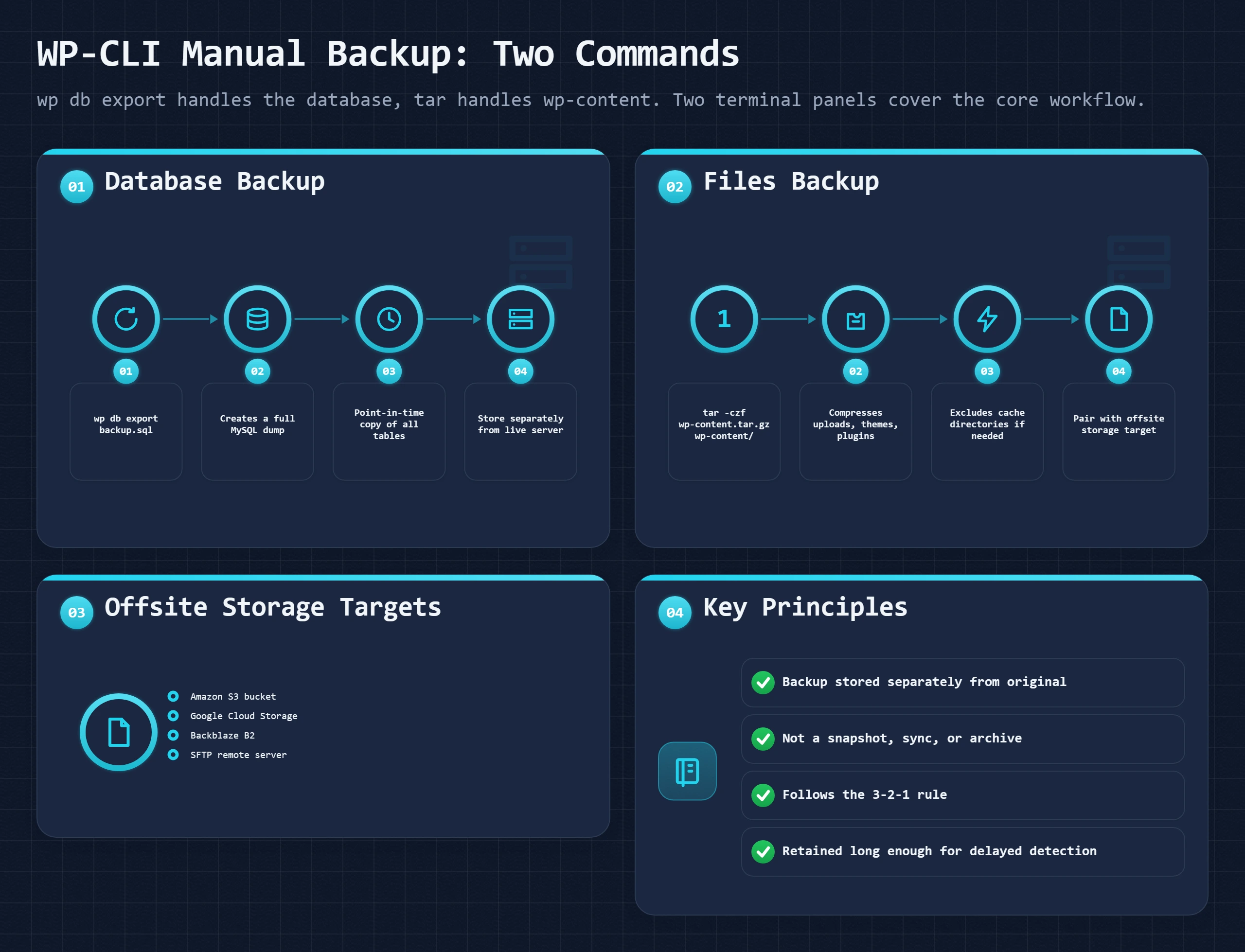
tar -czf ~/backups/wp-content-2026-05-01.tar.gz wp-content/For automation, both commands can be wrapped in a shell script and scheduled with cron:
0 3 * * * /home/user/scripts/wp-backup.shComplete automated cron backup script (20 lines)
#!/bin/bash
SITE_DIR="/var/www/html"
BACKUP_DIR="/home/user/backups"
DATE=$(date +%Y-%m-%d)
DB_FILE="$BACKUP_DIR/db-$DATE.sql"
WP_FILE="$BACKUP_DIR/wp-content-$DATE.tar.gz"

# Export database
cd "$SITE_DIR" && wp db export "$DB_FILE" --allow-root

# Archive wp-content
tar -czf "$WP_FILE" -C "$SITE_DIR" wp-content/

# Push to S3 (requires AWS CLI configured)
aws s3 cp "$DB_FILE" s3://your-bucket/backups/
aws s3 cp "$WP_FILE" s3://your-bucket/backups/

# Prune local copies older than 7 days
find "$BACKUP_DIR" -type f -mtime +7 -delete
The advantage of this approach over plugin backups is that it consumes negligible PHP worker time and runs reliably even if the WordPress install is partially broken. The disadvantage is that it requires SSH access and command-line comfort. For sites without SSH access, plugin backups are the only practical option.
Off-Site Storage Targets
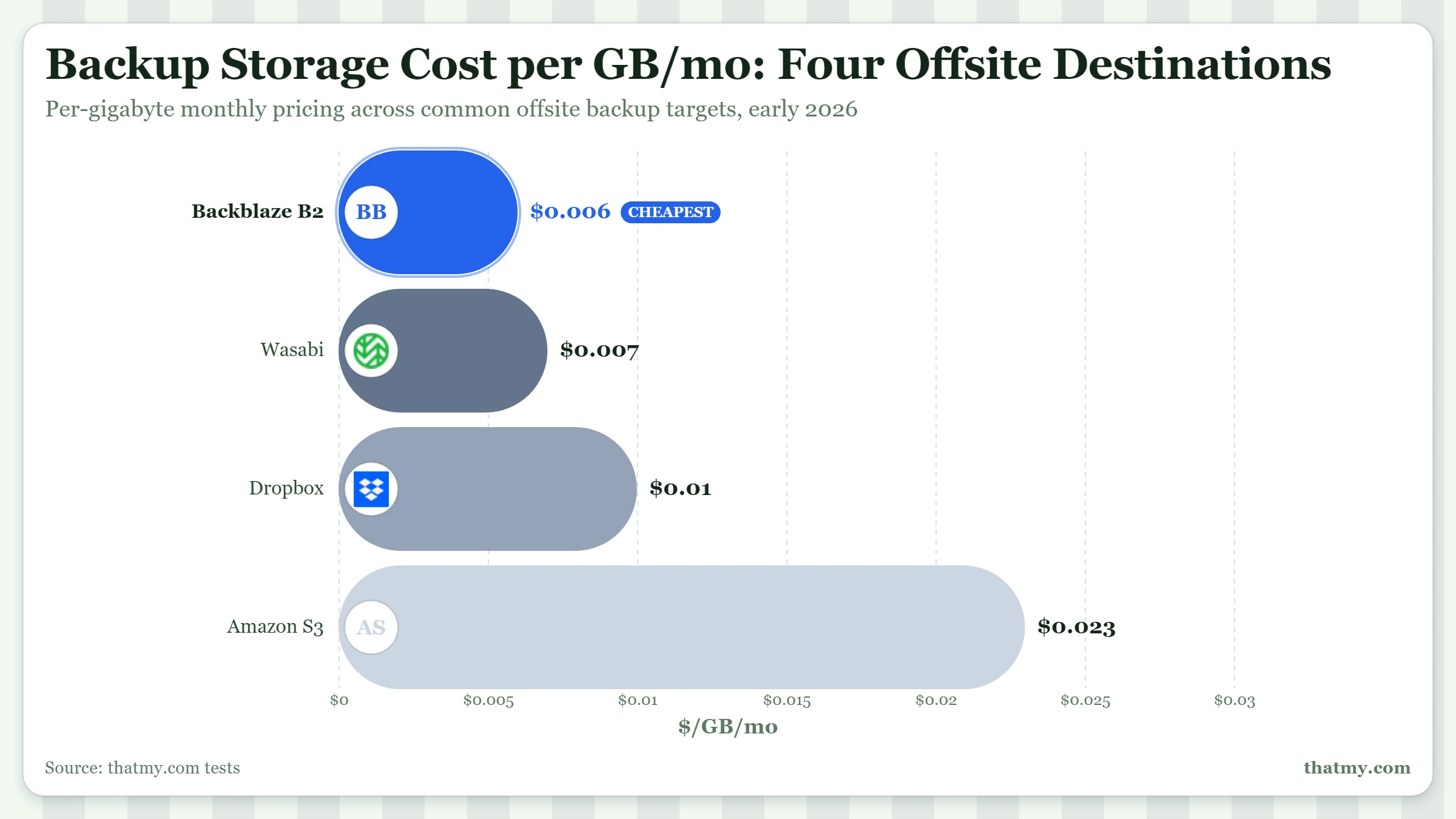
The four common destinations for offsite WordPress backups vary mostly in price and egress fees. Egress is what you pay when you download a backup for a restore, so the cost only appears when something goes wrong. Low-egress options matter more than they look on a cost sheet.
| Provider | Storage per TB/month | Egress per GB | API Request Fees | S3 Compatible | Best For |
|---|---|---|---|---|---|
| Amazon S3 | $23 | $0.09 | Yes (per request) | Native | Plugin default, maximum compatibility |
| Backblaze B2 | $6 | $0.01 (3× daily free) | No | Yes | Most small-to-mid sites: cheapest with egress |
| Wasabi | $6.99 | Free | No | Yes | Frequent restore testing, no egress surprise |
| Dropbox Plus | $12/user flat | N/A | N/A | No | Simple personal sites, no object-lock |
Protecting Backups From Ransomware
Ransomware changes what a backup has to survive. A failed drive does not go looking for your backups; an attacker does. Once someone has a foothold on the server, the usual sequence is:
- Entry: an unpatched plugin, a weak or reused admin password, or a stolen credential.
- Persistence: a PHP web shell dropped into a writable folder such as wp-content/uploads, which keeps working after passwords change.
- Credential harvest: wp-config.php gives up the database password, and the backup plugin's settings in the database give up the keys to its remote storage.
- Backup discovery and deletion: archives on the server are deleted, and any remote destination those keys can reach is emptied.
- Encryption and the ransom note.
Steps 3 and 4 decide whether you pay. Each of the three defenses below breaks one of them.
Backups inside the web root are part of the attack surface
A backup archive stored under public_html sits on the same disk, under the same user, as the files the attacker is about to encrypt. UpdraftPlus keeps its local copies in wp-content/updraft by default, which is inside the site. Those local copies are handy for a quick rollback after a bad update and worthless after a server compromise. Count them as copy 2 at best, never as the copy you rely on.
Immutable storage with Object Lock
Immutable storage, also called WORM (write once, read many), refuses to delete or overwrite an object until its retention period runs out, whoever asks. Backblaze B2, Wasabi and Amazon S3 all offer it as Object Lock. On Backblaze B2:
- Turn on Object Lock for the backup bucket. It is simplest to do when you create the bucket.
- Set a default retention period at least as long as your daily retention window, for example 30 days. Compliance mode cannot be shortened even by the account owner; governance mode can be lifted by a key with that specific permission.
- Point the backup plugin at that bucket with a key scoped to it alone (next section).
This is the extra "1" in the 3-2-1-1 rule: a copy that even a fully compromised server cannot delete.
Separate, write-only backup credentials
Most backup plugins store the remote storage key in the WordPress database or in wp-config.php, so whoever owns the server owns the key. Give the plugin a key that can add files but not delete them: on Backblaze B2, an application key restricted to the one bucket, with the writeFiles capability and without deleteFiles. Plan for two side effects. The plugin can no longer prune old backups, so set retention with the bucket's lifecycle rules instead. And some plugins check the connection with a list call, so run a full backup after changing the key and confirm the file arrives. Keep the storage account's own login separate from your hosting login, with its own password and two-factor authentication.
Restore Procedures
Restoring is where backup strategies are tested. There are several categories of restore, each with a different procedure and a different right tool for the job.
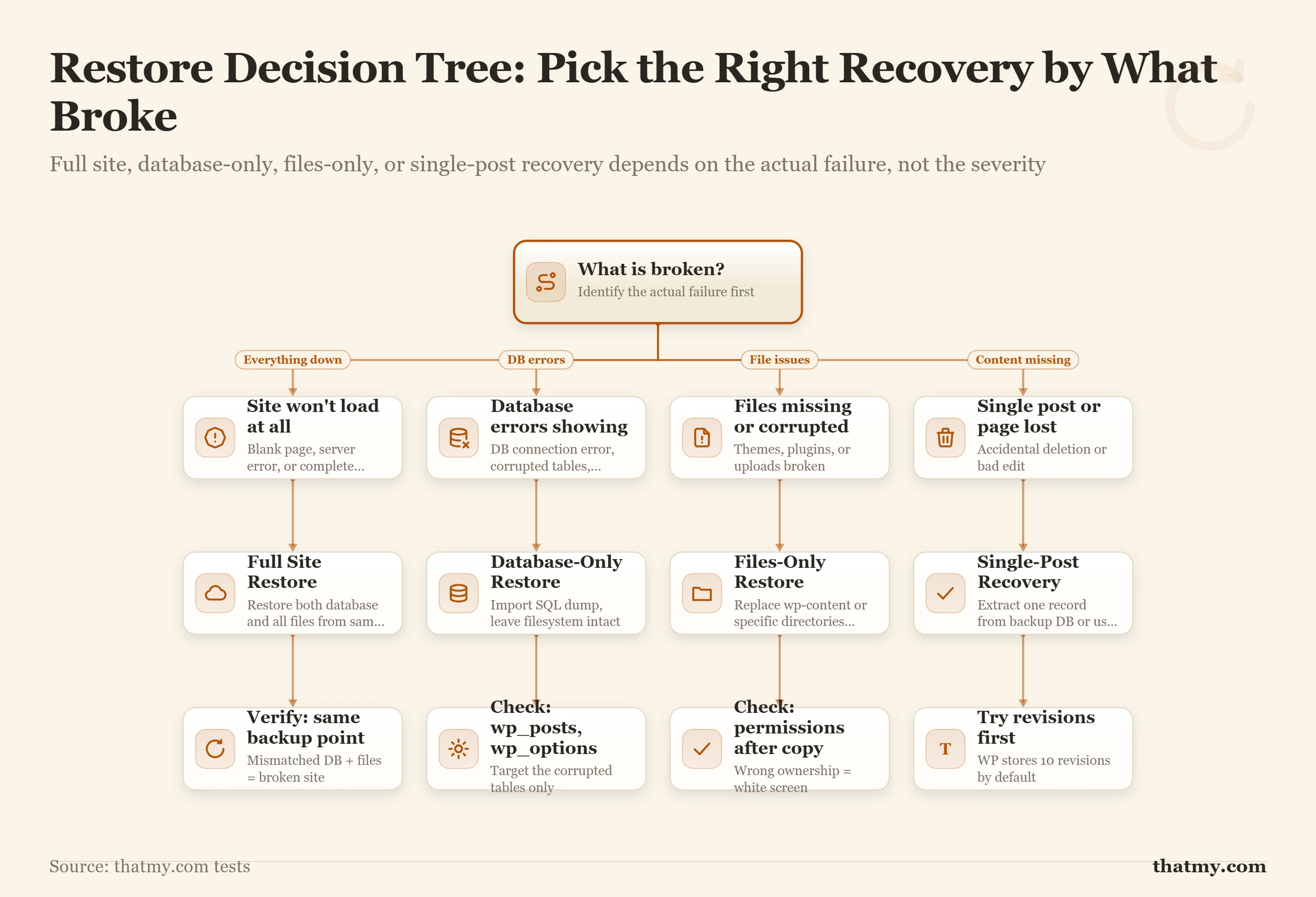
Before choosing a method, identify what is actually broken. A full site restore when only the database is corrupted takes ten times longer than it needs to. Restore to staging first, always, and use the decision tree below to pick the narrowest restore that fixes the problem.
Method 1: Full Site Restore via Plugin
Full site restore is the simplest in concept and the slowest in practice. The whole database and filesystem are replaced with the backup contents. The procedure is to take the live site offline (maintenance mode), import the database (via WP-CLI, phpMyAdmin, or your plugin's restore tool), upload and extract the wp-content archive, verify wp-config.php matches the database credentials, flush caches, and bring the site back online. Total time on a 5 GB site: 10 to 30 minutes. On a 50 GB site: 1 to 3 hours.
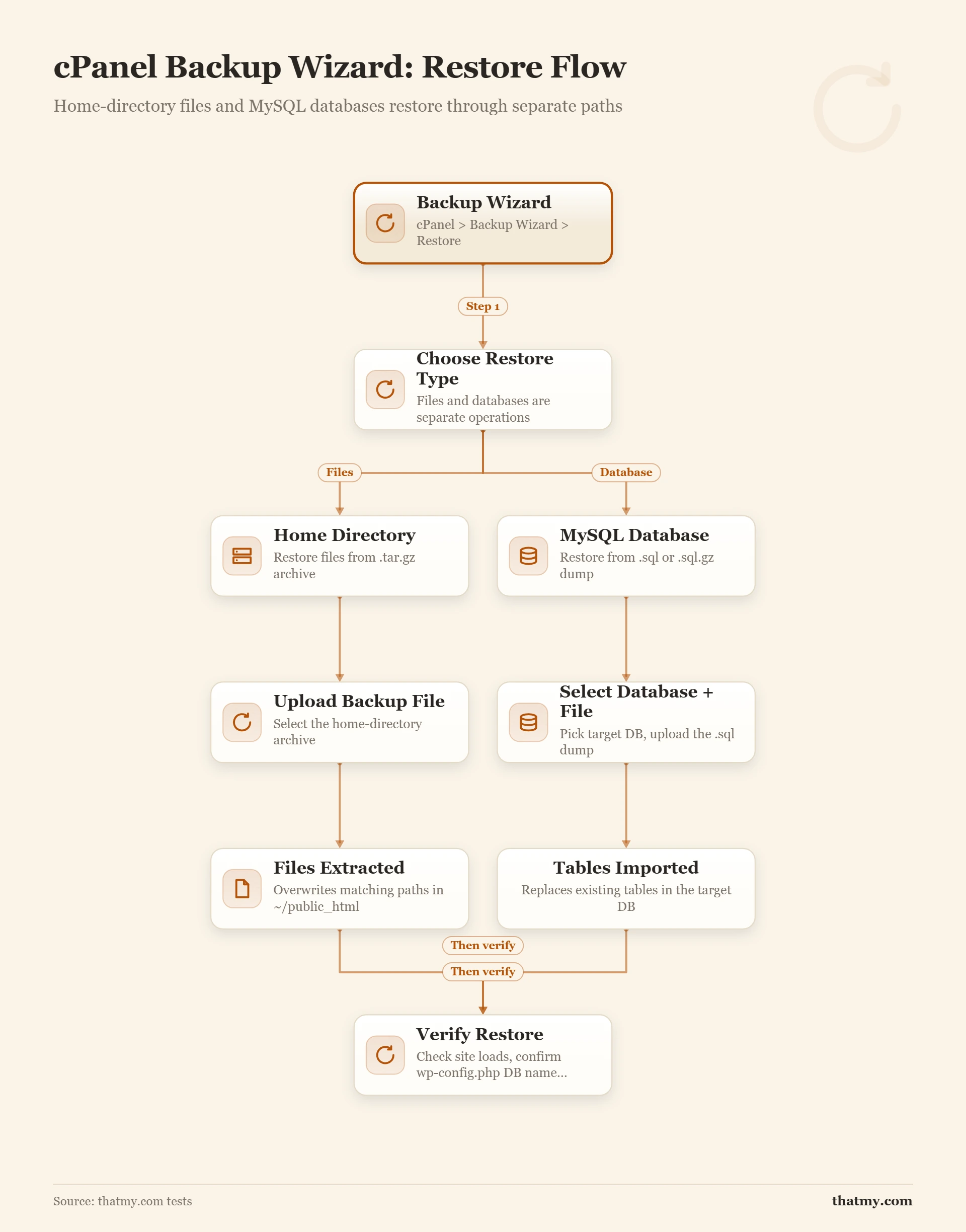
Method 2: cPanel Backup Wizard
The cPanel Backup Wizard is the fastest option for sites hosted on cPanel. It handles home directory files and databases through separate restore flows, which lets you restore only what is broken rather than the entire account.
Step-by-step: restore via cPanel Backup Wizard
- Log in to cPanel and open Files → Backup Wizard.
- Click Restore.
- To restore files: select Home Directory, upload your
.tar.gzhome backup, click Upload. - To restore the database: go back to Restore, select MySQL Databases, upload your
.sqlor.sql.gzfile, click Upload. - Once both complete, visit your site to verify.
Method 3: Manual Restore via File Manager and phpMyAdmin
This method works on any cPanel host without requiring SSH. It is slower than the Backup Wizard but gives you more granular control, especially when restoring files and databases independently.
Step-by-step: File Manager and phpMyAdmin manual restore
Part A: Restore Site Files
- Open File Manager in cPanel and navigate to
public_html. - Delete existing corrupted files (optional but recommended for a clean restore).
- Click Upload and select your compressed backup archive.
- Once uploaded (progress bar turns green), right-click the file and select Extract.
Part B: Restore the Database
- Open phpMyAdmin in cPanel under Databases.
- Select your WordPress database from the left sidebar.
- If it contains broken data, select all tables and drop them. This permanently deletes the current database content.
- Click the Import tab, choose your
.sqlbackup file, and click Go. - After import completes, verify
wp-config.phpstill has the correct database name, user, and password.
Method 4: WP-CLI Restore via SSH
The fastest restore method for sites with SSH access. No file size limits, no browser timeouts, no PHP execution constraints.
# Import the database
wp db import ~/backups/site-2026-05-01.sql

# Extract wp-content from the archive
tar -xzf ~/backups/wp-content-2026-05-01.tar.gz -C /var/www/html/

# Update the site URL if restoring to a new domain
wp search-replace 'https://old-domain.com' 'https://new-domain.com' --all-tables

# Flush caches
wp cache flush
Emergency Restore on a New Host
When the host itself is the problem (the account is suspended, the platform is down for hours, the company is closing), restore your offsite copy onto a fresh account somewhere else:
- Open an account with the new provider and create an empty database and database user. Note the credentials.
- Import the SQL dump through phpMyAdmin, or with
wp db importover SSH for anything larger than the panel's upload limit. - Upload WordPress and your wp-content archive to the new web root.
- Edit wp-config.php: set DB_NAME, DB_USER, DB_PASSWORD and DB_HOST to the new values.
- Before touching DNS, test the site by pointing your domain at the new server's IP in your own computer's hosts file.
- Change the A record to the new IP. Resolvers keep the old address until the old TTL runs out, so check from a phone on mobile data after that.
If you can see a move coming, lower the TTL to 300 seconds a day ahead and the switch takes minutes instead of hours. If you test on a temporary domain, update siteurl and home in wp_options (or run wp search-replace) before the site loads correctly. How records and TTLs work is on the DNS records page.
Database-Only Restore
Database-only restore is the right choice when content is corrupted but files are intact (a malicious plugin update overwriting wp_options, for example). Import the SQL dump over the live database. Files do not change. Plugins and themes continue to work because their files are unchanged. This is also the fastest restore: 30 seconds to 2 minutes for most sites.
Files-Only Restore
Files-only restore handles the inverse case: the database is fine but a malicious script has injected files into your wp-content/uploads folder. Extract the backup archive into wp-content, optionally diffing against the live filesystem to identify and remove the injected files. This is more surgical but harder to automate.
Single Post Recovery
Most plugins do not natively support pulling a single post out of a backup. The standard procedure is to restore the database to a staging environment, navigate to the post in the staging admin, copy the content, and paste it back into the live site. For metadata-heavy posts (WooCommerce products with custom fields), export that specific post's metadata using WP-CLI on staging and import it on the live site. This is where staging-restore features in managed backup tools pay for themselves.
How to Validate a Backup Without Restoring
Quarterly restore tests are the only fully reliable check, but three lightweight checks can catch the most common corruption cases without a full staging restore.
1. File size sanity check. Know roughly how large your site is. A WooCommerce store that is 3 GB should produce a backup in that range. A 50 MB backup from a 3 GB site signals that the process aborted early, excluded critical directories by mistake, or only captured the database without wp-content. If the backup size does not match your mental model of the site, investigate before the file becomes your only recovery option.
2. SQL dump integrity check. The last line of a valid mysqldump is always -- Dump completed on... Check it with a single command:
tail -1 backup.sqlIf the output is not the completion comment, the dump was interrupted. The file is incomplete and will fail on import.
3. Archive listing check. A corrupt tar archive will fail to list contents. A valid one will show the expected directory structure:
tar -tzf wp-content.tar.gz | head -20These three checks take under a minute and catch the majority of silent corruption before you need the backup in anger. They do not replace restore testing, but they are worth running after every automated backup completes.
Restore Testing Metrics: RTO, RPO, and What Good Looks Like
Two acronyms come up in any serious conversation about backup quality: RTO and RPO. Both describe what you are willing to lose, in different units.
- RTO
- How long can your site be offline before the business is hurt? A personal blog might have an RTO of a day. A WooCommerce store doing $5,000 a day in revenue has an RTO closer to one hour. A SaaS platform with paying customers under contract has an RTO of minutes. Whatever your RTO is, your backup tooling and restore process must be capable of meeting it.
- RPO
- How much recent data are you willing to lose? If your backup runs once a day at 3 AM and the site fails at 2 PM, you lose 11 hours of data. That 11 hours is your RPO at that moment. Lower RPO requires more frequent backups.
- MTTR
- Your actual measured restore time averaged across past incidents. RTO is your target; MTTR is your reality. The point of restore testing is to bring MTTR within RTO consistently.
| Site type | Typical RTO | Typical RPO | Backup frequency required |
|---|---|---|---|
| Personal blog | 24 hours | 24 hours | Daily full or daily incremental |
| Small business site | 4 to 8 hours | 4 hours | Every 4 to 6 hours, incremental |
| Content publisher | 2 hours | 1 hour | Hourly incremental |
| WooCommerce store (low volume) | 1 hour | 30 minutes | Every 30 minutes, incremental |
| WooCommerce store (high volume) | 15 minutes | 15 minutes | Continuous replication or 15-minute incremental |
| SaaS or membership platform | Minutes | Near zero | Database replication plus hourly incremental |
The sites I have seen get into the worst trouble are the ones running daily backups without ever defining their RTO and RPO. A WooCommerce store with daily backups has an RPO of 24 hours: a Tuesday afternoon failure means recovering to Monday's 3 AM state, losing all of Monday's afternoon and Tuesday's orders. Most owners discover this number for the first time during the actual incident, which is the worst possible time to learn it.
Define your RTO and RPO before you choose a backup tool. The tool's capabilities then have to match the targets, not the other way around. The plan that holds you to those targets on a bad night is in the disaster recovery section below.
Back Up the Database More Often Than the Files
Your RPO is set by how often the fastest-changing data is backed up. In WordPress that is the database: every order, comment, form entry and settings change lands there, while themes and plugins change only when you update them. Most backup plugins, UpdraftPlus included, let you schedule the two separately.
| What | How often | Why |
|---|---|---|
| Database | At least as often as your RPO: hourly for a busy store, daily for a blog | Posts, users, settings and WooCommerce orders, the data that changes on every action |
| wp-content (themes, plugins, uploads) | Daily, or every few hours on a site with heavy uploads | Changes with each update and media upload |
| wp-config.php and .htaccess | On every change | Database credentials, keys, redirects and server rules; one wrong line takes the site down |
| Custom theme or plugin code | On every change, in Git | Version history for code you write yourself |
| DNS and email records | Whenever they change | Not in any site backup; export the zone or copy the records into your recovery notes |
Then do the arithmetic once: write your RPO target and your real database backup interval side by side. If the interval is longer than the target, the target is a wish, and closing the gap is usually a schedule change rather than a new tool. A common setup for a WooCommerce store is the database every hour and files every few hours, sent to two remote destinations (on UpdraftPlus, more than one destination is a Premium feature).
Disaster Recovery Plan: Runbooks for the Three Common Failures
A backup is a file. A disaster recovery plan is everything around it: where the file is, how you reach it when the normal login is broken, which steps turn it back into a working site, and who you call when those steps fail. You write it while you are calm so you can follow it when you are not. Without one, the first hour of an outage goes on hunting for the SFTP password, the phpMyAdmin link in an unfamiliar panel and the host's support number. Keep one copy in your password manager and one on paper, because the thing that is down may be your computer or your email.
Managed hosting shrinks the plan but does not remove it. The host handles hardware, server outages and routine malware; it does not undo an accidental database drop, a migration that overwrites production, or a compromised login to the hosting account itself.
Risk inventory: score what can go wrong
Score each risk from 1 to 5 for likelihood and for impact, and multiply. The highest scores get your next hour and your next dollar. The scores below are an example for a small WordPress site with no firewall in front of it and no offsite backup yet; yours will differ, which is the point of doing it.
| Risk | Likelihood | Impact | Score | Main mitigation |
|---|---|---|---|---|
| Hack or malware infection | 3 | 5 | 15 | Security plugin, firewall, a clean backup from before the infection |
| Accidental content deletion | 4 | 3 | 12 | Trash retention plus a practiced restore |
| Failed migration | 3 | 4 | 12 | Full backup before the move, restore tested on staging |
| Database corruption | 2 | 5 | 10 | Database backup to offsite storage |
| Plugin update breaks the site | 4 | 2 | 8 | Staging site and a backup before every update |
| Hosting account suspended | 2 | 4 | 8 | Offsite backup outside the host account |
| Host goes out of business | 1 | 5 | 5 | Offsite backup you control |
| SSL certificate expiry | 2 | 2 | 4 | Auto-renewal plus an expiry alert |
Fill in the three runbooks below for your own site: every blank you leave is a decision you will be making at 3am instead.
Runbook A: site down or hosting outage
- Confirm it (5 minutes). Check your uptime monitor, load the site from a phone on mobile data, and check the host's status page. Write the status page URL into the runbook now.
- Find the cause (10 minutes). Log in to the control panel, check CPU, memory and disk, read the error log (write its path down now), and note the last change made: an update, a code edit, a migration. For a 500 or 503 error, work through the 500 and 503 error guide first.
- Fix or escalate. A server or hardware fault goes to host support (record the support URL, phone number and usual response time). A broken plugin: rename its folder over SFTP to switch it off. Signs of a hack: stop and switch to Runbook B.
- Restore when the RTO runs out. If the site is not fixed inside your RTO, restore from backup with the restore procedures. Record where the backup lives and check the newest backup timestamp now, not during the outage.
- Afterwards. Write down what happened, how long it took and what fixed it, add the gaps you hit to this runbook, and schedule the root-cause fix.
Runbook B: site hacked or infected
Order matters here. Restoring before you close the entry point resets the site to clean and leaves the door open, and a site restored that way can be reinfected within hours.
- Contain, do not clean yet. Change the WordPress admin, hosting panel, SFTP and database passwords. Put the site in maintenance mode and tell the host's security team. Save the server access logs before log rotation overwrites them; they show how the attacker got in.
- Assess. Run a malware scan and note every flagged file with its modification time. Check Google Search Console for security issues. Work out the date of the last backup taken before the infection.
- Close the entry point, then clean or restore. Update or remove the exploited plugin and rotate every credential first. Then either clean the files and database, or restore the last clean backup to staging, check it for unknown admin accounts, cron jobs and PHP files in uploads, and only then put it live. The attack types and cleanup are on the security threats page.
- Harden. Remove unused plugins, themes and admin accounts, turn on two-factor authentication for every admin, and put a firewall in front of the site. If Google flagged the site, request a review in Search Console once it is clean.
- Personal data. If customer data was exposed and you serve people in the EU or UK, GDPR requires you to notify the data protection authority within 72 hours of becoming aware of the breach, and the affected people without undue delay when the risk to them is high. Other privacy laws set their own deadlines.
Runbook C: database corruption or accidental deletion
- Save the broken state first (5 minutes). Export the current database (phpMyAdmin Export, or
wp db export) before touching anything, and note which table or content is affected and roughly when it was last right. This copy keeps every change made since the last backup, which a full restore would throw away. - Try a repair.
wp db repair, or phpMyAdmin's Repair table, fixes crashed MyISAM tables. Most WordPress databases now use InnoDB, which does not support REPAIR TABLE, so on InnoDB go straight to the next step. - Restore only the damaged table. Restoring one table from the backup keeps all other data up to the present. Restore the backup to staging, export the one table from there, and import it on the live site with
wp db import. - Full restore as the last step. Check how much data the backup's age will cost you against your RPO, restore, then clear every cache and run
wp db check.
Escalation contacts sheet
The other page of the plan answers "who do I call, and where are the logins". Fill it in once and keep it with the runbooks:
- Hosting: provider, account email, support URL and phone, account PIN, server IP, control panel URL, SFTP host and user.
- Domain registrar: provider, account email, support URL, and where the transfer auth code is kept.
- DNS provider: provider and dashboard URL, if it is not the registrar.
- Backup storage: provider, bucket or folder path, and where its credentials live.
- Developer or support contact: name, email, phone, and when they are available.
- Payment processor (stores): how to pause checkout and who to contact.
Passwords themselves stay in the password manager; the sheet says where each one is.
Disaster Recovery Testing
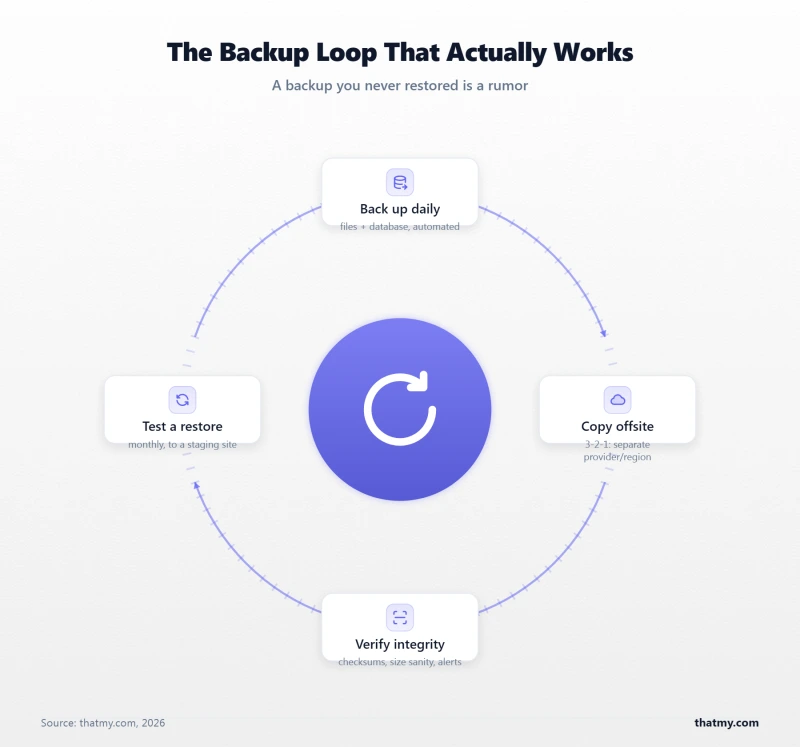
Backups that have never been restored are not backups. They are hopeful files. The only way to know whether a backup works is to restore from it.
The standard cadence is quarterly. Every three months, restore the most recent offsite backup to a staging environment (a free subdomain on a sandbox WordPress install, a local Docker container, or a temporary VPS for the day), then run through a structured verification checklist:
- Home page loads without errors.
- Five random internal URLs load with correct content.
- Admin login works with expected credentials.
- The most-used plugin's settings are intact.
- A post published in the last week appears correctly.
- For WooCommerce: pick a customer who placed an order in the last week, log in as that customer, and verify the order appears with all line items and metadata intact.
- Confirm the restore completed in a measured time within your defined RTO.
Full restore verification script (WP-CLI, run on staging after restore)
#!/bin/bash
echo "--- Restore Verification ---"

# Check WordPress version
wp core version --allow-root

# Check post count
POST_COUNT=$(wp post list --post_status=publish --format=count --allow-root)
echo "Published posts: $POST_COUNT"

# Check admin user exists
wp user get admin --fields=user_login,user_email --allow-root 2>/dev/null \
  || echo "WARNING: admin user not found"

# Check most recent post date
wp post list --post_status=publish --orderby=date \
  --order=DESC --fields=post_date --format=csv \
  --allow-root | head -2

# Check wp_options integrity
wp option get siteurl --allow-root
wp option get blogname --allow-root

echo "--- Verification complete ---"
The most common failure mode I have seen during restore tests is a partial database dump caused by a hosting environment with strict mysqldump time limits. The backup file looks complete, but the dump was killed mid-table. Importing it produces a database missing the second half of wp_postmeta. The site loads, the recent posts page shows ten posts, but click into any post older than six months and the metadata fields are empty. You will only catch that with a restore test.
A lighter and a heavier check fit around the quarterly drill. Monthly, in ten minutes: confirm the newest file in remote storage is inside your backup interval, open the latest SQL dump and check your tables are in it, and read the backup plugin's log for errors. Yearly, in half a day: run the worst case for real by restoring onto a fresh account at another host, as if yours were gone (the new-host procedure), and check every number on the escalation sheet still works.
What usually breaks in a restore drill
- The dump is too big for phpMyAdmin. Its upload limit comes from PHP's upload_max_filesize and post_max_size, often far below a store's database size. Import with
wp db importover SSH, or raise the limits first. - The storage connection expired. A cloud drive asked for the backup app to be authorized again, nobody did, and every backup since has failed quietly. Read the plugin log monthly and turn on failure emails.
- wp-config.php does not match the restored database. A different database name, user, password or host on the new server gives "Error establishing a database connection". Compare all four values.
- Premium plugin licences complain on staging. Licences tied to the live domain show as inactive. That is expected, not a failed restore; note it in the runbook so nobody panics.
Common Backup Failures and How to Diagnose Them
The five most common backup failures, along with root causes, fixes, and prevention steps:
| Symptom | Root Cause | Fix | Prevention |
|---|---|---|---|
| Backup file smaller than expected | Out-of-disk during write | Restore from older backup or offsite copy | Exclude caches/logs; monitor disk alerts |
| PHP timeout mid-backup | max_execution_time too low | Use plugin with chunking or WP-CLI | Always use a chunking-capable plugin |
| SQL dump ends abruptly | mysqldump timeout on large tables | Re-export with explicit timeout flags or table-by-table | WP-CLI wp db export on server |
| Garbled text after restore | Character set mismatch (utf8 vs utf8mb4) | Re-export with --default-character-set=utf8mb4 | Always specify charset explicitly |
| Uploads not working post-restore | Wrong file ownership after extract | chown -R www-data:www-data wp-content/uploads | Add chown step to restore runbook |
Encoding and Permissions After Restore
Two problems cause more post-restore head-scratching than any others: character encoding mismatches and wrong file permissions. Both are preventable with one extra step in your restore procedure.
Character encoding. WordPress stores data in utf8mb4 (the full Unicode charset that includes emoji and certain multilingual characters). If the destination database is configured with a different default charset (utf8 without the mb4 extension), any emoji or extended characters in your content become garbled on restore. Specify the charset explicitly in both the export and the import:
mysqldump --default-character-set=utf8mb4 -u DB_USER -p DB_NAME > backup.sqlmysql --default-character-set=utf8mb4 -u DB_USER -p DB_NAME < backup.sqlFile permissions. WordPress expects folders at 755 and files at 644. The uploads directory needs to be writable by the web server user. Restoring from a backup archive can produce wrong ownership, especially if the archive was created on a different server. Fix it with two one-liners after extraction:
find wp-content -type d -exec chmod 755 {} \;
find wp-content -type f -exec chmod 644 {} \;
If uploads are still not working after fixing permissions, check file ownership:
chown -R www-data:www-data wp-content/uploadsAdd both the chmod and chown steps to your restore runbook so you never skip them under pressure.
Backup at Scale: WooCommerce and Multisite
Running an ecommerce platform like WooCommerce changes the backup math. A standard content WordPress site has a database in the 50 MB to 500 MB range. A WooCommerce store with two years of orders and a thousand products has a database that easily hits 2 to 10 GB. The wp_woocommerce_order_items, wp_postmeta, and wp_woocommerce_log tables grow with every order placed.
For WooCommerce specifically, three rules apply:
First, increase backup frequency. Daily is the minimum. For stores with more than 50 orders a day, hourly incremental backups are not unreasonable. The customer who placed an order at 2 PM and whose data is lost at 4 PM has very little patience for "we restore from yesterday's backup."
Second, prefer incremental tools. Full backups of a 5 GB WooCommerce database every hour produce 120 GB of backup data per day and consume an unreasonable amount of database I/O. Managed backup services that use incremental approaches capture only the changes since the last backup and reconstruct full restore points on demand. The storage and performance impact is dramatically lower.
Third, test the restore against a real order. The standard restore test extends here: pick a recent order, restore the backup to staging, verify the order, the line items, the customer record, and the order metadata all came across cleanly. WooCommerce orders span four or five tables and any one of them missing produces a broken order.
For multisite, the wrinkle is that all sites in the network share a single database with a different wp_X_posts table per site. Most plugin backups handle this correctly by default, but verify on your specific tool: a plugin that backs up only the network's main wp_options will leave every other site in the network unrestored.
For agencies running many client sites, managed backup platforms designed for agency use offer central dashboards where you can run, monitor, and restore backups for fifty or a hundred sites from one screen. At that scale, plugin-by-plugin manual configuration stops being practical.
Where to Go Next
If you want to go deeper on the tools and interfaces covered in this guide, three learn pages are the natural next steps. The cPanel section of the control panel guide shows where Backup Wizard and the other account tools sit in the panel, and what runs underneath them. The database guide goes deeper on MySQL/MariaDB internals, utf8mb4 charset handling, and how wp_options and wp_postmeta grow over time. The security threats guide covers the malware and ransomware scenarios where backups are your primary recovery path.
If your immediate next move is to run a restore test on an existing backup, the procedure in the disaster recovery testing section above is the fastest reliable way to do it. Quarterly cadence, staging environment, transaction trace if you run WooCommerce. That is the difference between a backup file and a working backup.
Frequently Asked Questions
How often should I back up my WordPress site?
Daily is the minimum for any site that updates regularly. Sites with WooCommerce or membership data benefit from hourly incremental backups during peak hours. A static or rarely updated site can run weekly without much risk, as long as the offsite copy actually exists. The cadence matters less than whether the backup file works. A weekly backup that has been restore-tested is more useful than a daily backup that has never been verified.
What is the difference between a backup and a snapshot?
A snapshot is a point-in-time image of the entire server's storage volume. It captures everything: operating system, configuration files, WordPress code, database files, uploads, and any other data on the disk. Snapshots are common on VPS providers. A backup is usually narrower: just the WordPress database and wp-content. Snapshots are slower to take, slower to restore, and use more storage, but they are complete. WordPress-aware backups are faster, smaller, and more granular, but only protect the WordPress portion of the system.
Can I restore my WordPress site without my hosting provider's help?
Yes, if you have an offsite backup, command-line access or phpMyAdmin access on the destination, and a copy of wp-config.php with the new database credentials. The procedure is to import the SQL dump into the new database, extract wp-content into the new web root, edit wp-config.php with the new credentials and site URL, run the WordPress address change in wp_options, and flush caches. The whole thing takes 20 to 60 minutes for a typical site. Plugin-based restore tools automate most of this, but understanding the manual process matters because plugin tools sometimes fail in ways that require manual recovery.
Why do hosting-included backups sometimes fail to restore?
The most common reason is silent corruption. The backup ran, produced a file, the file looks the right size, but a process partway through (mysqldump, PHP, or the backup daemon) hit a timeout or out-of-disk-space condition and aborted. The file on disk is incomplete. The host's monitoring may not flag it because the process technically returned an exit code. You discover the problem when you try to restore. The defense is to test restore quarterly. The fix once you discover a corrupt backup is to use an older one or, ideally, your offsite copy.
How long should I keep WordPress backups?
For most sites, 30 days of daily backups plus 12 months of monthly backups is a reasonable retention model. The cost is small (5 GB stored on Backblaze B2 for a year is under one dollar) and the protection is strong. For WooCommerce stores, 7 years of monthly backups aligns with most tax-record retention requirements. For sites under no legal retention obligation, the limit is your storage budget, not the underlying technology.
What is the safest way to test a backup before I need it?
Restore the backup to a staging environment that is completely isolated from your live site. The cheapest version is a free subdomain on a sandbox WordPress install or a local Docker container. The fancier version is a same-stack staging server (most managed hosts include staging environments). Run through your standard verification: home page loads, recent posts render, an old post renders, the admin login works, your most-used plugin's settings are intact. If you have WooCommerce, find a recent order and verify all its line items came through.
Are plugin backups secure if my account gets compromised?
Plugin backups stored on the same server as the live site are not secure under that scenario. Anyone with access to your hosting account has access to those files. Plugin backups stored offsite, with credentials kept outside the WordPress install, are stronger. The strongest design uses tokens scoped to write-only access on the offsite bucket, so even a compromised WordPress site cannot read or delete its own backup history.