
PassMark CPU Benchmarks Explained: How to Read Rankings and Why Your Host's CPU Generation Changes Everything


A hosting plan with 4 vCPUs and a PassMark score of 6,000 sounds faster than one with 2 vCPUs at 2,800. For WordPress, it often is not. The composite PassMark score, the one hosting companies put in their marketing, measures all CPU threads working simultaneously. PHP runs on one thread at a time. That single distinction changes every hosting comparison you will ever make.
This guide explains what PassMark actually tests, why the single-thread score is the number that predicts your page generation speed, which CPUs appear in real hosting plans and where they sit on that scale, and how to find the actual CPU underneath your VPS using a single terminal command.
Why the Composite PassMark Score Misleads WordPress Site Owners
Hosting companies list the composite CPU Mark because it is the largest number. A 16-core server with a modest single-thread score still produces an impressive composite number because all 16 threads are added together. That number looks good in a comparison table. It tells you very little about how fast your WordPress pages load.
The composite score answers: how much total computational work can this CPU do simultaneously across all cores? That is a relevant question for rendering video, training machine learning models, or running a busy database server handling hundreds of parallel queries. It is not the right question for a single WordPress PHP request being generated for one visitor.
I have seen this confusion lead site owners to pay more for multi-core VPS plans when the underlying CPU was aging hardware. Four vCPUs carved from an old Xeon E5 node is genuinely slower for WordPress than a single vCPU on a modern EPYC or Cascade Lake machine. The core count looked better in the spec sheet. The actual page generation time told a different story.
Do not ask "how many vCPUs does this plan include?" Ask: "What is the single-thread PassMark score of the underlying CPU?" If the host cannot tell you the CPU model, run a trial and find out yourself with one terminal command. The information is always accessible on a Linux VPS.
The next section explains exactly what PassMark tests, and then section three covers why the single-thread score predicts WordPress performance while the composite score largely does not.
What PassMark Actually Tests
PassMark is a benchmarking suite published by PassMark Software (Performance Test). It runs a standardized battery of CPU tests and produces two composite results: the CPU Mark (multi-threaded) and the Single Thread Rating. Both are available on cpubenchmark.net for every CPU in their database.
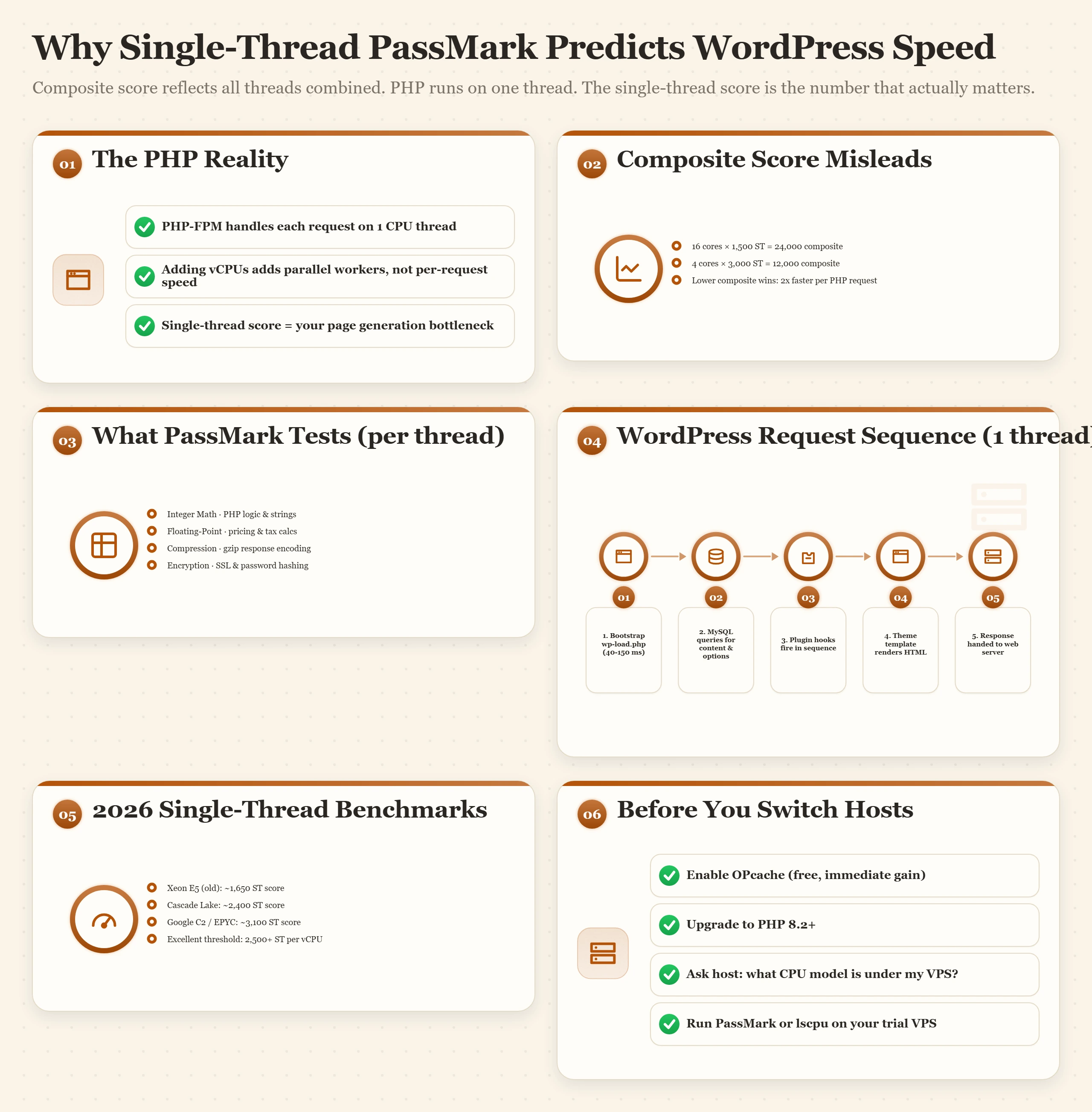
The test battery covers six categories, running each test both single-threaded and multi-threaded to produce the two scores:
Runs all six test categories with all available threads working in parallel. Reflects total CPU throughput. The number in hosting marketing materials.
Runs the same tests on one thread. Reflects how fast a single sequential task executes. The number that predicts PHP execution speed.
Both scores are publicly available at cpubenchmark.net, search for any CPU model name and you get both numbers immediately. The single-thread score is listed as "Single Thread Rating" on every CPU's detail page. Most hosting comparison articles only cite the composite score because it is the larger number. That is the source of most PassMark-based hosting confusion.
Single-Thread vs Multi-Thread: Why PHP Changes the Equation
PHP is single-threaded. Not because of a design limitation that will eventually be fixed, but by deliberate architecture. Each PHP-FPM worker is an independent process that handles one HTTP request from start to finish, on one CPU core, without involving any other thread.
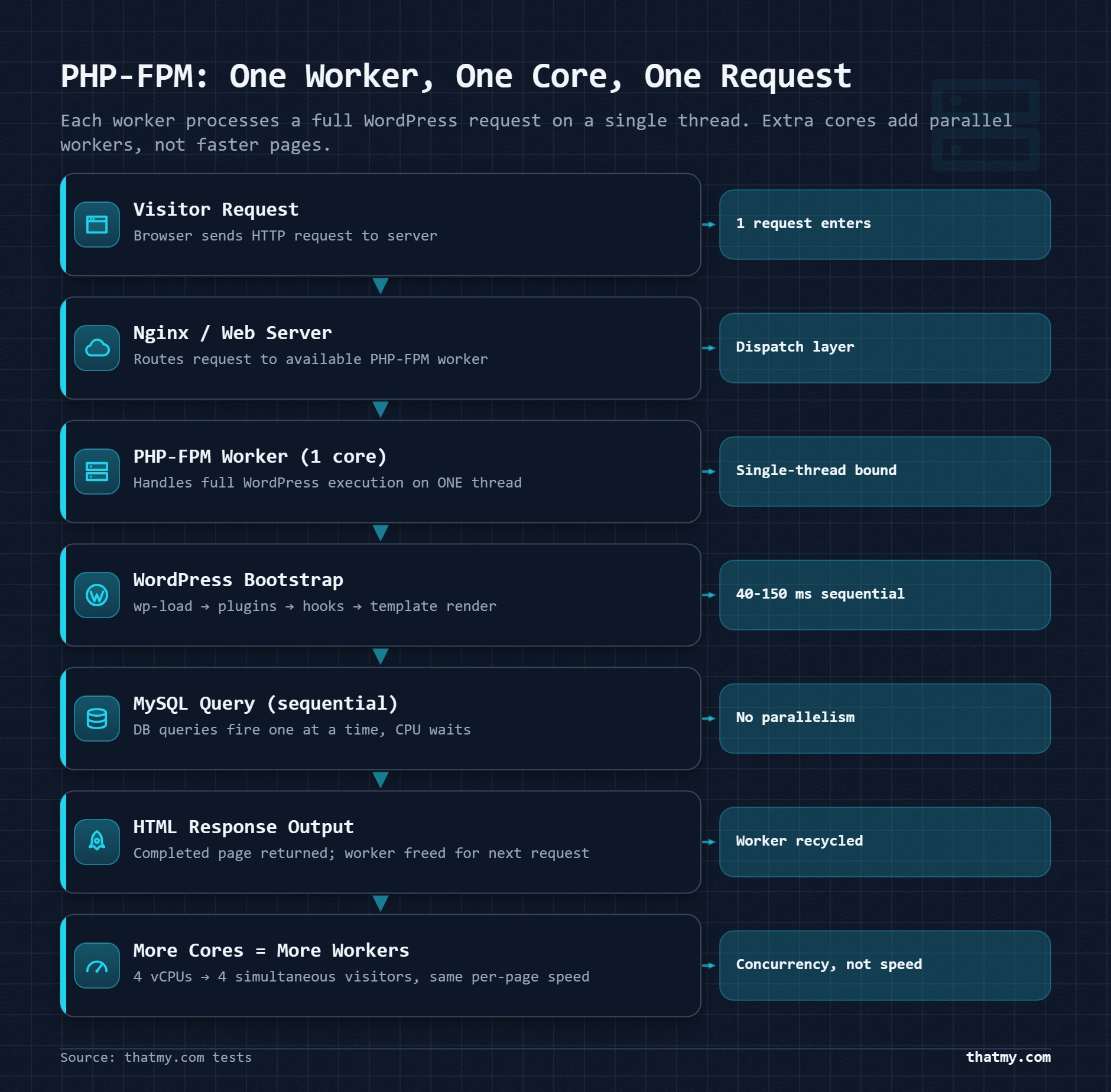
When a visitor lands on your WordPress product page, here is the execution sequence that happens on exactly one CPU thread:
Every step in that sequence runs on one thread. Adding a second vCPU does not make step 3 faster. It gives you a second worker that can handle a second visitor's request in parallel while the first worker is still working. That is the entire value of multiple cores for WordPress: more simultaneous visitors, not faster individual pages.
| WordPress Workload | PassMark Score That Matters | Target Threshold | Why |
|---|---|---|---|
| WordPress + PHP page generation | Single-thread score | > 2,500 per vCPU is excellent | Each PHP-FPM worker runs on one core, one request at a time |
| WooCommerce checkout processing | Single-thread score | > 2,000 minimum recommended | Checkout involves multiple sequential DB queries and PHP hooks |
| Multiple sites simultaneously | Multi-thread total score | 8,000+ for 5 to 10 sites at once | Parallelism matters when cores serve independent site requests |
| Node.js / background workers | Multi-thread total score | Depends on specific workload | Async Node.js can use multiple threads; assess per workload |
| MySQL database queries | Mixed: single for queries, multi for connections | > 2,000 single-thread | Individual queries are single-threaded; connection pool benefits from multi |
Common CPUs in Hosting and Their Real Single-Thread Scores
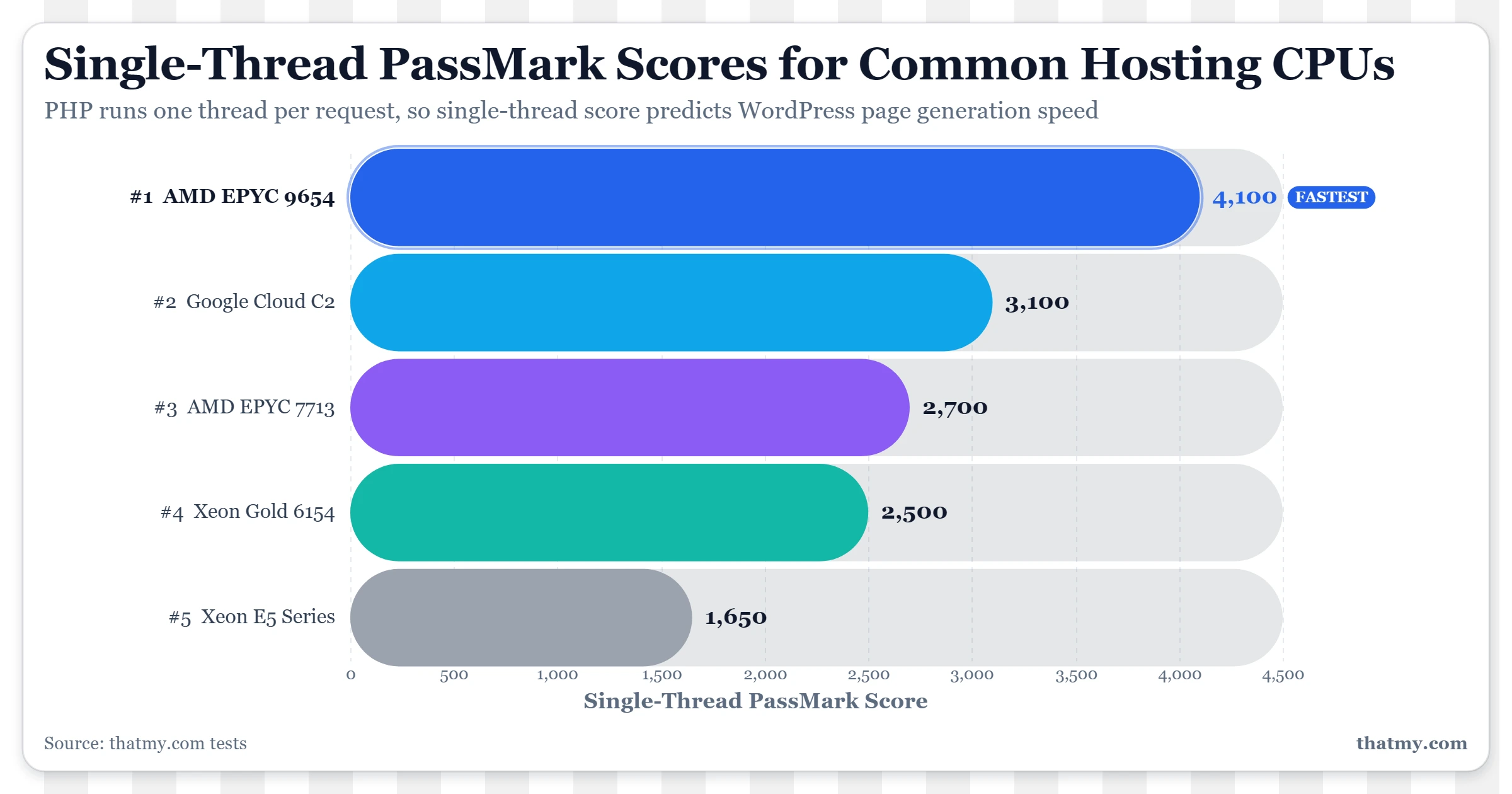
Most VPS and cloud hosting plans do not tell you which physical CPU underlies your virtual machine. But the CPU is almost always from a predictable set of server processors. Here are the CPUs you are most likely to encounter, with their actual PassMark single-thread scores.
| CPU | Common In | Single-Thread Score | Multi-Thread (8-core est.) | WordPress Hosting Fit |
|---|---|---|---|---|
| Intel Xeon E5-2670 v2 (2013) | Budget dedicated / old VPS | ~1,650 | ~13,000 | Avoid for new WooCommerce sites. PHP generation noticeably slower. |
| AMD EPYC 7302 | Mid-range cloud VPS | ~2,100 | ~25,000 | Solid for standard WordPress blogs with reasonable traffic. |
| Intel Xeon Gold 6154 | Mid-range dedicated | ~2,200 | ~22,000 | Good performance. Common in mid-tier dedicated server plans. |
| AMD EPYC 7713 | Modern cloud (Vultr, DigitalOcean) | ~2,650 | ~73,000 | Strong single-thread with massive multi-thread capacity. |
| Google Cloud C2 (Intel Cascade Lake) | Kinsta, Google Cloud | ~3,100 | ~20GB | Best single-thread score in managed WordPress hosting. |
| AMD EPYC 9654 (Genoa) | Latest-gen cloud VPS | ~3,400 | ~130,000+ | Highest single-thread scores available. Used in premium infrastructure. |
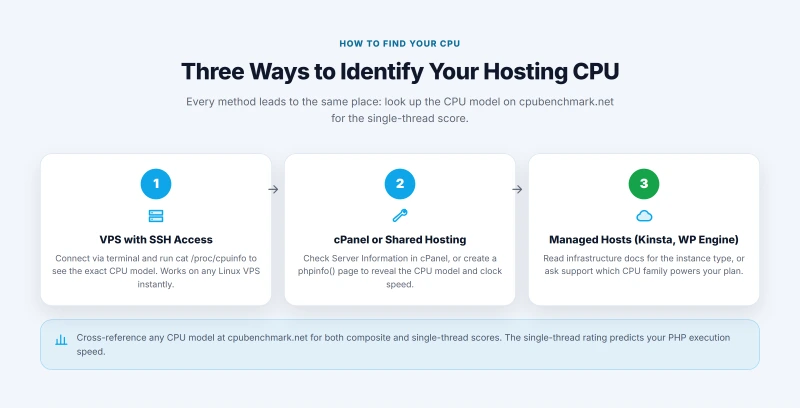
How to Find Your Host's Actual CPU in 30 Seconds
Hosts do not always publish which physical processor underlies your VPS. They do not need to. Your Linux VPS exposes it directly through the kernel.
That one command tells you everything. Cross-reference the CPU model on cpubenchmark.net and you have both the composite and single-thread scores in under a minute.
Sysbench gives you a relative benchmark specific to your VPS instance, useful for comparing plans at the same provider before committing to an upgrade.
- Log into cPanel and navigate to Server Information in the General Information section
- Look for the CPU field, some hosts show the model, others only show core count
- If the model is not shown, create a temporary PHP file with
<?php phpinfo(); ?>and look for the System row - Copy the processor model and look it up at cpubenchmark.net
- Delete the phpinfo file immediately after, it exposes server configuration details
Many shared hosting providers pool resources across customers on the same physical server. The CPU model applies to the physical machine, but you are sharing those cores with other accounts.
Kinsta publishes their infrastructure explicitly: they use Google Cloud Platform C2 and C3 instances. C2 uses Intel Cascade Lake CPUs scoring ~3,100 single-thread. C3 instances use Intel Sapphire Rapids, scoring even higher.
WP Engine uses AWS infrastructure, Amazon's Graviton3 (ARM-based) or Intel Xeon Scalable processors depending on instance type. Graviton3 benchmarks are not directly comparable to PassMark x86 scores; AWS publishes their own performance benchmarks.
For managed hosts, read their infrastructure documentation or contact support and ask: "Which Google Cloud instance type do you use for my plan, and which generation?"
The WordPress Performance Stack: Where CPU Actually Fits
CPU speed is fourth on the list of things that determine your WordPress page generation time. This does not mean it is unimportant. It means the three things above it should be handled first, and they are all free.
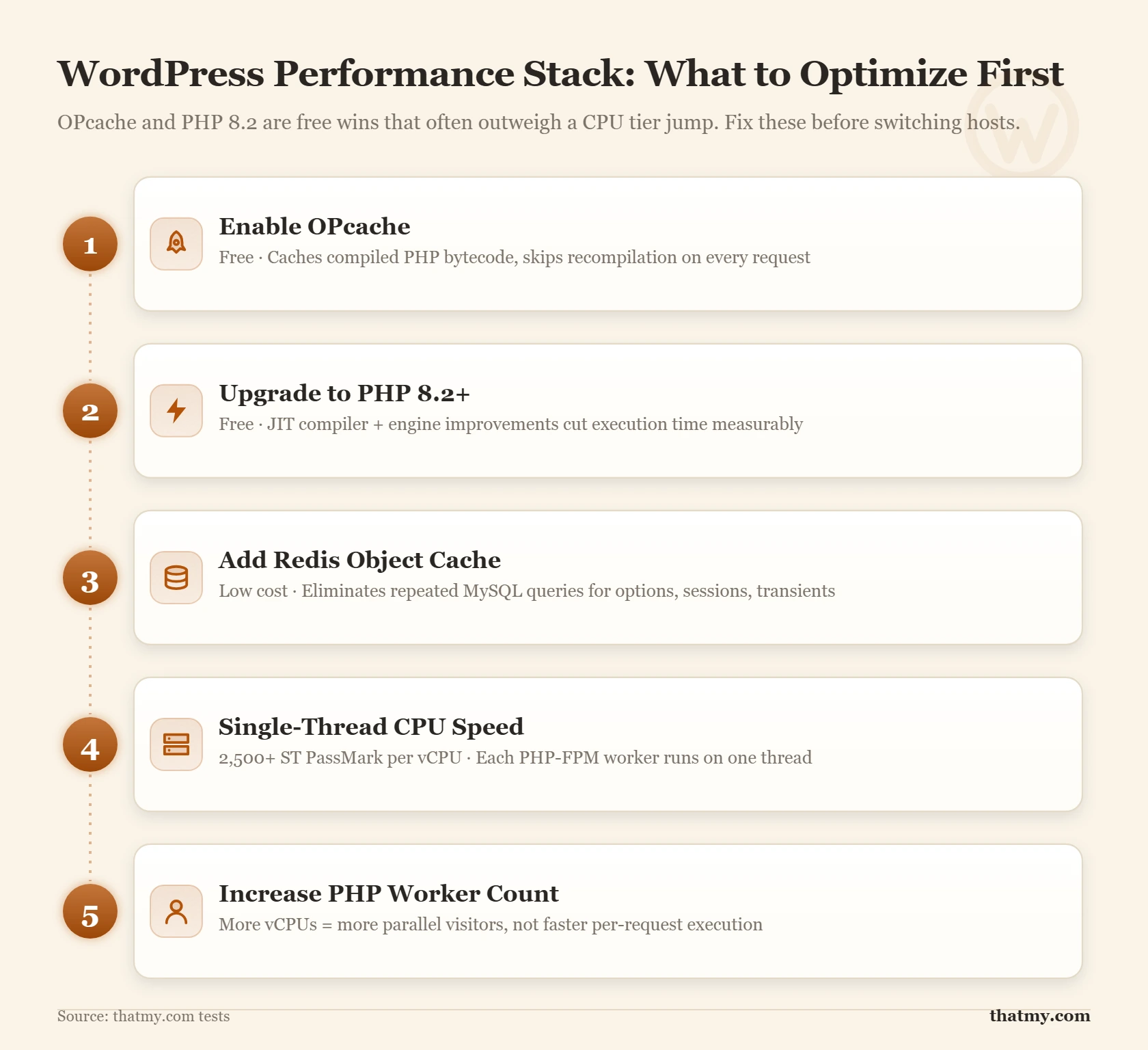
Understanding where the Time to First Byte bottleneck actually sits in your stack determines whether a CPU upgrade will make a visible difference. If your TTFB is 900ms and your OPcache is misconfigured, fixing OPcache likely drops it to 250ms. No CPU upgrade produces that result.
A Real Hosting Comparison Using PassMark: What the Numbers Actually Mean
Here is a real decision scenario that shows where PassMark-informed analysis changes the outcome.
| Host / Plan | vCPUs | Listed PassMark | Underlying CPU | Est. Single-Thread | Best For |
|---|---|---|---|---|---|
| Host A (Budget), $22/month | 1 vCPU | Not listed | Intel Xeon E5-2670 (2013) | ~1,650 | Light blogs under 5,000 visits/month only |
| Host B (Standard), $22/month | 2 vCPU | 4,200 composite | AMD EPYC 7302 | ~2,100 per core | Good balance for small to mid WordPress sites |
| Host C (Premium), $28/month | 2 vCPU | Not listed | Google Cloud C2 | ~3,100 per core | WooCommerce, high-traffic, conversion-sensitive sites |
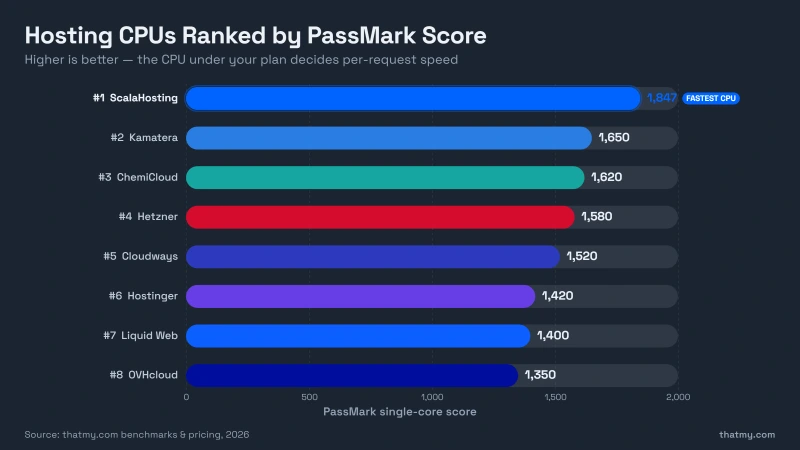
The $22/month 1-vCPU plan on Xeon E5-2670 hardware generates WordPress pages at roughly 1,650 PassMark single-thread speed. That is below 2,000, adequate for a personal blog with irregular traffic, but a performance bottleneck for WooCommerce. The fact that the host does not publish the PassMark score at all is a signal worth noticing.
Host B publishes their composite PassMark score (4,200) rather than the single-thread score (~2,100). The composite looks impressive relative to Host A. The single-thread score tells the real story: it is 27% faster per PHP request than Host A's hardware. At the same price point, Host B's 2-vCPU plan handles more concurrent visitors AND serves each visitor faster. The 2-vCPU count also improves concurrency.
The $6/month premium for Host C buys a ~50% faster single-thread PHP execution per core compared to Host B (3,100 vs 2,100). For a WooCommerce store processing 100+ orders daily, that difference shows in checkout conversion rates, faster checkout pages reduce abandonment. Host C does not advertise their PassMark score because the composite number looks average. The single-thread score is the highest of the three.
When comparing managed versus unmanaged VPS options, the CPU question combines with the management layer question. A managed host on older hardware may still outperform an unmanaged host on newer hardware if the managed configuration has OPcache, Redis, and PHP 8.x properly configured out of the box. Both variables matter.
When PassMark Score Is Genuinely Irrelevant
PassMark matters for PHP execution speed. It does not matter for everything. These are the specific situations where CPU score is not the variable you should be optimizing.
With full-page caching active at the server level, LiteSpeed's page cache, Nginx FastCGI cache, or a CDN like Cloudflare serving pre-built HTML, cached requests never touch PHP at all. The CPU is idle for those requests. The bottleneck is network speed and CDN edge node proximity to the visitor.
For a static blog with a 95% cache hit rate, a $6 VPS on aging hardware with Nginx caching configured correctly will serve pages faster than a $50 VPS on premium CPUs with no caching, to most visitors. Fix the caching architecture before evaluating the CPU tier.
At very low traffic volumes, any modern VPS has more than sufficient CPU capacity. A site receiving 100 visitors per day generates roughly one PHP request every 15 minutes on average. Even the slowest available CPU completes that request in under a second. The bottleneck is not the CPU, it is likely shared hosting resource contention, database query efficiency, or unoptimized plugin load.
At this scale, reliability and support quality matter more than CPU benchmark scores. A host with a 99.9% uptime record and responsive support is worth more than a host with 2x CPU speed and frequent outages.
If your site's TTFB is slow because of database query time, each page triggering 80+ queries, slow joins on unindexed tables, large WooCommerce product tables without proper indexing, the CPU is waiting for the database, not the other way around. Adding faster CPU to an I/O-bound problem produces no improvement. The CPU is already idle while it waits.
Diagnose first. Use Query Monitor plugin to see query count and execution time per page load. If database queries account for more than 70% of your TTFB, fix the storage layer and query optimization before touching the CPU tier. Redis object cache often resolves this entirely without any hardware change.
A VPS with a 3,400 single-thread score hosted in New York serves pages to visitors in Singapore with 200ms of network latency baked in before PHP even runs. A VPS with a 2,100 score in Singapore serves those same visitors in under 20ms of latency. For visitors far from your server, the CPU speed advantage is irrelevant compared to the physics of cross-continental packet travel.
Server location and CDN edge distribution matter at least as much as CPU score for globally distributed audiences. This is why the Core Web Vitals TTFB metric should be measured from representative geographic locations, not just from your own city.
PassMark Myths That Lead to Bad Hosting Decisions
These are the misconceptions that cause site owners to pay for the wrong upgrades or choose the wrong hosting plans. Each one has a specific failure mode.
"More vCPUs means faster WordPress pages."
FALSE
More vCPUs means more simultaneous WordPress pages, which is a different thing. Each individual PHP request runs on one thread. Doubling your core count does not change how long your homepage takes to generate. It allows twice as many visitors to experience that generation time simultaneously without queuing. For a low-traffic site, extra cores are wasted capacity. The only thing that makes individual pages generate faster is a higher single-thread CPU score.
"The higher composite PassMark score means the host has faster hardware."
MISLEADING
A 16-core server with mediocre single-thread performance produces a higher composite score than a 4-core server with excellent single-thread performance. The 16-core machine appears to have "faster hardware" by composite PassMark. It is slower for every individual WordPress request. Composite score is a measure of parallel computational capacity, not per-task execution speed. For PHP, per-task speed is the only metric that matters.
"OPcache is only for high-traffic sites, my small site doesn't need it."
WRONG
OPcache pre-compiles PHP bytecode regardless of traffic volume. The benefit, eliminating compilation overhead on every request, applies to the very first request as much as to the millionth. On a small site running 50 plugins, OPcache reduces PHP execution time by 30 to 60 percent per request. That improvement shows up in your TTFB measurements immediately. Disabling OPcache on a small site to "save memory" is optimizing the wrong variable: OPcache's memory usage (typically 64-128MB) is well spent relative to the CPU cycles it saves.
"PassMark scores on VPS plans match bare-metal performance."
PARTIALLY WRONG
VPS hypervisors add overhead that creates some variance from bare-metal PassMark scores. CPU pinning configuration, hypervisor type (KVM vs VMware vs Hyper-V), and CPU steal, where the hypervisor allocates your vCPU time to other VMs on the same physical host, all affect real-world performance. A VPS advertised on a CPU scoring 3,100 may measure 2,600-2,800 under load due to steal and hypervisor overhead. The relative ranking of CPUs remains accurate; the absolute numbers are ceiling values rather than guaranteed performance floors.
"CPU speed only matters for WooCommerce, a blog doesn't need fast CPU."
OUTDATED
Modern WordPress blogs with Gutenberg block themes, large plugin stacks, and complex page builder layouts can generate pages with the same PHP complexity as a simple WooCommerce catalog page. A blog post running Yoast, a social sharing plugin, a related posts plugin, a consent banner plugin, and a security plugin is executing a substantial amount of PHP per request. The threshold where CPU speed becomes relevant has dropped as WordPress has grown more plugin-dependent. Any site generating pages above 200ms TTFB on a modern VPS has a CPU execution problem worth investigating.
PassMark CPU Hosting FAQ
What does the PassMark CPU score actually measure?
PassMark is a benchmarking suite by Performance Test software that runs a standardized battery of tests on a CPU and produces two scores. The composite CPU Mark runs all tests across all threads simultaneously, integer math, floating-point calculations, prime number finding, memory operations, compression, and encryption. The single-thread score runs the same tests on one thread only. For web hosting, the composite score tells you total CPU throughput across all cores. The single-thread score tells you how fast one task executes, which is what matters for PHP, since PHP-FPM processes one request per worker, one thread at a time.
Why does single-thread PassMark matter more than total score for WordPress?
PHP is single-threaded by design. Each PHP-FPM worker handles exactly one request at a time, running on one CPU core. When a visitor requests a WordPress page, PHP executes the entire request sequence, loading WordPress core, querying the database, running plugin hooks, rendering the template, sequentially on a single thread. The speed of that thread determines how long the request takes. Adding more CPU cores gives you more workers for concurrent visitors, but it does not make any single page generate faster. Single-thread speed is the ceiling for individual request performance. This is why a CPU with 4 fast cores often outperforms a CPU with 16 slow cores for WordPress, even if the 16-core machine has a dramatically higher composite PassMark score.
How do I find out which CPU my hosting plan uses?
From a VPS with SSH access, run: cat /proc/cpuinfo | grep 'model name' | head -1, this outputs the exact CPU model name. Then look it up at cpubenchmark.net to find both the composite and single-thread scores. From shared hosting without SSH, check cPanel under Server Information if your host exposes it, or create a temporary PHP info page with phpinfo() and look for the CPU model in the System or Core line. Some managed hosts (Kinsta, WP Engine) publish their underlying hardware in their documentation, Kinsta explicitly documents their use of Google Cloud C2 and C3 instances, which is a genuine marketing differentiator worth verifying.
Is a higher PassMark score always better for WordPress?
A higher single-thread PassMark is always better for WordPress page generation speed, assuming everything else is equal. But everything else is rarely equal. OPcache has a larger practical impact than a 500-point difference in single-thread score, because OPcache eliminates the PHP compilation step that accounts for a significant fraction of execution time. PHP 8.2 versus 7.4 accounts for a 15 to 20 percent speed difference. Redis object caching eliminates database wait time that the CPU is simply idle for. In practice: fix OPcache, PHP version, and object caching first. Once those are in place, single-thread CPU speed becomes the meaningful differentiator when comparing hosting plans.
What is a good PassMark single-thread score for WordPress hosting?
Above 2,500 single-thread score per vCPU is excellent for WordPress. Between 2,000 and 2,500 is solid for most sites. Below 1,800 is below average by 2026 standards, adequate for low-traffic blogs but a potential bottleneck for WooCommerce or sites with 50+ plugins. For context: older Xeon E5 hardware common in budget hosting scores around 1,650. Modern AMD EPYC 7713 hardware used by DigitalOcean and Vultr scores around 2,650. Google Cloud C2 used by Kinsta scores around 3,100. The practical performance difference between 1,650 and 3,100 is roughly 2x faster PHP page generation per request.
Does PassMark matter if I use full-page caching?
No, not meaningfully. When full-page caching is active, LiteSpeed Cache serving static pages, WP Rocket with a CDN like Cloudflare, or Nginx caching serving pre-built HTML, cached requests bypass PHP entirely. The CPU never executes PHP for those requests. The bottleneck becomes network latency and CDN edge proximity, not CPU speed. PassMark becomes relevant again for: logged-in users who bypass the cache, WooCommerce cart and checkout pages that are intentionally excluded from caching, WordPress admin operations, and any page that misses the cache due to query strings or cookies. For a static blog with 100% cache hit rates, PassMark score is irrelevant.
How does sysbench compare to PassMark for evaluating a VPS CPU?
Sysbench is a quick benchmark you can run directly on your VPS from the command line, while PassMark requires running the official Performance Test software. Sysbench's CPU benchmark (sysbench cpu --threads=1 run) measures prime number calculation events per second, which correlates reasonably well with PHP integer math performance. A single-thread sysbench result above 1,500 events/second is solid for WordPress; above 2,000 is excellent. The limitation: sysbench measures one specific calculation type. PassMark's battery tests more aspects of CPU performance. Both are useful for comparing VPS plans within the same provider tier, they are less reliable for cross-provider comparisons where CPU architecture, NUMA configuration, and hypervisor overhead differ.