
Web Hosting Cache and CDN Explained: Every Layer and What It Fixes

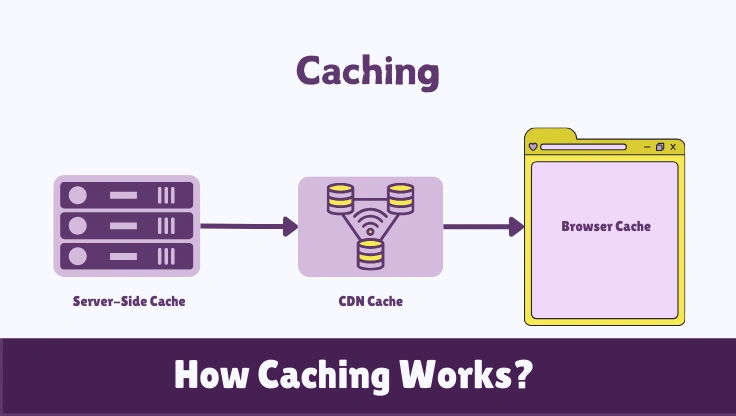
Most WordPress owners think they have caching configured because they installed one plugin. They have configured one layer of a six-layer system. The other five layers are either running at default settings they have never touched, not configured at all, or actively working against each other. This guide covers all six layers, explains the failure mode of each, and gives you a complete picture of what caching actually does in a WordPress hosting environment.
The fastest WordPress sites are not running better themes. They are running complete cache stacks. A well-optimized WordPress install on a modest VPS serves pages in under 100ms. An unoptimized install on a powerful dedicated server takes two seconds. The hardware is not the variable. The server resources help, but caching is the multiplier. This guide starts with the model, then covers every practical implementation decision you need to make.
High TTFB from PHP execution. Repeated database queries. Server overload under traffic spikes. Slow page loads for every visitor.
Slow JavaScript execution. Unoptimized images. Render-blocking scripts. Bad hosting hardware. Application-layer bugs.
LiteSpeed Cache on LiteSpeed host, or WP Super Cache on any host. Add Cloudflare free tier for CDN cache on top.
The Six-Layer Cache Model Every WordPress Site Has (Whether You Know It or Not)
Every WordPress hosting setup already has all six cache layers, but most of them are running in their worst possible state. Your browser has a cache. Your CDN has a cache. Your server has a page cache, an object cache, an OPcache, and a database cache. Install WordPress fresh with no plugins and all six exist in some form. The question is not whether caching is happening. The question is whether it is configured to help you.
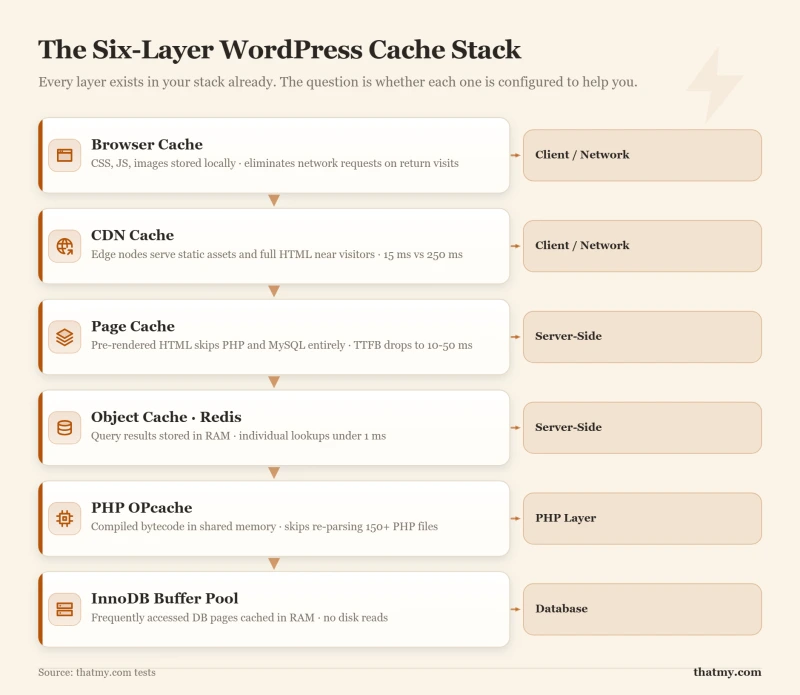
Here is what each layer does and what happens when it is not configured:
Browser Cache
The visitor's browser stores static files locally after the first visit: CSS, JavaScript, images, fonts. On return visits, the browser loads these from disk instead of making network requests. Default state without configuration: no Cache-Control headers, so the browser re-downloads every asset on every visit. A properly configured browser cache means returning visitors load your site almost entirely from their local disk.
Client-SideCDN Cache
CDN edge nodes cache static assets and (with configuration) full HTML pages at servers near your visitors. A visitor in Germany gets assets from a Frankfurt node instead of your US server. Default state without configuration: only images and CSS are cached; HTML pages pass through to origin on every request. Cloudflare APO or a full-page cache rule changes this. The CDN section covers how edge caching works and what it cannot fix.
NetworkPage Cache
The most impactful layer for WordPress. Page cache stores the fully rendered HTML output of each page as a static file or in memory. When the next visitor requests that page, the server returns the static copy directly, skipping PHP execution and all database queries. Default state without configuration: WordPress generates every page fresh from PHP and MySQL on every request. This is the single biggest performance gap on most WordPress sites.
Server-SideObject Cache
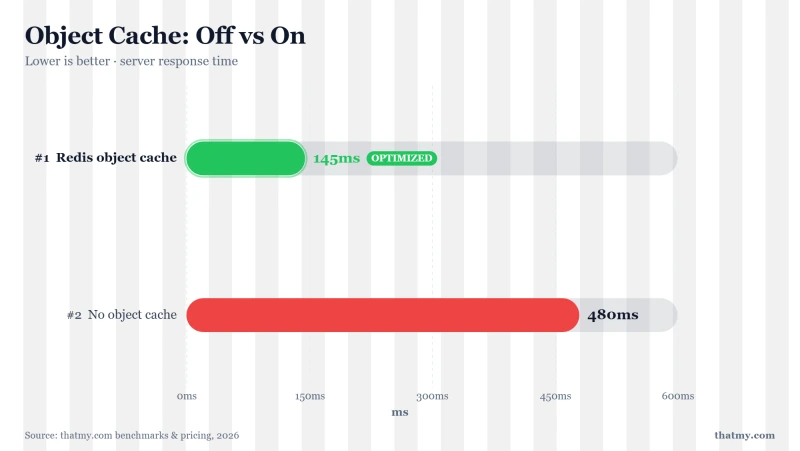
Object cache stores the results of expensive database queries and computed values in RAM (via Redis or Memcached). When WordPress needs a value it has computed before, it reads from memory instead of running the query again. Default state without configuration: WordPress uses its own in-memory object cache within a single PHP request, but nothing persists between requests. Without persistent object cache (Redis), every new request re-runs every query from scratch.
Server-SidePHP OPcache
OPcache stores compiled PHP bytecode in shared memory. Without it, PHP re-parses and re-compiles every file on every request. With a WordPress install that loads 150+ PHP files per page, this compilation overhead adds meaningful CPU cost. Default state without configuration: most modern hosts enable OPcache by default, but the configuration (memory allocation, validation frequency) matters as much as whether it is on.
PHP LayerDatabase Cache (InnoDB Buffer Pool)
MySQL's InnoDB engine maintains a buffer pool in RAM: a cached copy of frequently accessed database pages. When a query hits a page already in the buffer pool, no disk read is required. Default state without configuration: the buffer pool defaults to 128 MB, which is often too small for a production WordPress install. A properly sized buffer pool (typically 50-70% of available RAM) turns most database reads from disk operations into RAM operations.
Database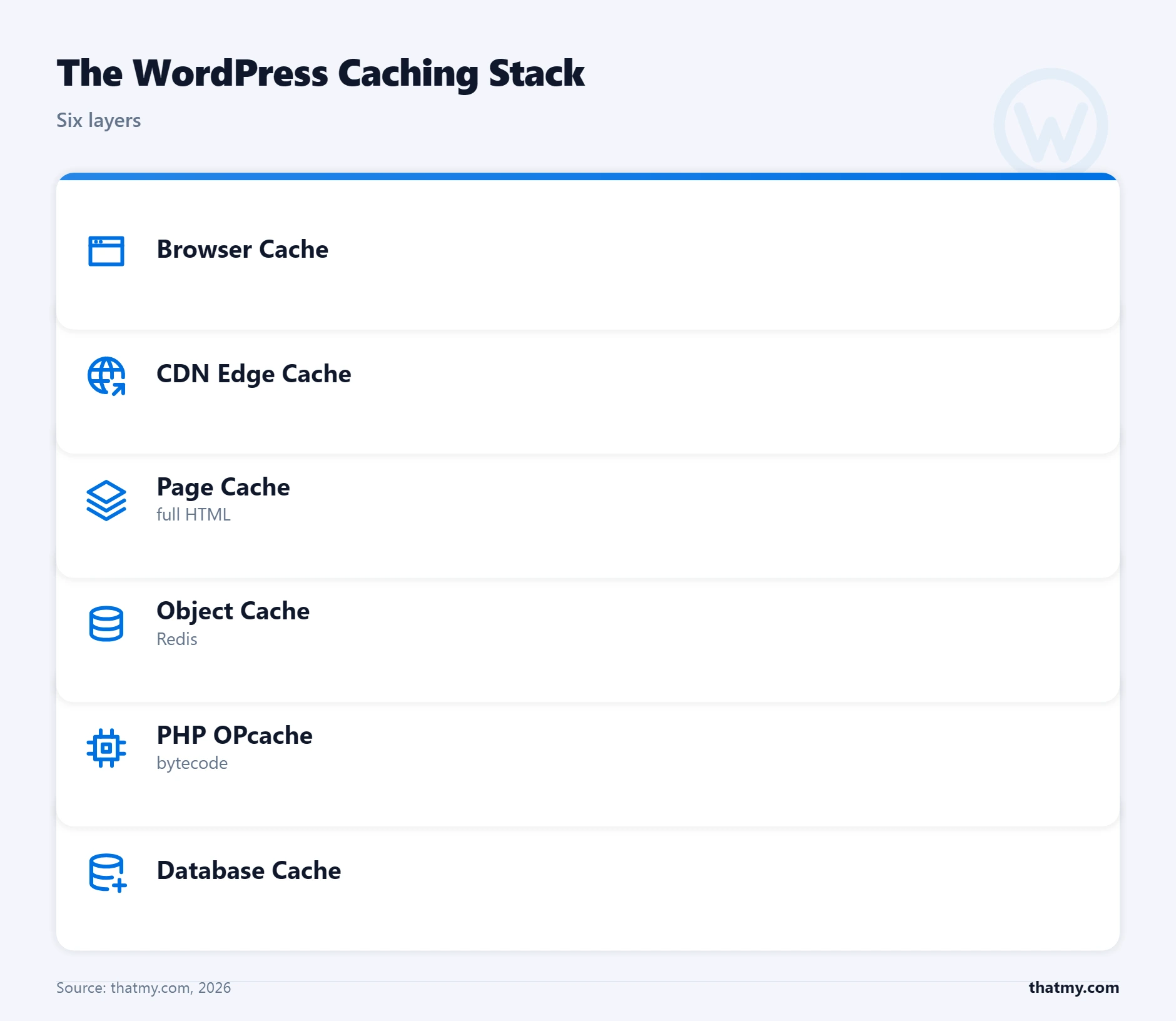
| Cache Layer | Where It Lives | What It Stores | Typical TTL | Needs Manual Invalidation? |
|---|---|---|---|---|
| Browser Cache | Visitor's local device | Static assets: CSS, JS, images, fonts | 24h to 1 year (max-age header) | No, browser respects headers; stale assets after deploy |
| CDN Cache | CDN edge nodes globally | Static assets + full pages (with APO or rules) | 30 min to 24h typical | Yes, purge via API or CDN dashboard after deploy |
| Page Cache | Your server (disk or RAM) | Fully rendered HTML output | Until next publish, manual purge, or TTL | Yes, plugins handle this on WordPress content changes |
| Object Cache | Server RAM (Redis/Memcached) | DB query results, transients, computed data | Configurable per key (seconds to hours) | Automatic on write, stale keys expire or are overwritten |
| PHP OPcache | Server shared memory | Compiled PHP bytecode (not content) | Until PHP file changes or restart | Automatic, OPcache detects file changes when configured |
| Database Cache | MySQL InnoDB buffer pool (RAM) | Frequently read database pages | LRU eviction, no explicit TTL | Automatic, MySQL manages this internally |
The practical takeaway: page cache is the highest-impact layer to configure because it eliminates the two most expensive operations (PHP and database) for the most common case (public, non-personalized pages). Object cache is the highest-impact layer for sites where full page caching is not possible, like WooCommerce with active shoppers. OPcache should be verified enabled, not configured from scratch. The browser cache and database buffer pool are largely set-and-forget once you handle them once.
Cache Request Lifecycle: What Happens the Moment a Request Arrives
Every cache layer makes the same decision in microseconds: do I have a valid copy of this response, or do I need to generate it? Understanding this decision tree is what makes cache debugging tractable. When something is slow or broken, you can trace exactly which layer is failing and why.
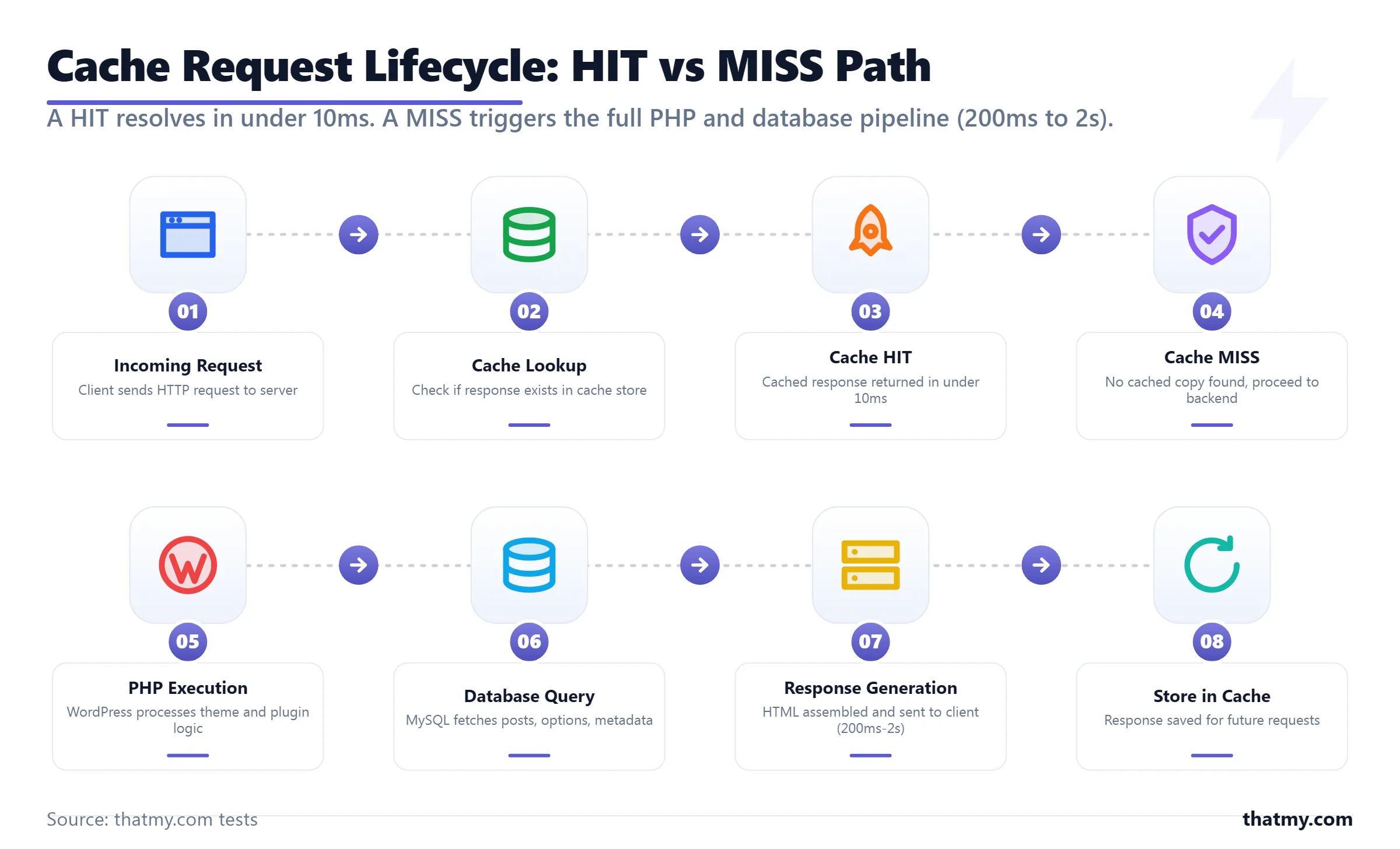
Visitor's browser sends GET request to your domain. DNS resolves to Cloudflare (or your server directly). The request begins its journey through every cache layer in order.
The cache layer (CDN, page cache plugin, or server config) checks whether a valid cached copy of this URL exists. Key factors: is the URL cacheable? Are there session cookies that require bypass? Has the TTL expired?
A valid cached copy exists. The cache layer returns the stored response immediately. PHP does not run. MySQL does not run. Total time: 5 to 50ms depending on layer and distance from visitor.
No valid cached copy. The request passes through to the next layer, CDN miss goes to origin; page cache miss goes to PHP; object cache miss goes to the database.
PHP boots, loads WordPress, runs the template, executes database queries, builds the HTML response. On a busy shared host with no object cache, this can take 800ms to 2 seconds. The generated response is then stored in the cache for the next request and returned to the visitor.
The Number That Defines Performance
Your cache hit ratio is the percentage of requests served from cache without hitting the backend. A blog with no logged-in users can achieve 95%+ hit ratios. A WooCommerce store with active shoppers might see 40-60%. A membership site where most users are logged in might see 10-20%. The hit ratio determines whether your server is handling 100% of traffic or only the uncacheable fraction. At a 90% hit ratio, your origin processes one-tenth of actual traffic. That is the difference between a server that holds at 2,000 concurrent visitors and one that collapses at 200.
The Bypass Conditions That Break Hit Ratios
Cache plugins and CDNs automatically bypass cache under specific conditions. Knowing these conditions tells you exactly where your hit ratio is leaking.
- Authenticated sessions: Any request with a
wordpress_logged_in_*cookie bypasses page cache. Editors, admins, and logged-in members never get cached HTML pages. - WooCommerce cart cookies: Once a visitor adds to cart, the
woocommerce_cart_hashcookie is set. Most cache configurations treat this as a bypass signal for all pages, not just cart/checkout. - Cache-Control: no-store: If your origin (a plugin, security tool, or server config) sends this header, every cache layer in the chain obeys it and stores nothing.
- URL query strings: Some cache configurations treat
?preview=trueor?s=searchtermas uncacheable dynamic URLs, sending them to backend on every request. - POST requests: Page cache only covers GET requests. Form submissions, AJAX calls, and REST API requests go straight to backend.
Page Cache vs Object Cache: The Distinction That Determines Your Strategy
Ask ten WordPress developers what caching is and nine will describe page cache. The tenth will say "depends on the page." That tenth person has a WooCommerce store, and they understand why object cache exists. The distinction between these two types determines every implementation decision you make, which plugin to use, whether to pay for Redis, and what to do when full-page caching is not possible.
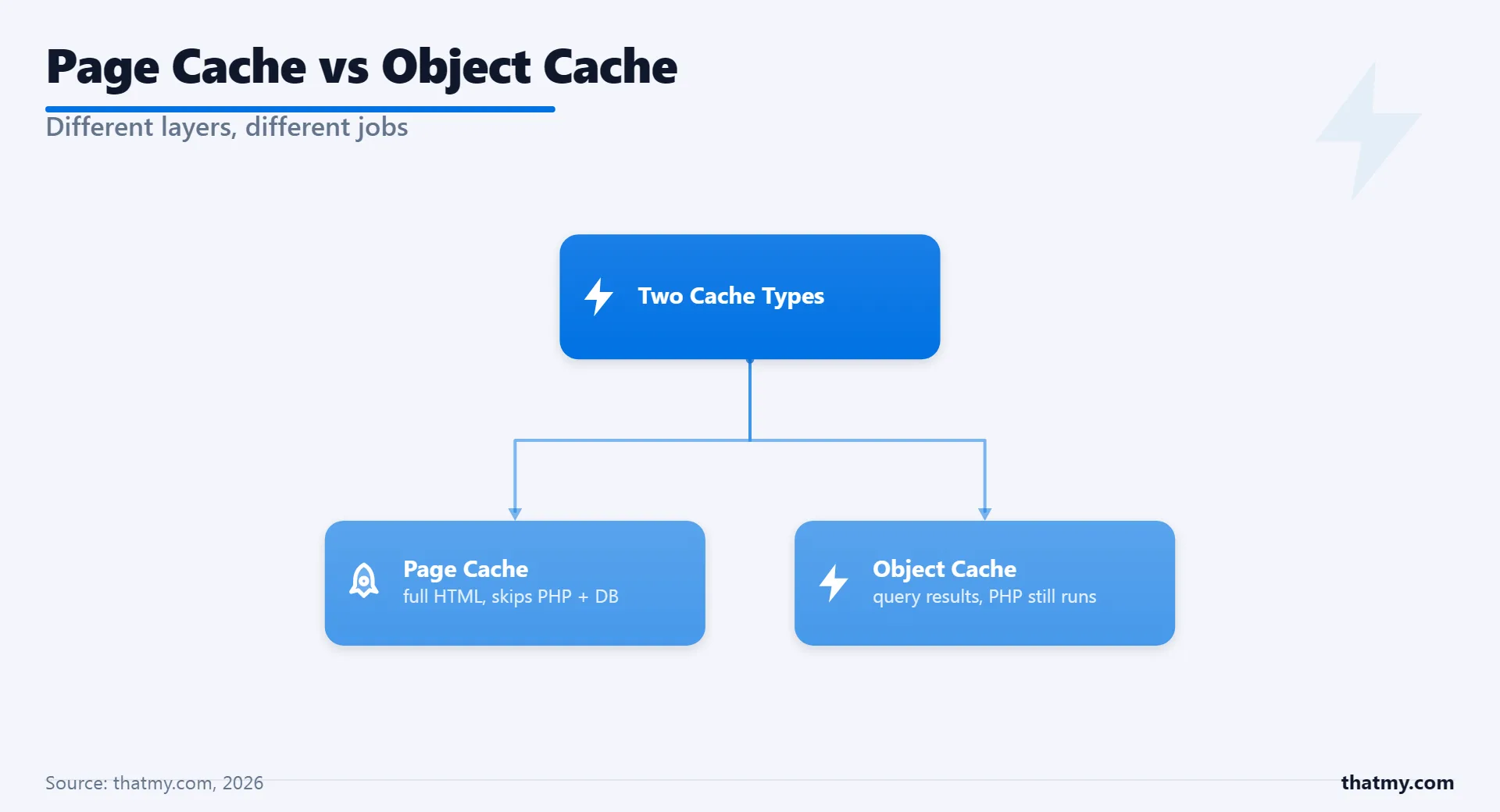
Page Cache
- What it eliminates: All PHP execution, all database queries, all WordPress bootstrap for cached pages
- Speed gain: TTFB drops from 200-2000ms to 10-50ms
- Works on: Public, non-personalized pages, blog posts, static pages, product pages for logged-out visitors
- Fails on: Cart pages, checkout, account pages, any page with user-specific content
- Storage: Disk files or RAM (depends on plugin)
- Typical TTL: Until next content publish or manual purge
Best for: Content sites, blogs, informational pages, product pages for unauthenticated visitors
Object Cache
- What it eliminates: Repeated database queries, repeated API calls, expensive computed values
- Speed gain: Individual query time drops from 10-200ms to under 1ms per cached object
- Works on: Any page, including personalized, authenticated, dynamic pages
- Fails on: Nothing, it is additive. But does not eliminate PHP overhead.
- Storage: Redis or Memcached (RAM-based)
- Typical TTL: Seconds to hours, per cache key
Best for: WooCommerce stores, membership sites, logged-in users, pages that cannot use page cache
The Combination That Actually Wins
The confusion comes from treating these as an either/or choice. They are complementary. A complete WordPress cache strategy uses both: page cache handles logged-out visitors (the majority of traffic for most sites), object cache handles logged-in users and dynamic pages. The page cache absorbs 80-95% of your traffic load. The object cache makes the remaining 5-20% (authenticated users, cart sessions, WooCommerce queries) significantly faster.
Here is how the combination works in practice for a WooCommerce store. A first-time visitor lands on a product page. Page cache serves the pre-rendered HTML in 30ms. That visitor adds to cart. Now WooCommerce sets a session cookie. Every subsequent page load for that visitor bypasses page cache. Object cache steps in: when WordPress looks up product availability, user metadata, or navigation menus, these values are pulled from Redis in microseconds instead of queried from MySQL. The page is still generated by PHP, but it is generated much faster because the expensive operations are cached at the object level.
The CDN Layer: What a Content Delivery Network Caches and What It Cannot Fix
A CDN (content delivery network) is layer 2 of the stack above: a network of servers, called edge nodes or PoPs (points of presence), that keep copies of your files close to your visitors. A visitor in Paris gets your images from an edge node in Paris or Frankfurt instead of from your server in Dallas. That is the whole mechanism. A CDN speeds up the delivery of responses that are already fast to produce; it does not make a slow server produce them any faster. Keep that one distinction in mind and every CDN decision gets easier.
How a CDN request flows
With Cloudflare or any other reverse-proxy CDN in front of a site, one request goes through five steps:
- DNS. Your domain resolves to the CDN's address, not your server's. The visitor never learns your origin IP.
- Edge selection. Anycast routing sends the connection to the nearest edge node by network distance, and the TLS handshake finishes there, a short hop away, instead of at your server.
- Cache lookup. If the edge holds a fresh copy, it answers at once. That is a cache HIT, and your server is never contacted.
- Origin pull on a MISS. If the edge has no copy, or its copy has expired, it fetches the file from your server (the origin) across the full distance and stores it under the rules in your Cache-Control headers.
- Delivery. The edge sends the response to the visitor. The next visitor in the same region gets the stored copy at step 3.
Everything a CDN is worth happens at step 3. A CDN that answers most requests from the edge takes most of the load and most of the distance away; one that misses most of the time adds a hop and saves little. The hit ratio depends on what you serve: static files with long lifetimes hit again and again, pages built for one visitor never do. It is the same HIT and MISS decision as in the cache lifecycle, made at the edge.
Edge cache statuses and the headers that control them
A CDN caches what your server's response headers allow it to cache. A site can have a CDN "set up" and still cache nothing, because every response carries Cache-Control: no-store and the CDN obeys it. Every CDN reports what it did in a response header (CF-Cache-Status on Cloudflare, CDN-Cache on Bunny CDN, X-Cache on CloudFront and most Varnish setups), with one of these values:
- HIT: served from the edge; your server was not contacted.
- MISS: no copy at this edge yet; fetched from your server and stored.
- EXPIRED or REVALIDATED: the copy had passed its lifetime, so the edge asked your server whether it changed (If-None-Match or If-Modified-Since). A 304 Not Modified answer resets the lifetime without downloading the file again.
- BYPASS: a rule told the edge to skip the cache, usually because of a login or cart cookie, a Set-Cookie response or an Authorization header.
- DYNAMIC (Cloudflare): the response was not eligible for caching, which is what HTML gets by default when no cache rule or APO covers it.
Two directives set the edge lifetime apart from the browser's. max-age applies to every cache, the browser included; s-maxage applies only to shared caches such as a CDN and overrides max-age there. Cache-Control: max-age=3600, s-maxage=86400 keeps a file at the edge for a day and in the browser for an hour, so a CDN purge reaches every visitor within the hour.
| Header | What it does | Use it for |
|---|---|---|
| Cache-Control: max-age=31536000 | Cache for one year, in the browser and at the edge | Files with a hash in the name (main.a3f8d.css): a deploy changes the name |
| Cache-Control: max-age=86400 | Cache for one day | Images and fonts that rarely change and have no versioned name |
| Cache-Control: s-maxage=3600 | Edge keeps it for an hour; the browser follows max-age | Giving the CDN a different lifetime from the browser |
| Cache-Control: no-cache | Store it, but check with the origin before every reuse | Pages that may change, where a quick 304 check is acceptable |
| Cache-Control: no-store | Never store it anywhere | Cart, checkout, account pages, anything with user data |
| Cache-Control: stale-while-revalidate=60 | Serve the old copy for up to 60 seconds while fetching a fresh one | Busy pages where a short stale window beats a slow MISS |
| Surrogate-Control: max-age=86400 | Edge-only lifetime (Fastly, Varnish); browsers ignore it | Overriding Cache-Control at the CDN only |
| Vary: Accept-Encoding | Store separate copies per compression | Keeping gzip, Brotli and uncompressed copies apart |
The tiers compound. A returning visitor whose browser copy is still fresh makes no request at all. A new visitor gets the file from the nearest edge. Only when both the browser copy and the edge copy are missing or expired does the request reach your server, and that one fetch then serves every later visitor in the region. Set the lifetime by how the file is named: a file with a hash in its name gets a year, because the next deploy gives it a new name; images without versioned names get days to weeks; HTML belongs at the edge only when a full-page cache with purge on publish stands behind it, such as Cloudflare APO.
What a CDN fixes and what it does not
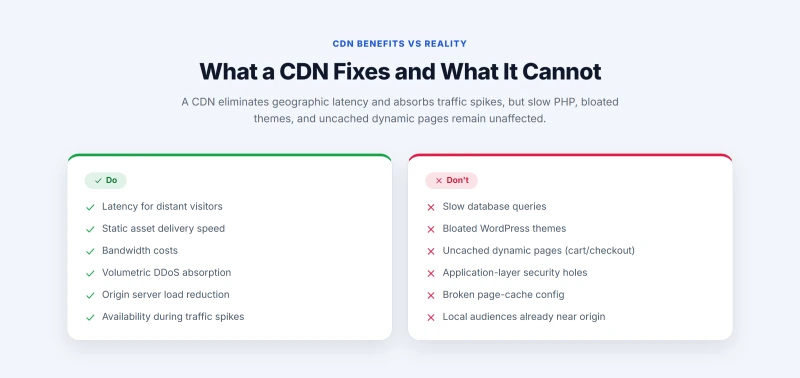
A CDN fixes distance. Visitors far from your server get images, CSS, JavaScript and fonts from a nearby edge, which is where most of the gain on an image-heavy page comes from. It also takes load and bandwidth off your server: every HIT is a request your plan never sees, which matters on a shared plan with CPU limits or a metered bandwidth allowance, and it keeps the site up when a post goes viral, because the origin only sees the MISS share of the spike. Behind a reverse-proxy CDN your origin IP is hidden, and a volumetric DDoS flood hits the CDN's network instead of your server's uplink.
A CDN does not fix anything that happens on your server before the first byte leaves it. If WordPress needs two seconds to build a page because of slow queries, too many plugins or a heavy theme, the CDN delivers that page after the same two seconds, from closer. A heavy page is just as heavy from an edge node. Pages that bypass the cache (cart, checkout, account, anything for a logged-in user) go to your server every time. Application-layer attacks that look like normal requests, such as login floods or scrapers hitting uncached search pages, pass straight through unless rate limiting or WAF rules stop them. And a site whose visitors live near its server gains little on latency, because the distance was already short.
The one exception: a page cache at the edge
Cloudflare APO, or a cache rule that stores HTML, does make a slow WordPress site answer fast, because the edge returns a stored copy of the page and PHP never runs. That is the page cache doing the work on CDN hardware, not the CDN's delivery. It has the same limits as any page cache: logged-in users and active carts still go to your server.
CDN and Core Web Vitals
Of the three Core Web Vitals, a CDN moves one directly. LCP (Largest Contentful Paint) is usually a hero image, and an image from a nearby edge arrives sooner. TTFB is not a Core Web Vital, but it is the first part of LCP, and it only drops at the edge when the HTML itself is cached there (APO or an HTML cache rule). INP is about JavaScript on the main thread and CLS is about layout shifts; delivery speed changes neither. Core Web Vitals come from field data of real Chrome users, so the gain shows in proportion to how much of your audience is far from your server.
Static vs dynamic content: why WooCommerce stores cache less at the edge
A static response is the same bytes for every visitor: an image, a stylesheet, a font, a PDF. A CDN caches it with no special setup. A dynamic response is built for one visitor: a cart, a checkout, an account page. No CDN can share it. A normal WordPress page sits in between: it is the same for every logged-out visitor, so it can be cached at the edge, but only with a full-page edge cache and a purge on publish.
- Cached with no setup: images, CSS, JavaScript, web fonts, PDFs, static video files.
- Cached with a full-page edge cache: posts, pages, and shop and product pages for logged-out visitors with no cart.
- Never cached: cart, checkout, my-account, order confirmation, wp-admin, and authenticated REST API calls.
WooCommerce sets session cookies (woocommerce_cart_hash, woocommerce_items_in_cart, wp_woocommerce_session_*) as soon as a shopper adds to cart, and most CDN setups bypass the HTML cache for every request that carries them. From then on that shopper's pages come from your server, while images and CSS still come from the edge. Logged-in WordPress users carry a wordpress_logged_in_* cookie with the same effect, so a membership or course site where most visitors are logged in gets almost nothing from HTML caching at the edge. The fix there is a cached page shell with the personal parts loaded by JavaScript after the page arrives. The exclusion list every cache needs is in cache invalidation, and on these sites the object cache does the work the edge cannot.
Cloudflare: proxied vs DNS-only, and the SSL mode to use
Cloudflare is where most WordPress sites meet a CDN, because its free plan includes the CDN, unmetered DDoS protection and a basic WAF. Each DNS record in Cloudflare is either proxied (orange cloud) or DNS-only (grey cloud), and the CDN only exists for proxied records.
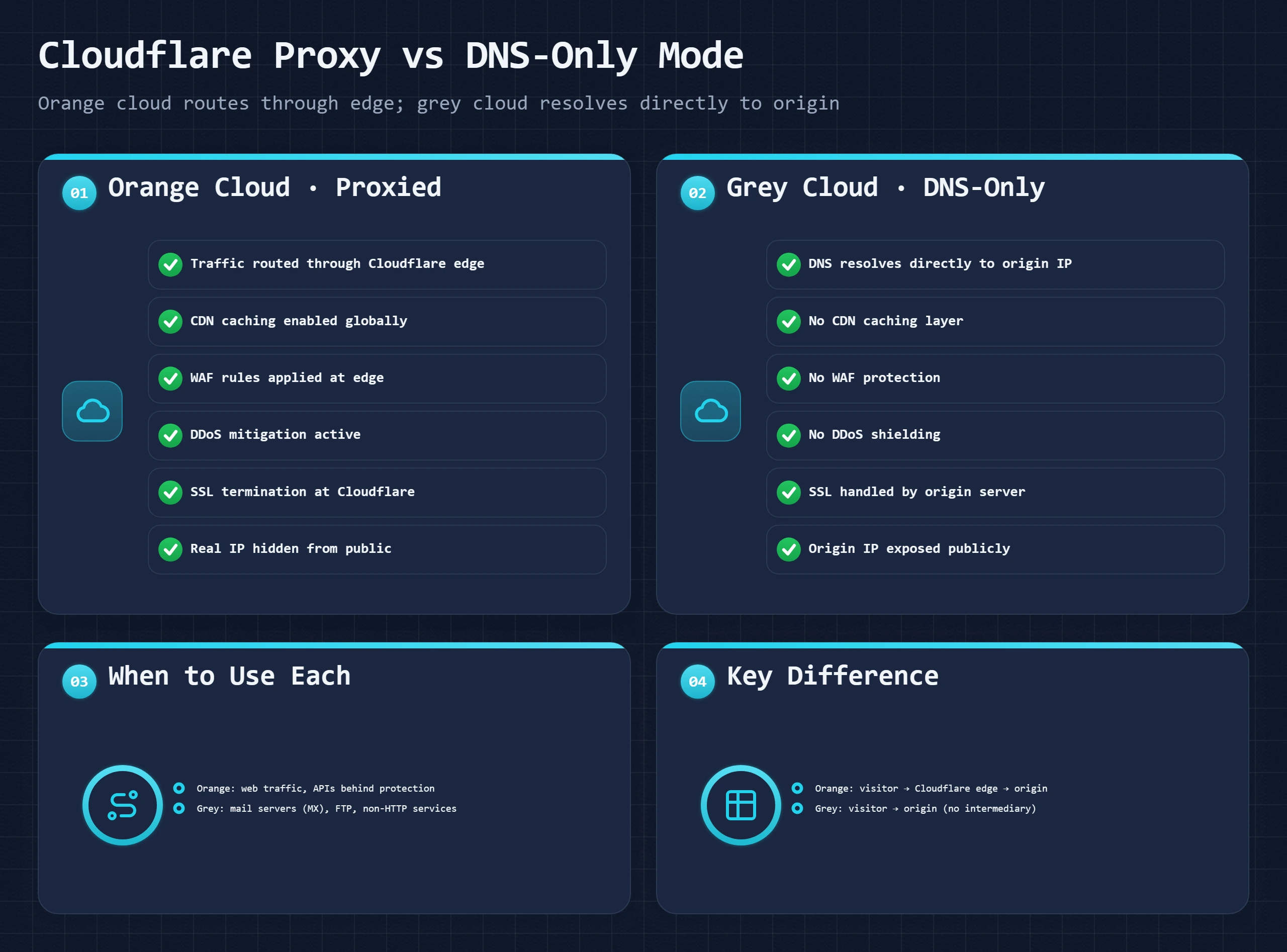
- Proxied (orange cloud): Cloudflare answers DNS with its own addresses and every request passes through its edge, where caching, WAF rules, DDoS protection and rate limiting apply. Your origin IP stays hidden. Use it for the website itself: the root domain and www.
- DNS-only (grey cloud): Cloudflare answers with your server's real address and traffic goes straight to it: no cache, no WAF, no DDoS protection. Use it for anything that is not web traffic, such as mail hostnames, FTP and SSH; MX records cannot be proxied at all. The record types are explained in DNS records.
With the proxy on there are two encrypted connections, visitor to Cloudflare and Cloudflare to your server, and the SSL/TLS mode decides the second one:
- Flexible: HTTPS to the visitor, plain HTTP from Cloudflare to your server. The padlock shows, but the second leg is unencrypted, and a WordPress site that forces HTTPS often ends up in a redirect loop. Avoid it.
- Full: HTTPS on both legs, but Cloudflare accepts any certificate on your server, self-signed or expired included.
- Full (strict): HTTPS on both legs with a valid certificate on your server, either from a public authority (cPanel AutoSSL, Let's Encrypt) or a free Cloudflare Origin Certificate, which Cloudflare issues for up to 15 years. Use this one.
The free plan covers most sites. Pro, at $20/month billed yearly, adds Cloudflare's full managed WAF ruleset and image optimization (Polish) and includes APO, which costs $5/month on its own on the free plan. One rule in Cloudflare's terms is worth knowing before you count on "unmetered": the CDN is meant for web pages and their assets, and serving mostly video or large file downloads through it requires Cloudflare's paid video or storage products.
Putting Cloudflare in front of WordPress
- Add the domain to a free Cloudflare account and check the DNS records it imports against your host's zone, mail records above all.
- Change the nameservers at your registrar to the two Cloudflare gives you. The switch usually takes effect within a few hours.
- Make sure your server has a valid certificate (cPanel AutoSSL, or Let's Encrypt on a VPS), then set SSL/TLS to Full (strict).
- Turn on Always Use HTTPS and Automatic HTTPS Rewrites; the second fixes mixed-content warnings from old
http://asset links. - For HTML caching, either turn on APO with the official Cloudflare plugin, which purges a page when you publish it, or keep your host's or plugin's page cache and let Cloudflare serve the assets.
With a pull CDN other than Cloudflare, nothing changes in DNS: WP Rocket, LiteSpeed Cache and W3 Total Cache rewrite your asset URLs to the CDN's hostname (often a cdn. subdomain), and the CDN fetches each file from your server on first request.
Pull, push and reverse-proxy CDNs
Three designs cover almost every site. A pull CDN fetches each file from your server the first time someone asks for it and keeps it, so the cache fills itself; the cost is that the first visitor after a deploy or purge waits for the origin. A push CDN is storage you upload to, with no origin pull at all; it suits large downloads and media archives that rarely change. A reverse-proxy CDN, Cloudflare's design, sits in front of the whole domain, so it caches assets, can cache HTML and filters attacks in the same pass, at the price that every setting applies to the whole site. Image CDNs, which resize and convert to WebP or AVIF at the edge, and video CDNs, which stream, are specialist versions of the same idea.
Which CDN: the one your host includes, Cloudflare, or pay per GB
Before you buy one, check your plan. Many managed hosts include a CDN: Kinsta's plans list a CDN bandwidth allowance, WP Engine includes a global CDN on every plan, Elementor Host runs on Cloudflare Enterprise, and GoDaddy's managed WordPress plans list one too. A host CDN is set up for that host's page cache and purges with it, which is the least work. Otherwise the choice is between Cloudflare's flat plans and a CDN billed per gigabyte served:
| CDN | List price | Type | Fits |
|---|---|---|---|
| Cloudflare | Free; Pro $20/month billed yearly | Reverse proxy | Most WordPress sites: CDN, DDoS protection and WAF in one nameserver change |
| Bunny CDN | $0.01 per GB in Europe and North America | Pull zones and storage zones | Cheap delivery for image-heavy sites behind a cache plugin's CDN rewrite |
| KeyCDN | $0.04 per GB for the first 10 TB in Europe and North America | Pull and push zones | Simple pay-as-you-go asset delivery |
| Amazon CloudFront | $0.085 per GB after the free 1 TB a month | Pull, built into AWS | Sites already running on AWS |
Per-GB prices change by region, so price your own traffic in the provider's calculator. Fastly sits at the developer end: it purges a URL from every edge almost instantly and is configured in code, which suits news sites and large stores more than a typical WordPress install.
Checking a CDN: stale files, bypasses and cache keys
Read the headers before you change any setting. The curl workflow further down works for the CDN too; one check is specific to it, comparing the edge's copy with your server's.
# What the edge returns: cache status and how long the copy has been stored
curl -sI https://yourdomain.com/wp-content/themes/yourtheme/style.css \
  | grep -i "cf-cache-status\|cdn-cache\|x-cache\|^age\|etag"

# What your server returns, skipping the CDN (origin IP from your hosting panel)
curl -sI --resolve "yourdomain.com:443:ORIGIN.IP.HERE" \
  https://yourdomain.com/wp-content/themes/yourtheme/style.css | grep -i "etag\|last-modified"

# Different ETags mean the edge holds an old copy. Purge that URL, then expect
# MISS on the next request and HIT on the one after.
A static file that shows BYPASS or MISS on every request is usually sent with a Set-Cookie or Cache-Control: no-store header by a plugin or the server; fix the header, not the CDN. Cloudflare's Development Mode, which skips the cache for three hours, is for checking one change, not a way of working: if you reach for it often, purge per URL on deploy instead.
Best WordPress Cache Plugins Compared
There are six plugins worth considering. Four of them are the right choice for four very different situations. Install the wrong one and you either pay for features your server cannot use, or you leave your best performance layer unconfigured. The choice is not about which is "best", it is about which fits your server and your site type.
| Plugin | Price | Key Features | Auto CDN Purge | Important Caveat |
|---|---|---|---|---|
| WP Rocket | $59/yr (1 site) | Page cache, CDN, minify, lazy load, database cleanup, cache preloading | Yes (with Cloudflare plugin) | No, paid only. Best all-in-one for non-LiteSpeed hosts. |
| LiteSpeed Cache | Free | Page cache, object cache, CDN, image optimizer, critical CSS | Yes, built-in | Only on LiteSpeed/OpenLiteSpeed web servers. Fastest on compatible hosts. |
| FlyingPress | $99/yr (1 site) | Page cache, Redis object cache, CDN integration, above-the-fold CSS | Yes, built-in | Best performance-per-feature ratio for modern optimized setups. |
| W3 Total Cache | Free / $99/yr Pro | Page cache, object cache, DB cache, CDN, browser cache, minify | Yes (with plugin) | Most complex configuration. Most flexible. Easiest to misconfigure. |
| WP Super Cache | Free | Page cache only (static files or PHP mode) | No, manual only | Simple and reliable. No minification, no CDN, no object cache. Good for low-complexity sites. |
| Cloudflare (APO) | $5/mo add-on | Full HTML page cache at Cloudflare edge, auto-purge on publish | Built-in (it IS Cloudflare) | Not a WordPress plugin per se, requires Cloudflare plugin. Caches pages at CDN edge, not on-server. |
WP Rocket: The Paid Plugin Most Sites Should Choose
WP Rocket is not the cheapest option, but it is the one that works correctly with no configuration for most WordPress setups. The defaults are sane. The WooCommerce exclusions are pre-configured. The CDN integration with Cloudflare purges cache automatically on publish. I recommend WP Rocket for any WordPress site on an Apache or Nginx host that does not run LiteSpeed. At $59/year for a single site, it costs less than an hour of developer time spent debugging a misconfigured free plugin. One caveat: WP Rocket does not manage object cache. Pair it with the Redis Object Cache plugin separately if your host supports Redis.
LiteSpeed Cache: The Fastest Free Option (With a Critical Requirement)
LiteSpeed Cache is the single most powerful free cache plugin available, but it requires LiteSpeed web server to unlock the features that make it special. On a LiteSpeed host, it manages page cache at the server level (not PHP level), object cache via Redis, image optimization, critical CSS generation, and CDN configuration from a single plugin. On an Apache or Nginx host, most of these features are disabled. Before installing LiteSpeed Cache, check your server type in cPanel or by running curl -sI yourdomain.com | grep -i server. If the Server header shows LiteSpeed, install LiteSpeed Cache. If it shows Apache or Nginx, install WP Rocket or FlyingPress instead.
FlyingPress: The Best Performance-Per-Dollar Paid Option
FlyingPress launched in 2020 and has quietly become the most technically sophisticated paid cache plugin. Its critical CSS generation is faster than WP Rocket's. Its Redis object cache integration is built in and requires no separate plugin. Its page caching logic handles edge cases like WooCommerce exclusions more granularly than most competitors. At $99/year for a single site, it is more expensive than WP Rocket's single-site price. The price is worth it for performance-focused developers managing complex WordPress setups on non-LiteSpeed hosts who want everything in one plugin.
W3 Total Cache: Maximum Flexibility, Maximum Complexity
W3 Total Cache can do more than any other free plugin. Page cache, database cache, object cache, browser cache, minification, CDN integration, varnish integration, fragment cache, it handles every layer. The problem is that it requires you to configure each layer correctly. The default settings are often wrong, and the typical failures stack up: page cache enabled with the cache directory on a RAM-limited tmpfs mount, CDN URLs configured for a pull zone that was never created, and minification switched on for a page builder that writes inline CSS, which breaks the layout. The plugin has free tier and a Pro version at $99/year for commercial features like New Relic integration and fragment caching. Use it only if you are comfortable reading documentation and testing each setting.
Cloudflare APO: Not a Plugin, an Architecture Decision
Cloudflare APO is not a traditional cache plugin. It is a Cloudflare Worker that caches full WordPress HTML pages at Cloudflare's edge globally. The WordPress plugin that enables it handles cache purge signaling only. This matters because APO solves a problem no on-server cache plugin can: geographic latency. A cached page served from a Cloudflare edge node in Mumbai to an Indian visitor arrives in 15ms. The same page served from a cached file on your Texas server takes 250ms for physics alone. APO costs $5/month on the Cloudflare free plan or is included in Cloudflare Pro. For any site with significant international traffic, APO is the highest-impact cache investment per dollar available.
Object Cache Deep Dive: Redis vs Memcached for WordPress
The object cache conversation always collapses to "Redis or Memcached?" The honest answer: Redis. Not because Memcached is bad, but because Redis has one property that makes it categorically more reliable for WordPress specifically: persistence. Memcached loses everything in RAM when the server restarts. Redis does not. For a WooCommerce store, losing the object cache on every server restart means a cold-start database hammering on your busiest traffic periods. After a restart during a traffic spike, you are back to querying MySQL for every transient, every menu, every product availability check. Redis warms back up from its persistent store. Memcached starts from scratch.
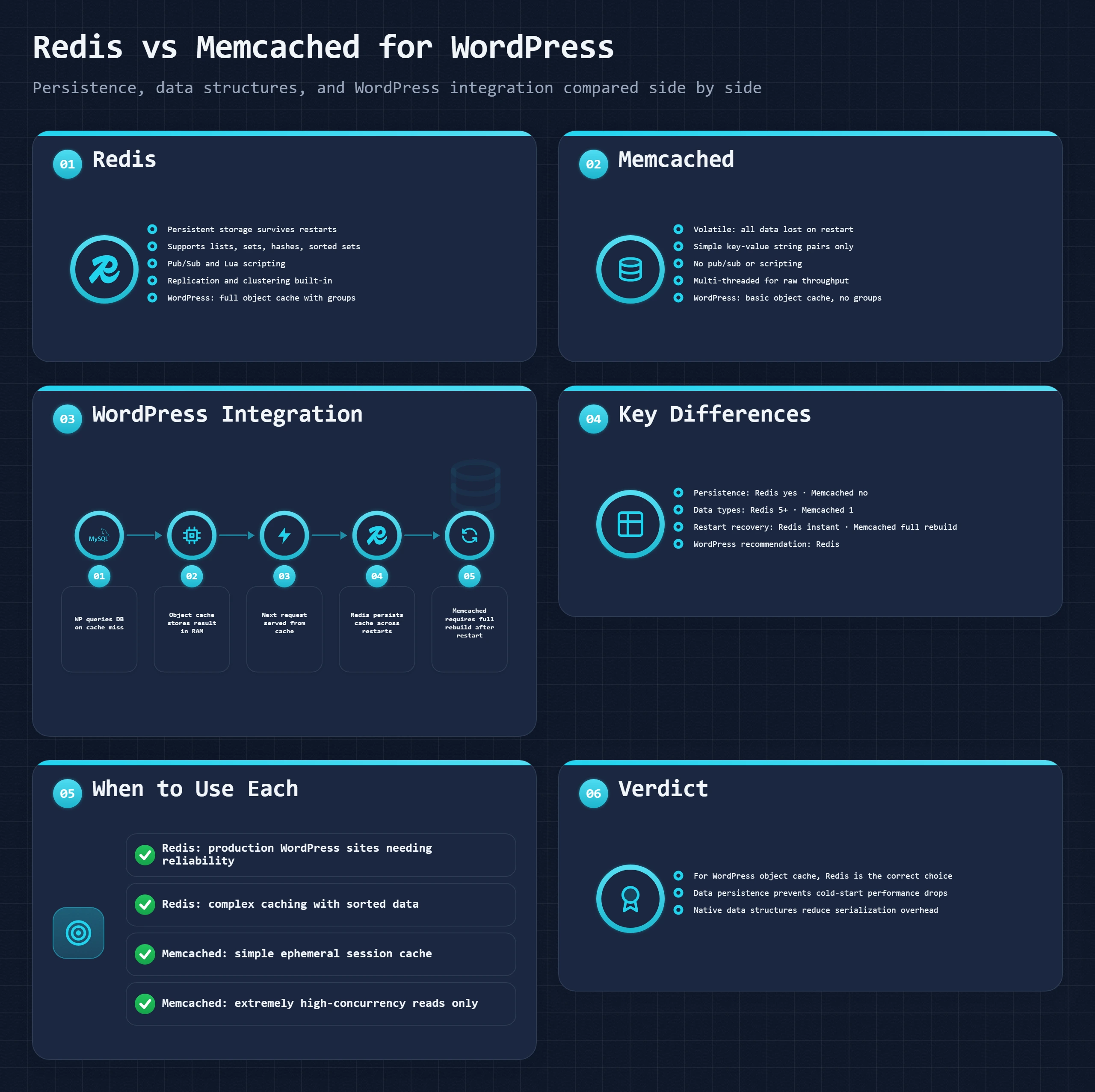
| Feature | Redis | Memcached | My take |
|---|---|---|---|
| Data persistence | Yes, survives server restart (RDB/AOF) | No, lost on restart | Redis wins for WordPress: transients survive restarts |
| Data structures | Strings, lists, sets, hashes, sorted sets | Strings only (key-value) | Redis more flexible for complex cached objects |
| Max value size | 512 MB per key | 1 MB per key (default) | Large cached objects may exceed Memcached limit |
| Multi-threading | Single-threaded (Redis 6+ has some multi-thread I/O) | Multi-threaded | Memcached can be faster under extreme parallelism |
| WordPress plugin | Redis Object Cache (Tillman Bauknecht) or Object Cache Pro | W3 Total Cache or WP-CLI dropin | Redis has better WordPress ecosystem support |
| Memory efficiency | Higher (metadata per key) | Lower (leaner structure) | Memcached uses ~30% less RAM per key |
| Clustering | Redis Cluster (built-in) | External sharding only | Redis scales out more cleanly |
| Hosting availability | ScalaHosting, Cloudways, Kinsta, WP Engine | Some shared hosts (less common) | Redis more widely available on managed WordPress hosts |
| Recommended for WordPress | Yes, first choice | Only if Redis unavailable | Redis is the correct choice for WordPress object cache |
Setting Up Redis on WordPress
Redis availability varies by host. ScalaHosting and Cloudways both include Redis on their plans. Kinsta, WP Engine, and Pagely manage Redis automatically as part of their WordPress environment. On a VPS where you have root access, Redis installs in minutes:
# Install Redis
sudo apt install redis-server -y

# Verify Redis is running
redis-cli ping
# Expected: PONG

# Check Redis version
redis-cli --version

# In WordPress, install the Redis Object Cache plugin:
wp plugin install redis-cache --activate

# Enable the object cache dropin:
wp redis enable

# Verify connection:
wp redis status
After enabling Redis, verify it is actually serving cache hits rather than sitting idle. The Redis Object Cache plugin's dashboard shows hit/miss ratios in real time. A healthy WordPress install with Redis should see 60-90% hit ratios on object cache within minutes of enabling it on a site with real traffic.
Object Cache Pro vs the Free Redis Plugin
The free Redis Object Cache plugin (by Tillman Bauknecht) is the standard WordPress Redis integration and works correctly for most sites. Object Cache Pro is a paid alternative ($95-$450/year depending on tier) built specifically for high-traffic WordPress and WooCommerce sites. The meaningful technical differences: Object Cache Pro uses a persistent connection per PHP worker (rather than reconnecting per request), supports Redis Cluster for high-availability setups, and has more granular per-group TTL controls. For sites under a few hundred concurrent users, the free plugin is sufficient. For WooCommerce stores handling hundreds of concurrent active shoppers, Object Cache Pro's connection handling is measurably better under load.
When Object Cache Does Not Help
Object cache is useless if page cache is serving the request. A cached HTML page bypasses PHP entirely. There is no object cache lookup because PHP never runs. Object cache is also not helpful for queries that are inherently uncacheable, queries that return different results based on user session data, real-time inventory, or time-sensitive pricing. Cache what is cacheable, and accept that some data must always go to the database. The goal is not to cache everything. It is to identify the expensive operations that run repeatedly and cache those specifically.
PHP OPcache Internals: The Cache Layer Most People Never Think About
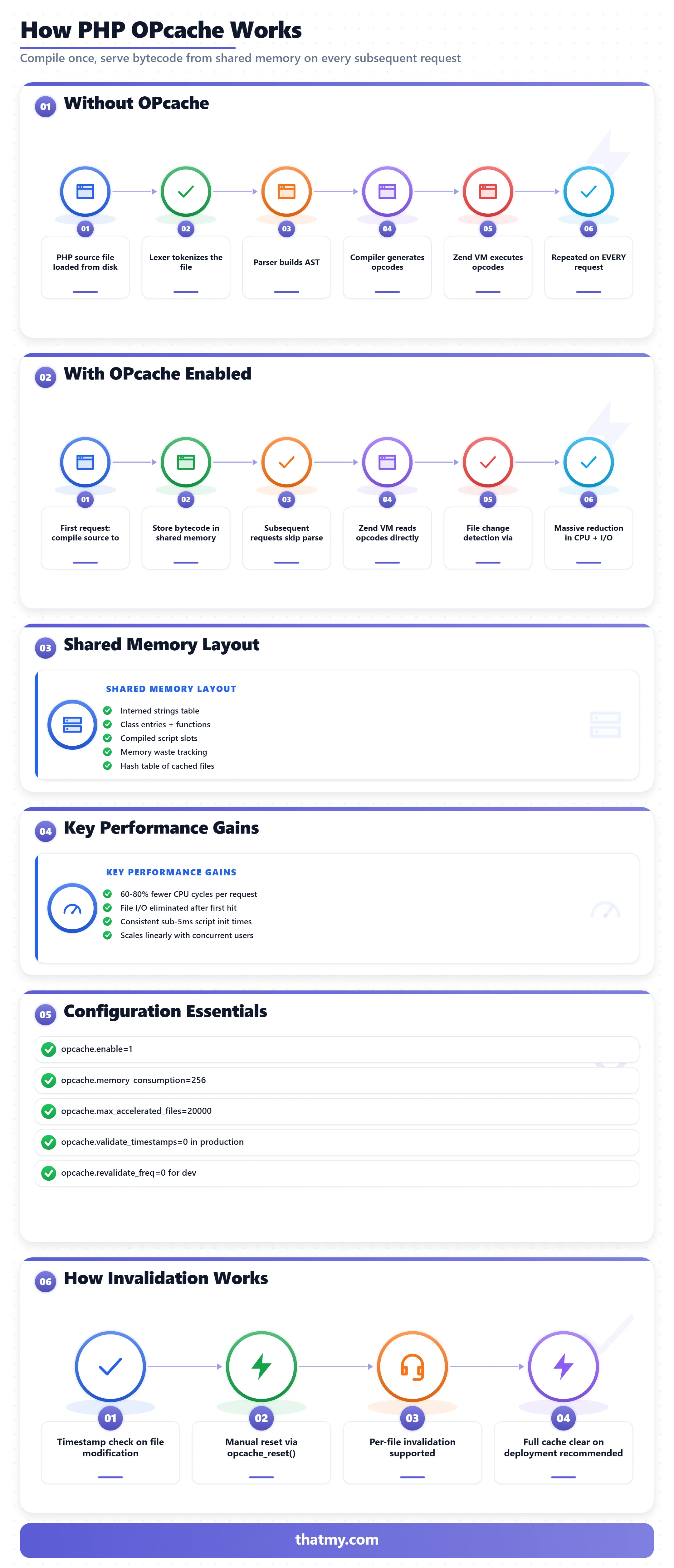
OPcache is the only cache layer in this guide that you almost certainly did not configure and are already benefiting from, because most quality hosts enable it by default. But "enabled" and "configured correctly" are different things, and the difference is visible in TTFB.
What OPcache Actually Does
PHP is an interpreted language. Without OPcache, every PHP file your WordPress install touches during a request goes through four steps: read from disk, tokenize (lex), parse into an abstract syntax tree, compile to opcodes, execute. A WordPress page load touches 100-200 PHP files. Without OPcache, these first four steps happen for every file on every request. With OPcache, the compiled bytecode is stored in shared memory after the first compilation. Subsequent requests skip steps one through four and execute the already-compiled bytecode directly from RAM.
The practical impact on a WordPress site with 20 active plugins: PHP compilation time per request drops from 40-120ms to near zero. This improvement compounds with page cache (which eliminates PHP entirely for cached pages) and object cache (which reduces database round trips). OPcache is not a substitute for page cache, it is a multiplier on every request that PHP does execute.
The Configuration Settings That Actually Matter
; Enable OPcache
opcache.enable=1

; Memory allocated for compiled code (in MB)
; 128-256 MB is appropriate for most WordPress installs with many plugins
opcache.memory_consumption=256

; Max number of files that can be cached
; Default 10000 is too low for complex setups; set to 20000+
opcache.max_accelerated_files=20000

; Check for file changes every N seconds (0 = never check, requires manual reset)
; Set to 0 on production, 1-2 on staging
opcache.validate_timestamps=0

; Reuse memory after cache fills up
opcache.revalidate_freq=0

; String interning memory (set to 16 MB)
opcache.interned_strings_buffer=16

; Recommended: enable for production
opcache.fast_shutdown=1
The most impactful single setting is opcache.validate_timestamps=0. When set to 1 (the default), PHP checks each cached file's timestamp on every request to see if the file changed. On a server with hundreds of PHP files, these stat() syscalls add up. Setting this to 0 tells OPcache to trust its compiled cache indefinitely. The tradeoff: you must manually reset OPcache after deploying code changes. For most WordPress sites that update via the admin dashboard, this reset happens automatically via the plugin API.
How to Verify OPcache Is Working
# Basic OPcache status
wp eval 'print_r(opcache_get_status(false));'

# Look for these key values in the output:
# opcache_enabled => 1 (it is on)
# memory_usage.used_memory => should be well below memory_consumption setting
# opcache_statistics.hits => increasing on repeated calls
# opcache_statistics.misses => should decrease as cache fills

# Alternative: use PHP's built-in function directly
wp eval 'var_dump(function_exists("opcache_get_status"));'
# Returns bool(true) if OPcache is available
After verifying OPcache is enabled and configured, one more thing to check: whether opcache.memory_consumption is set high enough that the cache is not full. A full OPcache evicts older entries and recompiles them, which creates random performance degradation that looks like an intermittent slow server. If memory_usage.used_memory is above 85% of memory_consumption, increase the allocation.
Cache Invalidation: The Hardest Part of Caching That Nobody Explains Properly
Phil Karlton famously said there are only two hard things in computer science: cache invalidation and naming things. He said this because cache invalidation has a fundamental tension: the longer you cache something, the faster your site is, and the longer visitors might see outdated content after you change it. Every caching decision is a choice about where on this spectrum to land.
Stale Cache: When Fast Content is Wrong Content
Stale cache is a cached response that no longer reflects the current state of your content. You update a product price. The old price is cached. Visitors see the wrong price for the next 30 minutes until TTL expires. You fix a typo in a blog post. The corrected version does not appear until the cache clears. For a personal blog, stale cache for 30 minutes is acceptable. For a WooCommerce store running a flash sale, stale cache for 30 minutes can mean customers see the wrong price, add to cart, and reach checkout to find the price changed. That is a conversion killer.
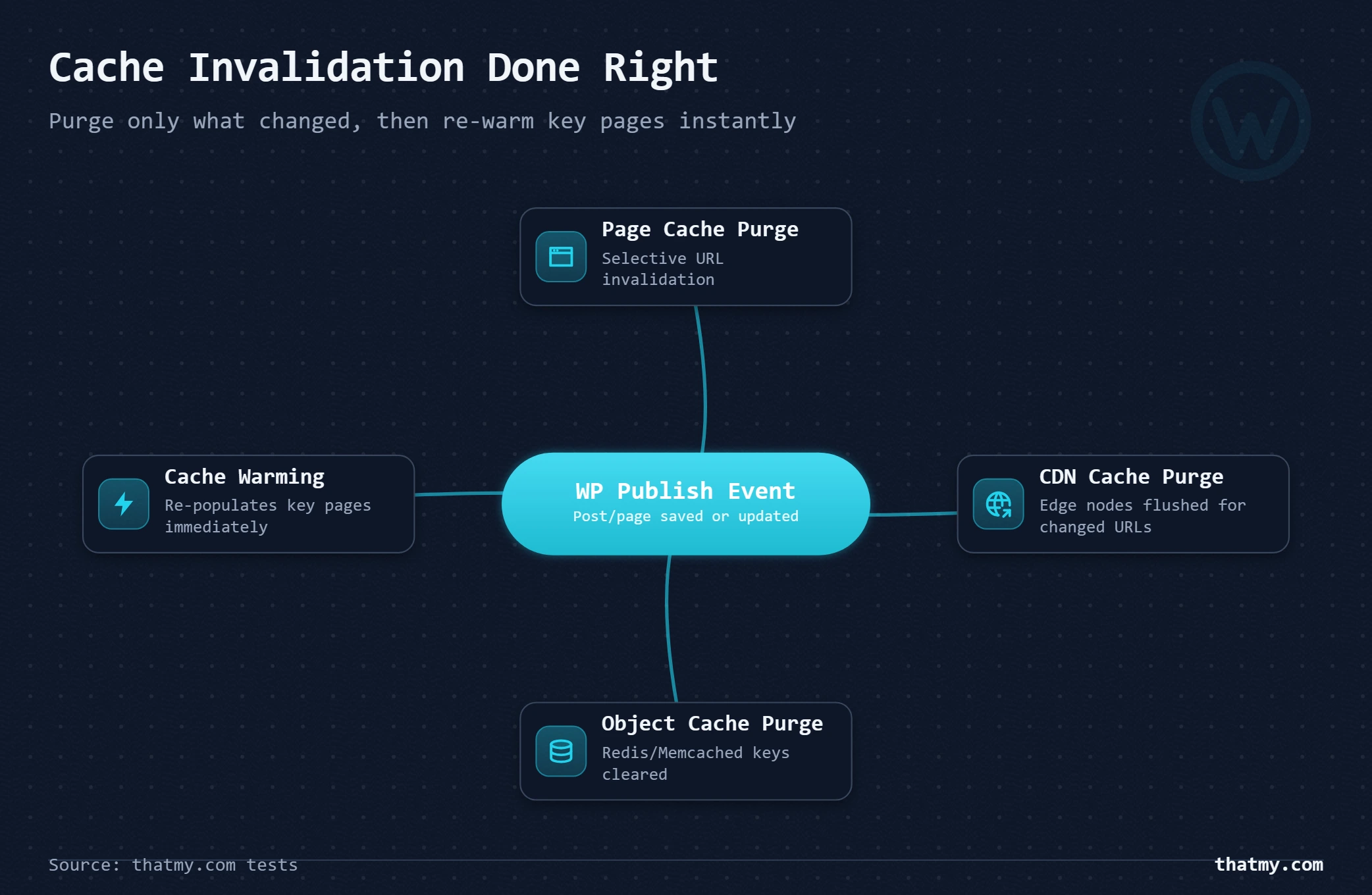
The solution is not to turn off caching. It is to configure targeted invalidation: clear only the specific URLs affected by a content change, immediately after the change. This is what WP Rocket's cache purge-on-update does. This is what LiteSpeed Cache's event-triggered purge does. A "clear entire cache" approach on every post save is lazy invalidation, it solves the stale content problem by destroying your entire cache hit ratio after every small update.
The Correct Invalidation Strategy by Site Type
On plugin update: Purge all cache.
On theme update: Purge all cache + clear browser cache via query string versioning on assets.
On price change: Immediate purge of affected product pages.
On stock change: Purge product page if "In Stock / Out of Stock" displayed in cached HTML.
Cart, checkout, my-account: Never cache, add to exclusion list permanently.
wordpress_logged_in_* cookie.Public marketing pages: Cache normally with standard TTL.
Mixed pages (public + member state): Cache the HTML shell; load personalized elements via AJAX after page load.
Cache Warming: Making Purge Painless
The problem with smart invalidation is the first request after purge. That request triggers full PHP and database execution on a cold cache, delivering your worst possible response time to the first visitor after each update. On a small site with 20 pages, this is barely noticeable. On a site with 5,000 pages where you clear the entire cache on a plugin update, you have 5,000 cold pages waiting to hammer your server simultaneously as the next morning's traffic arrives.
Cache warming solves this by crawling your pages programmatically after a purge, before real traffic arrives. WP Rocket's preloader crawls your sitemap immediately after any cache clear. FlyingPress warms on schedule and on-demand. LiteSpeed Cache can be configured to crawl after purge events. The correct setup: purge targeted URLs, immediately re-warm them by requesting them with a crawler, so the next real visitor always gets a cache HIT.
WooCommerce Dynamic Exclusions in Practice
The standard WooCommerce cache exclusion list that every major plugin pre-configures:
URLs to exclude from page cache:
/cart/
/checkout/
/my-account/
/order-received/
/add-to-cart/
/wc-api/
/?wc-ajax=*

Cookies that trigger cache bypass:
woocommerce_cart_hash
woocommerce_items_in_cart
woocommerce_recently_viewed
wp_woocommerce_session_*
wordpress_logged_in_*

Note: /shop/ and /product/* can be cached for logged-out visitors
without the above cookies. These are the high-traffic pages that
benefit most from page cache.
The decision on product pages requires nuance. Product pages can be cached for unauthenticated visitors without cart cookies. But if your product pages show dynamic elements like "X people viewing this," real-time stock counts, or personalized recommendations, those specific elements must be loaded via JavaScript after the cached page loads rather than embedded in the cached HTML.
Common Cache Problems and Exactly How to Fix Them
Almost every cache problem falls into one of two categories: cache is serving content it should not (wrong content to wrong user), or cache is not serving content it should (constant MISS, defeated cache). Both are diagnosable in under five minutes with the right approach. This section is the troubleshooting reference.
| Problem | Root Cause | Fix |
|---|---|---|
| Logged-in users see cached pages | Page cache not excluding authenticated sessions | Ensure cache plugin excludes wordpress_logged_in_* cookie from caching |
| Admin bar visible on cached page | Public cached version captured admin bar in HTML | Purge cache after logging out; configure plugin to exclude admin bar markup |
| Stale CSS or JS after theme update | Browser or CDN cached old asset versions | Clear CDN cache; enable asset versioning (query string or filename hash) |
| WooCommerce cart shows wrong items | Cart page getting cached despite session content | Add cart, checkout, my-account URLs to cache exclusion list in plugin settings |
| Checkout broken or empty after cache | Checkout page cached without session awareness | Exclude checkout URL from page cache; verify woocommerce_cart_hash bypass rule |
| Plugin conflict causes 500 error | Two cache plugins writing conflicting object-cache.php dropin | Deactivate all cache plugins; reinstall one at a time; check wp-content/ for stale dropin files |
| Cache never hits (always MISS) | Cache-Control: no-store set by origin or plugin | Check response headers with curl -sI; look for Set-Cookie on cacheable pages |
| Cache cleared on every page load | Plugin set to no-cache TTL, or another plugin purges on save | Check cron jobs; review plugin settings; check for aggressive security plugins intercepting requests |
Diagnosing Any Cache Problem With curl
Before touching any plugin settings, run this first. It tells you exactly what your server is returning and whether any cache layer is active.
# Step 1: Check cache status headers for any URL
curl -sI https://yourdomain.com/any-page/

# Key headers to look for:
# CF-Cache-Status: HIT / MISS / BYPASS / DYNAMIC (Cloudflare)
# X-Cache: HIT / MISS (Nginx, Varnish)
# X-LiteSpeed-Cache: hit / miss (LiteSpeed)
# X-WP-Rocket: served (WP Rocket)
# Age: [seconds] (how long this response has been in cache)

# Step 2: Check what Cache-Control your server sends
curl -sI https://yourdomain.com/ | grep -i "cache-control\|x-cache\|cf-cache"

# Step 3: Check whether cookies are causing bypass
# Test the same URL with and without WooCommerce cookies
curl -sI https://yourdomain.com/shop/ \
  --cookie "woocommerce_cart_hash=ANYTHING" | grep -i cache

# If status changes to BYPASS with cookie present, WooCommerce bypass is working correctly
# If status is BYPASS without cookie, something else is causing bypass (check Cache-Control header)

# Step 4: Verify page source for cache markers (WP Rocket specific)
curl -s https://yourdomain.com/ | tail -20
# Look for
Logged-In Users Seeing Cached Content
This is the most dangerous cache failure mode. A logged-in admin edits a draft, and a public visitor sees the draft because the cache did not differentiate between the authenticated request and the public one. This should not be possible with any properly configured cache plugin, but it happens when someone disables the "exclude logged-in users" setting or sets up a custom cache rule that overwrites the default bypass logic.
Fix: Verify your cache plugin's bypass settings include wordpress_logged_in_* in the cookie bypass list. Test by logging in, viewing a page, logging out in a different browser, and confirming the logged-out version looks correct. Never test cache behavior while logged in to WordPress admin, you are always getting the bypassed, uncached version.
The Admin Bar on Cached Pages Problem
This happens when a page is cached while an administrator was logged in and the admin bar was visible. The cached HTML includes the admin bar markup, and public visitors see the WordPress admin bar on the live site. This is a configuration error: the cache was not excluding logged-in users when the capture happened, or a plugin forced a cache rebuild while an admin was active.
Fix: Clear all page cache. Verify logged-in user exclusion is active. Rebuild cache by visiting pages while logged out. If using WP-CLI: wp cache flush followed by wp rocket clean (if using WP Rocket).
Plugin Conflicts: The Stale dropin Problem
When you switch from one cache plugin to another, the old plugin's object-cache.php and advanced-cache.php dropins in wp-content/ may remain. The new plugin tries to install its own dropins. Two plugins' dropins coexist. The result ranges from a site that silently serves incorrect cache to PHP fatal errors on every request.
# Check for dropin files
ls -la wp-content/advanced-cache.php
ls -la wp-content/object-cache.php

# If dropins exist from an old plugin you've deactivated:
# Delete them (after verifying your new plugin is active and will recreate them)
rm wp-content/advanced-cache.php
rm wp-content/object-cache.php

# Then let your active plugin recreate them:
# WP Rocket: deactivate and reactivate the plugin
# Redis Object Cache: wp redis disable && wp redis enable
# LiteSpeed Cache: go to LiteSpeed Cache > Manage > Enable Object Cache
Where to Go Next
Caching is the performance layer that sits in the middle of your entire infrastructure stack. To the left of caching is your hosting environment: the server quality, PHP-FPM pool size, MySQL buffer pool, and network latency that determines how fast your cache misses resolve. To the right is your asset delivery: whether images are optimized, whether JavaScript is deferred, whether the CDN is delivering static files from edge nodes close to your visitors.
The TTFB guide breaks down every millisecond of server response time and explains exactly which optimization fixes each phase. If your page cache is working correctly but TTFB is still above 300ms, the TTFB guide will identify which non-cache layer is the bottleneck. The CDN section above covers how page cache and CDN cache interact, why Cloudflare APO caches WordPress pages at the edge rather than just assets, and when CDN hit ratios drop because of WooCommerce sessions. For the underlying server infrastructure that determines how fast cache misses resolve, the web hosting infrastructure guide explains CPU, RAM, disk I/O, and database configuration in detail. If you are running WooCommerce specifically, understanding database optimization alongside object cache is the next logical layer to address once caching is configured correctly.
WordPress Cache FAQ
Does WordPress cache automatically, or do I need a plugin?
WordPress has zero built-in page caching. Every page request triggers full PHP execution and database queries unless you add a caching layer. PHP OPcache (if your host has it enabled) caches compiled PHP bytecode automatically at the server level. But the page cache, object cache, and browser cache all require configuration. A plugin like WP Rocket, LiteSpeed Cache, or FlyingPress handles most of this with sensible defaults. On managed WordPress hosts (Kinsta, WP Engine, Cloudways, ScalaHosting), the host configures server-level page cache for you, but you still benefit from a plugin for browser cache headers and asset optimization.
What is the difference between page cache and object cache?
Page cache stores the complete rendered HTML output of a page as a static file. When the next visitor requests that page, the server returns the static file directly, skipping PHP execution and all database queries entirely. Object cache stores the results of individual expensive operations in memory: database query results, API responses, computed values, WordPress transients. Object cache still runs PHP and still builds the page, but saves time on the expensive operations within that process. Page cache is the bigger win for most sites. Object cache is critical for WooCommerce stores, membership sites, and any site where caching full pages is not possible because content changes per user.
Is LiteSpeed Cache free and does it work on all hosts?
LiteSpeed Cache is free, but it requires LiteSpeed web server or OpenLiteSpeed to use its most powerful features including page cache and object cache. On hosts running Apache or Nginx, LiteSpeed Cache still works for some features (browser cache headers, image optimization, minification) but the page cache engine is disabled. Hosts that run LiteSpeed include Hosting.com (formerly A2 Hosting), Hostinger (on some plans), and any cPanel host that has upgraded to LiteSpeed. If your host uses Apache or Nginx, WP Rocket or FlyingPress are the correct alternatives. Always confirm your server type before choosing a cache plugin.
How do I know if my WordPress cache is actually working?
Check the response headers for your site's pages. A properly cached page will have an X-Cache: HIT header (from Nginx or Varnish), a CF-Cache-Status: HIT header (from Cloudflare), or an X-LiteSpeed-Cache: hit header (from LiteSpeed). For WP Rocket, look for X-WP-Rocket in the response or check for a comment at the bottom of the page source like . The fastest diagnostic: run curl -sI https://yourdomain.com/any-page/ and look for cache status headers. If you see MISS on every request, caching is not working. If you see HIT on the second request, it is working correctly.
Should I use Redis or a file-based object cache for WordPress?
Redis is almost always faster for WordPress object cache than file-based alternatives. The reason is simple: RAM access is orders of magnitude faster than disk access. A Redis lookup takes microseconds. A file-based cache lookup requires disk I/O, even on NVMe. For most shared hosting plans where Redis is unavailable, file-based caching via W3 Total Cache's disk-enhanced mode is the practical alternative. But when your host supports Redis (ScalaHosting, Cloudways, WP Engine, Kinsta), enabling it is one of the highest-impact performance changes you can make for a WooCommerce store or any site with complex database queries.
How long should I set my cache TTL?
It depends on how often the content changes. For a static blog that publishes once a week, a 24-hour page cache TTL is reasonable. For a news site publishing hourly, a 30-minute TTL with auto-purge on publish is more appropriate. For WooCommerce product pages where prices or stock change frequently, a 10-30 minute TTL combined with auto-purge on product update is safer. For static assets like images and fonts, 1 year (31536000 seconds) is correct when using versioned filenames. The general principle: set TTL as long as you can tolerate stale content, then configure auto-purge to handle real content changes. A long TTL with smart purging is far better than a short TTL that keeps your cache permanently cold.
Why does my WooCommerce cart break when I enable page cache?
The cart breaks because a cache plugin is serving the same cached cart page to every visitor. Cart content is session-specific: it depends on what each visitor has added to their cart. When a cache plugin captures a page that includes the cart widget, it stores whatever was in the cart at capture time and serves it to everyone. The fix is excluding cart, checkout, and account pages from page cache. Every major cache plugin has a list of URLs and cookies that should bypass cache. For WooCommerce: exclude /cart/, /checkout/, /my-account/, and any URL where woocommerce_cart_hash or woocommerce_items_in_cart cookies are present. WP Rocket and LiteSpeed Cache handle WooCommerce exclusions automatically.