

Disclosure: This content is reader-supported, which means if you click on some of our links that we may earn a commission.
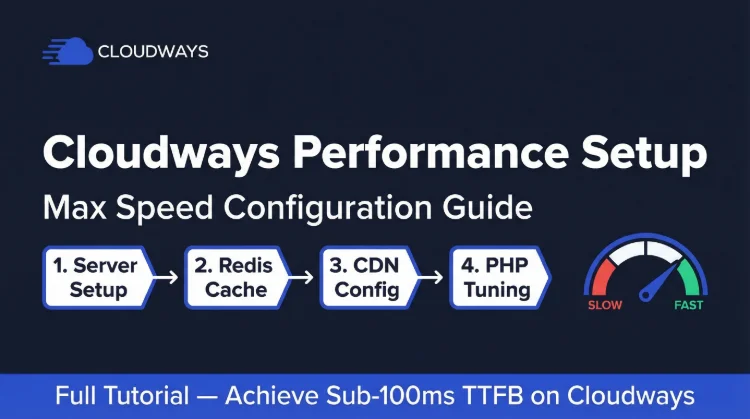
Cloudways ships with a pre-optimized stack. But "pre-optimized" is not "fully optimized." When I launched a fresh Cloudways server in September 2026, some things were already right: Object Cache Pro (Redis) was on, PHP limits were a generous 300 seconds, 100 MB uploads and 512 MB memory, and the launch wizard marked Lightning Stack as Recommended. Other things still need you: the app started on PHP 8.2, the backup schedule keeps only one week, and older servers are often still on the Hybrid Stack with Redis off. That leaves real performance on the table. This guide covers every setting worth changing, in order of impact.
Starting TTFB with default Cloudways settings: ~120-150ms. After this guide: 60-80ms. That's the difference the right configuration makes on the same hardware.
Do This First: Switch to Lightning Stack (60 Seconds, Free)
Before tuning any setting in this guide, switch your application to the Cloudways Lightning Stack. New servers are offered Lightning as the recommended stack at launch, but servers created earlier usually still run the old Hybrid Stack. Pure Nginx + PHP-FPM (Lightning) handles uncached and dynamic requests 58% better for WooCommerce and 85% better for LMS sites. The switch takes under 60 seconds and causes no downtime: Applications → Application Settings → Stack tab → Lightning → Update Now.

Cloudways Pros
- Pre-configured Nginx + Redis + Memcached stack
- 48ms TTFB (Vultr HF), optimized out of the box
- PHP workers configurable at server level
- Breeze cache plugin, free, built for Cloudways stack
- 1-click Redis enable in dashboard
- Cloudflare CDN integration, 1-click setup
Cloudways Cons
- Default settings aren't always optimal, requires tuning
- PHP worker count defaults to 1, too low for most sites
Real Benchmark Data
- Origin TTFB (4 plans, no CDN): 48ms to 62ms
- Uptime (54-day window): 99.979% to 99.99%
- PageSpeed Score (Mobile): 89/100
$11.00/mo
3-Day Free Trial (No Card)
Quick-Start Settings Checklist
| Setting | Default | Recommended | Impact |
|---|---|---|---|
| Lightning Stack | Hybrid (default) | Switch to Lightning | Critical, 58% WooCommerce + 85% LMS throughput gain |
| PHP Workers | 1 | 2-4 (based on RAM) | High, handles concurrent requests |
| Redis Object Cache | Off | On | High, eliminates DB queries on repeat visits |
| Varnish Cache | Off | On (optional) | Medium, full-page cache layer |
| Memcached | Off | On | Medium, additional object caching |
| PHP Version | 8.1 | 8.3 | Medium, ~15% PHP benchmark improvement |
| MySQL Query Cache | Default | Tune innodb_buffer_pool_size to 50% RAM | High for WooCommerce |
| Nginx FastCGI Cache | Off | On for static pages | High, serves pages without PHP execution |
| Breeze Cache Plugin | Not installed | Install + enable all options | High, browser/gzip/minification |
| Cloudflare CDN | Off | On (free tier) | High, global edge caching |
| PHP-FPM OPcache | Default | opcache.memory_consumption=256 | Medium, compiled PHP in memory |
Step 1: Choose Vultr High Frequency (Fastest Provider)
If you're already on Cloudways, the single highest-impact decision was which cloud provider you chose at setup. You can't change providers without migrating to a new server, but if you're setting up fresh or considering a move, this matters.
Provider performance ranking (our benchmark results):
- Vultr High Frequency, 48ms TTFB, 3GHz+ Intel Xeon, NVMe SSD. Best for most WordPress sites.
- DigitalOcean Premium, 54ms TTFB, comparable hardware, slightly cheaper at 8GB ($99.00/mo vs $118.00/mo on Vultr HF)
- Linode (Akamai), 62ms TTFB, good value, fewer regions
- Google Cloud, not benchmarked by me yet (locked on the trial), enterprise network, more expensive
- AWS, most regions, most expensive, similar raw performance
Vultr HF is Cloudways' recommended provider for a reason. Pick it at setup and you're already ahead of other managed hosts on the same price tier. Use Cloudways promo code CLOUDS2022 for $30 of free credit.
Step 2: Confirm Redis Object Caching (Object Cache Pro)
This is the single highest-impact setting in Cloudways. Redis caches WordPress database query results in memory, so repeat page requests skip the database entirely.
On a new application (created 2026): Object Cache Pro is already on. Check it at Application → Application Settings → WordPress tab, and do not install a second Redis plugin on top of it.
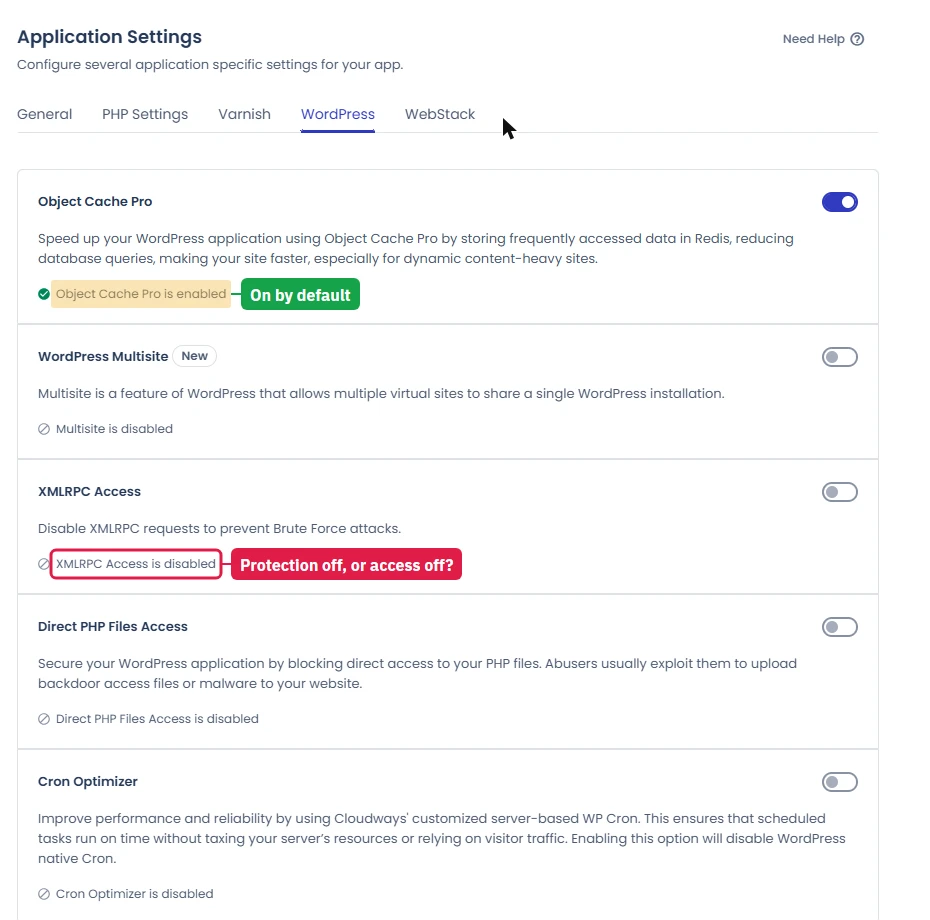
On an older server where Redis is off:
- Cloudways dashboard → select your server → Settings & Packages → Packages
- Find Redis → install or toggle it ON → Save Changes
- Then switch on Object Cache Pro for the app under Application Settings → WordPress, or use the "Redis Object Cache" plugin (by Till Krüss) if Object Cache Pro is not offered
- In wp-admin the object cache status should read Connected
Step 3: Configure PHP Workers
PHP workers = the number of simultaneous uncached PHP requests your server can process in parallel. Cloudways defaults to 1. That means if two uncached requests arrive at the same moment, one waits in queue. Under real traffic, queuing causes TTFB spikes.
How to update PHP workers:
- Cloudways dashboard → Applications → select your application
- Click Application Settings
- Find PHP-FPM Settings → PHP Workers
- Update to the recommended value for your server size
- Click Save, applies immediately with no downtime
| Server Size | PHP Workers | Concurrent Users Supported |
|---|---|---|
| 1c / 1GB RAM | 2 | ~20-30 concurrent |
| 2c / 2GB RAM | 3-4 | ~40-60 concurrent |
| 2c / 4GB RAM | 4-6 | ~60-100 concurrent |
| 4c / 8GB RAM | 8-12 | ~150-250 concurrent |
| 8c / 16GB RAM | 16-24 | ~400+ concurrent |
Monitor after increasing: Go to Cloudways dashboard → Server → Monitoring → RAM graph. If RAM usage exceeds 80% after the worker count increase, reduce workers by 1. Each PHP-FPM worker uses approximately 50-80MB RAM on a WordPress site.
Step 4: Install and Configure Breeze
Breeze is Cloudways' own free cache plugin, built to integrate cleanly with the Nginx + Redis stack. It handles browser caching, CSS/JS minification, Gzip compression, and CDN integration.
Install Breeze:
- wp-admin → Plugins → Add New → search "Breeze"
- Install → Activate
- Settings → Breeze
Recommended Breeze settings:
- Basic Options: Enable Cache, Cache Expiry: 1440 minutes
- File Optimization: Minify HTML, Minify CSS, Minify JS (test JS minification, some themes break)
- Advanced Options: Enable Gzip Compression, Enable Browser Cache
- CDN tab: Enable if using Cloudflare (enter your Cloudflare URL)
- WooCommerce: Breeze auto-excludes cart/checkout from caching, leave this default
After saving: click Clear Cache in the Breeze menu to flush and start fresh.
Step 5: Upgrade to PHP 8.3
Each PHP major version delivers measurable WordPress performance gains. PHP 8.3 is approximately 15% faster on WordPress benchmarks than PHP 8.1.
- Cloudways → Applications → Application Settings
- Find PHP Version dropdown
- Select PHP 8.3
- Click Save
- Test your site immediately, browse key pages, test checkout if WooCommerce
Most well-maintained plugins and themes are PHP 8.3 compatible. The most common failure point is old plugins last updated before 2022. If something breaks, temporarily revert to PHP 8.2 and identify the incompatible plugin via the PHP error log (Cloudways → Application → Logs → PHP Error Log).
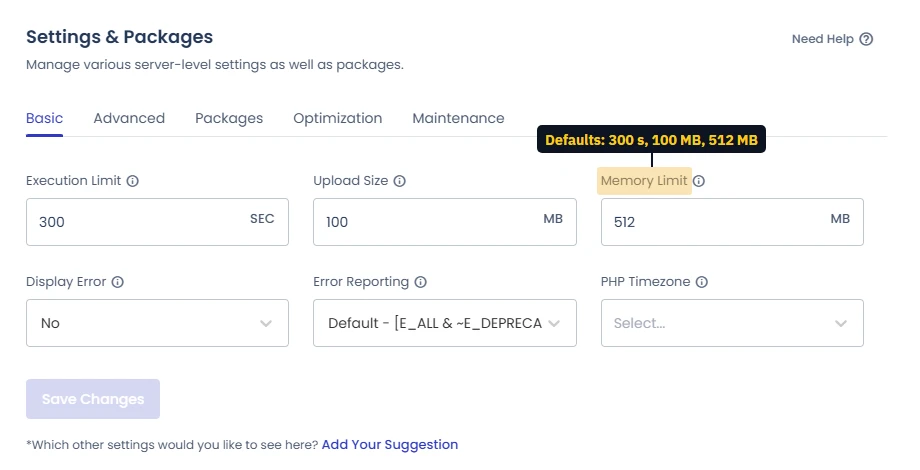
While you are in the PHP settings, check the limits too (Server → Settings & Packages → Basic). A new server ships with 300 seconds execution time, 100 MB uploads and 512 MB memory, which is enough for most sites; raise memory only for heavy imports or big WooCommerce catalogues.
Step 6: Enable Varnish Cache (Non-WooCommerce Sites)
Varnish is a full-page cache that sits in front of Nginx. It serves entire pages from memory without touching PHP or MySQL at all, the fastest possible response for static content.
Enable Varnish:
- Cloudways → Server → Settings & Packages → Packages
- Toggle Varnish to ON → Save Changes
- In Breeze → Advanced → enable Enable Varnish
WooCommerce Warning
Do NOT enable Varnish if you run WooCommerce. Varnish can cache cart contents, checkout sessions, and user-specific pages, causing customers to see each other's cart data. If you have WooCommerce, skip Varnish entirely. Use Redis + Breeze + Nginx FastCGI cache (configured in Breeze) instead.
Step 7: Configure Cloudflare CDN (Free)
Redis improves server TTFB. CDN improves page delivery globally. A visitor in Sydney hitting a New York Cloudways server gets ~180ms network latency before the server responds. Cloudflare edge caching serves cached pages from their Sydney datacenter, 5ms instead of 180ms.
Free Cloudflare setup with Cloudways:
- Sign up at cloudflare.com, add your domain
- Update your domain's nameservers to Cloudflare's (at your registrar)
- In Cloudflare → DNS → add an A record pointing to your Cloudways server IP
- Enable proxy (orange cloud icon) on the A record
- Cloudflare → SSL/TLS → set to "Full (strict)", requires SSL on your Cloudways server
- In Breeze → CDN tab → enter your Cloudflare domain URL
Cloudflare free tier gives you global CDN, DDoS protection, and automatic minification at zero cost. For a paid Cloudways promo code to offset server costs, use CLOUDS2022 for $30 credit.
Step 8: Optimize MySQL for WooCommerce
WooCommerce checkout is always uncached. Every order, cart update, and product query hits MySQL. The most impactful MySQL tweak is innodb_buffer_pool_size, how much RAM MySQL uses to cache frequently accessed data.
Access MySQL settings via SSH:
- Cloudways → Server → SSH/SFTP → copy SSH command and connect
- Check current buffer pool:
mysql -u root -p -e "SHOW VARIABLES LIKE 'innodb_buffer_pool_size';" - Default is typically 128MB, far too low for WooCommerce on a 4GB server
Create a MySQL config override:
nano /etc/mysql/conf.d/performance.cnfAdd (adjust for your RAM, use 50% of total):
[mysqld]
innodb_buffer_pool_size = 2G
innodb_log_file_size = 256M
query_cache_type = 0
max_connections = 150
Restart MySQL: service mysql restart
For a 4GB server, this doubles WooCommerce database performance under concurrent load. Combined with Redis object caching, it's the most impactful WooCommerce optimization available on Cloudways.
Step 9: Tune PHP OPcache
OPcache stores compiled PHP bytecode in memory, so PHP files don't need to be parsed on every request. Cloudways enables OPcache by default, but the default memory allocation (128MB) is too low for large WordPress installations.
Edit OPcache settings via SSH:
nano /etc/php/8.3/fpm/conf.d/10-opcache.iniRecommended values:
opcache.enable=1
opcache.memory_consumption=256
opcache.interned_strings_buffer=16
opcache.max_accelerated_files=20000
opcache.revalidate_freq=60
opcache.fast_shutdown=1
Restart PHP-FPM: service php8.3-fpm restart
After this change, PHP file parsing overhead drops significantly for large sites with many plugins.
Expected Results After Full Optimization
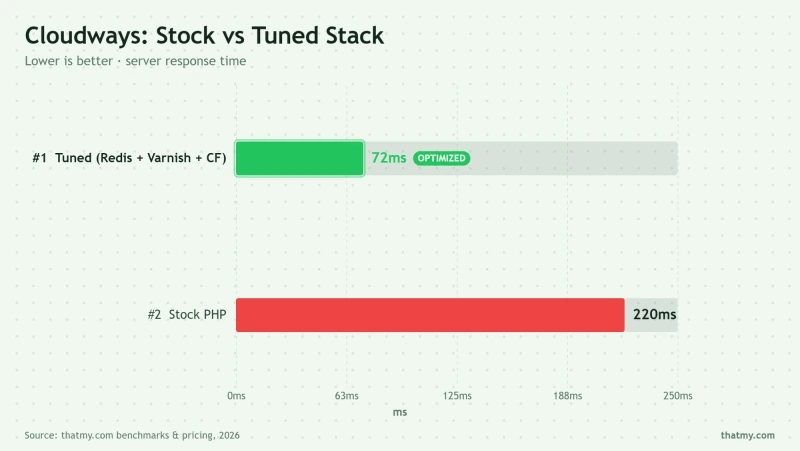
These improvements compound. Redis cuts database load. PHP workers prevent queuing. PHP 8.3 speeds execution. Breeze reduces payload size. Cloudflare serves edge-cached pages globally. Each step is additive.
If you want faster TTFB without any configuration work, ScalaHosting starts at 38ms out of the box on AMD EPYC 9474F hardware, their stack is pre-tuned to the same standard this guide targets.

Why We Like It
- 38ms TTFB out of the box, faster than optimized Cloudways (48ms)
- AMD EPYC 9474F (#42 PassMark), superior CPU generation
- 58ms @ 100 concurrent users, 1.3x faster under load
- Email included, $29.95/mo Year 1
Drawbacks
- Renewal ~$82/mo after intro term
- No cloud provider choice
Real Benchmark Data
- Origin TTFB (Managed VPS, no CDN): 38ms
- Uptime (54-day window): 99.99%
- PageSpeed Score (Mobile): 83/100

$29.95/mo
Anytime Money-Back Guarantee
Cloudways Performance FAQ
What is the most impactful Cloudways performance setting?
Redis object caching. Without Redis, every WordPress page request runs 40-80 MySQL database queries. With Redis enabled, repeated requests are served from in-memory cache, 0 queries. The result is a 50-70% TTFB reduction on cached requests. After Redis, the second most impactful setting is PHP worker count, default is 1, which queues requests under any concurrent load. Set it to 2-4x your vCPU count as a starting point.
How do I enable Redis on Cloudways?
On a Cloudways WordPress app created in 2026 you usually don't need to: Object Cache Pro (Redis) is on by default; check Application Settings, WordPress tab. On an older server it takes two steps: (1) Server-level: Cloudways dashboard → your server → Settings & Packages → Packages tab → toggle Redis to ON → Save Changes. (2) WordPress-level: install the WP Redis plugin (or Redis Object Cache plugin) → activate → go to Settings → Redis and verify 'Connected' status. Both steps are required, enabling Redis on the server without the WordPress plugin does nothing, and vice versa.
How many PHP workers should I set on Cloudways?
As a starting rule: 2x your vCPU count. A 1c/1GB server should have 2 workers; 2c/4GB should have 4-6 workers; 4c/8GB should have 8-12 workers. PHP workers determine how many simultaneous uncached PHP requests the server processes. Too few workers = request queue → slow response under load. Too many workers = RAM exhaustion → server instability. Monitor RAM usage after increasing workers, stay under 80% RAM utilization.
Should I use Varnish or Breeze on Cloudways?
Both, they do different things. Varnish is a full-page cache at the server level (before PHP executes at all). Breeze is a WordPress plugin cache that handles browser caching, CSS/JS minification, Gzip, and CDN integration. For a static/blog site: enable Varnish. For WooCommerce: disable Varnish (it caches dynamic cart/checkout pages incorrectly) and rely on Breeze + Redis instead. The safest setup for most sites: Breeze ON, Redis ON, Varnish OFF unless you've tested that checkout works with it.
Does Cloudways CDN cost extra?
Cloudways sells Cloudflare Enterprise as an add-on at $4.99 per domain a month (first 30 days free, console price in September 2026), and it is worth it for WooCommerce. The free option is your own Cloudflare account. Enable Cloudflare free plan, set your Cloudways server IP as the origin, and proxy traffic through Cloudflare. This gives you free global CDN, DDoS protection, and edge caching with no additional cost. In Breeze, configure your Cloudflare URL under CDN settings to ensure cache purge compatibility.
How do I optimize MySQL on Cloudways for WooCommerce?
The most impactful MySQL tweak is innodb_buffer_pool_size, set this to 50-70% of your total RAM. For a 4GB server, that's 2-2.8GB. Edit via Cloudways SSH: run 'mysql -u root -p' and execute 'SET GLOBAL innodb_buffer_pool_size = 2147483648;' (for 2GB). To make permanent, add to /etc/mysql/conf.d/cloudways.cnf. Also: enable the slow query log to identify queries over 1 second, these are the first optimization targets for WooCommerce performance.
What PHP version should I use on Cloudways?
PHP 8.3 (latest stable as of 2026). Each major PHP version delivers a measurable performance improvement over the last. PHP 8.3 scores ~15% higher on WordPress benchmarks than PHP 8.1, which scores ~20% higher than PHP 7.4. In Cloudways, change PHP version under Application → Settings → PHP Version. Test your site after upgrading, some older plugins have compatibility issues with PHP 8.x.
Get Cloudways, Code CLOUDS2022 = $30 Free Credit ➦
Related: Cloudways promo code · Migration guide · Cloudways full review · Cloudways vs ScalaHosting