
Web Hosting Server Hardware Explained: CPU PassMark, NVMe vs SSD, and Why Specs Lie

Hardware specs set the ceiling on how fast your site can ever be. The right theme, a good CDN, and optimized images cannot compensate for a bottlenecked CPU or a database running on spinning disk. But most hosting buyers make decisions based on spec numbers they have never had explained to them, and hosting companies sell those numbers without context because a larger number is easier to market than the truth about what it means under real load.
This guide connects server hardware specs to outcomes you can measure: TTFB, concurrent user capacity, crash behavior under load, and the failure modes that send sites down during their most important traffic moments. It also includes a hardware calculator that takes your actual site type, traffic, and operations and outputs what CPU, RAM, and storage configuration you should be looking for, and which hosting tier can deliver it.
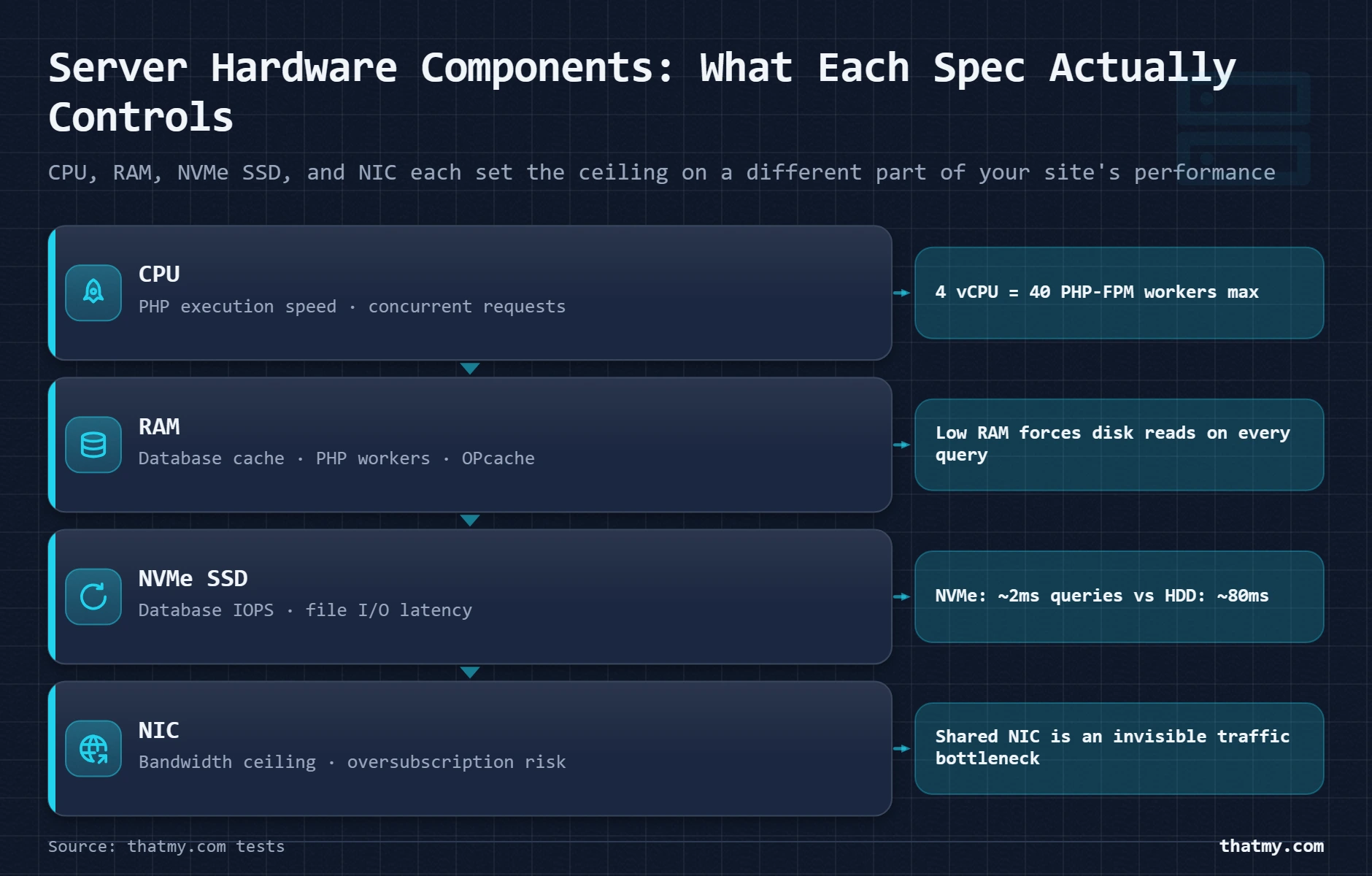
| Component | Primary Impact | What To Know |
|---|---|---|
| CPU | PHP execution time, concurrent request capacity | Clock speed matters for single-threaded PHP. Core count matters for concurrent visitors. |
| RAM | Database query caching, PHP process capacity, OPcache | Most shared hosting allocates too little RAM for MySQL to cache effectively. Swap kills performance. |
| NVMe SSD | Database read/write speed, TTFB on cache misses | IOPS matter more than sequential speed for WordPress. NVMe: 500k IOPS. SATA SSD: 50k IOPS. HDD: 100 IOPS. |
| SATA SSD | Same as NVMe, lower IOPS ceiling | Acceptable for most sites under 50k visits/month. Performance gap visible only on DB-heavy operations. |
| HDD | Too slow for web hosting database use | Read latency 5-10ms vs 0.02ms for NVMe. Avoid on any production WordPress setup. |
| NIC (Network Card) | Maximum bandwidth per server / per tenant | 1 Gbps NIC shared across 500 sites gives each site ~0.25 MB/s ceiling before oversubscription. |
| RAID configuration | Data redundancy and read/write speed multipliers | RAID 0 doubles write speed but zero redundancy. RAID 1 mirrors data. RAID ≠ backup in any configuration. |
Why Hardware Specs Actually Matter (And Why Most People Read Them Wrong)
A hosting plan with 4 vCPU, 4 GB RAM, and "SSD storage" sounds solid on paper. The same plan at a different host with 4 vCPU, 4 GB RAM, and "NVMe SSD storage" on a server with 10 tenants outperforms it by a measurable margin. A third host with 2 vCPU, 4 GB RAM, and NVMe storage but on a server with 50 tenants and no resource isolation may be worse than the first at peak hours.
The spec numbers are inputs. The outcome you care about is what those specs deliver under your specific workload, with your specific neighbor tenants, in your specific traffic pattern. Most hosting guides stop at the spec definition. This guide goes to the performance outcome, because that is the only number that matters when your site is under load and visitors are waiting.
The Three Scenarios Where Hardware Becomes the Problem
Hardware is invisible when it is sufficient. You notice it in three scenarios: a sudden traffic spike from a viral post or product launch where the server cannot absorb the concurrent load, a slow WooCommerce checkout that no plugin fixes because the database is on HDD and queries take 80ms instead of 2ms, and a site that performs fine at 9 AM but degrades every day at 2 PM because a neighbor on the shared server runs a scheduled task that consumes available CPU.
Each scenario has a different hardware cause and a different solution. Conflating them leads to buying more of the wrong thing. Buying extra CPU when the database is the bottleneck wastes money and solves nothing. The web servers guide covers the software stack that runs on this hardware. This guide covers the physical layer that determines the ceiling on everything above it.
The Bottleneck Principle
A chain performs at the speed of its slowest link. A server with 32 vCPU, 64 GB RAM, and a 10 Gbps NIC that has a database sitting on a 2013-era SATA HDD is bottlenecked at the HDD. Every fast component waits for the slow one. Before buying more of anything, identify which component is the actual limit. The diagnosis section of this page shows exactly how to do that.
CPU: Cores, Clock Speed, IPC, and What WordPress Actually Uses
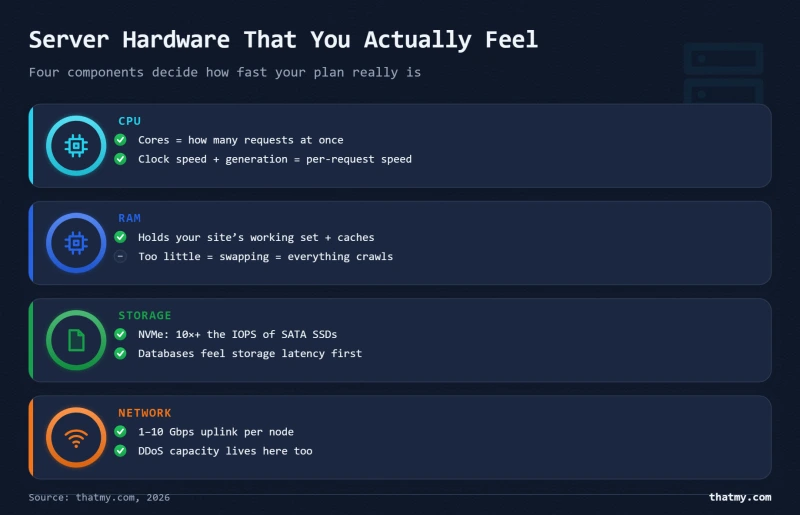
Most hosting pages show a core count and stop there. That single number hides three separate performance dimensions that affect WordPress differently: core count (how many PHP requests can run at once), clock speed (how fast each individual request executes), and IPC or instructions per clock (how efficiently the CPU architecture uses those clock cycles). They are not interchangeable, and optimizing one without the others produces diminishing returns.
Core Count and Concurrent Requests
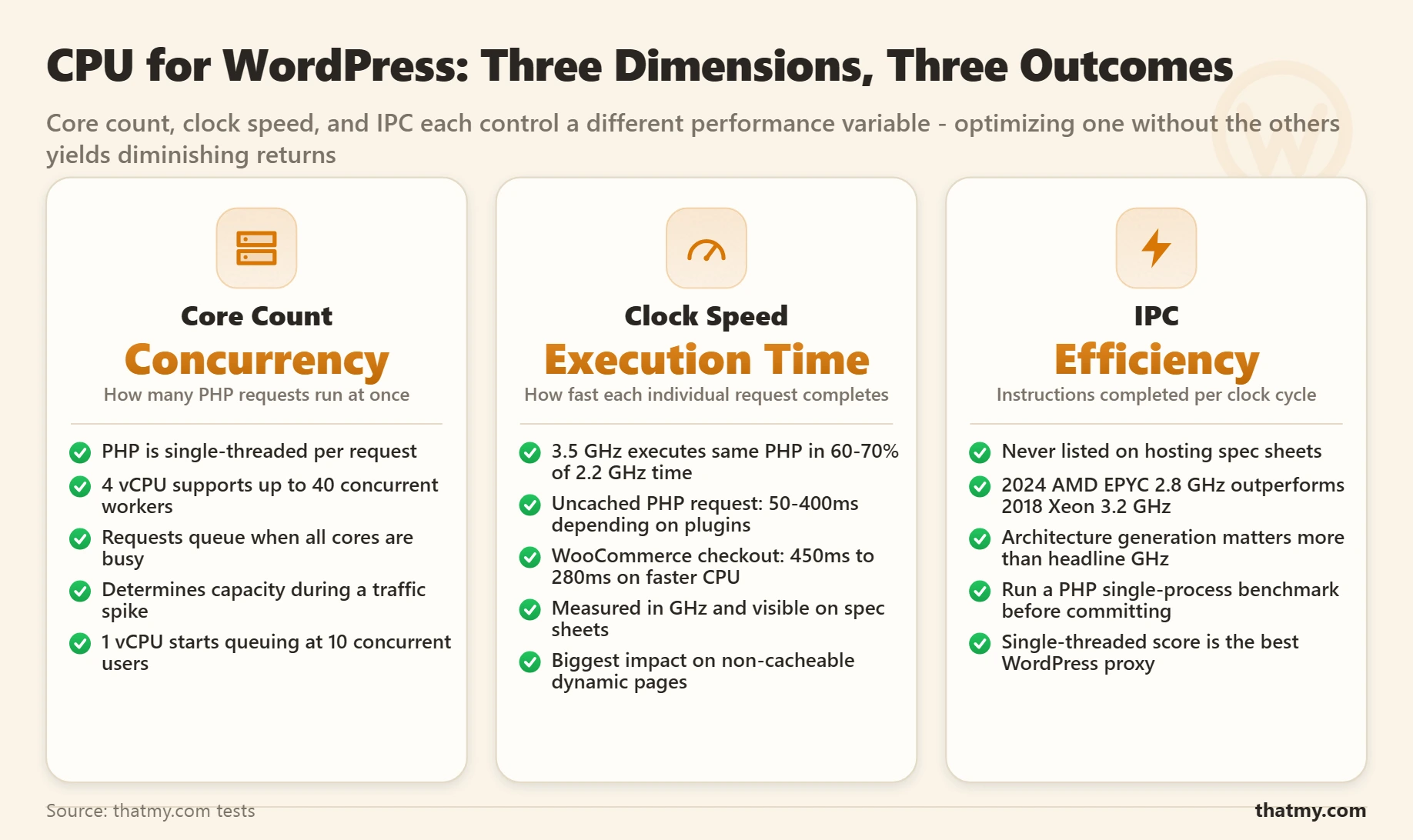
PHP is single-threaded per request. One PHP-FPM worker handles exactly one request at a time. When 20 visitors hit your WordPress site simultaneously, 20 PHP-FPM workers execute in parallel. If you have 4 vCPU and 20 workers, those workers share 4 vCPU. Each worker gets roughly 0.2 vCPU of time. When all 4 vCPU are busy, new requests queue behind them and wait.
Core count therefore determines your concurrent request ceiling. More cores means more PHP workers can run simultaneously without queueing. A 1 vCPU server running 10 PHP-FPM workers starts queueing requests at 10 concurrent visitors. A 4 vCPU server running 40 workers handles 40 concurrent visitors before queueing starts. This is the number that determines whether your site handles a traffic spike or falls over during it.
| Daily Traffic | Minimum vCPU | Recommended vCPU | Notes |
|---|---|---|---|
| < 500 visits/day | 1 vCPU | 1-2 vCPU | A simple blog with caching. PHP executes fewer than 20 requests/minute. Single vCPU handles this with headroom. |
| 500-5,000/day | 2 vCPU | 2-4 vCPU | Growing blog or small WooCommerce store. Cache miss rate increases as content variety grows. Concurrency spikes matter. |
| 5,000-50,000/day | 4 vCPU | 4-8 vCPU | Medium traffic site. Peak hours will stress a single vCPU setup. PHP-FPM pool needs headroom for concurrent checkout/form processing. |
| 50,000-200,000/day | 8 vCPU | 8-16 vCPU | High traffic requires load balancing consideration. Single VPS with 8+ vCPU or two smaller VPS behind a load balancer. |
| 200,000+/day | 16+ vCPU | Horizontal scaling | Past this threshold, vertical scaling hits diminishing returns. Multiple app servers with a shared cache layer is the correct architecture. |
Clock Speed and PHP Execution Time
Clock speed (measured in GHz) determines how fast each individual PHP request executes. A 3.5 GHz vCPU executes the same PHP code faster than a 2.2 GHz vCPU of the same architecture. For WordPress, PHP execution time per uncached request typically ranges from 50ms to 400ms depending on plugin complexity. A 3.5 GHz CPU executes that same workload in roughly 60-70% of the time a 2.2 GHz CPU takes.
Clock speed matters most for WooCommerce checkout and other non-cacheable operations. A product page that executes PHP for 300ms at 2.2 GHz takes around 200ms at 3.5 GHz. That 100ms difference shows up directly in TTFB and perceived page speed. I have seen WooCommerce checkout TTFB drop from 450ms to 280ms purely from moving to a provider with higher clock speed CPUs at the same core count.
IPC: The Spec Hosting Companies Never Show You
IPC stands for instructions per clock. Two CPUs running at 3.0 GHz can complete dramatically different amounts of work per second if one architecture executes 30% more instructions per clock cycle. IPC is why modern AMD EPYC and Intel Xeon processors from 2023-2025 outperform 2018-era processors at the same GHz. The hosting spec sheet never shows IPC because it requires knowing the CPU generation and architecture, not just the headline frequency.
The practical test: run a PHP benchmark (like php -r "echo number_format(sqrt(1000000), 2);" 1000 times and measure total time) on any hosting you evaluate before committing. PassMark scores are a useful starting point for CPU generation comparison, but they measure multi-threaded throughput. For WordPress, single-threaded performance scores (Cinebench single-core equivalents, or PHP single-process benchmarks) are more representative. A server running 2024-generation AMD EPYC processors at 2.8 GHz will outperform a server running 2018-generation Intel Xeon at 3.2 GHz for most PHP workloads because the IPC advantage more than compensates for the clock speed difference.
Burst vs Sustained CPU Performance
Burstable CPU instances are a legitimate product category at AWS, Google Cloud, and some VPS providers. You get full vCPU allocation for short periods but are throttled to a fraction of that for sustained load. A T3.micro on AWS has 2 vCPU but earns CPU credits at a rate that allows only 10% of a single vCPU when credits are exhausted. A WordPress site that gets a traffic spike drains credits fast. Once drained, PHP execution slows to a crawl and TTFB spikes from 200ms to 3+ seconds.
Cloudways uses dedicated vCPU allocation, the vCPU on their plans is not burstable. ScalaHosting's managed VPS plans also guarantee dedicated vCPU allocation. If you are evaluating a cloud provider directly (DigitalOcean, Linode, Vultr), choose their standard Dedicated CPU plans over Basic/Standard plans for any production WordPress site above 10,000 monthly visits. The price difference is modest. The performance consistency difference is significant.
Set PHP-FPM pm.max_children to: (available RAM for PHP) / (average PHP process size in MB). A 2 GB VPS leaving 1 GB for PHP, with average WordPress processes of 60 MB, should have pm.max_children = 16. Setting it higher than your RAM supports causes swap, which is catastrophic for performance. Setting it lower than your peak concurrent users causes 503 errors. The sweet spot is the formula, not a default value copied from a tutorial.
RAM: The Resource That Determines Whether Your Server Accelerates or Crawls
RAM is not storage for your files. It is the active workspace where every layer of your hosting stack operates simultaneously. MySQL keeps recently accessed database rows in RAM. PHP-FPM holds compiled bytecode in OPcache. Redis keeps object cache entries in RAM. The web server process runs in RAM. Every connection your site handles requires RAM somewhere. When demand exceeds supply, the operating system starts writing RAM contents to disk, a process called swapping. Swap is where server performance goes to die.
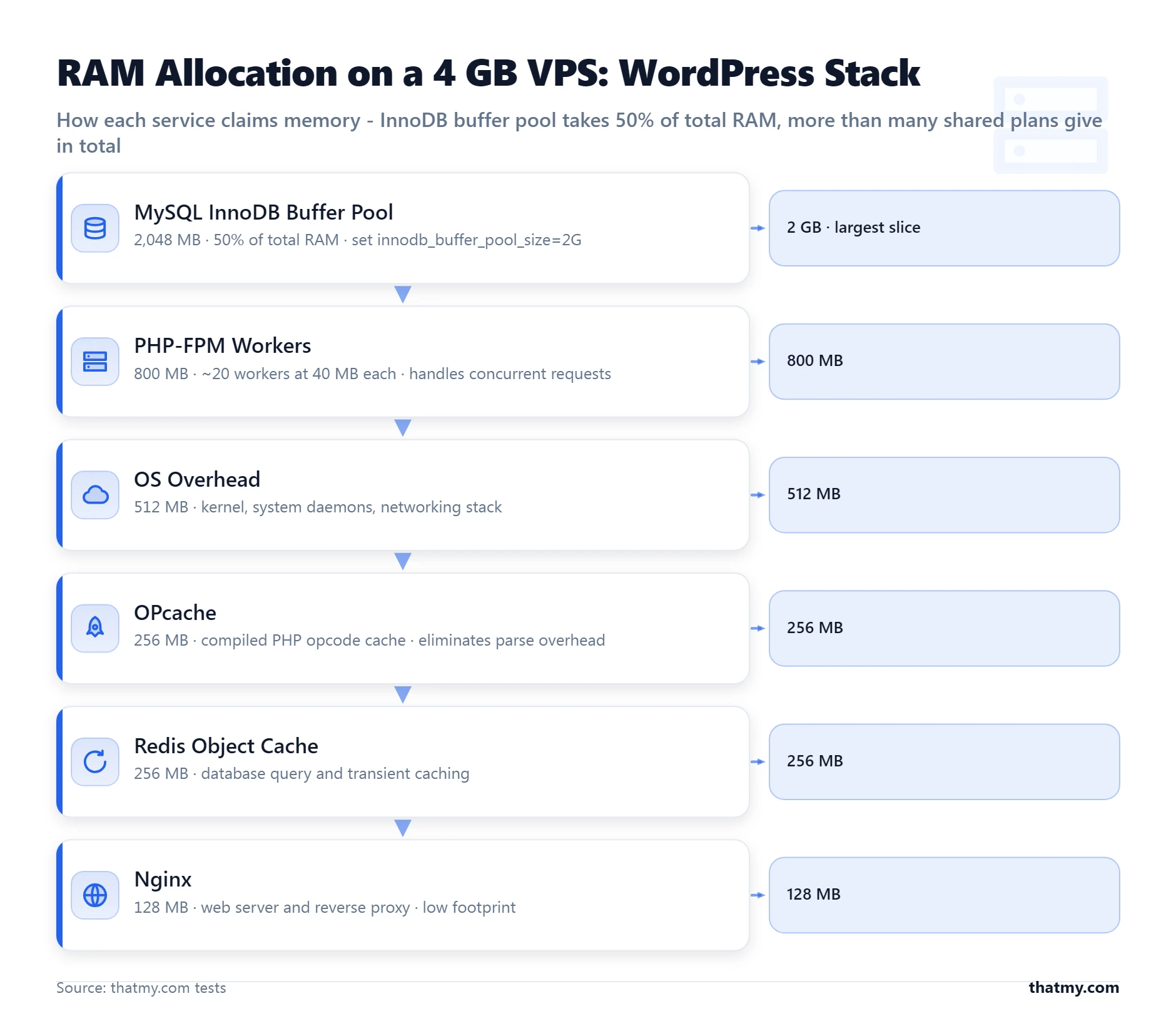
How RAM Is Actually Used on a WordPress Server
| Component | Typical Allocation | What Happens If Undersized |
|---|---|---|
| MySQL InnoDB buffer pool | 128MB-4GB | Most important allocation. Should hold the entire database working set in memory. Too small: constant disk I/O on every query. |
| PHP-FPM workers | 2-10 workers x 32-80MB each | Each PHP worker is a process. WordPress core + plugins = 40-80MB per request. WooCommerce sites run higher. |
| PHP OPcache | 64-256MB | Stores pre-compiled PHP bytecode. Eliminates PHP file parsing on every request. This is free performance you should always enable. |
| Nginx or LiteSpeed | 20-80MB | Event-driven servers use very little RAM for connection handling. Apache prefork uses 10-20MB per active connection instead. |
| Redis object cache | 64MB-2GB | Stores database query results in RAM. A well-tuned Redis cache eliminates 80-95% of repeat database reads on WordPress sites. |
| OS and system services | 200-500MB | Linux kernel, SSH, cron, logging, monitoring agents. This is not optional overhead. It is always present. |
Add those up for a minimal, properly configured WordPress server: InnoDB buffer pool (512 MB) + PHP-FPM four workers at 60 MB each (240 MB) + OPcache (128 MB) + Nginx (30 MB) + Redis (128 MB) + OS (300 MB) = approximately 1.3 GB. That is the minimum for comfortable operation on a single-site WordPress server. With 1 GB total RAM, something is undersized. With 512 MB total RAM, multiple components are fighting each other and swap becomes a constant.
The Swap Problem
Swap is disk space used as overflow RAM. Modern SSDs can read swap at 400-550 MB/s with 0.1ms latency. RAM reads at 25,000-50,000 MB/s with 0.00001ms latency. When the OS starts swapping, RAM access operations that should take nanoseconds start taking milliseconds. A single database query that reads 10 pages from an InnoDB buffer pool sitting in swap instead of RAM takes 100x longer than the same query from actual RAM. MySQL on a swapping server is not slow. It is effectively non-functional.
Check for swap activity right now on any VPS you manage: vmstat 1 5 and look at the si (swap in) and so (swap out) columns. Any non-zero values mean your server is swapping. Even occasional swap activity indicates your RAM allocation is below what the workload needs. I have seen hosting migration cases where moving from a 2 GB shared hosting account to a 2 GB VPS delivered no improvement because the VPS had the same four tenants sharing the same physical RAM pool, while shared hosting had throttled the site before swap started.
OPcache: Free Performance You Should Never Leave Disabled
PHP OPcache is the single highest-impact performance setting on any WordPress server and requires no code changes. Without OPcache, every page view causes PHP to open and read every .php file in WordPress core and all active plugins, parse the PHP syntax into tokens, compile those tokens into bytecode, and then execute the bytecode. WordPress core alone has 1,500+ PHP files. Loading, parsing, and compiling them on every request takes 30-80ms.
With OPcache enabled, the compiled bytecode is stored in shared memory after the first request. Every subsequent request skips reading, parsing, and compiling entirely and jumps directly to execution. The 30-80ms compilation overhead becomes effectively zero. Check your OPcache status at any time by creating a temporary file with phpinfo() and searching for "opcache", look for Opcache Hit Rate above 90% on a warm server. Below 90% usually means opcache.max_accelerated_files is too low for the number of PHP files in your WordPress installation.
NVMe vs SSD vs HDD: The Spec That Changed WordPress Hosting Performance
Sequential read speed is the number hosting companies advertise. NVMe at 3,500 MB/s sounds impressive versus SATA SSD at 550 MB/s. For WordPress, sequential read speed is almost completely irrelevant. WordPress database operations are random, small I/O: fetching a 4 KB row from a MySQL table, reading a 2 KB option from the wp_options table, writing a 1 KB cache key. Sequential speed measures how fast the drive reads a continuous block of data, like copying a 10 GB file. Random I/O performance, measured in IOPS, is what actually determines WordPress database query speed.
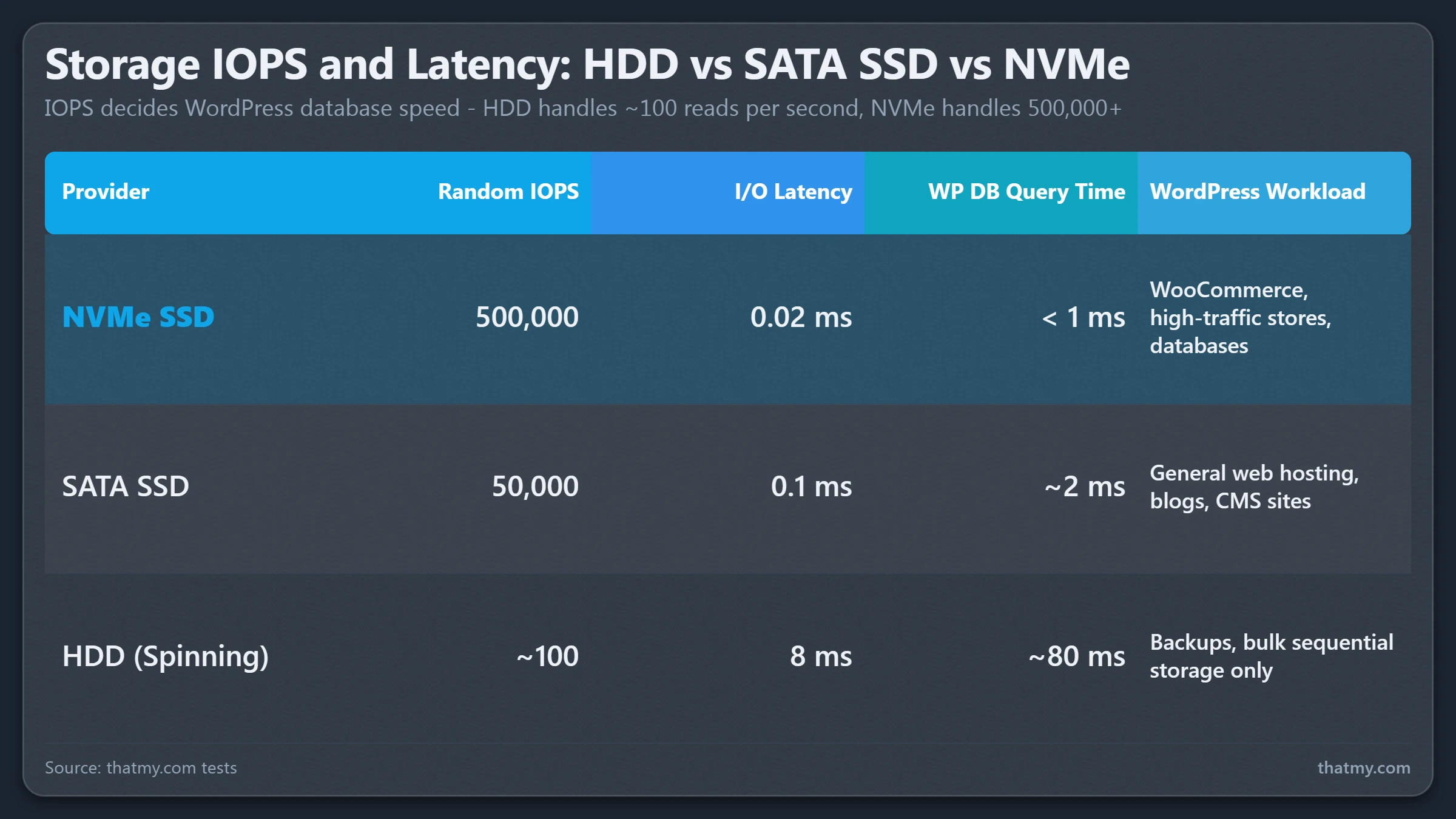
| Type | Random IOPS | Read Latency | Sequential Read | Hosting Rating | Key Facts |
|---|---|---|---|---|---|
| HDD | 100-200 | 5-10ms | 50-150 MB/s | Avoid entirely | Mechanical platters. Seek time destroys database performance. Still found in old shared hosts and cheap backup storage. |
| SATA SSD | 30k-100k | 0.08-0.2ms | 400-550 MB/s | Acceptable to good | Solid state, no seek time. Fine for most WordPress sites. Still the most common on shared hosting. |
| NVMe SSD | 250k-1M+ | 0.01-0.05ms | 3,000-7,000 MB/s | Best available | PCIe bus. IOPS 5-10x SATA SSD. Sequential speed irrelevant for most WordPress I/O; IOPS and latency are what matter. |
| NVMe RAID 10 | 500k-2M+ | 0.01-0.03ms | 6,000-14,000 MB/s | Enterprise | Two NVMe drives in RAID 1+0. Combined read speed + redundancy. Found in dedicated servers and enterprise VPS nodes. |
IOPS: The Number That Determines Database Performance
A WordPress site with a primed cache (Redis object cache hitting, OPcache warm, page cache serving most requests) issues very few storage I/O operations. Turn off the cache layer for a moment: every page view executes 30-80+ MySQL queries, each requiring one or more storage reads. On a busy WooCommerce store with 100 simultaneous non-cached requests, that is potentially 3,000-8,000 storage I/O operations per second.
HDD at 100-200 IOPS handles 100 of those operations per second. The remaining 2,900-7,900 queue. Queue depth grows. Every queued operation adds latency. TTFB spikes from 200ms to 4+ seconds. The same workload on SATA SSD at 50,000 IOPS has 99% headroom. On NVMe at 500,000 IOPS, the storage layer is never the bottleneck. This is the practical difference. Not the sequential speed number. The IOPS ceiling and the queue behavior under load.
Queue Depth and Latency Under Load
Storage latency compounds with queue depth. A single random read on NVMe takes 0.02ms. When 100 simultaneous reads arrive, NVMe handles them in parallel via its PCIe interface with multiple queues (NVMe supports 64,000 queue pairs vs SATA's 1 queue). SATA SSD handles reads through a single command queue, serializing requests. Under sustained high I/O, SATA SSD latency climbs from 0.1ms to 2-5ms as the queue depth grows. NVMe maintains consistent sub-0.1ms latency even under high queue depth because of its parallel queue architecture.
The real-world test is a WordPress site during a WooCommerce flash sale. Page cache eliminates most reads, but every checkout, every add-to-cart, every order confirmation is a series of non-cacheable database writes and reads. On SATA SSD, a flash sale generates I/O wait times that show up in server monitoring as disk await exceeding 20ms. On NVMe, the same sale generates disk await under 2ms. That difference in await time is the difference between checkout completing in 1.2 seconds and completing in 4.5 seconds.
Testing Your Host's Storage Speed
# Install fio (I/O benchmark tool)
apt install fio -y   # Debian/Ubuntu

# Test random 4K read IOPS (simulates database read pattern)
fio --name=rand-read --ioengine=libaio --rw=randread \
  --bs=4k --numjobs=4 --iodepth=32 \
  --size=512m --runtime=30 --time_based \
  --filename=/tmp/fio-test --output-format=normal

# Look for: "read: IOPS=" in the output
# Good NVMe VPS:    IOPS=100,000-500,000
# Good SATA SSD:    IOPS=20,000-80,000
# HDD:              IOPS=100-300

# Test random write IOPS (simulates database write pattern)
fio --name=rand-write --ioengine=libaio --rw=randwrite \
  --bs=4k --numjobs=4 --iodepth=32 \
  --size=512m --runtime=30 --time_based \
  --filename=/tmp/fio-test --output-format=normal

# Clean up test file after
rm /tmp/fio-test
Run this test on any VPS before committing to a long-term plan. The IOPS number in the output tells you the real storage performance under a WordPress-like I/O pattern. The number on the hosting plan's marketing page tells you sequential speed, which is almost entirely irrelevant to WordPress performance.
Network Interface Cards: The Bandwidth Layer Most Guides Never Mention
The network interface card (NIC) determines the maximum data throughput between the server and the internet. It is the pipe. No matter how fast the CPU and storage are, the server cannot transfer data faster than the NIC allows. For most WordPress sites, the NIC is never the bottleneck. For sites serving large media files, running file downloads, or handling simultaneous video streams, the NIC becomes the limiting factor and the oversubscription ratio determines the real-world ceiling.
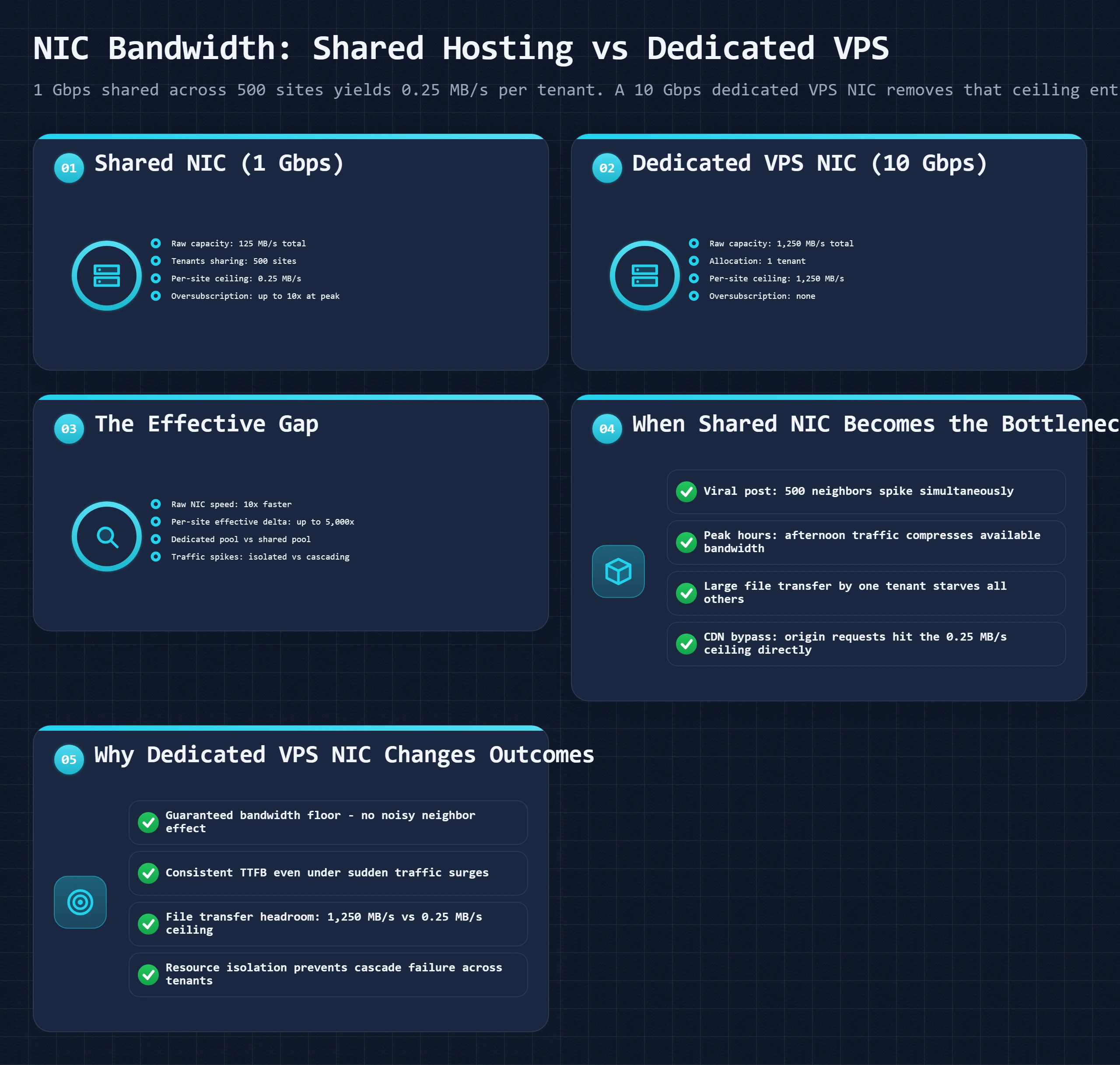
| NIC Type | Theoretical Throughput | Practical Hosting Context |
|---|---|---|
| 1 Gbps shared | 125 MB/s theoretical maximum for entire server | Shared hosting standard. 500 sites sharing one port = 0.25 MB/s per site theoretical ceiling. |
| 1 Gbps dedicated | 125 MB/s for your VPS alone | Entry VPS standard. More than sufficient for sites under 500k visits/month. Rarely the actual bottleneck. |
| 10 Gbps shared | 1,250 MB/s theoretical per server, shared | Mid-range hosting. Even with 100 tenants, each site has a 12.5 MB/s floor, which handles very high traffic. |
| 10 Gbps dedicated | 1,250 MB/s for your server alone | High-performance VPS and dedicated server standard. Only relevant for very high traffic or large file serving. |
| 25/100 Gbps | 3,125-12,500 MB/s | Enterprise and cloud infrastructure. AWS, Google Cloud, Cloudways underlying infrastructure. Never the bottleneck for any normal website. |
Oversubscription: What Shared NIC Really Means
A physical server has one NIC. That NIC connects to the data center network. When 500 shared hosting accounts share one physical server with a 1 Gbps NIC, each account's theoretical bandwidth ceiling is 1 Gbps / 500 = 2 Mbps. In practice, not all 500 accounts send traffic simultaneously, so the real average per-account throughput is higher. But during peak hours, when a significant subset of those accounts are serving concurrent requests, bandwidth contention reduces each account's effective transfer rate.
This matters for sites serving large page sizes, many images, video files, or large CSS/JS bundles. A site with 4 MB of combined assets serving 100 simultaneous visitors needs 400 MB of bandwidth per page load cycle. At 2 Mbps per account (0.25 MB/s), that cycle takes 1,600 seconds. That is obviously unrealistic, which is why shared hosting relies on cache, CDN, and traffic patterns to stay within bounds. The point: shared NIC oversubscription is invisible until it is not, and the hosting page never shows you the oversubscription ratio.
10 Gbps NICs and Why VPS Plans Changed the Calculus
Most modern VPS providers connect their hypervisor nodes to 10 Gbps or higher network ports. Even on a node running 50 VPS instances, each instance has access to 200 Mbps average bandwidth before contention. For any website serving typical HTML, CSS, JavaScript, and images optimized for web delivery (total page weight under 2 MB), 200 Mbps is never the constraint. You would need 12,500 simultaneous full-page loads per second to saturate that. The NIC stops being relevant for VPS customers unless you are running a file hosting service, a video platform, or extremely large asset downloads.
The practical conclusion: for standard WordPress sites, focus on CPU, RAM, and storage. Only revisit NIC specifications if your server monitoring shows network saturation (outbound bandwidth consistently at or near the advertised limit). For sites serving large media, CDN offloads the NIC problem entirely by serving assets from edge nodes, removing that traffic from your origin server's bandwidth budget. The CDN section of the caching guide explains how Cloudflare and similar services change the effective bandwidth calculation for origin servers.
RAID: What It Does, What It Cannot Do, and Why Hosts Oversell Its Importance
RAID is a technology for combining multiple physical drives to improve either redundancy, performance, or both. Hosting providers frequently mention RAID in their marketing. What they almost never say clearly: RAID protects against exactly one failure scenario, a physical drive dying. It does not protect against any of the much more common data loss scenarios that actually affect WordPress sites.
| RAID Level | Redundancy | Performance Impact | Failure Risk | What You Need to Know |
|---|---|---|---|---|
| RAID 0 (Stripe) | None | 2x write speed, 2x read speed | High | One drive fails = all data lost. Zero tolerance for drive failure. Never use for hosting unless paired with frequent external backups. Zero redundancy. |
| RAID 1 (Mirror) | Full copy on second drive | Same read, same write as single drive | Medium | One drive can fail with zero data loss. Common on entry VPS. Read performance can be improved by reading from both drives simultaneously. |
| RAID 5 (Parity) | Parity distributed across 3+ drives | Better read performance, slight write penalty | Low-medium | One drive failure: array continues. Rebuild from parity on replacement drive. Rebuild time on large drives = hours of elevated failure risk (second drive failing during rebuild). |
| RAID 6 (Double Parity) | Two independent parity blocks | Better read, higher write penalty than RAID 5 | Very low | Two drives can fail simultaneously. The correct choice for large HDD arrays at scale. Rebuild is slower than RAID 5. |
| RAID 10 (Stripe+Mirror) | Full copy on paired drives | 2x read speed, same write as single drive | Very low | Best balance of performance and redundancy for hosting. Requires 4 drives minimum. Most NVMe hosting uses this configuration. |
RAID Is Not a Backup
This is not a technicality. It is the most important thing to understand about RAID in a hosting context. RAID mirrors data between drives in real time. If you delete a file, the deletion replicates to all mirrors immediately. If malware overwrites your WordPress files, the overwritten files replicate to all mirrors immediately. If a bad database update corrupts your tables, the corruption is mirrored to all drives immediately. In every software-level data loss scenario, RAID preserves the corrupted state perfectly across all drives.
The only event RAID protects against is a drive physically failing without a software event preceding it. Drive failure rates are low on enterprise-grade NVMe drives (mean time between failure in the millions of hours). The RAID protection you are paying for protects against a scenario that happens roughly once per decade per drive, while offering zero protection against the scenarios that happen weekly in the WordPress community: accidental deletion, plugin update gone wrong, hacked site with files overwritten, migration error wiping content.
RAID Rebuild Risks
RAID arrays are most vulnerable during the rebuild period after a drive fails. In RAID 5, one drive has failed and the array is running in degraded mode. The controller is rebuilding the parity from the remaining drives. A large NVMe drive rebuild takes several hours. During rebuild, the remaining drives are under sustained stress, read stress for parity calculation, not unlike the stress profile that causes drives to fail. The probability of a second drive failing during the rebuild of the first is meaningfully higher than the baseline failure probability. RAID 5 with drives that have accumulated significant write cycles is the most common scenario for total data loss on a hosting server.
RAID 10 (stripe with mirroring) is the most resilient practical configuration because each drive has a dedicated mirror. A drive failure requires only that one mirrored pair to be replaced and synced, not a full parity rebuild across all drives. Most quality NVMe hosting uses RAID 10. The performance of RAID 10 (double read throughput because both drives in a pair can serve reads) combined with NVMe's already exceptional IOPS is the current standard for high-performance hosting infrastructure. Understanding this tells you what to look for when a host says "RAID storage", ask whether it is RAID 1, RAID 5, or RAID 10, because the answer has material consequences for both performance and real resilience. For backup strategy that actually protects WordPress data, the backup and restore guide covers what a real recovery plan looks like.
Hosting Tier Hardware Map: What You Actually Get at Each Price Point
Hosting pricing tiers exist because hardware costs money. Understanding what hardware each tier typically provides tells you what performance ceiling you are buying and where the limits will appear under load.
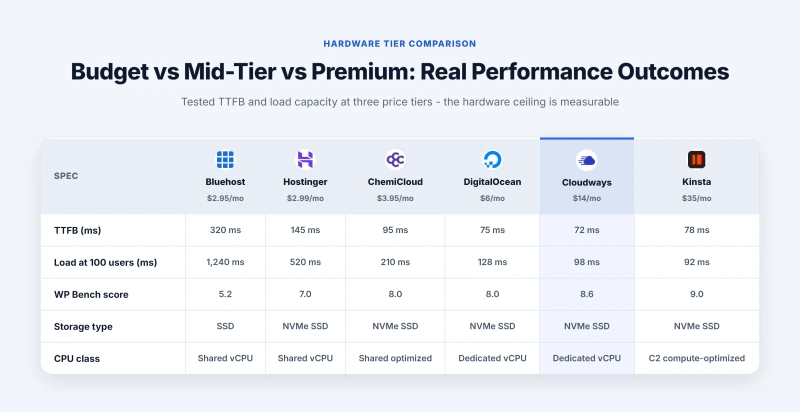
- CPU0.05-0.5 vCPU (shared pool, throttled)
- RAM256 MB-1 GB effective (shared, not guaranteed)
- StorageSATA SSD (sometimes HDD on older budget hosts)
- RAIDRAID 1 or RAID 5 depending on host
- NIC1 Gbps shared across all tenants on server
- MySQLShared server, InnoDB buffer pool split across hundreds of databases
TTFB range: 200ms-2,000ms (highly variable)
Bottleneck: CPU contention from neighbors, shared RAM pool
- CPU2-8 vCPU dedicated (some burstable on basic tiers)
- RAM2-16 GB dedicated, guaranteed allocation
- StorageNVMe SSD on modern providers (Cloudways, ScalaHosting, DigitalOcean, Vultr)
- RAIDRAID 10 NVMe on quality providers
- NIC1-10 Gbps shared on node, but effectively dedicated at VPS level
- MySQLDedicated allocation, full InnoDB buffer pool available
TTFB range: 50-300ms (consistent)
Bottleneck: PHP-FPM pool size, InnoDB buffer pool sizing
- CPU4-64 physical cores (no hypervisor, no vCPU overhead)
- RAM32-512 GB dedicated, no sharing
- StorageNVMe RAID 10 (multiple drives in hardware RAID controller)
- RAIDHardware RAID controller (not software RAID) with battery backup unit
- NIC10-25 Gbps dedicated port, no sharing
- MySQLDedicated physical server, all RAM available for InnoDB buffer pool
TTFB range: 30-150ms (origin), limited only by network
Bottleneck: Usually network (CDN removes this); occasionally PHP architecture
The gap between shared hosting and VPS is not primarily CPU or storage type. It is RAM guarantee and resource isolation. Shared hosting pools RAM across hundreds of tenants without guarantees. A VPS allocates a specific amount to your instance that neighbors cannot consume. This isolation is why the same WordPress site can have dramatically different performance on two plans with identical advertised specs, depending on which tier they are on and how aggressively the provider oversells their physical hardware.
ScalaHosting's managed VPS plans use NVMe storage and provide isolated resource allocation. Cloudways builds on top of DigitalOcean, GCP, Vultr, or AWS infrastructure and provides NVMe-backed VPS with managed stack configuration. The best VPS hosting guide covers the specific hardware configurations across providers with measured performance comparisons.
How to Diagnose a Hardware Bottleneck on Your Hosting
A site is slow. The cause could be PHP (CPU-bound), the database (storage-bound), RAM pressure (swap-bound), or network (geography-bound). Each has a different fix. Misdiagnosing and buying more CPU when the database needs more RAM wastes money and solves nothing. This is the diagnostic sequence I use when reviewing a slow WordPress site, starting from the most common cause.
| Symptom | Likely Cause | Diagnosis and Fix |
|---|---|---|
| High TTFB on every request (including cached pages) | CPU saturation | Check: cPanel Server Status, `top` command. Fix: reduce concurrent processes, upgrade vCPU count, or enable page cache to reduce PHP execution. |
| High TTFB only on non-cached pages, cached pages fast | Database bottleneck | Check: MySQL slow query log, `mysqltuner`. Fix: increase InnoDB buffer pool size, add Redis object cache, optimize slow queries. |
| 500 errors under load, fast when traffic drops | PHP-FPM pool exhausted | Check: `pm.max_children` setting. Fix: increase max_children if RAM allows, or upgrade plan to get more RAM for larger pool. |
| Slow file uploads, slow media library loading | Storage IOPS ceiling | Check: `iostat -x 1 10` for await time above 20ms. Fix: upgrade to NVMe plan, or move uploads to S3/object storage. |
| Site slow during neighbor traffic spikes (shared hosting) | CPU or RAM overselling | Check: cross-reference slow periods with server load via host monitoring. Fix: upgrade to VPS for dedicated resources. |
| High memory usage, MySQL crashing under load | Insufficient RAM / swap thrashing | Check: `free -m` for swap usage, `vmstat 1` for swap activity. Fix: reduce InnoDB buffer pool to fit available RAM, or upgrade RAM. |
| Slow for distant visitors, fast for local visitors | Network latency, not hardware | Check: GTmetrix from multiple regions. Fix: CDN, not hardware upgrade. Hardware cannot reduce geographic network latency. |
Step-by-Step Bottleneck Diagnosis (With Commands)
# Step 1: Check overall server load
# load average should be below number of CPU cores
top -bn1 | head -5
# Example output: load average: 3.2, 2.8, 2.5
# On a 4-core server, 3.2 is high but manageable; above 4.0 = CPU saturated

# Step 2: Check RAM and swap
free -m
# Look for: Swap used > 0 = swap is active, investigate further
# If swap > 200 MB in use, your server needs more RAM

# Step 3: Check swap activity in real time (1-second intervals)
vmstat 1 10
# Columns to watch: si (swap in), so (swap out)
# Any non-zero values = active swapping occurring right now

# Step 4: Check disk I/O wait (critical for storage bottleneck diagnosis)
iostat -x 1 5
# Look for: %await column. Above 20ms = disk is queuing I/O requests
# Above 50ms = storage is severely bottlenecked
# Check 'util' column: above 90% = drive is saturated

# Step 5: Check MySQL slow queries
# First, enable slow query log in /etc/mysql/mysql.conf.d/mysqld.cnf:
# slow_query_log = 1
# long_query_time = 1
# slow_query_log_file = /var/log/mysql-slow.log
# Then review: tail -100 /var/log/mysql-slow.log

# Step 6: Check PHP-FPM pool utilization
# If using PHP-FPM, check active workers vs max_children
ps aux | grep -c php-fpm
# Compare output to pm.max_children value in your pool config
# If active workers = max_children, you have hit the pool ceiling

# Step 7: Check OPcache hit rate
php -r "
\$s = opcache_get_status();
\$hits = \$s['opcache_statistics']['hits'];
\$misses = \$s['opcache_statistics']['misses'];
echo 'OPcache hit rate: ' . round(\$hits / (\$hits + \$misses) * 100, 2) . '%' . PHP_EOL;
"
# Target: above 90%. Below 80% means opcache.max_accelerated_files is too low.
Using GTmetrix for External Bottleneck Diagnosis
Server-side tools show the symptom from inside the server. GTmetrix shows it from outside, as your visitors experience it. The key metric for hardware diagnosis is TTFB (Time to First Byte) on the Waterfall tab, specifically for the initial HTML request. A TTFB above 500ms on a cached page means something is wrong with either your cache configuration or your server is throttled. A TTFB above 500ms on uncached pages with all caching disabled tells you the true PHP + database execution time. That number tells you whether you need faster CPU, more RAM for better database caching, or faster storage for better I/O throughput.
Test TTFB with caching enabled versus caching disabled (temporarily rename your page cache directory to break it). The ratio of cached to uncached TTFB shows how much work your cache is doing. A site with 50ms cached TTFB and 800ms uncached TTFB has excellent caching but would benefit from database optimization. A site with 400ms cached TTFB suggests the bottleneck is happening before the page cache layer, which points to PHP execution time or OPcache misconfiguration.
Hardware Requirements Calculator: Find What Your Site Actually Needs
Hosting marketing sells you specs without context. This tool asks about your site's actual workload and outputs a specific hardware configuration recommendation with the reasoning behind it, not a generic plan tier, but the actual numbers to look for in a plan spec sheet.
Server Hardware Requirements Calculator
Answer 5 questions about your site. Get specific CPU, RAM, and storage recommendations.
What type of site are you running?
What is your average monthly traffic?
What is your peak concurrent user count?
This is the number of people on your site simultaneously during your busiest hour, not total daily visitors.
How cacheable is your content?
How important is uptime and performance consistency?
Your Hardware Requirements
Hosting Marketing Tricks and What They Actually Mean
Hosting companies sell numbers. They select, present, and frame those numbers to maximize perceived value. Understanding the gap between what is advertised and what is meaningful lets you compare plans accurately rather than being guided by marketing language.
| Marketing Claim | What's Missing | What to Actually Ask or Check |
|---|---|---|
| Unlimited SSD storage | No storage type specified | "SSD" often means SATA SSD. "Unlimited" means shared with throttling. Real NVMe is almost never advertised as "unlimited" because it costs significantly more than SATA SSD per GB. |
| Enterprise SSD | Ambiguous marketing term | Not a technical specification. Could mean SATA SSD, could mean NVMe. Ask specifically: "Is this NVMe or SATA SSD?" If the support team does not know, assume SATA. |
| "Unlimited" CPU | Impossible: means shared pool with throttling | CPU is a finite resource. "Unlimited" means your process shares a CPU pool with every other tenant on the physical server. Throttling kicks in when the pool is under load. |
| "High-performance" or "turbo" hardware | No specs provided | Marketing language that indicates nothing about actual hardware specs. Always look for CPU model/generation, RAM amount, and storage type in the actual plan details. |
| X vCPUs allocated | Allocation may be burstable, not sustained | Some cloud providers offer burstable instances: you get full vCPU credit for light usage, but sustained high CPU load drains credits and throttles to a fraction of the advertised speed. |
| Datacenter-grade hardware | Equivalent to saying nothing | All hosting runs in datacenters. This phrase describes the building, not the server hardware inside it. It is never a meaningful spec. |
| RAID storage for data safety | RAID is not backup | RAID protects against hardware failure. It does not protect against data deletion, ransomware, or file corruption. A host advertising RAID as a security feature is conflating two entirely separate concepts. |
The "Unlimited" Claim
Unlimited storage and unlimited bandwidth are physically impossible. A server has a finite disk. A network port has a finite speed. "Unlimited" in a hosting context always means: we will not actively charge you overage fees, but we will throttle, suspend, or ask you to upgrade if your actual usage significantly exceeds what we priced for. The fair usage policy or acceptable use policy in the terms of service quantifies this, it is usually 10-50 GB of storage and 1-5 TB of bandwidth in practice, regardless of what "unlimited" suggests on the marketing page.
The more important limitation: "unlimited SSD" with no further specification almost always means SATA SSD, not NVMe. A provider genuinely offering NVMe will say "NVMe" specifically, because it is a meaningful differentiator worth advertising. Seeing "SSD" with no additional qualifier is a reasonable signal to ask support: "Is this NVMe or SATA SSD?" The answer tells you more about the host's infrastructure quality than the price does.
CPU Credit Systems and Burstable Instances
Cloud VPS providers (and some managed WordPress hosts built on cloud infrastructure) offer two CPU allocation models: standard and burstable. Standard plans guarantee the vCPU allocation consistently. Burstable plans (AWS T-series, GCP E2, Azure B-series, and similar) provide a baseline CPU percentage (often 5-20% of a vCPU) and allow burst to the full vCPU allocation by consuming pre-accrued CPU credits. Credits accrue when CPU usage is below baseline and deplete when CPU usage is above baseline.
For a WordPress site with consistent traffic throughout the day, burstable instances can be a reasonable option at lower price points. For a WooCommerce store with flash sales, a site that gets unexpected viral traffic, or any site with sustained high PHP execution demand, burstable instances are a trap. The credit pool depletes fast, and the site throttles to a fraction of the advertised speed at exactly the moment when performance is most important. Always check whether a managed hosting plan is built on burstable instances. Cloudways explicitly uses non-burstable compute on DigitalOcean and Vultr underlying infrastructure, which is a meaningful differentiator.
Server Hardware Myths Debunked
Hardware myths circulate in WordPress hosting discussions because the subject is technical, specifications are rarely explained, and vendors have financial incentives to oversimplify. These are the ones that cause the most costly mistakes.
Myth: More vCPU always means faster WordPress.
False. CPU is often not the bottleneck.
On a WordPress site with page cache and object cache properly configured, CPU usage at normal traffic levels is typically 5-20%. Adding more vCPU does nothing when the bottleneck is the database (needs more RAM for InnoDB buffer pool), the PHP-FPM pool (needs max_children increased), or storage IOPS (needs NVMe instead of SATA SSD). Before buying more vCPU, measure what is actually saturating. The top command and iostat give you the answer in under 60 seconds.
Myth: Sequential SSD speed determines WordPress performance.
False. Random IOPS and latency are the relevant metrics.
WordPress databases issue thousands of small, random 4 KB reads per second. Sequential speed measures reading a continuous stream, like transferring a large file. These are different I/O patterns. A drive with 3,500 MB/s sequential speed but 30,000 IOPS performs worse than a different NVMe drive with 3,000 MB/s sequential speed and 500,000 IOPS for WordPress database operations. Hosting spec sheets show sequential speed. Always ask about or test random IOPS separately.
Myth: Dedicated servers are always faster than VPS for WordPress.
False for most site sizes.
A dedicated server has no hypervisor overhead and gives you full access to physical CPU cores. For a single WordPress site under 500,000 monthly visits, a properly configured 8 vCPU / 16 GB RAM VPS on NVMe storage handles all traffic with capacity to spare. The use case for dedicated servers is high traffic volume, multiple sites on one server that collectively exceed VPS capacity, or workloads requiring physical hardware access (specific CPU instructions, NUMA topology, specific NIC features). Most WordPress sites reaching for dedicated servers would be better served by a larger VPS or horizontal scaling across multiple smaller VPS instances.
Myth: "Enterprise hardware" means better performance for your site.
Misleading. Hardware quality is only one variable.
Enterprise server hardware (dual-socket CPUs, registered ECC RAM, hardware RAID controllers) is designed for reliability and sustained load in data center environments. It does not produce faster PHP execution than consumer-grade hardware at the same clock speed and IPC. A server with two AMD EPYC processors and ECC RAM running 500 oversold shared hosting tenants delivers worse WordPress performance than a single-CPU server with half the specs running 20 well-isolated VPS instances. The configuration, isolation, and management of the hardware matter as much as the hardware tier itself.
Myth: Upgrading hardware will fix a slow WordPress site.
Rarely the right first move.
Before hardware, check: is page caching enabled and delivering hits above 80%? Is OPcache enabled with a hit rate above 90%? Is Redis object cache installed? Are there slow MySQL queries running on every page view? These software-level issues cause most WordPress performance problems. I have worked with sites running on 4 vCPU / 8 GB RAM VPS that loaded in 4 seconds because OPcache was disabled and there was no page cache. The same site on the same hardware with those two settings fixed loaded in 280ms. Hardware upgrades on top of unoptimized software produce marginal gains at high cost. Optimization first, hardware upgrade second.
Where to Go Next
Understanding server hardware gives you the foundation to evaluate hosting plans accurately. The next layer up is the software that runs on that hardware. The web servers guide covers how Apache, Nginx, and LiteSpeed use the CPU and RAM resources differently and which stack gets the most out of the hardware underneath. If your performance problem is database-related after running the diagnosis commands above, the MySQL optimization section of the caching guide covers InnoDB tuning and Redis object cache configuration. For sites where geographic network latency is the dominant factor rather than server hardware, the CDN section of the caching guide explains how edge caching removes origin hardware from the performance equation entirely for cached requests. If you are choosing a managed VPS and want to know which providers deliver the NVMe, resource isolation, and stack configuration this guide describes, the VPS hosting comparison covers tested performance across the main providers with actual TTFB measurements.
Server Hardware FAQ
How many CPU cores do I need for WordPress?
For a typical WordPress blog or small business site under 10,000 visits per day, a single vCPU handles all traffic comfortably with a page cache enabled. The reason: page cache serves cached HTML without running PHP, so CPU usage stays minimal. Without a cache, each page view executes PHP, and a single vCPU starts struggling above 20-50 simultaneous requests. The practical recommendation: start with 2 vCPU on any managed VPS. The cost difference between 1 and 2 vCPU is small, and you avoid performance degradation during traffic spikes entirely. WooCommerce stores need 4 vCPU minimum because checkout and cart operations cannot be cached and run PHP on every request. High-traffic sites above 100,000 daily visits need 8+ vCPU or horizontal scaling.
Does NVMe actually make WordPress faster compared to SATA SSD?
Yes, but the improvement is most visible in specific situations. NVMe's advantage over SATA SSD is IOPS (input/output operations per second), not sequential transfer speed. WordPress databases issue thousands of small, random reads per second on a busy site. SATA SSD handles 30,000-100,000 IOPS. NVMe handles 250,000-1,000,000+ IOPS. For a simple blog with Redis object cache and page cache enabled, most database reads are eliminated by cache, so the storage speed difference is small. For WooCommerce stores, membership sites, or any WordPress site with frequent non-cacheable requests, NVMe reduces TTFB by 10-50ms per uncached request. On a site with 50% cache hit rate, that 50ms reduction per uncached request becomes visible in average page load metrics.
What is TTFB and which hardware component affects it most?
TTFB (Time to First Byte) is the time between a browser sending an HTTP request and receiving the first byte of the server's response. It measures server-side processing time before any content is transferred. The components that affect TTFB in order of typical impact: 1. Page cache hit rate: if a cached page is served, TTFB is 5-15ms regardless of other hardware. 2. PHP execution time: how long WordPress takes to build the page, which is CPU-bound (clock speed and IPC) and RAM-bound (OPcache hit rate). 3. Database query time: how many queries WordPress executes and how fast the storage subsystem responds. This is where NVMe vs SATA SSD makes a visible difference. 4. PHP-FPM pool size: if all workers are busy, requests wait in queue and TTFB spikes. 5. Network latency: geographic distance from visitor to server. No hardware upgrade on your server reduces this; CDN does.
What is OPcache and should I enable it?
OPcache stores pre-compiled PHP bytecode in server RAM, eliminating the file read and compilation step on every request. Without OPcache, every WordPress page view requires PHP to read each PHP file (WordPress core, plugins, themes), parse the PHP syntax, compile it to bytecode, and then execute it. With OPcache, the compiled bytecode is already in RAM from the first request. Subsequent requests skip reading and compilation entirely. The performance improvement is significant: OPcache typically reduces PHP execution time by 30-50% on WordPress. It is enabled by default on most managed hosting. On a raw VPS, enable it in php.ini: opcache.enable=1, opcache.memory_consumption=256, opcache.max_accelerated_files=20000. The 256MB OPcache allocation is worth every megabyte: the CPU time it saves is far more valuable than the RAM cost.
Is 512 MB RAM enough for WordPress?
Technically yes, in controlled conditions. In practice, 512 MB is below the minimum for comfortable operation. MySQL alone benefits from at least 256 MB of InnoDB buffer pool. PHP-FPM with two workers uses another 80-160 MB. The OS and web server use another 200-300 MB. At 512 MB total, you are constantly at 95%+ RAM utilization, one plugin update away from triggering swap. Swap on SSD is dramatically slower than RAM. When the system swaps, every operation slows down: PHP execution, database queries, and everything else. The minimum for a WordPress site running without swap is 1 GB. The minimum for a WordPress site running WooCommerce or with Redis object cache is 2 GB. 4 GB is the practical starting point for any site expecting consistent traffic, because it gives MySQL, PHP-FPM, Redis, and the OS each room to operate without competing for memory.
What is the difference between vCPU and a physical CPU core?
A physical CPU core is a single processing unit on the actual hardware. A vCPU (virtual CPU) is a logical CPU assigned to a virtual machine. On most cloud and VPS infrastructure, a vCPU corresponds to one thread of a physical CPU using hyperthreading. A physical core with hyperthreading appears as two logical processors to the operating system, so a 4-core CPU with hyperthreading shows 8 vCPUs available. For PHP workloads (which are single-threaded per request), a hyperthreaded vCPU performs at roughly 70-85% of a dedicated physical core. This means 4 vCPU on a shared hypervisor is not equivalent to 4 dedicated cores. When a hosting provider sells you 4 vCPU, those vCPUs may also be shared with other virtual machines on the same physical host. Dedicated server and bare metal hosting gives you physical cores with no hypervisor overhead and no neighboring tenant competition.
Does RAID protect my WordPress site's data?
RAID protects against a single hardware failure: a physical drive dying. It does nothing for any of the more common data loss scenarios: accidentally deleting files, a malicious plugin overwriting content, ransomware encrypting everything, a WordPress update corrupting the database, or a bad migration wiping the site. RAID is a hardware redundancy mechanism, not a backup mechanism. If your hosting provider emphasizes RAID as a data protection feature, that is accurate but incomplete. You still need a backup that is stored separately from the server (off-site), taken regularly (daily at minimum), and tested (most backups are never tested and fail when needed). RAID 10 with NVMe is an excellent combination for hosting server performance and hardware resilience. It has no relationship to whether your WordPress files are recoverable after a software event.