
How to Fix 500 and 503 Errors in WordPress: The Complete Diagnostic Guide


Your site is showing a 500 error or 503 error. You do not know when it started, you do not know what triggered it, and you have already tried refreshing three times. The next thing most people do is guess. They disable random plugins, then re-enable them, then search for the error code, then try something else from a forum post. That approach can take hours.
The faster approach starts with your error log. Your server recorded exactly what went wrong, in which file, on which line. Most WordPress site owners have never looked at this file. After reading this guide, checking the log will be the first thing you do every time.
What Is a 500 Error vs a 503 Error (Error Code Reference Table)
A 500 and a 503 are not the same type of failure. They look similar in a browser, a generic error page, but they come from completely different problems. Diagnosing the wrong type wastes time on the wrong fixes.
The core distinction: a 500 error means the server was willing to handle your request but PHP or configuration broke during execution. A 503 error means the server is not going to handle your request right now because of a capacity or state issue. One is a code problem. The other is a resource or availability problem.
| Error | HTTP Code | What It Means | Most Common Cause | First Diagnostic Step |
|---|---|---|---|---|
| 500 Internal Server Error | 500 | Server tried to process the request but something broke mid-execution | PHP fatal error, .htaccess syntax error, plugin crash, memory limit exhausted | Check error log first. 90% of 500 errors have an exact file and line number in the log. |
| 503 Service Unavailable | 503 | Server is alive but cannot handle the request right now | Maintenance mode stuck, server overloaded, too many PHP workers consumed, database connection limit reached | Check for .maintenance file first. If not present, check server resource usage. |
| 502 Bad Gateway | 502 | Proxy or gateway received a bad response from the upstream server | PHP-FPM crashed, upstream timeout, misconfigured reverse proxy | Restart PHP-FPM via SSH or contact host. Typically resolves within minutes of PHP-FPM restart. |
| 504 Gateway Timeout | 504 | Request took longer than the server's timeout threshold | Slow database query running on every load, external API timeout, WooCommerce bulk operation, low PHP execution time limit | Increase PHP max_execution_time. Identify slow queries via New Relic or Query Monitor plugin. |
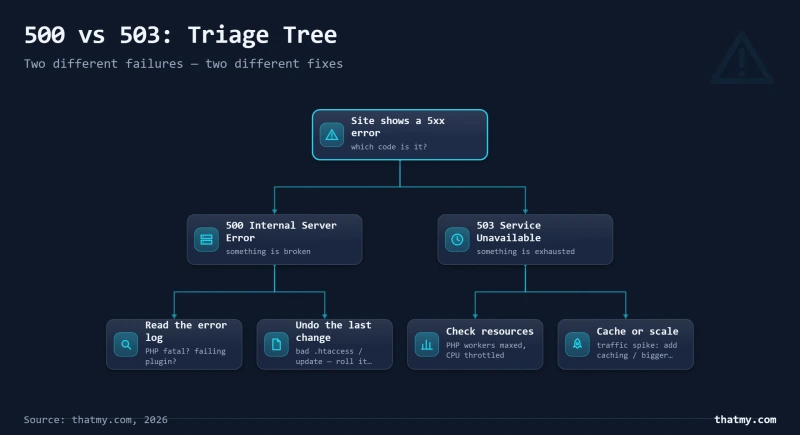
The 502 and 504 errors share characteristics with both, they involve gateway layers that sit between your browser and PHP. They are covered in Section 8 after the main 500 and 503 fixes, but if that is your error, jump directly there.
Check Your Error Logs First (This Solves 80% of Cases)
The most common WordPress troubleshooting advice is: "Try disabling your plugins." That advice is not wrong, but it skips a step. Your server already knows what went wrong. It wrote it down. Most people spend an hour trying random fixes when the answer is already sitting in a log file.
I have worked through dozens of 500 error incidents where the site owner had been troubleshooting for hours before we looked at the error log together. In almost every case, the log showed the exact file name and line number within 30 seconds. The troubleshooting that came before was unnecessary.
Where to Find Your Error Log
Option A: cPanel main dashboard → scroll down to "Metrics" section → "Error Logs"
Option B: File Manager → navigate to /home/youraccount/logs/ or look for error_log directly in public_html/
The file in public_html is specific to your WordPress installation. The one in /logs/ covers the whole account.
Application → Logs tab → select "PHP Error Log" from dropdown → click "View Log"
Also check "Apache Error Log" or "Nginx Error Log" in the same dropdown.
# Check what version of WordPress you are running and log path:
wp --info

# Stream Nginx error log in real time:
tail -f /var/log/nginx/error.log

# Stream Apache error log:
tail -f /var/log/apache2/error.log

# Search for recent PHP fatal errors:
grep "PHP Fatal" /var/log/nginx/error.log | tail -20Add these three lines to wp-config.php just before the line that says "Stop editing here":
define('WP_DEBUG', true);
define('WP_DEBUG_LOG', true);
define('WP_DEBUG_DISPLAY', false); // Keeps errors out of browser
Then trigger the error by visiting your site. Check /wp-content/debug.log via File Manager.
Important: Disable WP_DEBUG after you have found the cause. Running a live site with debug mode enabled exposes server paths in error messages.
How to Read What the Log Says
A PHP error log entry looks like this:
[Wed May 07 14:23:11.456789 2026] [php] [error] PHP Fatal error: Allowed memory size of 134217728 bytes exhausted (tried to allocate 20480 bytes) in /home/yoursite/public_html/wp-content/plugins/elementor/core/files/manager.php on line 342

[Wed May 07 14:23:14.123456 2026] [php] [error] PHP Parse error: syntax error, unexpected '}' in /home/yoursite/public_html/wp-content/themes/your-theme/functions.php on line 87
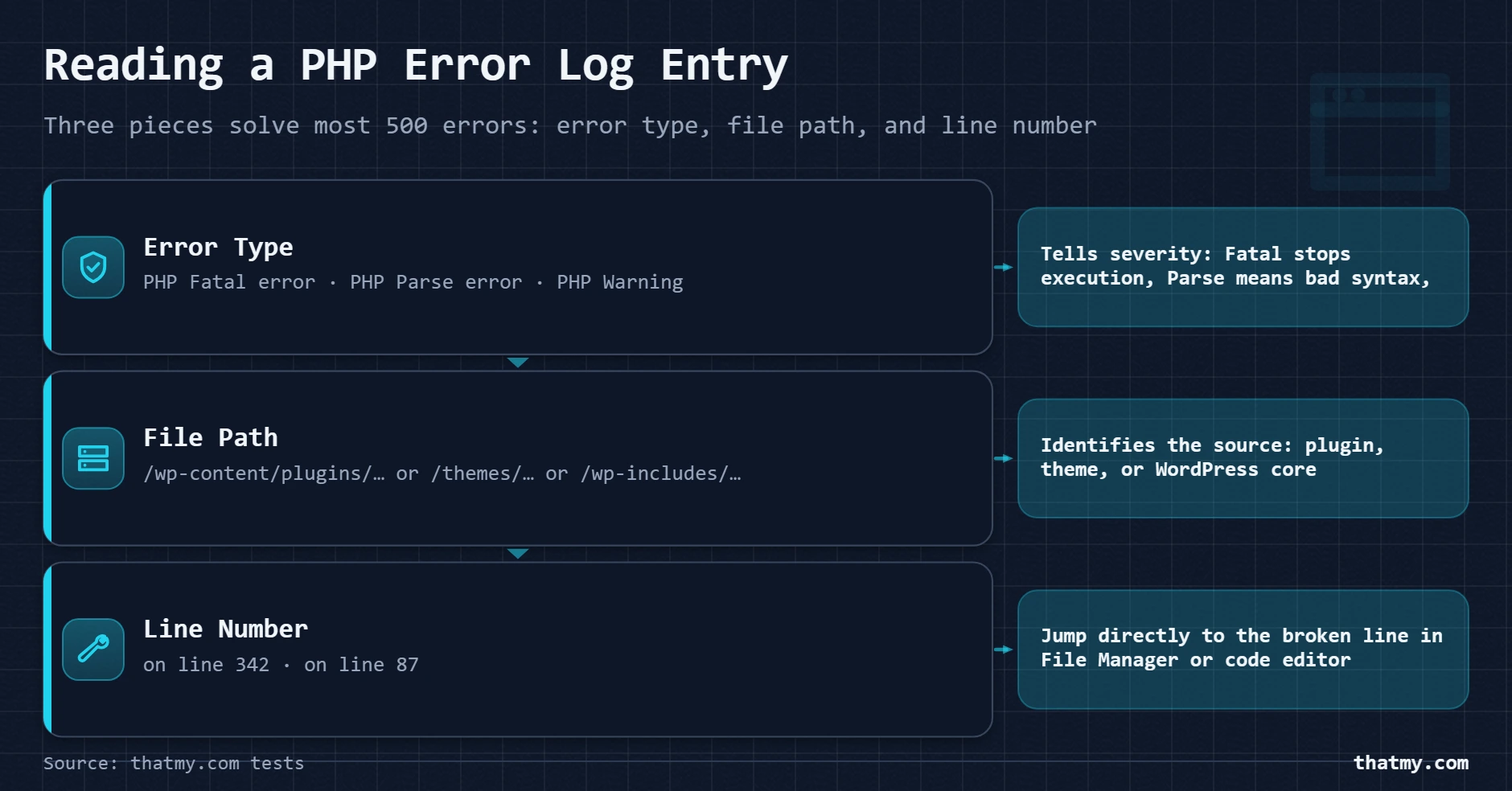
Three pieces of information are in every useful error log entry:
/wp-content/plugins/elementor/... means a plugin. /wp-content/themes/your-theme/... means your theme. /wp-includes/... means WordPress core. The path tells you where to look.If your log shows "memory exhausted," skip to Section 5. If it shows a path inside /wp-content/plugins/, start with Section 4. If it shows a path in your theme, the next section covers PHP syntax errors. The log is your decision tree.
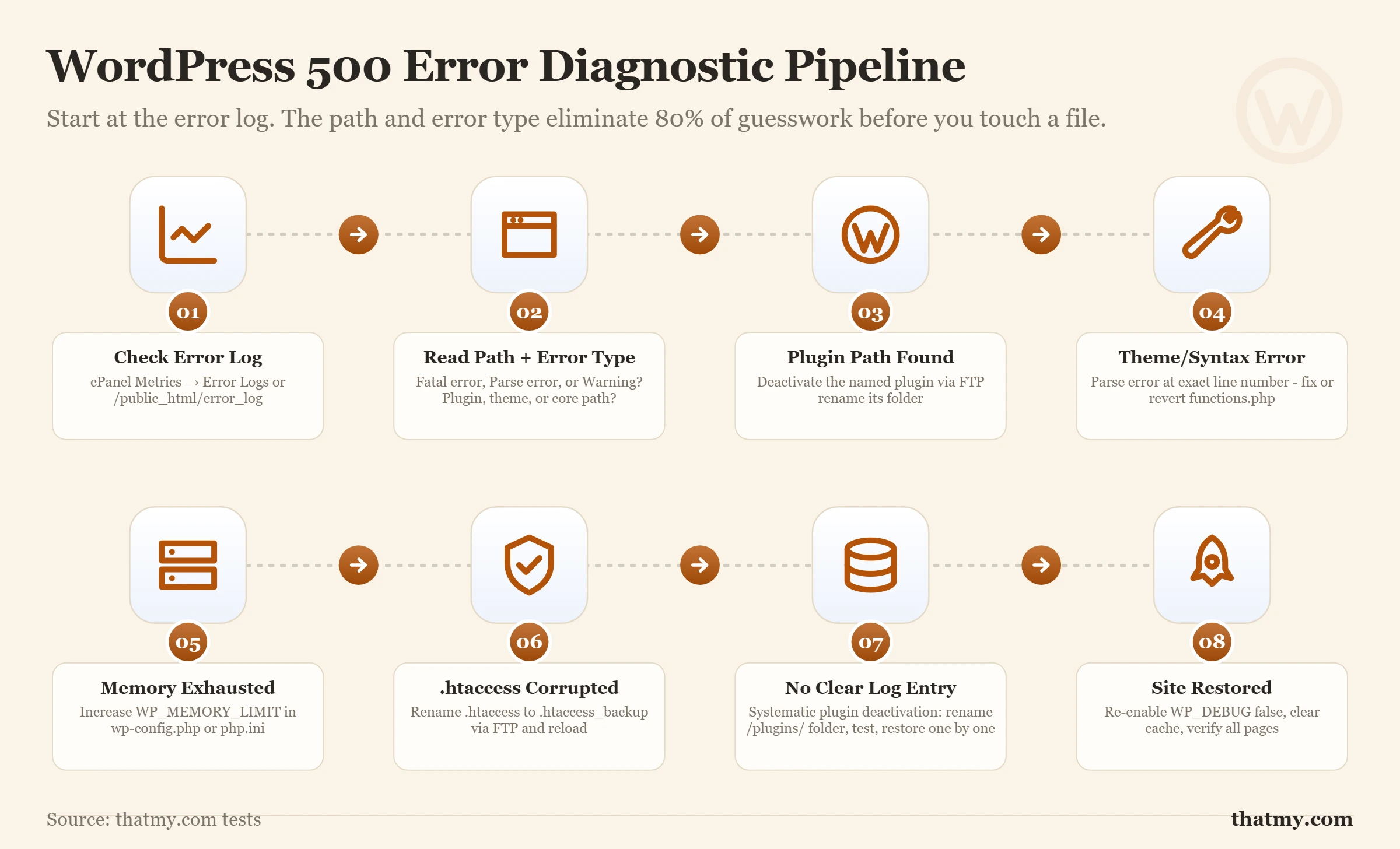
Fixing 500 Internal Server Error: The Diagnostic Decision Tree
Random plugin deactivation is not a diagnostic process. It is a guess. If you have seven plugins and the seventh one is causing the error, you will spend 15 minutes deactivating them one by one. If you check the error log first, you know which plugin within 30 seconds.
That said, there are situations where the log is not accessible or is not specific enough. The decision tree below starts from the most common trigger and works down to the least common. Follow it from the top.
| Cause | When It Typically Appears | How to Fix It | Probability |
|---|---|---|---|
| Plugin conflict | Immediately after installing, updating, or activating a plugin. Or after a WordPress core update. | Rename /wp-content/plugins/ to /wp-content/plugins_disabled/ via FTP. If site loads, reactivate plugins one by one. | Very high |
| PHP syntax error | Immediately after editing functions.php, a plugin file, or any PHP file. Error log shows exact file and line. | Edit the file via FTP and fix the syntax error. Restore from backup if you cannot identify the error. | High |
| .htaccess corruption | After changing permalink settings, after a caching plugin update, after a server migration. | Rename .htaccess to .htaccess_backup. If site loads: go to Settings > Permalinks and click Save to regenerate. | High |
| File permissions | After a server migration, cPanel backup restore, or mass file operation. No obvious trigger. | Set directories to 755, files to 644, wp-config.php to 400 via FTP or SSH. | Medium |
| PHP memory exhaustion | On high-traffic pages, WooCommerce product pages, or after installing a resource-heavy plugin. Log shows 'memory exhausted'. | Add define('WP_MEMORY_LIMIT', '256M') to wp-config.php. Contact host if shared hosting caps memory. | Medium |
| WordPress core file corruption | After a failed update, a partial FTP transfer, or a malware infection that modified core files. | Re-download WordPress, replace all core files except wp-config.php and wp-content/ via FTP. | Low |
| PHP version mismatch | After host upgrades PHP version without notice, or after you update a plugin that requires a newer PHP version. | Check PHP version in cPanel. Check plugin requirements. Downgrade PHP temporarily or update conflicting plugin. | Low |
The hardest 500 errors to diagnose are the ones with no obvious trigger. I have seen these almost exclusively in two scenarios: a shared hosting server that silently upgraded its PHP version overnight (causing plugin incompatibilities across all sites on the server), or a malware infection that modified a plugin or theme file. If you have eliminated every other cause, check your PHP version in cPanel and compare it to the minimum requirements of your active plugins.
Plugin Conflicts: The Most Common 500 Cause and How to Isolate It Fast
Plugin conflicts cause more 500 errors than every other cause combined. This is not because plugins are poorly written, it is because WordPress has no formal API for plugins to negotiate shared resources. Two plugins can each try to hook the same function, modify the same .htaccess block, or consume memory past the PHP limit. Neither knows the other exists.
The Fastest Test: Disable Everything at Once
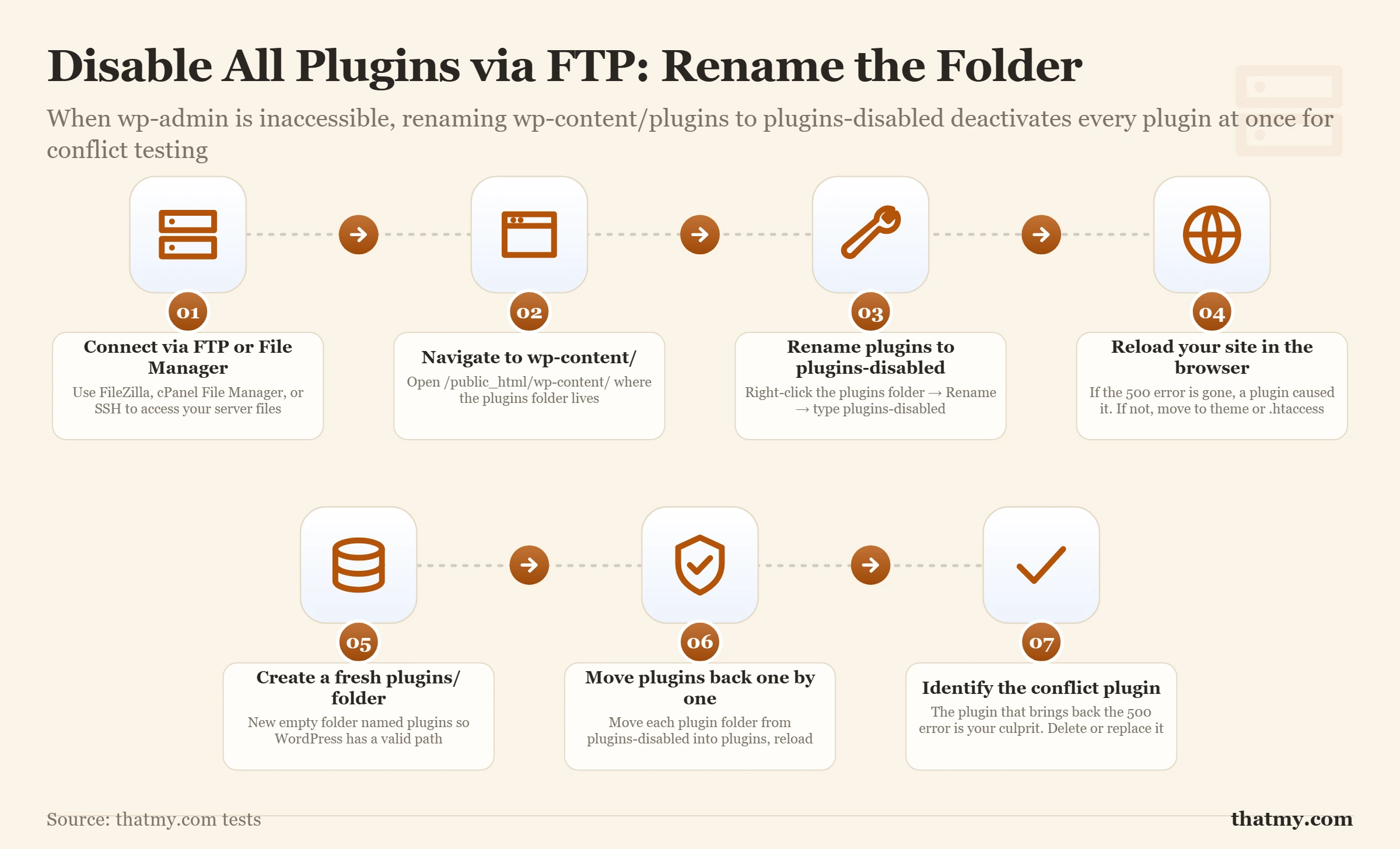
The standard advice is to deactivate plugins one by one. That is the right approach for identifying the specific culprit. But before you do that, confirm that a plugin is the cause at all. Disabling all plugins at once takes 30 seconds and immediately tells you whether to spend time on plugin investigation or move to a different cause.
/wp-content/ and rename the plugins folder to plugins_disabled. WordPress will not find any plugins and will load without them.plugins_disabled back to plugins. Log into WP-Admin (which should now be accessible since plugins are active but you have a working site).Which Plugin Types Cause 500 Errors Most Often
| Plugin Category | Common Examples | Why It Causes 500 Errors |
|---|---|---|
| Security plugins | WordFence, iThemes Security, Sucuri | Conflict with server-level security rules, rewrite rules in .htaccess that duplicate or contradict server config |
| Caching plugins | W3 Total Cache, WP Super Cache | Heavy .htaccess modifications that break when plugin is deactivated mid-write or after server config change |
| Page builders | Elementor, Divi, Beaver Builder | Memory exhaustion on page load, page builders load large asset libraries that push sites past shared hosting memory caps |
| WooCommerce extensions | Any after WP core update | Version mismatch between WooCommerce core and extensions after a WordPress update that changes internal hooks |
| Backup plugins | UpdraftPlus, BackupBuddy mid-backup | 503 specifically, backup processes run for minutes, consuming all available PHP workers for other requests |
| Database optimization plugins | WP-Optimize, Advanced Database Cleaner | 500 error if they modify database tables that WordPress is querying during the optimization run |
After Identifying the Culprit Plugin
Do not just delete the plugin. Four steps before reinstalling or updating:
First, check if there is an update available for the plugin. Plugin-caused 500 errors after a WordPress update are very often fixed in a plugin update released within days. Second, check the plugin's support forum on WordPress.org, search for "500 error" or the exact error message from your log. You will usually find other users reporting the same issue and often a confirmed fix. Third, if the plugin is critical and cannot be removed, check if a version rollback is possible, some plugin marketplaces allow downloading previous versions. Fourth, if the plugin is not essential and has a substitute, this is the signal to replace it.
PHP Syntax Errors and Memory Limits
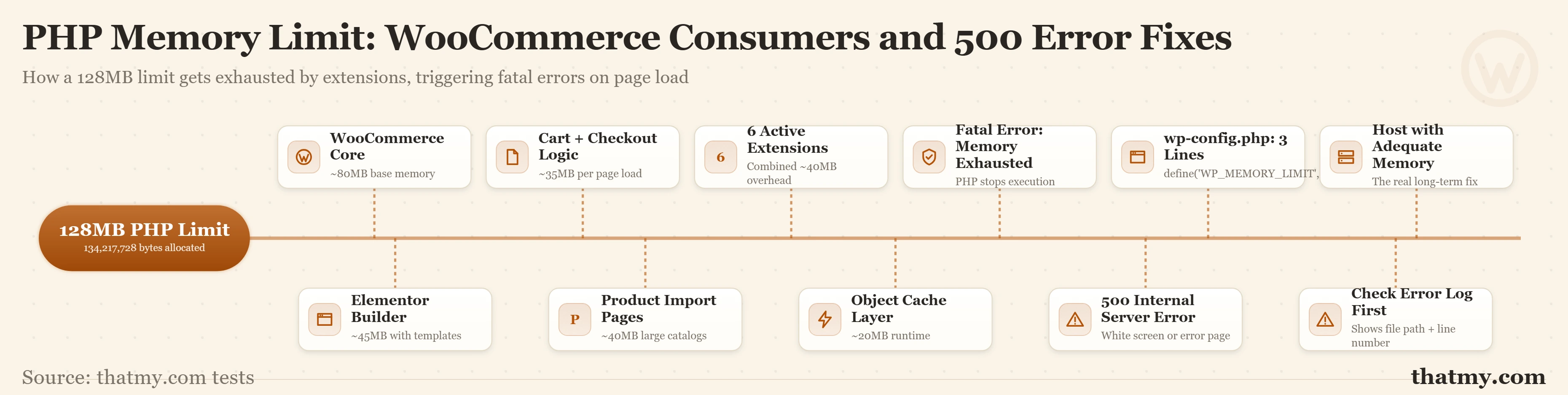
PHP syntax errors and memory exhaustion look different in the browser but are both fatal, PHP stops execution immediately and returns a 500. The error log distinguishes between them. "Parse error: syntax error" means invalid PHP code. "Fatal error: Allowed memory size exhausted" means your PHP limit was hit during execution.
Fixing PHP Syntax Errors
Syntax errors appear instantly when you save a PHP file with invalid code. WordPress cannot load the file, throws a fatal error, and returns a 500. The error log will say something like: PHP Parse error: syntax error, unexpected '}' in /path/to/file.php on line 87.
Open the file at the line number mentioned. The error is usually one of three things:
// This causes a 500 error:
$my_variable = 'some value'    // Missing ; here

add_action('init', 'my_function');// This causes a 500 error:
function my_function() {
if ( $condition ) {
do_something();
// Missing closing } for if block
// PHP finds end of file before closing the if block// This causes a 500 error:
$string = "it's a problem'; // Opens with " closes with '
// Correct versions:
$string = "it's not a problem"; // Double quotes, apostrophe inside is fine
$string = 'it\'s also fine'; // Escaped single quoteIf you cannot identify the exact syntax error at the line number indicated, the safest recovery is to restore the file from a backup. If you do not have a backup of the specific file, download a fresh copy of the plugin from WordPress.org and re-upload the original file, discarding your modifications.
Fixing PHP Memory Limit Exhaustion
The error log will show: PHP Fatal error: Allowed memory size of 134217728 bytes exhausted. That number (134217728) is 128MB in bytes, a common shared hosting memory cap. Your WordPress installation needed more than 128MB for that request and PHP stopped execution.
Three methods to increase the limit, in order of reliability:
define('WP_MEMORY_LIMIT', '256M');
define('WP_MAX_MEMORY_LIMIT', '512M'); // Admin-specific limitphp_value memory_limit 256Mmemory_limit = 256MMemory limits are directly connected to what your site is doing. The server hardware guide covers PHP memory allocation in the context of RAM provisioning across different hosting tiers, useful reading if you are deciding whether to upgrade hosting after repeated memory-related 500 errors.
Corrupted .htaccess and File Permission Errors
Two causes that look completely different in the browser but both come from server configuration rather than code: .htaccess corruption and file permission mismatches. Both are common after server migrations. Both are silent, they produce a generic 500 without any PHP error in the log. That silence is the signature.
Diagnosing and Fixing .htaccess Corruption
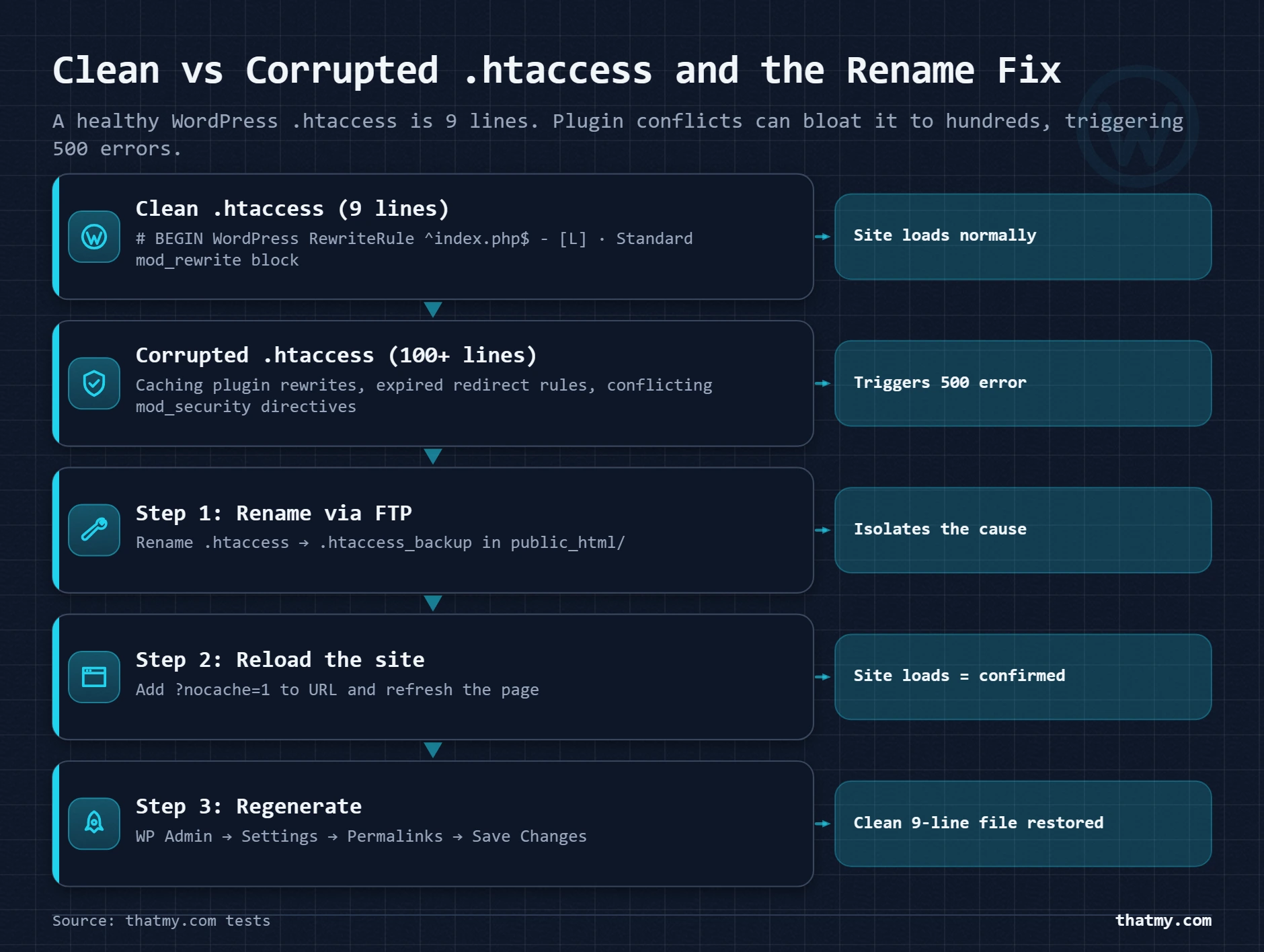
The test is instant. Rename .htaccess to .htaccess_backup and reload. If the site loads, .htaccess was the problem. You do not need to read the file to know this. The rename test takes ten seconds.
After confirming .htaccess was the issue: do not restore the corrupted file. Regenerate it cleanly.
# BEGIN WordPress
<IfModule mod_rewrite.c>
RewriteEngine On
RewriteBase /
RewriteRule ^index\.php$ - [L]
RewriteCond %{REQUEST_FILENAME} !-f
RewriteCond %{REQUEST_FILENAME} !-d
RewriteRule . /index.php [L]
</IfModule>
# END WordPressDiagnosing and Fixing File Permission Errors
File permission errors after migrations are silent, no PHP error in the log because PHP cannot even read the file to generate the error. The symptom is a 500 on all pages with no log entries that point to a specific file.
| File/Directory Type | Correct Permission | Why This Permission | What Goes Wrong |
|---|---|---|---|
| Directories | 755 | Owner: read/write/execute. Group and others: read/execute only. WordPress needs to read directory contents and execute PHP from them. | Result: 500 error on every page load |
| PHP and HTML files | 644 | Owner: read/write. Group and others: read only. PHP files should never be world-executable. | Result: 500 error if too restrictive (400), security risk if too permissive (777) |
| wp-config.php | 400 or 440 | Owner (or owner+group): read only. No write access. No world access. This file contains database credentials. | Result: Security risk if set to 644 or 664. 500 error only if set to 000. |
| Uploads folder | 755 | WordPress needs to write to this directory to save uploaded media. Same as other directories. | Result: Media upload failures, 500 error during upload if too restrictive |
| wp-content/cache | 755 | Caching plugins write to this directory. Needs write access. | Result: Caching plugin errors, partial 500 errors on cached page generation |
Fix permissions via FTP (FileZilla): right-click the WordPress root folder, select "File Attributes," check "Recurse into subdirectories," set directories to 755, files to 644.
Fix via SSH (fastest for large installations):
# Set all directories to 755:
find /path/to/wordpress -type d -exec chmod 755 {} \;

# Set all files to 644:
find /path/to/wordpress -type f -exec chmod 644 {} \;

# Lock down wp-config.php (most sensitive file):
chmod 400 /path/to/wordpress/wp-config.php
Fix via cPanel File Manager: Select all files and folders in your WordPress root, click "Change Permissions" in the top menu, set permissions, and check "Apply to all subfiles and subfolders."
Fixing 503 Service Unavailable: The Diagnostic Decision Tree
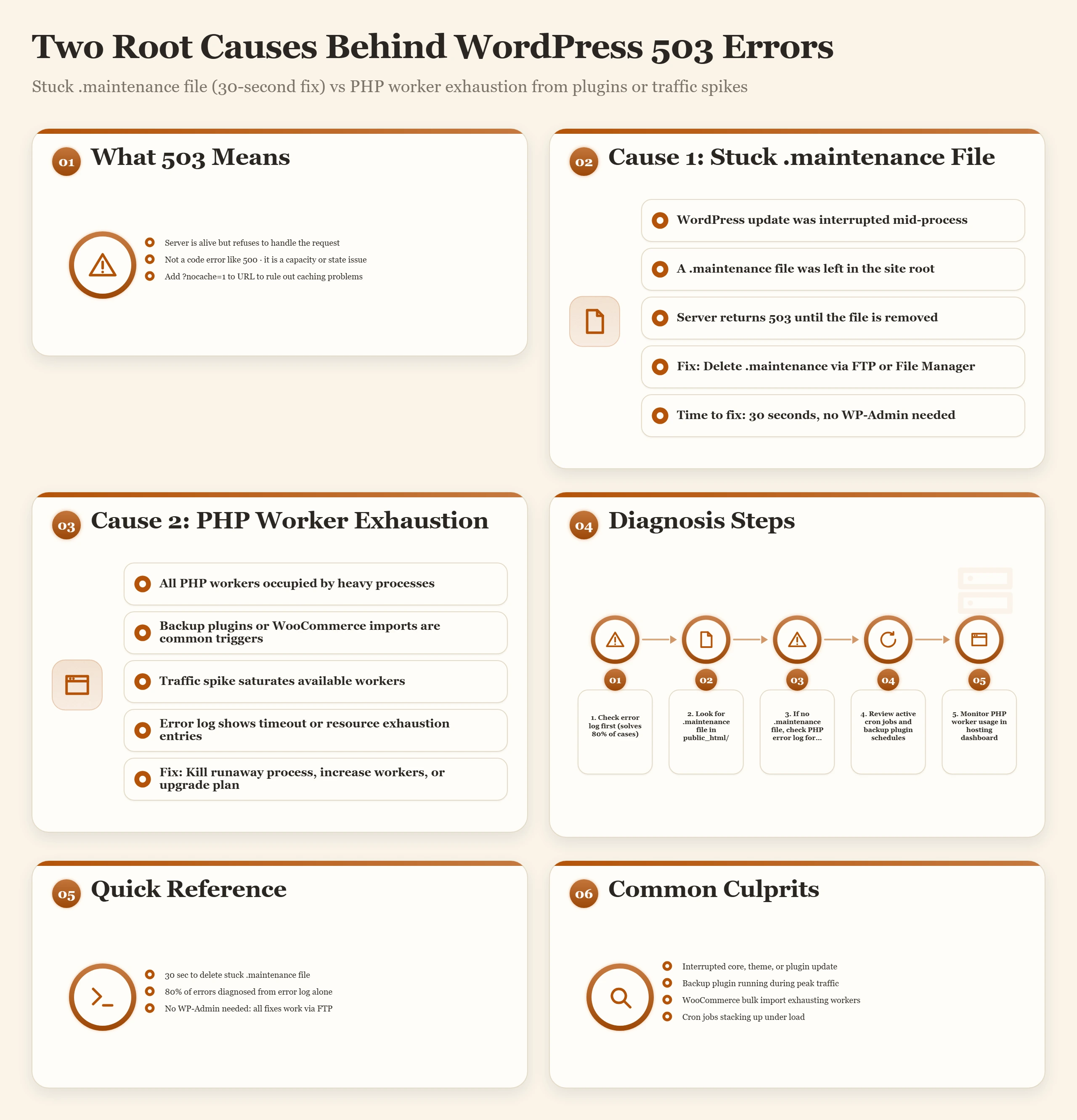
A 503 is not a code problem. No PHP error is causing it. The server is functioning, PHP is running, but the request cannot be fulfilled right now. That distinction changes everything about how you diagnose it.
Start with the simplest cause. It takes 30 seconds to check and it accounts for a large fraction of 503 reports.
| 503 Cause | Signature / When It Appears | Fix | Notes |
|---|---|---|---|
| Stuck maintenance mode | .maintenance file exists in WordPress root after an interrupted update | Delete the .maintenance hidden file via FTP or File Manager. Site returns immediately. | Check this first, 30-second fix |
| Server overload / traffic spike | 503 appears during high traffic periods or after a link goes viral. No .maintenance file. | Enable caching immediately. Enable Cloudflare Under Attack Mode to filter bot traffic. Scale PHP workers if on VPS. | Check server CPU/memory via cPanel Resource Usage |
| Backup plugin consuming workers | 503 appears during scheduled backup window. Other visitors cannot access the site. | Check running processes: ps aux | grep php via SSH. Schedule backups to run at 3am. Limit concurrent backup processes. | Particularly UpdraftPlus and BackupBuddy |
| Database connection limit exceeded | Error log shows 'Error establishing a database connection' or MySQL max_connections exceeded | Enable Redis object cache to reduce connection volume. Increase MySQL max_connections on VPS. Consider managed hosting if on shared. | Sign of outgrowing shared hosting |
| Rate limiting by host | 503 appears on certain IPs or after rapid page loads. Often affects automated tools or bots. | Check if your host applies rate limiting (Hostinger, Namecheap shared hosting do). Whitelist legitimate IPs. Block malicious bots via Cloudflare. | Common on budget shared hosting |
7a. Stuck Maintenance Mode
WordPress creates a file called .maintenance in your root directory when it starts an update. The file disappears automatically when the update completes. If the update was interrupted (browser closed, server timeout, network issue during update), the file stays and WordPress continues serving a maintenance page to all visitors indefinitely.
This is the fastest 503 fix that exists. Navigate via FTP or File Manager to your WordPress root directory (usually public_html). Enable "Show Hidden Files" in File Manager (the .maintenance file starts with a dot and is hidden by default). Delete the file. Your site returns immediately. The entire process takes under 60 seconds.
7b. Server Overload and Traffic Spikes
A page cached by a caching plugin takes approximately 0.5ms to serve. The same page served by WordPress PHP takes 200-500ms. The difference is a factor of 400-1000. When a site receives a traffic spike, uncached pages consume PHP workers at 400 times the rate of cached pages. Run out of workers and every request gets a 503.
Immediate actions in priority order:
- Enable or verify caching is active. Install WP Rocket, LiteSpeed Cache, or W3 Total Cache if not already. Cached pages bypass PHP entirely and serve to visitors even when the server is under load.
- Enable Cloudflare "Under Attack Mode" if you have Cloudflare. This adds a 5-second browser challenge that filters bot traffic and DDoS attempts within minutes. Bot traffic during spikes often exceeds legitimate user traffic by 10x.
- Block known bad bot user agents via your .htaccess or Cloudflare firewall rules. Common aggressive crawlers include SemrushBot, AhrefsBot, and MJ12bot, some of these send hundreds of requests per minute.
- If on a VPS: Increase PHP-FPM's
pm.max_childrensetting to allow more simultaneous PHP processes. The correct value depends on how much RAM each PHP process uses (typically 30-60MB) versus your total available RAM.
7c. Plugin Consuming All PHP Workers
Backup plugins, import tools, and certain SEO crawlers run PHP processes that stay active for minutes while they work. On shared hosting with a limited PHP worker pool, one long-running process can consume all available workers, leaving other visitors with 503 errors.
Via SSH: ps aux | grep php shows all running PHP processes. A long uptime column (minutes instead of seconds) on a process indicates a long-running PHP script. The process path usually identifies which plugin is running.
Via cPanel: the "Resource Usage" section in the sidebar shows current CPU and memory consumption. A spike coinciding with your 503 window confirms a resource-exhaustion cause.
The prevention: schedule backup plugins to run at 3am or another guaranteed low-traffic window. In UpdraftPlus, go to Settings and set the backup schedule. In BackupBuddy, go to Settings → Schedules. Never run a full backup during business hours on a shared hosting plan.
7d. Database Connection Limit Exceeded
MySQL has a max_connections setting that limits how many simultaneous connections the database server accepts. On shared hosting, this limit is shared across all accounts on the server. When your site (or the overall server load) exceeds this limit, WordPress cannot connect to the database and returns an error.
The fix that does not require upgrading anything: enable Redis object caching. Redis caches database query results in memory so that the same database row is not queried 50 times per page load. A site running Redis object caching needs roughly 20% of the database connections of a site without it. Cloudways includes Redis in all plans. On other hosts, Redis requires either the Memcached or Redis Object Cache plugin plus a Redis server instance.
The fix that does require upgrading: if you are on shared hosting and consistently hitting database connection limits, this is the specific symptom that indicates you have outgrown shared hosting. Shared hosting pools MySQL connections across dozens of sites. A VPS gives you dedicated MySQL with configurable connection limits. For WooCommerce stores, this transition typically becomes necessary somewhere between 500 and 2000 daily orders.
Bonus: Fixing 502 Bad Gateway and 504 Gateway Timeout
Both 502 and 504 involve a gateway layer between your browser and PHP. They are different failures: a 502 means the gateway got a bad response, and a 504 means the gateway got no response at all because the request timed out. The distinction tells you whether PHP is crashing (502) or just slow (504).
Fixing 502 Bad Gateway
In a WordPress context, 502 almost always means PHP-FPM crashed or is restarting. PHP-FPM is the process manager that handles PHP execution. When it crashes, Nginx or Apache (the web server in front of it) has no PHP backend to forward requests to, so it returns 502.
On a VPS with SSH access, restart PHP-FPM:
# PHP 8.2:
sudo systemctl restart php8.2-fpm

# PHP 8.1:
sudo systemctl restart php8.1-fpm

# PHP 7.4 (older installations):
sudo service php7.4-fpm restart

# Check if it is running after restart:
sudo systemctl status php8.2-fpm
On managed or shared hosting, contact your host's support. They can restart PHP-FPM on your behalf and check the PHP-FPM error log for what caused the crash. The crash is usually caused by a PHP process hitting a memory limit severe enough to kill the worker rather than return a 500, or by a PHP configuration error in a site configuration file.
Fixing 504 Gateway Timeout
A 504 means a PHP request took longer than the server's timeout threshold. The request started, PHP was processing it, and the web server got tired of waiting. The most common triggers: WooCommerce bulk product imports, slow database queries running on every page load, external API calls (payment gateways, shipping calculators) that become unresponsive, and batch operations that legitimately take longer than the default 30-60 second timeout.
Increase the timeout limits in three places:
wp-config.php:
set_time_limit(300); // 5 minutes, add near top of fileNginx (server block configuration):
fastcgi_read_timeout 300;
fastcgi_send_timeout 300;
proxy_read_timeout 300;
.htaccess (Apache only):
php_value max_execution_time 300If 504 errors are caused by slow database queries rather than intentional long operations, increasing the timeout treats the symptom while the cause gets worse. Identify slow queries using the Query Monitor WordPress plugin (free) or New Relic (included with Cloudways). A query taking 3 seconds on every page load will eventually become a query taking 30 seconds. Optimize it with proper database indexing rather than extending the timeout indefinitely.
For WooCommerce stores specifically, the WordPress load balancing guide covers how database query bottlenecks compound under high traffic and what infrastructure changes address the root cause.
When You Are Locked Out of WP-Admin Completely
Everything above assumes you can use FTP or File Manager to access files. But sometimes a 500 error locks you out of both WP-Admin and leaves you without FTP credentials. This section covers the complete recovery toolkit for that scenario.
FTP Access: The Universal Fallback
FTP is always available regardless of what state WordPress is in. Even a site returning 500 on every request can be accessed via FTP because FTP operates at the file system level, not through PHP. Your hosting control panel has FTP credentials under "FTP Accounts" in cPanel or equivalent.
You can use your host's File Manager web interface directly without a separate FTP client. In cPanel, File Manager provides full file system access. For desktop FTP, FileZilla is free and connects using the credentials from your hosting panel.
From FTP you can perform every file-based fix in this guide: rename .htaccess, rename the plugins folder, edit wp-config.php, set file permissions, and check error logs.
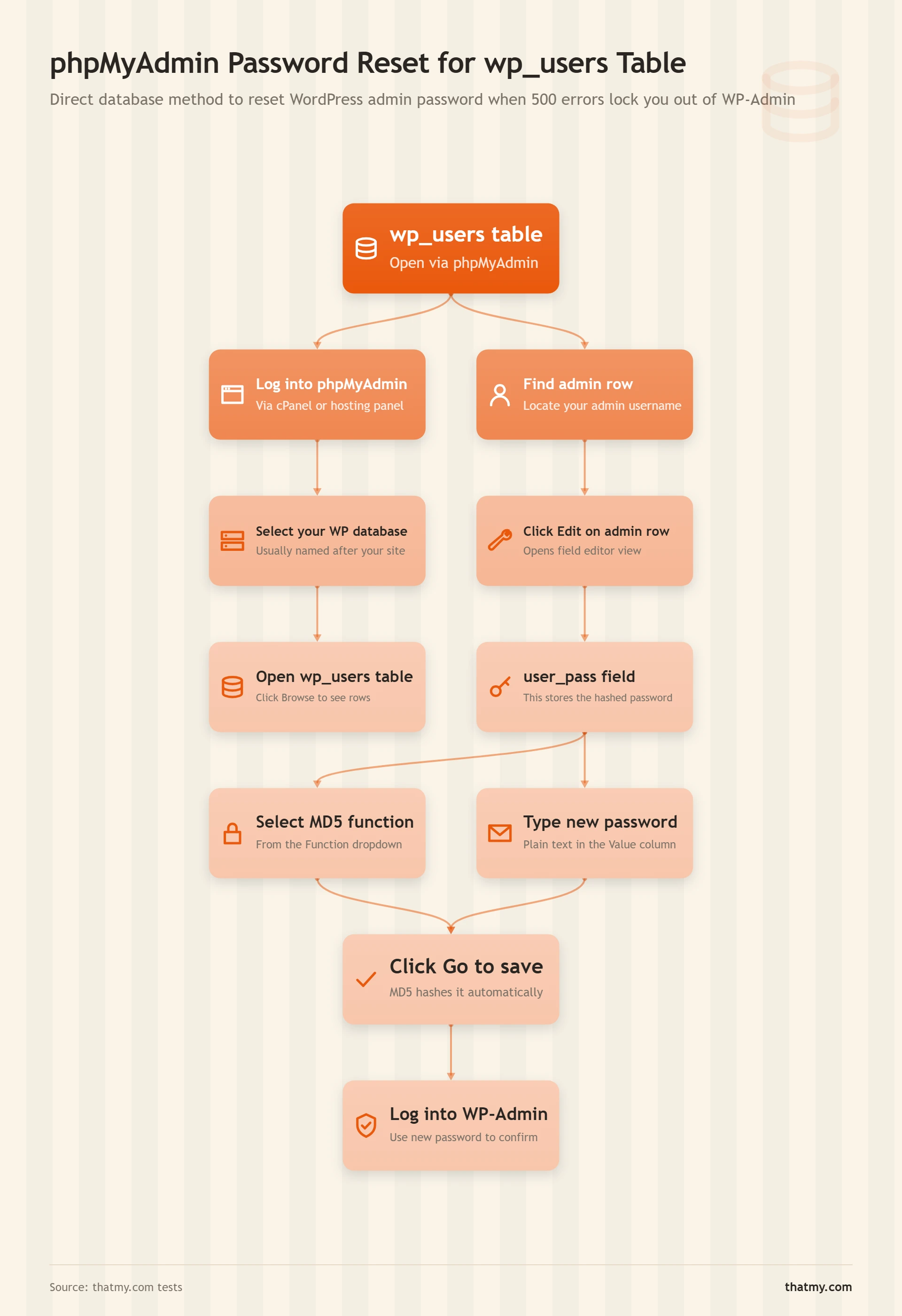
Reset WordPress Admin Password via phpMyAdmin
If you cannot log into WP-Admin because the password is lost or the account was corrupted (separate from the 500 error):
wp_users table (prefix may differ, look for the table with "users" in the name)user_pass field. In the "Function" dropdown next to it, select MD5. In the value field, type your new password.WP-CLI Emergency Access (SSH Required)
If you have SSH access and WP-CLI is installed, these commands work regardless of WordPress state:
# Reset admin password without needing WP-Admin:
wp user update admin --user_pass='newpassword123' --path=/path/to/wordpress

# List all admin users to find the username:
wp user list --role=administrator --path=/path/to/wordpress

# Create a new admin user if the original is inaccessible:
wp user create newadmin admin@yourdomain.com --role=administrator --user_pass='securepassword' --path=/path/to/wordpress

# Deactivate all plugins from command line (no FTP folder renaming needed):
wp plugin deactivate --all --path=/path/to/wordpress

# Check WordPress version and find if core is corrupted:
wp core verify-checksums --path=/path/to/wordpress
WP-CLI is available on all managed hosting platforms including Cloudways and Kinsta. On shared hosting, it is available if your host has it installed, check your hosting documentation or contact support. It is one of the most powerful recovery tools available when site access is broken.
Prevention: Stop These Errors Before They Happen
Every 500 and 503 error in this guide has a precondition that makes it possible. Remove the preconditions and the error rate drops dramatically. These are the specific changes that eliminate the most common causes.
Plugin Update Protocol
Never update all plugins simultaneously. The safest sequence: back up first, then update one plugin, test the site, update the next. When a WordPress major version releases, wait 2-4 weeks before updating plugins that are not security updates, plugin authors need time to test against the new core version.
A staging site makes this risk-free. Cloudways, WP Engine, and Kinsta all include staging environments where you can test every update before touching production.
PHP Version Management
Running PHP 7.4 in a world where plugins now require PHP 8.1 or 8.2 creates slow incompatibility failures. A plugin that technically runs on PHP 7.4 but was written for 8.1 will generate warnings and eventually fatal errors as minor updates add 8.x-specific syntax.
Keep PHP current. Check plugin requirements before updating the PHP version. Most conflicts are identified by running the PHP Compatibility Checker plugin before upgrading.
Uptime Monitoring
Most site owners discover 500 errors when a customer emails them. UptimeRobot (free tier: checks every 5 minutes, instant email and SMS alerts) will notify you within 5 minutes of a 500 or 503 appearing. That is the difference between a 5-minute outage and a 4-hour one.
For deeper visibility, New Relic (included with Cloudways) shows PHP errors, slow database queries, and memory usage trends before they become 500 errors. The uptime monitoring guide covers the full setup.
The Backup That Actually Saves You
A backup that has never been restored is not a backup. It is a file sitting somewhere. Test your restore process every 90 days on a staging site. If the restore takes longer than 20 minutes or fails, your backup strategy has a gap that will cost you when it matters.
UpdraftPlus Premium stores daily backups to Google Drive and allows one-click restore from inside WP-Admin. For WooCommerce stores, the backup and restore guide covers the complete strategy including database-only backups before every update session.
Memory as Infrastructure
A WordPress site that regularly hits its PHP memory limit is a site on a plan that is too small. The memory limit fix in wp-config.php only works up to whatever your host allows. If your host caps at 64MB and your site needs 256MB, no amount of code changes will fix it.
Memory requirements scale with plugins, traffic, and complexity. A brochure site might need 64MB. A WooCommerce store with active payment gateways, shipping calculators, and product page builders needs 512MB. Match your hosting plan to your actual requirements. The managed VPS guide covers when the transition from shared hosting becomes necessary.
Caching as Infrastructure
A site without a caching layer is fully exposed to traffic spikes. Every visitor hits PHP. Every search engine crawl hits PHP. Every social media traffic burst hits PHP simultaneously. A cached site deflects 95% of this load before PHP is ever involved.
LiteSpeed Cache (free, fastest on LiteSpeed servers), WP Rocket ($59/year, most reliable on Apache and Nginx), or the native caching on managed hosts like Kinsta and WP Engine. Install one before the traffic spike happens, not after the 503 appears.
WordPress Error Codes FAQ
What is the difference between a 500 and a 503 error in WordPress?
A 500 Internal Server Error means the server tried to process your request but something in the code or configuration broke mid-execution. PHP threw a fatal error, the .htaccess file has invalid syntax, or a plugin crashed. The server was willing to process the request but could not complete it. A 503 Service Unavailable means the server is running fine but cannot handle requests right now. It is not a code error, it is a capacity or state problem. The server is overloaded, in maintenance mode, or out of resources. The distinction matters because the fix is completely different: 500 errors require code investigation, while 503 errors usually require resource management or removing a blocking state like the .maintenance file.
How do I find my WordPress PHP error log?
The location depends on your hosting setup. In cPanel: look for 'Error Logs' in the main dashboard, or use File Manager to navigate to /home/youraccount/logs/ or check public_html/error_log directly. On Cloudways: go to Application, then Logs, and select PHP Error Log. On Kinsta or WP Engine: each has a dedicated log viewer in the hosting dashboard. Via SSH, use: tail -f /var/log/nginx/error.log for Nginx servers or tail -f /var/log/apache2/error.log for Apache. If you have no server log access, enable WordPress debug logging by adding three lines to wp-config.php: define('WP_DEBUG', true); define('WP_DEBUG_LOG', true); define('WP_DEBUG_DISPLAY', false); then check /wp-content/debug.log after triggering the error.
Why does my WordPress site show a 500 error only on the admin, not the front end?
This is usually a plugin that only loads in the admin context, or a memory limit that the front end does not hit because cached pages bypass PHP entirely. The admin area runs full PHP on every page load, including all active plugin admin pages, which consume more memory than front-end requests. Common causes specific to the admin: a plugin's admin dashboard panel throwing a PHP error, the WordPress update manager hitting a memory limit during update checking, or a security plugin that runs heavier checks in the admin context. Check the error log and look for references to /wp-admin/ paths. The fix is usually identifying the plugin causing the admin-specific error and deactivating it.
I deactivated all plugins but still get a 500 error. What next?
The problem is in WordPress core files, your theme, or wp-config.php. Test with a default theme: in wp-config.php add define('WP_DEFAULT_THEME', 'twentytwentyfour'); and see if the error clears. If it does, your active theme's functions.php has a PHP error. If the error persists with the default theme: check wp-config.php for syntax errors, re-upload WordPress core files via FTP (download fresh copy from wordpress.org, upload everything except wp-config.php and wp-content/), and check file permissions on wp-includes/ and wp-admin/ directories. Also check your error log, at this stage, the log almost always contains the exact file and line number of the problem.
How do I fix a 500 error caused by .htaccess without FTP access?
Use your hosting control panel's File Manager. In cPanel, go to File Manager, navigate to public_html, enable 'Show Hidden Files' (important, .htaccess is a hidden file), then rename .htaccess to .htaccess_backup. If the site loads, the .htaccess was corrupted. To regenerate it: log into WP-Admin, go to Settings > Permalinks, and click Save without making any changes, WordPress will regenerate a clean .htaccess. If you cannot access WP-Admin because the site is still broken, create a new file called .htaccess in your root directory and paste the clean WordPress .htaccess content (the standard mod_rewrite block) manually.
My site shows 503 and there is no .maintenance file. What is causing it?
Without the .maintenance file, a 503 usually comes from one of three causes. First: server resource exhaustion, your PHP worker pool is full because another process (often a backup plugin, an import script, or a bot crawl) is consuming all available workers. Check cPanel Resource Usage or run ps aux | grep php via SSH to see long-running PHP processes. Second: your host is rate-limiting or throttling your account, which appears as a 503 to visitors. This happens on shared hosting when you exceed CPU or connection limits, check your host's resource usage panel. Third: a database issue where MySQL has hit its max_connections limit. The error log will show 'Error establishing a database connection' in this case.
Can a 500 error be caused by malware?
Yes. Malware that modifies WordPress core files, injects code into functions.php or plugin files, or adds invalid PHP to .htaccess will cause 500 errors. The signature of malware-caused 500 errors: the error appears without any recent update or change on your part, and the error log points to files you did not modify (core files, plugin files you have not touched). If you suspect malware, run a scan with WordFence or Sucuri Scanner before attempting other fixes, changing code in an infected file without removing the infection first means the malware may re-inject itself. If the site was compromised, the hacked site recovery section of the security threats guide covers the full remediation sequence.
Where to Go Next
If your 500 error was caused by a plugin conflict after a WordPress update, and you keep hitting this problem repeatedly, the issue is usually a hosting environment that makes updates riskier than they need to be. Both managed WordPress hosts and platforms like Cloudways include staging environments that let you test every plugin update before it touches production. The update-caused 500 error is essentially eliminated when you have a staging workflow.
If memory exhaustion is your recurring cause, the server hardware guide covers how PHP memory allocation works at the infrastructure level and how to evaluate whether your hosting plan's memory ceiling is the actual constraint. If you have a WooCommerce store hitting memory limits on shared hosting, the managed VPS guide walks through when and how to make that transition without downtime.
If you suspect your 500 error was caused by something injected into your site rather than a plugin conflict, the hacked site recovery section of the security guide covers the full malware investigation and remediation process.