
HTTP Status Codes Explained: Every Code from 1xx to 5xx with Hosting Context

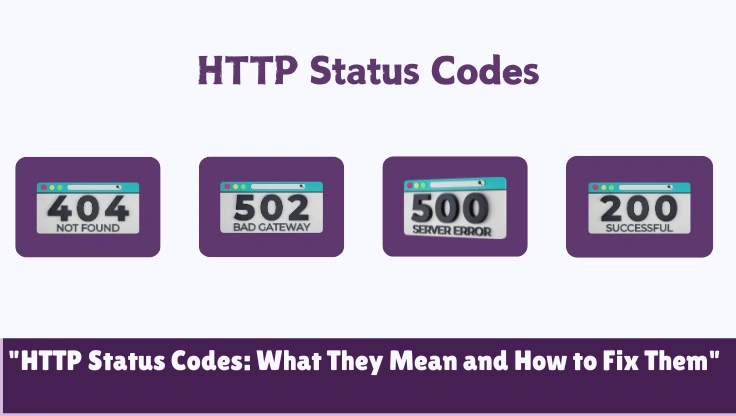
HTTP status codes are the three-digit signals your server sends back with every response. 200 means everything worked. 404 means the page does not exist. 500 means something broke on the server. They are not random numbers. Each one tells you exactly what category of problem you are dealing with, and in WordPress, each one has a specific cause and a specific fix.
You encounter status codes in three places: your browser (error pages), server logs (diagnosing problems), and Google Search Console (finding crawl errors that hurt rankings). This guide covers all three contexts. Every code below includes what it means, what causes it in WordPress specifically, and exactly how to fix it.
Quick Reference: Every Code in One Table
Every status code you are likely to encounter in WordPress, logs, or Google Search Console, with a one-line description and whether action is needed. The table below is what readers bookmark. The sections that follow explain each one in depth.
How to Read Status Codes: The First Digit Is Everything
Most people learn status codes as a list. That is the wrong mental model. The correct model is a tree: the first digit places the code in one of four categories, and the remaining two digits specify the exact sub-case. Once you understand the four categories, you can reason about any status code you encounter, even codes you have never seen before.
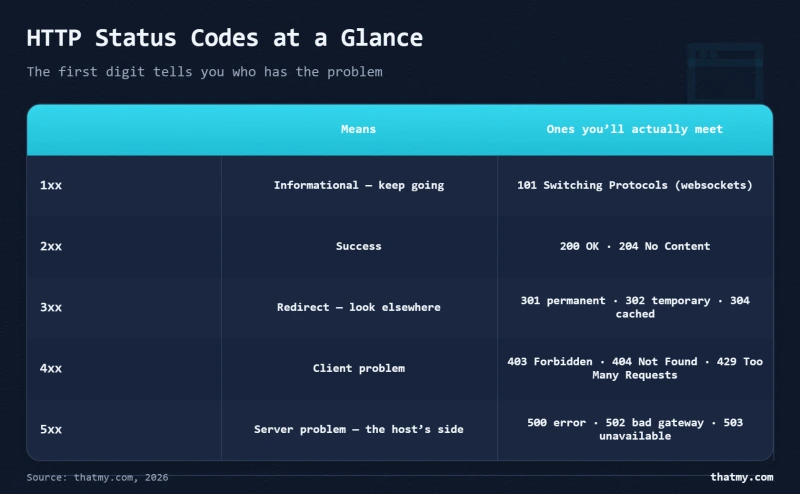
The request was received, understood, and processed. The specific 2xx code refines what kind of success, resource returned (200), resource created (201), nothing to return (204), cached version still valid (304).
The request must be taken elsewhere. The server is saying: "What you want is not here, follow this new URL." Whether that redirect is permanent (301) or temporary (302/307) has major implications for SEO and link equity.
The problem is with the request, not the server. The server understood the request and chose not to, or could not, fulfill it based on what was asked. Fix is on the client side: the URL, credentials, permissions, or request format.
The request was valid, but the server failed to complete it. PHP crashed, a timeout occurred, a resource was exhausted. The request itself was fine, the server broke while trying to process it. Fix is on the server side.
2xx Success Codes, And What They Tell You About Performance
Most of the traffic on a healthy site is 200s and 304s. The other 2xx codes appear in specific contexts, REST APIs, AJAX calls, form submissions, but are rarely seen in normal page browsing. Understanding the difference between a 200 and a 304 tells you whether your browser caching is working.
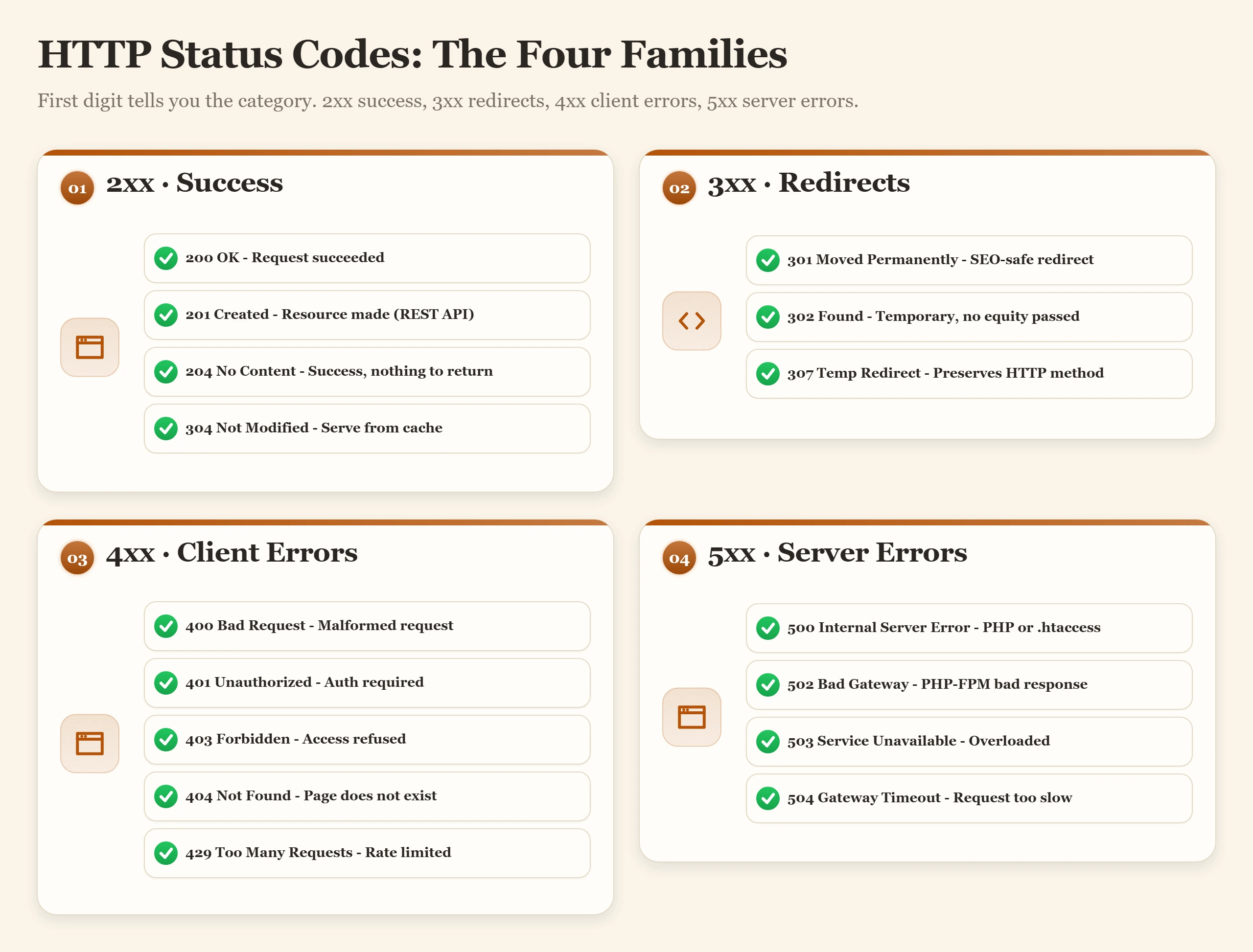
The gold standard. Server received the request, processed it, returned the response body. Every clean page load in your logs is a 200.
Returned by REST APIs after a resource is created. Not seen in normal page browsing.
Success, but there is nothing to return in the response body. Normal for certain AJAX calls and form submissions that process and confirm without needing to send data back.
The browser had a cached copy and asked: "Is this still current?" The server confirmed it is. No body is sent, the browser serves from its cache. This is dramatically faster than a full 200 with the file.
3xx Redirect Codes, SEO Impact, Redirect Chains, and the 301 vs 302 Decision
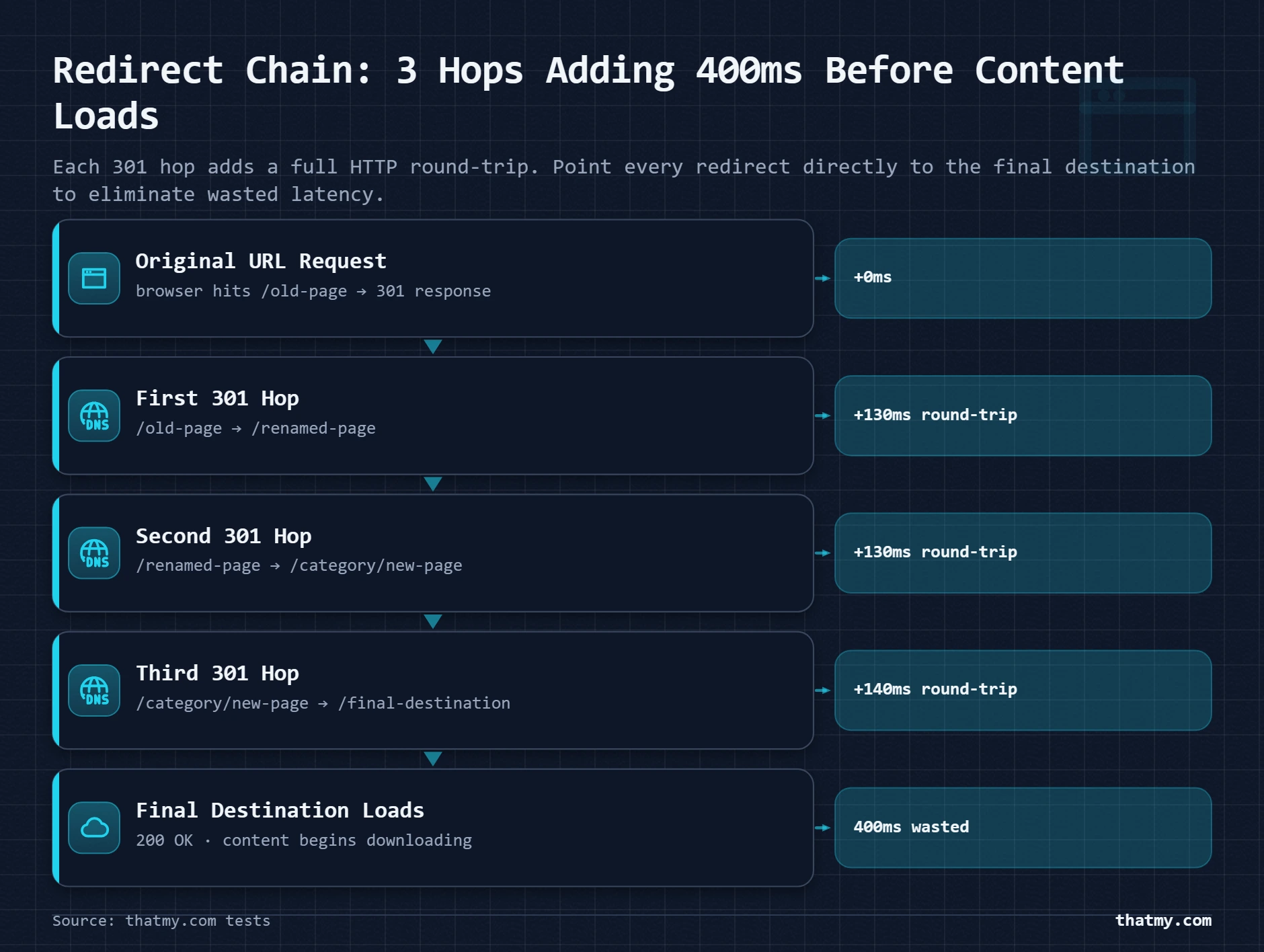
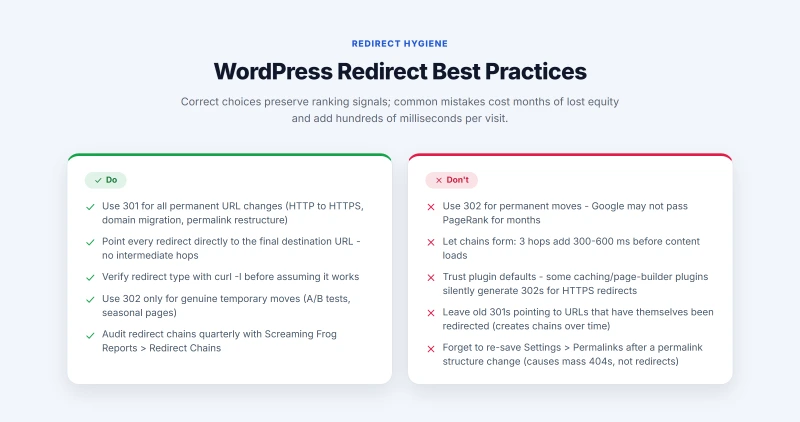
Most people think redirect codes are simple: use 301 for permanent, 302 for temporary. That is the correct answer but an incomplete one. The real complexity is in the consequences: a misused 302 bleeds PageRank for months before Google figures out the redirect is actually permanent. A redirect chain of three 301s adds 400ms to every first-time page load. The redirect type you choose has real, measurable performance and SEO consequences.
The canonical SEO redirect. Tells browsers and search engines: this URL has permanently moved to this new URL. Google passes approximately 95-99% of PageRank through 301s. Any permanent URL change must use a 301.
curl -I https://yourdomain.com/old-url, should show HTTP/1.1 301 and Location header- HTTP to HTTPS: set in .htaccess (Apache) or server block (Nginx), not in a plugin
- Broken URL to new URL: use the Redirection plugin (free), logs all redirects, supports bulk import
- After permalink change: Settings → Permalinks → Save (regenerates .htaccess rewrite rules)
- Checking your 301s:
curl -IL https://yourdomain.comtraces the full redirect chain
Tells browsers: temporarily go here, but check back later for the original URL. Google does not permanently transfer PageRank through 302s, it may eventually, but 301 is the definitive signal.
curl -I https://yourdomain.com | grep -E "HTTP|Location"Temporary redirect that preserves the HTTP method. A POST request to a 307 stays a POST at the new URL. A 302 would convert it to a GET. Relevant for form submissions and API endpoints. Uncommon in standard WordPress use.
301 vs 302 vs 307 vs 308: The Decision Matrix
| Code | Type | Preserves Method | SEO Link Equity | When to Use |
|---|---|---|---|---|
| 301 | Permanent | No (POST becomes GET) | Full equity transfer | URL migrations, HTTP to HTTPS, www consolidation |
| 302 | Temporary | No (POST becomes GET) | Temporary only, does not consolidate | A/B tests, seasonal pages, maintenance redirects |
| 307 | Temporary | Yes (POST stays POST) | Temporary only | Form POST redirects requiring method preservation |
| 308 | Permanent | Yes (POST stays POST) | Full equity transfer | Permanent API endpoint moves with POST preservation |
Redirect Chains: The Silent Performance Killer
A redirect chain is what happens when your redirects point to other redirects instead of directly to the final destination. Each hop in the chain is a separate HTTP round-trip. Three redirects can add 300-600ms to load time before a single byte of content has been delivered to the browser.
Find redirect chains using Screaming Frog (free up to 500 URLs), go to Reports → Redirect Chains. Fix by updating each intermediate redirect to point directly to the final destination URL. The SSL and HTTPS guide covers the specific case of HTTP-to-HTTPS redirect chains that form during migrations.
4xx Client Error Codes, WordPress Causes and Exact Fixes
Every 4xx error means the request itself is the problem. The server is working correctly. The fix is always on the client side: fix the URL, provide credentials, check permissions, or adjust the request. The specific 4xx code tells you exactly which aspect of the request is wrong.
The server could not process the request because of a client-side issue, malformed syntax, invalid URL characters, or a request that exceeds server limits. The server understood what you were asking, but the request itself was broken.
Authentication is required and was not provided, or the credentials provided were incorrect. The server is saying: "I need to know who you are before I answer this."
- WordPress REST API endpoints that require authentication return 401 when called without valid credentials
- Password-protected pages return 401 when accessed with the wrong password
- WP-Admin when logged out redirects to the login page (302 to wp-login.php) rather than returning 401, WordPress uses this pattern instead of a standard 401
- HTTP Basic Auth on a staging site returns 401 when the correct credentials are not provided
The server understood the request perfectly and is actively refusing to comply. Not a missing resource (that would be 404). Not missing credentials (that would be 401). The server knows what you want and it is saying no. The critical distinction from 404: with 403, the server knows the resource exists.
# Set all directories to 755:
find /path/to/wordpress -type d -exec chmod 755 {} \;

# Set all files to 644:
find /path/to/wordpress -type f -exec chmod 644 {} \;

# Lock down wp-config.php (contains credentials):
chmod 400 /path/to/wordpress/wp-config.php/wp-content/plugins/wordfence → /wp-content/plugins/wordfence-disabled), then access wp-admin to whitelist your IP before re-enabling.The page does not exist at the requested URL. The server looked, found nothing, and is telling you so. The server has not broken. There is simply nothing at that address. This is the most SEO-consequential status code most WordPress site owners deal with.
Page never existed or was intentionally deleted. No action required unless Google is trying to crawl it.
Page exists but URL changed. Permalink change, migration, typo. Needs a 301 redirect to the correct URL immediately.
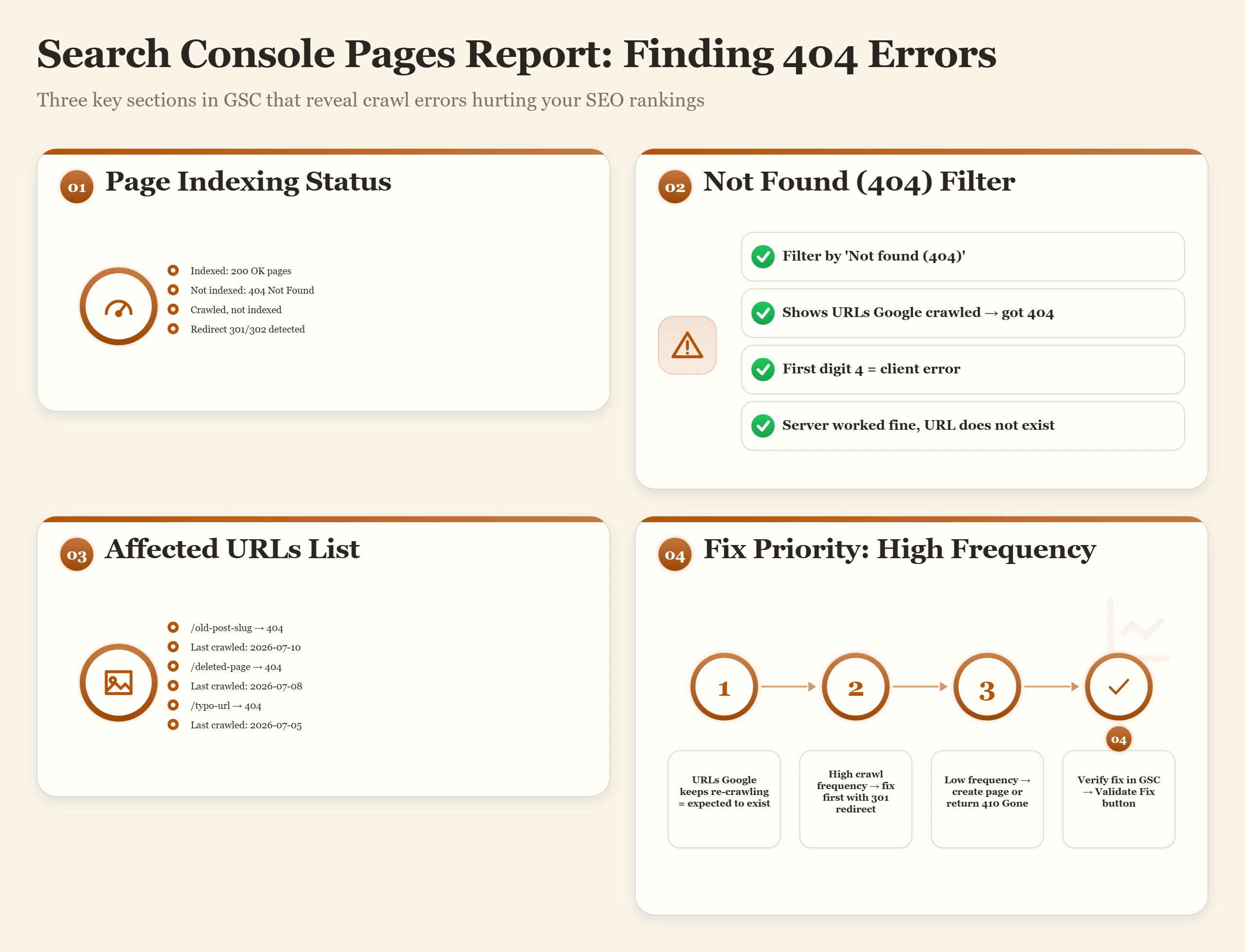
- Google Search Console: Pages → Not Found (404), URLs Google is actively trying to crawl that return 404
- Screaming Frog: crawl your site, filter Response Codes by 4xx, finds all internal links pointing to 404 pages
- Redirection plugin: logs 404s in real-time as visitors hit them, shows you what your actual users encounter
A rate limit has been hit. You, or a bot, is making requests faster than the server's configured threshold allows. The server is enforcing a maximum request frequency and declining to serve until the rate drops.
5xx Server Error Codes, Diagnosis and the Direct Fix Links
5xx errors mean the server broke. The request was valid. The client did nothing wrong. Something on the server side failed while trying to process the request. The error log almost always contains the exact cause, reading it first saves hours of guessing.
This section covers each 5xx code in triage depth. The full diagnostic trees for 500 and 503 are in the dedicated 500 and 503 fix guide, which should be your next stop for any active server error.
Server-side problem during request processing. PHP threw a fatal error, .htaccess has invalid syntax, a plugin crashed, or memory was exhausted. The server was trying to handle your request and something broke mid-execution. The error log records the exact file and line.
tail -n 50 /var/log/nginx/error.log or cPanel → Error Logs. The log contains the exact cause 90% of the time.define('WP_MEMORY_LIMIT', '256M'); to wp-config.php.The web server (Nginx or Apache) received an invalid or empty response from PHP-FPM, the upstream process manager that executes your PHP code. PHP-FPM crashed, ran out of process slots, or returned garbage. The gateway had nothing valid to send to the browser.
# Restart PHP-FPM (replace 8.2 with your PHP version):
sudo systemctl restart php8.2-fpm

# Check if it is running after restart:
sudo systemctl status php8.2-fpm

# Check PHP-FPM error log:
sudo tail -n 30 /var/log/php8.2-fpm.logServer is alive but cannot handle requests right now. Not a code error. A capacity or state problem. The fastest fix in existence: check whether a .maintenance file exists in your WordPress root directory and delete it. That accounts for a significant fraction of all 503 reports.
ps aux | grep php, look for long-running backup or import processesThe gateway gave up waiting for PHP to finish. PHP was executing, the request took longer than the configured timeout threshold, and the web server stopped waiting. The page load started and died mid-execution.
- WooCommerce bulk product imports or large order report generation
- Slow database queries running on every page load (check with Query Monitor plugin)
- External API calls hanging, payment gateways, shipping calculators, webhooks that stop responding
- PHP max_execution_time set too low for the operation
// In wp-config.php, increase execution time:
set_time_limit(300);

// .htaccess (Apache):
php_value max_execution_time 300

// Nginx server block:
fastcgi_read_timeout 300;
fastcgi_send_timeout 300;Reading Status Codes in Google Search Console
Google Search Console's Pages report is where status codes become an SEO problem. Every URL Google tried to crawl and could not access successfully appears here. Most WordPress site owners check GSC for keyword data but never open the Pages report, which means they have invisible 404 and 5xx problems that have been suppressing rankings for months.
The Pages Report: What Each Status Means
Working Through GSC 404s Efficiently
Reading Status Codes in Server Logs
Server logs are the most complete picture of what your site is actually returning. They show every request, not just the ones that generate visible errors. The status code distribution in your logs tells you the health of your site at a glance: a healthy log is overwhelmingly 200s and 304s, with a small number of 301s for redirects and occasional 404s. Anything else warrants attention.
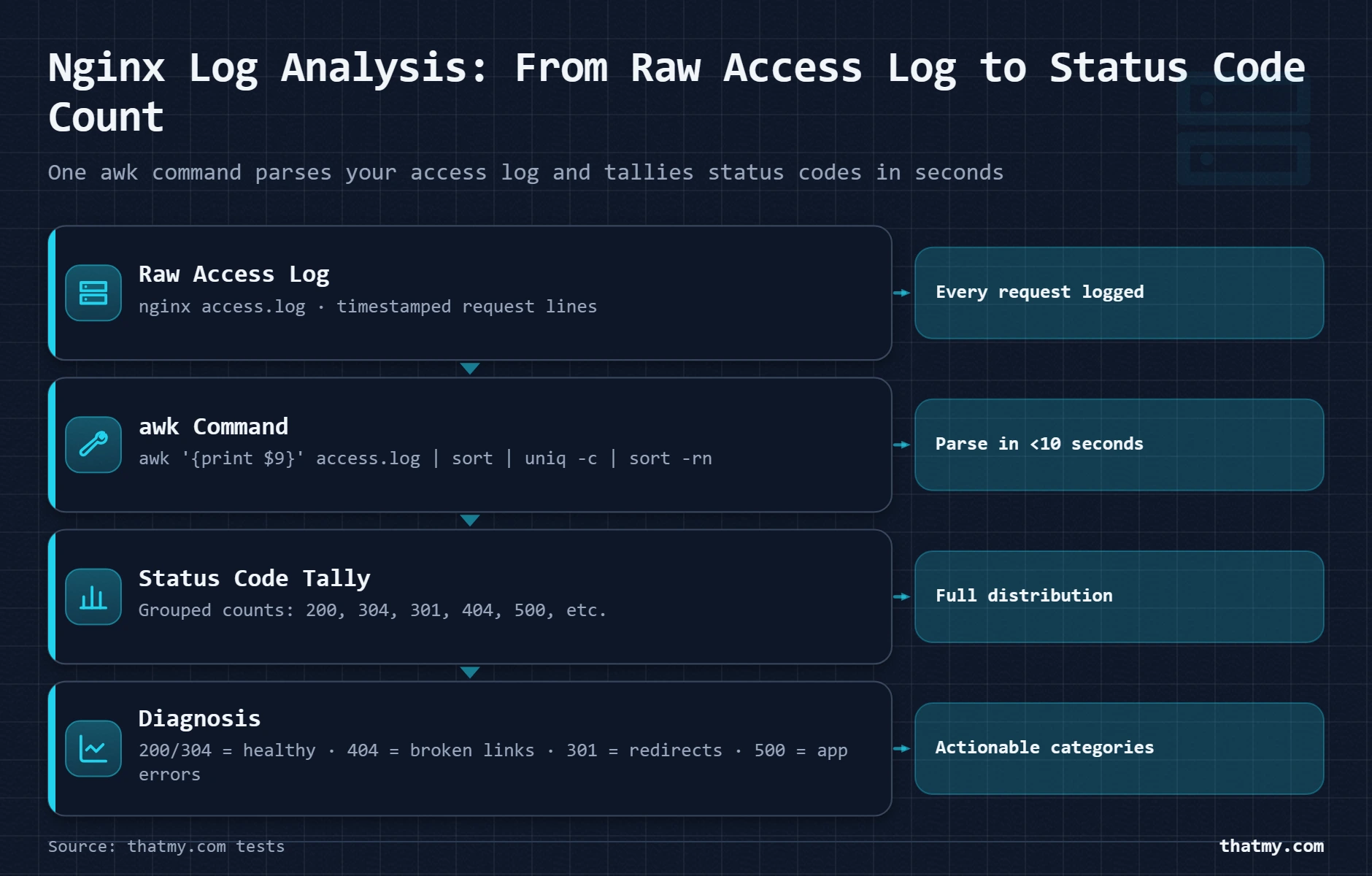
tail -n 1000 /var/log/nginx/access.log | awk '{print $9}' | sort | uniq -c | sort -rnRed Flags in Your Status Code Distribution
# Show all URLs returning 404 in the last 500 requests:
grep '" 404 ' /var/log/nginx/access.log | tail -500 | awk '{print $7}' | sort | uniq -c | sort -rn | head -20
Reading Status Codes in Cloudflare Analytics
Cloudflare sees every request before it reaches your server. This means Cloudflare's status code data includes requests that were blocked, cached at the edge, or challenged, which your server logs do not record because they never arrived. Cloudflare Analytics gives you a different view of the same traffic.
Security Events shows requests that Cloudflare blocked (403) or challenged before they reached your server. If you are seeing 403s you cannot explain from server-side permissions, this is where to look, a WAF rule may be blocking legitimate requests.
Filter by Action = Block to see what Cloudflare is stopping. If legitimate traffic appears here, create a Firewall Rule exception for the specific IP, user agent, or URI pattern.
The waterfall shows the status code for every single resource loaded on a page. Look for:
- 404 for CSS, JS, or images, broken dependencies that affect rendering and performance
- 302 chains on redirected resources, each hop delays page load
- Slow 200s, large unoptimized files identified by time-to-load in the waterfall
HTTP Status Code Cheat Sheet
A portable reference you can copy, save, and use without scrolling through a full article. This is the condensed version, all codes, all categories, with the actionable fix note for every one that requires action.
HTTP Status Code FAQ
What does HTTP status code 200 mean and is it always good?
A 200 OK response means the server successfully processed the request and returned the response body. In nearly all cases, 200 is the correct outcome. However, a 200 is not always a sign that everything is working correctly. A page that returns 200 but serves broken content, missing CSS, broken images, or incorrect data, still has a problem even though the HTTP layer says success. The most common WordPress scenario where a 200 masks a problem is a page that was set to noindex, where the page itself loads fine but Google is being told not to index it. Always verify that a 200 response also contains the correct content, not just the correct HTTP status.
What is the difference between 301 and 302 redirect in SEO terms?
A 301 is a permanent redirect. It tells search engines that the original URL has moved forever and that all link equity, ranking signals, and PageRank should transfer to the new URL. Google passes approximately 95 to 99 percent of a page's link equity through a 301. A 302 is a temporary redirect. It tells search engines to continue indexing the original URL because the move is temporary, do not update your index. Google does not consolidate ranking signals through 302s in the same way it does through 301s. The practical mistake to avoid: using 302 when you mean 301. Any permanent URL change, HTTP to HTTPS migration, www to non-www, permalink structure change, domain migration, must use 301. A 302 on any of these is an SEO problem.
How do I find 404 errors that are affecting my WordPress SEO?
Google Search Console is the primary tool for finding SEO-affecting 404s. Go to Search Console, open the Pages report (formerly Coverage), filter by 'Not found (404)', and export the list as CSV. Sort by 'Last crawled' descending, the most recently crawled 404s are the URLs Google was actively trying to index. Cross-reference those URLs against your Redirection plugin log or your server access log to see which ones formerly had content. Pages that used to rank and were deleted or had their URL changed are the 404s most damaging to SEO. Each one warrants a 301 redirect from the old URL to the closest relevant existing page. For finding 404s that affect user experience but not necessarily SEO, Screaming Frog can crawl your entire site and report all 4xx responses including linked-to URLs that return 404.
Why do I keep getting a 403 Forbidden error on my WordPress uploads folder?
A 403 on your uploads folder is almost always one of two things. First, a restrictive .htaccess file inside the /wp-content/uploads/ directory. Security plugins occasionally add an .htaccess to the uploads folder that blocks direct file access as a security measure, but set too aggressively, it blocks legitimate media files. Check for a .htaccess file in your uploads directory using File Manager or FTP. If it exists, open it and review what it blocks. Second, incorrect directory permissions. The uploads directory needs to be readable by the web server user (chmod 755 for directories). If it was accidentally set to 700 or 600, the web server cannot read the files. Fix with: find /path/to/wp-content/uploads -type d -exec chmod 755 {} plus. If you are using Cloudflare, also check your Cloudflare Security Events to see if a WAF rule is blocking the request at the DNS level before it even reaches your server.
What causes a 429 Too Many Requests in WordPress and how do I fix it?
A 429 means a rate limit has been hit. In WordPress there are three common sources. Cloudflare rate limiting rules, if you or a tool you are using is making requests faster than your Cloudflare rate limit allows, Cloudflare returns a 429 before the request reaches WordPress. Check Cloudflare Security Events to see which rule triggered and from which IP. Wordfence login protection, after a certain number of failed login attempts, Wordfence returns a 429 to that IP. If you locked yourself out, temporarily disable Wordfence via FTP by renaming its plugin folder. WordPress REST API rate limiting, certain hosts apply rate limits to the REST API endpoint. If your automation or WooCommerce integration hits this limit, add the originating IP to your host's whitelist or adjust the rate limit threshold. The fix in all three cases is to either reduce the request frequency, whitelist the legitimate IP, or adjust the rate limit threshold to match the actual usage pattern.
What is a 304 Not Modified and why does it matter for performance?
A 304 Not Modified is the server confirming that a resource the browser already has cached has not changed. The browser sends a conditional request: 'I have version X of this image, is it still current?' The server checks and, if the file has not changed, returns a 304 with no body instead of a full 200 with the file. The browser uses its cached version. The performance benefit is significant: instead of downloading a 200KB image on every page load, the browser downloads 0 bytes and uses its cached copy. A high ratio of 304s to 200s for static assets like images, CSS, and JavaScript is a sign that browser caching headers are correctly configured. If you see zero 304s for static assets, your server is not setting proper cache-control headers, which means every visitor downloads every asset on every page load, a substantial performance penalty.
How do I check which HTTP status code a URL returns without opening a browser?
The fastest tool is curl from the command line: curl -I https://yourdomain.com returns just the headers, including the HTTP status code and any Location header for redirects. To follow a full redirect chain and see every hop: curl -IL https://yourdomain.com. This shows every status code and redirect destination from the original URL to the final destination. In a browser, the Chrome or Firefox DevTools Network tab shows the status code for every request made on a page load. Click the request in the list, then look at the Status column. Online tools like httpstatus.io let you check redirect chains and status codes without installing anything locally. In Google Search Console, the URL Inspection tool shows the last status code Google saw for a specific URL when it crawled it, useful for checking whether a redirect is being seen correctly by Googlebot.
Where to Go Next
If you found 500 or 503 errors while working through this guide, the complete 500 and 503 error diagnosis guide gives you a full branching decision tree, starting from the error log, through plugin conflicts, .htaccess, memory limits, and file permissions, all the way to the locked-out-of-WP-Admin emergency procedures. Every fix in that guide works without WP-Admin access.
If 404s are your current concern and the source is a WordPress hack that deleted or modified content, the hacked site recovery section of the security guide explains how to identify what was changed, restore clean content from backup, and close the attack vector before reinfecting the restored site. A 500 caused by malware behaves differently from one caused by a plugin conflict, the log signature is different and the fix sequence matters.
If you are dealing with DNS-related 404s that appeared after a hosting migration or domain change, the DNS propagation guide explains why 404s and 5xx errors appear during propagation windows and how to test your site on the new server before changing DNS for everyone. A 404 during propagation is not always a real 404, it can be a stale DNS pointer to an old server that no longer holds your files.