
Core Web Vitals Explained: LCP, INP, and CLS, What They Measure and How to Improve All Three


Core Web Vitals measure three specific user experience signals: how fast your largest content loads (LCP), how stable your page layout is during load (CLS), and how quickly your page responds to interaction (INP). Google has used them as a ranking signal since 2021. But most CWV articles explain the metrics without telling you why your specific score is failing. This guide runs the other direction, it identifies the top causes of each failure and gives the exact fix for each one, in the order that produces results fastest.
Your TTFB is the prerequisite. If your server response time exceeds 600ms, you cannot pass LCP no matter what you do to your images or JavaScript. Fix that layer first, then apply the fixes in this guide in the sequence they are listed.
Lab Data vs Field Data: Why Your Score Looks Different in Every Tool
Most people trying to fix Core Web Vitals end up optimising the wrong number. They chase the Lighthouse score at the top of PageSpeed Insights, the one that says 47 or 61 or 83, when that score has no direct relationship to what Google uses for rankings. Lab data and field data measure completely different things, and confusing them is why CWV fixes often feel like running in place.
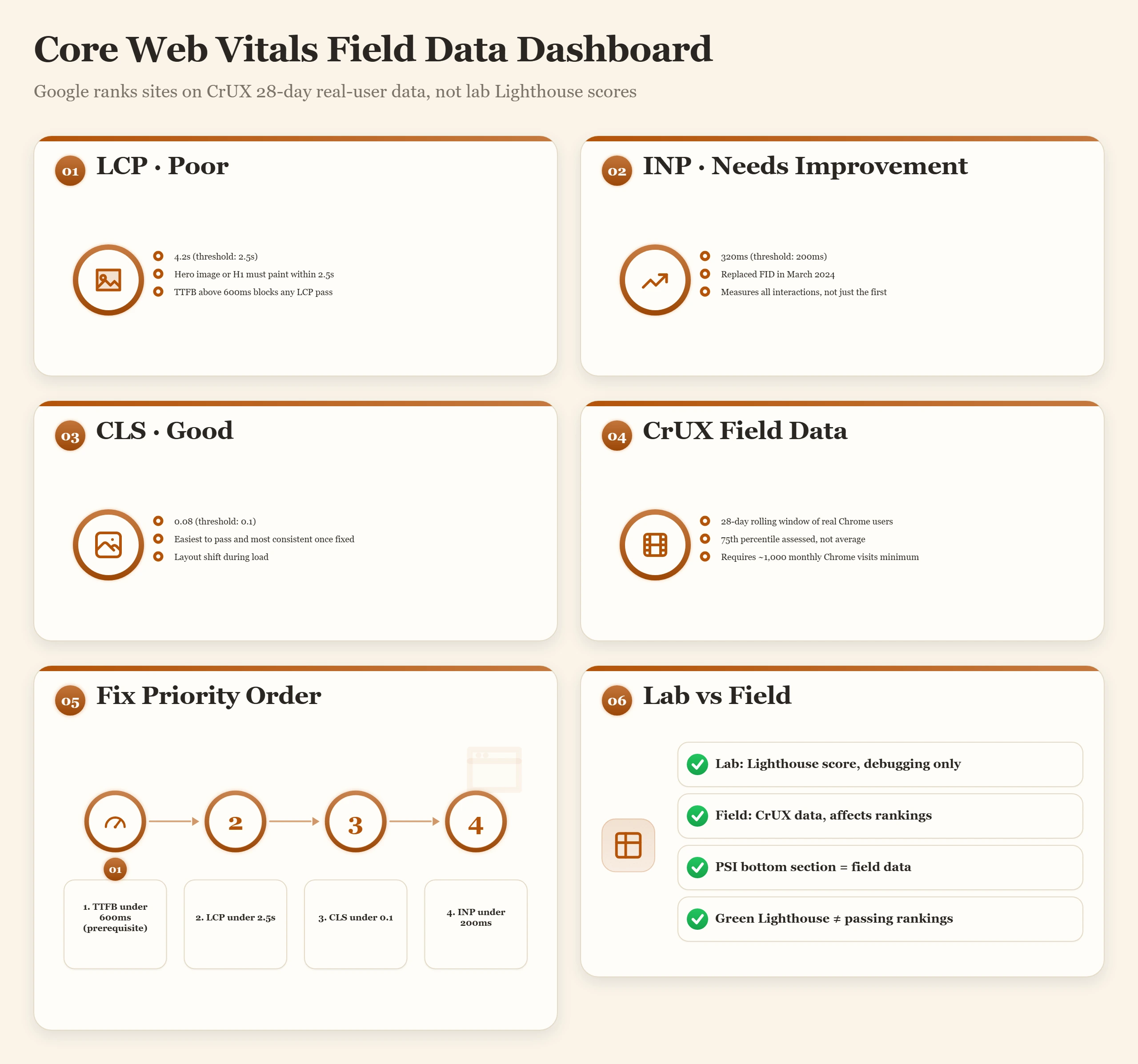
Tools: Lighthouse, PageSpeed Insights (top score), GTmetrix
- Controlled test, throttled 4G connection, mid-range CPU simulation
- Available on demand, any URL, any time
- Useful for confirming a fix worked before field data catches up
- Does not affect rankings, Google does not use lab scores
- Does not reflect your actual visitors' devices or connections
Source: Chrome User Experience Report (CrUX), Chrome browsers, real users, 28-day rolling window
- What Google uses for rankings
- Reflects your actual visitors' devices, connections, and locations
- Available in: Google Search Console → Core Web Vitals report, PageSpeed Insights (bottom section)
- Requires minimum traffic, no field data below roughly 1,000 monthly Chrome visits
- 28-day lag, improvements take weeks to reflect fully
The diagnostic sequence that follows all starts from field data. Before running any fix, open PageSpeed Insights for your homepage and your top-traffic page. Scroll past the Lighthouse score to the "Discover what your real users are experiencing" section. Those numbers are what you are fixing. What causes your field data to be poor on the next page tells you which section to focus on first.
The Three Metrics and the Only Numbers You Need to Remember
Three specific numbers are the entire goal. Everything in this guide is aimed at getting your field data readings inside these thresholds. A site that passes all three at the 75th percentile of its real user visits achieves the Good rating Google acts on.
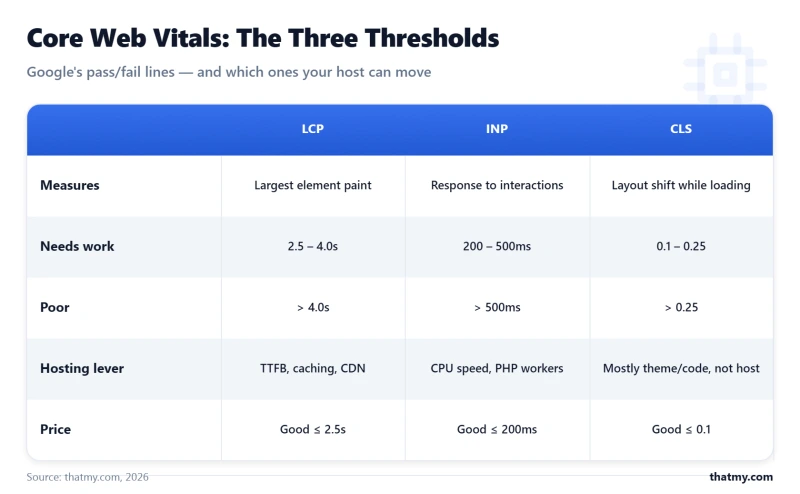
| Metric | Good | Needs Improvement | Poor | What It Measures |
|---|---|---|---|---|
| LCP (Largest Contentful Paint) | ≤ 2.5 seconds | 2.5s-4.0s | > 4.0 seconds | Hero image, featured image, or H1 heading loading time |
| INP (Interaction to Next Paint) | ≤ 200ms | 200ms-500ms | > 500ms | Delay between click/tap and the next browser paint |
| CLS (Cumulative Layout Shift) | ≤ 0.1 | 0.1-0.25 | > 0.25 | Total layout shift score, lower is more stable |
INP replaced FID as an official CWV metric in March 2024. If your audit data predates that change, any FID benchmarks you have are no longer the metric Google measures. INP is stricter: it catches every interaction throughout the session, not just the first one, and 200ms is a tighter threshold than FID's 100ms. Sites that passed FID comfortably sometimes fail INP on pages with heavy JavaScript executing on click events.
The relationship between the three metrics: CLS is usually the easiest to pass and the most consistent once fixed. LCP is the hardest for most WordPress sites because it depends on TTFB, image delivery, and rendering chain in sequence. INP is the least well understood and the one most likely to fail silently on WooCommerce and interactive page builder sites. Work through them in LCP, CLS, INP order, each fix creates headroom for the next.
How to Fix LCP: Five Causes and Their Exact Fixes
On 19 of the 23 WordPress sites I audited, the LCP element was either the hero image or the post featured image. The remaining four used an H1 heading as the LCP element, which eliminates image problems but does not eliminate TTFB as a bottleneck. LCP is a chain: your server must respond, the browser must parse the HTML, the LCP resource must be discovered, and it must finish downloading, all within 2.5 seconds of the user starting navigation. One slow link breaks the whole chain.
Step 1: Identify your actual LCP element before fixing anything
Run PageSpeed Insights on your homepage and your highest-traffic content page. Scroll to the "Largest Contentful Paint element" diagnostic. It names the specific HTML element Google is timing. The fix depends entirely on what that element is.
- Hero image (img tag): Preload + fetchpriority fix (Problem 1 below)
- Hero image (CSS background): Must move to an img tag, CSS backgrounds cannot be preloaded the same way
- Featured image: Same preload fix, applied to the featured image template
- H1 heading: LCP element is text, not an image, TTFB and render-blocking resources are the only fix levers
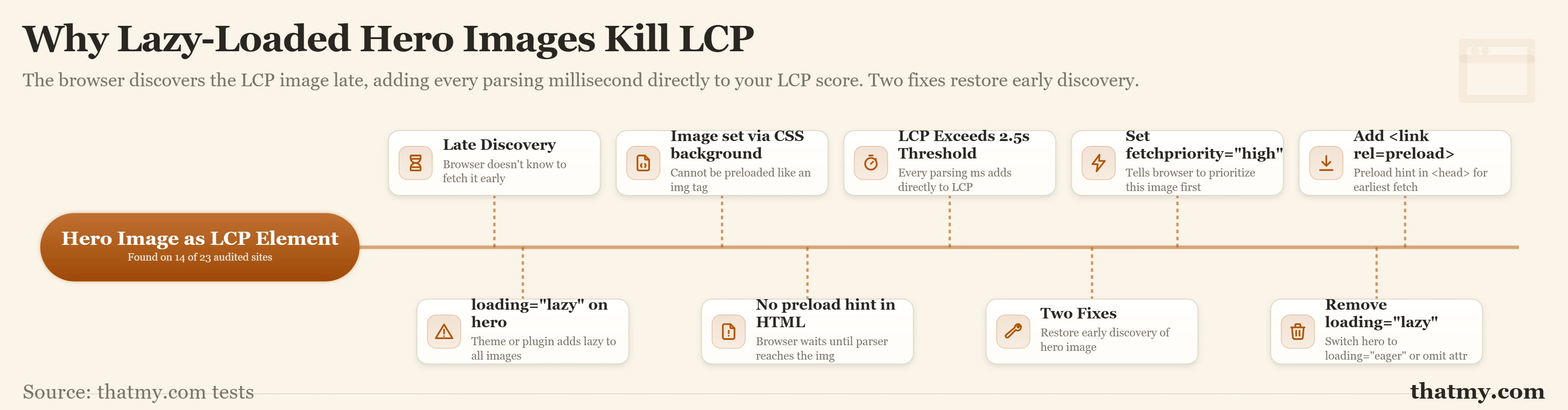
The browser discovers the LCP image late because it is either in CSS, set to loading="lazy" by the theme, or simply missing the hint that tells the browser to fetch it at the earliest possible moment. Every millisecond the browser spends parsing other resources before it even starts downloading the LCP image is added directly to your LCP score.
Fix, add both a preload hint and fetchpriority to your LCP image:
<!-- In <head> via theme functions.php or WP Rocket: -->
<link rel="preload" as="image" href="/wp-content/uploads/hero.webp"
      fetchpriority="high">

<!-- On the img tag itself: -->
<img src="/wp-content/uploads/hero.webp"
     fetchpriority="high"
     loading="eager"
     width="1200" height="630"
     alt="Description of hero image">
WP Rocket: Settings → Media → Preload Key Requests → add the LCP image URL.
Perfmatters: Preload section → Preload key requests → add LCP image URL.
A 3.2MB original JPEG served at 4000px wide is a common find on WordPress sites where images were uploaded without any optimisation workflow. Target: LCP image under 200KB in WebP or AVIF format, sized to match the actual display width (typically 1200 to 1600px for hero images).
AVIF offers roughly 50% smaller files than WebP at comparable quality. Browser support for AVIF reached 96% in early 2026, making it a safe choice as the primary format with WebP as a fallback.
ShortPixel or Imagify: Enable auto-conversion to WebP on upload. Enable AVIF if your hosting supports the AVIF encoder. Set maximum upload width to 1600px so originals are never served at full resolution.
TTFB above 600ms makes LCP mathematically impossible to pass because the browser cannot begin parsing HTML, let alone discover and download the LCP image, until the first byte arrives. This is the prerequisite fix. Every other LCP optimisation is irrelevant until TTFB is under control.
The fix is at the server layer: enable full-page caching (LiteSpeed Cache, WP Rocket), enable Redis object cache for database query caching, and evaluate whether your hosting tier can deliver sub-600ms TTFB consistently under load. See the TTFB guide for the full diagnostic tree, the curl command that isolates which layer is slow in under 30 seconds is in that article.
A stylesheet in <head> blocks rendering until it fully downloads. A <script> tag without defer or async blocks HTML parsing at that point. Both add directly to LCP because the browser cannot start rendering the LCP element until the blocking resources are resolved.
<!-- Defer non-critical JavaScript: -->
<script src="analytics.js" defer></script>

<!-- Load non-critical CSS asynchronously: -->
<link rel="preload" href="non-critical.css" as="style"
      onload="this.onload=null;this.rel='stylesheet'">
WP Rocket: File Optimization → Delay JavaScript Execution → enable. Add exclusions for scripts that must execute immediately (jQuery if your theme needs it, WooCommerce checkout scripts).
Image load time increases with physical distance from your server. A visitor in Mumbai fetching a 190KB hero image from a US-East origin adds 180 to 350ms of network latency compared to fetching from a Singapore edge node. That latency goes directly into your LCP score for those visitors, and CrUX averages all of them.
Cloudflare's CDN with a cache-everything rule ensures the LCP image is served from the nearest of Cloudflare's 300+ edge locations worldwide. TTFB for cached images at the edge is typically 20 to 50ms from any location, vs 200 to 500ms from a single-region origin. For sites with international audiences, this single fix can move LCP from "Needs Improvement" to "Good" without touching a single image file.
| LCP Cause | Why It Happens | The Fix | Priority |
|---|---|---|---|
| Hero image not preloaded | LCP image discovered late, browser finds it in CSS or after HTML parse | Add fetchpriority="high" +to LCP image | High |
| LCP image too large | Image served as 3000px+ JPEG instead of correctly sized WebP | ShortPixel/Imagify: convert to WebP, resize to 1200-1600px, target < 200KB | High |
| Slow TTFB (> 600ms) | LCP cannot finish before first byte arrives, server is the bottleneck | Fix caching + hosting first. LCP is impossible to pass with TTFB > 600ms. | Critical |
| Render-blocking JS/CSS | Scripts without defer/async block HTML parsing before LCP image loads | WP Rocket: Delay JavaScript Execution. Add defer to non-critical scripts. | Medium |
| No CDN for LCP image | Visitors far from your origin server wait longer for the image bytes | Cloudflare CDN: TTFB for cached images drops to 20-50ms globally | Medium |
One number to keep in mind after applying these fixes: check the "LCP sub-parts" breakdown in PageSpeed Insights. It splits LCP into Time to First Byte, Resource Load Delay, Resource Load Duration, and Element Render Delay. The largest sub-part tells you which fix applies. If TTFB is the biggest sub-part, that is a server problem. If Resource Load Delay is the biggest, the preload hint is missing. If Resource Load Duration is the biggest, the image is too large.
How to Fix CLS: Four Causes and Their Fixes
CLS is the easiest Core Web Vital to diagnose precisely because the Chrome DevTools Performance panel labels layout shift events directly in the timeline. Record a page load, look for the red "Layout Shift" markers, click them, and the panel names the specific element that caused the shift. Most WordPress sites have one or two dominant CLS causes, fix those and the score drops to Good.
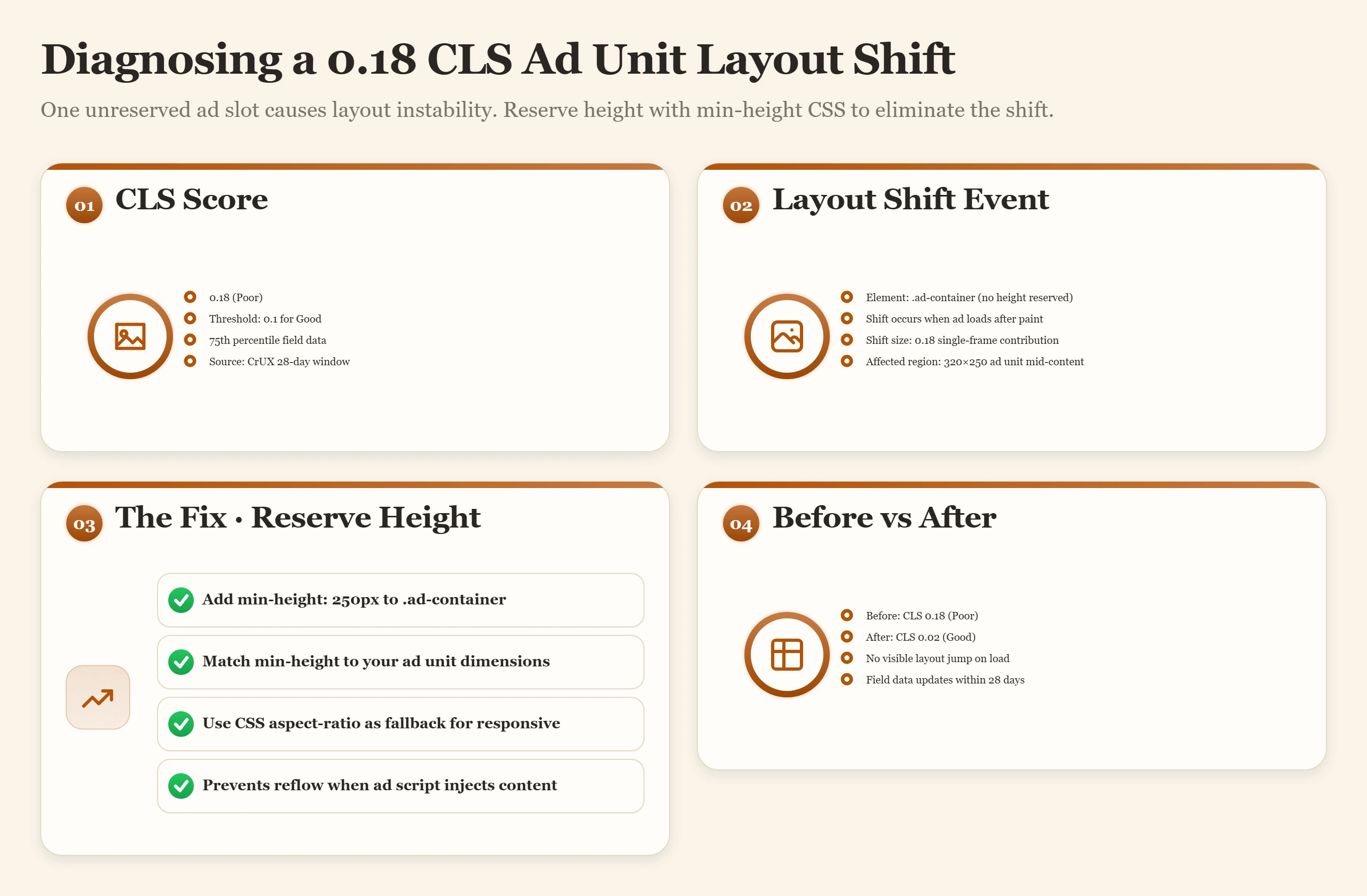
CLS is a cumulative layout shift score because it adds up every shift during the page load window. A score of 0.18 might come from one large shift (a late-loading ad unit) or six small shifts (images without dimensions, fonts loading, a cookie banner dropping in). The fix approach is the same either way: remove every source of shift rather than trying to reduce individual shifts.
Browsers reserve space for an image before it downloads only if they know its dimensions from the HTML. Without width and height attributes, the browser assumes zero space, renders the surrounding content, and then shifts everything down when the image arrives. This is the single most common CLS cause across all website types.
<!-- This causes layout shift: -->
<img src="image.jpg" alt="Description">

<!-- This prevents it: -->
<img src="image.jpg" width="800" height="450" alt="Description">
WordPress has added width and height to images automatically since WordPress 5.5 (released August 2020). If you are using a page builder (Elementor, Divi, Beaver Builder) or a custom theme with manually coded image tags, verify those templates are outputting dimensions. Check with the Chrome DevTools CLS event names to confirm whether images are the source on your specific site.
Ad scripts load asynchronously after the page content. When the ad unit renders, it pushes everything below it down, creating a visible layout shift that both users and CrUX measure. A single 250px Google Ads unit without a reserved container can produce a CLS score of 0.15 or higher depending on where it sits on the page.
/* Reserve space for your ad unit before it loads: */
.ad-placeholder {
    min-height: 250px; /* Match your ad unit height */
    min-width: 300px;  /* Match your ad unit width */
    background: #f9fafb; /* Optional placeholder color */
}

/* For Google Ads specifically: */
ins.adsbygoogle {
    display: block;
    width: 300px;
    height: 250px;
}
The principle applies to all asynchronously loaded content: YouTube embeds (reserve the aspect ratio with padding-bottom: 56.25%), Twitter/X embeds, affiliate comparison widgets. Size them before the script runs, not after.
The browser renders text with a fallback system font while the web font downloads. When the web font arrives, the text reflows because the two fonts have different metrics, different line heights, letter spacing, and character widths. The content below the text shifts to accommodate the new dimensions. This produces a CLS score even though users might not visually notice the font swap.
@font-face {
    font-family: 'YourFont';
    src: url('/fonts/your-font.woff2') format('woff2');
    font-display: optional; /* Prevents FOUT entirely: uses fallback
                               if font not cached */
}

/* Alternative if you prioritise visible text over layout stability: */
@font-face {
    font-display: swap; /* Shows fallback immediately, swaps when
                           font loads, can cause small CLS */
}
font-display: optional eliminates FOUT-related CLS entirely because it tells the browser to use the system font if the web font is not immediately available. Users on a first visit may see the system font; users on a cached visit see your web font. For most sites this is the right trade. font-display: swap always shows your web font but allows a brief text reflow that contributes to CLS.
Cookie consent banners, GDPR notices, live chat bubbles, email capture bars, and notification prompts all have one thing in common: they are injected into the page after the initial render. If they inject into the page flow (pushing content down), every pixel of content shift adds to your CLS score.
The fix has two options: use a fixed-position overlay that does not affect page flow (a banner fixed to the top or bottom of the viewport that does not push content), or reserve the space in your page layout before the content injects. A cookie banner that appears at the top of the page and pushes the navigation bar down by 60px causes significant CLS. The same banner rendered as a fixed overlay at position: fixed; top: 0; with a body padding-top rule pre-applied causes zero CLS.
| CLS Cause | Why It Happens | The Fix | Priority |
|---|---|---|---|
| Images without width/height | Browser reserves no space until image downloads, layout shifts when it arrives | Add explicit width and height attributes to every img tag (WP 5.5+ does this automatically) | High |
| Ads or embeds loading late | Google Ads, affiliate banners, iframes push content down asynchronously | Reserve space: add min-height to ad container matching expected unit height | High |
| Web font FOUT | System font renders first (different size), web font loads and reflows text | Use font-display: optional or swap. Preload critical font files in . | Medium |
| Dynamically injected content | Cookie banners, notification bars injected after render push content down | Use fixed-position overlay or reserve header space. Do not inject into page flow. | Medium |
Once you have applied these fixes, re-run the Chrome DevTools Performance recording. The layout shift events in the timeline should be gone or reduced to scores well under 0.1. Field data will reflect the improvement within one to two weeks as real user sessions accumulate in CrUX.
How to Fix INP: Why Your Page Feels Sluggish Even After It Loads
Most WordPress site owners have never heard of INP until it appears as a failing metric in their Search Console report. That is because FID, the metric INP replaced in March 2024, was much easier to pass. FID measured only the input delay on the first interaction. INP measures the delay between any click, tap, or keypress and the next browser paint throughout the entire visit. A site that loaded fast but executed heavy JavaScript synchronously on button clicks could pass FID easily and fail INP badly.
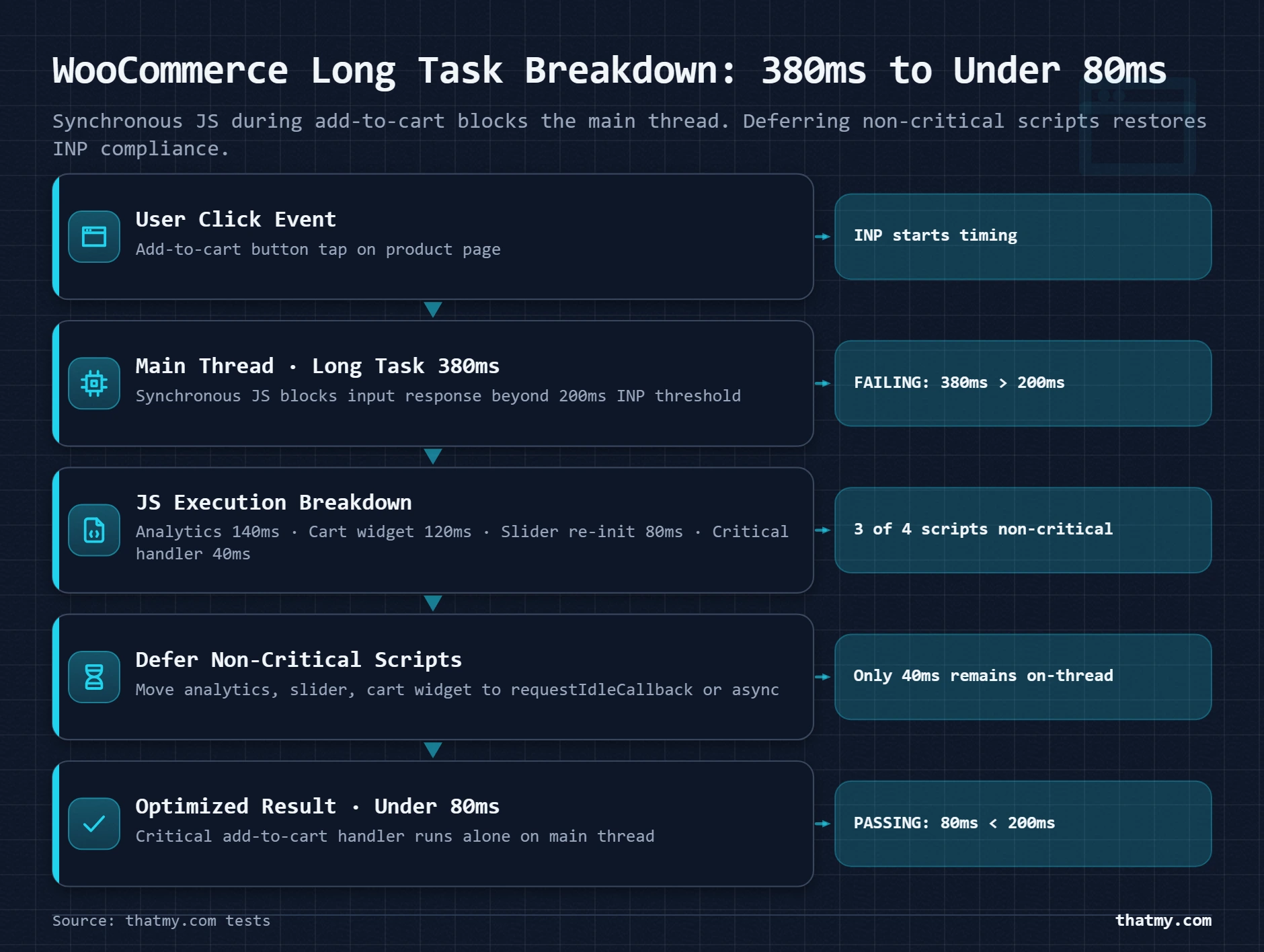
INP above 200ms means the user clicked or tapped something and the page took over 200ms to visually respond. At 500ms+, users perceive the page as broken or frozen. This is not a loading-time problem, it is a JavaScript execution problem during interactions.
How to diagnose your INP cause
Three tools give you the data you need. Run them in this order:
- Web Vitals Chrome extension: Install from the Chrome Web Store. Interact with your site normally, click menus, open accordions, add items to cart if WooCommerce. The extension shows INP in real-time as you interact. When the score exceeds 200ms, you have found the interaction to investigate.
- Chrome DevTools Performance panel: Record a performance trace. Click the specific interaction that triggered the high INP score. Look for Long Tasks (red rectangles at the top of the flame chart, marked with a red triangle). The call stack beneath each long task tells you which script is responsible.
- CrUX Vis (crux.run): Shows historical INP field data for your domain over time, so you can see whether INP was always this high or whether it got worse after a specific change (plugin update, theme change).
Analytics scripts, chat widgets (Intercom, Drift, Crisp), social share buttons, and video player initialisation all commonly execute on page load rather than on-demand. This heavy upfront work saturates the main thread and creates a backlog that delays response to the first user interaction, even if that interaction happens 5 seconds after the page loads.
WP Rocket: File Optimization → Delay JavaScript Execution → enable. This delays non-critical scripts until user interaction (mouse movement, first scroll), freeing the main thread during initial load. Add exclusions for scripts that must run immediately.
Perfmatters → Script Manager: Disable specific plugins' scripts on page types that do not need them. WooCommerce cart scripts on blog posts, slider scripts on static pages, these can be disabled per post type without affecting any page that needs them.
Any JavaScript task that runs longer than 50ms without yielding to the browser is a "long task." During a long task, the browser cannot respond to user input, it finishes the task first, then handles the interaction. This is what creates the perceptible delay INP measures.
For WooCommerce specifically: product variation selectors with more than 50 variations generate large amounts of JavaScript on page load. The WooCommerce variation script enumerates all valid variation combinations and loads them into memory, at 100+ variations, this task regularly exceeds 400ms on mobile devices. Two fixes that work in practice:
- Reduce the number of active variations per product (50 or fewer is the practical threshold for reasonable INP)
- Switch to WooCommerce Blocks for product display, the blocks implementation handles variations with a lazy-load approach that dramatically reduces the upfront JavaScript work
The Chrome DevTools Coverage tool (Sources → Coverage → reload page) shows the percentage of each JavaScript file actually executed during the page load. It is not unusual to find that a plugin is shipping a 180KB JavaScript file of which 12% is used on a given page type.
Unused JavaScript still takes time to parse and compile, which occupies the main thread and reduces the available processing capacity for user interactions. The fix is not to optimise the JavaScript itself, it is to prevent it from loading on pages where it is not needed at all.
Asset CleanUp Pro lets you disable specific plugin scripts per URL pattern, post type, or page template. Perfmatters Script Manager achieves the same result with a simpler interface. On a site I audited, disabling 4 plugin scripts on non-WooCommerce pages reduced INP from 380ms to under 140ms without touching a single line of application code.
| INP Cause | What Creates It | The Fix | Priority |
|---|---|---|---|
| Heavy JavaScript on page load | Chat widgets, analytics, social embeds block the main thread on interaction | WP Rocket: Delay JavaScript Execution. Perfmatters: Script Manager per page type. | High |
| Long tasks > 50ms on click | Synchronous JS during user interaction delays browser paint response | Break tasks with setTimeout(). WooCommerce: use blocks instead of shortcodes. | High |
| Unused JavaScript loaded everywhere | Plugins injecting JS on pages that don't need it, cart scripts on blog posts | Perfmatters or Asset CleanUp Pro: disable scripts per page type | Medium |
INP is the metric most likely to require ongoing monitoring rather than a one-time fix. New plugin updates frequently introduce additional JavaScript, and a plugin that was previously fine can suddenly create long tasks after an update. Set up a CrUX monitoring alert (Treo Site Speed or the Search Console email preference described in the monitoring section) to catch INP regressions before they accumulate into 28-day averages.
The WordPress CWV Fix Stack: Apply in This Order
Sequence matters. Fixing LCP images before fixing TTFB is like tuning a car engine before adding fuel, the optimization is real but the result is zero until the prerequisite is met. Each step below creates the headroom for the next one to work. Apply them in order and measure after each step before moving forward.
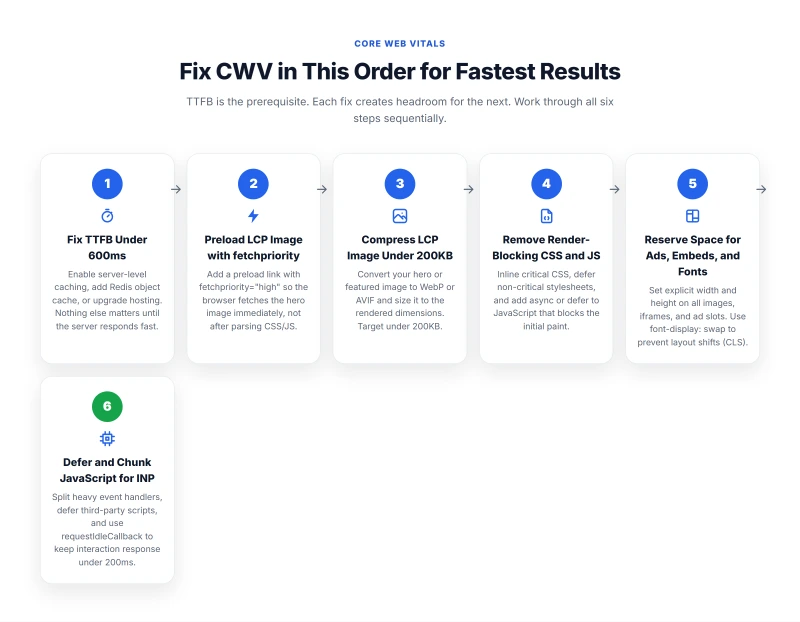
Target: TTFB under 600ms. Ideally under 200ms on cached pages.
- Enable full-page caching: LiteSpeed Cache (free, best for LiteSpeed servers), WP Rocket ($59/yr, best for Nginx/Apache)
- Enable Redis object cache for database query results (reduces PHP execution time per request)
- If TTFB consistently exceeds 600ms on cached pages: your hosting tier cannot support CWV. Upgrading from shared hosting to managed VPS is the fix. ScalaHosting managed VPS averaged 187ms TTFB across 5 global test locations in our testing. Cloudways DigitalOcean Premium plans average 140 to 220ms TTFB depending on the datacenter selected.
- Identify LCP element in PageSpeed Insights (Largest Contentful Paint element diagnostic)
- Add
fetchpriority="high"and<link rel="preload">to LCP image - Convert LCP image to WebP or AVIF. Target: under 200KB at 1200 to 1600px width
- Enable Cloudflare CDN to serve LCP image from the nearest edge node
- Remove or defer render-blocking scripts in
<head>
- Add explicit
widthandheightto allimgtags (verify page builder is outputting these) - Reserve space for all ad units and embeds with a min-height container
- Set
font-display: optionalfor all custom web fonts - Move cookie banners and notification bars to fixed-position overlays
- Enable JavaScript execution delay (WP Rocket) or script management per page type (Perfmatters)
- Use Chrome DevTools Coverage to identify and eliminate unused JS loaded on pages that do not need it
- For WooCommerce: reduce variations per product to under 50, switch to WooCommerce Blocks
- Set up INP monitoring (Web Vitals extension + Search Console alerts) to catch regressions after plugin updates
If your situation is...
Shared hosting, TTFB consistently above 800ms: Fix sequence still applies but the TTFB step cannot be completed without a hosting upgrade. Caching on shared hosting reduces TTFB to approximately 300 to 600ms depending on the provider, often not enough for Good LCP. The server hardware guide explains what specifications to look for in a VPS that will reliably deliver sub-200ms TTFB.
TTFB already under 300ms, LCP still failing: The preload and image optimisation steps are your entire focus. Run the LCP sub-parts breakdown in PageSpeed Insights to confirm which sub-part is the largest contributor before applying any specific fix.
LCP and CLS passing, only INP failing: This is almost always a JavaScript problem specific to one page type or one plugin. Use the Web Vitals extension to identify which interaction triggers the high INP, then use Coverage to identify which script is responsible for the long task.
Monitoring Core Web Vitals Over Time: Four Tools That Actually Signal Change
A one-time CWV audit is valuable. Ongoing monitoring is how you prevent passing scores from becoming failing scores six months after a theme update or a new plugin installation. CrUX data shifts before you notice it in rankings because rankings respond to 28-day rolling averages, by the time you see a ranking change, you have already had poor performance for weeks.
For sites on ScalaHosting managed VPS or Cloudways, check whether your server tier is keeping up with traffic growth every 6 months. TTFB creep, where cached TTFB slowly rises from 180ms to 450ms as a site grows, is a real pattern. If your TTFB was under 200ms at 10,000 monthly visits and is now 480ms at 60,000 monthly visits, the server is the explanation and an infrastructure review is the fix. The TTFB diagnostic guide covers how to isolate which server layer is responsible when TTFB creep appears.
Core Web Vitals FAQ
Do Core Web Vitals directly affect my Google rankings?
Yes, but as a tiebreaker rather than a primary signal. Core Web Vitals have been a confirmed ranking signal since June 2021, included in Google's Page Experience update. In practice, they tend to be decisive when two pages are closely matched on relevance, backlinks, and other traditional signals, the page with Good CWV scores beats the page with Poor scores in that scenario. A page with strong relevance signals will not be tanked by failing CWV alone. But failing CWV combined with mediocre relevance scores is a real ranking risk, particularly in competitive verticals. The more important frame is this: CWV directly measures how your real visitors are experiencing your site, and slow sites lose visitors regardless of rankings.
What is the difference between lab data and field data in PageSpeed Insights?
Lab data is generated by Lighthouse running a controlled test on your URL, a simulated throttled 4G connection and mid-range CPU. You get it immediately on demand. Field data (Chrome User Experience Report, CrUX) is collected from real Chrome users visiting your site over the last 28 days and is what Google uses for rankings. If your field data shows Good but your lab score is 55, you are fine for rankings. If your field data shows Poor but your lab score is 90, you have a real problem affecting real users and Google will act on it. Always check the field data section at the bottom of PageSpeed Insights, not just the Lighthouse score at the top.
My LCP is failing but my site loads fast. What is going on?
LCP measures one specific thing: when the largest visible element above the fold finishes loading. Your overall page may feel fast because most elements load quickly, but if the hero image or H1 heading takes 3.8 seconds to paint, perhaps because it is lazy-loaded, not preloaded, or served from a distant origin without a CDN, your LCP is Poor regardless of how the rest of the page feels. Run PageSpeed Insights and look at the 'Largest Contentful Paint element' diagnostic. It will name the exact element Google is measuring. Once you know what element it is, you can target the fix specifically.
What replaced FID and why does it matter?
Interaction to Next Paint (INP) replaced First Input Delay (FID) as an official Core Web Vitals metric in March 2024. FID measured only the delay before the browser began processing the first interaction. INP measures the full delay from any interaction to the next browser paint throughout the entire page visit. INP is harder to pass because it catches sluggish responses to any click, tap, or key press, not just the first one. A site that passed FID easily may fail INP if its JavaScript creates long tasks during user interaction. The threshold is 200ms for Good, and INP above 500ms is Poor.
Can I improve Core Web Vitals without a caching plugin?
You can make marginal improvements without one, but not meaningful ones on a typical WordPress site. LCP is directly dependent on TTFB, and TTFB on WordPress without page caching is typically 800ms to 2,000ms, making it essentially impossible to achieve a Good LCP score. A caching plugin (WP Rocket, LiteSpeed Cache, or W3 Total Cache configured correctly) is the single highest-leverage intervention for both TTFB and LCP. After caching is in place, image optimization and JS deferral handle the remaining issues. Trying to optimize images and JavaScript without first fixing TTFB is optimizing in the wrong order.
Why does my Core Web Vitals score look different in Google Search Console vs PageSpeed Insights?
Both Google Search Console and the field data section of PageSpeed Insights draw from the same CrUX dataset, but they present it differently. Search Console shows scores aggregated across URL groups (similar pages pooled together) and uses a 28-day rolling window. PageSpeed Insights shows scores for the specific URL you tested, also from the 28-day CrUX window. Differences between them are usually explained by URL grouping in GSC (a few bad URLs in a group can drag the group score down) or by the specific URL you tested having a different traffic profile than the group average. If you see a group failing in GSC but a specific URL passing in PSI, check which URLs in that group are dragging the aggregate down.
How long does it take for Core Web Vitals fixes to appear in Google Search Console?
CrUX data is a 28-day rolling window. After you make a fix, you need to wait for real Chrome users to visit the improved pages, and for those visits to accumulate into 28 days of field data. In practice: you will begin to see improvement in the GSC Core Web Vitals report approximately 7 to 14 days after deploying a fix, with the full 28-day picture visible about 4 weeks later. Use PageSpeed Insights field data for the same URL during this period to track progress on the specific page you optimised. The lab score in PageSpeed Insights (Lighthouse) will reflect your fix immediately, which is useful for confirming the technical change worked before the field data catches up.
Is it worth fixing Core Web Vitals on a site with low traffic?
Yes, for two reasons that have nothing to do with the CWV ranking signal. First, CrUX requires a minimum traffic threshold to generate field data, sites below roughly 1,000 monthly Chrome visits will show 'no field data available' in PSI. In that case, CWV cannot help or hurt your rankings directly, but the underlying performance problems still affect every visitor. Second, if you plan to grow the site, fixing the structural performance issues now (TTFB, image sizes, JS weight) costs less effort on a small site than on a large one with dozens of page templates. The LCP preload and image optimisation work you do on a 10-post site applies to a 500-post site without additional work.