
Hosting Control Panels Explained: cPanel, WHM, Plesk, DirectAdmin and SPanel

Until 2019, cPanel was the default answer to "which hosting control panel?" and the question did not come up very often. Then a group led by Oakley Capital agreed to buy the company in August 2018, licensing was restructured in mid-2019 from a flat per-server fee to per-account tiers, and the bill for a busy shared server nearly tripled: one with 500 accounts went from $45 to $125 a month. Hosts either absorbed that cost quietly, passed it to customers, or switched panels. Today, four serious alternatives compete for the same workload, and the choice has real consequences for your monthly hosting bill, your WordPress workflow, and what happens when you need to move hosts.
Most people on shared hosting will never notice which control panel they are on. They will just work. But resellers, developers, and anyone comparing host prices right now are looking at a direct line between panel choice and cost. This guide breaks down what each panel actually does differently, how cPanel and the one-click installer work underneath, who each one is built for, and how to pick the right one without regretting it three months into a contract. The underlying server infrastructure connects to this decision too: the managed vs unmanaged VPS guide explains which control panel setup responsibilities your host handles versus what you configure yourself.
The Short Answer by User Type
Control panel debates get treated like philosophical arguments. They are not. Each panel has a clear primary audience. The confusion comes from marketing that targets everyone instead of someone specific. Here is who each panel is actually built for.
Best for: New users, individual site owners, anyone learning WordPress from tutorials. Industry-standard UX means every guide, YouTube video, and support doc assumes cPanel. Knowledge transfers to any cPanel host.
Not for: Budget-first resellers, Windows hosting, agencies needing mass WordPress updates.
Best for: Agencies managing 10+ WordPress sites, developers running mixed stacks (PHP + Node.js + Docker), anyone on Windows servers (only viable modern option).
Not for: Individual bloggers, budget shared hosting, anyone intimidated by a fuller feature set.
Best for: Resellers looking to cut overhead costs, tech-comfortable users who do not rely on the control panel for complex tasks, anyone who wants the cheapest equivalent plan to cPanel.
Not for: Beginners who need extensive documentation, users relying on cPanel-specific tutorials.
Best for: ScalaHosting managed VPS customers who want familiar cPanel-style UX, built-in AI security, and managed WordPress tooling without paying per-account licensing fees.
Not for: Anyone who needs portability across hosting providers, large third-party billing integrations.
| Panel | Host-Paid License Cost | OS Support | Primary Audience |
|---|---|---|---|
| cPanel | $35.99-69.99/mo (host-paid, 2026) | Linux only | Individual site owners, beginners, anyone used to shared hosting tutorials |
| Plesk | $15-25/mo (host-paid) | Linux + Windows | Agencies, developers running mixed stacks (PHP + Node.js + Docker) |
| DirectAdmin | $2-12/mo (host-paid) | Linux only | Budget-conscious resellers, tech-comfortable users who want cheaper hosting |
| SPanel | Free (ScalaHosting only) | Linux only | ScalaHosting managed VPS customers who want cPanel UX without cPanel cost |
The Point Most Comparisons Miss
For 90% of end users, the control panel choice is nearly invisible. You log in, you install WordPress, you create email accounts, you manage files. All four panels do this. The real differences appear in three scenarios: reseller cost (DirectAdmin and SPanel win decisively), agency WordPress management (Plesk WP Toolkit has no equal), and tutorial availability (cPanel wins by a wide margin). If none of those three apply to you, pick based on what your preferred host offers and do not overthink it.
The cPanel Price Hike That Fragmented the Industry
The increases have not stopped. For the 2027 prices at cPanel, Plesk and WHMCS, with each one's history since 2019, see cPanel, Plesk and WHMCS price increases for 2027.
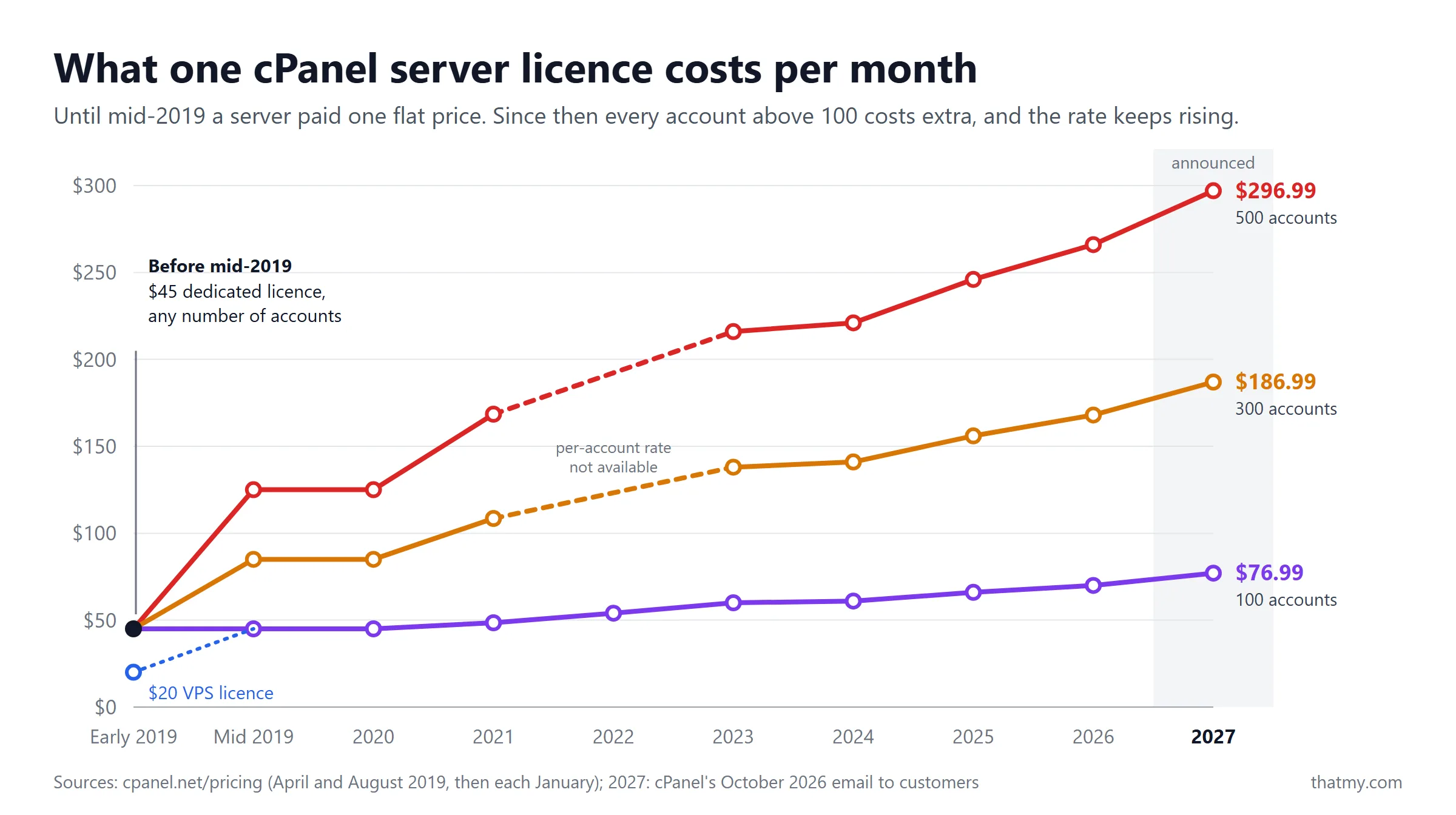
In August 2018 a group led by Oakley Capital agreed to buy cPanel, and in mid-2019 the pricing model changed in a way that the hosting industry had not seen before. Previously, a host paid a flat monthly fee per server regardless of how many accounts lived on that server. That fee was $20/month for a VPS licence and $45/month for a dedicated server, with $15/month for a single-account Solo licence. After the restructure, pricing shifted to a per-account tier model.
What the Numbers Actually Looked Like
Here is the specific math that made hosting companies react. Under the new model, the Premier tier covered 100 accounts for $45/month and charged $0.20/month for every account beyond that. A shared hosting server with 100 accounts on a dedicated licence paid the same $45 as before, but the same server with 300 accounts went from $45 to $85/month, and one with 500 accounts from $45 to $125/month, nearly 3x. A VPS with 100 accounts went from $20 to $45/month. The tier prices have risen every year since 2021: from 16 December 2026 Premier is $76.99/month plus $0.55 per account above 100, so the 300-account server pays $186.99/month, up 316% on early 2019, while a Solo licence has gone from $15 to $32.99, up 120%.
cPanel's Licence Tiers Today
cPanel sells four tiers, counted by the number of cPanel accounts on one server. Solo covers one account, the usual choice for a single site on a VPS. Admin covers 5 and Pro 30, which suit a developer or a small agency hosting client sites on one box. Premier covers 100 accounts and bills every account above that, and it is the tier nearly every shared server runs, because a shared server holds hundreds of accounts.
| cPanel tier | Accounts included | Current list, per month | cPanel's 2027 list, per month |
|---|---|---|---|
| Solo | 1 | $29.99 | $32.99 |
| Admin | 5 | $35.99 | $38.99 |
| Pro | 30 | $53.99 | $58.99 |
| Premier | 100 | $69.99 | $76.99 |
| Premier, each account above 100 | per account | $0.49 | $0.55 |
Spread across a full server, the licence is a small sum per customer: at list price a 300-account server pays $0.56 per account per month on the current list and $0.62 on the 2027 list. Big hosts buy through partner deals below list. You never see the line on your invoice; it sits inside the plan price, and above all inside the renewal price, as how licence costs reach your renewal shows.
What This Means for You Right Now
Your hosting bill reflects this history directly, even if your host never explained it. A host still offering cPanel on a $3/month shared plan is subsidizing a licensing fee of $186.99/month (the 2027 list price for 300 accounts) across hundreds of accounts on that server. The math only works on heavily shared infrastructure. A host charging $10/month for a cPanel plan on a less-crowded server is more likely to have built the licensing cost into the plan pricing honestly. Some large hosts left cPanel altogether for a panel of their own: SiteGround built Site Tools, Hostinger built hPanel, and ScalaHosting built SPanel.
Hosts that switched to DirectAdmin after 2019 often became measurably cheaper on equivalent resource tiers. The licensing savings get passed on. A DirectAdmin host offering 4 CPU cores, 8 GB RAM, and 100 GB NVMe for $12/month is competing with a cPanel equivalent at $18/month. Same hardware. Different panel cost. The knowledge tradeoff is real but the cost tradeoff is also real. Understanding how nameservers work matters when you switch hosts and need to point your domain to a new provider, which is the practical action that follows most control panel migrations.
Full Feature Comparison
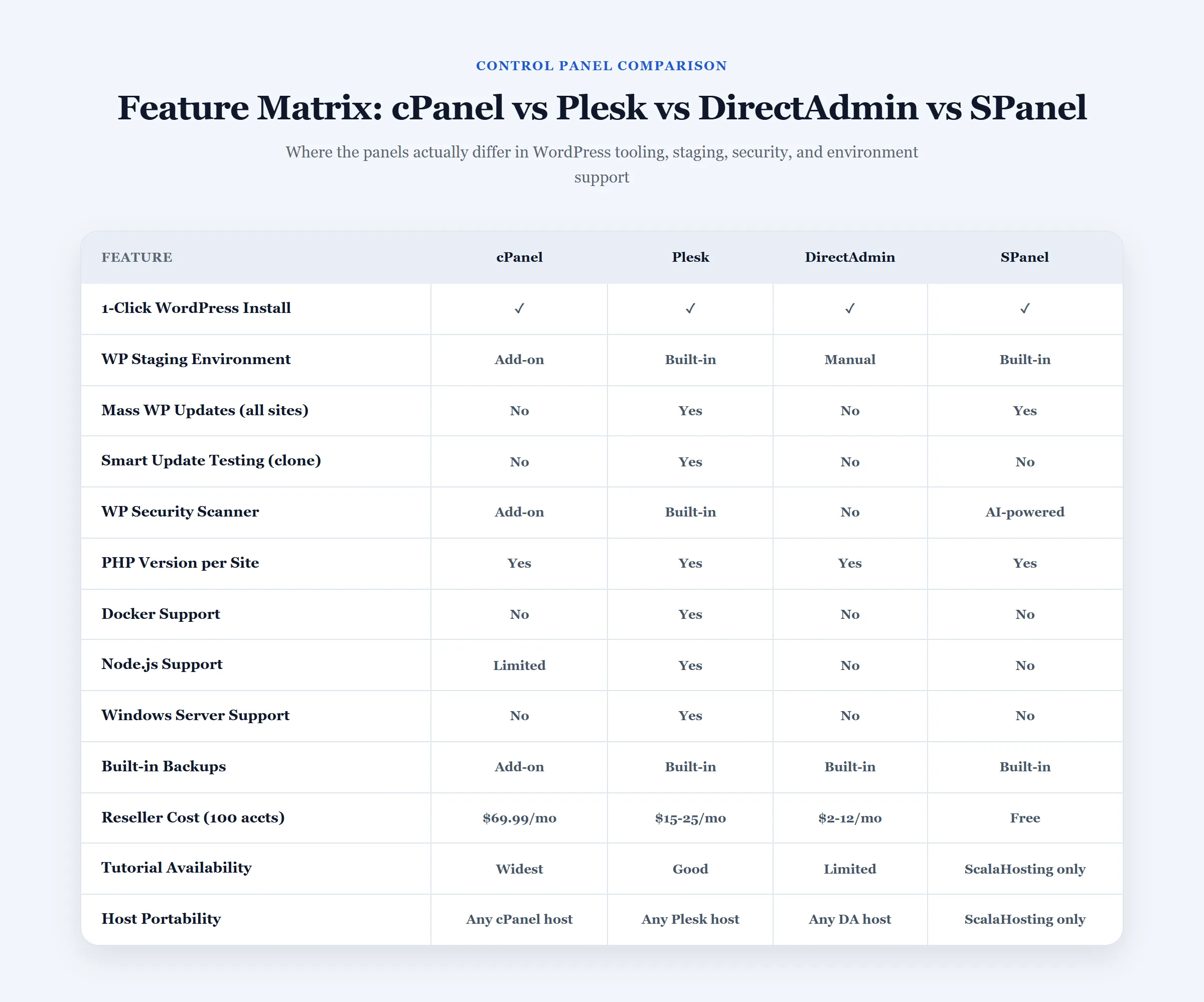
Most feature comparisons list 40 rows of checkmarks and call it done. This one focuses on the features where the panels actually differ in meaningful ways. Where all four panels do the same thing equally well, I have collapsed them to one line.
| Feature | cPanel | Plesk | DirectAdmin | SPanel |
|---|---|---|---|---|
| License cost (host-paid) | $35.99-69.99/month (2026), plus $0.49 per account over 100 | $15-25/month | $2-12/month | Free (ScalaHosting only) |
| OS compatibility | Linux only | Linux + Windows | Linux only | Linux only |
| Interface quality | Excellent | Excellent | Good (improved) | Good |
| Learning curve | Low | Low to Medium | Medium | Low to Medium |
| WordPress management | Via Softaculous | Built-in WP Toolkit | Via Softaculous | Built-in WP Manager |
| Staging sites | Via Softaculous plugin | Built-in WP Toolkit | Via Softaculous | Built-in |
| Reseller panel | WHM | Plesk Reseller | Reseller panel | Multi-tenant admin |
| Built-in security tools | Via plugin or WHM | Fail2ban built-in | Limited | SShield AI security |
| PHP version switching | Yes (EasyApache 4) | Yes | Yes | Yes |
| Node.js / Python support | Via CloudLinux | Yes, built-in | Limited | Limited |
| Docker support | No | Yes (Plesk Pro) | No | No |
| Windows hosting | No | Yes | No | No |
| Mobile app | Yes | Yes | No | No |
| Mass WordPress updates | No (manual per site) | Yes (WP Toolkit) | No | Partial |
| Smart staging + auto-rollback | No | Yes (WP Toolkit) | No | No |
The Features Where the Gap Is Real
WordPress toolkit depth. Plesk's WordPress Toolkit is genuinely not comparable to what any other panel offers. Staging, Smart Updates (update testing on clone before pushing live), mass updates across all sites, security scanner, and PHP version selection per installation, all managed from one screen. cPanel's Softaculous handles installs and basic backups but is a third-party add-on, not a first-class integrated tool. SPanel's WordPress Manager covers installs, cloning, and staging at a level closer to Plesk than cPanel.
Security architecture. SPanel's SShield is server-level AI security that runs before traffic reaches WordPress. cPanel's security tooling is plugin-dependent or WHM-level, you add Imunify360 or ConfigServer Security as a paid add-on. Plesk includes Fail2ban natively. DirectAdmin offers basic security features but nothing comparable to SShield's real-time monitoring depth.
PHP management. All four panels support PHP version switching. The meaningful difference is in PHP-FPM mode configuration: cPanel exposes this through EasyApache 4 and CloudLinux's PHP Selector, which is excellent. Plesk's PHP-FPM configuration is clean and well-documented. DirectAdmin and SPanel both support PHP-FPM but with less granular per-domain configuration in some hosting setups. The web server comparison guide covers why PHP-FPM mode matters more than PHP version for actual performance numbers.
Platform compatibility. Plesk is the only panel that supports Windows servers. If your application requires IIS, ASP.NET, or SQL Server, Plesk is not a preference. It is the only option. Every other panel in this comparison is Linux-only.
cPanel Deep Dive: Still the Industry Standard
Most people assume cPanel leads because it is the best panel. It leads because it arrived first, spread widest, and became the default assumption in hosting documentation for 25 years. That history advantage is real and worth understanding before you dismiss it as inertia.
The Knowledge Network Effect
Type any WordPress task into YouTube: "how to add a subdomain," "how to create a MySQL database for WordPress," "how to change PHP version." The first five results assume cPanel. Every major hosting company's knowledge base is written for cPanel first, with other panel instructions as afterthoughts. Udemy and Skillshare courses on "web hosting basics" default to cPanel. When something goes wrong at 2 AM and you need to restore a backup or fix a permission error, the chance of finding a clear answer in under five minutes is far higher on cPanel than on any alternative.
This matters more for beginners and less for experienced developers. An experienced WordPress developer who knows exactly what they are doing in File Manager and phpMyAdmin will adapt to any panel's interface within an hour. A site owner who manages their own hosting but is not deeply technical depends on that documentation network constantly. For that user, cPanel's knowledge advantage translates directly into less time troubleshooting and more confidence doing tasks independently.
What Runs Underneath cPanel
cPanel is easier to fix when you see it as a stack of services rather than a page of icons. One service, cpsrvd, serves both logins and hands each click to the software below it:
- cpsrvd, cPanel's own service. It answers on port 2083 for cPanel and 2087 for WHM (2082 and 2086 without HTTPS), which is why those numbers show up in your login URL.
- EasyApache 4, the build system for the web server and PHP. It decides which PHP versions and Apache modules exist on the server, so a PHP upgrade starts here.
- Apache or LiteSpeed, the web server. Apache is the default; many hosts that sell on speed run LiteSpeed Enterprise, which plugs into cPanel and rebuilds its own configuration when you change a PHP version or add a domain. Web servers compared explains the difference.
- Exim and Dovecot, the mail system. Exim sends and receives, SpamAssassin filters, and Dovecot serves IMAP and POP3 to your mail app.
- MySQL or MariaDB, the databases. cPanel prefixes every database and database user with the account name, so
example_wpbelongs to the accountexampleand no other account can open it. - BIND or PowerDNS, the DNS server. cPanel rewrites the zone whenever you add a domain or edit a record.
- FTP and SFTP. Plain FTP sends your password unencrypted, so a well-run host switches it off and leaves SFTP over SSH.
On shared hosting, all of this usually runs under CloudLinux, which caps each account's CPU, memory and disk activity so one busy neighbour slows down instead of taking the server down. Ask a shared host whether it runs it; shared hosting resource limits explains what those caps mean for your site.
cPanel and WHM: One Account and the Whole Server
cPanel and WHM (Web Host Manager) are one product with two logins. cPanel sees one hosting account: its files, mailboxes, databases and domains. WHM sees the server: it creates and suspends cPanel accounts, sets the package each account gets (disk, mailboxes, databases, addon domains, and which cPanel tools show), builds the PHP and web server stack through EasyApache, and watches the services. On shared hosting you only ever get cPanel; the host's staff work in WHM.
A reseller plan gives you a fenced-off WHM: you create and limit your own customers' accounts but cannot see other resellers or the server settings. On your own VPS you get the full WHM, and its Transfer Tool makes the easiest move in hosting: it copies a whole account (files, databases, mail, DNS and settings) from another cPanel server over SSH in one job. If you script against cPanel, it has two APIs, UAPI for one account and WHM API 1 for the server, and both take an API token created in the panel instead of a password in your script. A token can be limited to the tools it needs, so a script that creates mailboxes cannot delete databases.
cPanel Interface: What Each Section Does
The current cPanel theme is Jupiter, which replaced the older Paper Lantern look. The search box at the top jumps straight to any tool, which is faster than scanning the icon grid, and the groups below are where each everyday job lives.
- File Manager, edit wp-config.php, fix permissions, upload files without FTP
- FTP Accounts, create per-user FTP access for developers or clients
- Disk Usage, find where storage is being consumed; important on limited shared plans
- Backup Wizard, full cPanel backup to home directory, downloadable for off-site storage. Many hosts add JetBackup for single-file and single-database restores (see hosting-side backups)
- MySQL Databases, create databases and users, assign permissions
- phpMyAdmin, browser-based MySQL management; essential for WordPress database access, query debugging, and manual migration
- Remote MySQL, whitelist external IP addresses for database connections from development machines. Add specific IPs only: the
%wildcard opens the database to the whole internet
- Domains, host additional websites on the same account. Current cPanel versions handle addon domains, subdomains and aliases on this one page; adding a domain creates its folder, writes its DNS zone and starts AutoSSL
- Subdomains, staging.yourdomain.com, dev.yourdomain.com without separate accounts
- Redirects, permanent and temporary redirects managed without touching .htaccess manually
- Zone Editor, manage DNS records when your domain nameservers point to your host. Understanding DNS record types helps you use the Zone Editor without guessing. The Zone Editor can also switch on DNSSEC and give you the DS record to add at your registrar.
- SSL/TLS, AutoSSL runs automatically and installs free certificates (Sectigo by default, Let's Encrypt on many hosts) on all domains. No manual renewal needed; how AutoSSL works covers what to check when it fails.
- IP Blocker, block specific IP ranges from accessing your site; useful for stopping persistent bot traffic
- Hotlink Protection, prevent external sites from embedding your images and consuming your bandwidth
- Softaculous, one-click WordPress installs, automated backups, site cloning to staging subdomains
- PHP Selector, switch PHP version per domain (requires CloudLinux, available on most shared hosts)
- MultiPHP INI Editor, set memory_limit, max_execution_time, upload_max_filesize per site without SSH
- Email Accounts, create you@yourdomain.com addresses with webmail access via Roundcube
- Email Deliverability, SPF, DKIM, and DMARC record status and repair tools in one screen
- Forwarders and Autoresponders, route incoming email to other addresses or send automatic replies
How AutoSSL Works, and Why It Sometimes Fails
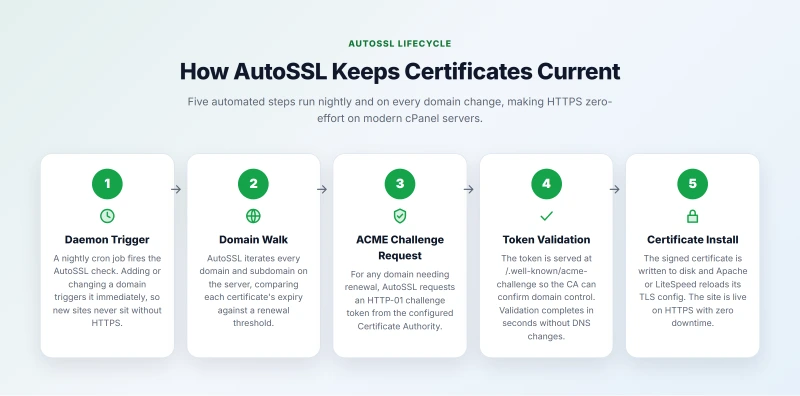
AutoSSL is the reason HTTPS needs no setup on a cPanel host. Once a night, and again whenever a domain is added or changed, it checks every domain on the server and requests a certificate for any domain without a valid one. The certificate authority (Sectigo by default, Let's Encrypt on the many hosts that switched) checks that you control the domain with the ACME HTTP-01 challenge: it asks for a token file under /.well-known/acme-challenge/, the server serves it, and the certificate is issued and installed. Renewal runs the same way before the certificate expires.
When the padlock does not appear, the cause is almost always one of these four:
- The domain points somewhere else. AutoSSL only covers domains that resolve to the server. A domain still pointed at the old host fails validation, so update DNS first and run AutoSSL again.
- Something blocks
/.well-known/. A custom .htaccess rule or a security plugin that denies that folder stops validation even though the domain resolves correctly. - Rate limits. Let's Encrypt caps how many certificates one registered domain can get per week (50, in its published limits). Deleting and reissuing certificates over and over while testing can hit the cap, and then you wait.
- Wildcards. A wildcard certificate needs DNS-01 validation, which needs the host's DNS wired to the certificate authority. Many shared hosts have not done that, so request certificates per subdomain instead.
WordPress Performance Settings in cPanel That Actually Matter
Most WordPress performance guides stop at the plugin level. The settings below live inside cPanel and have larger impact than most plugin-level optimizations:
- PHP version: set to 8.2 or 8.3. PHP 8.x is significantly faster than 7.4. This single setting can reduce PHP execution time by 20-40% on complex WordPress setups. Change it in MultiPHP Manager, select your domain, choose the latest stable version.
- PHP Handler: switch from CGI or SuPHP to PHP-FPM. SuPHP runs PHP as a CGI script, starts a new process per request, and is dramatically slower under any load. PHP-FPM uses a process pool that stays running between requests. This is available in MultiPHP Manager on hosts running CloudLinux with EasyApache 4.
- OPcache: enable in PHP extensions. OPcache caches compiled PHP bytecode so each WordPress request does not recompile wp-load.php and every active plugin file from source. It is available in cPanel's PHP configuration settings and should always be on for WordPress.
- Memory limit: set to 256MB minimum, 512MB for WooCommerce. WordPress defaults to 40MB, which is too low for any site with more than a handful of plugins. WooCommerce with several extensions routinely needs 256-512MB. Set this in MultiPHP INI Editor under memory_limit.
Two tools set the PHP version, and a host exposes one or both. MultiPHP Manager is cPanel's own: it picks the PHP version per domain from the versions EasyApache installed on the server. PHP Selector comes with CloudLinux: it sets the version per directory and lets you switch single extensions such as imagick, redis or intl on or off, so two WordPress installs on one account can run different PHP versions. Test your theme and plugins on a staging copy before you move a live site to a new major version, and do not stay on a version past its end of life: php.net lists the dates, and an old version gets no security fixes.
When a cPanel site is slow even with a cache plugin active, check these settings before anything else. An old PHP version, a CGI or suPHP handler instead of PHP-FPM, and a low memory limit are a common combination on accounts that were set up years ago and never revisited, and each one is a two-minute change in the panel.
cPanel's Security Layers
A cPanel server is protected in layers, and only some of them come in the box. Knowing which is which tells you what to ask a host before you buy:
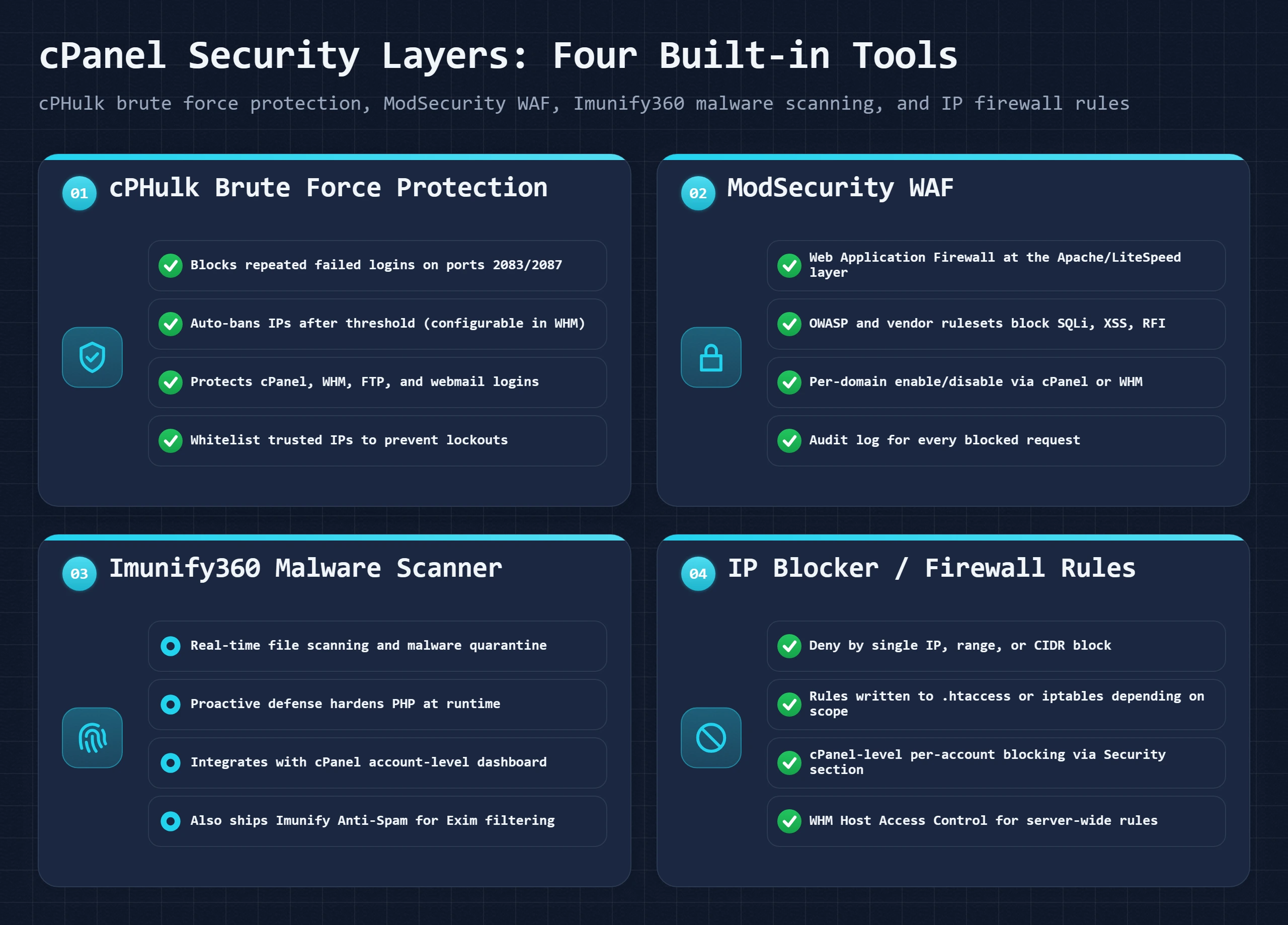
- cPHulk (included) watches logins to cPanel, WHM, FTP, SSH and webmail and bans an IP after too many failures. Hosts add their office IPs to its allow list so their own staff are not locked out.
- ModSecurity (included) is a web application firewall in front of every site. Most hosts run it with the OWASP Core Rule Set, which blocks common SQL injection, cross-site scripting and scanner traffic. An aggressive rule set can also block a plugin's admin page, so a 403 error when you save a setting is worth reporting to support.
- A network firewall, often ConfigServer Security & Firewall (CSF) or the one built into Imunify360. Neither is part of cPanel itself. The IP Blocker in your cPanel adds rules for your own account.
- Imunify360 (paid, per server) scans files for malware, quarantines what it finds, hardens PHP and patches known plugin holes. This is the layer that separates hosts: some include it on every plan, some sell it as an add-on, and some skip it.
WHM can also force two-factor login for every cPanel and WHM user. What is left after that is usually a mailbox with a reused password. The attacks each layer stops are explained in security threats.
Plesk Deep Dive: The Agency and Developer Choice
Plesk gets recommended for enterprise use, which makes individual site owners tune it out. That framing misses who actually benefits from it. Plesk's real audience is not large enterprises with server teams. It is small agencies managing multiple client WordPress sites and developers who run more than one application type on a single server.
WordPress Toolkit: The Feature No Other Panel Has
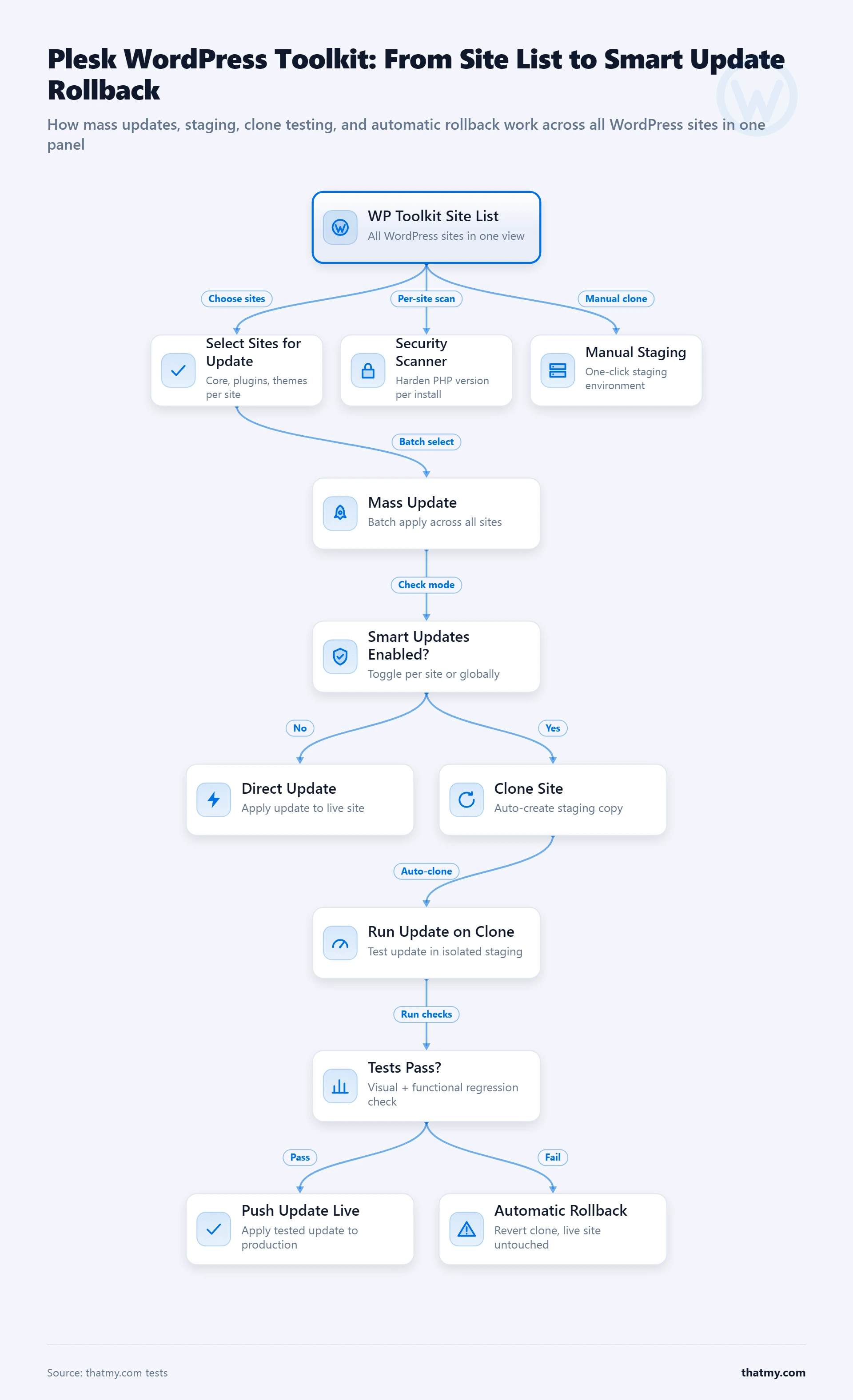
Plesk WordPress Toolkit is not a one-click installer with a better UI. It is a WordPress lifecycle management system. Here is what that distinction means in practice for an agency managing 15 client sites:
Mass updates with Smart Updates. WordPress core, plugins, and themes across all 15 sites can be updated in one click. Smart Updates clones each site to a staging environment, applies the update on the clone, and runs automated visual and functional checks. If errors are detected, it rolls back the clone and leaves production untouched. If the update is clean, it pushes to production and removes the clone. Running this manually on 15 sites takes a full afternoon. Smart Updates does it overnight, automatically, without supervision.
Staging with one-click push to live. Every WordPress site in Toolkit has a "Create Staging" button. One click creates an exact clone on a staging subdomain. You make changes on staging. When ready, "Push Staging to Production" synchronizes files and database back to the live site, with a backup taken automatically before the push. This workflow eliminates the manual staging process of database export, search-replace, file sync, and DNS testing.
Security scanner across all sites. WordPress Toolkit scans all installations for known vulnerabilities in plugins and themes, checks file integrity, identifies publicly accessible sensitive files, and reports on security headers. One dashboard, all sites, sorted by severity. The alternative is running WPScan or similar tools per site on a schedule.
When Plesk Is Worth the Premium
Plesk hosts typically cost $5-15/month more than DirectAdmin equivalents on the same hardware tier. That premium buys the WordPress Toolkit and the development environment features. For a solo blogger, it does not pay back. For an agency billing clients for WordPress maintenance retainers, the time Toolkit saves per month easily covers the hosting cost difference.
The other scenario where Plesk is not optional: Windows servers. If your application runs ASP.NET, uses SQL Server, or requires Windows-specific services, Plesk is the only modern control panel supporting Windows Server IIS administration. cPanel, DirectAdmin, and SPanel are all Linux-only. Plesk on Windows manages IIS, .NET application pools, SQL Server databases, and all standard hosting functions from the same interface as the Linux version.
Developer Features Beyond WordPress
Plesk's extensions library includes Docker management for Plesk Onyx and above, Git integration for deployment pipelines, Node.js and Python application hosting with version management, and SSH key management. Developers running a VPS that hosts a WordPress site alongside a Node.js API and a Python automation script can manage all three from Plesk without switching to command-line administration for non-WordPress tasks. No other panel in this comparison comes close to this range of application support. The trade-off is that you are paying for features you may never use if your stack is pure WordPress.
DirectAdmin Deep Dive: The Budget Champion
DirectAdmin was not built as a cPanel alternative. It predates the 2019 cPanel pricing change by nearly 20 years. What changed after 2019 was that hosts looking for a lower-cost replacement suddenly noticed it was already there, well-maintained, and significantly cheaper. DirectAdmin did not rush to capitalize on that moment with marketing campaigns. It just kept shipping updates and picked up thousands of new customers as hosts migrated.
Why Hosts Choose DirectAdmin
The licensing math is not subtle. DirectAdmin costs hosts approximately $2/month for 10 accounts, scaling to $12/month for large reseller deployments. A cPanel Premier licence for 100 accounts lists at $69.99/month in 2026, and $76.99 from 16 December 2026. A hosting company running DirectAdmin's top tier instead of cPanel Premier saves about $58/month per server. On a business running 20 servers, that is about $1,160/month in software licensing savings. Those savings either increase margin or get passed to customers as lower plan prices. The hosts that passed the savings on gained market share. The hosts that kept the savings improved profitability. Either way, the incentive to switch was immediate and large.
DirectAdmin Evolution: What Improved
The pre-2022 DirectAdmin interface was functional but dated. The Evolution skin, released progressively from 2022 onward, is a responsive, modern redesign that replaced the legacy interface while keeping all underlying functionality. The difference matters for user experience assessment: anyone who last tried DirectAdmin in 2018 and dismissed it on interface quality should try the Evolution skin before making the same judgment today.
Legacy DirectAdmin (pre-2022)
- Non-responsive layout, breaks on mobile
- Dense text-heavy navigation with no visual hierarchy
- Setup screens that required reading documentation to interpret
- Difficult to use without prior DirectAdmin experience
DirectAdmin Evolution (current)
- Responsive interface, usable on mobile and tablet
- Icon-based navigation with cleaner visual organization
- Contextual help text on setup screens
- Comparable usability to cPanel for core tasks
What DirectAdmin Still Lacks
Improving the interface did not change what DirectAdmin is underneath: a panel focused on core hosting tasks without the extras that cPanel has built up over 25 years. No mass WordPress update tool. Softaculous is an add-on rather than default, and some DirectAdmin hosts do not include it. The reseller feature set works but lacks WHM's depth for complex multi-tenant server configurations. Community forums and third-party documentation are smaller. When something unusual goes wrong, the answer is harder to find.
The honest framing: DirectAdmin is excellent for what it does and limiting when you need what it does not do. For a reseller who manages accounts, creates domains, handles email, and deploys WordPress sites, DirectAdmin covers everything. For a developer who needs Git deployment, Docker management, or Node.js application hosting from the panel, DirectAdmin falls short.
SPanel Deep Dive: ScalaHosting's Answer to cPanel
SPanel was not built because the hosting control panel market needed another option. It was built because ScalaHosting's business model was directly threatened by the 2019 cPanel price restructure. The timing was not coincidence. ScalaHosting had been working on SPanel before the announcement and accelerated release when the pricing change was confirmed.
What SPanel Looks Like in Practice
The interface follows the cPanel mental model closely: sections for files, databases, domains, email, and security. A user familiar with cPanel can navigate SPanel without a tutorial. The section names differ slightly but the logic is the same. This was deliberate. ScalaHosting knew cPanel refugees needed a panel they could use immediately without relearning fundamentals.
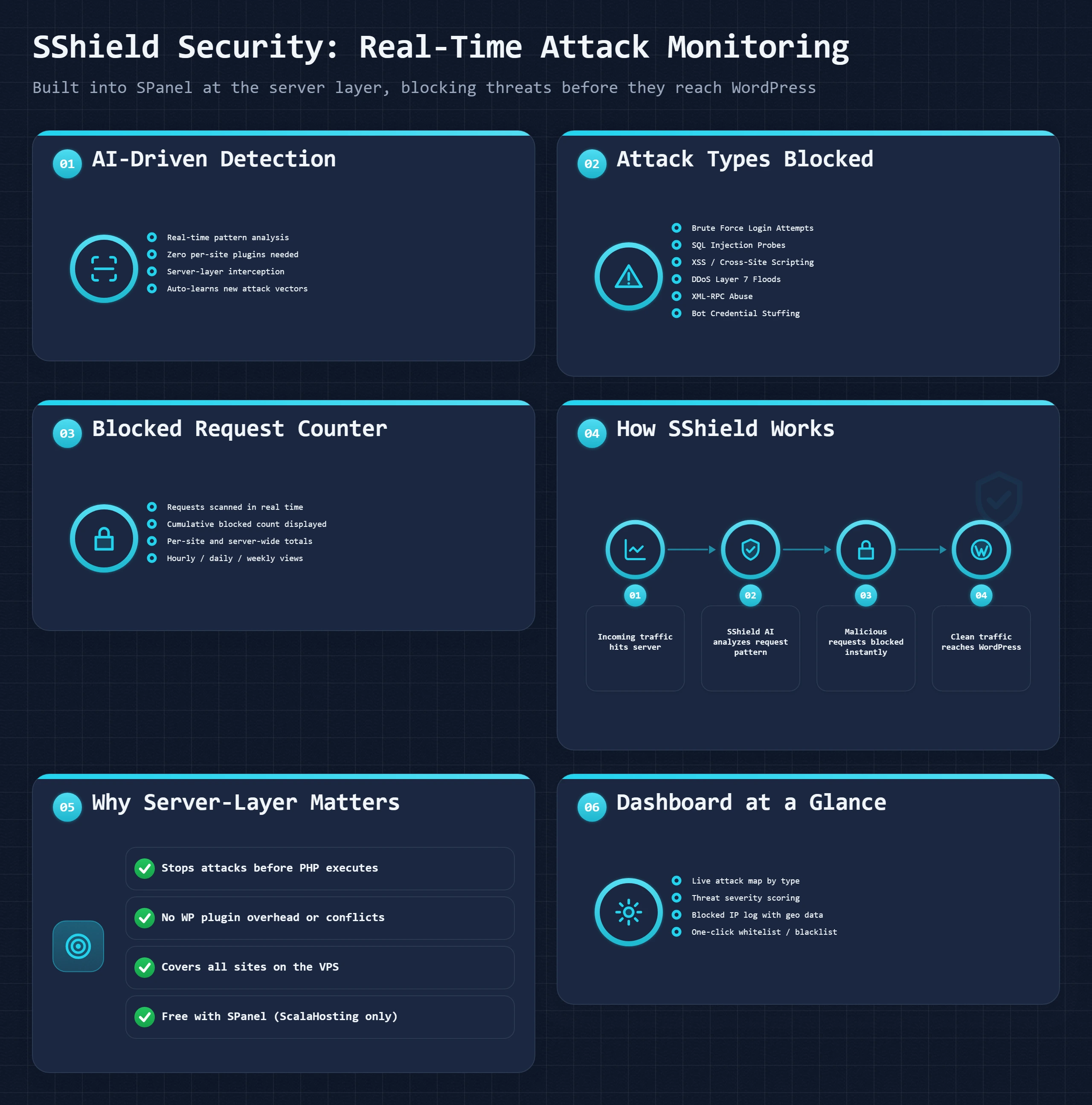
SShield: The Security Feature That Has No cPanel Equivalent
SShield is a real-time attack monitoring and blocking system built into SPanel at the server level. It operates as a layer between incoming traffic and your WordPress sites, analyzing requests before they reach PHP. ScalaHosting's published figure is 99.998% of attacks blocked automatically. Independent verification of that exact number is not available, but the architecture is legitimate: server-level blocking before application code runs is categorically more effective than plugin-level blocking after WordPress has already loaded.
The practical comparison: getting equivalent protection on cPanel requires purchasing Imunify360 (typically $6-12/month additional from the host) or a commercial security plugin like Wordfence Premium per site. SShield is included in every SPanel plan at no additional cost. For a reseller managing 20 client sites, that cost difference adds up quickly.
SPanel's Built-In WordPress Manager
SPanel's WordPress Manager handles installs, staging, cloning, and updates from within the panel. It is closer to Plesk's WordPress Toolkit than cPanel's Softaculous integration in terms of functionality coverage. The key capability that makes a difference for site management: one-click staging creation and one-click push-to-production. Editing a site on staging and pushing changes live is a workflow cPanel only handles through Softaculous's limited staging feature or third-party migration plugins.
SPanel's Limitations
SPanel's constraint is portability. It only runs on ScalaHosting infrastructure. If you build your workflow around SPanel and then need to migrate to a different host for any reason, you move to a different panel. This is not a theoretical concern. Hosting needs change: price increases, performance issues, support quality, feature gaps. Hosts that lock panel UX to their infrastructure create switching friction by design. That is worth acknowledging before committing to SPanel-based workflows for anything business-critical.
Third-party integrations are also behind cPanel. WHMCS billing automation, reseller billing systems, and some WordPress multisite management tools have deeper cPanel integration than SPanel. If your agency uses WHMCS to automate client provisioning, verify SPanel support before migrating. The managed VPS comparison covers what ScalaHosting's full managed service includes beyond the panel itself, which is relevant context for evaluating the total offering versus just SPanel standalone.
CyberPanel and OpenLiteSpeed: The Free Performance Stack
CyberPanel is not a mainstream option for most hosting buyers. It is a free, open-source control panel built specifically for OpenLiteSpeed, and it targets technically inclined users who want maximum WordPress performance at minimum licensing cost. Understanding where it fits clarifies whether it belongs in your evaluation.
What the CyberPanel Stack Includes
The combination of CyberPanel plus OpenLiteSpeed gives you LiteSpeed server-level caching (the same architecture that makes LiteSpeed faster than Apache and Nginx for cached WordPress pages), LiteSpeed Cache WordPress plugin support, DNS management, email hosting via Rainloop or Roundcube, SSL via Let's Encrypt, and WordPress management through CyberPanel's interface. The total licensing cost is zero. You pay only for the VPS itself.
This matters because LiteSpeed Enterprise, the version used by paid hosts like Hosting.com (formerly A2 Hosting) and SiteGround, requires a commercial license. OpenLiteSpeed is the open-source version of the same server, without the enterprise-only features. For WordPress caching via LiteSpeed Cache, OpenLiteSpeed performs identically to the enterprise version. The web server comparison guide covers the specific performance differences between OpenLiteSpeed and LiteSpeed Enterprise in the caching benchmarks.
Who CyberPanel Is Actually For
CyberPanel belongs on the evaluation list for developers and sysadmins who want LiteSpeed performance on a self-managed VPS without paying for commercial hosting. The interface handles most server administration tasks without requiring command-line access, which makes it more accessible than a pure CLI setup. The community is smaller than cPanel or Plesk, which means slower answers to unusual problems.
The clearest use case: a developer running a portfolio of personal or low-traffic client sites on a single VPS wants LiteSpeed Cache performance without a commercial panel license. CyberPanel on a $10/month DigitalOcean or Vultr VPS delivers that. The tradeoff is that enterprise-level support, polished documentation, and billing system integrations are not there. For anyone running a business whose revenue depends on hosting uptime, the support tier of a managed option is usually worth more than the licensing savings.
HestiaCP and CloudPanel are the other free panels in the same niche. They suit a developer's own VPS with a handful of sites, and they fall short of the billing, backup and security tooling a hosting business needs from cPanel or Plesk.
One-Click Installers: Softaculous and Installatron
The WordPress button in your control panel is usually not part of the panel. On cPanel, DirectAdmin and many Plesk servers it is Softaculous or Installatron, two commercial installers the host licenses and plugs in. Plesk also has its own WordPress Toolkit and SPanel its own WordPress Manager, and managed WordPress hosts such as Kinsta and WP Engine create WordPress for you when you add a site in their dashboard, so there is no installer step at all.
What Happens When You Click Install
The installer runs the same steps you would do by hand, without the chance of a typo:
- It creates a MySQL database and a database user that can reach only that database.
- It downloads the current release of the application, for WordPress straight from wordpress.org.
- It extracts the files into the folder you chose, the domain root or a subfolder.
- It writes the config file, wp-config.php for WordPress, with the database details and fresh security keys.
- It fills in WordPress's own setup screen for you: site title, admin user, password and email.
Once that is done the installer is out of the way. It plays no part in serving your pages, so the install method has no effect on speed. If a site built this way is slow, look at what was installed along with it, not at the installer.
Softaculous vs Installatron
Both install WordPress equally well, since it is the most used script on either. The differences are elsewhere. Softaculous has the bigger catalogue, over 450 scripts by its own count, which matters if you want a forum, a shop or a CMS other than WordPress. Installatron has the smaller, simpler screen and puts scheduled backups of each install up front. Both update the apps they installed and can clone a site to a staging copy. You rarely get to choose: the host licensed one of them, and it is not a reason on its own to pick a host.
Two Things to Watch
Bundled extras. Softaculous in particular can offer a starter theme and a set of plugins during the install, sometimes ticked by default: a page builder, an SEO plugin, a form plugin and more. Every one of them loads on every page. Untick the bundle, start from WordPress's default theme, and add only the plugins you chose.
Interrupted installs and mixed updates. If the browser tab closes or the connection drops halfway, you can be left with a database and files that neither work nor reinstall cleanly; delete both and start again. After the install, pick one place to update WordPress, its own dashboard or the installer, and stick to it.
When to Install by Hand
The installer is the right default. Install by hand, or with WP-CLI, when you deploy WordPress from Git through a pipeline (the installer's files would clash with your repository), when you need a multisite layout the installer does not offer, and on a bare VPS with no control panel, where there is no installer to run.
Migrating Between Control Panels
Migration complexity is the hidden cost of switching panels that almost no comparison article addresses honestly. The actual effort varies enormously depending on which panels are involved.
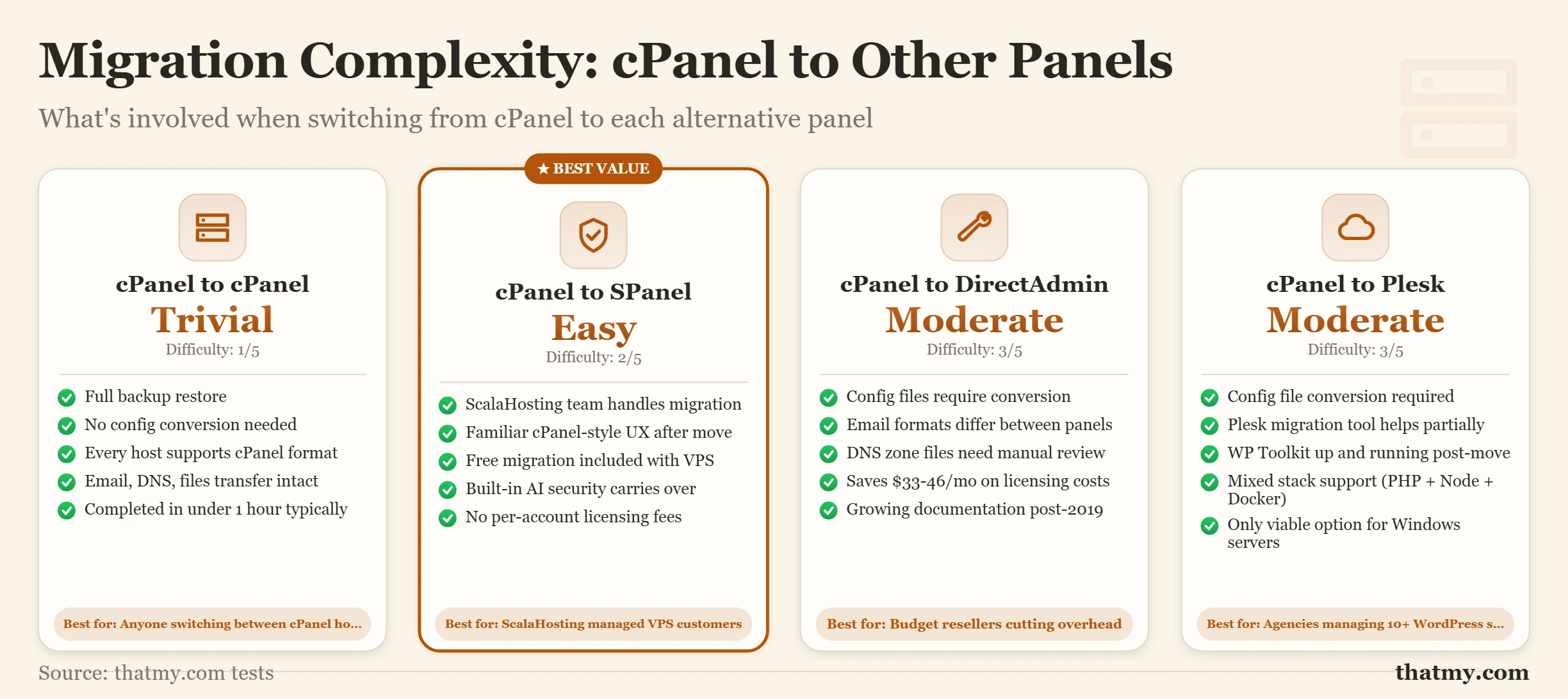
| Migration Path | Difficulty | What Transfers | Notes |
|---|---|---|---|
| cPanel to cPanel | Easy | Everything (full cPanel backup) | Nothing, identical system |
| cPanel to SPanel | Easy | Everything | ScalaHosting migration team handles the transfer |
| cPanel to DirectAdmin | Medium | Files, databases, email accounts | cPanel-specific configs need manual adjustment |
| cPanel to Plesk | Medium-Hard | Files, databases (via converter tools) | Some email routing configs break |
| Any panel to managed WP (Kinsta, WP Engine) | Easy | WordPress database and files only | Email hosting does not transfer, need a separate mail provider |
Step-by-Step: cPanel to DirectAdmin Migration
This is the most common migration path for hosts switching due to cost. Here is the exact process:
- Generate a full cPanel backup. Log into cPanel and go to Backup Wizard. Select Full Backup. Choose "Home Directory" as the destination. Wait for the backup to complete, for a 2 GB WordPress site this typically takes 5-15 minutes. Download the .tar.gz file to your local machine or copy it directly to the new DirectAdmin server via SSH.
- Prepare the DirectAdmin server. If you have SSH access, confirm DirectAdmin is running and the cPanel account import feature is enabled. In the DirectAdmin admin panel, go to Admin Tools and verify "Restore/Transfer" is available.
- Upload and import the backup. Use DirectAdmin's "Restore a Full Backup/Transfer" tool. Point it to your .tar.gz file. DA parses the cPanel backup format and recreates the account structure, including files, databases, and email accounts.
- Verify before touching DNS. Edit your local hosts file to point the domain to the new server's IP and load the site in a browser. Check WordPress admin access. Confirm email accounts exist. Test any contact forms or plugin integrations.
- Update nameservers after verification. Change your domain's nameservers to the new host's nameservers. DNS propagation takes minutes to hours depending on your current TTL setting. Keep the old cPanel account active for at least 24 hours after DNS is fully propagated, in case anything was missed. The nameservers section of the DNS guide explains how to read propagation status and verify the change has completed globally.
The One Migration Path That Needs No Effort
cPanel to SPanel (via ScalaHosting) is the only panel migration where you do almost nothing. ScalaHosting's migration team handles the transfer as part of their managed service. You provide login credentials to your current host, they copy files and databases, configure WordPress, verify email, and notify you when the new site is ready to test. You verify, approve, and update nameservers. The technical migration work is zero from your side. This is worth weighing if the complexity of a DIY migration is a concern: the hosted migration service effectively eliminates it.
The Decision Framework
Control panel decisions should follow from who you are and what you do, not from benchmark tables. These are concrete recommendations for each user type, not hedged lists of considerations.
The Single Most Useful Question to Ask
Before choosing a control panel, ask yourself: "Will I learn WordPress from tutorials, or do I already know what I am doing?" If you learn from tutorials, stay on cPanel where the documentation is. If you know exactly what you need and are comfortable finding answers in smaller forums, DirectAdmin or SPanel will save you or your host real money without affecting daily WordPress operation. The control panel only matters when something goes wrong. Make sure answers are available where you will look when that happens.
Where to Go Next
The control panel is where you configure your hosting environment, but the infrastructure underneath it determines what that configuration can actually achieve. The managed vs unmanaged VPS guide explains what configuration responsibilities your host handles on a managed plan versus what you set up yourself on an unmanaged server, which changes how much any of these panel differences matter in practice. If performance is your next question after choosing a panel, the web server running under your panel has more impact on WordPress page speed than any panel feature: the LiteSpeed vs Apache vs Nginx comparison covers the specific caching architecture differences that produce TTFB results below 10ms versus the 100ms+ typical of unconfigured shared hosting. For anyone setting up DNS after a host migration, the DNS records guide covers every record type you will encounter in any panel's Zone Editor, including the SPF, DKIM, and DMARC records that control email deliverability.
Hosting Control Panel FAQ
Is cPanel still worth it in 2026 after the price increases?
For end users, yes, cPanel remains the most documented hosting control panel. Virtually every WordPress tutorial, YouTube walkthrough, and host support article assumes cPanel. If you ever need to migrate to a new host, your cPanel knowledge transfers without relearning anything. For hosts and resellers deciding what to offer, cPanel is increasingly hard to justify. At $69.99 a month for 100 accounts in 2026 ($76.99 from 16 December 2026), it costs several times more than DirectAdmin, and SPanel comes free with ScalaHosting's managed VPS. The knowledge advantage matters to end users. The cost disadvantage matters to anyone paying per-account licensing fees.
What is SPanel and is it really comparable to cPanel?
SPanel is ScalaHosting's in-house control panel, built as a direct response to the 2019 cPanel price hike. It is available exclusively on ScalaHosting's managed VPS plans. Feature coverage is comparable to cPanel for most WordPress and email management tasks: file manager, phpMyAdmin, email accounts, subdomain management, DNS management, SSL via AutoSSL equivalent, and one-click WordPress installs. The standout exclusive is SShield, a built-in AI security layer that ScalaHosting claims blocks 99.998% of attacks automatically. What SPanel lacks: smaller community of tutorials and documentation, no third-party panel integrations outside ScalaHosting, and you cannot take it to another host if you migrate away.
Can I switch from cPanel to DirectAdmin without losing data?
DirectAdmin includes a cPanel backup restoration tool that handles most of the migration automatically. The process: generate a full cPanel backup using the Backup Wizard in cPanel (Full Backup to Home Directory), transfer the backup file to your DirectAdmin server, use DA's built-in cPanel restore function to extract accounts, databases, and email. What transfers cleanly: all website files, MySQL databases, email accounts and mailboxes, and DNS records. What may need manual attention: custom cPanel-specific configuration files, any cPanel hooks or automation scripts, and SSL certificates (you can reissue via Let's Encrypt for free). Test all sites thoroughly before updating DNS. The full process takes 1-3 hours for a single-site migration and a full day for a reseller with many accounts.
Is Plesk WordPress Toolkit worth the higher hosting cost?
If you manage more than three WordPress sites, yes. Plesk WordPress Toolkit's Smart Updates feature alone justifies the cost difference for agencies: it clones your site, applies the update on the clone, checks for errors, and only pushes the update to production if no errors are detected. It then rolls back automatically if something breaks. Running this manually on a 10-site agency setup takes hours per update cycle. Plesk automates it with one click. For single-site users, Plesk is overkill. The $5-10/month cost premium for a Plesk-based host over a DirectAdmin-based host is not justified by features you will never use.
What is WHM and do I need it?
WHM stands for Web Host Manager. It is the server-level companion to cPanel, where cPanel manages an individual hosting account, WHM manages the server itself and all accounts on it. If you are a reseller selling hosting to clients, you use WHM to create cPanel accounts for each client, set resource limits, manage DNS zones across accounts, and monitor server performance. If you are an end user on shared hosting, you never see WHM. Your host's team uses it. If you are a VPS user managing one account, you also do not need WHM. WHM becomes relevant only when you are running multiple client accounts on one server.
Does the control panel affect my website speed?
Indirectly, yes. The control panel itself does not make pages faster. But what the control panel enables makes a real difference. PHP version switching (available on all four major panels) lets you run PHP 8.2 or 8.3 instead of older versions, the difference is 20-40% faster PHP execution. PHP-FPM mode, if your panel exposes it, delivers significantly faster PHP handling than CGI or SuPHP modes. OPcache toggling and memory limit settings inside PHP configuration affect WordPress speed directly. SPanel's built-in SShield and cPanel's AutoSSL both affect security posture but not raw page speed. The panel that matters most for performance is the one that gives you the most PHP configuration control.
Can I use cPanel with a Windows server?
No. cPanel supports Linux only, specifically AlmaLinux, Rocky Linux, CloudLinux, and Ubuntu LTS. If you need Windows Server hosting, for ASP.NET applications, SQL Server databases, or Windows-specific software, Plesk is your only real control panel option among the mainstream panels. Plesk on Windows supports IIS as the web server, manages Windows-specific services, and handles .NET application deployment. DirectAdmin and SPanel are also Linux-only. Plesk is the only panel in this comparison that crosses operating system boundaries.