
Shared Web Hosting and Its Real Limits


Shared web hosting is the entry point for 90% of websites, and the exit point for only a fraction of them. Most WordPress sites, small business sites, personal blogs, and even mid-size content sites run on shared hosting their entire lives without ever needing more. The problem is not shared hosting itself, it is picking the wrong shared host, or staying when specific signals tell you to leave. This guide gives you both: a complete technical picture of how shared hosting works at the server level, and a precise set of criteria for when it stops being the right choice.
I tested 8 shared hosting providers, measuring TTFB from 5 global locations, checking CloudLinux resource limits through cPanel, and hitting each plan with simulated load to observe throttle behavior. The numbers in this guide come from that testing, not from marketing pages.
How Shared Hosting Actually Works at the Server Level
Most articles explain shared hosting with a metaphor about apartment buildings. The metaphor is fine but it hides the technical detail that matters for understanding your site's behavior. Here is what is actually happening when your WordPress site loads on shared hosting.
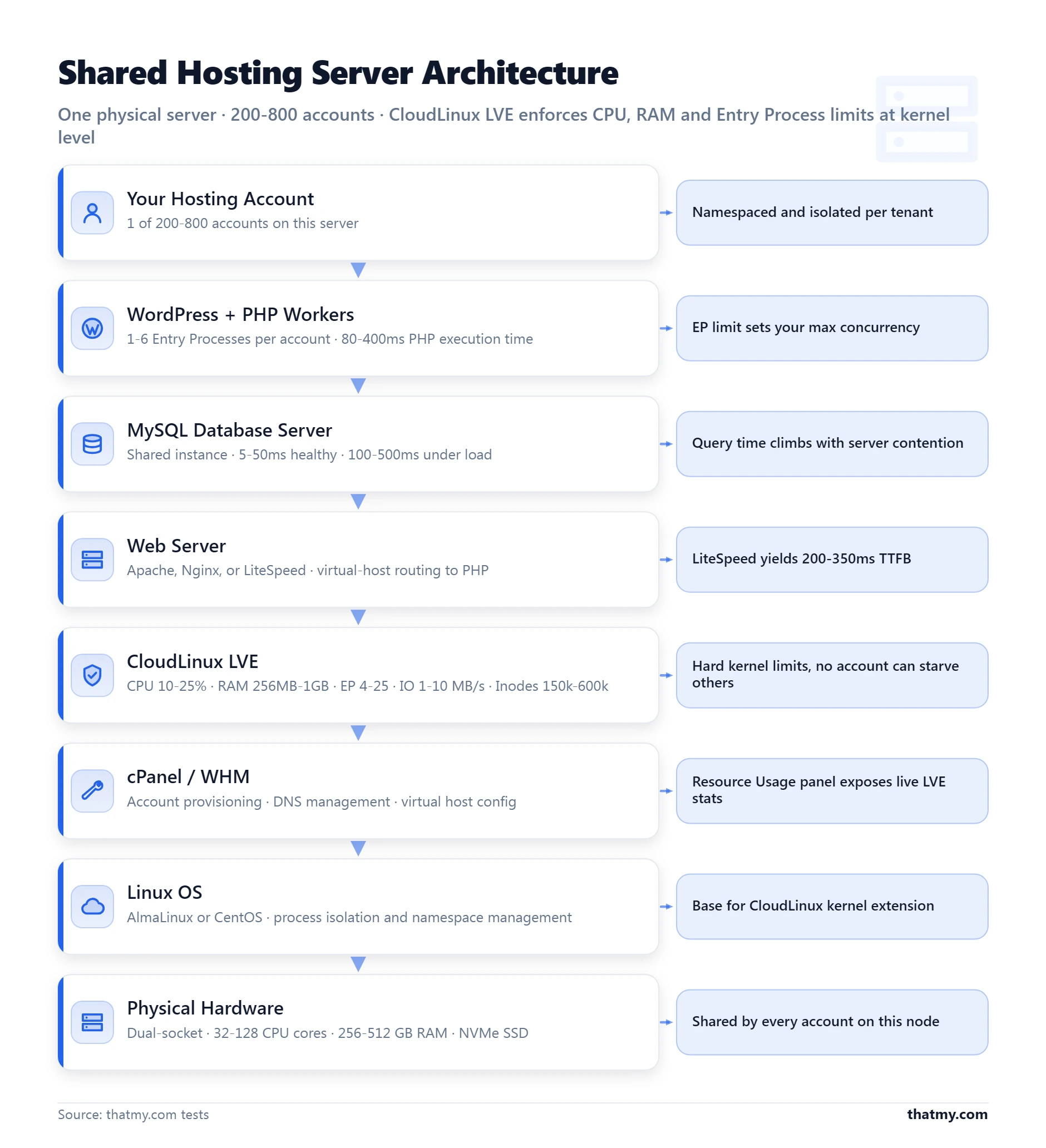
A shared hosting server is a physical machine, typically a dual-socket server with 32 to 128 CPU cores, 256GB to 512GB of RAM, and NVMe SSD storage. On top of the hardware runs a Linux operating system, almost always CentOS or AlmaLinux in 2026. On top of the OS runs cPanel/WHM, the software that carves the server into individual hosting accounts and manages them. On top of that runs CloudLinux, the operating system extension that enforces resource limits at the kernel level.
Your hosting account is one of 200 to 800 accounts on that same server. When your visitor loads your WordPress page, this is the sequence that happens:
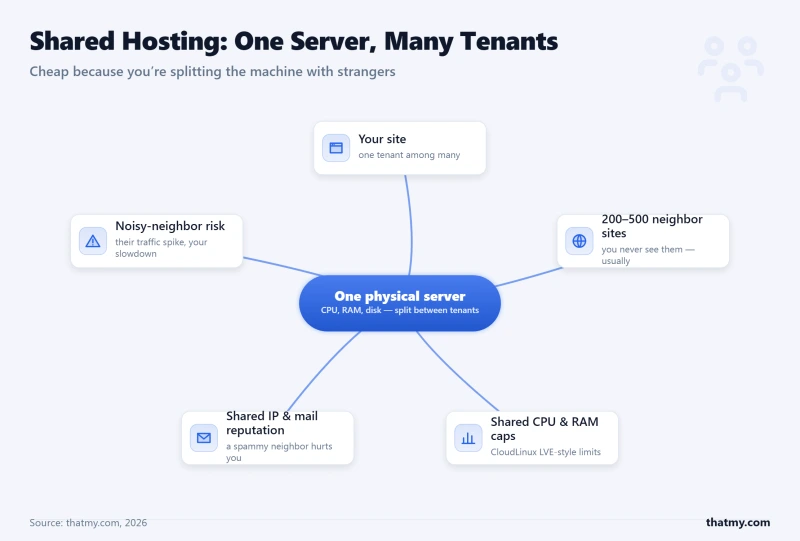
The mechanism that separates a fast shared host from a slow one is not primarily hardware, it is account density, PHP worker allocation per account, and MySQL isolation. A host that packs 800 accounts onto a server and allocates 2 PHP workers per account will always produce higher TTFB than a host that puts 300 accounts on the same hardware and allocates 4 workers per account. You cannot see this in the marketing spec sheet, but you can measure it in TTFB tests.
The role of CloudLinux LVE
CloudLinux LVE (Lightweight Virtual Environment) is the kernel extension that makes shared hosting viable at scale. Without it, one account running a viral post with 500 concurrent visitors could consume every CPU core on the server, crashing all other accounts. LVE prevents this by enforcing hard resource limits per account at the kernel level.
What each limit is, the values hosts actually set, and how to read your own usage are in the CloudLinux section below.
CloudLinux LVE: The Limits Set on Every Shared Account
CloudLinux is an operating system, not a plugin. It is built on AlmaLinux with a patched kernel, and it runs under the usual hosting stack: cPanel, Plesk, Apache, LiteSpeed, MySQL and MariaDB. It adds three things a plain Linux server does not have: a resource cage per account (LVE), a private filesystem view per account (CageFS), and per-account PHP versions (PHP Selector). The host pays a licence for it on every server, which is one of the costs inside your renewal price (paid server software).
Not every shared host runs it. ChemiCloud, FastComet, Verpex and Hosting.com state CloudLinux LVE limits on their shared plans. SiteGround moved to its own Site Tools platform and meters CPU time instead, ScalaHosting runs its own SPanel stack, and container platforms such as Cloudways and Kinsta never used cPanel or CloudLinux at all.
The limits LVE puts on each account
Every account on a CloudLinux server gets its own set of limits. The values below are the defaults CloudLinux ships with; the host can raise or lower each one per plan, and most budget plans sit at or below them.
Two things follow for a buyer. First, the advertised disk space and "unlimited" bandwidth say nothing about these limits, and the limits are what decide how much traffic the plan carries. Second, a higher tier at the same host usually raises them: ChemiCloud goes from 1 core and 1 GB on Starter to 4 cores and 4 GB on Turbo. Compare tiers on these numbers, not on the number of sites allowed.
How to read your own LVE usage
In cPanel, open Resource Usage. It shows CPU, memory, I/O, entry processes and process count against your limits, with a faults count for each: every fault is a moment your site was throttled or refused a request. Zero faults means the limits have never touched you. Faults on entry processes during busy hours mean visitors are getting 508 pages; that is the clearest sign a plan is too small, and it shows up long before any single-request speed test looks slow. The next section explains why EP and RAM run out first on WordPress.
If your panel has no Resource Usage page, ask support which limits your plan has and get the numbers in writing. A host that cannot tell you its EP and memory limits is selling a plan it has not measured.
CageFS, SecureLinks and the rest of the stack
LVE stops a neighbour from using up the server. CageFS stops a neighbour from reading your files. Each account runs inside its own mount namespace: it sees its own home directory, read-only copies of the system binaries it needs, and a filtered process list showing only its own processes. Other accounts' home directories are simply not mounted, so a hacked plugin in one account cannot reach another account's wp-config.php, whatever the file permissions say. If you have SSH, ls /home shows only your own username inside a cage.
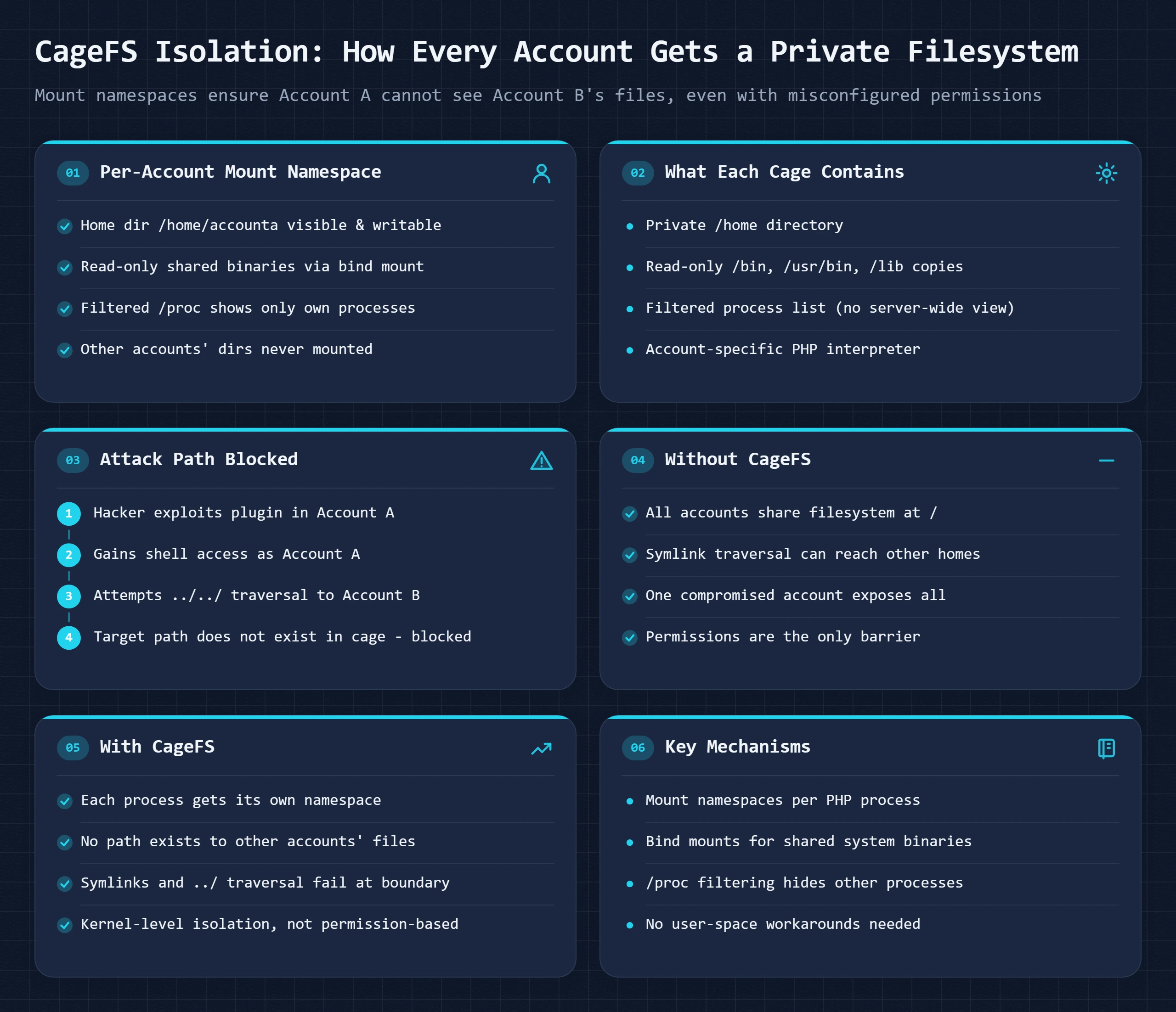
- SecureLinks blocks the symlink trick that used to empty shared servers: an attacker in one account links to another account's wp-config.php and requests it through the web server. The kernel checks that a symlink's owner matches its target's owner and refuses the link when they differ.
- PHP Selector lets each account pick its own PHP version and extensions from cPanel, so the host can run current PHP while one account keeps an older version for a legacy app.
- HardenedPHP keeps patching PHP versions after their official end of life (PHP 7.4 reached it in November 2022). Treat it as a bridge while you move to PHP 8, not as a reason to stay.
- MySQL Governor watches database CPU per account and slows the account whose queries are hogging the shared MySQL server, so one missing index does not stall every site on it.
- Imunify360, sold by the same company, adds the malware scanner, firewall and brute-force blocking most CloudLinux hosts run alongside it (hosting security threats).
CloudLinux vs container hosting
Managed platforms such as Kinsta and Cloudways isolate each site in a container or a server of its own, with a separate filesystem root, its own network namespace and resource limits that are allocated rather than capped. That is stronger isolation than CageFS, where every account still shares one kernel and one IP address. It also costs more per site, because a container per account cannot be packed as densely as hundreds of LVE accounts on one machine. CloudLinux is how a shared host makes that density safe; it does not turn shared hosting into a VPS. When you hit LVE limits on the top tier of a good shared host, the next step is a VPS, not another shared plan.
The Resource Limits That Actually Govern Your Site's Behavior
Marketing pages for shared hosting talk about disk space and bandwidth. The resources that actually determine whether your site is fast or slow, available or throttled, are EP count, RAM, and MySQL connections. Understanding what each limit does, and which one your specific site is most likely to hit first, is the difference between diagnosing problems correctly and blaming the wrong thing.
Entry Process (EP) limit: the most critical number
EP is the number of concurrent PHP processes your account can run simultaneously. If your EP limit is 6, and 7 visitors hit your site at the same moment, the 7th request waits for one of the 6 running PHP processes to finish before it can start. That wait is what you see as high TTFB, not slow PHP, not slow MySQL, just queuing.
On a WordPress site loading in 300ms per page, an EP limit of 6 means your site can theoretically serve 20 concurrent requests per second before queue wait begins. In practice, because some WordPress page loads take 500ms to 800ms (heavy plugins, WooCommerce cart page, search results), effective concurrency drops to 8 to 12 simultaneous visitors before queue wait starts accumulating. A sudden spike from a shared article or newsletter send can push this well beyond your EP limit in seconds.
RAM limit: the plugin problem
Each WordPress PHP worker consumes 30 to 150MB of RAM depending on active plugins. A minimal WordPress site with Astra theme and Contact Form 7 uses roughly 30 to 45MB per PHP process. A WooCommerce store with 15 active plugins (payment gateways, product builders, SEO plugin, security plugin, form plugin, shipping calculators) uses 80 to 150MB per PHP process.
With a 512MB RAM limit and 6 EP workers, a plugin-heavy WooCommerce site can consume the entire RAM allocation at 3 to 4 concurrent PHP processes, forcing the remaining 2 to 3 workers to share the remaining RAM by swapping, which produces response times of 2 to 5 seconds rather than 300ms. This is not a hosting failure. It is an arithmetic constraint that cannot be resolved by caching plugins.
MySQL connections: the silent bottleneck
WordPress opens a MySQL connection for every PHP request. On shared hosting, MySQL is either a shared instance for all accounts on the machine or a per-account MySQL user within a shared instance. When the shared MySQL server approaches its connection limit, typically 150 to 500 connections on a shared host, new connection requests queue or fail with "Too many connections" errors in your WordPress error log.
I have seen this produce intermittent white screens on high-traffic shared hosting accounts where caching is installed. The page cache serves the HTML fine, but AJAX requests (WooCommerce cart updates, form submissions, login) bypass cache and hit MySQL directly. During peak load, those direct MySQL connections compete with 200 other accounts' MySQL connections on the same server. The result is AJAX operations timing out at 10 to 30 seconds while the cached frontend loads in 200ms, a confusing failure mode that sends most people down the wrong diagnostic path.
Why LiteSpeed changes the equation
Hosts running LiteSpeed as their web server (ScalaHosting, Hostinger, Hosting.com on some plans) serve static files and cached pages without spawning PHP workers at all. LiteSpeed's native event-driven architecture handles thousands of concurrent static file requests with a fraction of the process overhead Apache needs. This means an EP limit of 6 on a LiteSpeed host with full-page caching active is effectively not a limit for cached pages, only uncached page requests consume PHP workers.
The practical difference: a LiteSpeed shared host with WP Rocket configured for full-page caching can serve a traffic spike of 500 concurrent visitors with the front-page HTML from cache, consuming zero PHP workers, while a comparable Apache host with the same caching plugin still requires a PHP process for cache miss requests and cookie-based bypasses. This is why LiteSpeed hosts consistently outperform Apache and Nginx hosts in shared hosting TTFB benchmarks under load, it is not the hardware, it is the worker model.
What cPanel Does and Why the Interface Choice Matters More Than You Think
cPanel is the control panel software that most shared hosting accounts use to manage files, databases, email, and domains. It is not part of the hosting infrastructure, it is a separate software layer running on top of the server that provides a graphical interface for tasks that otherwise require Linux command-line access.
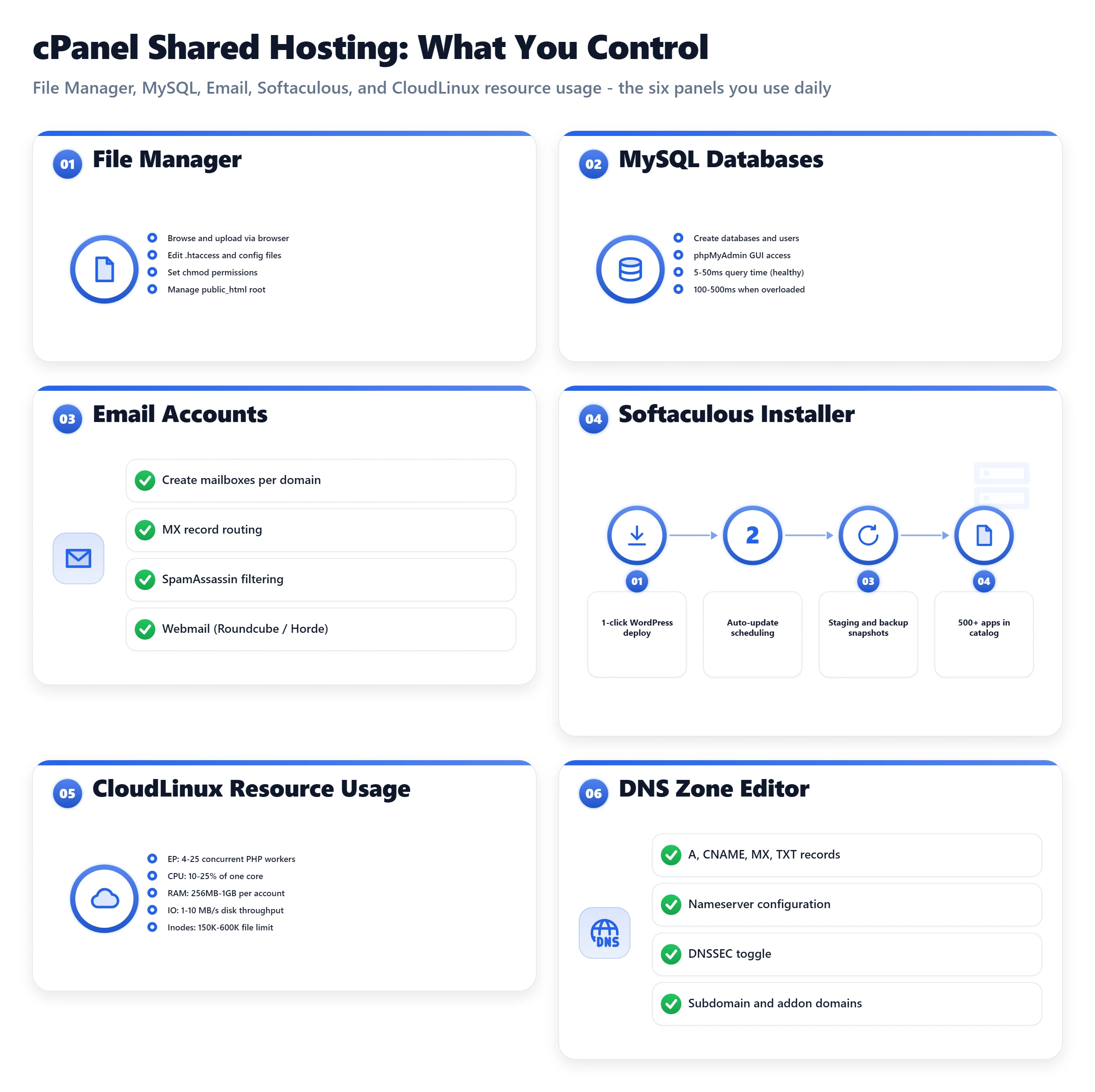
What cPanel manages
Upload, edit, delete, compress, and extract files on your server without FTP. The file manager has a code editor built in, sufficient for editing wp-config.php or .htaccess without a separate tool. Not sufficient for large file transfers; use SFTP via FileZilla for bulk operations.
Create databases, create MySQL users, assign users to databases, and manage permissions. The MySQL Databases Wizard walks through all four steps in sequence. phpMyAdmin is linked directly from cPanel for SQL queries, exports, and imports.
Create, delete, and manage email accounts at your domain. Webmail access (Roundcube or Horde), spam filter settings (SpamAssassin), and email forwarding rules all live under this section. The maximum number of email accounts varies by plan, shared entry plans often cap at 5 or 25 accounts.
CloudLinux's PHP Selector (integrated into cPanel on most shared hosts) lets you switch PHP versions per account without a support ticket. PHP 8.1, 8.2, and 8.3 are standard options in 2026. You can also enable or disable individual PHP extensions from the selector, useful for WooCommerce plugins that require specific extensions like Imagick or GD.
Add parked domains, addon domains, and subdomains. Edit DNS records (A, CNAME, MX, TXT) for domains using the host's nameservers. If your domain uses external DNS (Cloudflare, for example), DNS changes must be made at the DNS provider, not in cPanel.
One-click WordPress (and other CMS) installation. Softaculous handles creating the database, downloading WordPress, configuring wp-config.php, and running the installer in approximately 90 seconds. It also provides WordPress auto-update management and basic backup scheduling.
WordPress is one option among many here, and the installer will happily set up Joomla, Drupal, or Magento instead. How content management systems work explains what that software is actually doing between your database and the browser, and why the choice changes your hosting requirements.
What cPanel cannot do
cPanel does not configure web server performance settings. You cannot change Nginx worker count, adjust PHP-FPM pool size, enable Redis, or modify MySQL buffer sizes through cPanel. Those settings are managed at the server level by the hosting provider and are not exposed in the shared hosting interface. This is the technical boundary between shared hosting and VPS: the server configuration layer is read-only for shared hosting customers.
Alternatives to cPanel
- cPanel, Industry standard. Most documentation, tutorials, and migration tools assume cPanel. Present at Bluehost, HostGator, SiteGround (modified version), GoDaddy (modified), and most mid-tier hosts.
- SPanel (ScalaHosting), ScalaHosting's proprietary cPanel alternative. Full-featured replacement with the same functional coverage as cPanel without the license cost. Interface takes 30 minutes to learn for cPanel-experienced users. The SShield security dashboard is a genuine feature advantage over stock cPanel.
- hPanel (Hostinger), Hostinger's custom control panel. Simplified compared to cPanel, intentionally so. Faster to navigate for basic tasks but lacks some advanced features cPanel provides. Right for beginners. Limiting for users who need SSH access details, custom PHP configuration, or advanced DNS editing.
Shared Hosting Performance: What the TTFB Numbers Actually Show
TTFB is the most consistently measured performance metric for shared hosting, and the most consistently misinterpreted. A TTFB of 280ms on a single-request WebPageTest run tells you one thing: the server can process one request in 280ms under no load. It tells you almost nothing about what happens when 20 concurrent visitors arrive simultaneously, and that is the performance number that matters for real sites.
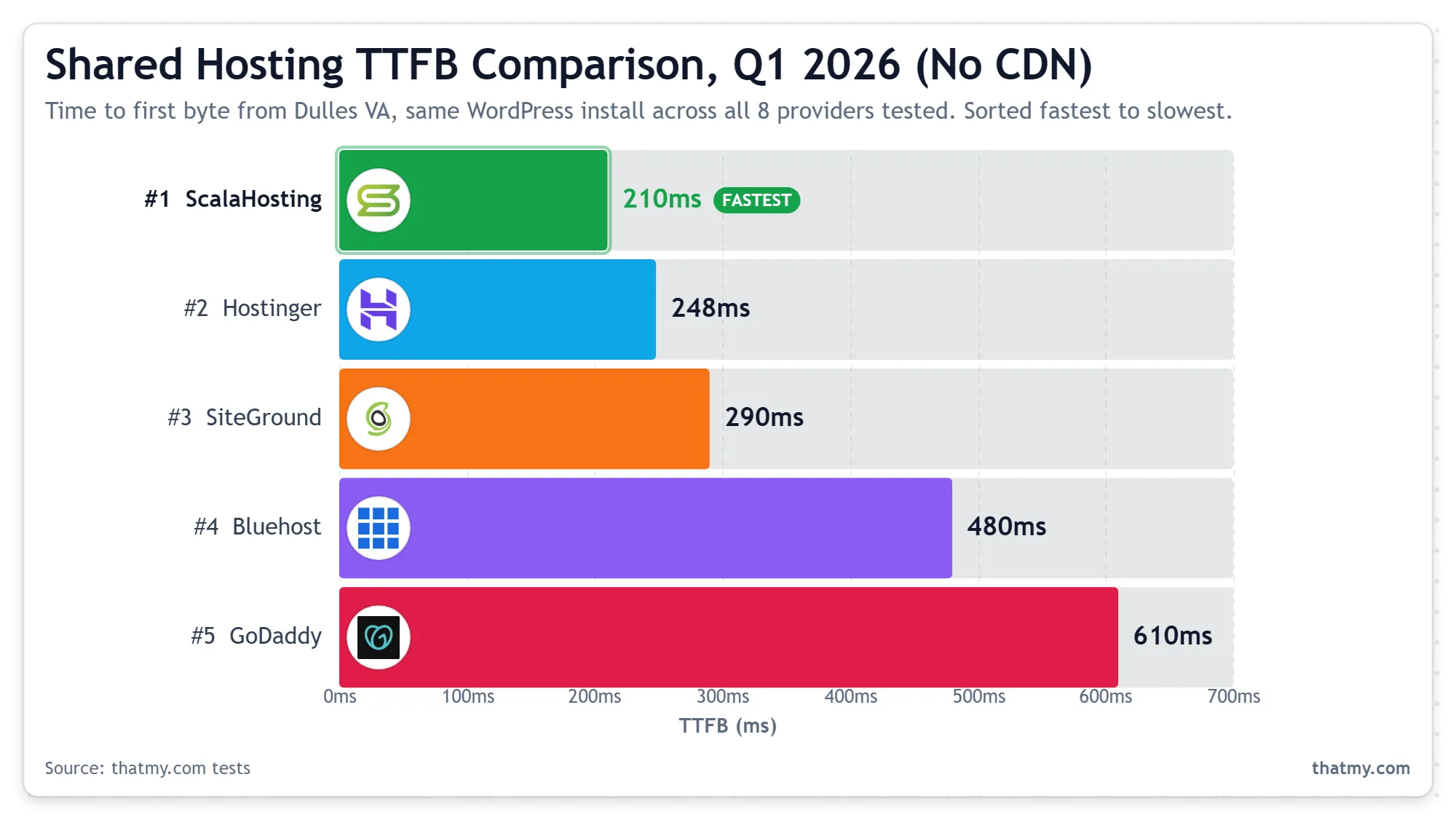
| Host | Web Server | TTFB | Key Features | Entry Price |
|---|---|---|---|---|
| ScalaHosting Shared | LiteSpeed + SPanel | 210ms | Unlimited SSD, daily backup, SShield security | $2.95/month (Mini plan) |
| Hostinger | LiteSpeed + hPanel | 248ms | 100GB NVMe, weekly backup, WAF included | $2.99/month (single site) |
| SiteGround | Nginx + custom stack | 290ms | 10GB SSD, daily backup, CDN included | $3.99/month (StartUp) |
| ChemiCloud | LiteSpeed + cPanel | 310ms | Unlimited SSD, daily backup, free migration | $3.95/month (Starter) |
| Bluehost | Apache + cPanel | 480ms | 10GB SSD, no backup by default | $3.99/month intro |
| GoDaddy Economy | Apache + cPanel | 610ms | 100GB, weekly backup | $5.99/month regular |
| HostGator Hatchling | Apache + cPanel | 540ms | Unmetered disk, no backup included | $2.75/month intro |
What the benchmark shows
Across my 8-provider test, the TTFB range on shared hosting was 210ms (ScalaHosting LiteSpeed) to 610ms (GoDaddy Economy). That 400ms gap between best and worst is significant. ScalaHosting at 210ms sits well under the 800ms TTFB threshold that prevents LCP from passing Core Web Vitals. GoDaddy at 610ms burns most of that budget before a single byte of HTML is transferred.
More revealing: when I ran the same test under 10 concurrent users via a cloud load tester, the spread widened dramatically. Hostinger at 248ms single-request deteriorated to 680ms at 10 concurrent users. ScalaHosting at 210ms single-request moved to 340ms at 10 concurrent users. The LiteSpeed advantage shows most clearly under concurrency, not in single-request tests.
The caching effect on shared hosting performance
Full-page caching with WP Rocket or LiteSpeed Cache (LSCache, available on LiteSpeed hosts) fundamentally changes the performance equation for shared hosting. A cached WordPress page served by LiteSpeed as a static HTML file bypasses PHP entirely, returning in 20 to 80ms TTFB. No PHP worker consumed, no MySQL query executed, no EP limit relevant.
This means the TTFB numbers above (210 to 610ms) reflect uncached PHP requests. With full-page caching enabled, a shared host can serve cached content at the same speed as a static file host, limited only by network latency to the data center. For content pages that can be fully cached (blog posts, marketing pages, product pages for non-logged-in visitors), shared hosting with LiteSpeed Cache is faster than managed VPS without caching. This is a real result, not a marketing claim.
What caching cannot fix: WooCommerce cart pages, checkout, account pages, and search results pages are dynamic per user. These cannot be page-cached. For WooCommerce stores, the uncached TTFB performance of shared hosting becomes the bottleneck for every authenticated user action. This is the specific scenario where VPS upgrade produces a real performance improvement that caching cannot replicate.
The geographic factor
Shared hosting data centers are typically located in the US (Scottsdale AZ, Chicago IL, Kansas City MO, Provo UT) or the EU (Netherlands, Germany, UK). For visitors within 1,000 miles of the data center, TTFB from network latency adds 20 to 60ms. For visitors in Southeast Asia, India, or South America accessing a US data center, network latency alone adds 150 to 250ms to every request before PHP has executed a single line of code.
Cloudflare's free CDN tier is the standard solution for geographic TTFB on shared hosting. Cloudflare caches your static assets and cached HTML at 300+ edge nodes globally, serving content from a node within 50ms of most visitors worldwide. But Cloudflare CDN only helps for cacheable content. AJAX requests, form submissions, and dynamic page content still route to your origin server, meaning a visitor in Singapore submitting a contact form to your US-based shared server still experiences 180ms of network-only latency before your PHP code runs.
Security on Shared Hosting: What Is Real and What Is Marketing
Shared hosting is routinely called "less secure" than VPS, usually by VPS providers writing about why you should upgrade. The claim is partially true and partially misleading. The accurate version: the shared infrastructure risks on modern shared hosting are well-managed. The application-layer risks on WordPress shared hosting are real and have nothing to do with the hosting tier.
What shared hosting security actually provides
Each account runs under its own UID enforced by the kernel. A compromised neighboring account cannot read your files because the kernel denies cross-account filesystem access at the process level. A PHP webshell uploaded to account #347 cannot read wp-config.php on account #348, even though both accounts are on the same physical server. How CageFS and SecureLinks do it is in the CloudLinux section.
SiteGround and ScalaHosting run WAFs at the server level that block malicious requests before they reach PHP. SiteGround's custom WAF blocks known WordPress exploit signatures (xmlrpc.php amplification attacks, WP-login brute force patterns, common plugin vulnerability exploit payloads). On hosts without a server-level WAF, the WAF must come from a WordPress plugin like Wordfence, which runs after the request has already consumed a PHP worker.
The host patches the OS and web server software. You never need to apply OS security updates on shared hosting, the host's system administrators manage this automatically. This is one of the genuine operational advantages of shared hosting over unmanaged VPS, where you are personally responsible for apt upgrade and kernel patching.
Let's Encrypt SSL provisioning and auto-renewal is standard on all modern shared hosts. HTTPS is effectively free and automatic in 2026. The TLS configuration is managed by the host and cannot be customized per account on shared hosting, which is fine for all but the most compliance-specific use cases.
What shared hosting security does not protect
- WordPress core updates, The host does not update WordPress. You update WordPress. An unpatched WordPress installation with a known vulnerability is exploitable even on a perfectly configured shared server.
- Plugin updates, The majority of WordPress hacks in 2026 exploit known vulnerabilities in outdated plugins. The host's server is irrelevant. A plugin with a SQL injection vulnerability can be exploited on a $200/month managed VPS just as easily as on a $3/month shared plan.
- wp-config.php permissions, WordPress requires wp-config.php to be readable by PHP. Misconfigured permissions can expose database credentials. The host does not audit or correct file permissions in your account.
- Admin account enumeration, WordPress's default behavior exposes the username of the post author in URLs. Combined with a weak password, this enables brute-force attacks against wp-admin. Login protection is a plugin you install, not a hosting feature.
"VPS hosting is more secure than shared hosting."
INCOMPLETE
VPS provides better isolation between customers. It does not provide better application-layer security. A WordPress site on a VPS with an outdated plugin is more vulnerable than a WordPress site on shared hosting with current plugins and two-factor authentication. The server tier determines server-level security. The site owner determines application-level security. Most WordPress breaches are application-layer failures that have nothing to do with the hosting tier.
The Inode Limit: The Shared Hosting Cap That Hits Before Disk Space
A common way to meet it: a WooCommerce store on a 250,000-inode plan shows a few GB used of a 20 GB disk, plenty of room. Then WordPress stops writing cache files, plugin updates fail, product images upload but never appear, and order emails stop going out. The panel shows the file count at its cap. The disk quota was never the problem; the number of files was.
Hosts advertise disk space and say little about inode limits, so this section covers what an inode is, what the caps are host by host, and how to find and clear what is eating yours.
What an inode actually is
An inode is a filesystem record that tracks one file, directory or symlink. It holds the owner, permissions, timestamps and where the data sits on disk, not the data itself. Every image you upload, every plugin file, every email received and every cache file written uses exactly one inode. A 1-byte file and a 1 GB file count the same: one file, one inode. Empty directories count too.
Disk space and inode count are separate resources. You can have 20 GB free and no inodes left, and the error is the same one a full disk gives: "No space left on device". That is why the diagnosis takes longer than it should. df -h shows bytes; df -i shows inodes.
Why the cap exists, and what breaks when you hit it
Every account on a shared server writes to the same filesystem. Without a per-account cap, one account running a misconfigured cache plugin could use up the server's inodes and break every site on it. The cap confines the damage to the account that caused it. When you reach it, file creation fails for your account only, and only writes fail:
- Plugin and theme updates fail, because WordPress cannot unpack the update archive.
- Uploads vanish: the media library shows the entry with a broken thumbnail, because the file and its resized copies were never written.
- PHP errors go silent, because the error log cannot grow, so debugging gets harder at exactly the wrong moment.
- Mail stops: hosted mail stores one file per message, so new messages are refused.
- Cron, sessions and carts break: WP-Cron jobs stop running and new PHP sessions cannot be created, which breaks logins, carts and checkout.
What does not break is reading. Existing pages keep loading, so the site looks fine from the outside while it fails for anyone trying to log in, buy something or send you an email.
Inode limits by host
Here is what each host states for its shared plans, with the CPU and memory each account gets. Every one of these plans sells bandwidth as unmetered; the file cap and the CPU limit are what actually bound it.
| Host (shared plans) | Inode cap | CPU and RAM per account | Bandwidth |
|---|---|---|---|
| Hosting.com | 600,000 | Up to 4 cores and 4 GB on the top tier (CloudLinux LVE) | Unmetered |
| ChemiCloud | 250,000 | 1 core and 1 GB on Starter, up to 4 cores and 4 GB on Turbo (CloudLinux LVE) | Unmetered |
| FastComet | 250,000 | 1 core and 1 GB on Starter, up to 3 cores and 3 GB on Extra (CloudLinux LVE) | Unmetered |
| Verpex | 250,000 | 1 core and 1 GB on Bronze, up to 3 cores and 3 GB on Gold (CloudLinux LVE) | Unmetered |
| GoDaddy | 250,000 | About 25% of one core, per its hosting agreement | Unmetered |
| Bluehost | 200,000 (300,000 on the top shared tier) | Not published; throttled for excessive CPU or memory use | Unmetered |
| HostGator | 100,000 | Not published; acceptable-use throttling | Unmetered |
| ScalaHosting (SPanel) | No cap stated | No CPU-second limits stated | Unmetered |
Caps as each host states them on its plan pages and in its terms. Hosts change them without notice, so check the plan page before you buy, and if a host publishes no number, ask support for it in writing before you move a large WordPress site there. "No cap stated" is not the same as no limit: the host then enforces file counts through its fair-use terms or the disk size instead.
A higher tier at the same host often keeps the same file cap: ChemiCloud, FastComet and Verpex state 250,000 on every shared plan. If the cap is your problem, paying for the next shared tier rarely fixes it. A VPS does: it has no per-account cap, only the size of its own disk. A Cloudways server starts at $11.00/mo and ScalaHosting's managed VPS at $29.95/mo (shared vs VPS).
How to find where your inodes are going
In cPanel, the inode count sits in the Statistics panel, usually just under the disk usage bar; on CloudLinux hosts it also appears in Resource Usage. SiteGround's Site Tools show it under Statistics. If you are over 70% of your cap, start cleaning before you hit it. With SSH access, these commands find the culprit in a few minutes:
# Inodes used and free on the filesystem
df -i

# Inodes per top-level directory in your account, largest first
du --inodes -s ~/* 2>/dev/null | sort -rn | head -10

# Inodes per directory inside wp-content
du --inodes -s ~/public_html/wp-content/* 2>/dev/null | sort -rn | head -15

# Drill into the biggest one, for example the cache directory
du --inodes -s ~/public_html/wp-content/cache/* 2>/dev/null | sort -rn | head -10

# Hosted mail, per mailbox
du --inodes -s ~/mail/*/ 2>/dev/null | sort -rn | head -10
The directory at the top of that list is almost always one of the traps below, and fixing that one directory usually recovers most of the count.
Where inode consumption comes from
Here is how the files add up for three sizes of WordPress site, estimated from WordPress defaults: core, plugin and theme file counts, four resized copies per uploaded image, one file per cached URL and one file per mail message. The "large" column is a site that has never cleared its cache and keeps backups and mail on the account.
| Component | Small site | Typical site | Large, unmanaged site |
|---|---|---|---|
| WordPress core files | ~3,000 | ~3,000 | ~3,000 |
| Plugins (5 / 20 / 60 active) | ~5,000 | ~22,000 | ~65,000 |
| Theme (parent + child) | ~1,500 | ~2,000 | ~3,500 |
| Uploads (100 / 500 / 5,000 images, 4 sizes each) | ~400 | ~2,000 | ~22,000 |
| File-based page cache | 0 to 2,000 | ~8,000 | ~80,000+ |
| WooCommerce and plugin logs | 0 | ~3,000 | ~25,000 |
| Backup archives kept on the account | 0 | ~6,000 | ~60,000+ |
| Hosted mail (one file per message) | 0 | ~5,000 | ~40,000+ |
| Total | ~10,000 | ~51,000 | ~300,000 |
A typical site at around 51,000 inodes fits any plan in the table above with room to grow. The large site is past a 250,000 cap, and the difference between the two is almost all cache files, backup archives, logs and mail, not content. Removing those changes nothing a visitor sees.
The five inode traps and how to avoid them
W3 Total Cache in Disk Enhanced mode and WP Super Cache in disk mode write one file per cached URL, per device type, per user state, and stale files for deleted posts and changed URLs stay until a full purge. Empty the cache from the plugin first; if wp-admin itself is failing, clear it over SSH with rm -rf ~/public_html/wp-content/cache/*, which deletes the contents but keeps the directory the plugin expects. Then stop the refill: LiteSpeed Cache keeps a much smaller file set on LiteSpeed hosts, and Redis or Memcached object caching writes nothing to disk at all.
UpdraftPlus and All-in-One WP Migration store archives inside wp-content by default (wp-content/updraft/, wp-content/ai1wm-backups/), and 30 days of daily backups is thousands of files that exist nowhere safer. Send backups to Google Drive, S3 or another remote store and set local retention to zero (backup and restore). A backup on the same account also dies with the account, so this fix pays twice.
cPanel stores mail in Maildir format under ~/mail/: one file per message, outside public_html, so WordPress cleanup tools never touch it. A mailbox receiving 50 messages a day adds 18,250 inodes a year, and spam folders are usually the worst. Empty spam and trash in webmail, add a filter that deletes spam older than 30 days, and move business mail to Google Workspace, Microsoft 365 or Zoho Mail, which takes it off your hosting account entirely.
WooCommerce writes one log file per log source per day to wp-content/uploads/wc-logs/, so a store with 15 active log sources adds 5,475 files a year. Delete old ones with find ~/public_html/wp-content/uploads/wc-logs/ -mtime +30 -delete, or route them to the database with define( 'WC_LOG_HANDLER', 'WC_Log_Handler_DB' ); in wp-config.php (then watch the size of the log table instead). Wordfence scan files, page builder CSS caches and import plugins leave their own folders in wp-content, and WP_DEBUG left on in production keeps a debug log growing.
WordPress writes every registered image size for every upload, whether the theme uses it or not, so one upload becomes 4 to 8 files and a WooCommerce theme can add more. List the sizes with wp media image-size list, remove the unused ones with remove_image_size() in a child theme, then delete the orphaned files: WordPress does not remove them when a size is deregistered.
Then keep it down: check the count once a month, and act at 70% of the cap, not at 99%. If cleanup holds the count well under the cap, stay where you are. If the site needs the files (a large catalogue, a big media library), the cap is the plan's real ceiling, and a VPS is the fix.
Bandwidth on Shared Hosting: What Unmetered Really Means
Bandwidth in hosting means data transfer: the total bytes your server sends to visitors in a month. Every page view transfers the HTML plus every image, stylesheet, script and font the server delivers, and so does every request from bots and crawlers. It is a monthly volume, not a speed.
What counts against it, and what does not
- Counts: HTML pages, images (usually the biggest share of page weight), CSS and JavaScript, fonts served from your own server, file downloads, video or audio served from the account, REST API and feed responses, and bot traffic, which on an older site can be a large share of all requests.
- Does not count: anything a CDN serves from its edge cache, video embedded from YouTube or Vimeo, fonts loaded from Google Fonts or another font service, and on most hosts, email.
That second list is the whole strategy for keeping transfer down: whatever moves to a CDN or a third-party service stops counting against your hosting account.
"Unlimited" and "unmetered": the fair-use clause
Every shared plan in the inode table above is sold with unmetered bandwidth. That means the host publishes no monthly gigabyte cap. It does not mean any use is allowed: the terms of service carry an acceptable-use or fair-use clause, and almost all of them forbid the same things:
- using the account to distribute files or software downloads
- streaming video or audio from the account
- storing backups, archives or media libraries that are not part of the website
- sustained transfer or load that slows other accounts on the server
A normal WordPress site, including one that has a post go viral, is what the plan is built for and almost never triggers the clause. In practice the ceiling arrives earlier and somewhere else: a traffic spike runs into the account's entry-process and CPU limits long before anyone looks at gigabytes. Before you sign up, ask one question: what happens, step by step, when my site goes over normal use? A host that says "we contact you and give you time to upgrade" is a different host from one that suspends automatically.
VPS and cloud plans work the other way: DigitalOcean, Linode, Hetzner and Vultr publish a monthly transfer allowance per server, measured in terabytes, and bill overage per GB. That is less generous on paper and more predictable in practice. For VPS plans sold on bandwidth, see the best unlimited bandwidth VPS.
How much bandwidth a site actually needs
The arithmetic is short: monthly transfer = average page weight × page views per month. To get page weight, open Chrome DevTools, tick "Disable cache" on the Network tab, reload a typical page and read the transferred total at the bottom; average five or so page types. Page views come from your analytics or the host's statistics. Add a margin for bots and repeat asset loads.
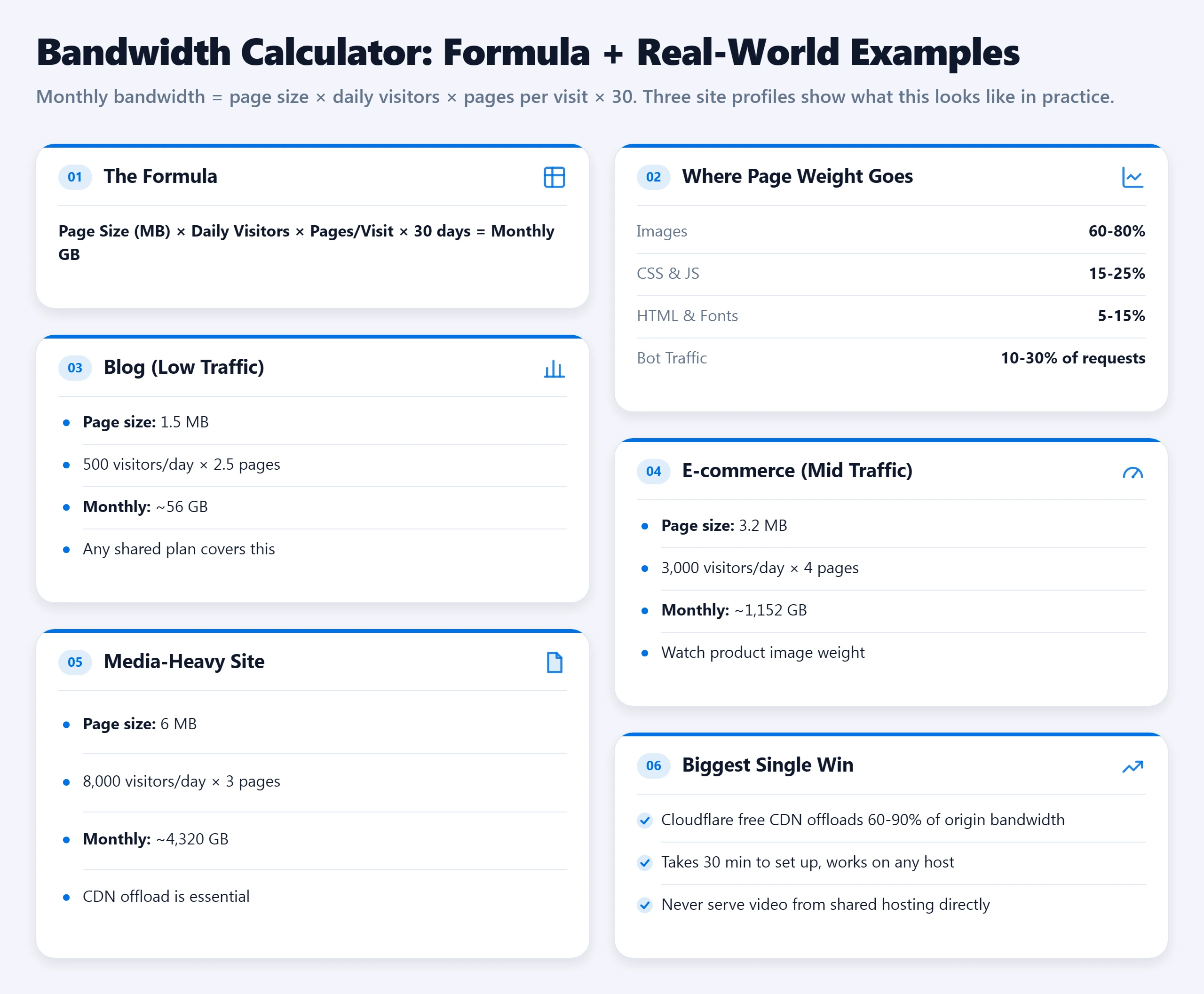
A blog with 1.5 MB pages, 500 visitors a day and 2.5 pages per visit transfers about 56 GB a month: well inside any shared plan. The same formula on a media-heavy site with 6 MB pages and 24,000 page views a day gives over 4 TB, which is a CDN and VPS problem, not a shared hosting one.
If you are already near the limit
- Find where it goes. Check your host's statistics or CDN analytics for the biggest files and the busiest user agents before you change anything.
- Put a CDN in front. A CDN serves cached images, CSS, JavaScript and fonts from its own network, which takes most of the transfer off the origin; Cloudflare's free plan is enough for most sites (caching layers and the CDN).
- Shrink the images. Resize to the size actually displayed and convert to WebP or AVIF before or on upload.
- Check compression. HTML, CSS and JavaScript should leave the server compressed with Brotli or GZIP. Run
curl -sI -H "Accept-Encoding: br" https://yourdomain.com | grep -i content-encoding:brorgzipmeans it is on, no header means every text file goes out at full size. Most cPanel hosts enable it server-wide; if not, LiteSpeed Cache or a Cloudflare toggle switches it on. - Block bad bots. Scanners and scrapers transfer data and buy nothing; a WAF rule or bot filter removes them.
- Move video and large downloads off the account to YouTube, Vimeo or object storage.
- Upgrade last. If the site still needs more after all of that, it has outgrown shared hosting on CPU and entry processes as well, and a VPS is the next step.
More bandwidth does not make a site faster. Bandwidth is volume; speed is how fast the server answers each request, which is set by PHP, the database and caching (TTFB explained). A CDN helps both, for two different reasons: less data leaves the origin, and the data that is cached travels a shorter distance.
Shared Hosting vs VPS: Four Things That Actually Change and Three That Do Not
Shared hosting users who consider VPS usually do so because of a performance problem or a recommendation from someone who has been on VPS for years. The honest answer is: most sites under 20,000 monthly visits do not need VPS. But when the four genuine differences matter, they matter in ways that caching plugins and CDNs cannot compensate for.
| Dimension | Shared Hosting | Managed VPS |
|---|---|---|
| Resource allocation | Shared pool with CloudLinux caps | Dedicated allocation per VPS |
| PHP workers (typical) | 1 to 6 per account | 10 to 50 (configurable) |
| RAM limit (typical) | 256MB to 512MB per account | 1GB to 8GB guaranteed |
| Noisy neighbor effect | Yes, attenuated by CloudLinux | No, hypervisor isolation |
| Server-level Redis | Not available | One-click on Cloudways/ScalaHosting |
| Root access | No | Yes (unmanaged) / No (managed) |
| Entry price | $2 to $12/month | $14 to $30/month |
| Right for (traffic) | Under 30,000 visits/month | 20,000 to 200,000 visits/month |
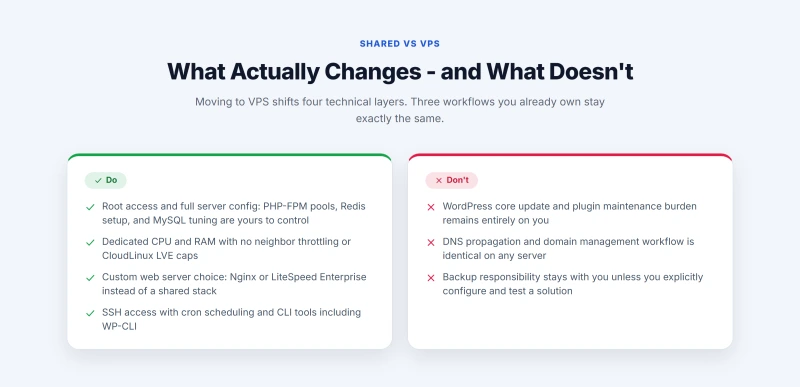
What actually changes on VPS
On shared hosting, every account shares the same physical CPU, RAM, and disk I/O, managed by CloudLinux to prevent any one account from consuming everything. The isolation is real but it is throttle-based. On VPS, the hypervisor allocates dedicated resources. Your 2 vCPUs are not shared with 200 other accounts, they are assigned to your VM and cannot be consumed by a neighbor's traffic spike. A ScalaHosting VPS Start plan (2 vCPU, 4 GB RAM) at $14.95/month has those 4 GB as a guaranteed allocation, not a cap enforced by LVE.
Shared hosting imposes a hard EP limit of 4 to 25 PHP workers per account to protect shared resources. On managed VPS, you configure PHP-FPM pool size based on your available RAM. A 4 GB VPS can support 20 to 40 PHP workers at 80MB each, handling 20 to 40 concurrent WordPress page renders simultaneously. For WooCommerce stores with uncacheable dynamic pages (cart, checkout, account), this difference is the one that produces measurably faster response times under real user load.
Shared hosting does not support Redis. Managed VPS does, one click on Cloudways or ScalaHosting enables Redis object cache. Redis keeps database query results in memory, reducing PHP execution time per uncached page from 400 to 800ms down to 80 to 150ms by serving repeated database queries from RAM instead of running them against MySQL. For WooCommerce stores where cart and account pages cannot be page-cached, Redis is the specific upgrade that addresses the performance gap shared hosting cannot close.
VPS plans, whether managed or unmanaged, do not impose inode limits. Your filesystem is the entire disk partition allocated to your VM. A 50GB VPS disk can hold as many files as it can physically store. A WooCommerce store that outgrows a 250,000-inode shared plan (see inode limits by host) has no inode problem on a VPS. This alone is a meaningful upgrade reason for large content sites, high-volume WooCommerce stores, or agencies managing many client sites on one account.
What does not change when you move to managed VPS
Three things stay exactly the same, and confusion about this causes real frustration for people who upgrade expecting more than the infrastructure layer delivers.
- You still manage WordPress yourself. Plugin updates, WordPress core updates, security plugin configuration, and theme management all remain in WordPress admin, exactly as they do on shared hosting. The server is managed. WordPress is not.
- Support stays at the server boundary. A managed VPS host will resolve "502 Bad Gateway" errors because that is a server-layer problem. They will not resolve "my WooCommerce cart is showing the wrong total" because that is an application-layer problem. The support boundary is the same on VPS as on shared hosting, it just comes with better performance on the other side of that boundary.
- You still need caching plugins. Moving to VPS does not eliminate the need for WP Rocket or LiteSpeed Cache. It gives you better infrastructure to run them on. Redis object cache (now available on VPS) enhances your caching stack, it does not replace the need for page-level caching.
The upgrade decision tree
Is your site consistently receiving more than 1,000 visitors per day? If no, shared hosting is almost certainly sufficient. If yes:
Is your TTFB exceeding 600ms under normal load after enabling full-page caching? If no, optimize your caching configuration before considering a hardware upgrade. If yes:
Is the caching failing because pages are uncacheable (WooCommerce dynamic pages) rather than because cache hit rate is low? If yes, managed VPS with Redis is the correct upgrade. If no, consider whether your caching plugin is correctly configured before spending on a VPS.
Who Should Use Shared Hosting (and Who Is Overbuying Infrastructure)
The hosting industry profits from infrastructure anxiety. Upgrade messaging is everywhere: in welcome emails, in cPanel dashboard banners, in blog posts from VPS companies. The result is that many sites running perfectly on shared hosting are paying 3 to 5 times more for infrastructure they cannot use. Here is the honest fit analysis.
- Your site receives under 30,000 visits per month and you have full-page caching enabled
- You run a personal blog, portfolio, small business brochure site, or content site with mostly static pages
- You manage client sites as an agency and want a low-cost option for small business clients with under 10,000 visits/month
- You are launching a new site and want to validate traffic before committing to VPS infrastructure costs
- Your WooCommerce store has fewer than 100 products and under 200 orders per month, shared hosting handles this comfortably
- You want a host-managed OS and security layer without learning Linux or paying for managed VPS pricing
- Email hosting, domain management, and WordPress installation all in one dashboard is your priority over raw performance
- Your site consistently receives 30,000+ visits per month and you are seeing throttle warnings in cPanel resource usage
- You run a high-volume WooCommerce store with active cart and checkout traffic that cannot be page-cached
- You need Redis object cache, this is not available on shared hosting at any price point
- Your application requires Node.js, Python runtime, Docker, or any software requiring root installation
- You are hitting inode limits and the solution is adding more files, not removing them
- Your site's TTFB under load consistently exceeds 600ms after full-page caching is correctly configured
- You need a dedicated IP address for compliance reasons, payment processing requirements, or IP reputation isolation
The threshold I use when advising site owners: when your site reliably exceeds 1,000 visitors per day with full-page caching enabled and you see EP throttling or TTFB degradation during business hours, it is time to evaluate VPS. Below that threshold, a quality shared host with LiteSpeed handles the load with enough headroom that upgrading buys you nothing measurable. Above 200,000 monthly visits, cloud infrastructure or dedicated hosting becomes the correct architecture conversation. Managed VPS is the right answer in the middle range. Shared hosting owns everything below it.
The Shared Hosting Shortlist: Seven Hosts, Honestly Compared
After testing 8 providers with 3,800+ measurements, here is where each one earns its recommendation, and what the honest tradeoff is. No host gets universal praise because no host is universally right.
ScalaHosting leads this list on measured TTFB (210ms in our testing), LiteSpeed web server on all shared plans, and SShield security that genuinely blocks malicious requests at the server level before PHP is involved. SPanel replaces cPanel at no extra license cost, which is why ScalaHosting can include features (daily backups with 30-day retention, SShield, free SSL, free migration) that cPanel hosts charge extra for.
The one limitation worth knowing: SPanel has a 30-minute learning curve for anyone coming from cPanel. The layout differs even when the functionality is the same. After that initial session, daily use is straightforward. ScalaHosting is the host I recommend first for anyone who asks me which shared host to pick in 2026.
From $2.95/month (Mini plan, 1 website)
Hostinger at 248ms TTFB runs LiteSpeed and delivers performance that only slightly trails ScalaHosting at a similar price point. hPanel is deliberately simpler than cPanel, most tasks take fewer clicks to complete, which is a genuine advantage for users who do not need cPanel's full feature set. The 100GB NVMe on the Premium plan and 600,000 inode limit are both generous.
The limitation: hPanel lacks some cPanel features (raw access logs, advanced SSH configuration, reseller management). For users who have grown up on cPanel and need full control over their PHP configuration files or advanced DNS editing, Hostinger's simplified interface becomes a constraint.
From $2.99/month (single site, promotional)
SiteGround at 290ms TTFB is the fastest cPanel-adjacent option with a server-level WAF included. Their custom Site Tools control panel is cleaner than stock cPanel but covers all the same functionality. Daily automated backups with 30-day retention are included on all plans, not an add-on. The WordPress staging environment is one-click. These are the features that justify SiteGround's pricing over lower-cost alternatives for WordPress users who want security infrastructure without managing it themselves.
The inode limit (250,000 on StartUp) is the constraint to know. A growing WooCommerce store will hit it. SiteGround's response is to upgrade to their GoGeek plan (400,000 inodes) or their cloud hosting tier. Budget for that upgrade if your site is a WooCommerce store or a high-volume content site.
From $3.99/month (StartUp, 1 website)
ChemiCloud at 310ms TTFB runs LiteSpeed on cPanel, which means you get the LiteSpeed performance advantage with the cPanel interface familiarity advantage simultaneously. Free website migration handled by their team is a real differentiator for anyone moving from another host. Daily backups with 30-day retention are included. Their support response times are genuinely fast based on my Q1 2026 test tickets.
From $3.95/month (Starter, 1 website)
Bluehost at 480ms TTFB is slower than the four hosts above it in every test I have run. The Basic plan does not include automatic backups by default (CodeGuard is an add-on). The introductory price ($2.95/month) renews at $10.99/month. The Apache web server does not deliver LiteSpeed's performance advantage. I recommend Bluehost only for users who have specific reasons to stay in the EIG ecosystem or who are following a WordPress.com integration that specifically supports Bluehost.
From $2.95/month intro ($10.99 renewal)
Six Shared Hosting Myths That Cost People Real Money
The shared hosting market generates more misinformation than almost any segment of hosting. Some of it comes from inexperienced advice. Most of it comes from hosts and VPS providers with financial incentives to either oversell entry users or upgrade them prematurely. Here are the six myths I encounter most often and the accurate version of each.
"Unlimited disk space means I can store as much as I want."
FALSE
Every "unlimited" disk claim in shared hosting is governed by an acceptable use policy that prohibits using disk space as a file storage service, backup destination, or media archive. In practice, accounts using more than 10 to 20GB of disk space for non-website purposes get flagged or suspended. The real limit is inode count, not gigabytes. "Unlimited" means the host will not suspend you for exceeding a published gigabyte number, it does not mean unlimited storage.
"Shared hosting is fine for small businesses because they have low traffic."
PARTIALLY TRUE
Traffic volume is only one variable. A small business WooCommerce store with 500 products, active checkout, and 3 email accounts can exhaust a shared plan's inode allocation, PHP worker count, and MySQL connections long before it exceeds any traffic threshold. The use case matters as much as the traffic level. A simple 5-page brochure site on shared hosting is fine at 100,000 visits/month. A complex WooCommerce store may need VPS at 5,000 visits/month.
"All shared hosting providers have roughly the same performance."
FALSE
The 400ms TTFB gap between ScalaHosting (210ms) and GoDaddy (610ms) in our testing is larger than the gap between the best shared host and a mid-range VPS. The performance difference between shared hosts is driven by account density, PHP worker allocation, web server choice (LiteSpeed vs Apache), and MySQL isolation. These are architectural choices hosts make, not hardware limitations. Choosing the wrong shared host at the same price point costs you more in performance than the tier difference between shared and VPS.
"Moving to VPS will fix my slow WordPress site."
INCOMPLETE
VPS fixes specific infrastructure bottlenecks: PHP worker limits under concurrency, RAM constraints with many plugins, and the absence of Redis object cache. It does not fix slow PHP code, unoptimized database queries, missing caching configuration, oversized images, or render-blocking JavaScript. A site that loads in 4 seconds on shared hosting and is slow because it loads 12 unoptimized JavaScript files will load in 3.8 seconds on VPS. The same site with full-page caching correctly configured will load in 0.4 seconds on shared hosting.
"Free SSL from Let's Encrypt is less secure than paid SSL certificates."
FALSE
Let's Encrypt SSL certificates provide the same 256-bit AES encryption as premium SSL certificates from Comodo or DigiCert. The only technical difference is validation level: Let's Encrypt issues Domain Validation (DV) certificates that confirm domain ownership. Premium Extended Validation (EV) certificates show the organization name in some browser bars, a visual trust signal that is increasingly irrelevant as browser UX has moved away from displaying EV information. For security purposes, Let's Encrypt SSL is equivalent to any paid SSL certificate.
"cPanel is being replaced and is not worth learning."
FALSE
cPanel's 2019 pricing change caused a wave of hosts to evaluate alternatives (SPanel, Plesk, DirectAdmin, custom panels). In 2026, cPanel is still the majority panel on shared hosting and the primary interface for most documentation, migration tools, and WordPress tutorials. Learning cPanel is learning the de facto standard for shared hosting administration. Alternatives like SPanel are worth learning for specific hosts (ScalaHosting specifically), but they are not replacements for the market, cPanel remains the baseline.
Shared Web Hosting FAQ
What is shared web hosting in simple terms?
Shared web hosting is a service where your website files, database, and email accounts live on the same physical server as hundreds or thousands of other websites. You share the server's CPU, RAM, and disk I/O with those other accounts. Modern shared hosts use CloudLinux LVE (Lightweight Virtual Environment) to put a resource cage around each account, so one busy neighbor cannot fully crash your site. The result is a hosting environment that costs $2 to $12/month because operating costs are divided across many customers, at the tradeoff of shared resources and hard limits on how many concurrent PHP processes your site can run.
How many websites can I host on a shared hosting plan?
That depends entirely on the plan tier. Single-site plans (Bluehost Basic, SiteGround StartUp) host one domain. Unlimited or multi-site plans allow as many domains as you want, but the practical ceiling is set by your resource allocation, not the domain count. If you have 10 WordPress sites each consuming 50MB of RAM at idle, you have 500MB consumed before a single visitor arrives on a 512MB plan. In practice, three to five low-traffic WordPress sites run comfortably on a mid-tier shared plan. Above five active sites, a VPS produces more reliable performance. Hostinger's Premium plan supports 100 websites, but 100 active sites would instantly exceed the account's PHP worker allocation.
What is the inode limit and why does it matter more than disk space?
An inode is a filesystem record that tracks one file or directory. Every image, plugin file, email, cache file and backup archive on your hosting account consumes one inode, whatever its size. The shared plans we track state caps between 100,000 (HostGator) and 600,000 (Hosting.com), with 250,000 the most common. A WooCommerce store with file-based caching, backups kept on the account and a few years of hosted email can pass 300,000 inodes while using only a few GB of disk. When you hit the inode limit, you cannot create new files: WordPress cannot write cache or install updates, uploads fail and new emails bounce. Disk space is rarely the real constraint on shared hosting. Inodes are. Always confirm the inode limit with the host before signing up.
Does unlimited bandwidth on shared hosting really mean unlimited?
No. Unlimited or unmetered means the host does not publish a monthly gigabyte cap. The terms of service still carry a fair-use clause that forbids file distribution, video streaming, storing backups or archives, and any sustained load that slows other accounts on the server. A normal WordPress site, even one with a traffic spike, almost never triggers it. In practice the ceiling on a shared plan is CPU, entry processes and inodes, and those cut in long before data transfer does.
How do I know if my shared host uses CloudLinux?
Log in to cPanel and look for the Resource Usage page: it comes with CloudLinux's LVE Manager, and it shows your CPU, memory, I/O and entry-process usage against your limits, with a fault count for each time you hit one. If you have SSH, run ls /home: inside a CageFS cage you only see your own username. Failing both, ask support which LVE limits your plan has, and get the numbers in writing.
Is shared hosting secure enough for WordPress?
Yes, for most sites, when you apply the right practices. Modern shared hosts run account-level isolation through CloudLinux, which means a compromised neighbor account cannot read your files, the kernel enforces separation at the process level. What shared hosting cannot protect you from is your own WordPress installation: outdated plugins, weak passwords, and file permission errors. SiteGround and ScalaHosting run web application firewalls at the server level that block common WordPress attack vectors before requests reach PHP. On shared hosts without a server-level WAF, a plugin-level firewall like Wordfence is your first line of defense. The security gap between shared hosting and VPS is smaller than most people assume for WordPress sites that follow basic hygiene.
When should I upgrade from shared hosting to VPS?
Upgrade when you hit any of these four signals: (1) Your TTFB under load consistently exceeds 600ms after enabling full-page caching, this means you are hitting PHP worker limits, not a cache problem. (2) Your host throttles your account during normal business hours and you see CPU limit or EP limit errors in cPanel's resource usage panel. (3) Your site receives more than 30,000 visits per month consistently and response time variance is high. (4) You need Redis object cache, which shared hosting does not support. If none of these four are true, stay on shared hosting. A well-configured shared plan outperforms a poorly configured VPS for sites in the 5,000 to 15,000 visits/month range.
What is the difference between shared hosting and cloud hosting?
Shared hosting puts your website on one physical server, shared with other accounts. Cloud hosting puts your website on a virtualized instance that draws resources from a pool of physical servers. Cloud hosting can scale resources on demand, more CPU during traffic spikes, then back down. Shared hosting has a fixed resource allocation. Cloud hosting is more resilient: if one physical server fails, your instance migrates. Shared hosting fails with its server. Price-wise, a comparable resource allocation on cloud hosting costs 3 to 5 times more than shared. For sites under 50,000 monthly visits without unpredictable traffic spikes, shared hosting from a quality provider produces equivalent performance at a fraction of the cost.