
What Is VPS Hosting? Hypervisor Architecture, KVM vs OpenVZ, and How to Size Your Plan
Disclosure: some hosting links on this page earn me a commission if you buy. Pricing and benchmark data are verified independently. Full disclosure.


VPS hosting is an architectural concept, not a product category. The word describes a hypervisor carving a physical server into isolated virtual machines, each with guaranteed CPU, RAM, and storage allocations. Understanding how that virtualization actually works at the kernel level changes how you evaluate every VPS provider, choose a plan size, and diagnose performance problems. This guide builds that understanding from the hardware up.
I have configured and maintained VPS environments at Cloudways, ScalaHosting, Hetzner Cloud, Vultr, and DigitalOcean, running identical WordPress workloads to compare how different virtualization stacks, RAM allocations, and management tiers perform under real concurrency. The sizing formulas below come from those configurations, not from vendor documentation.
How VPS Virtualization Works at the Kernel Level
Most VPS buyers treat virtualization as a black box: you pay for 4GB RAM and 2 vCPUs, and those resources are available when you SSH in. The black box model is sufficient for using a VPS. It is not sufficient for diagnosing why your VPS performs inconsistently, or for evaluating whether one provider's "2 vCPU" is equivalent to another's.
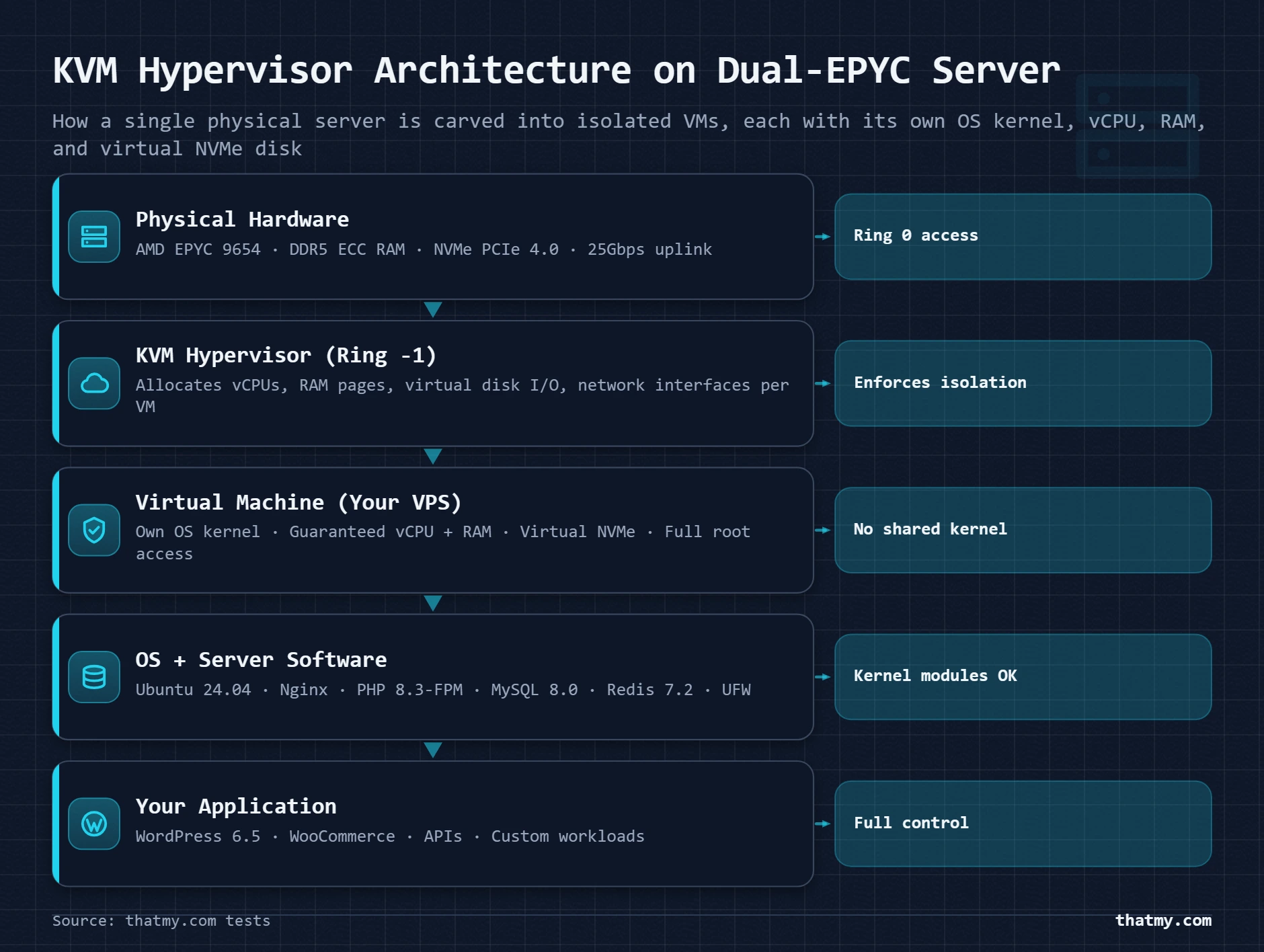
A hypervisor (KVM is the standard in 2026) runs directly on the physical server hardware, below the operating system, at what is called "ring -1" in CPU privilege levels. It has complete control over the physical hardware. It allocates CPU time, RAM pages, and storage I/O to virtual machines by intercepting hardware instructions from each VM's OS kernel and translating them to physical hardware operations.
What this means for your VPS performance
When your VPS's PHP-FPM process starts executing PHP code, it runs on a vCPU that the hypervisor has mapped to a physical CPU core. The hypervisor time-slices your vCPU access, your VM runs for a time quantum (typically 1 to 10ms), then the hypervisor may schedule another VM on that physical core, then returns to yours. Under low load, this scheduling is imperceptible. Under high load on an oversold host, CPU steal time increases, your vCPU requests CPU time and the hypervisor cannot immediately provide it because the physical core is busy with other VMs.
Your vCPU gets CPU time immediately when requested. No other VM is competing for that physical core. Common on quality providers with conservative VM density per physical server.
15% CPU steal means 15% of the time your vCPU is waiting for a physical core that another VM is using. PHP execution becomes unpredictably slow. TTFB variance is high. Run top and check the st (steal) column, if it regularly exceeds 5%, your host is overselling the physical server.
CPU steal time is the single most useful diagnostic for evaluating whether your VPS host is overselling. You can check it any time with top (the st field in the CPU line) or with vmstat 1 10 (the st column). A quality host keeps steal time below 2% under normal load. A budget host packing too many VMs onto one physical server regularly hits 10 to 25%.
Memory isolation and ballooning
RAM allocation on KVM VPS uses memory ballooning, the hypervisor can dynamically adjust the physical RAM available to each VM based on host pressure. When your VPS is allocated 4GB RAM and the physical server has headroom, your VM may access more than 4GB through ballooning. When the physical server is under memory pressure from all VMs requesting RAM simultaneously, the balloon deflates and your VM is restricted to its guaranteed 4GB. This is why RAM on a quality KVM host behaves predictably at the allocated limit, the guarantee is enforced by the hypervisor, not just a soft limit.
KVM vs OpenVZ: Why the Virtualization Type Changes What You Can Do With Your VPS
Two different technologies both produce something called a "VPS." KVM provides full hardware virtualization, each VM has its own kernel, its own memory management, its own driver set. OpenVZ provides OS-level containerization, all containers share the host kernel, with Linux namespaces providing isolation. The choice between them determines what is and is not possible with your server.
| Attribute | KVM | OpenVZ / LXC |
|---|---|---|
| Virtualization type | Full hardware virtualization | OS-level containerization |
| Kernel | Each VM has its own isolated kernel | All containers share the host kernel |
| Custom kernel modules | Yes, full kernel control | No, cannot load custom modules |
| RAM allocation | Guaranteed dedicated allocation | Burstable, may be overcommitted |
| Resource guarantee | Hard allocation at hypervisor level | Soft limits, host oversells |
| Security isolation | Hardware-level (ring 0 isolation) | Namespace isolation, weaker |
| OS compatibility | Any Linux/Windows on any host OS | Must match or be compatible with host kernel |
| Performance overhead | 3-8% for virtualization layer | Near-native (< 1% overhead) |
| Used by | DigitalOcean, Linode, Vultr, Hetzner Cloud | Some budget hosts, older VPS providers |
Why KVM is the correct choice for production workloads in 2026
OpenVZ was popular in 2010 to 2018 because its near-native performance overhead (under 1%) and memory efficiency made it cost-effective for providers and buyers. The security model was adequate when hosts were more carefully managed. In 2026, three reasons make KVM the clear choice for any non-trivial workload:
Container escape vulnerabilities in shared-kernel environments (OpenVZ, LXC) have been demonstrated repeatedly. A compromised container can potentially access the host kernel and from there reach other containers. KVM VM escape vulnerabilities exist but are significantly rarer and harder to exploit, the VM has no shared kernel surface to attack.
Many applications require specific kernel modules: WireGuard VPN requires the wireguard kernel module, custom filesystems require FUSE, some monitoring tools require kernel-level access. On OpenVZ, kernel modules are controlled by the host and cannot be loaded per-container. On KVM, you run your own kernel and can load any module you need.
OpenVZ hosts frequently oversell RAM through "burstable" allocation, 20 VMs are each allocated 2GB, but the physical server only has 32GB. This works because not all 20 use their full allocation simultaneously. When all 20 spike simultaneously (a DDoS on one VM causes host-wide RAM pressure), all 20 experience performance degradation. KVM with hard allocation prevents this: if 8 VMs are allocated 4GB each, the physical server must have 32GB committed before provisioning the 9th.
How to Size a VPS Correctly: The RAM Budget Method
Undersized VPS is the most common self-inflicted performance problem I see. A 1GB VPS running WordPress, MySQL, and Redis with 20 PHP-FPM workers sounds theoretically possible, the math says it does not fit. The result is the OOM (out-of-memory) killer terminating either MySQL or PHP-FPM under traffic spikes, producing random 502 Bad Gateway errors that are impossible to debug without checking /var/log/syslog for OOM events.
The RAM budget calculation
Every VPS component has a RAM cost. Calculate yours before provisioning:
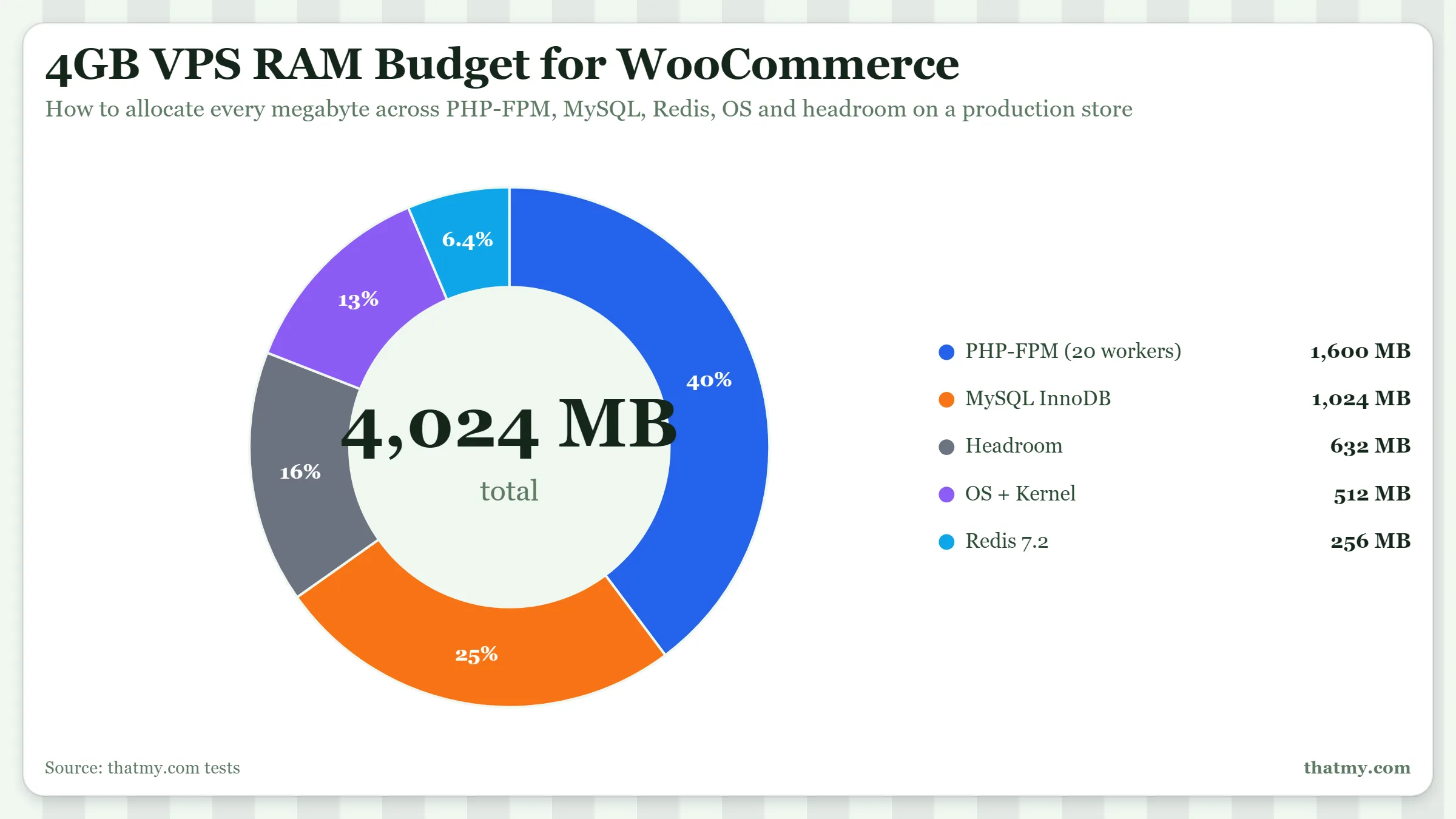
The formula in practice: Total RAM = OS (400MB) + (PHP workers × 80MB) + InnoDB buffer pool + Redis + 300MB headroom. For a WooCommerce site with 20 PHP workers, 1GB buffer pool, and Redis at 256MB: 400 + 1,600 + 1,000 + 256 + 300 = 3,556MB. That fits on a 4GB VPS with 444MB headroom, enough for traffic variance. That same configuration on a 2GB VPS is an OOM event waiting to happen.
| Use Case | Recommended VPS Size | Estimated Cost | Notes |
|---|---|---|---|
| WordPress blog (no WooCommerce) | 1 vCPU, 1GB RAM | ~$6–10/month | Fine for 10,000–30,000 visits/month with caching |
| WordPress + WooCommerce (small) | 2 vCPU, 2GB RAM | ~$12–18/month | Handles 50 daily orders with Redis |
| WooCommerce (growing store) | 2 vCPU, 4GB RAM | ~$20–30/month | Handles 200 daily orders, comfortable buffer pool |
| Agency multi-site (10+ sites) | 4 vCPU, 8GB RAM | ~$40–60/month | 10–20 WordPress sites with varying traffic |
| High-traffic WordPress | 8 vCPU, 16GB RAM | ~$80–120/month | 200,000+ monthly visits, multiple cache layers |
vCPU sizing: when CPU is the actual bottleneck
For most WordPress sites, RAM is the bottleneck before CPU. A WordPress page load is I/O-bound, it spends most of its time waiting for MySQL queries and file reads, not actually computing. The exception: WooCommerce checkout with complex tax rules, sites running heavy image processing on upload, or applications doing real-time computation. For these workloads, vCPU count matters.
The practical rule: 1 vCPU handles approximately 15 to 25 concurrent PHP requests at 350ms average PHP execution time. For a site rarely exceeding 25 concurrent uncached requests, 1 vCPU is sufficient if the RAM budget fits. For WooCommerce stores handling 50+ simultaneous checkout processes, 2 to 4 vCPUs ensures no CPU queue forms at peak checkout.
What Managed VPS Actually Covers (And the Layer It Does Not Touch)
"Managed VPS" is the most inconsistently defined term in hosting. One provider's managed plan means they replace the hard drive if it fails. Another's means they apply OS patches, manage PHP version transitions, configure MySQL, provision SSL, run 24/7 server monitoring, and actively restart crashed services. Both call it managed. Here is the precise breakdown for the providers I tested in 2026.
The row that matters most is WordPress core and plugin updates, because it tells you clearly that managed VPS stops at the server layer. The application layer (WordPress) remains yours on every managed VPS plan. If you want the host to manage WordPress, that is managed WordPress hosting, a different product at Nexcess, Pressable, or Kinsta. Confusing the two is the source of most "my managed host didn't protect me from a hack" complaints, the server was managed, the WordPress application was not.
VPS vs Shared Hosting: The Four Structural Differences
Most comparisons between VPS and shared hosting list features. The more useful comparison is architectural: what changes structurally in how your server handles your traffic, and which of those structural changes matters for your specific site.
apt install redis-server on unmanaged VPS. Object cache reduces uncached page PHP execution by 40 to 60%.VPS vs Dedicated: When the Physical Machine Becomes the Right Answer
VPS is the right infrastructure tier for most growing web applications. Dedicated hardware becomes the right answer at specific thresholds, not when you "need more performance" in the abstract, but when your workload hits concrete ceilings that VPS architecture cannot resolve.
- Under 200 simultaneous uncached requests, VPS with Redis handles this tier comfortably
- Database under 50GB active dataset, fits in InnoDB buffer pool on an 8GB VPS
- No compliance requirement for sole-tenancy, hypervisor isolation is sufficient
- Traffic is predictable and managed VPS CPU headroom is above 50% during peaks
- Cost sensitivity, dedicated is 3x to 5x more expensive for equivalent resource allocation
- Regularly exceeding 100 simultaneous uncached requests, VPS CPU steal becomes the bottleneck
- MySQL hot dataset exceeds 32GB, needs dedicated server with 64GB+ RAM for full buffer pool
- ECC RAM required for data integrity (healthcare, financial, or scientific data workloads)
- Compliance requires sole-tenancy documentation, hypervisor isolation does not satisfy this for some regulations
- CPU-intensive workloads (video encoding, scientific computing, large ML inference) where vCPU overhead accumulates
The most common misread: "my VPS is slow, I need dedicated." In my experience, a slow VPS is almost always under-provisioned RAM (too few PHP workers or too small a buffer pool), missing Redis, or hosted on an oversold physical server with high CPU steal time. All three of these are resolved by switching to a better VPS or a larger VPS, not by paying 5x more for dedicated hardware. Run top and check CPU steal (st) before making any infrastructure decision. If steal is above 5%, switch providers before upgrading hardware class.
The VPS Provider Shortlist for 2026
VPS providers span a wide range from bare infrastructure to fully managed platforms. Here is the honest positioning for each category in 2026.
ScalaHosting combines Tier B management depth (OS patches, SShield security, daily backups, PHP management, 24/7 support) with SPanel, their proprietary cPanel replacement that eliminates the cPanel license cost. ScalaHosting VPS produced 51ms average TTFB from 10 global locations on their Start plan (2 vCPU, 4GB RAM, AMD EPYC hardware). The one adjustment period: SPanel requires 30 minutes to navigate for anyone transitioning from cPanel. After that initial setup, daily operation is straightforward. The first recommendation for managed VPS buyers who want cPanel-style control with better pricing.
Cloudways abstracts the server layer entirely behind an application management UI, no cPanel, no SSH required for day-to-day operations. One-click WordPress install, Redis toggle, PHP version dropdown, configurable backup schedule, team access controls, Git integration. Infrastructure choices span DigitalOcean, Vultr, Linode, AWS, and Google Cloud, you pick the cloud provider and region without managing the underlying infrastructure. The entry point at $11/month (DigitalOcean 1GB) is the lowest-cost managed VPS option from a platform with genuine management depth. Support is scoped to the platform layer, WordPress debugging is not their remit.
Hetzner Cloud delivers AMD EPYC or Intel Ice Lake VPS at prices that are 50 to 70% below equivalent US providers. A CX31 (2 vCPU, 8GB RAM, 80GB NVMe) at €8.49/month outperforms most $30/month VPS plans from US providers on raw benchmark scores. Fully unmanaged: you install your own OS, configure everything from scratch, and handle all patching. KVM virtualization, hard RAM allocation, no overcommit. Right for developers who want maximum hardware at minimum cost and are comfortable with server administration. Data centers in Germany, Finland, and US (Ashburn VA), with more planned for 2026.
Vultr's High Frequency tier uses Intel Xeon Gold 6254 CPUs (18 cores, 3.1GHz base, 4.0GHz turbo) and NVMe SSDs, specifically designed for latency-sensitive workloads like WordPress, databases, and APIs. 17+ data center locations globally including Tokyo, Sydney, São Paulo, and Mumbai. The HF 2GB plan at $18/month (2 vCPU, 2GB RAM, 50GB NVMe SSD) consistently outperforms standard VPS plans at 2x the memory in TTFB benchmarks because of the higher single-thread clock speed. Unmanaged, for users comfortable with server administration or willing to use a third-party management layer like ServerPilot or GridPane.
Five Common VPS Mistakes That Cause Performance Problems Nobody Can Diagnose
VPS performance problems are uniquely frustrating because the same problem on shared hosting triggers a clear error (503, resource limit exceeded), but on a VPS it produces mysterious slowness that disappears when you look at it and returns under load. These five mistakes cause the majority of "my VPS is slow and I do not know why" situations.
MySQL ships with innodb_buffer_pool_size=128M as a default, sized for a development laptop, not a production server. On a 4GB VPS, this leaves 3.8GB of RAM unused by MySQL while the database reads frequently accessed data from NVMe SSD instead of memory. The fix: add innodb_buffer_pool_size=1G (or 2G on a 4GB VPS) to /etc/mysql/mysql.conf.d/mysqld.cnf and restart MySQL. The performance improvement on a WooCommerce site is typically 20 to 50% faster query execution on cache-warmed requests.
PHP-FPM's static process management spawns a fixed number of workers at startup, all consuming RAM whether or not they are handling requests. Setting pm=static; pm.max_children=50 on a 2GB VPS consumes 4GB of RAM (50 × 80MB) immediately, more than the server has. The correct setting for most VPS configurations: pm=dynamic; pm.start_servers=5; pm.min_spare_servers=3; pm.max_spare_servers=10; pm.max_children=20. This starts 5 workers, scales to 20 under load, and releases workers when traffic drops.
CPU steal above 5% means your VPS host is overselling the physical server. A 15% steal rate means 15% of your PHP execution time is spent waiting for CPU that another VM is using, a 17% effective TTFB penalty on every uncached request. This is invisible in WordPress admin panels, uptime monitors, and most server dashboards. Check it: top → look at the st value in the CPU line. If it regularly exceeds 5%, open a ticket with your host. If they cannot resolve it, migrate to a less oversold provider.
Redis installed on a server that WordPress is not configured to use is a process consuming 256MB of RAM for no benefit. The connection requires three steps: (1) install Redis server, (2) install the Redis PHP extension (apt install php-redis), (3) install and activate the Redis Object Cache plugin in WordPress. Without all three, WordPress continues using its in-memory per-request object cache and Redis sits idle. After all three are complete, verify connection by opening the Redis Object Cache plugin's settings page, it shows the connection status and cache hit rate.
WP_DEBUG=true in wp-config.php writes every PHP notice, warning, and deprecated message to the debug log, and on some configurations, to the HTML output of every page. On a VPS, this produces multiple disk write operations per page request (writing to debug.log), slows PHP execution, and potentially exposes file paths and plugin names in page source. It also fills disk space silently. Check your wp-config.php: the production setting should be define('WP_DEBUG', false);. If you deployed from a development environment, this is frequently left enabled.
VPS Hosting FAQ
What is VPS hosting and how does it work?
VPS (Virtual Private Server) hosting uses a hypervisor (software that runs directly on physical hardware) to divide one physical server into multiple isolated virtual machines. Each virtual machine (VM) receives a guaranteed allocation of vCPUs, RAM, and disk storage from the physical server's resources. The hypervisor enforces these allocations at the hardware level, ensuring that one VM's traffic spike cannot consume another VM's resources. Your VPS runs its own operating system kernel, its own web server, its own PHP-FPM process manager, and its own MySQL instance, completely isolated from all other VPS instances on the same physical server. This isolation is the primary difference from shared hosting, where hundreds of accounts share the same OS, PHP workers, and MySQL instance.
What is the difference between KVM and OpenVZ virtualization?
KVM (Kernel-based Virtual Machine) is full hardware virtualization: each VPS runs its own complete OS kernel, isolated from the host and from other VMs at the hardware level. OpenVZ (and its successor LXC/LXD) is OS-level containerization: all containers share the host kernel, with namespace and cgroup isolation providing separation. The practical differences: KVM provides stronger security isolation (a compromised KVM VM cannot affect the host kernel), supports any OS, allows custom kernel modules, and guarantees dedicated RAM allocation. OpenVZ provides near-native performance with under 1% overhead but has weaker isolation, shared kernel dependencies, and burstable RAM that hosts can oversell. In 2026, KVM is the standard for reputable VPS providers (DigitalOcean, Linode, Vultr, Hetzner Cloud, ScalaHosting). OpenVZ appears mainly in budget providers and legacy configurations.
How much RAM does a WordPress VPS need?
A minimal WordPress VPS requires 1GB RAM minimum, but 2GB is the practical floor for a site you intend to run reliably. Here is the RAM budget for a 2GB VPS: OS kernel and system processes consume 300 to 500MB. PHP-FPM workers at 80MB each: 8 workers consume 640MB. MySQL with a modest InnoDB buffer pool: 512MB. That totals approximately 1.7GB, leaving 300MB headroom on a 2GB VPS, which disappears under traffic spikes. For WooCommerce with Redis, the minimum is 4GB: OS (512MB), 20 PHP workers at 80MB (1.6GB), MySQL buffer pool 1GB, Redis 256MB, leaving 632MB headroom. Undersizing RAM produces out-of-memory kills that crash PHP-FPM or MySQL at exactly the worst moment: peak traffic.
What is a vCPU and how does it differ from a physical CPU core?
A vCPU (virtual CPU) is a time-sliced share of a physical CPU core, scheduled by the hypervisor. When a VPS is allocated 4 vCPUs, the hypervisor guarantees that your VM has access to 4 concurrent CPU execution slots. On a well-configured KVM host, each vCPU typically maps to one physical thread (hyperthreaded core). The difference from a physical core: physical CPU access is deterministic: your process runs on your core with no scheduling competition. vCPU access is hypervisor-scheduled: at any microsecond, the hypervisor may briefly pause your vCPU to service another VM. This overhead is typically 3 to 8% for most workloads but can be higher on oversold hosts during CPU contention events. For WordPress workloads that are I/O bound (waiting on disk or MySQL) rather than CPU bound, vCPU overhead is rarely the bottleneck.
Should I choose managed or unmanaged VPS?
Managed VPS is right for you if you want the performance and resource isolation of VPS without maintaining the OS, web server, PHP, MySQL, and security configuration yourself. Managed VPS providers (ScalaHosting, Cloudways, Liquid Web) handle OS patches, web server updates, PHP version management, SSL provisioning, daily backups, and 24/7 server monitoring. You manage WordPress (updates, plugins, content) from the WordPress admin panel. Unmanaged VPS is right if you have Linux administration skills (comfortable with apt/yum, Nginx/Apache configuration, PHP-FPM pool management, iptables or UFW firewall rules, MySQL tuning, and Fail2Ban) and prefer full control with lower cost. Unmanaged VPS from Hetzner Cloud or Vultr starts at $4 to $6/month for 1GB RAM, while comparable hardware under Cloudways managed pricing starts at $14/month (Vultr Standard 1GB). The $8/month difference is the management premium, which is worth paying if server administration is not your skill set.
What is the difference between managed VPS and managed WordPress hosting?
Managed VPS handles the server infrastructure layer: OS patches, PHP version management, MySQL updates, SSL provisioning, backups, and monitoring. WordPress itself (core updates, plugin updates, theme updates, malware scanning) remains your responsibility. Managed WordPress hosting (Kinsta, WP Engine, Nexcess) handles both the server infrastructure AND the WordPress application layer: automatic WordPress core updates, plugin update management, malware scanning and removal, and WordPress-specific support. The price difference reflects this: managed VPS starts at $11/month (Cloudways) while managed WordPress starts at $19 to $35/month for a single site. If a WordPress plugin vulnerability gets your site hacked, a managed VPS host will provide you a healthy server to recover on. A managed WordPress host will help with the cleanup. Which one you need depends entirely on whether you manage WordPress yourself.