
Load Balancing, Failover and Redundancy for WordPress: Staying Online


A load balancer is not a performance tool. It is a reliability tool. It does not make your WordPress site faster on a normal Wednesday afternoon. It makes your site stay alive when 10,000 people arrive at the same time because your product launch was featured on a major publication. That distinction matters because most WordPress owners reach for load balancing when they need caching, and reach for caching when they already needed load balancing. This guide tells you which one you actually need.
The core idea is straightforward: without a load balancer, all traffic hits one server, and when that server runs out of CPU or memory, the site goes down. With a load balancer, traffic spreads across multiple servers. No single server ever sees the full spike. The load balancer itself is just another server (or a cloud function) that routes incoming requests to one of your application servers based on rules you configure. The challenge for WordPress specifically is that WordPress was built for a single server, and splitting it across multiple servers creates three problems that require three separate solutions. All of that is covered below.
Symptom to Solution: Find Your Situation
| Situation | Need Load Balancing? | Reasoning |
|---|---|---|
| Site crashed under traffic spike | Yes | You already need it. The crash is evidence. |
| WooCommerce with 100+ concurrent checkout sessions | Seriously consider it | One slow DB query during checkout blocks all checkout threads. |
| Scheduled product launch or campaign with predictable spike | Yes, proactively | Set up load balancing before the event, not after the crash. |
| Under 10,000 concurrent visitors with a quality managed host | No | Vertical scaling or host upgrade is simpler and cheaper. |
| On managed WordPress hosting (Cloudways, Kinsta, WP Engine) | Already handled | These platforms load balance for you at the infrastructure level. |
| Static blog or content site with Cloudflare CDN active | Probably no | CDN absorbs the static asset load. A fast origin handles the rest. |
| Membership site with 1,000+ simultaneous logged-in users | Yes | Logged-in users cannot use CDN page cache. Origin handles every request. |
Do You Actually Need Load Balancing? A Self-Diagnosis Checklist
Most WordPress crash-under-traffic stories are not load balancing problems. They are caching problems. Here is how to tell the difference.
A caching problem looks like this: your site is on shared hosting or a basic VPS, you have no full-page cache configured, and 500 concurrent visitors send 500 separate PHP requests to WordPress. Each PHP request generates the same page HTML from scratch by querying the database, running your theme, and executing your plugins. Your server has 2 CPU cores and 4GB of RAM. It cannot process 500 simultaneous PHP executions. The site goes down. Fix: add WP Rocket or LiteSpeed Cache. Serving cached HTML instead of live PHP reduces CPU usage by 90%+ under the same traffic load. No second server needed.
A load balancing problem looks like this: your site has full-page caching active, your origin server is properly sized, and you run a WooCommerce store where every checkout session bypasses the page cache because WooCommerce cart cookies force PHP execution. During a flash sale, you have 2,000 simultaneous shoppers in checkout. No amount of caching solves this because checkout pages cannot be cached. Your origin runs out of PHP workers. The fix here is horizontal scaling: a second server that also handles checkout requests, with a load balancer routing checkout traffic between them.
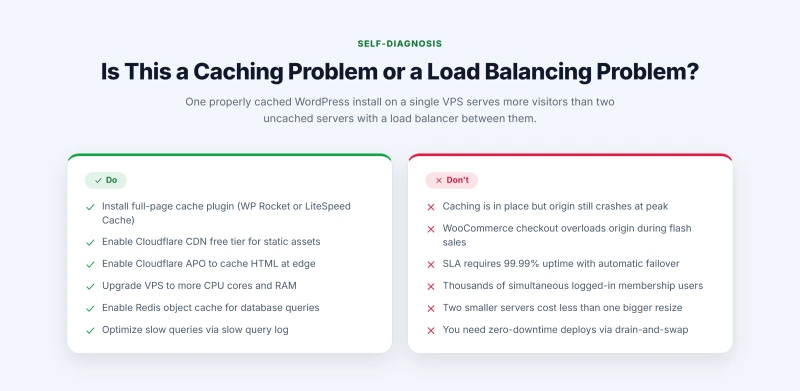
Do These First (Not Load Balancing)
- Install a full-page cache plugin (WP Rocket, LiteSpeed Cache, W3TC)
- Enable Cloudflare CDN free tier to offload static asset requests
- Enable Cloudflare APO to cache WordPress HTML at the edge
- Upgrade your VPS plan to more CPU workers and RAM
- Enable Redis object cache to reduce database query repetition
- Optimize slow database queries (check slow query log)
Load Balancing Is the Right Next Step When...
- Caching is in place and the origin still crashes under expected peak load
- WooCommerce checkout sessions cause origin overload during sales events
- You require 99.99% uptime with automatic failover (SLA requirement)
- Your membership site has thousands of simultaneous logged-in users
- A single server resize would be more expensive than two smaller servers
- You need zero-downtime deploys (drain one server, deploy, swap)
I have reviewed hosting setups where site owners added a second server and configured Nginx load balancing before ever enabling WP Rocket. They got a marginally more resilient version of a slow, resource-hungry WordPress installation. One properly caching WordPress install on a single good VPS serves more concurrent visitors than two uncached servers with a load balancer between them. Fix caching first. Then, if you still need it, add load balancing.
If you have already confirmed caching is configured and load balancing is genuinely your next step, the section on how load balancing works covers the architecture in detail. If you are unsure whether your server hardware is the bottleneck, the server hardware guide covers CPU worker limits, PHP-FPM pool configuration, and how to read your server's resource utilization under load.
How Load Balancing Works: Plain English Architecture
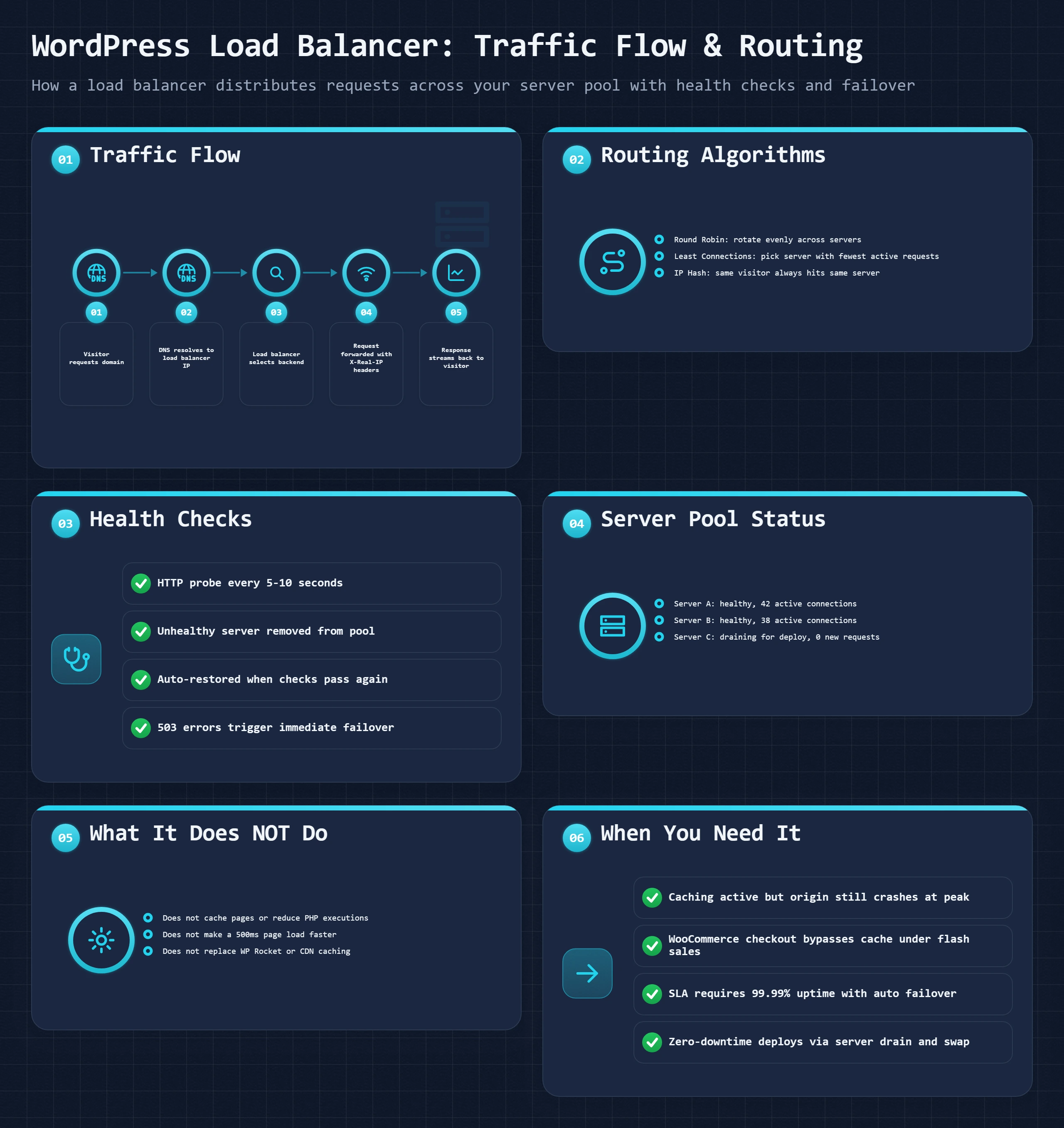
Without a load balancer: every DNS query for your domain returns your server's IP address. Every visitor connects directly to that server. The server has a fixed number of PHP workers (defined by your PHP-FPM pool configuration). When all workers are busy, new requests queue. When the queue fills, requests get 503 errors. The server goes down.
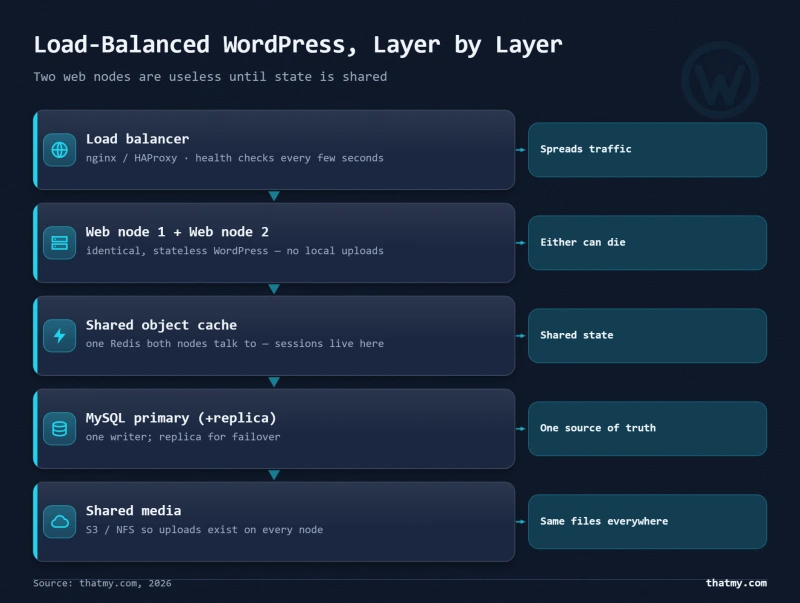
With a load balancer: DNS returns the load balancer's IP address. The visitor connects to the load balancer. The load balancer reads the incoming request, selects one of your application servers based on your configured algorithm, and forwards the request to that server. The application server generates the response and returns it through the load balancer to the visitor. From the visitor's perspective, nothing changed. From your infrastructure's perspective, the request pool is now split across N servers, each with their own PHP worker pool.
Visitor Requests Your Domain
DNS resolves your domain to the load balancer's IP address, not your application server's IP. The visitor has no way to know or bypass this. Their browser connects to the load balancer.
Load Balancer Selects a Backend Server
The load balancer applies your chosen algorithm (round robin, least connections, IP hash) to select which application server handles this request. It checks its internal health status table to skip any servers currently marked unhealthy.
Request Forwarded to Application Server
The load balancer forwards the request to the selected server, adding forwarding headers (X-Real-IP, X-Forwarded-For) so your application server knows the visitor's actual IP address rather than the load balancer's IP.
Application Server Generates Response
Your WordPress application runs PHP, queries the database, and generates the page HTML. This is identical to what happens without a load balancer, just on one of multiple servers instead of the only server.
Response Returns Through Load Balancer
The application server sends the response back to the load balancer, which streams it to the visitor. The load balancer records that this request is complete, updating its active connection count for that server.
What the Load Balancer Is Not
A common misconception: the load balancer is not a caching layer. It does not store copies of your pages. It does not reduce the number of PHP executions. It does not make any individual request faster. It distributes requests. A 500ms WordPress page generation time does not change because a load balancer is involved. The page still takes 500ms to generate. The load balancer just decides which of your servers does the generating.
The load balancer also introduces a new single point of failure if you only have one load balancer. Enterprise setups use redundant load balancers (a primary and a failover). Cloudflare's load balancer is inherently redundant because it runs on Cloudflare's distributed network. Self-hosted Nginx load balancers on a single VPS are a single point of failure unless you use keepalived or a similar high-availability setup. The same question, which single part takes the whole site down, runs through the redundancy section below.
Vertical Scaling vs Horizontal Scaling: Which Solves Your Problem
Before you configure a load balancer, you need to decide whether horizontal scaling is actually the right approach. The difference is fundamental, and the wrong choice costs you time and money.
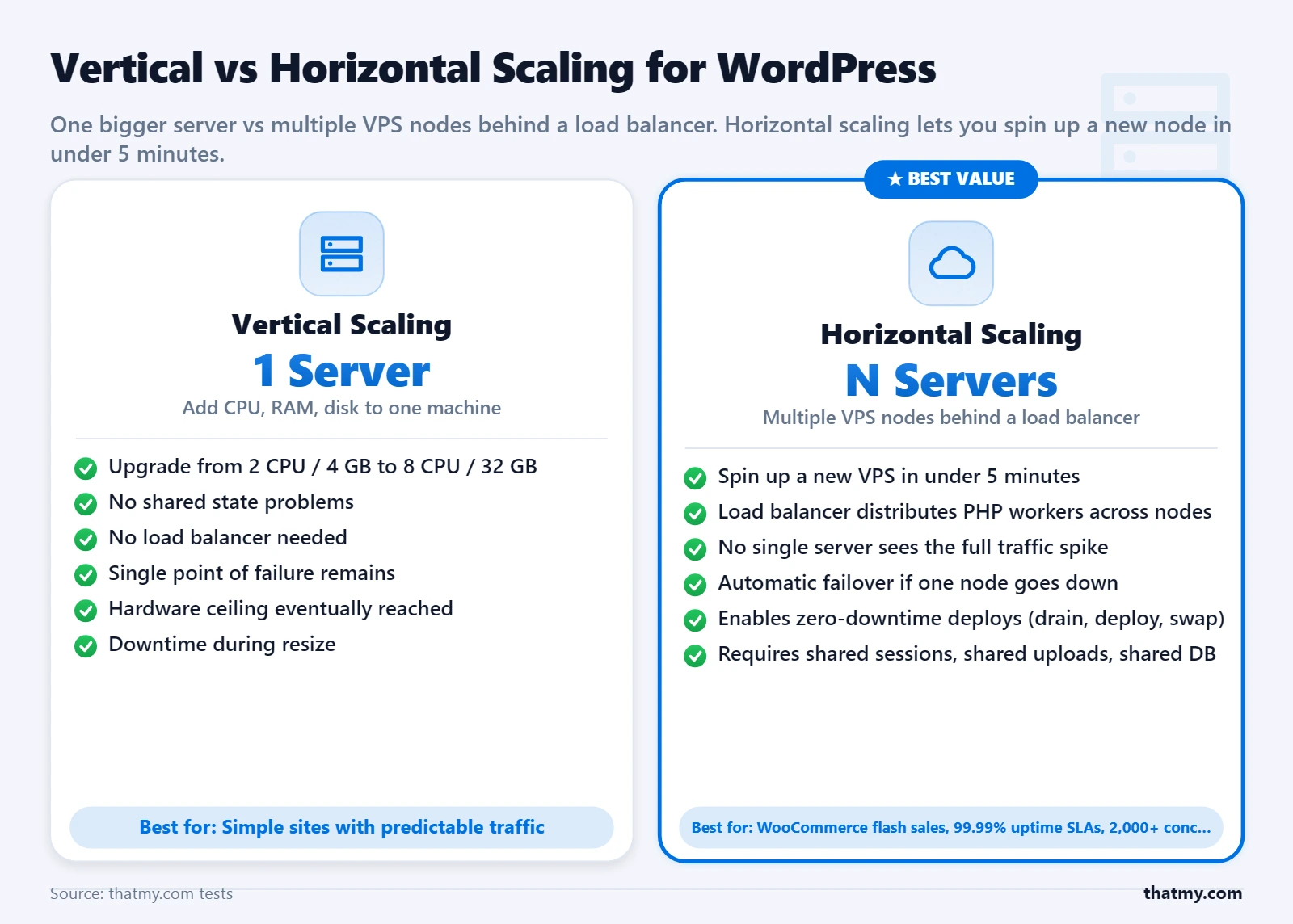
What it means: Upgrade your existing server. More CPU cores, more RAM, faster storage. One server, bigger.
Best for: Steady, predictable load growth. PHP execution that needs more memory per request. Database query performance that needs more CPU.
Pros: Zero architectural complexity. No shared state problem. No load balancer needed. Resize takes 5-10 minutes at most VPS providers.
Cons: Hard upper limit. A single server can only scale so far before pricing becomes punitive. No redundancy. If the server goes down, the site goes down.
When to choose vertical: Your server is undersized for your current traffic, and you have not yet hit the pricing ceiling. A $20/month VPS upgrade to $40/month solves your problem without the complexity of multi-server architecture.
What it means: Add more servers of similar size. Two 4-core servers instead of one 8-core server. Load balance traffic between them.
Best for: Traffic spikes that exceed what any single server can handle at reasonable cost. High availability requirements. Zero-downtime deployment needs.
Pros: No hard ceiling. Add another server when you outgrow two. Redundancy: one server can fail without site downtime. Enables zero-downtime deploys by draining one server at a time.
Cons: WordPress shared state problem requires solving media sync, session handling, and database coordination. Load balancer adds architectural complexity. Higher operational overhead.
When to choose horizontal: You have already vertically scaled to the point where further upgrades are expensive relative to adding another server. Or you need automatic failover for uptime guarantees you cannot achieve with a single server.
The Honest Recommendation for Most WordPress Sites
Start vertical. The vast majority of WordPress traffic problems are solved by moving from shared hosting to a $20-40/month VPS with proper caching configured. Horizontal scaling with load balancing makes sense when: (a) you are already on an appropriately sized single server, (b) caching is fully in place, and (c) expected peak traffic still exceeds what the single server handles. Managed platforms like Cloudways simplify this entire decision by handling the underlying infrastructure, so your scaling decision becomes "upgrade the plan" rather than "configure multi-server architecture."
For traffic spikes that are predictable (product launches, scheduled campaigns), horizontal scaling wins because you can provision a second server the day before, verify it works, and terminate it afterward. You pay for the second server for 24-48 hours instead of permanently upgrading your main server. This is where cloud VPS billing per hour (Vultr, DigitalOcean, Hetzner) provides a meaningful cost advantage over annually-billed hosting plans.
Load Balancing Algorithms: Round Robin, Least Connections, IP Hash
The algorithm controls how the load balancer decides which server handles each request. Most load balancer documentation lists five or six options, implying they are equivalent choices. They are not. For WordPress, one of these algorithms handles your specific traffic pattern significantly better than the others.
| Algorithm | How It Works | Distribution Method | Best For | Key Limitation |
|---|---|---|---|---|
| Round Robin | Request 1 to Server A, Request 2 to Server B, Request 3 to Server A... | Equal sequential distribution | Servers with identical specs serving consistent content | Ignores server load state. A slow database query on Server A still receives new requests. |
| Weighted Round Robin | Server A gets 70% of traffic, Server B gets 30% | Distribution proportional to server weight you assign | Mixed server tiers, e.g., a 4-core server paired with an 8-core server | You must manually update weights if you resize a server. |
| Least Connections | Each request goes to the server with the fewest active connections at that moment | Dynamic distribution based on real-time load state | WordPress with variable request times (WooCommerce, search, complex queries) | Best for production WordPress with real traffic variation. |
| IP Hash | Same visitor IP always routes to the same server | Consistent routing per client IP | E-commerce checkout, login sessions without shared session storage | Distribution can become uneven if a single IP generates heavy traffic. |
| Least Outstanding Requests | Routes to server with fewest in-flight requests still being processed | More precise than least connections for async or HTTP/2 traffic | Sites with many long-running requests (uploads, complex WooCommerce) | Cloudflare's default steering policy, good general choice. |
Round Robin: Simple but Blind to Server State
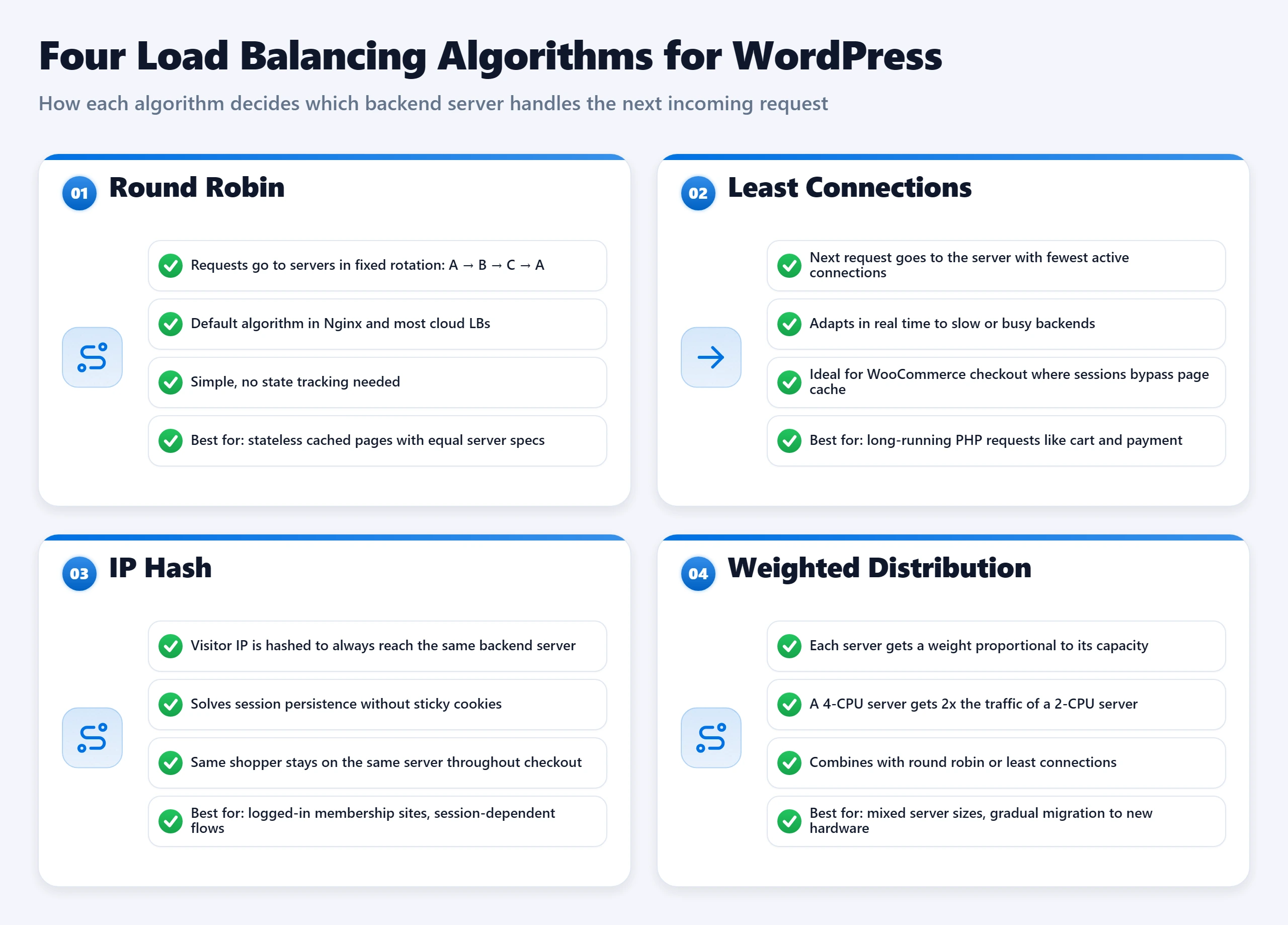
Round robin sends requests in sequence: Server A, Server B, Server A, Server B. Equal distribution. No awareness of what each server is currently doing. If Server A is processing a slow database query that is consuming all available PHP workers, round robin continues sending new requests to Server A while they pile up behind the bottleneck. It does not know Server B is idle. For servers with identical hardware serving predictable, similar requests, round robin is adequate. For production WordPress with variable request complexity (some requests hit Redis cache in 10ms, others generate WooCommerce order totals with 200ms database queries), round robin is the wrong choice.
Least Connections: The Right Default for WordPress
Least connections checks how many active connections each server currently has and routes the new request to the server with the lowest count. If Server A has 47 active connections and Server B has 23, the next request goes to Server B. This is aware of server load state in a way round robin is not. For WordPress, where request complexity varies significantly (cached static pages take 5ms, WooCommerce checkout takes 400ms, product search might take 800ms), least connections produces more even real-world distribution than round robin. In Nginx, this is configured with the least_conn directive in the upstream block.
IP Hash: Solves Session Persistence at the Cost of Even Distribution
IP hash computes a hash of the visitor's IP address and always routes that IP to the same server. The same visitor always hits the same backend server. This solves WooCommerce session persistence without shared session storage: since a shopper's cart session is only on one server, and they always connect to that server, the cart works correctly. The tradeoff: distribution is only even if visitors are evenly distributed across IP addresses, which they are not. A visitor behind a corporate proxy with hundreds of employees sharing one IP sends all of those users to the same server. For most consumer traffic patterns, IP hash produces acceptable distribution. For corporate or enterprise audiences, it can be badly uneven.
Geographic Load Balancing: Different from CDN, Often Confused
Geographic routing sends visitors to the server physically closest to them. A visitor in Singapore routes to your Singapore server; a visitor in Frankfurt routes to your EU server. This reduces latency for dynamic requests that cannot be CDN-cached. It is worth distinguishing from CDN: a CDN caches static assets at edge nodes and serves them without contacting your origin. Geographic load balancing routes dynamic PHP requests to the nearest origin server. Both matter for international audiences. Both together mean static assets come from a CDN edge node 10ms away, and uncacheable dynamic requests go to the nearest origin server 40ms away instead of a server on another continent 400ms away.
The WordPress Shared State Problem: Media, Sessions, Database
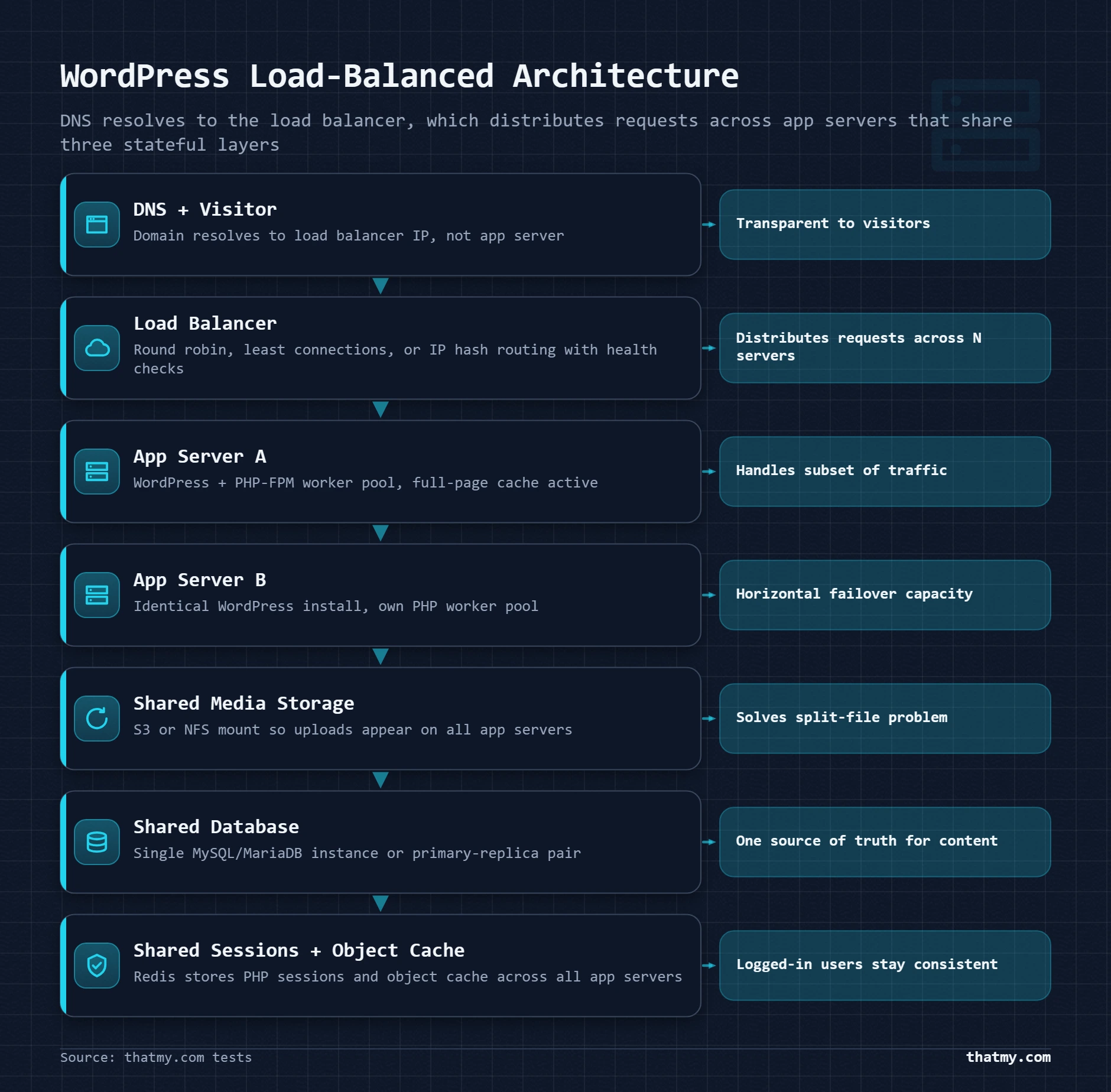
WordPress assumes it runs on one server. The entire file system, the database, and session handling are all built around that assumption. Add a second server and three things break immediately. Each one requires a deliberate architectural decision to fix.
Problem 1: Media File Synchronization
When an editor uploads a photo on Server A, the file lands in /var/www/html/wp-content/uploads/ on Server A's disk. Server B has no copy. A visitor whose request routes to Server B gets a broken image. This is not a minor edge case. It happens on the second media upload after you add the second server.
Two solutions exist:
Object storage (recommended): Install the WP Offload Media plugin. Configure it to push all media uploads to an S3-compatible bucket (Cloudflare R2 has free egress, AWS S3 is the standard, Backblaze B2 is the cheapest at $0.006/GB). WordPress stores the URL of the media file in the database pointing to the object storage URL rather than the local file path. Every server, when it needs to display an image, reads the object storage URL from the database and serves it. No server-to-server file synchronization needed. This is the correct solution for production.
NFS mount (simpler but introduces another failure point): Configure a third server as a shared file server. Mount its storage directory on both application servers via NFS. Both servers read and write to the same physical disk location. This works, but the file server is now a single point of failure. If it goes down, both application servers lose access to media. NFS also adds latency to file reads compared to local disk access.
Problem 2: Session and Cookie Handling
WordPress login sessions use cookies with a signed token. Since both application servers share the same wp-config.php with identical AUTH_KEY and SECURE_AUTH_KEY values, a user logged in on Server A can have their next request routed to Server B without being logged out. Standard WordPress login works correctly across servers as long as both servers use identical wp-config.php keys.
WooCommerce cart sessions are the problem. WooCommerce stores cart state in PHP sessions or a database-backed session table. The exact behavior depends on your WooCommerce version and whether you have a persistent cart plugin active. The reliable solution is to store WooCommerce sessions in Redis. Install Redis on a dedicated small server (a $4/month VPS works), install the WooCommerce Sessions in Redis plugin or use the Redis Object Cache plugin with WooCommerce compatibility, and point both application servers at the same Redis instance. Cart state now lives outside either application server. Any server can read and write the cart for any visitor.
Problem 3: Database Writes Must Go to One Place
Both application servers connect to the same database. For read-heavy content sites, this is fine. The database server processes queries from both app servers in parallel. For write-heavy operations (WooCommerce order placement, comment submission, user registration), the database becomes the bottleneck because MySQL handles writes with row-level locks.
The simplest setup: one shared database server that both application servers connect to. This works until the database CPU becomes the bottleneck. When it does, the correct next step is read replicas: add a read-only MySQL replica, configure WordPress (with the HyperDB drop-in or its maintained fork LudicrousDB, set up in the database failover section) to send SELECT queries to the replica and INSERT/UPDATE/DELETE queries to the primary. This roughly doubles your read capacity; the one catch is replication lag, covered in the same section. Managed database services from DigitalOcean, PlanetScale, or AWS RDS handle replica setup for you without manual MySQL replication configuration.
The Complete Multi-Server WordPress Stack
A properly configured horizontally scaled WordPress setup includes: (1) a load balancer routing traffic, (2) two or more identical application servers each running Nginx + PHP-FPM + WordPress, (3) object storage for media files (Cloudflare R2 or S3), (4) a shared Redis instance for object cache and WooCommerce sessions, (5) a primary database server with optional read replicas, and (6) identical wp-config.php on both application servers. That is five distinct infrastructure components. This is not simpler than a single server. It is more capable under load and more resilient to individual component failure. The added operational complexity is real and is the correct reason to stay on a well-sized single server for as long as possible.
Cloudflare Load Balancing: Step-by-Step Setup
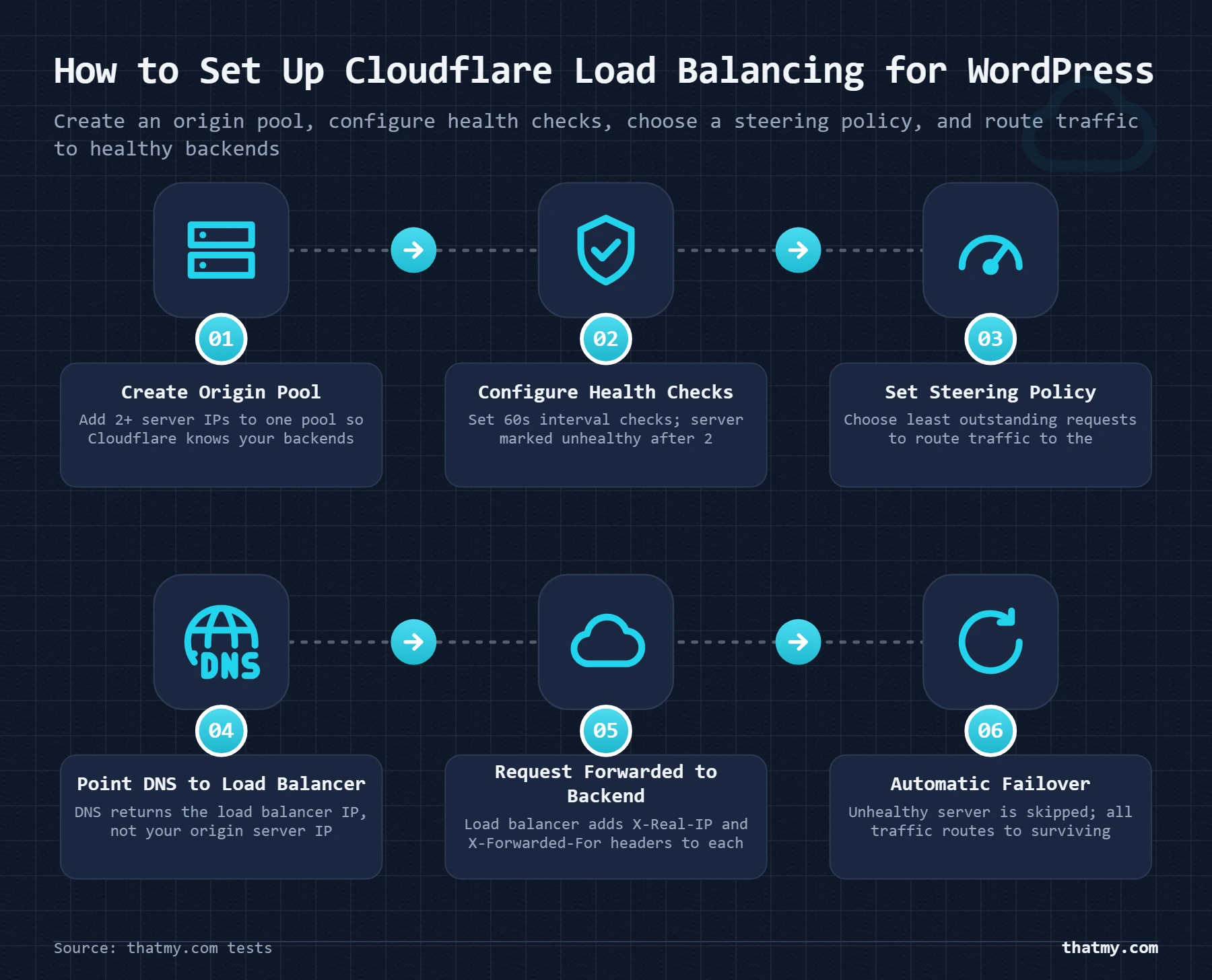
Cloudflare's load balancer is the easiest path from a single server to a load-balanced setup. It costs $5/month per origin pool, requires no server-side software changes, and integrates directly with Cloudflare's existing DNS, CDN, and WAF stack. If you are already using Cloudflare for DNS and CDN (which you should be), adding load balancing is an incremental change rather than a new architectural component.
Prerequisites: you have two VPS servers, each running a complete WordPress installation with identical wp-config.php (same database connection, same auth keys), media files on object storage (so both servers serve the same media URLs), and a database server that both application servers can connect to.
Step 1: Create the Load Balancer
- In the Cloudflare dashboard, select your domain and go to Traffic > Load Balancing.
- Click Create Load Balancer.
- Set the hostname to your domain (e.g.,
yourdomain.com) or a subdomain if you only want to load balance a specific subdomain.
Step 2: Create an Origin Pool
- Click Add a Pool and give it a name (e.g.,
wordpress-servers). - Add your first server: enter its IP address and optionally a name. Set weight to
1if both servers are identical. - Add your second server with the same weight.
- Set the Health Threshold to
1, this means the pool is considered healthy as long as at least 1 server is responding. If you set it to 2, the pool goes down when one server fails, defeating the purpose.
Step 3: Configure Health Checks
Health Check Configuration:
  Type: HTTPS
  Path: /wp-login.php     (exercises WordPress, not just the web server)
  Port: 443
  Interval: 60 seconds
  Timeout: 5 seconds
  Retries: 2              (server must fail 2 consecutive checks before removal)
  Expected Status: 200
  Follow Redirects: Yes
Do not use / as your health check path. If your homepage is cached by Nginx at the web server level, a request to / might return a cached response even if PHP-FPM is completely dead. Use /wp-login.php or /wp-admin/, these require PHP to execute. If they return 200, WordPress is alive. If they return 500 or time out, something is genuinely broken.
Step 4: Set the Steering Policy
In the Steering Policy section, choose Least Outstanding Requests. This is Cloudflare's version of least connections and is appropriate for WordPress with variable request complexity. Round Robin is acceptable if your traffic is very uniform (all static pages, no WooCommerce).
Step 5: Enable Session Affinity for WooCommerce
If your site runs WooCommerce and you have not yet configured shared Redis sessions: go to the Session Affinity section and enable it. Set the cookie duration to match your WooCommerce session timeout (default: 48 hours). This configures IP hash behavior at the Cloudflare level, ensuring shoppers stay on the same server for their checkout session. Enable this only as a temporary measure while you set up shared Redis sessions. Session affinity causes uneven distribution and is not a permanent production solution.
Step 6: Test the Failover
# Step 1: Confirm both servers are receiving traffic
# Load test your site with a small ramp (50 users, 60 seconds)
# Check access logs on both servers to confirm requests are distributed

# On Server A:
sudo tail -f /var/log/nginx/access.log | grep -v "Cloudflare-Traffic-Manager"

# On Server B:
sudo tail -f /var/log/nginx/access.log | grep -v "Cloudflare-Traffic-Manager"

# Step 2: Stop nginx on Server A to simulate failure
sudo systemctl stop nginx

# Step 3: Within 2 minutes (2 failed health checks x 60 seconds),
# all traffic should route to Server B only
# Check Server B access log: should now show all requests

# Step 4: Restart nginx on Server A
sudo systemctl start nginx

# Within the next health check interval, Server A should rejoin rotation
The 2-minute failover window (2 checks x 60 second interval) is Cloudflare's default. For applications requiring faster failover, reduce the health check interval to 10-15 seconds. Be aware that more frequent health checks generate more load on your servers, at 10-second intervals with 5 Cloudflare health check agents, you are adding 30 health check requests per minute to each server's access log.
Nginx Load Balancing Configuration for WordPress
For teams running their own VPS infrastructure and who want the load balancer on a server they control rather than using Cloudflare's managed service, Nginx provides a production-quality load balancer through its upstream module. This configuration runs on a dedicated Nginx server (the load balancer) that forwards traffic to your application servers.
upstream wordpress_backend {
    least_conn;                        # Least connections algorithm, better than round_robin for WordPress

    server 192.168.1.10:80 weight=1;   # Server A: application server 1
    server 192.168.1.11:80 weight=1;   # Server B: application server 2
    server 192.168.1.12:80 backup;     # Server C: failover only, receives traffic only if A and B are both down

    keepalive 32;                      # Maintain 32 idle keepalive connections to backends
                                       # Reduces TCP handshake overhead on high-traffic sites
}server {
listen 80;
server_name yourdomain.com www.yourdomain.com;
# Redirect HTTP to HTTPS
return 301 https://$server_name$request_uri;
}
server {
listen 443 ssl http2;
server_name yourdomain.com www.yourdomain.com;
# SSL certificate: either Let's Encrypt or your CA cert
ssl_certificate /etc/letsencrypt/live/yourdomain.com/fullchain.pem;
ssl_certificate_key /etc/letsencrypt/live/yourdomain.com/privkey.pem;
ssl_protocols TLSv1.2 TLSv1.3;
ssl_prefer_server_ciphers on;
location / {
proxy_pass http://wordpress_backend;
# Pass the original visitor IP to the application server
# WordPress will log this as the visitor's real IP
proxy_set_header Host $host;
proxy_set_header X-Real-IP $remote_addr;
proxy_set_header X-Forwarded-For $proxy_add_x_forwarded_for;
proxy_set_header X-Forwarded-Proto $scheme;
# Timeout settings: adjust based on your slowest expected request
proxy_connect_timeout 30s; # Time to establish connection to backend
proxy_send_timeout 30s; # Time to send request to backend
proxy_read_timeout 60s; # Time to wait for backend response
# Set to 60s to accommodate slow WooCommerce queries
# Enable keepalive to the upstream
proxy_http_version 1.1;
proxy_set_header Connection "";
}
# Health check endpoint: responds without hitting WordPress
location = /nginx-health {
return 200 "OK\n";
add_header Content-Type text/plain;
}
}What Each Directive Does
least_conn: Activates the least connections algorithm. Remove this line and Nginx defaults to round robin. For WordPress with variable request times, least_conn produces better distribution under real traffic.weight=1: Sets relative weight for traffic distribution. If Server A has weight=3 and Server B has weight=1, Server A receives 3x as many requests. Use weighted round robin when one server is more powerful than the other.backup: Marks a server as a failover. The backup server only receives traffic if all primary servers (those without the backup directive) are down or unavailable. Useful for a budget server you want standing by without wasting resources on normal traffic.keepalive 32: Nginx maintains up to 32 idle connections to each upstream server. This avoids the TCP handshake cost on each new request when traffic volume is high. For sites handling thousands of requests per minute, keepalive significantly reduces latency.proxy_set_header X-Real-IP: Without this, your application servers see all requests coming from the load balancer's private IP rather than real visitor IPs. This breaks IP-based rate limiting, geolocation, and access log analytics. Always include all four proxy_set_header directives.proxy_read_timeout 60s: Maximum time Nginx waits for the backend to send a response. If a WooCommerce checkout page takes 30 seconds due to a slow payment gateway API call, a 30-second timeout would drop that request. Set this higher than your slowest legitimate request, but not so high that a hung server ties up connections indefinitely.
Passive Health Checks in Nginx Open Source
Nginx open source (the free version) supports passive health checks only. A passive check detects a failed server by observing failed proxy attempts. If Nginx tries to forward a request to Server A and gets a connection refused error, it marks Server A as temporarily unavailable and retries the request on Server B. Configure this behavior:
upstream wordpress_backend {
    least_conn;

    server 192.168.1.10:80 max_fails=3 fail_timeout=30s;
    # After 3 failed attempts within 30 seconds, mark this server as unavailable
    # Server returns to rotation after the 30-second timeout

    server 192.168.1.11:80 max_fails=3 fail_timeout=30s;

    keepalive 32;
}
Nginx Plus (the commercial version) and HAProxy support active health checks that proactively poll servers at regular intervals, similar to Cloudflare's health check mechanism. For self-hosted load balancing with active health checks on open-source software, HAProxy is the better choice over Nginx open source.
Load Balancing vs CDN vs Autoscaling vs Caching: What Each Solves
These four technologies are frequently confused with each other because they all appear in the context of "my site can't handle the traffic." They solve different problems. Using the wrong one wastes money and leaves the real problem untouched.
| Technology | What It Does | When to Use | Cost Reference |
|---|---|---|---|
| CDN | Caches and serves static assets from edge nodes worldwide | Always. Reduces origin load before you need a load balancer. | Cloudflare free tier |
| Page Cache | Stores rendered HTML so PHP is bypassed entirely | Always for WordPress. W3TC, WP Rocket, LiteSpeed Cache. | Free plugins + hosting integration |
| Load Balancer | Routes dynamic requests across multiple origin servers | Traffic spikes, high availability, 99.9%+ uptime requirements | Cloudflare LB from $5/mo, Nginx on VPS |
| Autoscaling | Automatically adds/removes servers based on current load | Cloud environments where server count should respond to demand | AWS Auto Scaling, GCP Instance Groups |
| Vertical Scaling | Upgrade the existing server to more CPU/RAM | Steady load growth, simpler than multi-server setup | VPS resize at your hosting panel |
The Correct Implementation Order for WordPress
The order matters because each layer reduces load on the next. Skipping ahead wastes money on infrastructure solving a problem that cheaper software configuration would have fixed.
The relationship between CDN configuration and load balancing is a common area of confusion. A CDN reduces origin load by serving cached content from edge nodes. A load balancer distributes uncacheable dynamic requests across multiple origins. A WooCommerce store needs both: CDN for product images and CSS (cacheable), and potentially a load balancer for checkout sessions (not cacheable). Neither replaces the other.
Redundancy: Active-Passive, Standby Tiers and What Your Host Covers
Redundancy means a second copy is ready when the first one fails: a second power feed, a second disk, a second server, a second copy of the database. Two servers behind a load balancer are one kind of redundancy, but not the only kind, and often not the first one a WordPress site needs. The useful question is which single part of your setup takes the whole site down when it fails, and who is responsible for it.
What Your Host's "Redundant Infrastructure" Covers, and What It Leaves to You
| Layer | What It Protects Against | Who Provides It |
|---|---|---|
| Power | A grid failure at the data center | Your host: dual feeds, UPS, generators |
| Network | One carrier or uplink going down | Your host: several carriers |
| Storage (RAID) | A single disk dying | Your host, on VPS and dedicated plans |
| Server | The whole server or the VPS node under it failing | You: a second server, or a standby you can start |
| Database | The database server failing, and everything written since the last backup | You: a replica, or a managed database with a standby node |
| Application | A bad plugin update, a PHP fatal error, a full disk, a hacked site | You: monitoring, tested backups, staging |
| Region | A whole data center or region going offline | You, or a managed platform that offers it |
Power, network and RAID are what hosting marketing means by "redundant infrastructure", and they are real: they keep a data center running through a grid failure or a dead disk. They do not help when the physical machine under your VPS fails, when a plugin update breaks PHP, or when the database fills its disk. An uptime SLA works the same way. A 99.9% or 99.99% guarantee covers the host's network and hardware, so your site can be down for hours from an application fault without the host breaking its SLA. The SLA math shows what each level allows in minutes per month.
Active-Active vs Active-Passive
In an active-active setup every server takes live traffic and the load balancer spreads requests across them. When one fails, the others absorb its share. Everything earlier in this guide, from the algorithms to the shared state problem and the Cloudflare and Nginx setups, is active-active. No server sits idle, but every server must read and write the same database, media and sessions, and the survivors must be sized to carry the full load when one drops out.
In an active-passive setup one primary takes all traffic and a standby waits. The standby can be idle, or it can run a database replica that keeps it current. When the primary fails, a health check moves traffic to the standby. There is less shared state to solve while both are healthy, and the switch is a procedure you can rehearse. Cloudflare's Failover steering policy and the Nginx backup server are both active-passive.
| Site | Usual Pattern | Why |
|---|---|---|
| Blog or content site | One server, CDN with full-page cache, cold standby | Cached pages keep serving through short origin outages; a second server costs more than the downtime it saves |
| Store with steady daily orders | Active-passive: primary plus standby, database on a replica or a managed standby | Protects checkout from a server failure without solving active-active shared state |
| Busy site with peaks one server cannot carry | Active-active with a read replica | Capacity is the reason; redundancy comes with it |
| Membership or SaaS site where an hour down costs more than a month of servers | Active-active, possibly in two regions | The cost of downtime pays for the extra servers |
These are rules of thumb, not thresholds. The deciding numbers are your own: what an hour of downtime costs, and what the extra servers cost per month.
Hot, Warm and Cold Standby
Within active-passive, the standby can be ready to different degrees. The tradeoff is recovery time against what you pay while nothing is wrong. Recovery times below are typical ranges; site size and how practised the switch is move them.
| Standby | Typical Recovery Time | What It Costs While Idle | Fits |
|---|---|---|---|
| Hot | Seconds to a couple of minutes, set by the health check | A second full-size server, running and kept in sync | The database behind a busy store; anything where minutes down lose orders |
| Warm | A few minutes: start or resize the standby, catch up the data, switch | A smaller server or a replica, running | Stores that can accept a few minutes down but not an hour |
| Cold | 15 to 60 minutes with a rehearsed runbook, hours without one | Backup storage only | Most blogs and content sites |
A hot standby doubles the server bill for a machine that serves nothing until the day it matters, which is why it belongs on a store's database first, not on a blog. A managed database is the cheapest way to get one: DigitalOcean's managed MySQL starts at $15/mo for a single node, but automatic failover needs at least one standby node, billed on top. Cold standby costs nothing beyond the backups you should already keep. Its weak point is the runbook, not the hardware: a restore nobody has rehearsed takes far longer than one that has been practised. Restore testing covers how to time one and what recovery targets to set.
Geographic Redundancy, and the CDN You Already Have
A CDN with full-page caching is the cheapest geographic redundancy there is. Pages in the edge cache keep serving from Cloudflare's network while your origin is down, so a reader of a cached post may never notice the outage. The limit is everything that cannot be cached: checkout, cart, login, search, the admin and admin-ajax requests. Those go to the origin and fail with it.
A second origin in another region covers the rest, and the database is the hard part. A fallback server in Europe that still talks to a database in Virginia pays the transatlantic round trip on every query, and a WordPress page runs dozens of them, so pages crawl. Worse, if the primary region goes down, that database goes down with it. A working two-region setup gives the fallback its own copy of the data: a cross-region replica promoted when the primary region fails, with media in object storage that both regions read. The Cloudflare side is the easy part, the same Failover steering policy described below with the second pool in the other region. The entry cost is the load balancer plus a second server, about $11/mo with a $6.00/mo droplet, before the replica.
Check These Before You Pay for a Standby Server
Many of the outages a WordPress owner actually sees come from the site itself: an update, a full disk, a hack. The cheap defenses cover those, so make sure each of these is true before adding a second server:
- Backups: daily, stored off the host, and restored at least once to prove they work.
- CDN: full-page caching on, not only static files, and you know where Cloudflare's Under Attack mode is.
- Monitoring: an external uptime check that alerts you by SMS or email, so you hear about an outage before a customer does.
- Application: core, plugins and themes current, updates tried on staging first, a security plugin or WAF in front.
- Infrastructure: your host's own backups enabled, and a written plan for where the site goes if the host itself is down.
If two or more of these are missing, fix them first: they cost less than a standby server and prevent more outages. Once they are in place, your recovery-time target decides the next step: a cold standby if the site can be down for an hour, the failover setups below if it cannot.
Failover: DNS, Load Balancer, Database and Application
Failover is the automatic switch from a failed component to a working one, without anyone logging in at 3 AM. Redundancy is having the spare; failover is what moves traffic to it. Each layer of a WordPress setup fails differently, so each has its own mechanism.
| What Fails | Failover Mechanism | Setup Effort | What It Costs |
|---|---|---|---|
| The whole server | DNS or proxy failover to a standby server | Low | Cloudflare Load Balancing from $5/mo, plus the standby server |
| One server in a pool | The load balancer's health checks | Already there if you load balance | Nothing extra |
| The database server | Replica promotion, or a managed standby node | High | A managed database with a standby node, or a replica you run |
| A whole region | A second pool in another region with its own copy of the data | High | A second server plus a cross-region replica |
| A payment gateway or mail provider | A second provider set up in WordPress | Low | Usually nothing until it is used |
DNS Failover: When the Whole Server Goes Down
With one live server and one standby, a health check watches the primary and sends visitors to the standby when the primary stops answering. Cloudflare Load Balancing does this even with a single active server: create two pools, one holding the primary and one the standby, and set the steering policy to Failover, so traffic goes to the first healthy pool in the order you set. The health check, the pools and the WooCommerce session affinity are configured as in the Cloudflare setup above; only the steering policy changes.
How fast visitors move depends on the mode. With the hostname proxied through Cloudflare (orange cloud), Cloudflare switches pools at its own edge, so there is no DNS cache to wait for: visitors move as soon as the primary fails its health checks, about two minutes at a 60-second interval with two failed checks. In DNS-only mode, and with DNS failover services that only rewrite an A record, resolvers keep the old answer until the record's TTL expires, so keep that TTL short or the switch takes minutes longer. How TTL works is in the DNS records guide.
The standby has to be current before you need it. A failover that sends visitors to an empty or week-old server is a broken site at a new IP. The clean setup: both servers use the same wp-config.php, point at a database that survives the primary (a managed database or a replica), and read media from object storage, so only the WordPress code needs copying. A cron job on the primary keeps that in sync:
0 */4 * * * rsync -az --delete \
  --exclude 'wp-content/uploads/' \
  /var/www/html/wordpress/ \
  deploy@STANDBY_IP:/var/www/html/wordpress/
If the database lives on the primary server, DNS failover alone does not save you: the standby has the code but not the data. That is what database failover is for.
Two things break this kind of failover in practice. Security plugins that rename or block /wp-login.php make the health check fail on a healthy server, so check a path that runs PHP and that Cloudflare can reach, or a small health-check file of your own that queries the database. And a firewall that drops Cloudflare's IP ranges drops its health checks too, so the primary looks dead when it is not.
Load Balancer Failover: When One Server in a Pool Dies
If you already run two or more servers behind a load balancer, failover comes with it: the health check takes a dead server out of rotation and the rest carry the load. What needs checking is how fast that happens and what visitors see in the meantime.
Nginx open source detects failures passively, from real requests. With max_fails=3 fail_timeout=30s from the passive health check config above, a server is marked down after three failed attempts within 30 seconds and tried again after 30 seconds. How long each failure takes is set by proxy_connect_timeout: at 5 seconds, three failures can mean up to 15 seconds of slow requests before the server is dropped, so 2 or 3 seconds suits a private network between the load balancer and its servers. A failed request is not always lost. By default Nginx passes a request that hits a connection error or timeout on to the next server (proxy_next_upstream error timeout), but since version 1.9.13 it does not retry a POST that was already sent, so a checkout submitted at the moment of failure can still return an error.
A server marked backup takes no traffic until every primary is down, which turns a spare server into a standby at no extra cost. Cloudflare's load balancer checks actively instead, polling each origin on its own schedule, so it notices a dead server even when no traffic arrives, and it can notify you when an origin's health changes. Turn that notification on: a pool that quietly runs on one server is one failure away from an outage.
Database Failover: The Failure That Loses Data
A web server that dies loses nothing, because the standby has the same code. A database that dies without a replica loses everything written since the last backup: orders, sign-ups, comments, edits. On a store with daily backups that can be a day of orders. Replication cuts the loss to the replication lag, usually seconds.
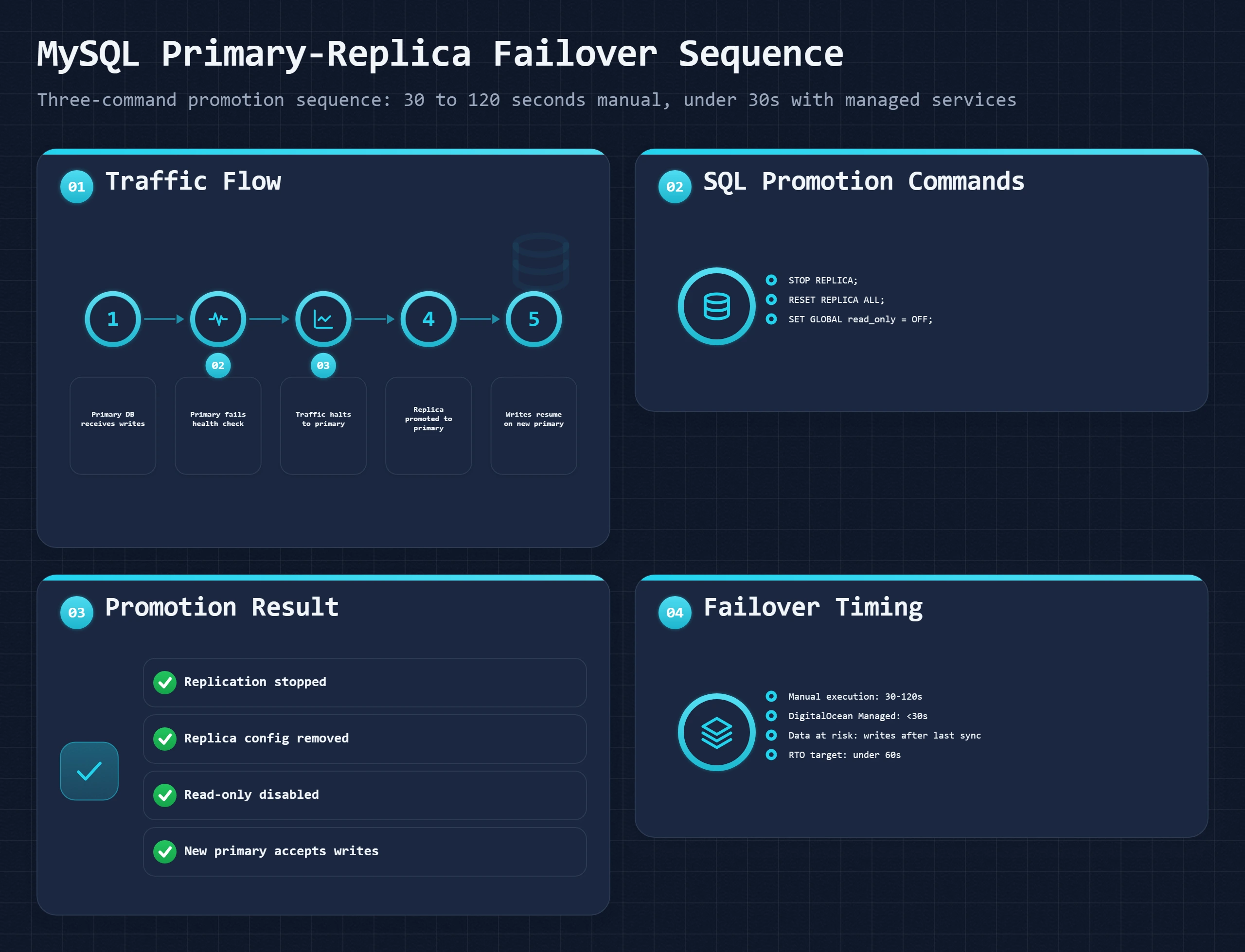
MySQL replication works from the binary log. The primary records every write there, and the replica reads the log and applies the same changes to its own copy. The replica runs behind by the replication lag, which is the most data you can lose if the primary dies suddenly. Watch it on the replica with SHOW REPLICA STATUS\G and alert when Seconds_Behind_Source stays above 60.
A managed database is the easier path. DigitalOcean, AWS RDS and similar services keep a standby node in sync, promote it automatically and keep the same hostname pointing at whichever node is primary, so wp-config.php never changes. On DigitalOcean that needs a cluster with at least one standby node; a single-node cluster has no standby to promote, so a failed node means downtime while it is replaced. AWS documents RDS Multi-AZ failover as typically taking one to two minutes, and Multi-AZ roughly doubles the instance cost because you pay for the standby. Moving the database to a managed service is often the single biggest step toward failover a self-managed WordPress setup can take.
Self-managed replication is a few lines of configuration and a seeded copy of the data:
# my.cnf on the primary: binary logging is on by default in MySQL 8
[mysqld]
server-id = 1

# my.cnf on the replica
[mysqld]
server-id = 2
read_only = ON

-- On the primary: the user the replica connects as
CREATE USER 'repl'@'REPLICA_IP' IDENTIFIED BY 'a-long-password';
GRANT REPLICATION SLAVE ON *.* TO 'repl'@'REPLICA_IP';

-- Seed the replica from a consistent dump that records the log position:
-- mysqldump --single-transaction --source-data=2 --databases wordpress > seed.sql

-- On the replica, after loading seed.sql (file and position are in its header):
CHANGE REPLICATION SOURCE TO
  SOURCE_HOST = 'PRIMARY_IP',
  SOURCE_USER = 'repl',
  SOURCE_PASSWORD = 'a-long-password',
  SOURCE_LOG_FILE = 'binlog.000003',
  SOURCE_LOG_POS = 157,
  GET_SOURCE_PUBLIC_KEY = 1;   -- needed for MySQL 8's default login plugin without TLS
START REPLICA;
SHOW REPLICA STATUS\G -- Replica_IO_Running: Yes, Replica_SQL_Running: YesSTOP REPLICA;
RESET REPLICA ALL; -- forget the old primary
SET GLOBAL read_only = OFF; -- accept writes
-- then point DB_HOST in wp-config.php (or your database DNS name) at this serverWhen the old primary comes back, do not let it take writes again: rebuild it as a replica of the new primary. Pointing DB_HOST at a private DNS name you control, rather than an IP, makes promotion one DNS change for every web server instead of an edit on each. On MariaDB and on MySQL before 8.0.22, the same commands use the older SLAVE and MASTER keywords.
A running replica can also take WordPress's read queries. HyperDB, Automattic's drop-in database class, sends writes to the primary and reads to replicas from a db-config.php file in the WordPress root; LudicrousDB is a maintained fork of it.
$wpdb->add_database( array(
    'host'     => DB_HOST,          // primary: takes writes, also serves reads
    'user'     => DB_USER,
    'password' => DB_PASSWORD,
    'name'     => DB_NAME,
    'write'    => 1,
    'read'     => 1,
) );

$wpdb->add_database( array(
    'host'     => 'REPLICA_HOST',   // replica: reads only
    'user'     => DB_USER,
    'password' => DB_PASSWORD,
    'name'     => DB_NAME,
    'write'    => 0,
    'read'     => 1,
) );
Reads from a lagging replica can return data from before a write that just happened, so a post saved a second ago can look unsaved on the next page load. HyperDB sends reads of a table back to the primary for the rest of a request once that table has been written in it; across requests, lag monitoring is the defense.
Application Failover: Payments, Email and the Cache
Some failures leave every server running and still cost you orders.
- Payment gateway. WooCommerce does not switch gateways on its own when one is down, but a second gateway enabled at checkout (Stripe and PayPal, for example) means a processor outage costs some orders instead of all of them.
- Transactional email. Order confirmations and password resets stop when the mail provider fails. WP Mail SMTP Pro has a backup connection that takes over when the primary mailer fails; on the free version, keep a second provider's credentials ready to paste in.
- The cache as read-only failover. With full-page caching at the edge, an origin or database failure takes down checkout, login, search and admin-ajax, while cached pages keep serving. How long they last is set by the edge cache lifetime you configure, so a content site with a long edge TTL can ride out a short outage on cache alone.
The drills that prove all of this works are in the failover runbook below.
Testing Your Load Balancer: Loader.io, k6, Manual Failover
A load balancer you have not tested is a load balancer that will surprise you during an actual incident. There are three types of tests you need to run before trusting your setup in production.
Test 1: Distribution Verification
Confirm that traffic is actually routing to both servers. The simplest method: watch the access logs on both servers while hitting your site from a browser and a curl command. A more rigorous method: temporarily add a custom HTTP header in each server's Nginx configuration identifying which server responded, and check the header in the response.
# On Server A's Nginx config, inside the server {} block:
add_header X-Served-By "server-a" always;

# On Server B's Nginx config:
add_header X-Served-By "server-b" always;

# Reload Nginx on both servers:
sudo systemctl reload nginx

# Then curl your site repeatedly and check the header:
for i in {1..10}; do
  curl -sI https://yourdomain.com/ | grep x-served-by
done

# Expected output (with round robin):
# x-served-by: server-a
# x-served-by: server-b
# x-served-by: server-a
# x-served-by: server-b
# ...
Remove the X-Served-By header from production after testing. Exposing server identification in headers is a minor security information disclosure.
Test 2: Load Test to Find the Breaking Point
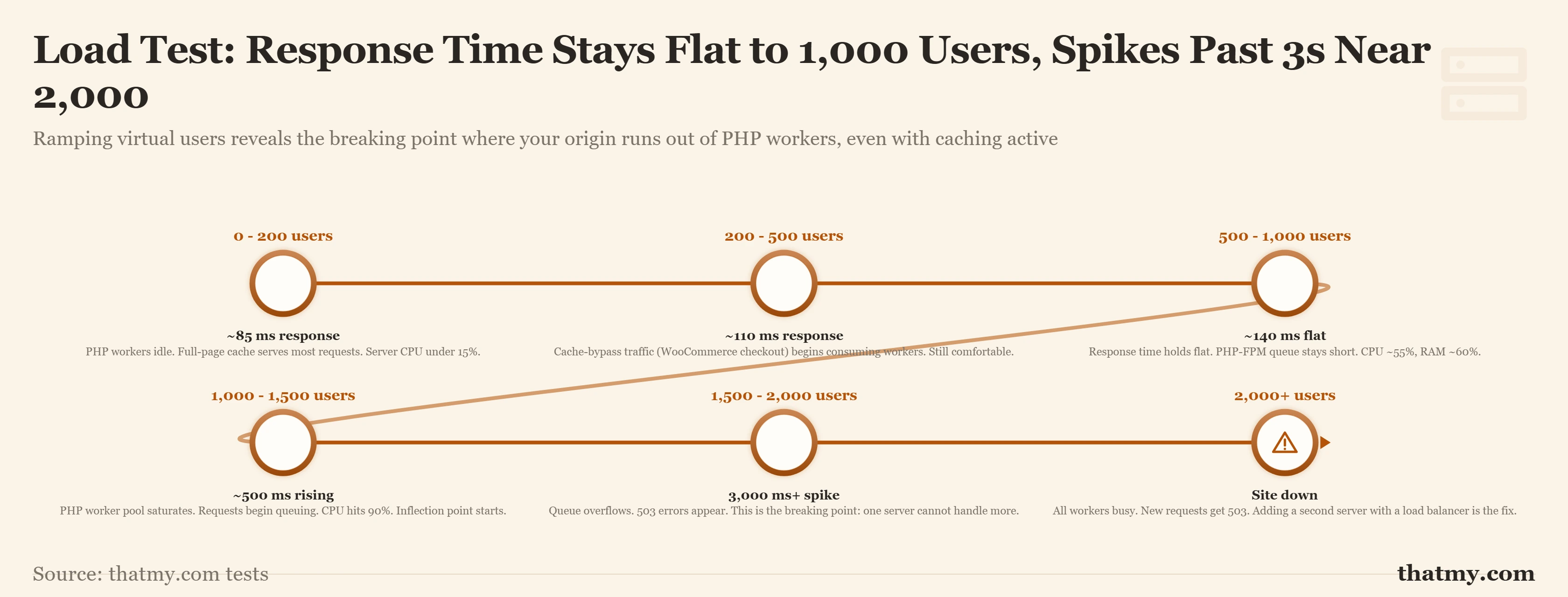
Loader.io (free tier: up to 10,000 concurrent clients) is the simplest tool for load testing a URL. The test ramps virtual users over a time period while measuring response time and error rate. The goal is to find where response time starts climbing sharply, that is the current capacity ceiling.
Healthy load test result:
  Response time at 100 users:   180ms average
  Response time at 500 users:   210ms average
  Response time at 1000 users:  240ms average
  Error rate:                   0%
  Interpretation: Linear scaling, adequate headroom

Load balancer failing result:
  Response time at 100 users:   180ms average
  Response time at 500 users:   350ms average   (starting to climb)
  Response time at 800 users:   1,200ms average (exponential, workers saturating)
  Response time at 1000 users:  timeout errors
  Error rate:                   18%
  Interpretation: PHP worker pool exhaustion starting at ~500 users

Rule of thumb: response time should not more than double from your baseline
as traffic scales. If 100-user response time is 200ms and 1000-user time
is 2000ms, you have a scaling problem (caching or server capacity).
Run the same load test before and after adding a second server to quantify the improvement. If two servers produce 1.8x the capacity of one server (not 2x), that is expected, the shared database and load balancer both add overhead. If two servers produce only 1.1x the capacity, you have a shared bottleneck (usually the database) that will not improve with more servers.
Test 3: Failover Test
During a low-traffic window, stop one application server (stop Nginx or shut down the server) and verify the site continues to function. Time how long it takes from server failure to complete traffic rerouting. Check that no requests returned 502 or 503 errors during the failover window.
// save as failover-test.js
import http from 'k6/http';
import { check } from 'k6';

export let options = {
  vus: 10,           // 10 virtual users
  duration: '5m',    // Run for 5 minutes
};

export default function() {
  let res = http.get('https://yourdomain.com/');

  check(res, {
    'status is 200': (r) => r.status === 200,
    'response time under 2s': (r) => r.timings.duration < 2000,
  });
}

// Run:
// k6 run failover-test.js
//
// While this runs (after about 1 minute):
// sudo systemctl stop nginx   (on Server A)
//
// Expected: brief spike in response time during health check failover period,
// then return to normal. Zero 502/503 errors if health checks were configured
// with short enough interval.
Test 4: The Full Failover Drill
Test 3 checks one server dropping out of a pool. The full drill checks every failover layer you have set up: DNS or proxy failover to a standby, the pool, and the database. Run it on a schedule, quarterly for the first two and after every change to the database setup, in a quiet hour and with a fresh backup confirmed.
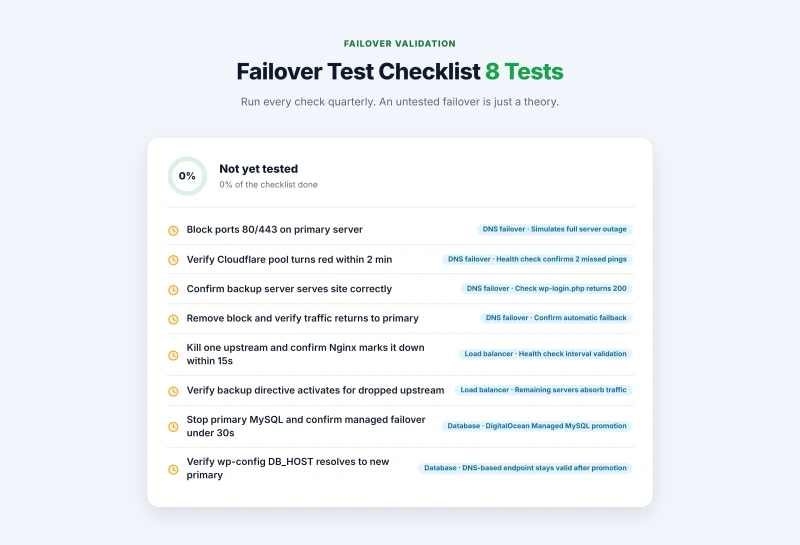
Before: standby files synced in the last 4 hours, both servers on the same
        database, primary pool green in the Cloudflare dashboard

1. On the primary, drop web traffic (a dead server, as Cloudflare sees it):
   iptables -I INPUT -p tcp --dport 80 -j DROP
   iptables -I INPUT -p tcp --dport 443 -j DROP

2. Watch the primary pool turn red (about 2 minutes at a 60-second interval)

3. From mobile data, not your office network:
   curl -sI https://yourdomain.com/ | grep -i x-served-by
   then load the homepage, a post, add to cart, open checkout

4. Remove the block:
   iptables -D INPUT -p tcp --dport 80 -j DROP
   iptables -D INPUT -p tcp --dport 443 -j DROP

5. Watch the pool turn green and traffic return to the primary

Write down: minutes from block to standby serving, minutes back,
every error you saw on the standbyBefore: publish a test post, note Seconds_Behind_Source on the replica
Managed database: use the provider's manual failover action if it has one
(on AWS RDS: Reboot with failover) and time it from the click
Self-managed: stop MySQL on the primary, run the promotion commands on
the replica, point DB_HOST at it, and time it
After: pages load, a test order goes through, and the test post exists
(proof that replication was current when the primary stopped)A failed drill is the good outcome: it finds the gap before an outage does. The usual failures and their fixes:
| What Went Wrong | Usual Cause and Fix |
|---|---|
| The health check never fails while the primary is blocked | The check hits a cached page or a path the CDN answers. Point it at a PHP path that is never cached. |
| The health check fails on a healthy server | A security plugin renamed or blocked /wp-login.php, or the firewall drops Cloudflare's IP ranges. Allow the ranges, or check a health file of your own. |
| The standby returns a 500 or a blank page | Wrong DB_HOST on the standby, or the file sync has not run. Check wp-config.php and the cron log. |
| Carts empty after failover | Sessions lived on the dead server. Move WooCommerce sessions to shared Redis; affinity alone still loses in-flight carts. |
| The test post is missing after a database failover | Replication had stopped or was far behind. Alert on Seconds_Behind_Source and on Replica_SQL_Running. |
The drill gives you a real number to hold against your target. If DNS failover takes 12 minutes and the site can only be down for 5, you need proxied failover or a hot standby, or a different target. Recovery targets (RTO and RPO) explains how to set one.
Common Load Balancing Mistakes That Kill Performance
These are the specific configuration errors I see repeatedly when reviewing multi-server WordPress setups. Each one silently degrades performance or availability in ways that are not obvious until something fails.
Mistake 1: Health Check Targets a Static File or the Server Root
A health check against / with a cached homepage returns 200 even if PHP-FPM has crashed, because Nginx serves the cached static HTML from disk. The load balancer thinks the server is healthy and keeps routing PHP requests to it. Those PHP requests all fail. Target /wp-login.php or a custom PHP health check endpoint that exercises the full PHP stack.
Mistake 2: Forgetting the X-Forwarded-For Header
Without proxy_set_header X-Real-IP $remote_addr, every request logged on your application server shows the load balancer's private IP as the visitor IP. Your analytics are wrong. IP-based rate limiting in your security plugins blocks the load balancer rather than actual abusive IPs. IP-based geolocation returns the load balancer's data center location for every visitor. The fix is one line in the Nginx upstream config, but it is easy to forget.
Mistake 3: Session Affinity as a Permanent Solution
Enabling session affinity (IP hash, sticky cookies) to "solve" the WooCommerce session problem and then leaving it permanently creates uneven distribution. It also defeats failover: if the server a shopper is pinned to goes down, their session is lost anyway (because session data is only on the downed server). Session affinity is a bridge while you configure shared Redis sessions. Once Redis is in place, turn off session affinity and use least connections.
Mistake 4: Application Servers Not Identical
If Server A runs PHP 8.1 and Server B runs PHP 8.2, or Server A has a plugin installed that Server B does not, or the wp-config.php files have different values, you will see intermittent errors that are extremely difficult to diagnose. They appear random because they only occur on requests that route to the misconfigured server. Treat your application servers as interchangeable infrastructure: same OS, same software versions, same WordPress installation, same wp-config.php.
Mistake 5: Load Balancer Terminates SSL but Application Server Generates HTTP Redirect Loops
When the load balancer terminates SSL and forwards HTTP to the application server, WordPress may detect that the request arrived over HTTP (because the connection from load balancer to application server is HTTP, not HTTPS) and redirect to HTTPS indefinitely. Fix this by adding the following to wp-config.php on both application servers:
// Add before the "That's all, stop editing!" line in wp-config.php

// Trust the X-Forwarded-Proto header from the load balancer
// This tells WordPress the visitor connection is actually HTTPS
if ( isset( $_SERVER['HTTP_X_FORWARDED_PROTO'] )
     && $_SERVER['HTTP_X_FORWARDED_PROTO'] === 'https' ) {
    $_SERVER['HTTPS'] = 'on';
}

// If using Cloudflare, also set the correct remote address
if ( isset( $_SERVER['HTTP_CF_CONNECTING_IP'] ) ) {
    $_SERVER['REMOTE_ADDR'] = $_SERVER['HTTP_CF_CONNECTING_IP'];
}
Load Balancing Myths Debunked
Myth: A load balancer makes my site faster.
False. It makes your site more available.
A load balancer does not reduce page generation time. It distributes the load of generating pages across multiple servers. If your single server generates a page in 400ms, your two load-balanced servers each generate pages in 400ms. The difference: your single server handles 50 concurrent PHP requests before queuing begins, and your two servers handle 100 combined. Response time under normal load is identical. Response time under peak load is where load balancing prevents the collapse.
Myth: Two servers means twice the capacity.
Approximately true for PHP requests; false for the shared database bottleneck.
Two application servers double your PHP worker pool. Requests that hit PHP-FPM get distributed across 2x the available workers. But both servers connect to the same database. If the database was not the bottleneck before, two app servers get close to 2x capacity. If the database was the bottleneck, adding a second app server gets you almost nothing, both servers are waiting on the same database. Measure which component is saturating before adding servers.
Myth: Load balancing is only for large enterprises.
False. Cloudflare's load balancer costs $5 per month.
The infrastructure cost barrier essentially does not exist. A two-server load-balanced WordPress setup costs $6+$6 (two entry-level VPS) plus $5 (Cloudflare load balancer) = $17/month. That is accessible for any serious WordPress project. The actual barrier is operational complexity: you need to solve the shared state problems, keep two servers in sync, and monitor two servers instead of one. These are solvable problems, but they require more operational attention than a single server. Cost is not the reason to avoid load balancing. Complexity is.
Myth: You need load balancing to handle a million page views per month.
Not necessarily. Page views per month is the wrong metric.
A million page views per month spread evenly over 30 days is 23 page views per minute. A single server with WP Rocket caching handles 23 page views per minute trivially. What matters is your peak concurrent users, not your monthly total. A site with 100,000 monthly page views that generates 80% of its traffic in one 2-hour flash sale window may genuinely need load balancing during that window. A site with 2 million monthly page views of steady organic blog traffic may never need it. Calculate your peak concurrent user estimate, not your monthly total, when evaluating whether load balancing is necessary.
Myth: Managed WordPress hosting means I do not need to think about this.
Mostly true, with important caveats.
Managed WordPress platforms like Kinsta, WP Engine, and Cloudways handle server infrastructure, including load distribution at the platform level. You do not configure Nginx upstreams or Cloudflare load balancer origin pools. The tradeoff: you are limited to the scaling options the platform exposes (their plan tiers), and you pay a premium for that managed abstraction. For sites that stay within a managed platform's capacity ceiling, the managed approach is strictly better than self-managing. For sites that need custom multi-region setups or database configurations that platforms do not support, self-managed infrastructure may be necessary.
Where to Go Next
Load balancing is part of a larger set of decisions about how your server infrastructure handles traffic. The server hardware guide covers CPU worker configuration, PHP-FPM pool sizing, and how to read server resource utilization before you reach the point of needing multiple servers. The CDN section of the caching guide covers the layer that reduces load before requests even reach your origin, which should always be configured before adding servers. For the database bottleneck specifically, the caching layers guide covers Redis object cache configuration that reduces database load on a single server and remains even more important when the database serves multiple application servers. If you are choosing a VPS hosting provider for your application servers, the VPS comparison covers the performance and network quality differences that matter when you are building multi-server infrastructure rather than running a single site.
Load Balancing FAQ
What is a load balancer in plain English?
A load balancer is a server that sits between your visitors and your origin servers. It receives every incoming request and decides which server should handle it, based on rules you configure. The visitor never knows a load balancer exists. From their perspective, they requested a page from your domain and got a response. Behind the scenes, their request hit the load balancer, the load balancer forwarded it to one of your application servers, the application server sent the response back through the load balancer to the visitor. The benefit: if one application server crashes or becomes overloaded, the load balancer stops sending traffic to it and routes everything to the healthy servers instead.
Do I need a load balancer or just better hosting?
Most sites that crash under traffic spikes need better hosting or caching before they need a load balancer. The honest sequence is: 1) Add a CDN to absorb static asset requests. 2) Add a full-page cache (WP Rocket, LiteSpeed Cache) so WordPress serves cached HTML instead of PHP on every request. 3) Upgrade your hosting plan to a tier with more CPU and RAM. 4) If steps 1-3 are in place and you still crash under expected peak load, add a load balancer. Jumping straight to load balancing without caching in place means you are load balancing uncached PHP requests across multiple servers, each server is still slow, you just have more of them. Fix the caching problem first.
What is the cheapest way to add load balancing to WordPress?
Cloudflare's load balancer costs $5 per month for one origin pool with up to two servers. This is the cheapest production-quality load balancing option available. You need at least two VPS servers (your origin servers) plus the Cloudflare load balancer subscription. Two entry-level VPS servers at a provider like Vultr or DigitalOcean ($6/month each) plus Cloudflare load balancer ($5/month) puts you at $17/month for a functional active-active load balanced setup. This is significantly cheaper than managed WordPress platforms that include load balancing, but it requires you to manage the servers yourself.
How does WordPress session persistence work with a load balancer?
WordPress login sessions use cookies, not server-side PHP sessions, so they work across servers without any special configuration as long as both servers use the same WordPress authentication keys (defined in wp-config.php). WooCommerce cart sessions are trickier: they use a PHP session or a database-stored session. If you use IP hash load balancing, the same visitor always reaches the same server and the session issue disappears. If you use round robin or least connections, cart sessions must be stored in a shared location, either the shared database or a shared Redis instance. Redis is the correct solution: install Redis on a separate server, configure WooCommerce to use it for sessions, and every application server reads and writes cart state from the same Redis store.
What happens when one of my servers goes down under a load balancer?
The load balancer's health check detects the failure and removes the downed server from rotation. For Cloudflare, health checks run every 60 seconds by default. If a server fails two consecutive checks, it is marked unhealthy and all traffic routes to surviving servers. The failover is automatic. The important implication: your surviving servers must be able to handle the full traffic load alone, not just half of it. If you have two servers each handling 50% of traffic and one fails, the surviving server must absorb 100%, if it cannot, you have just moved the crash to the other server. Size your servers for full-capacity operation, not split-capacity operation.
Can I use load balancing with shared hosting?
No. Shared hosting does not give you control over server IP addresses, network routing, or application server configuration. Load balancing requires at least two servers where you control the web server configuration, which means VPS or dedicated servers. Managed WordPress platforms (Cloudways, Kinsta, WP Engine) include load balancing at the infrastructure level, you do not configure it yourself, but you benefit from it. If you are on shared hosting and experiencing traffic spike crashes, the correct path is to move to a managed WordPress platform or a VPS, not to try to add load balancing to shared hosting.
What is the difference between load balancing and autoscaling?
Load balancing distributes traffic across a fixed set of servers. Autoscaling changes how many servers are in that set based on current demand. When used together: your autoscaling group adds a new server when CPU exceeds 70%, registers it with the load balancer, and traffic is immediately distributed to the new server. When load drops, the autoscaling group terminates the extra server and the load balancer stops routing to it. Autoscaling requires a cloud provider with API-driven server provisioning (AWS, GCP, DigitalOcean) and server images that can boot into a ready WordPress application server state without manual configuration. It is powerful but complex. For most WordPress sites, a fixed two-server load balanced setup is sufficient and far simpler to operate.
Does Cloudways include load balancing?
Cloudways is a managed cloud hosting platform built on top of cloud providers including DigitalOcean, AWS, and GCP. Their infrastructure handles load distribution at the platform level. For single-application setups, Cloudways manages the server stack and provides vertical scaling. For explicitly load-balanced multi-server WordPress setups, you would configure Cloudflare Load Balancing on top of multiple Cloudways-hosted application servers. The platform does not expose a built-in load balancer toggle, but the underlying cloud infrastructure (especially on AWS and GCP) supports load balanced deployments through those providers' native tools.
What is a health check and why does it matter?
A load balancer health check is an automated test the load balancer runs against each server at regular intervals. The simplest form: an HTTP GET request to your homepage every 60 seconds. If the server returns a 200 OK response, it is healthy. If it returns an error or times out, the health check fails. After a configured number of consecutive failures (typically two), the server is removed from the load balancing rotation. Health checks are the automatic failover mechanism. Without them, a load balancer would continue sending traffic to a crashed server indefinitely. The critical configuration detail: health checks should hit a page that exercises your full application stack, not just the server root. If your health check hits a static file, it will return healthy even when WordPress itself is down.
How do I sync media uploads across multiple WordPress servers?
There are two approaches. The first is object storage: install a plugin like WP Offload Media, configure it to upload all media to an S3-compatible object store (Cloudflare R2 is free egress, AWS S3 is standard, Backblaze B2 is cheapest), and serve media from that external URL. Every WordPress server reads from the same object store URL. This is the clean, recommended solution. The second is NFS mount: configure a network file system share on a dedicated file server and mount the wp-content/uploads directory on each application server via NFS. Every server reads and writes to the same mounted directory. NFS works but adds a point of failure (the file server) and can become a bottleneck under heavy media upload activity.
What is the difference between active-active and active-passive?
In active-active, every server takes live traffic and a load balancer spreads requests across them; when one fails, the others absorb its share. In active-passive, one primary takes all traffic and a standby waits, often running a database replica, until a health check moves traffic to it. Active-active uses every server but needs shared database, media and sessions. Active-passive is simpler and fits most WordPress sites that need protection from a server failure rather than more capacity.
Does my host's redundant infrastructure mean my site has failover?
No. Redundant power, several network carriers and RAID keep the data center running through a grid failure or a dead disk. They do not move your site anywhere when the physical server under your VPS fails, and they do nothing about a broken plugin update, a full disk or a hacked site. An uptime SLA covers the host's network and hardware, not your application. Server, database and application failover are yours to set up, or a managed platform's to provide.
How long does DNS failover take?
Detection takes about two minutes with a 60-second health check and two failed checks. After that it depends on the mode. With Cloudflare Load Balancing in proxied mode, Cloudflare switches pools at its own edge, so visitors move as soon as the primary is marked unhealthy. With DNS-only failover, resolvers keep the old IP until the record's TTL expires, so a 300-second TTL adds up to five more minutes. Keep the TTL short on any record that a failover service changes.